Events let you create, run, and sell live sessions directly inside your GroupApp community. You can host coaching calls, trainings, workshops, office hours, or meetups, and manage everything through the Events Manager.
You can create one-time or recurring events, free or paid, and show them on the Events tab or inside specific channels so members can see what’s coming up and register in a few clicks.
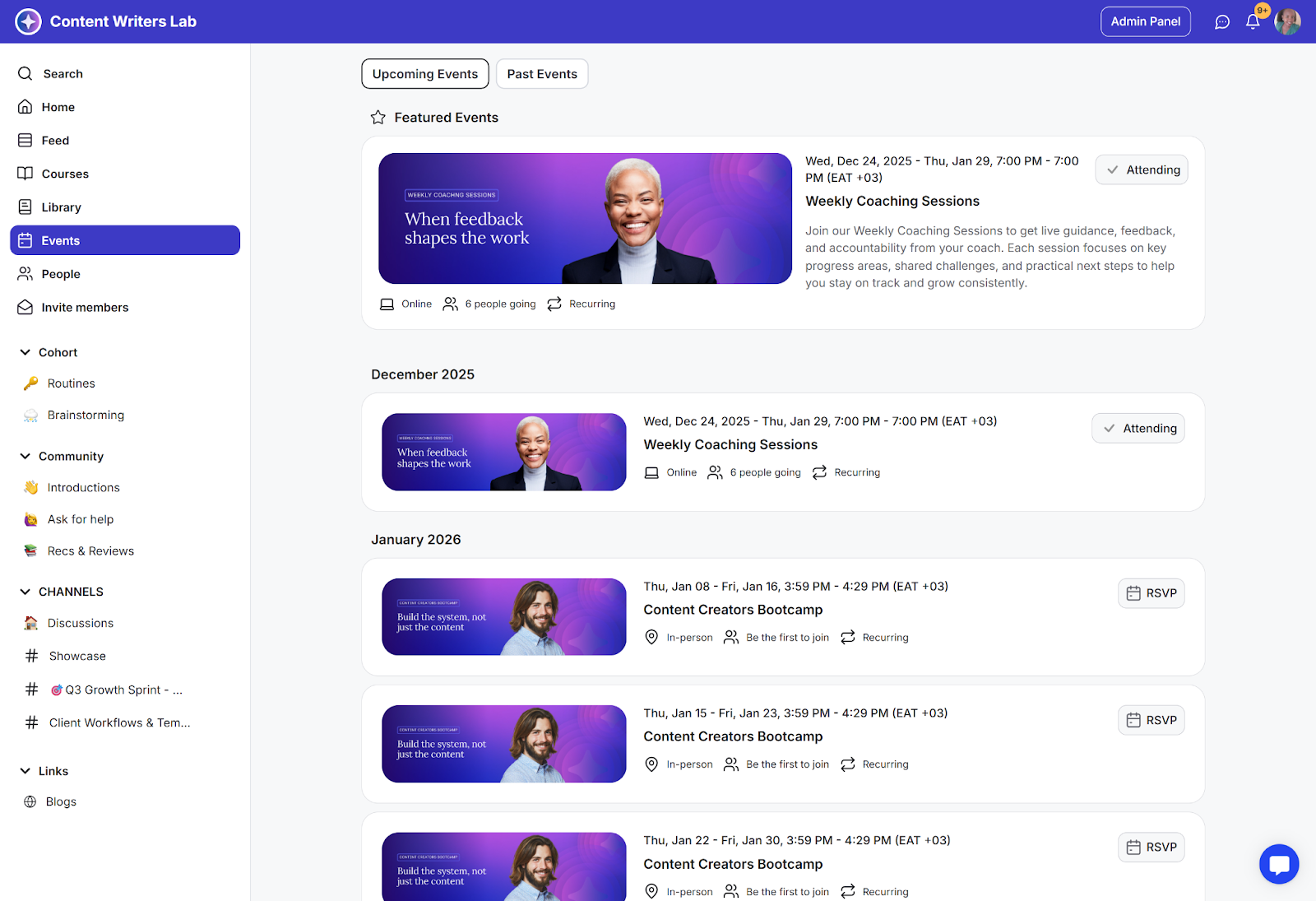
Events turn your community from “content only” into a live, interactive space. They help you:
Give members a regular reason to show up and engage.
Build trust and connection through live coaching, conversation, and Q&A.
Sell workshops, trainings, and programs without leaving the platform.
Support cohorts, launches, and sprints with clear schedules.
Make your calendar visible so members always know what’s next.
What it is:
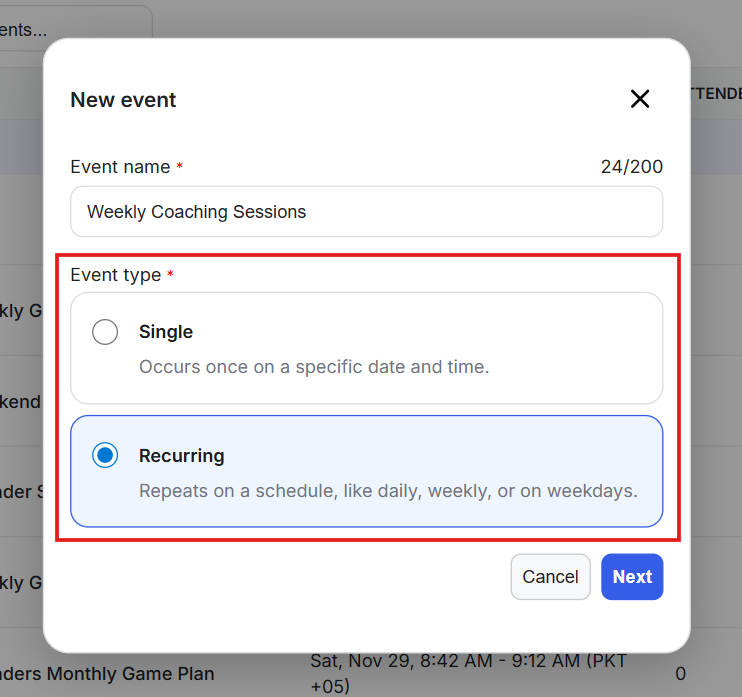
You can create two event types in GroupApp:
Single events that happen once at a specific date and time.
Recurring events that repeat on a schedule, such as daily, weekdays, or a chosen weekly pattern.
What it’s useful for:
Single events are ideal for one-off workshops, webinars, or special sessions. Recurring events are best for ongoing programs like weekly office hours, regular coaching calls, or multi-week programs where members follow a steady cadence.
Real-world examples:
A one-time paid workshop on a specific topic.
Weekly group coaching every Tuesday at the same time.
A 4-week cohort series with recurring calls built into one event.
Daily “standup” or check-in sessions during a challenge.

What it is: Shows your community event calendar and lets members view, register, and add events to their own calendars.
What it’s useful for: Gives everyone one place to see what’s happening and when. Members can RSVP, then add events to Google Calendar, Apple Calendar, or their personal calendar so they don’t forget.
Real-world examples:
Members browse all upcoming sessions at the start of the week.
New members quickly see there are interactive events, not just static content.

What it is: Controls that let you run events as free or paid, so you can host open sessions, member-only sessions, or sell individual tickets.
What it’s useful for: Gives you flexibility to treat events as part of a membership benefit or as standalone offers. You can run free community calls, paid workshops, or a mix of both.
Real-world examples:
Free orientation call for all new members.
Paid deep-dive workshop open to non-members.
Member-only events included in a premium plan.
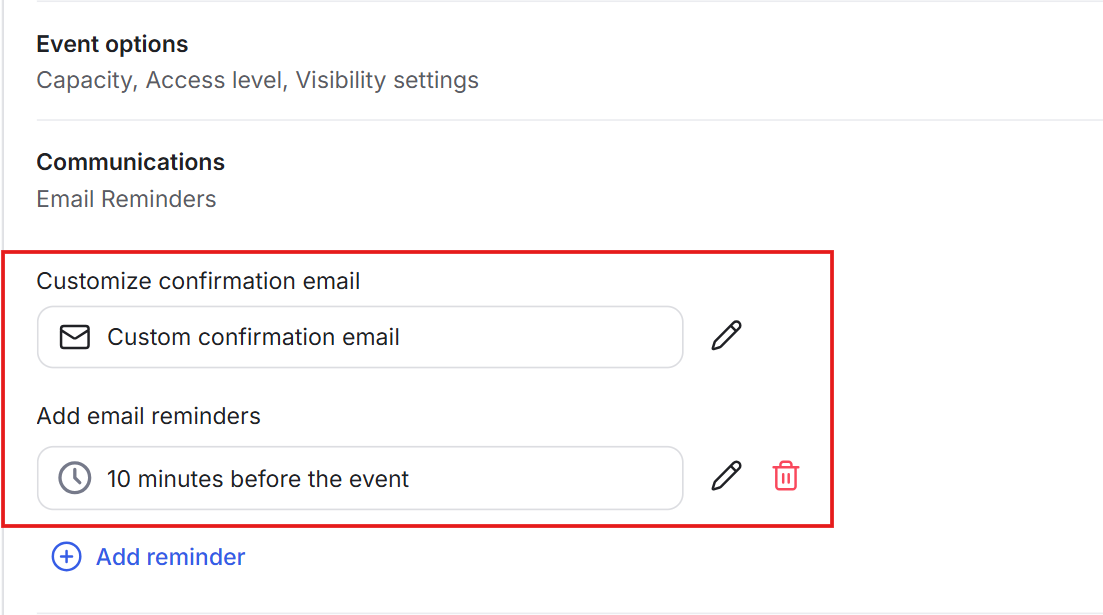
What it is: Offers customizable email confirmation and reminders for attendees.
RSVP confirmation emails after members register.
Reminder emails sent a set time before the event (minutes, hours, or days).
What it’s useful for: Keeps attendance high and no-shows low. Once someone RSVPs, they get clear confirmation and a reminder without you sending manual messages.
Real-world examples:
A member registers and instantly gets details in their inbox.
A reminder goes out one day before a workshop and again one hour before it starts.
Cohort calls stay top-of-mind without extra admin work.
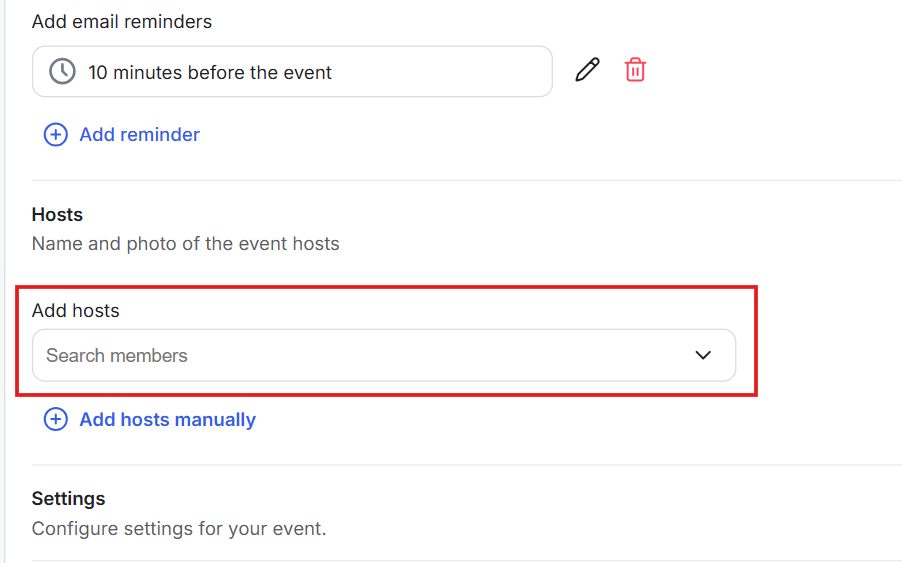
What it is: You can search and add hosts for each event, and their names and pictures show on the event page.
What it’s useful for: Gives events a clear owner, builds trust, and lets members know who will be leading the session.
Real-world examples:
A lead coach is listed as the primary host for weekly calls.
Guest experts appear as hosts on special sessions.
Team members are assigned as hosts for office hours or Q&A.
What it is: Controls that determine who can see an event and who can register or attend. Access levels define who gets in, while visibility determines who can see the event listed in the community or calendar.
Access Levels include:
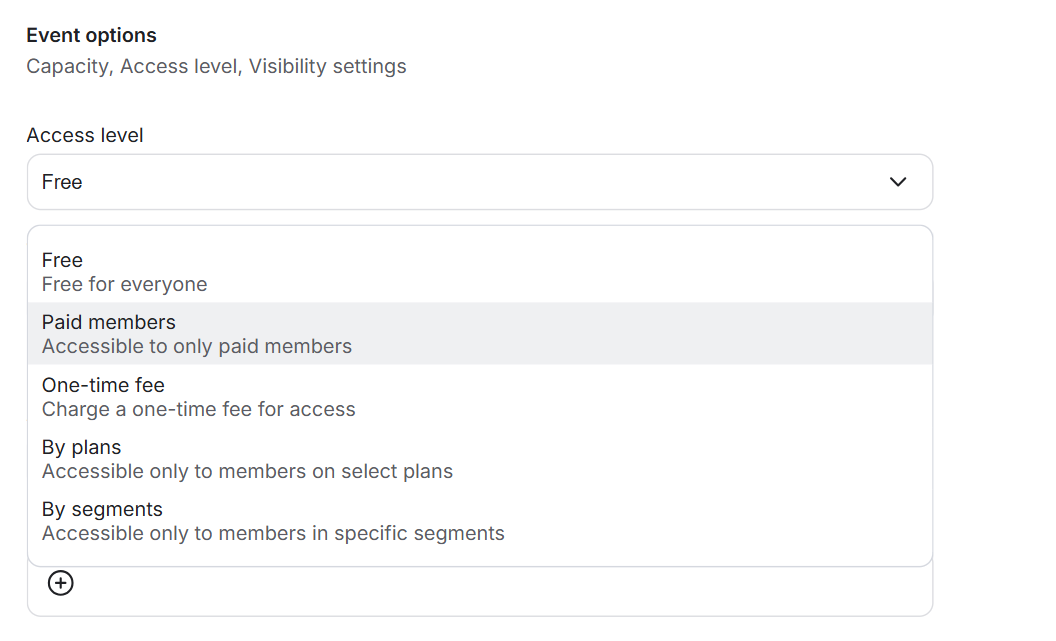
By Plans: Accessible only to members on selected membership plans.
By Segments: Visible and accessible only to members in chosen segments.
One-Time Fee: Members can unlock the event by paying a single fee.
Free: Open for anyone to attend at no cost.
Paid Members: Accessible only to members with a paid plan.
Visibility Options include:
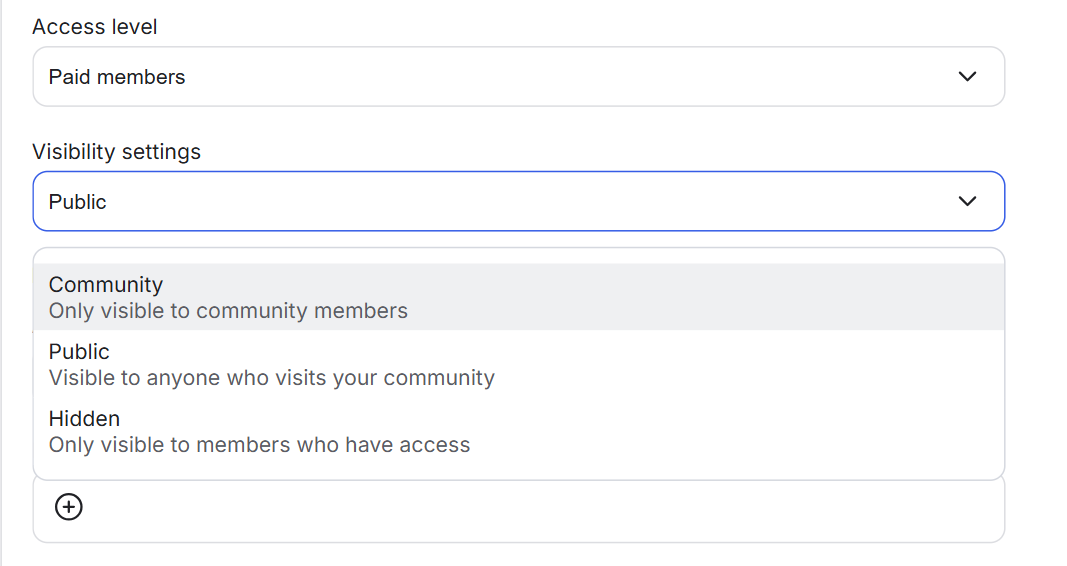
Public: Anyone can see the event page.
Community: Only logged-in community members can see it.
Hidden: Only members with direct access will see it.
What it’s useful for:
Gives you complete control over who can discover, register for, or attend each event. Perfect for keeping VIP calls exclusive, public webinars open, and internal team events invisible.
Real-world examples:
A premium coaching call is gated by plan and visible only to Pro members.
A public webinar is visible to everyone, but only logged-in members can RSVP.
A paid workshop uses the one-time fee access level, so anyone can purchase a ticket.
A hidden team sync shows only to admins and event hosts.
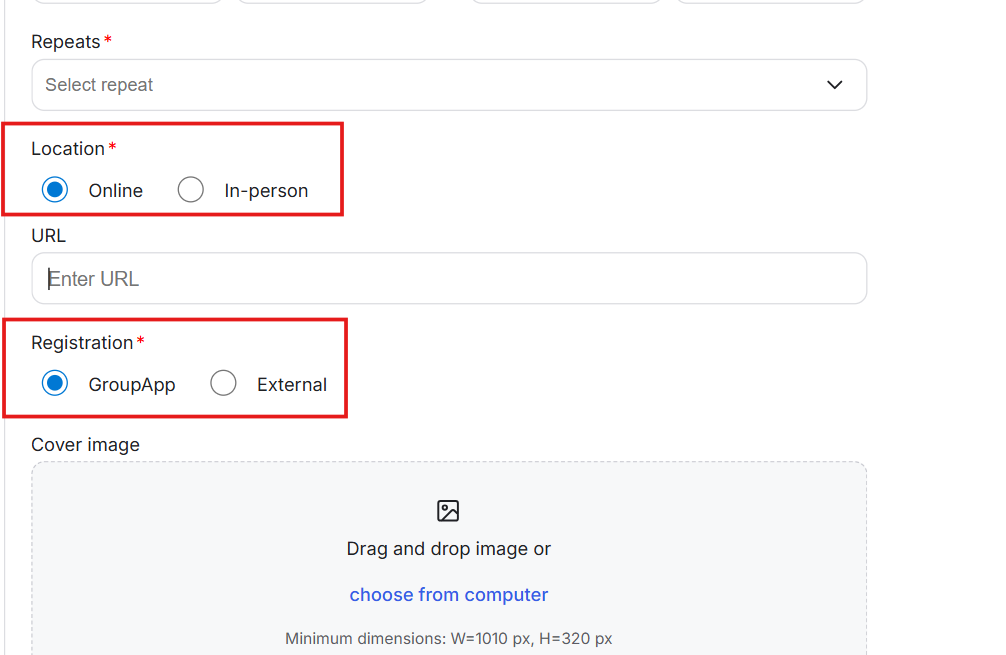
What it is: Options to set each event as online or in-person, and choose whether registration is handled by GroupApp or another platform.
What it’s useful for: Makes it clear where and how the event happens. You can host Zoom-style calls, in-person meetups, or hybrid setups while keeping your community as the central hub.
Real-world examples:
Online Zoom link stored in the event details for a virtual session.
An in-person meetup with venue and address listed.
External registration for a large conference, but the event still appears in your community calendar.

What it is: Events can appear not only in the main Events tab but also inside specific channels and and can also be linked to courses.
What it’s useful for: Keeps events close to the context where they matter. Cohorts see their calls in their cohort channel or course; topic-based events show up next to the related discussions or lessons.
Real-world examples:
A course has its live classes added as events directly in the course flow.
A private coaching channel shows upcoming sessions for that group only.
A challenge channel lists daily or weekly live events members can attend.
Add an event cover image and description that shows up on the event page.
Set the attendee capacity to limited or unlimited.
Manually RSVP members to your event through your Admin Panel.
Feature upcoming events on your community homepage.
After members RSVP to an event, they can add community event reminders to the following calendar apps: Google, Yahoo!, iCal, and Outlook.
Before you create your first event, decide three things:
Is this a one-time session or part of a recurring series?
Who is it for (everyone, a plan, a cohort, or a group of buyers)?
Is it free, included in a plan, or sold as a paid ticket?
Start with one or two simple events first (like a welcome call or weekly Q&A), then build recurring sessions and more complex setups once you see how members respond.
Weekly Office Hours: You run a recurring weekly call where members can bring questions. The event appears on the calendar and in a coaching channel, and reminders go out before each session.
Cohort Call Series: You set up recurring events for a 6-week program. Members register once and follow the schedule, with each call also visible inside the course or cohort channel.
Paid Workshop or Masterclass: You create a one-time paid event, promote it through a landing page, and let non-members register and pay. Afterward, you can share the replay in the Library as a digital product.
Launch Events and Challenges: You host a multi-day challenge with daily calls. Events are visible on the calendar and in the challenge channel, giving your launch a clear schedule and focal point.
Member-Only Q&A or VIP Calls: You gate specific events by plan so only premium members can register. Everyone else sees a lock screen pointing to your upgrade page.
Local Meetups or Hybrid Sessions: You create in-person events with a location and directions, but still manage visibility, access, and reminders through your community.
Program Kickoff and Graduation: You schedule a kickoff event and a closing session for each cohort. Both live on the calendar and in the program spaces, giving structure to the journey.
Keep event titles clear so members instantly know who it’s for and what they’ll get.
Use recurring events for anything that repeats; avoid cloning single events for the same series.
Always add reminders for key calls; attendance rises when timing is handled for members.
Link events to channels or courses so they live where the conversation happens.
Pair events with Membership plans by gating certain events for higher tiers to create a clear upgrade path.
Use lock screens on premium events as soft sales pages for relevant plans or programs.
Connect events to key courses so each cohort sees their calls inside the learning path.
Members say they can’t see an event. Why?
Check the event’s visibility and access settings. It may be restricted by plan, segment, or set to a limited audience.
RSVPs are low. What should I review?
Confirm the event is visible in the right places (Events tab and channels), that reminders are turned on, and that the title and description clearly state the value.
Can non-members register for events?
Yes, if your visibility and pricing are set up for public or external audiences. Use this for public workshops or lead-generation events.
What happens when a recurring event ends?
Once the final scheduled date passes, new sessions stop showing. You can create a new recurring series if you want to continue.
Next:
How to Create & Manage Recurring Events
Learn how to create and manage Recurring Events in GroupApp.
Related:
Create Upcoming Events Block On Landing Pages
Learn how to add an events block on landing pages in your community
Also see:
How to link events to a course
Learn how to link events to a course
