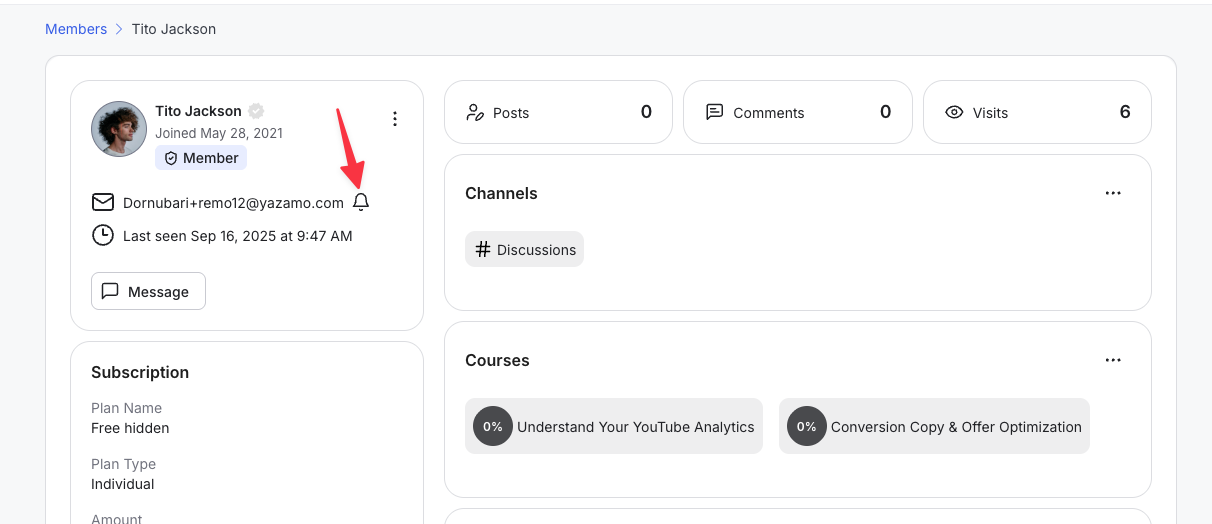
The bell icon beside a member's email address on the People page shows whether that member can currently receive emails from your community.
Bell icon (not crossed out): The email address is subscribed. The member receives community emails normally, including login and verification codes, notifications, digests, newsletters, and admin emails.
Bell icon crossed out: The email address is unsubscribed. GroupApp has stopped sending emails to that address, so the member will not receive any community emails until the address is re-subscribed.
An address is unsubscribed automatically when our email system receives a signal that it should stop sending to it. The most common reasons are:
The emails were marked as spam or blocked. If the recipient (or their email provider or company domain) marks community emails as spam, or the domain's mail server blocks them, our system treats this as a request to stop sending.
The emails bounced. A mistyped address, a mailbox that no longer exists, or a full inbox causes emails to bounce back.
The member unsubscribed. The member clicked the unsubscribe link at the bottom of a community email.
Note: This protects the sending reputation of the domain used to deliver your community emails. Continuing to send to addresses that block or bounce emails would affect delivery for every other member in your community.
An unsubscribed member keeps full access to the community, but stops receiving all community emails. This includes:
Login and verification code emails, including the code needed to sign in to the mobile app
Admin emails such as member data exports
Notifications, community digests, newsletters, and workflow or automated emails
A useful sign that this is what happened: emails from other companies still arrive normally, and the missing emails are not in the spam, junk, or promotions folders. Only community emails are missing.
Step 1: Go to the Admin Panel.
Step 2: Click People in the left-side menu.
Step 3: Find the member in the list, or search by name or email address.
Step 4: Look at the bell icon beside their email address. A crossed-out bell means the address is unsubscribed.
An unsubscribed address cannot be re-subscribed from the Admin Panel. Contact our support team through the chat widget in your community and include the email address that is not receiving emails. Our team will remove it from the unsubscribe list and confirm once it is done.
Before contacting support, ask the member to move any community email they can still find out of their spam folder and mark it as "Not spam", and to add your sending address to their contacts. This reduces the chance of the address being unsubscribed again.
Finish your white-label email setup. If you have added a white-label email address, complete the verification and add the DNS records to your domain. An incomplete setup means your domain has not authenticated GroupApp as a sender, which makes emails far more likely to be filtered as spam. See How to Set Up a White-Label Email? for the full steps.
Tell new members which address emails come from. Ask them to add it to their contacts or safe-sender list during onboarding.
Check with IT for work email addresses. Company mail servers often block external senders. Ask the member's IT team to allow your sending domain.
Keep member email addresses accurate. Mistyped addresses bounce, and repeated bounces get the address unsubscribed.