White-label email allows your community emails to be sent from your own branded email address instead of GroupApp.
Please note that white-label email only works with domain-based email addresses (for example, [email protected]). Free email providers such as Gmail, Outlook, Yahoo, and AOL are not supported.
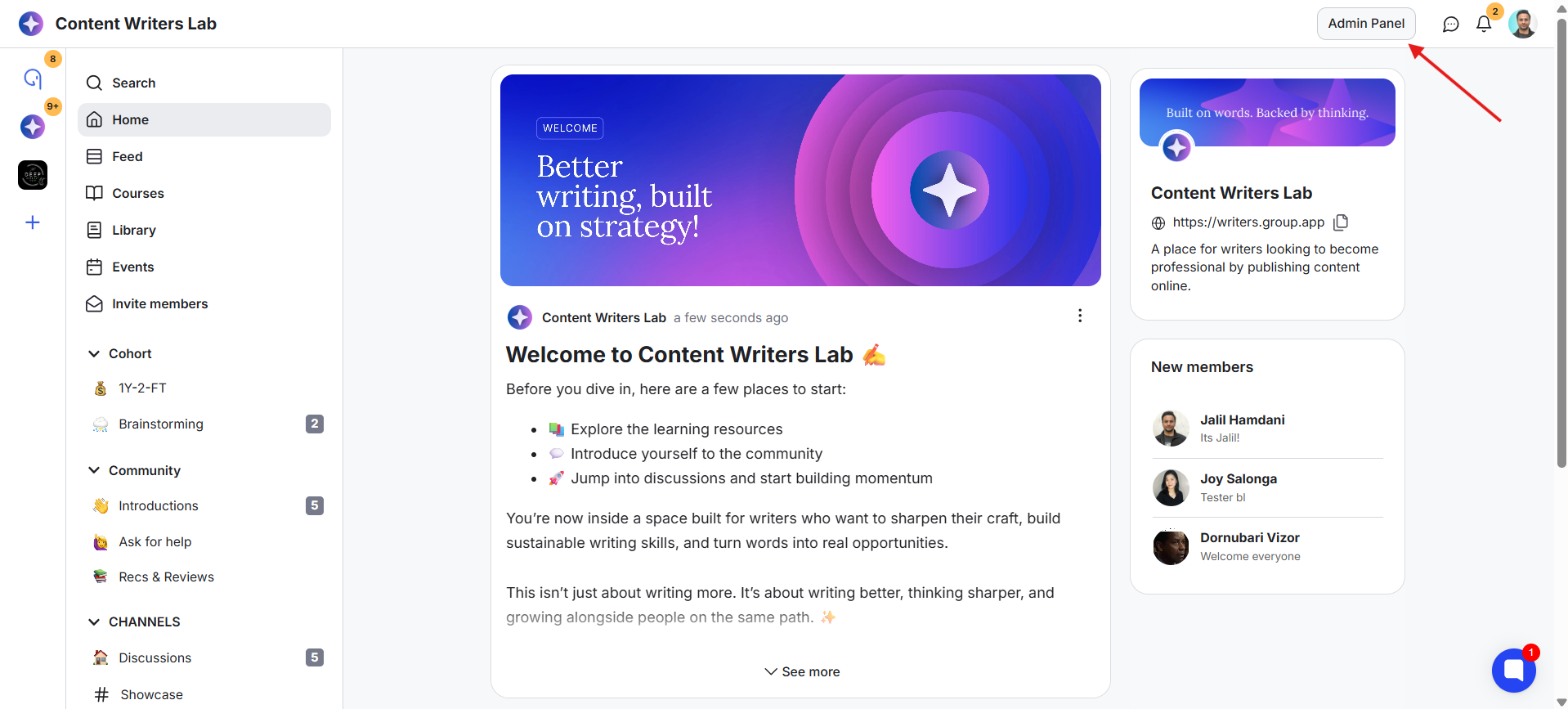
1) Go to the Admin Panel.
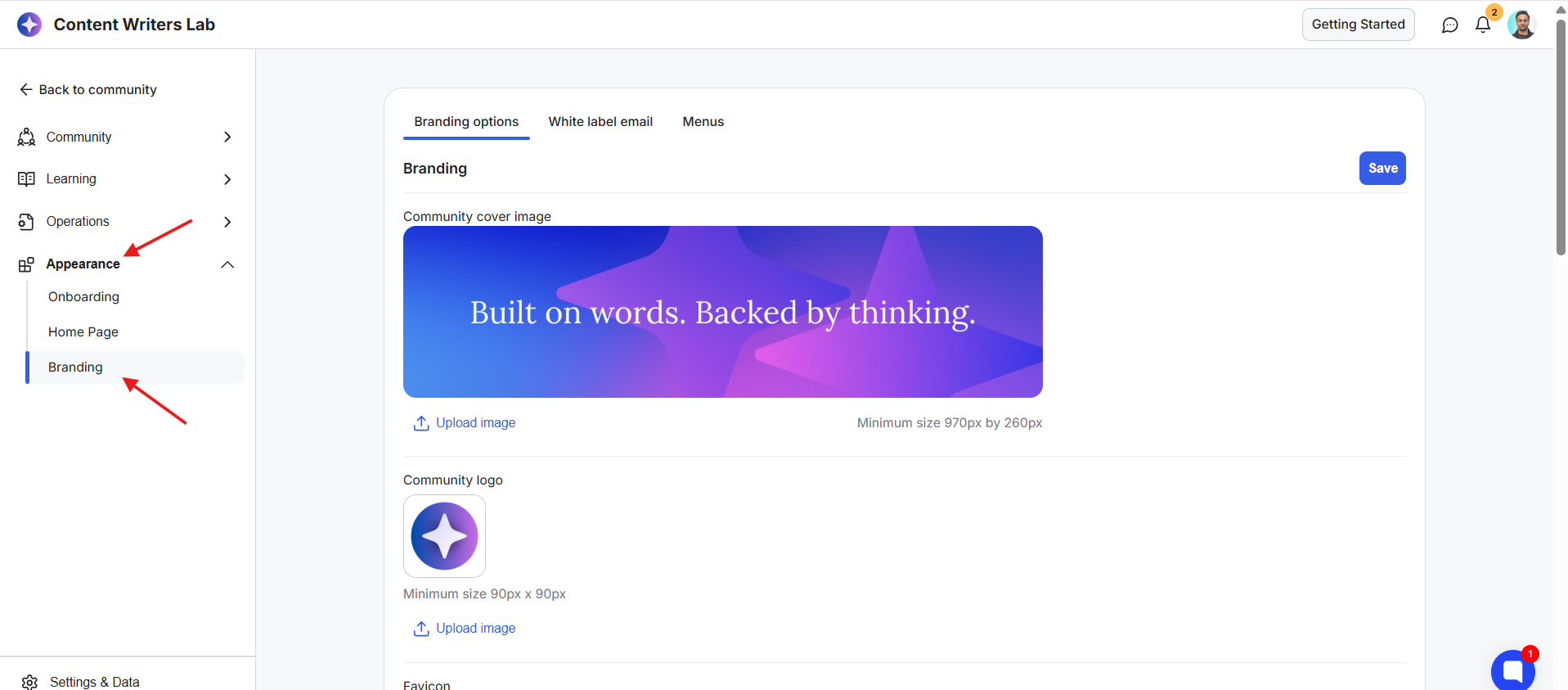
2) Click Appearance and select the Branding option.
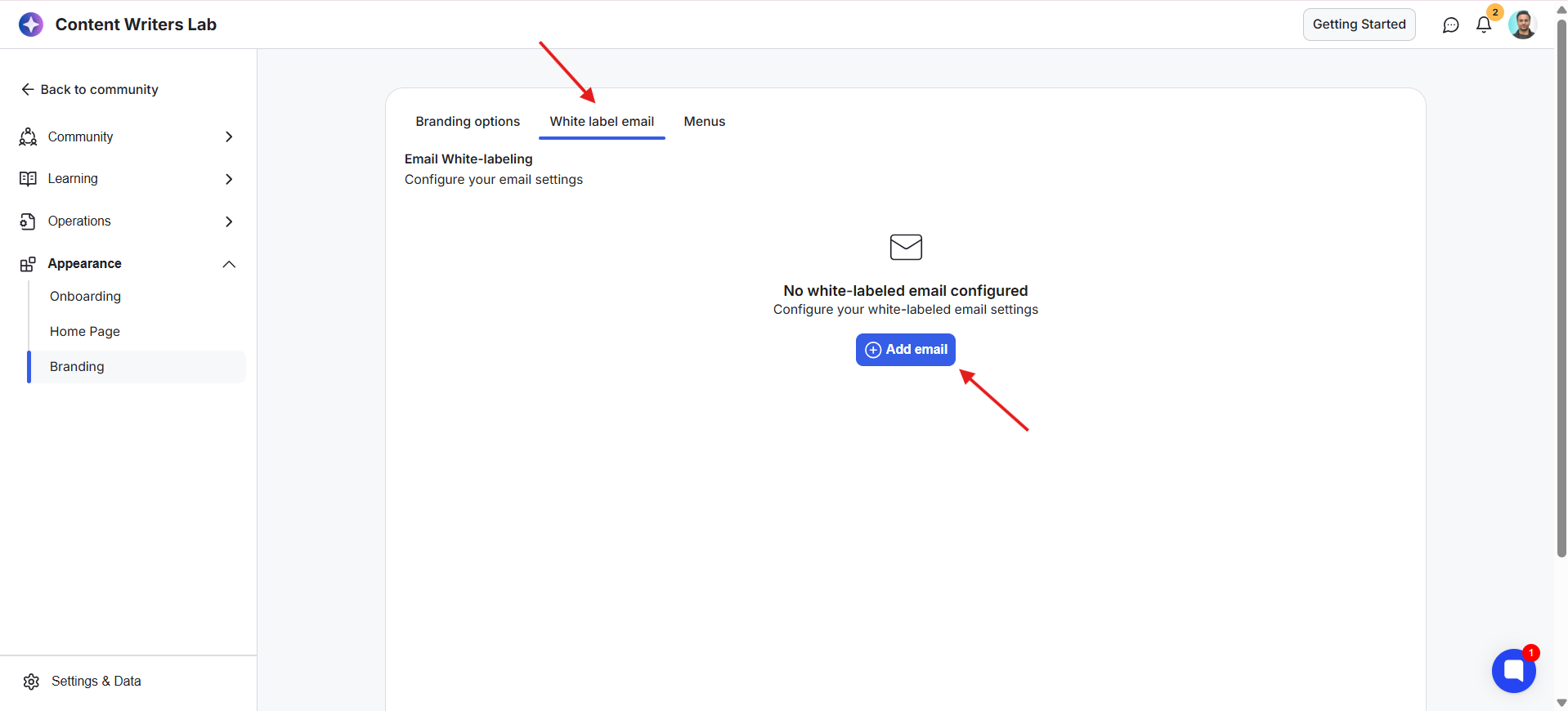
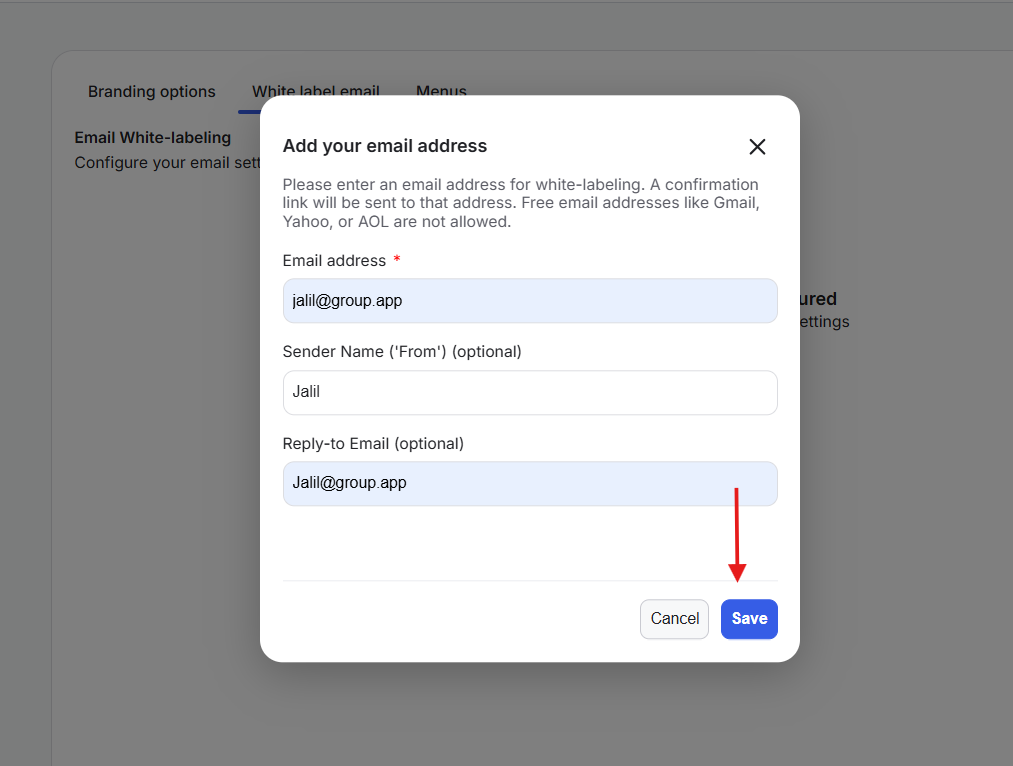
3) Open the White-Label Email tab and click on the + Add Email button.
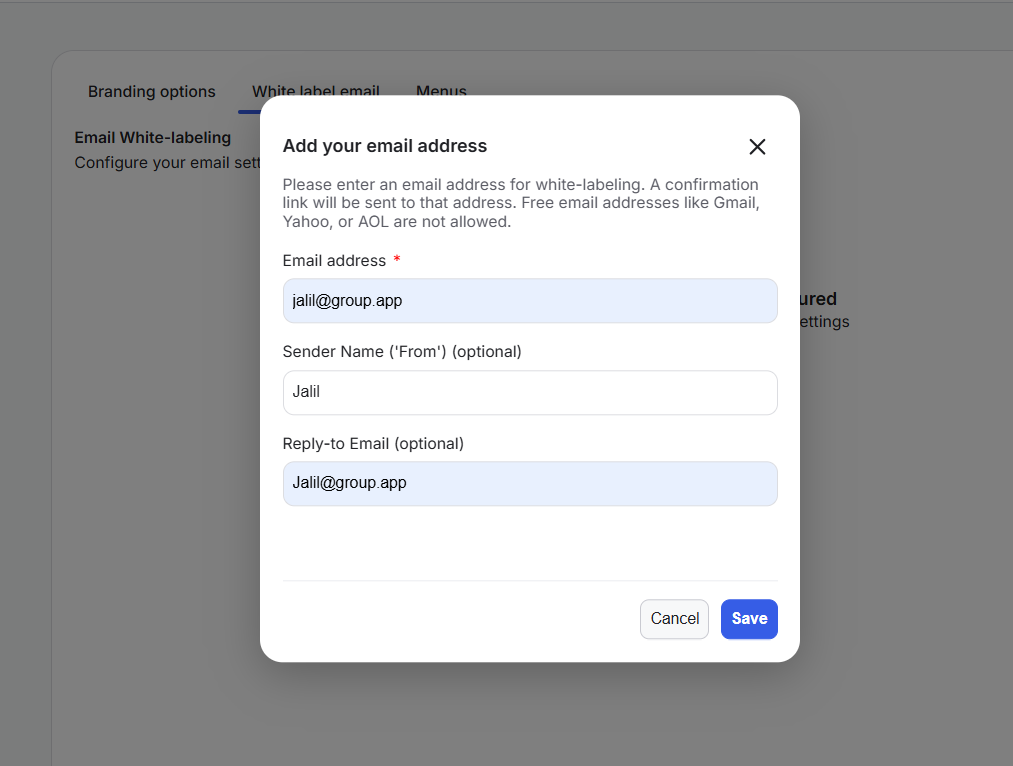
5) Enter the following details:
Email Address (Required): The email address that will be used to send community emails.
Sender Name (Optional): The name recipients will see as the sender.
Reply-To Email (Optional) : The email address that will receive replies from recipients.
6) Click on Save.
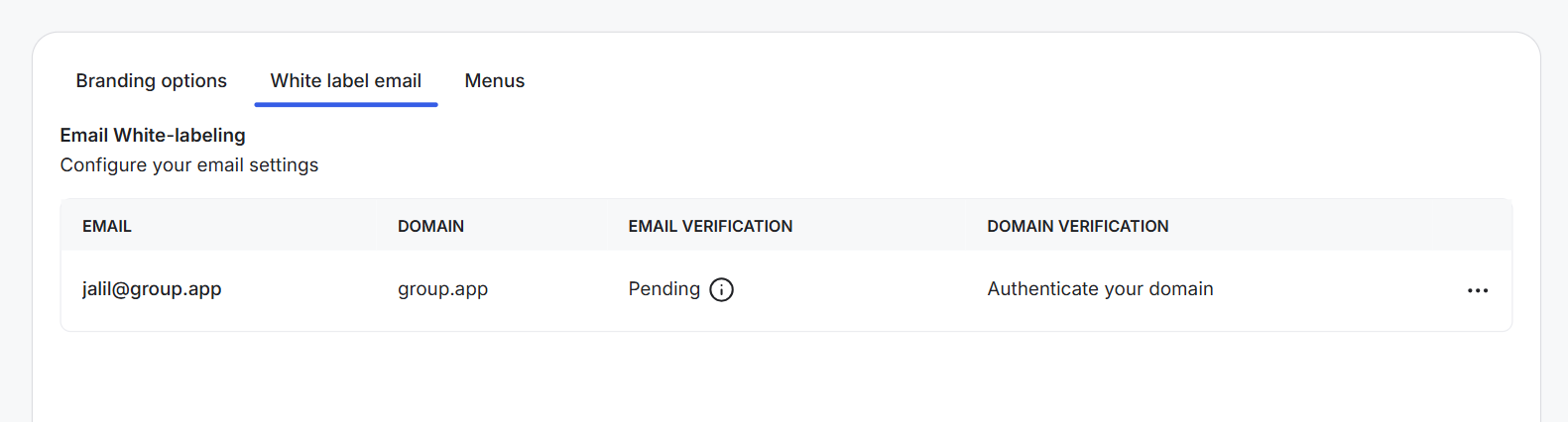
7) Once saved, the email will appear in the White-Label Email tab. You will also see:
The email address
The domain
Email verification status
Domain verification status
8) A verification email will be sent to the email address you added. Open the email and click the verification link.
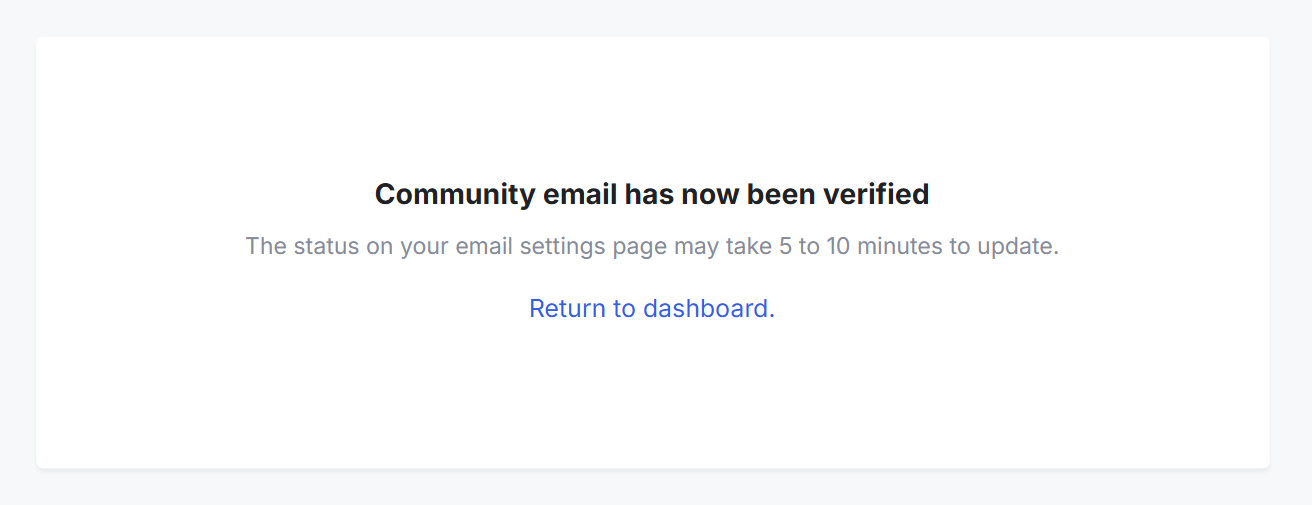
9) After verification, a confirmation message will appear stating that your community email has been verified.
Note: The email verification status can take 5–10 minutes to update in your community settings.
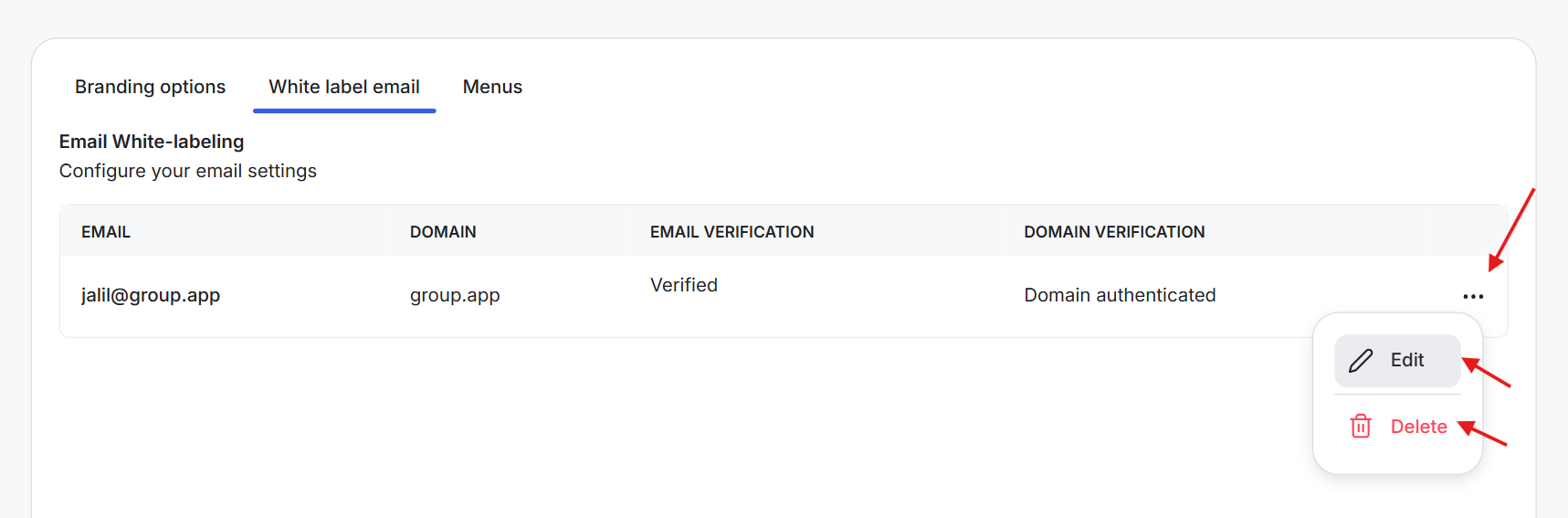
1) Open the White-Label Email tab.
2) Click the three-dot menu next to the email.
3) Select:
Edit to update the email settings.
Delete to remove the email.
4) Confirm the action if prompted.
Any changes made through the Edit option will be applied to the existing email configuration.