Workflows are GroupApp’s built-in automation system. They let you automate everyday community tasks like sending messages, tagging members, and managing access. You can create custom workflows from scratch or start with ready-to-use templates built for common actions.
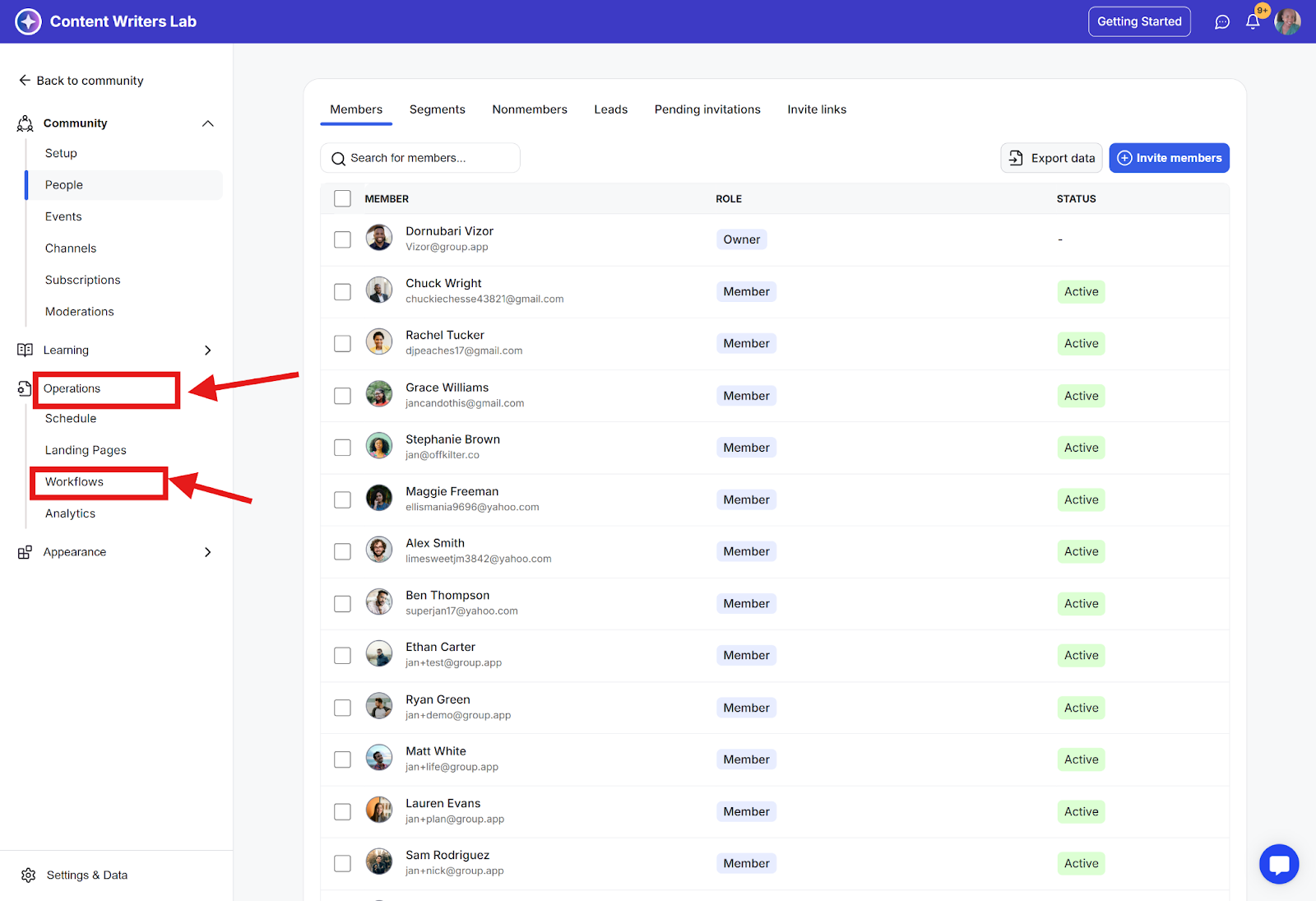
Automates repetitive tasks so your community runs smoothly without manual effort.
Keeps member communication consistent and on time.
Simplifies complex processes like tagging, onboarding, and follow-ups.
Connects your community activity with other tools for email or CRM updates.
Saves time while improving response, retention, and engagement.
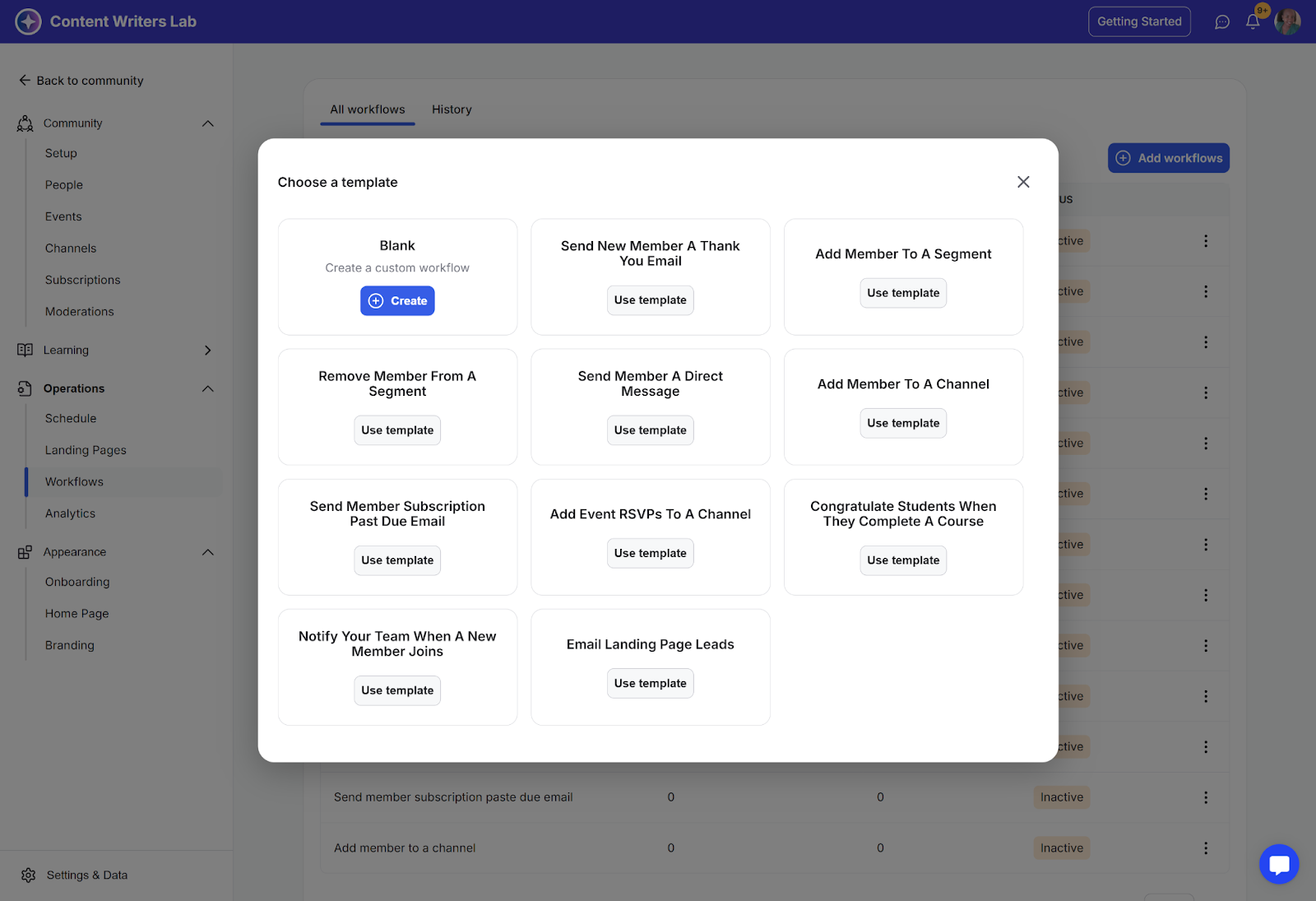
What it is: Pre-built workflows designed for frequent community actions such as welcoming members, sending reminders, or tagging subscribers.
What it’s useful for: Gives you a quick, proven starting point so you can launch automations right away and customize them later.
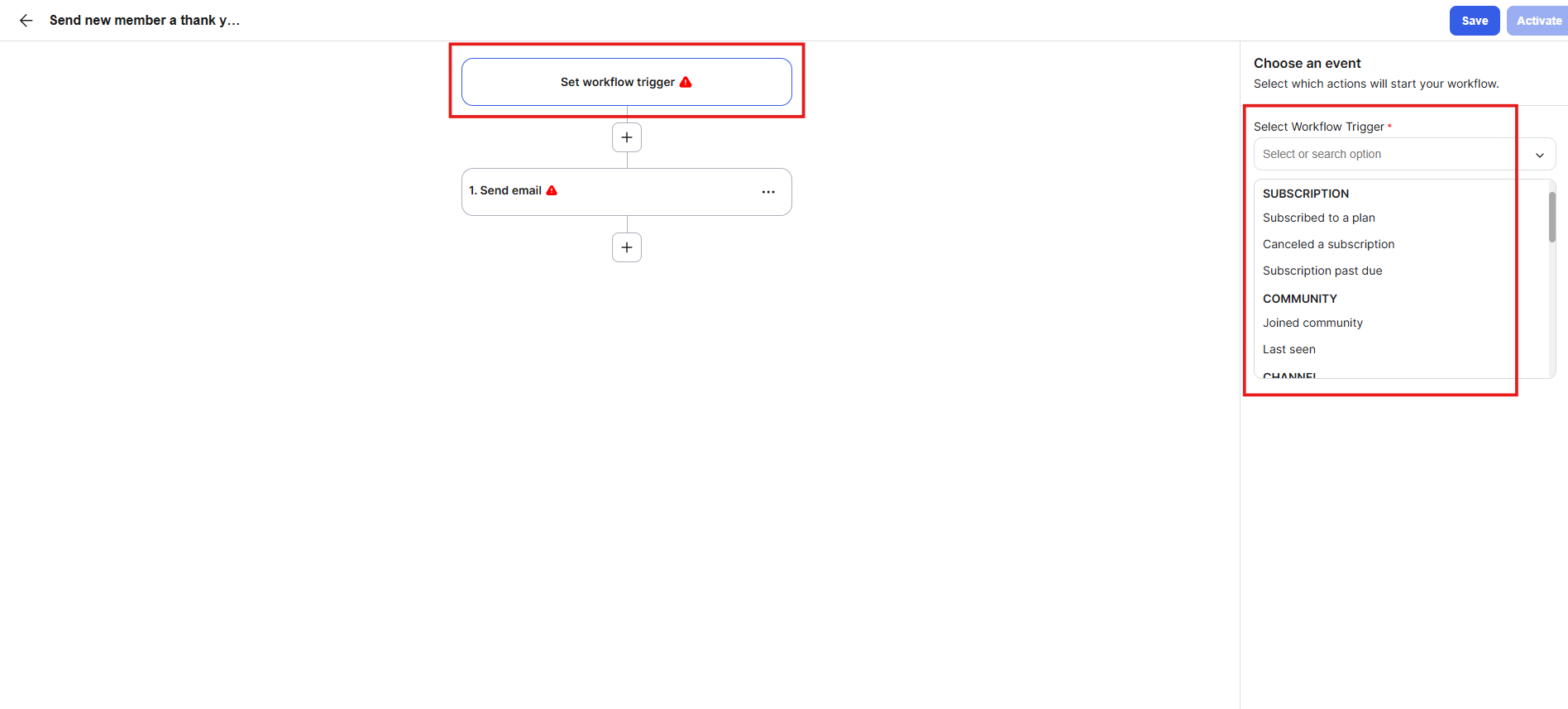
What it is: The event that starts your workflow.
GroupApp offers several triggers, including:
Member joins the community
Member subscribes to a plan
Subscription becomes past due
Member joins a channel
Member completes a course
What it’s useful for: Ensures automations run exactly when an important member action happens.
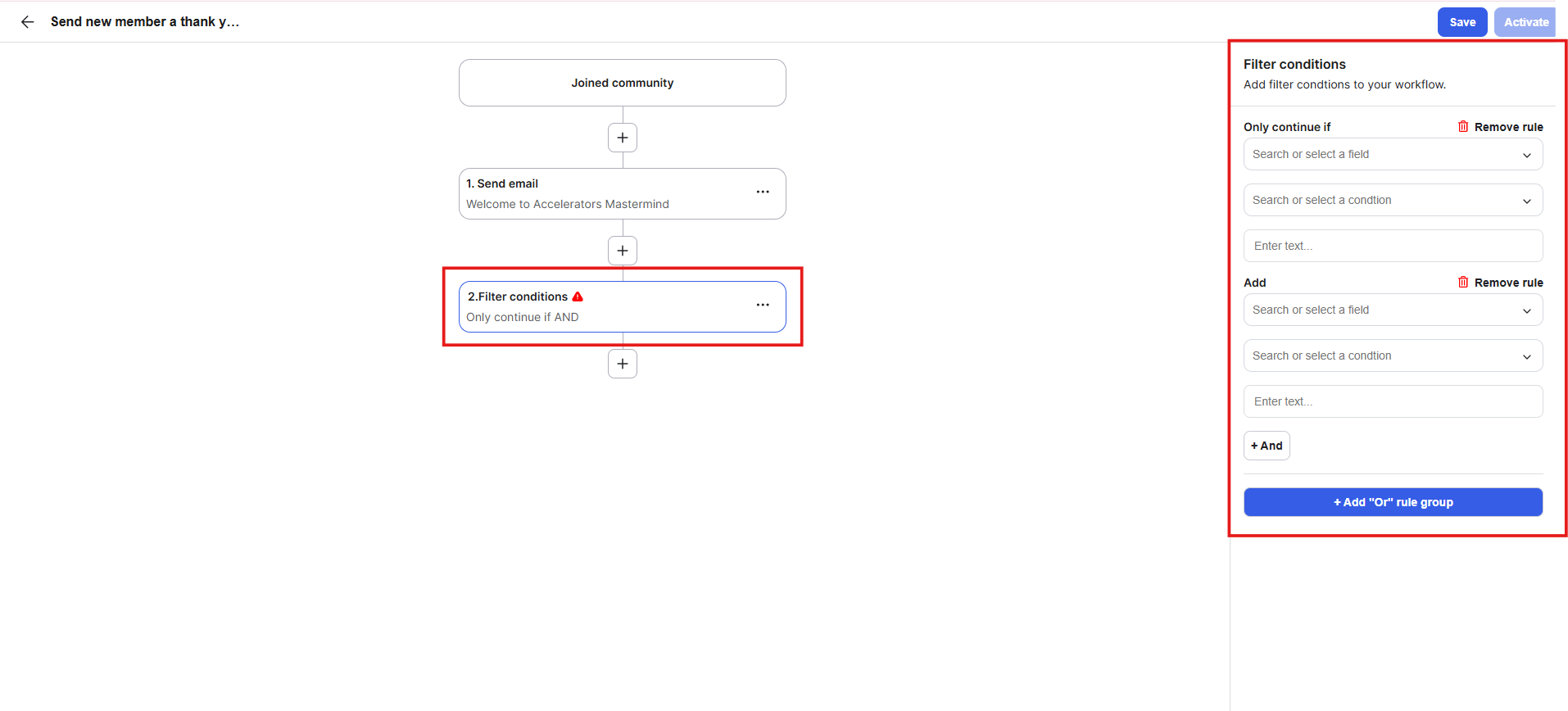
What it is: Conditions that control when or how the workflow continues.
What it’s useful for: Keeps automations targeted and relevant so only members who meet certain criteria are included.
Examples:
Only run when the Pro plan is selected.
Continue if a subscription is past due.
Skip if the member is already in a certain segment.

What it is: The steps the workflow performs once triggered.
GroupApp offers several actions. Here are some examples:
Add members to segments
Send automated emails or direct messages
Add time delays between steps
What it’s useful for: Executes the tasks that keep your operations and communication consistent, without needing to do them manually.
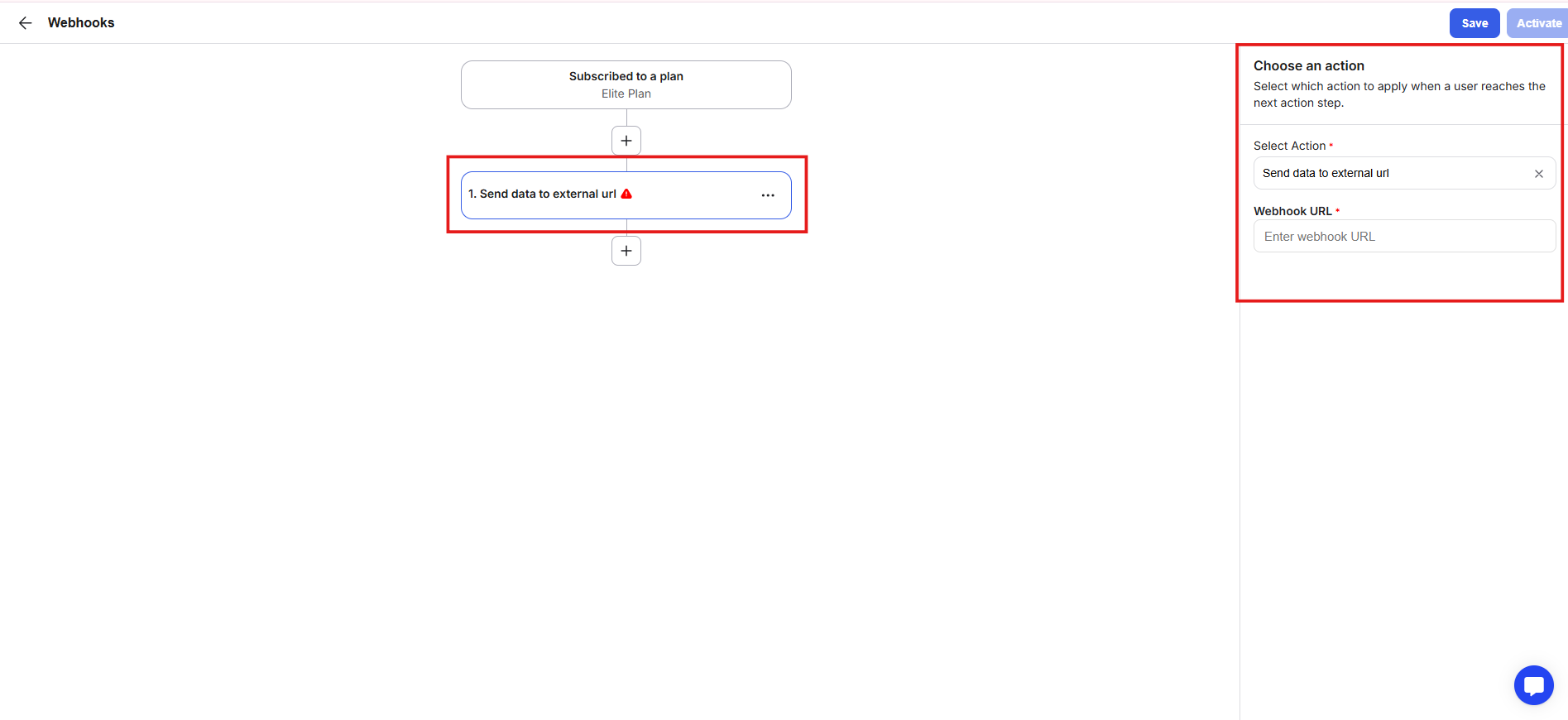
What it is: A way to send data from GroupApp to your other tools automatically and also receive data.
What it’s useful for: Expands automation by syncing member activity with CRMs, analytics tools, or email platforms like Mailchimp or ConvertKit.
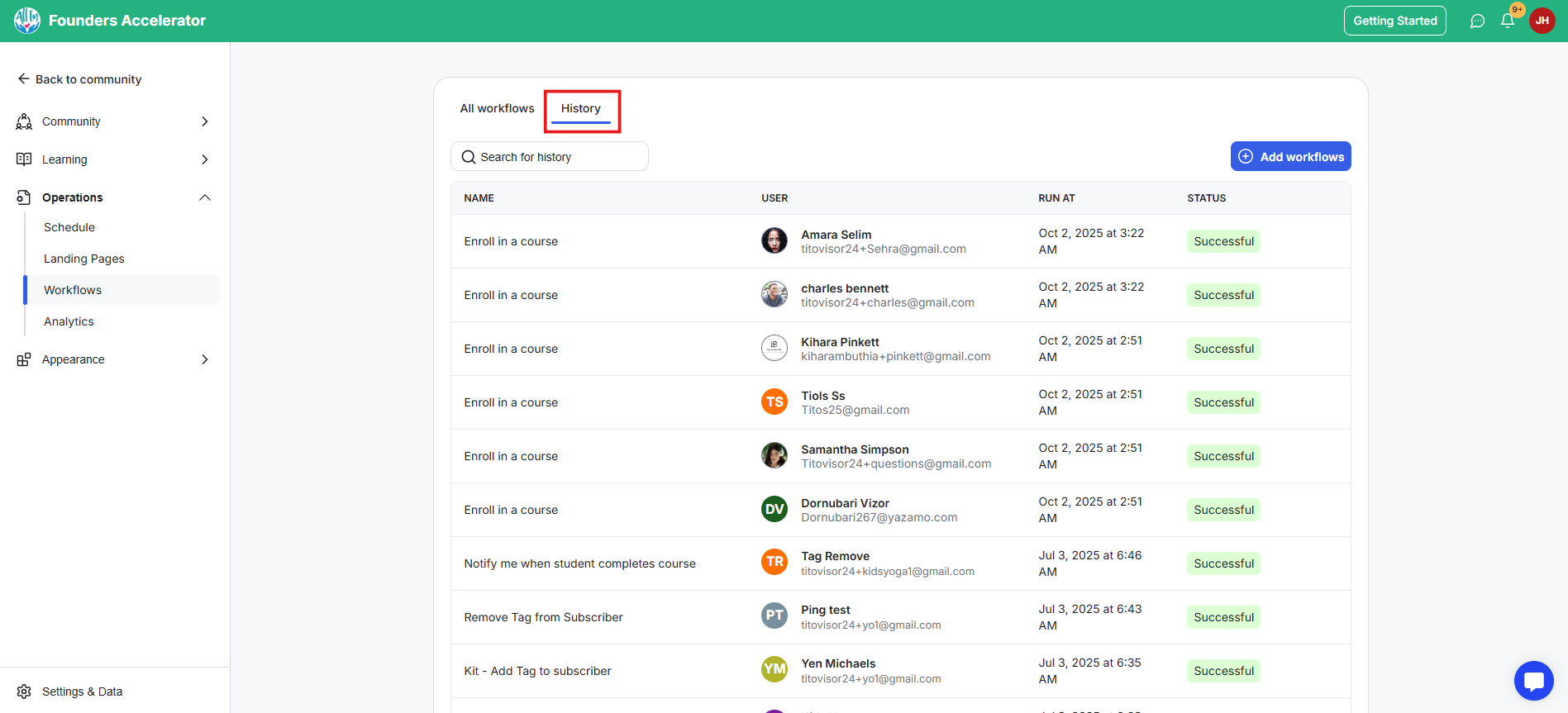
What it is: A detailed log of every workflow run, showing which member triggered it, when it ran, and whether it succeeded or failed.
What it’s useful for: Gives visibility into what’s working, helps you fix failed automations quickly, and builds confidence that everything is running as expected.
Your GroupApp subscription includes limits for the number of workflows you can create and the number of workflow executions available each month. You can check your current usage to see how much of each limit you've used and what remains.
To check your workflow limits:
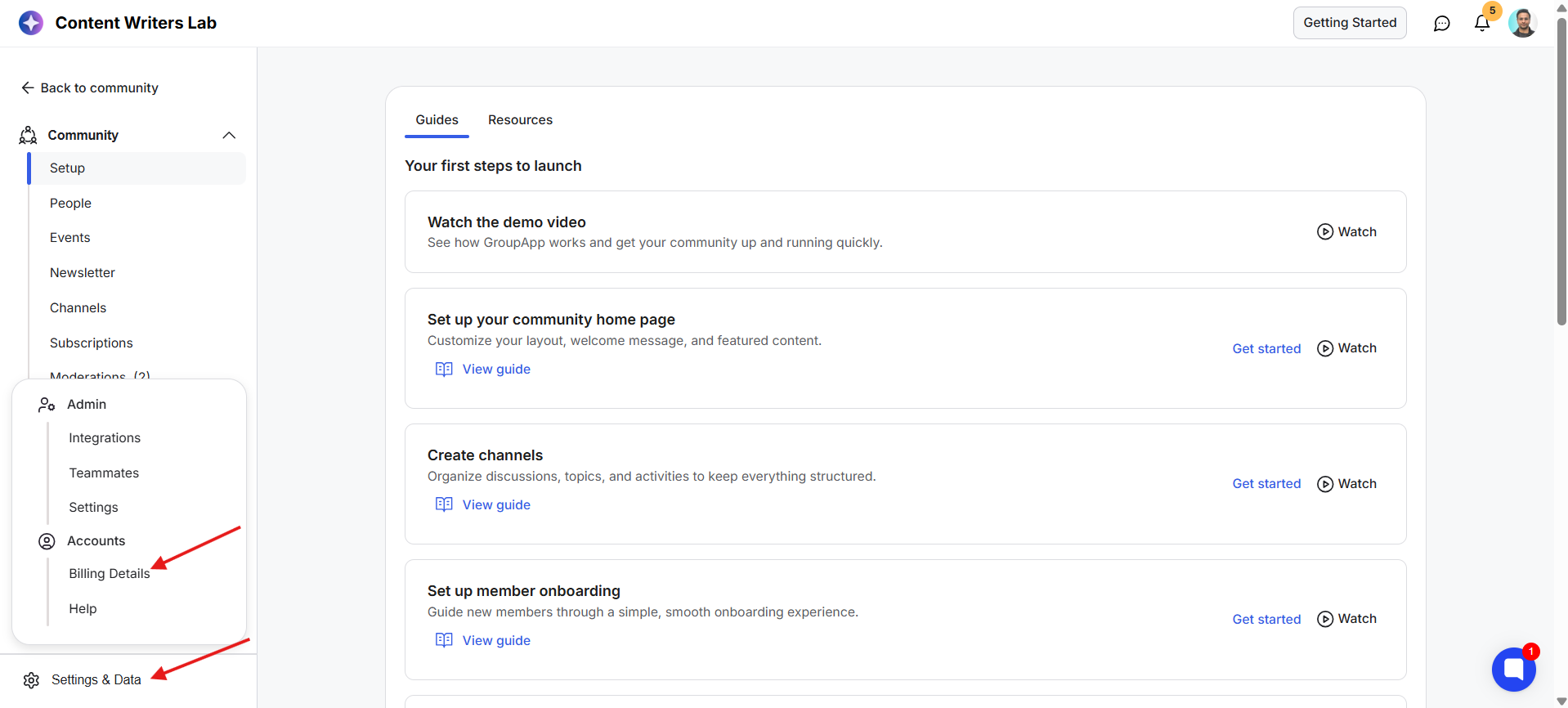
1) Go to the Admin Panel. Click Settings & Data and select Billing Details.
2) From your Billing Details page, view your current plan usage and monthly workflow executions.
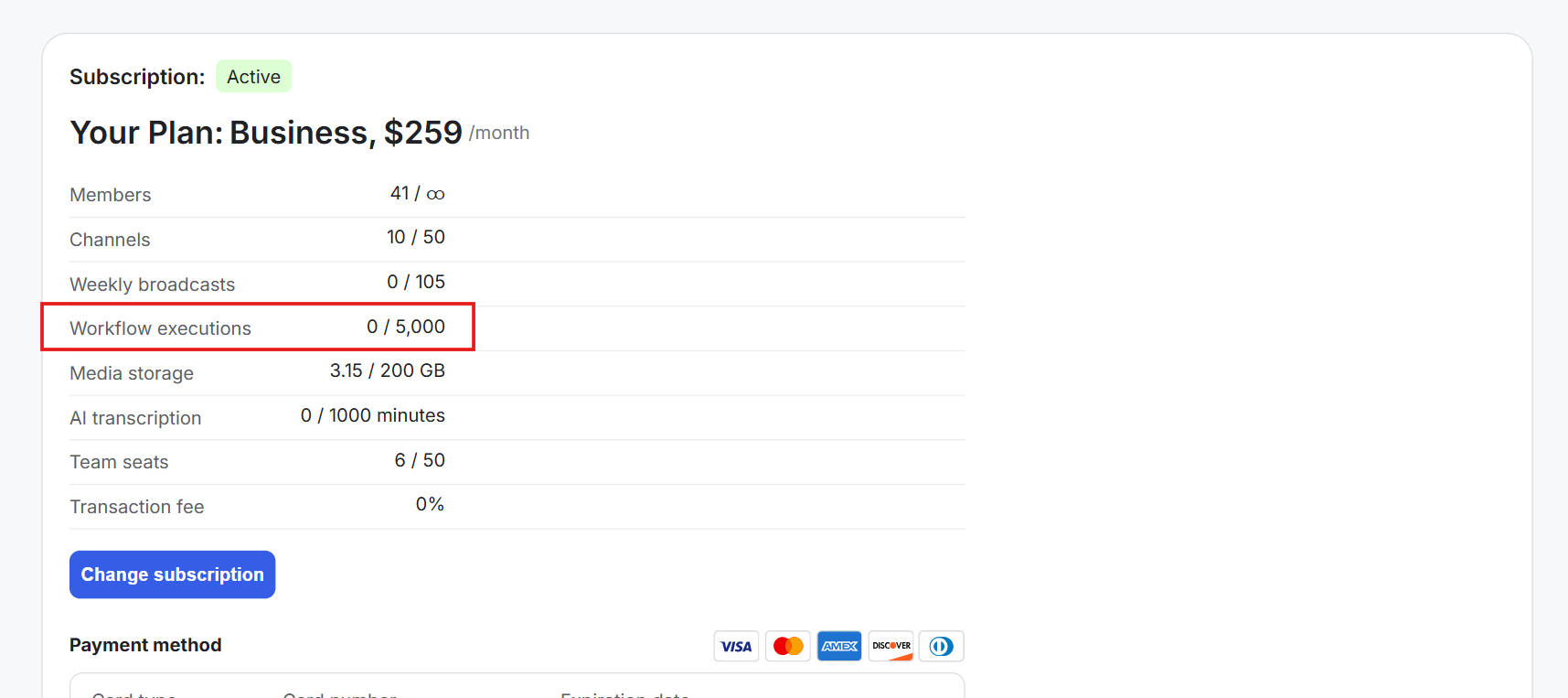
This section also shows other usage limits included with your subscription, so you can keep track of your overall plan usage from one place.
Start small. Choose one task that repeats often, like welcoming new members or tagging those who join a specific plan.
Define your trigger, decide what message or action you want to automate, and build it in the Workflow Builder. Once it runs smoothly, you can layer in more complexity.
Member onboarding: When someone joins your community, the workflow automatically sends a welcome message, assigns a segment, and adds them to an onboarding channel.
Program engagement: When a member completes a lesson, they receive a progress message and get tagged for bonus content or their next course.
Subscription updates: If a subscription goes past due or gets cancelled, a message is sent reminding the member to update payment or reconnect.
Channel automation: When someone joins a channel, they get a direct message with the channel rules, intro prompts, or a quick start link.
Course completion: When a learner finishes a course, the workflow sends a congratulatory email or adds them to a next-level program segment.
Keep each workflow focused on one purpose to stay organized.
Space out messages with time delays so communication feels natural.
Review your Workflow History regularly to confirm everything’s running smoothly.
Use templates as a foundation and then adjust them to fit your flow.
Connect Workflows to tools like Mailchimp or ConvertKit to move members into matching sequences automatically.
Use webhooks to send data to CRMs, spreadsheets, or reporting dashboards for deeper tracking.
Use receiving webhooks to automate actions within your community based on data received from external tools.
Combine triggers and filters to create multi-step paths, like “Member completes a course > wait 3 days > send upsell message.”
Duplicate successful workflows to reuse logic for other programs or segments.
Can I pause a workflow?
Yes, you can disable any workflow temporarily and enable it again later.
Why did an automation not run?
Check the Workflow History tab to confirm the trigger fired and the filters matched. Also, check the workflow history remarks to learn more.
Can I edit a workflow while it’s active?
You can disable the workflow and then make changes. Once activated, changes take effect immediately for future runs.
Next:
Creating Workflow Automations
Learn how to create a Workflow
Related:
How to set up webhooks
Learn how to automatically send data from your GroupApp community to other applications by configuring webhooks through the Workflows feature.
Also see:
Kit (ConvertKit) Integration
Learn how to integrate Kit(ConvertKit) to your GroupApp community
