Members can update their billing details directly from the billing portal. Any changes you make are automatically synced with Stripe and will appear on future invoices.
This is useful if you've changed your address, need to add business information, or want VAT and tax details to appear on your invoices. Any changes you make are automatically synced with Stripe and will be reflected on future invoices.
Members can update the following information:
Customer Name
Billing Address
Tax Information, including Business Name, Tax ID Type, and VAT or Tax ID number
How to update your billing details?
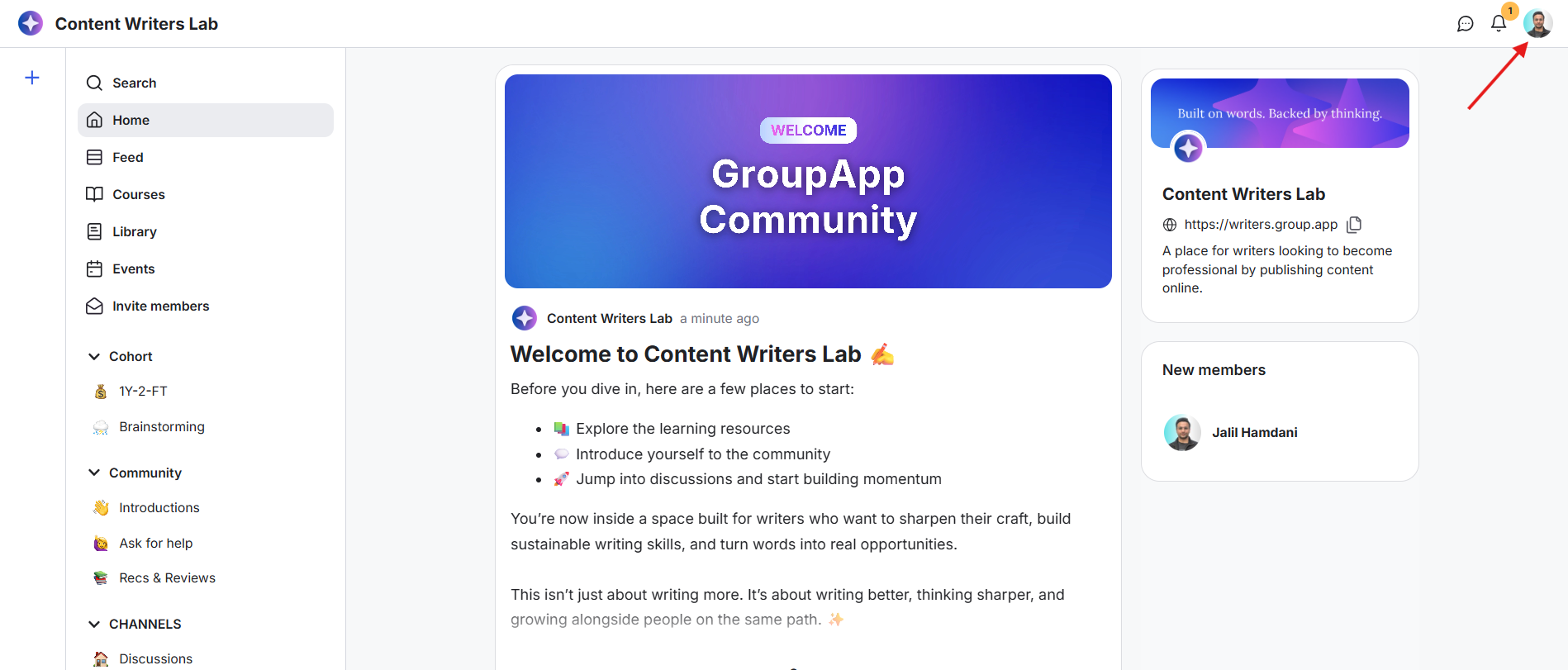
1) Log in to your GroupApp account. Click on your profile icon.
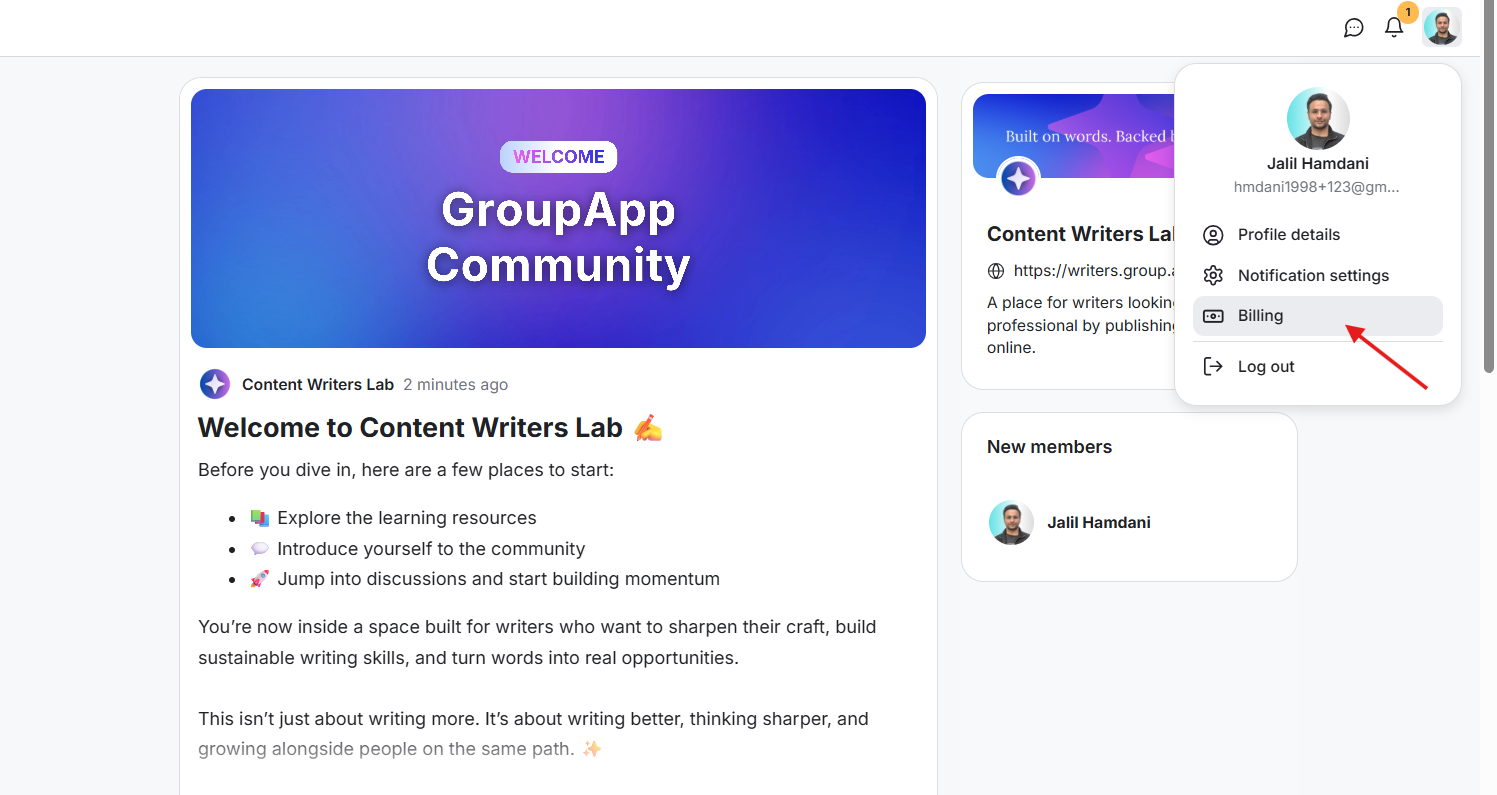
2) Select Billing from the drop-down menu. This opens your billing portal.
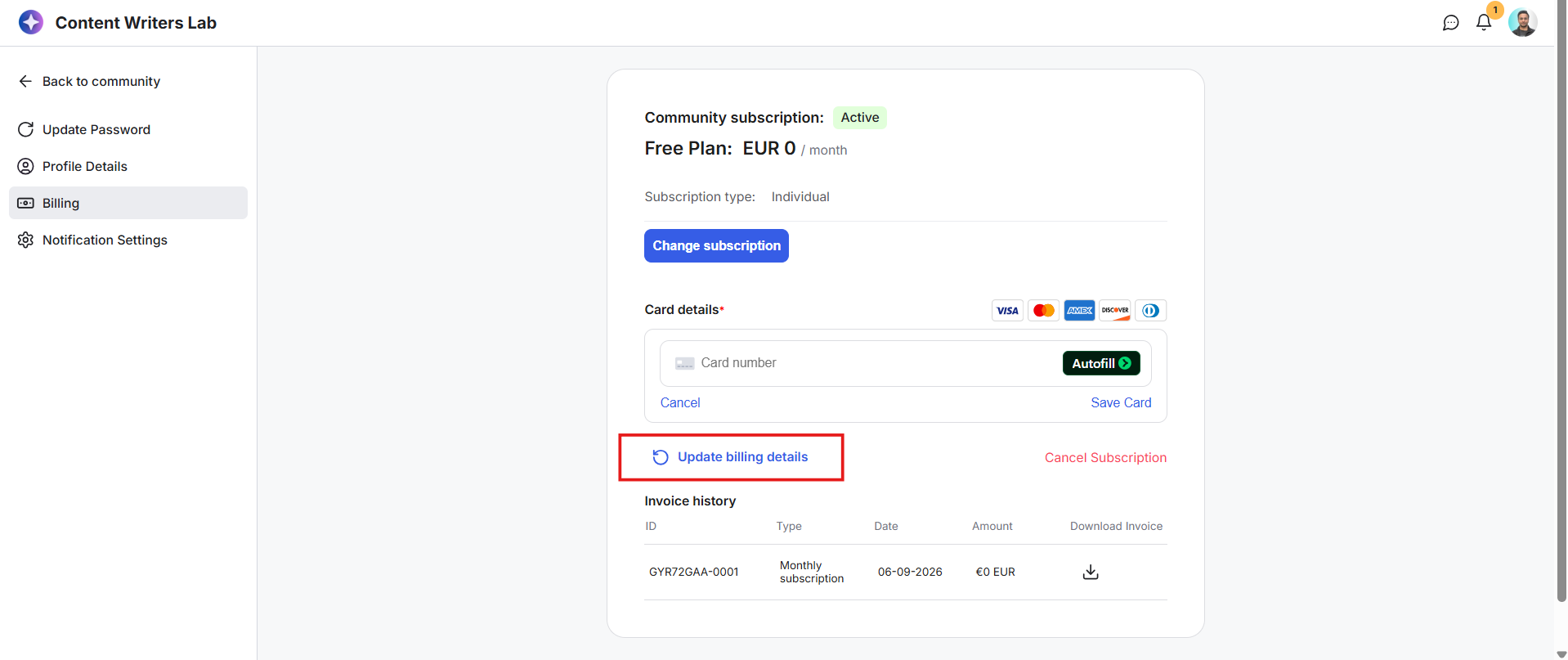
4) Click on the Update Billing Details option.
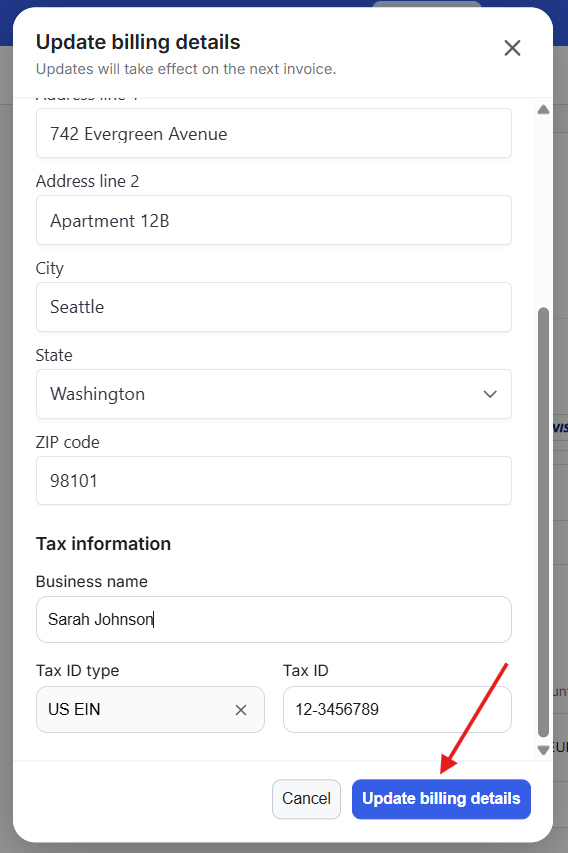
5) In the Billing Details pop-up, enter your Customer Name.
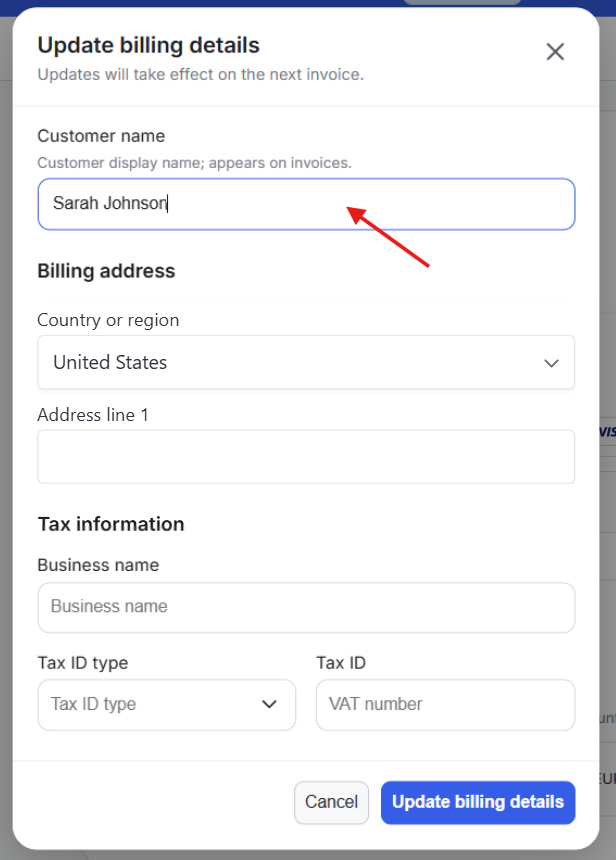
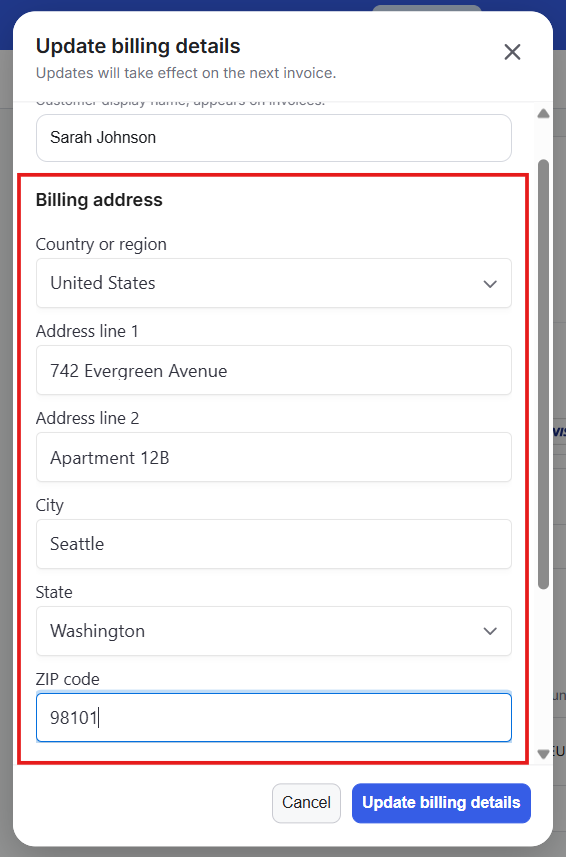
6) Add your Billing Address. Once you select the country or region and start entering the address, additional fields will appear for Address Line 2, City, State, and ZIP Code.
7) Scroll down on the pop-up to add your Tax Information, including your Business Name, Tax ID Type, and VAT or Tax ID number.
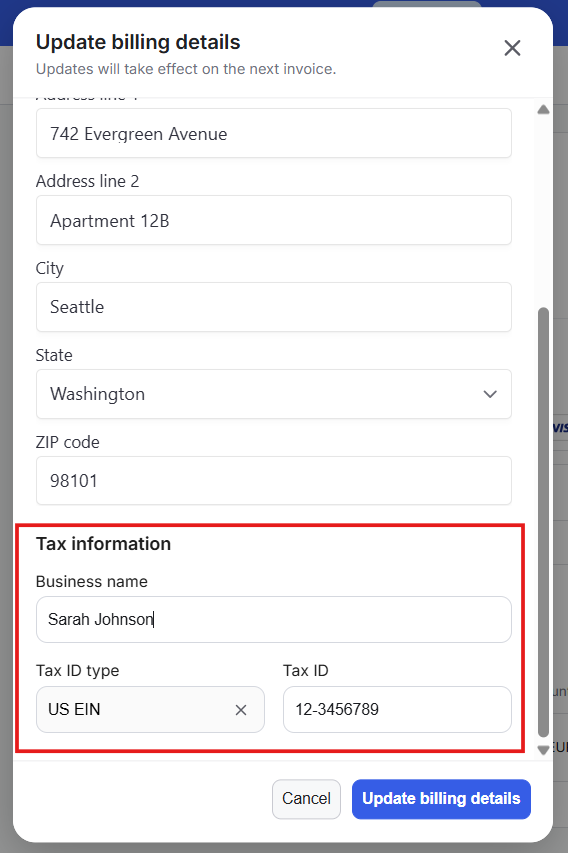
8) Click Update Billing Details to save your changes. Your updated billing details will automatically be used for future invoices.