Once your Google Play developer account is created and verified, there is one thing to do: invite the GroupApp team as an Admin. It takes about two minutes, and we take over from there — creating your app, uploading builds, and publishing to Google Play.
You remain the account owner at all times. Ownership of a Google Play developer account cannot be transferred to us, and we never ask for it.
If you are signed in to Google with more than one account, use an incognito or private browser window. Being signed in as anything other than your developer account owner is the most common cause of confusing errors on this page.
Go to play.google.com/console and click Sign in.
Choose the Google account that owns your Play developer account. The dashboard opens.
Make sure you are not viewing a specific app — you want the account-level view.
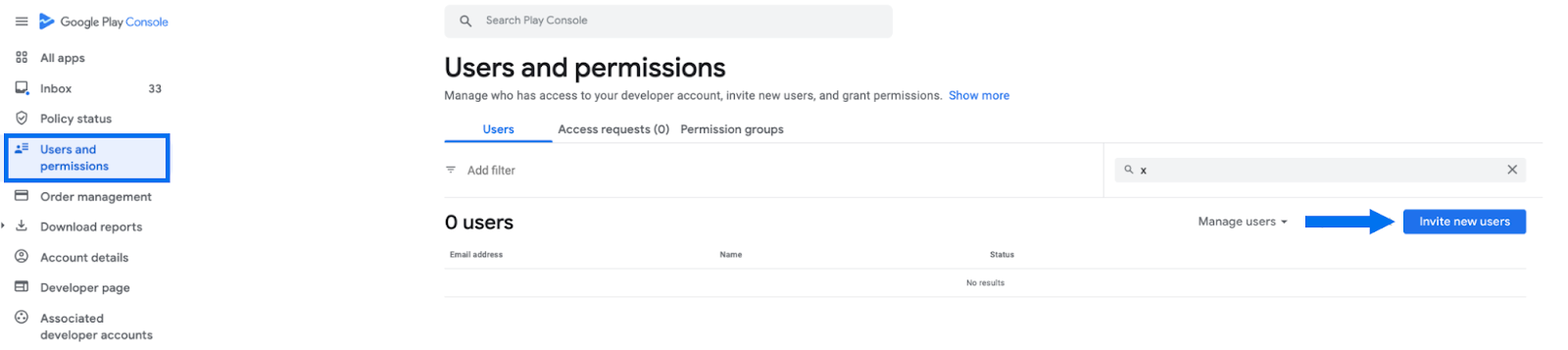
In the left-hand menu, click Users and permissions. You will see everyone currently on the account.
Click Invite new users.
In the Email address field, enter: [email protected].
Leave Access expiry blank. This gives us continuous access, so your app updates never stop because a date quietly passed.
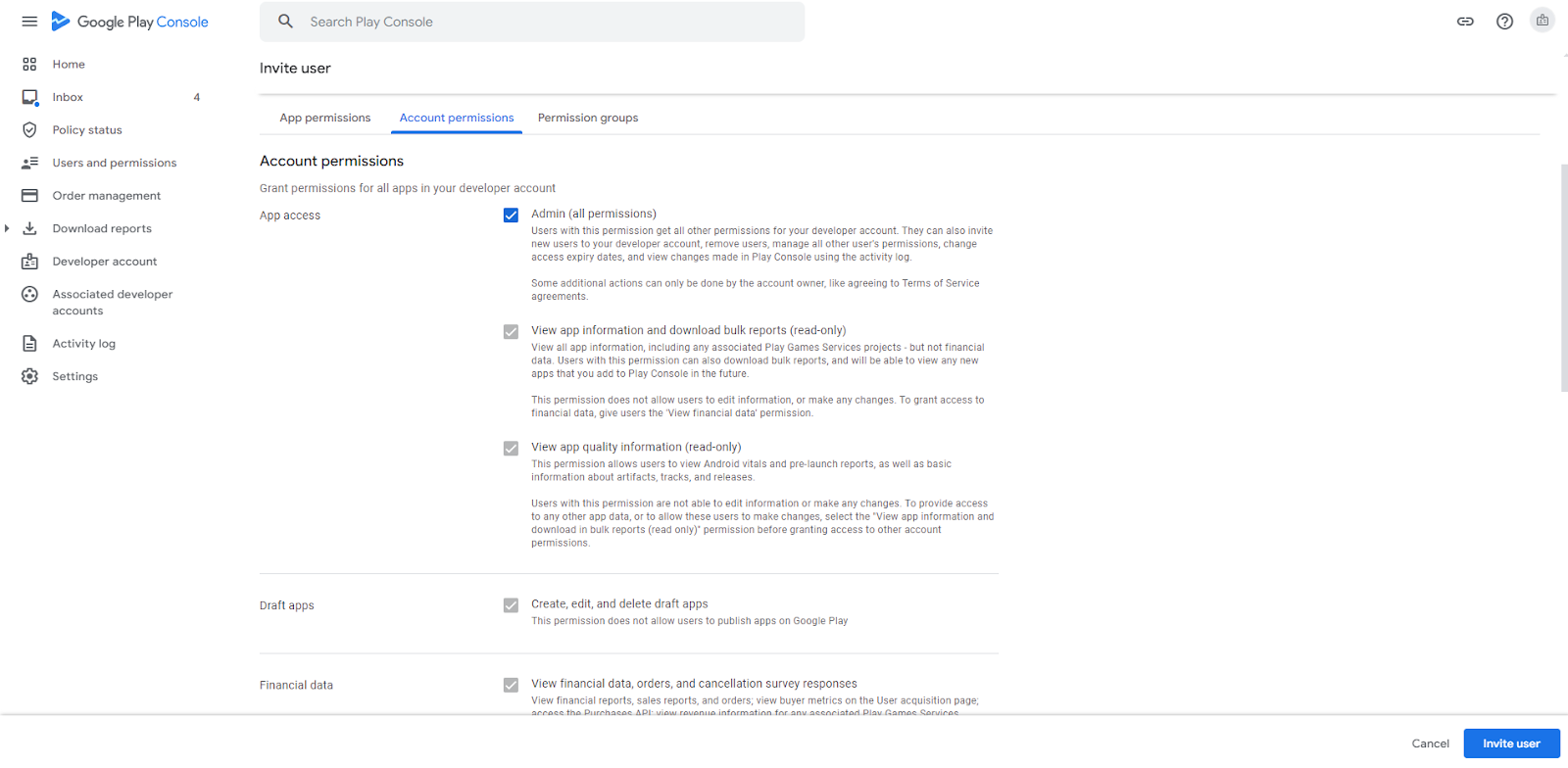
Open the Account permissions tab and tick Admin (all permissions).
Click Invite user, then confirm with Send invite.
That is the whole job. Once the invite is sent, we accept it and take over.
If you have seen older instructions asking you to create a Google Cloud project, grant us Owner access to it, or switch on APIs, you can ignore them. Google no longer requires a developer account to be linked to a Cloud project in order to publish, and we handle the publishing credentials and push notification setup on our side.
After we accept the invitation, our team will:
Create your app in Play Console and reserve its package name.
Connect your account to Codemagic, our build service, so new versions upload automatically.
Build your branded app and put it on an internal testing track for you to try.
Complete the store listing, content rating, data safety form, and other declarations Google requires.
Submit for review and release once you approve it.
Admin access covers almost everything. These stay with the account owner:
Identity verification. Your account must be fully verified before anything can be published. See How to Verify Your Google Developer Account.
Payments settings. If you plan to sell subscriptions or paid content in the app, only the account owner can link a payments profile and edit the Payments settings page. We never have access to this.
Closed testing, if you registered a personal account. Personal accounts created after 13 November 2023 need 12 testers opted in continuously for 14 days before production release. Organization accounts are exempt. Tell us early if this applies and we will set the testing track up for you.
I cannot find Users and permissions.
It is in the left-hand menu at the account level. If you are inside a specific app, go back to the account view first using the app selector at the top of the page.
The Invite new users button is missing or greyed out.
You are signed in with an account that cannot manage users. Sign in as the account owner, ideally in an incognito window so no other Google account interferes.
I only see App permissions, not Account permissions.
The two tabs sit side by side on the invite screen. Account permissions is the one you want — app-level access alone is not enough for us to manage releases and settings for you.
I set an access expiry by mistake.
Open Users and permissions, select the GroupApp user, and clear the expiry date. Otherwise our access will silently lapse and your updates will stop.
The invitation was never received.
Check the address was entered exactly as [email protected]. You can re-send it from the Users and permissions page.