As a community admin, you can manage three different types of notification settings:
Profile Notifications: Your personal notification preferences as a member of the community.
Community Admin Notifications: Notifications related to your responsibilities as a community admin.
Community-Wide Notifications: Digest, event, and content notifications sent to all members of your community.
Note: Changes made to your Profile Notifications and Community Admin Notifications apply only to your account and do not affect other admins
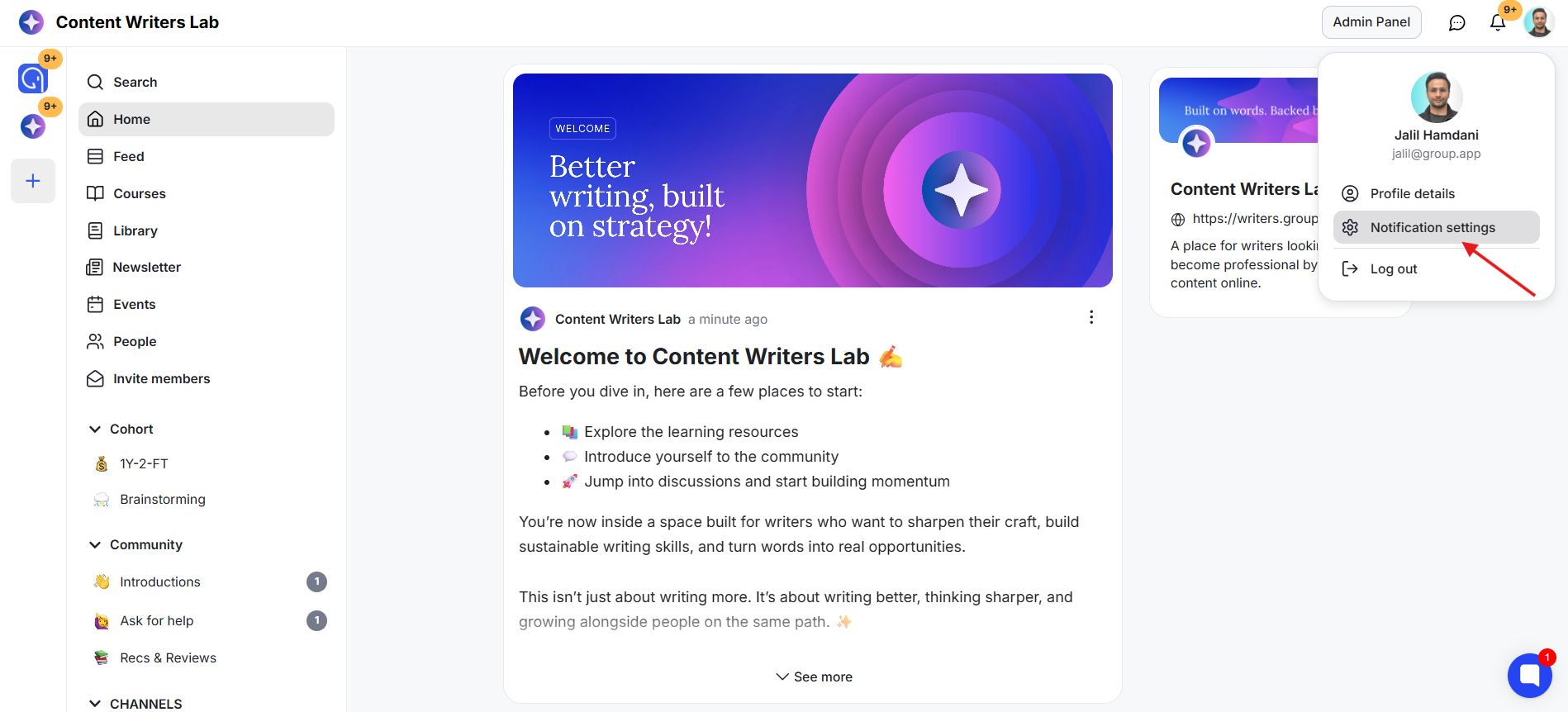
1) Click on your profile icon and Select Notification Settings.
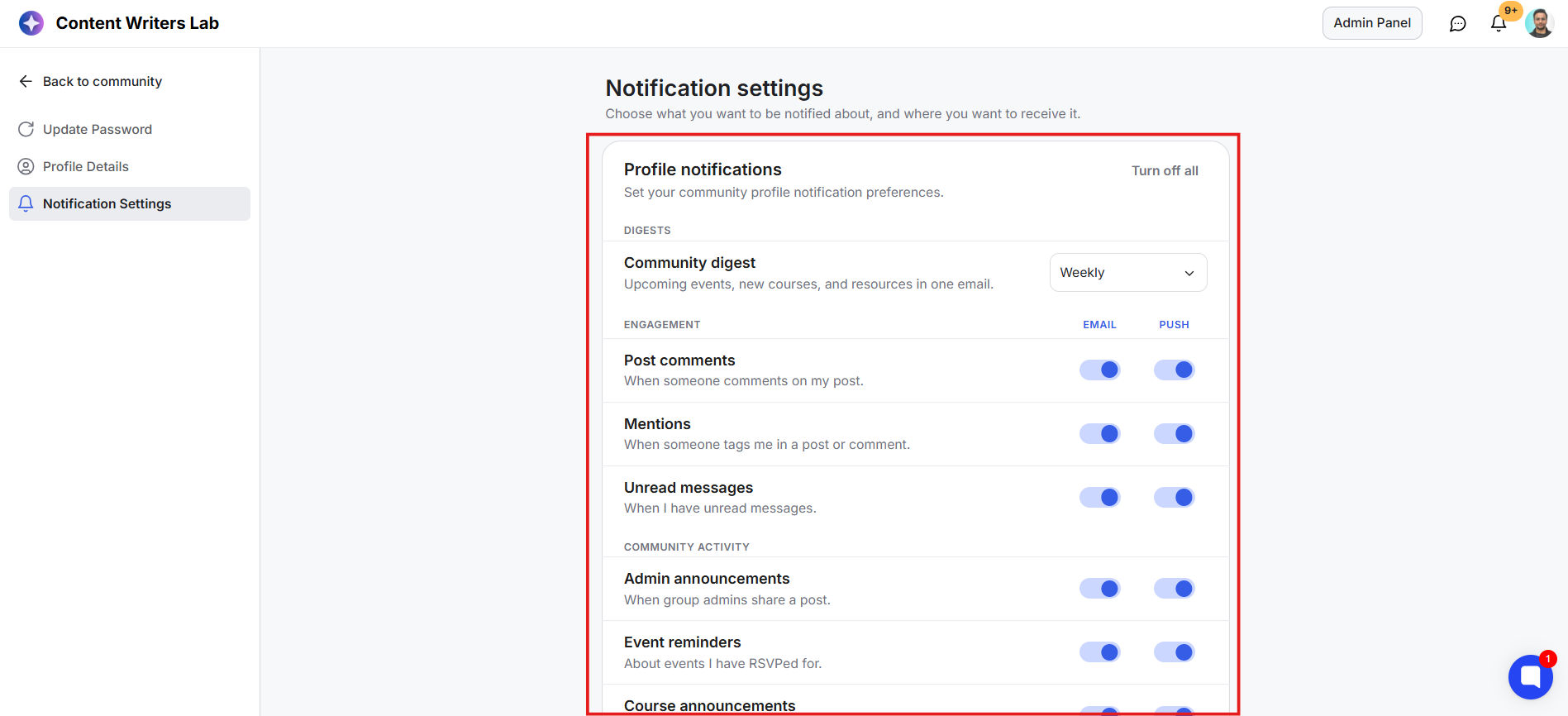
2) This opens the Notification Settings page. The first section is Profile Notifications, where you can manage notifications for your own account.
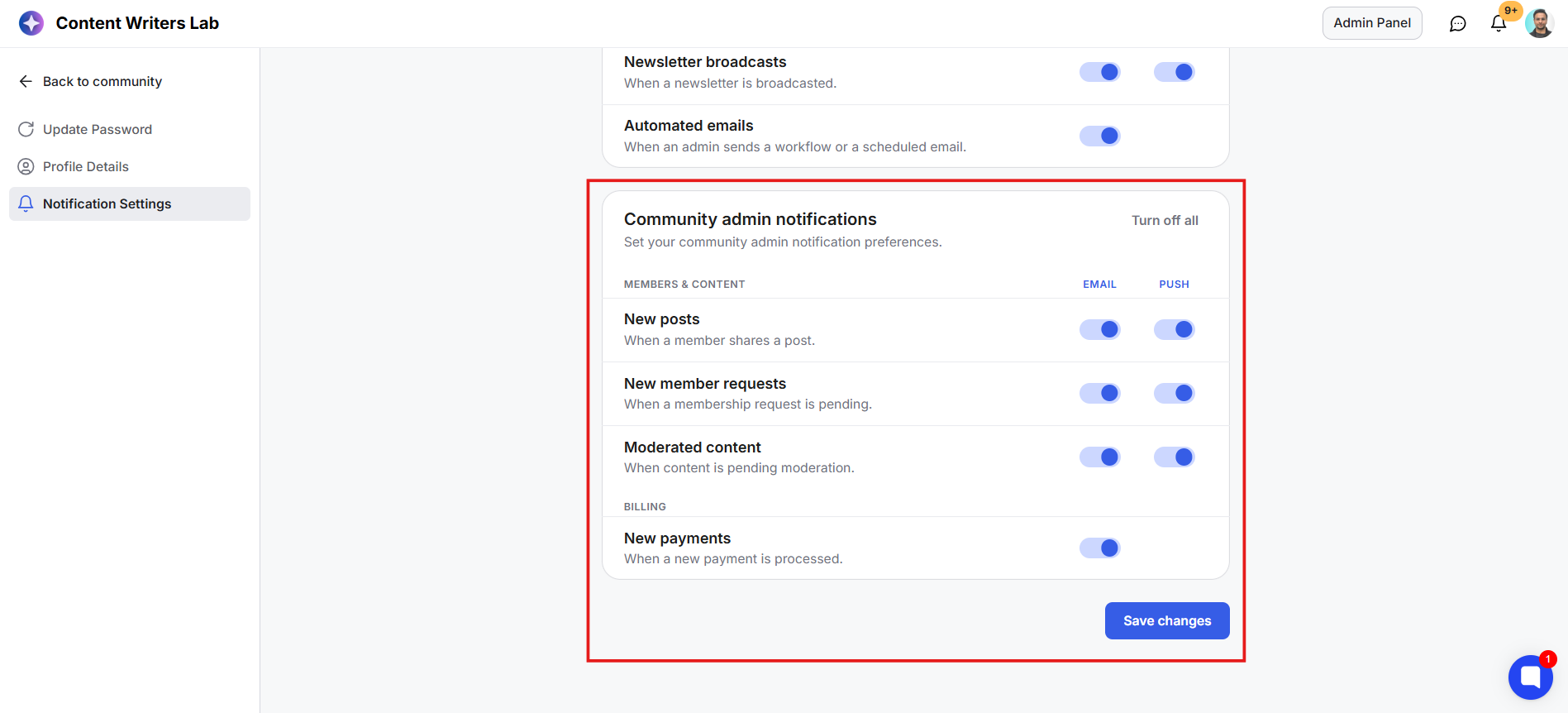
3) The second section is Community Admin Notifications section. These notifications help you stay informed about activity that requires your attention as an admin.
4) You can click Turn Off All in the top-right corner of the panel to disable all profile notifications at once.
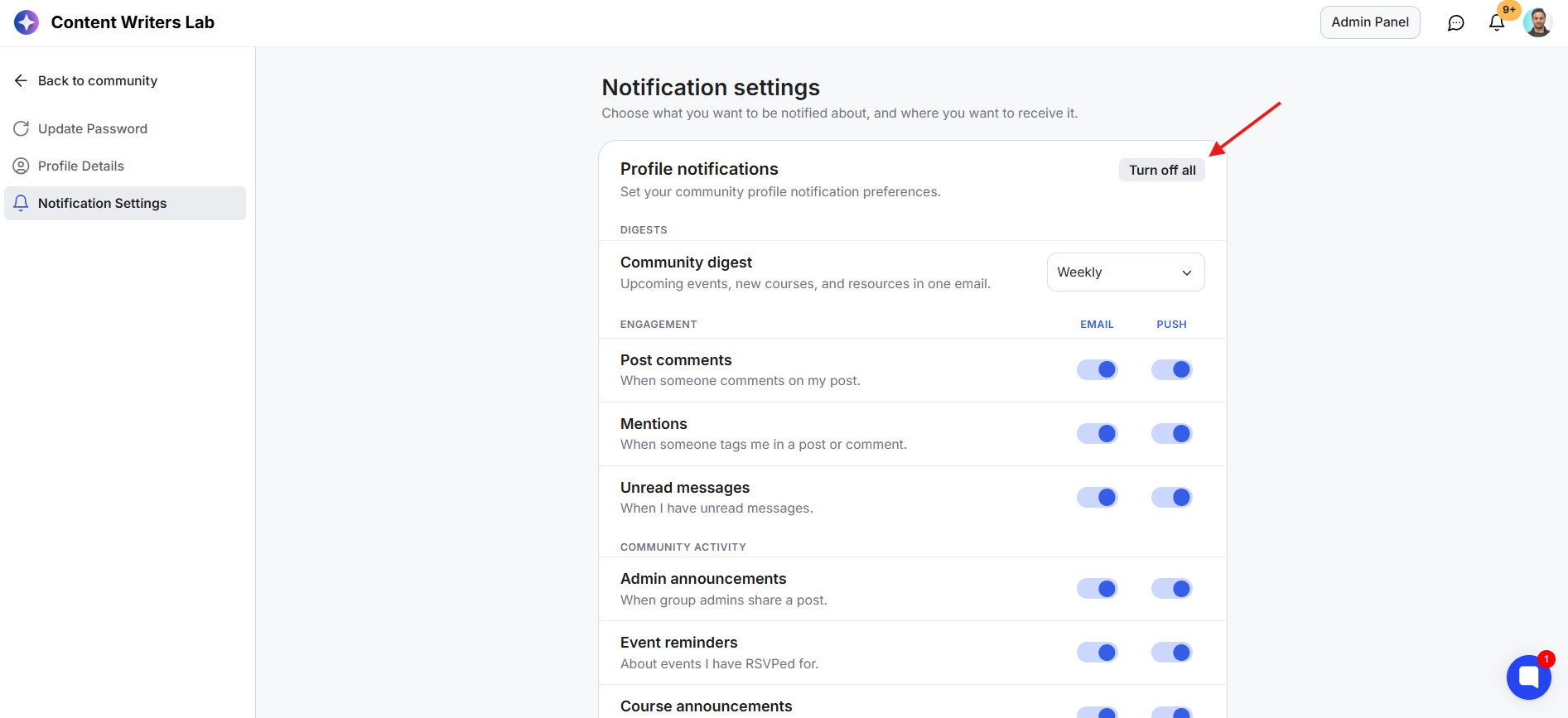
Here are the notifications you can configure:
The Community Digest brings together course updates, upcoming events, and Resource Library additions into a single email. The relevant push notifications can also take members directly to the digest.
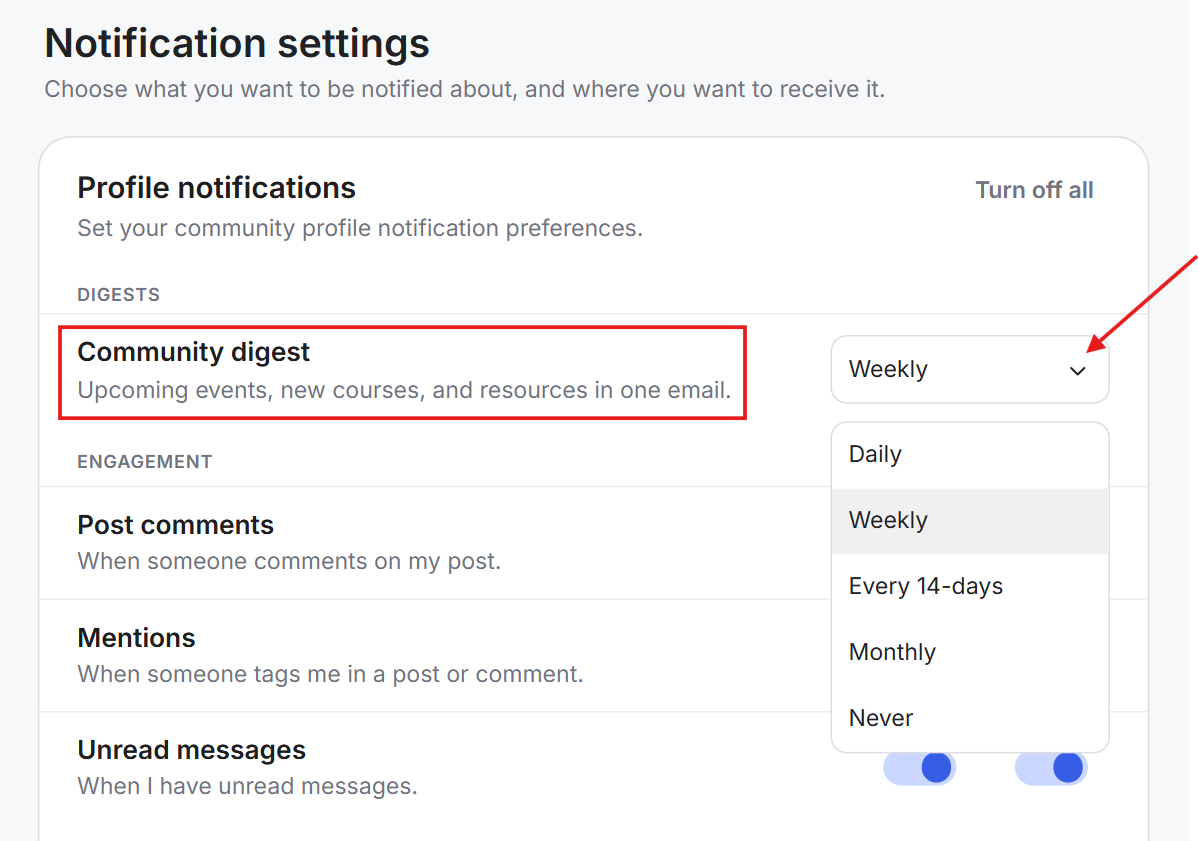
Choose how often you'd like to receive the Community Digest email through the drop-down:
Daily
Weekly
Every 14 Days
Monthly
Never
Note: Selecting Never disables Community Digest emails. Any other option sends the digest based on the schedule you choose.
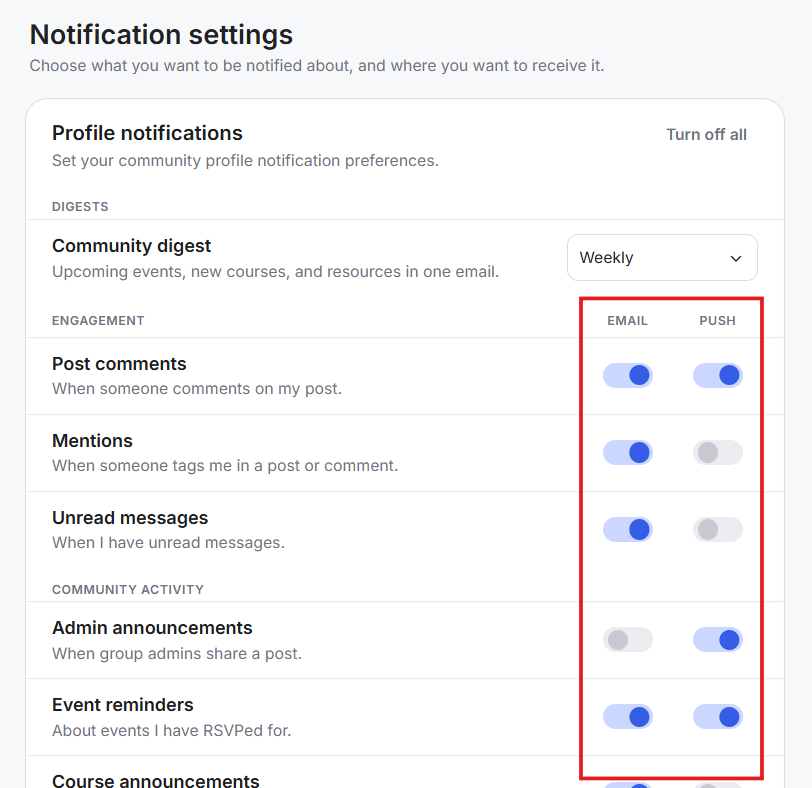
You can independently enable or disable Email and Push notifications for:
Post Comments: When someone comments on your post.
Mentions: When someone tags you in a post or comment.
Unread Messages: When you have unread direct messages.
Admin Announcements: When a community admin shares a post.
Event Reminders: About events you've RSVP'd to.
Course Announcements: When your enrolled courses have updates.
Newsletter Broadcasts: When a newsletter is broadcast.
Automated Emails: When an admin sends a workflow email or scheduled email. This option only offers the toggle for email.
Click Save Changes when you're done.
Scroll down on the same page to the Community Admin Notifications section. These notifications help you stay informed about activity that requires your attention as an admin.
You can click Turn Off All in the top-right corner of this section to disable all admin notifications.
You can independently enable or disable Email and Push notifications for:
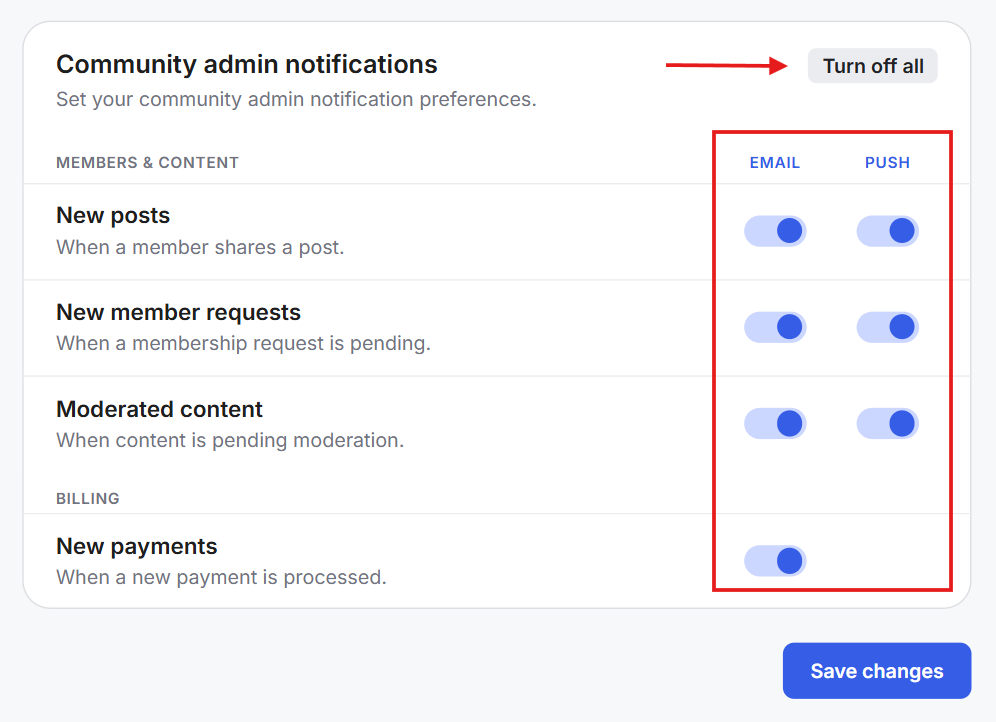
New Posts: When a member creates a new post.
New Member Requests: When someone requests to join your community.
Moderated Content: When content has been flagged and is awaiting review.
New Payments: When a new payment is successfully processed.
Click Save Changes to apply your updates.
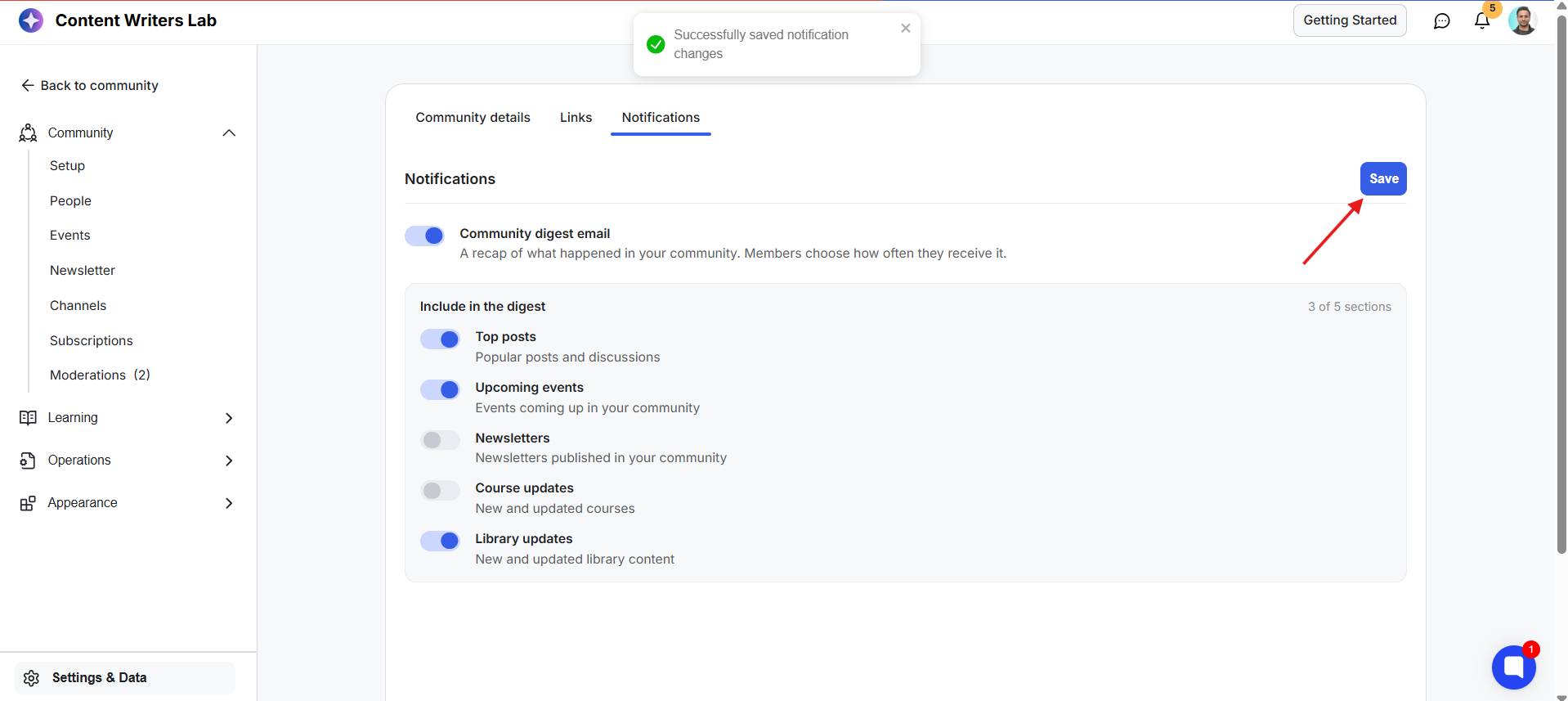
Community-wide digest notifications control the digest emails and related notifications sent to all members of your community.
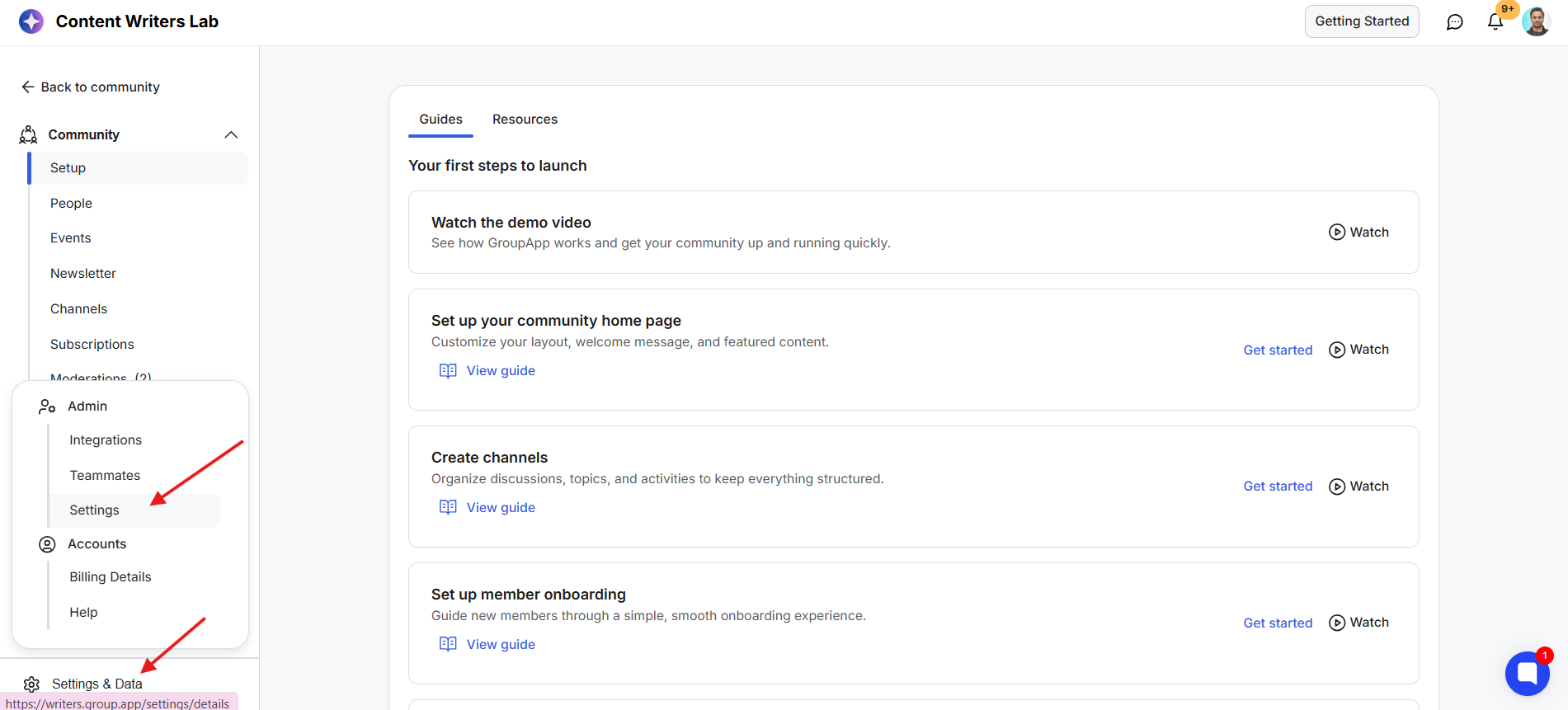
1) Open the Admin Panel. Go to Settings & Data and select Settings.
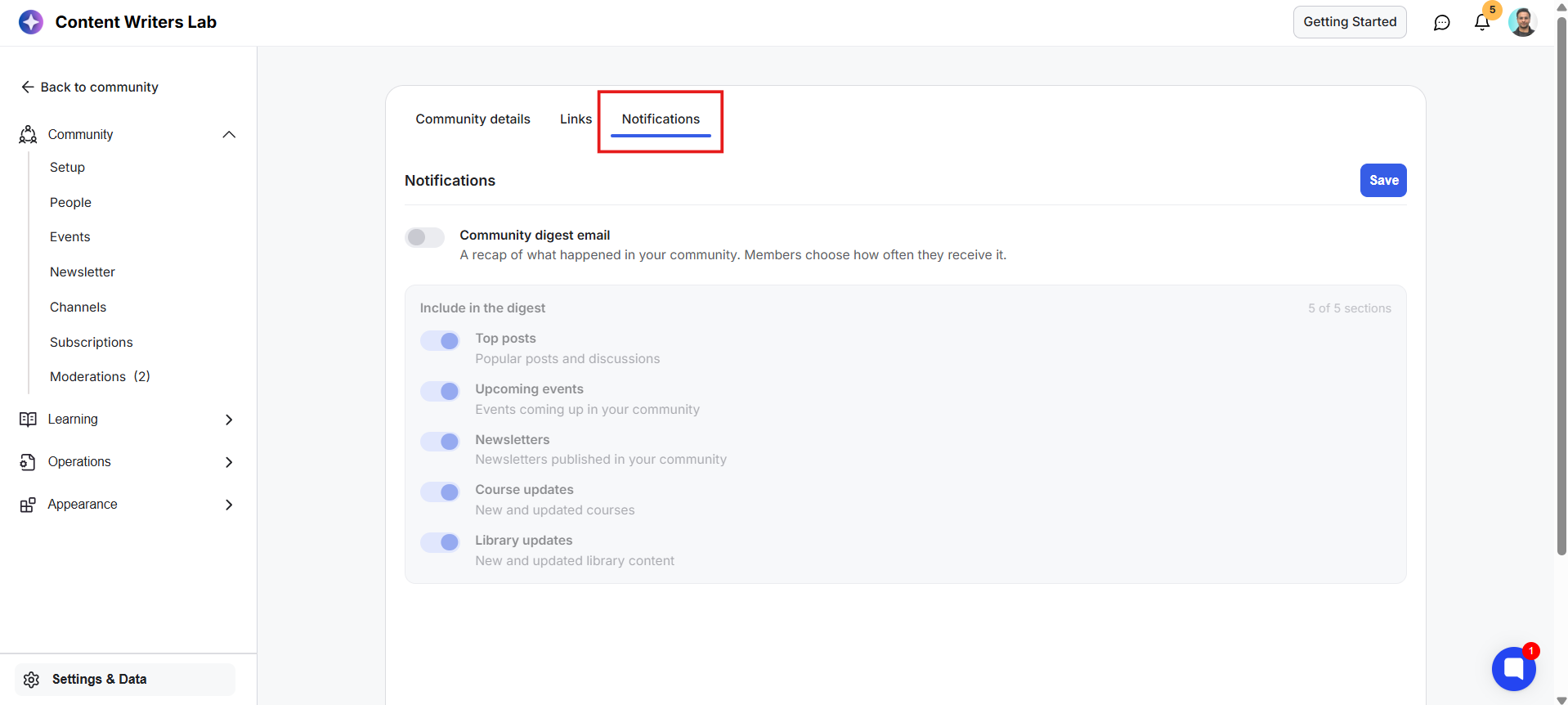
2) Open the Notifications tab.
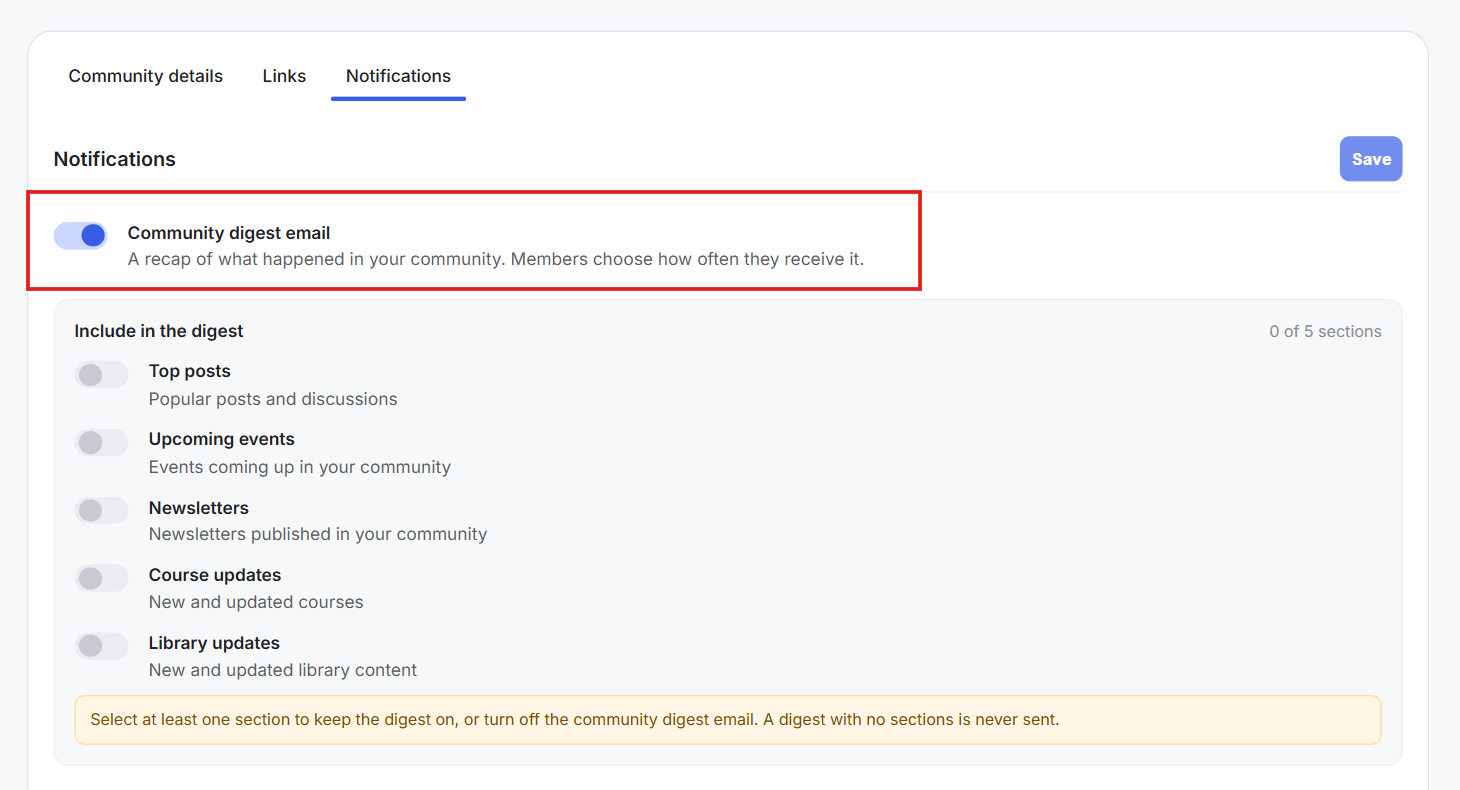
3) Here you can turn Community Digest Email on or off. The Community Digest is a recap of recent activity and updates from your community. When enabled, individual members can choose how often they want to receive it from their own notification settings.
4) Next, you can choose what you want to include in the Community Digest by turning the following options on or off:
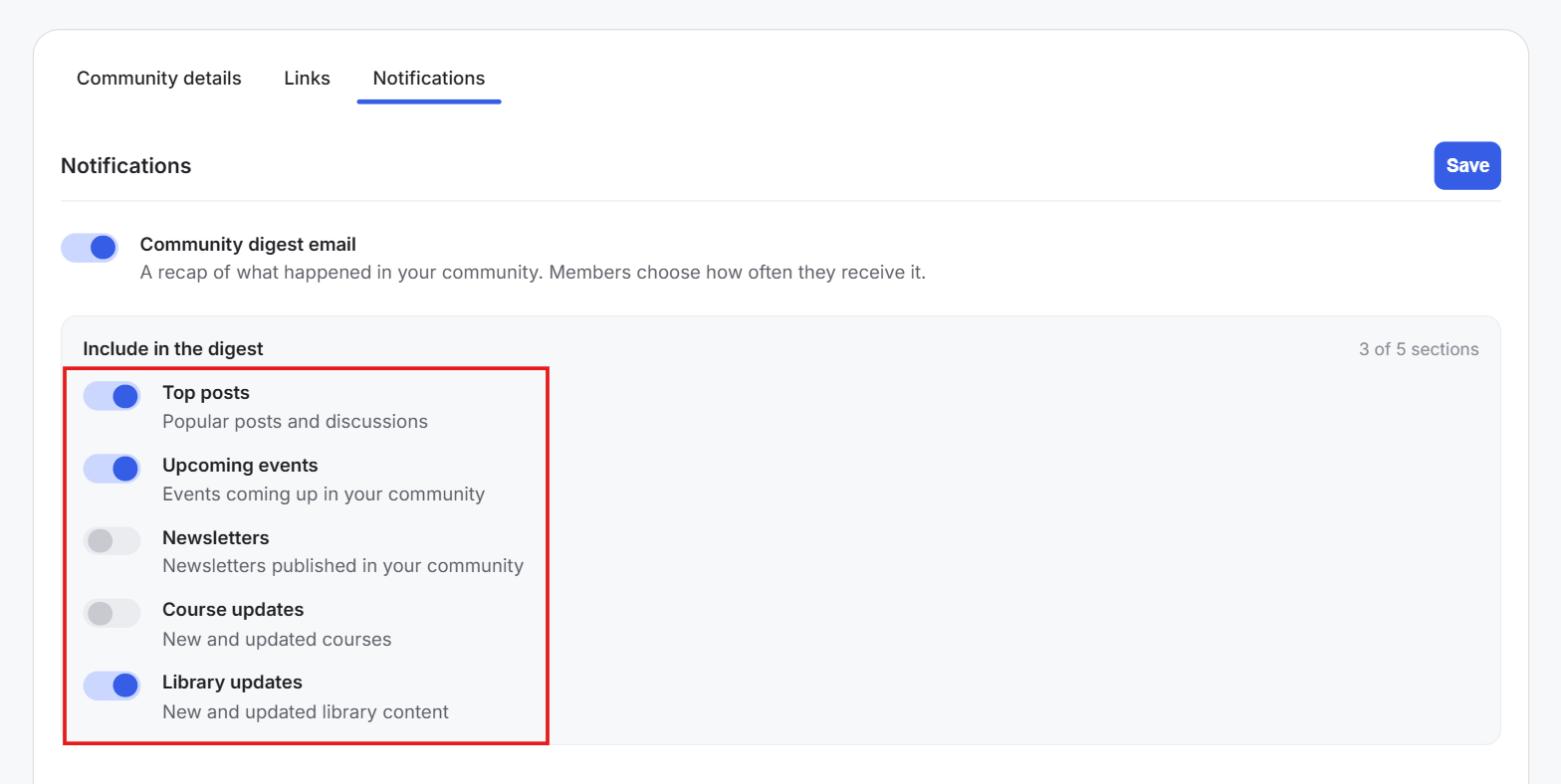
Top Posts: Popular posts and discussions from your community.
Upcoming Events: Events coming up in your community.
Newsletters: Newsletters published in your community.
Course Updates: New and updated courses.
Library Updates: New and updated Library content.
5) Click Save to apply your changes.
Important: These settings control the Community Digest across your entire community. Individual members can manage how often they receive the digest and their other personal notification preferences from their own Notification Settings.