This guide explains:
How admins manage their own notification settings
Which notifications can be turned on or off
How to choose notification frequency using dropdowns
How admins manage community-wide digest notifications
Admins and account owners (who are admins by default) can customize how and when they receive notifications. These settings apply only to the individual admin account.
Step 1: Click your Profile Image in the top-right corner.
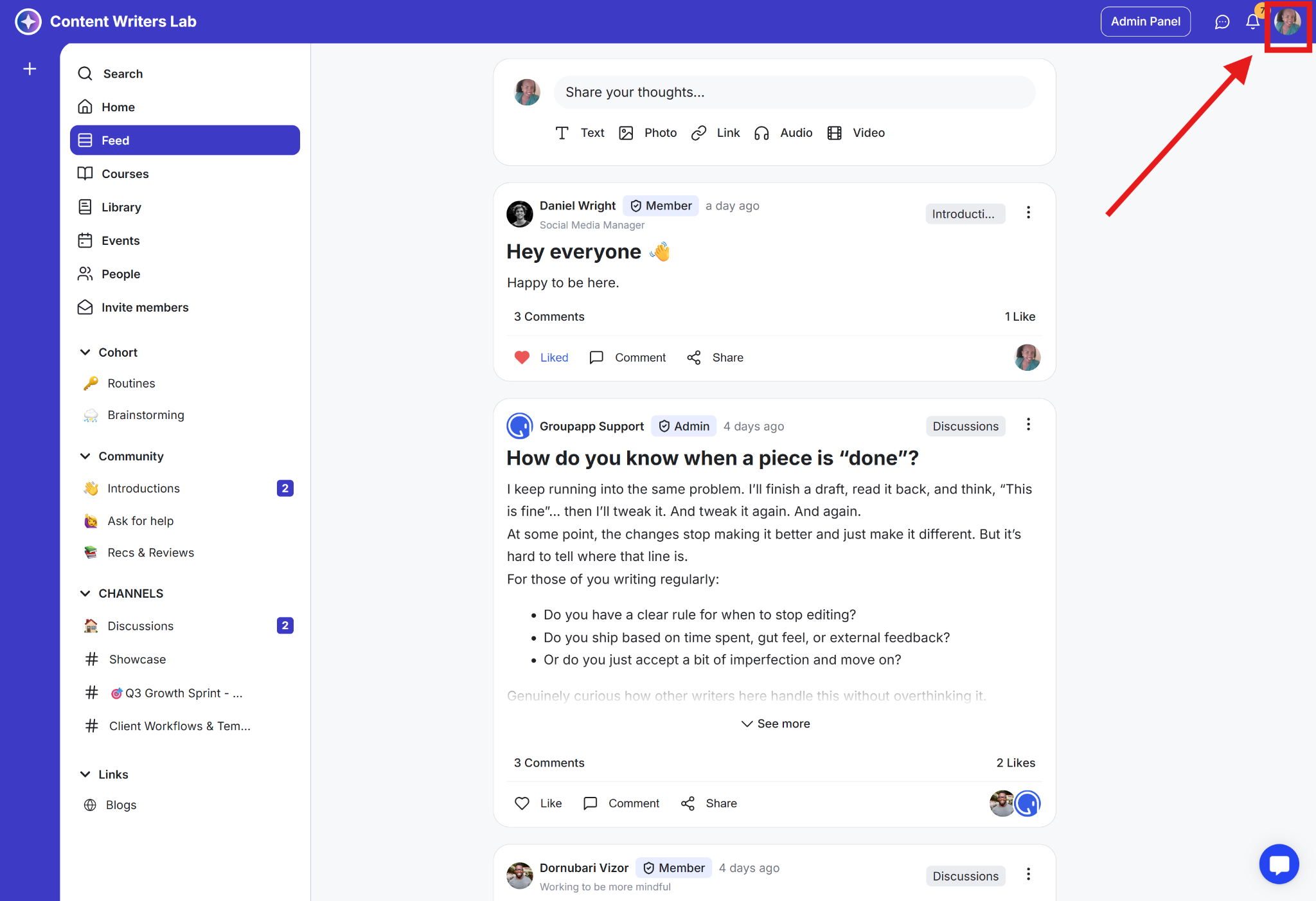
Step 2: Select Notification Settings.
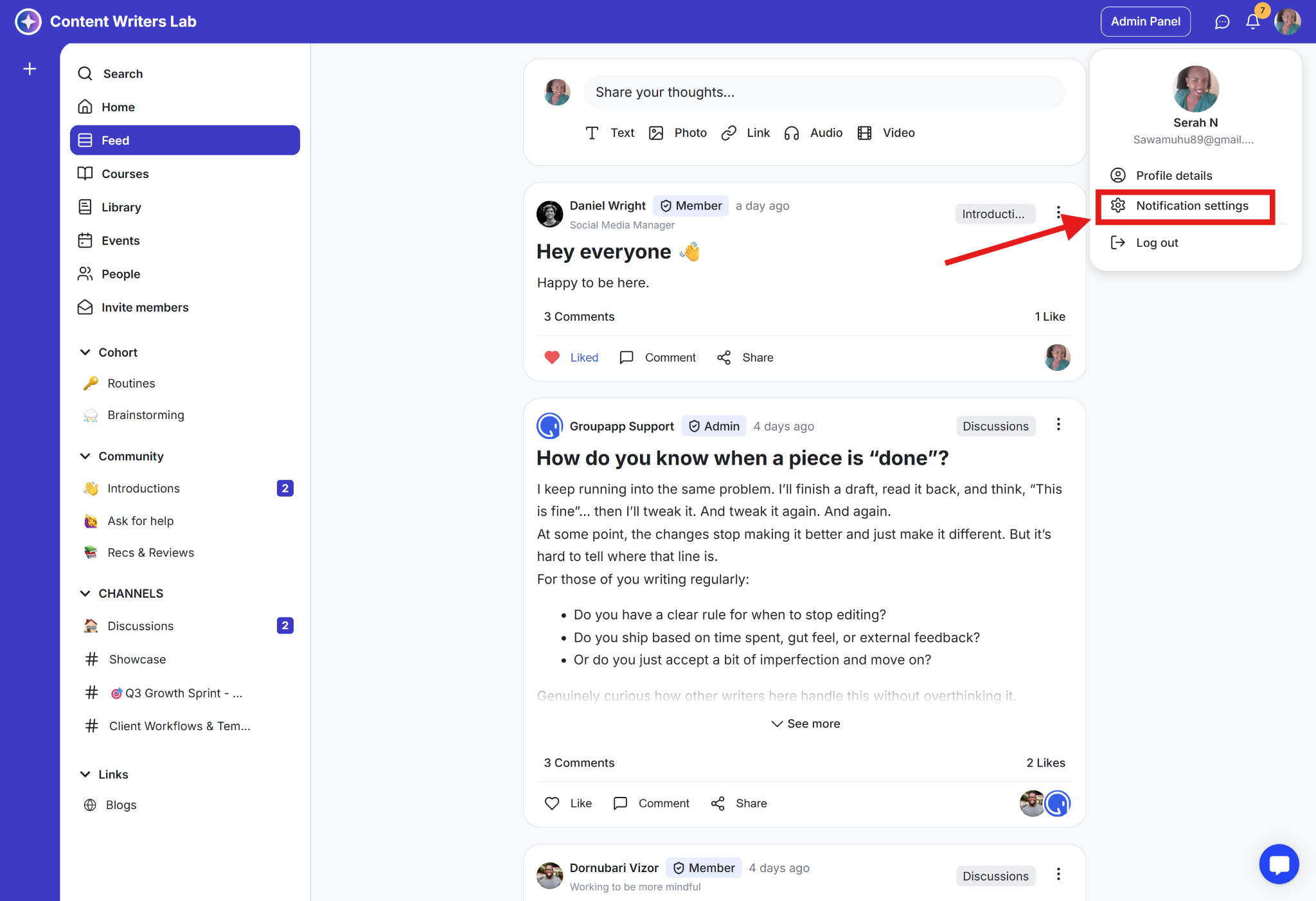
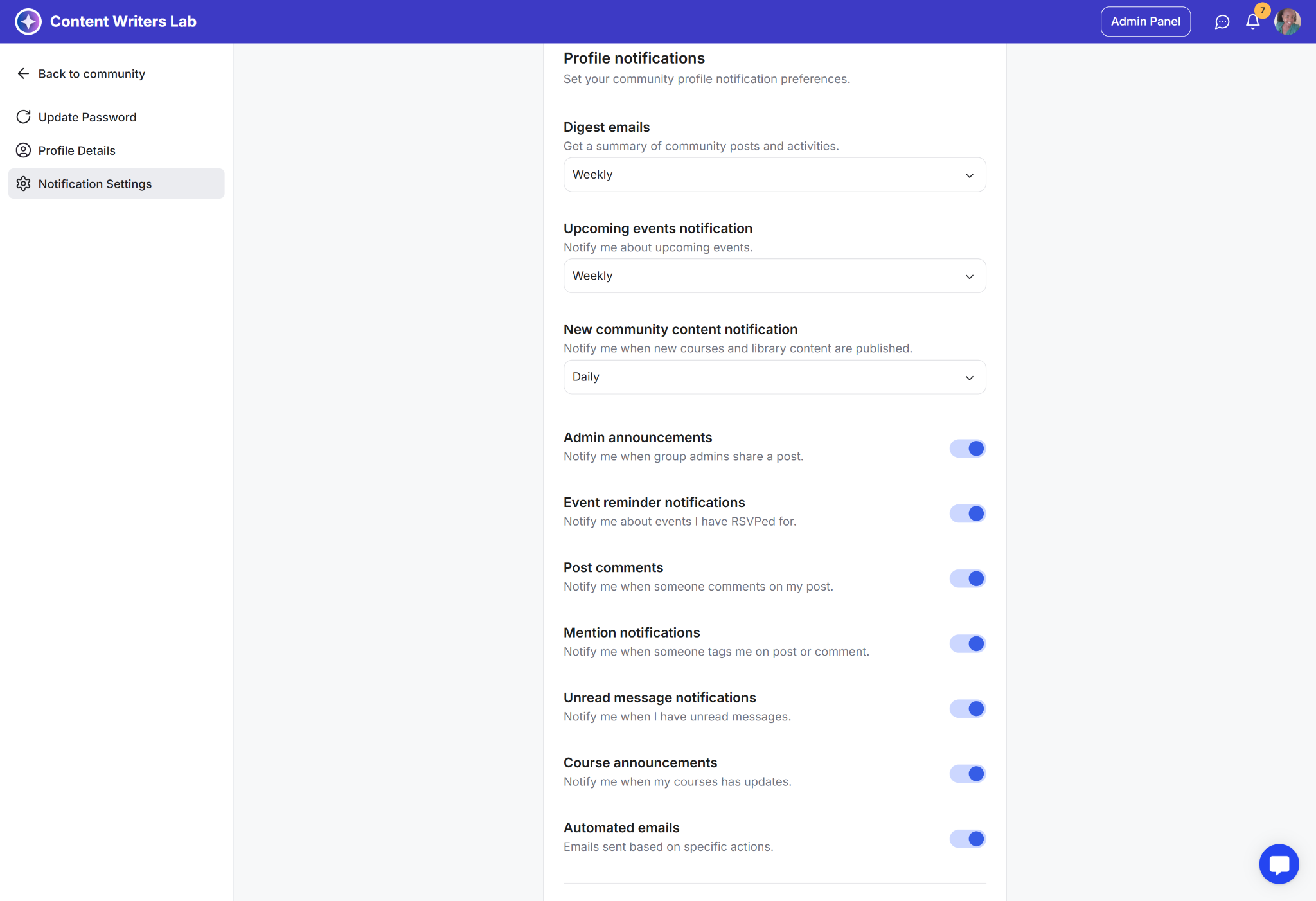
Step 3: Configure notification toggles and frequency options as needed.
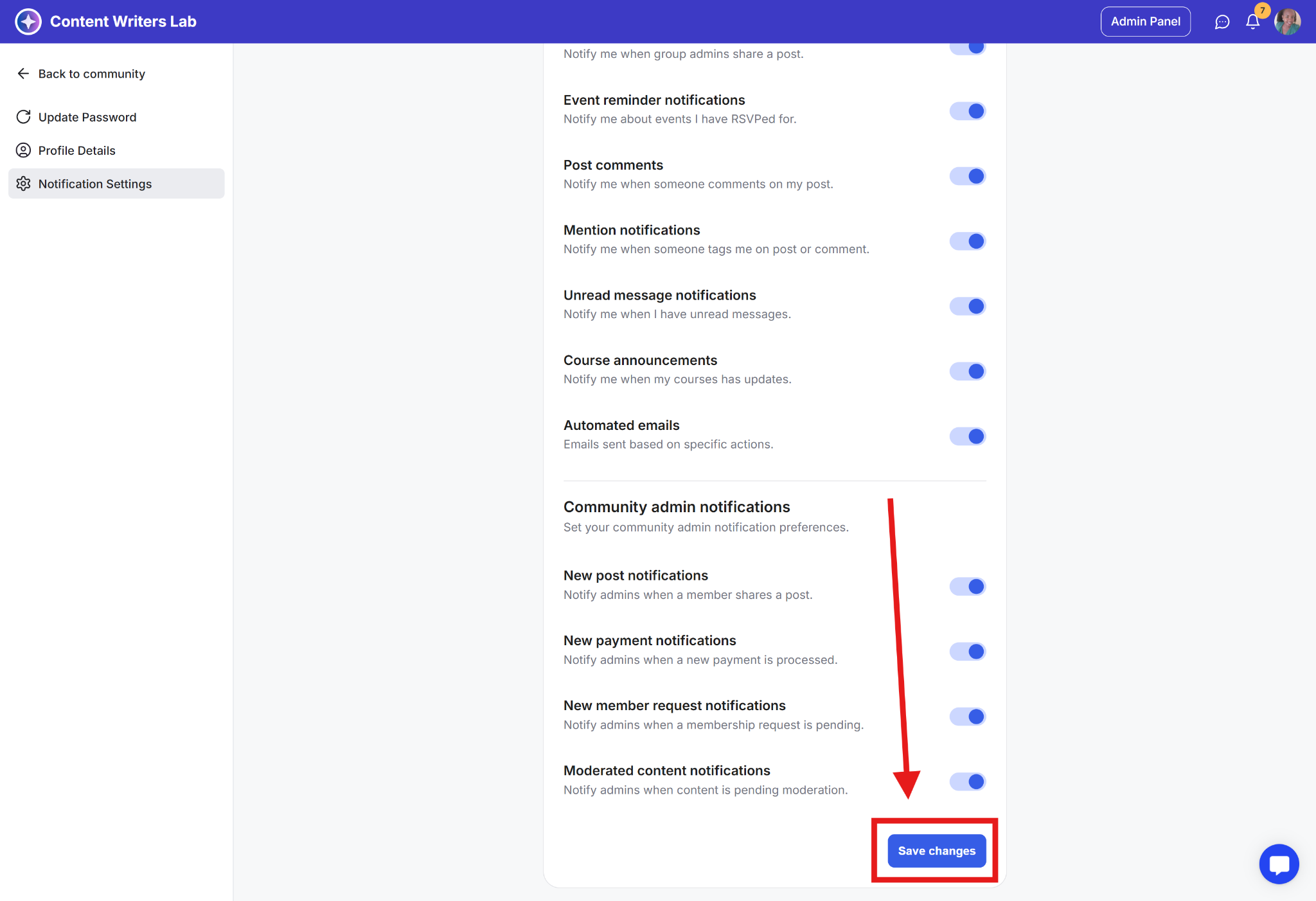
Step 4: Click Save Changes to apply your updates.
Note: Changes made here do not affect other admins.
Use toggles to enable or disable specific notifications.
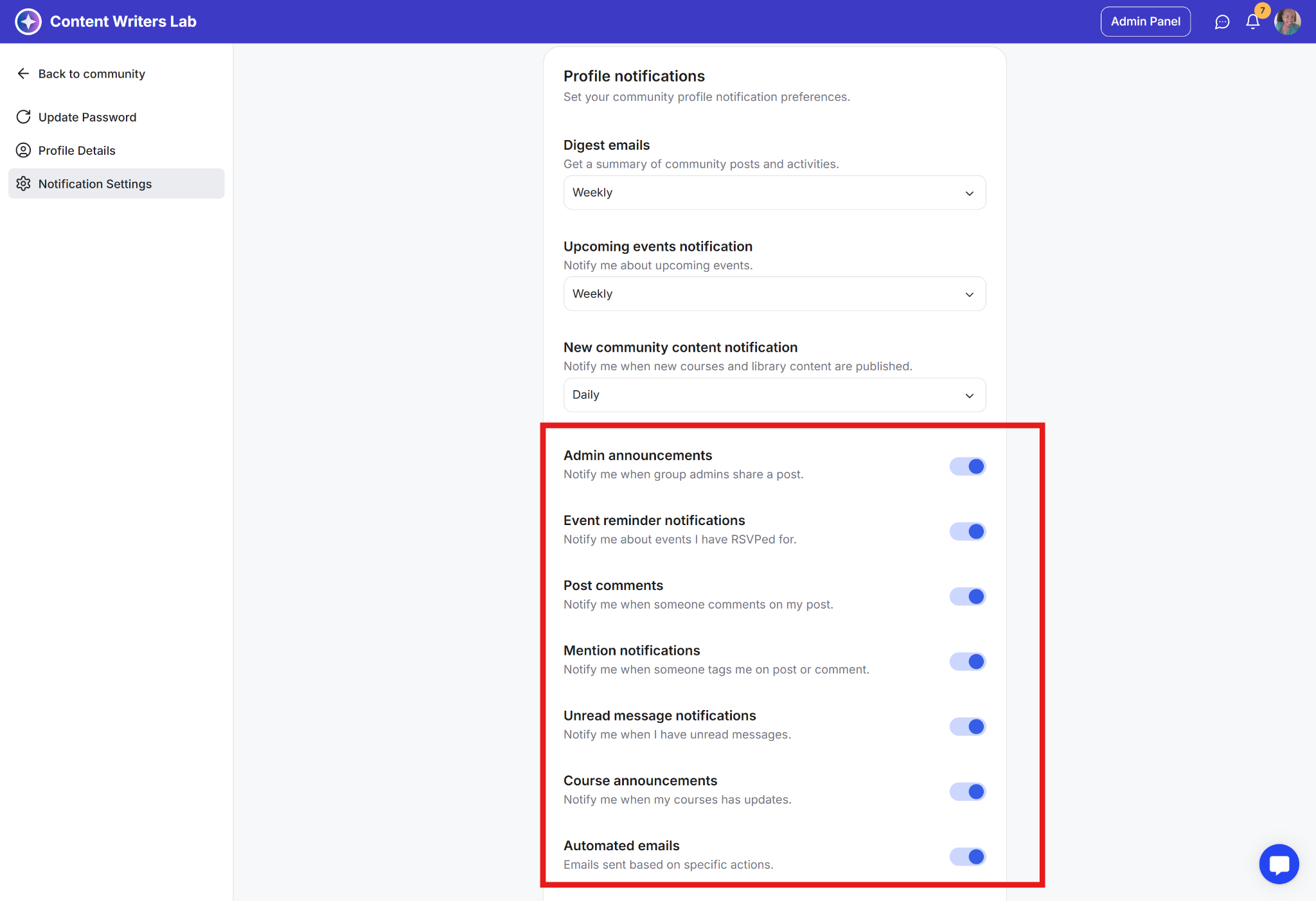
Admin announcements: Receive notifications when group admins share a post.
Event reminder notifications: Get notified about events you have RSVP’d for.
Post comments: Receive notifications when someone comments on your post.
Mention notifications: Get notified when someone mentions you in a post or comment.
Unread message notifications: Receive notifications when you have unread messages.
Course announcements: Get notified when courses you are enrolled in have updates or new content.
Automated emails: System-generated emails sent based on specific actions.
These notifications relate specifically to admin responsibilities.
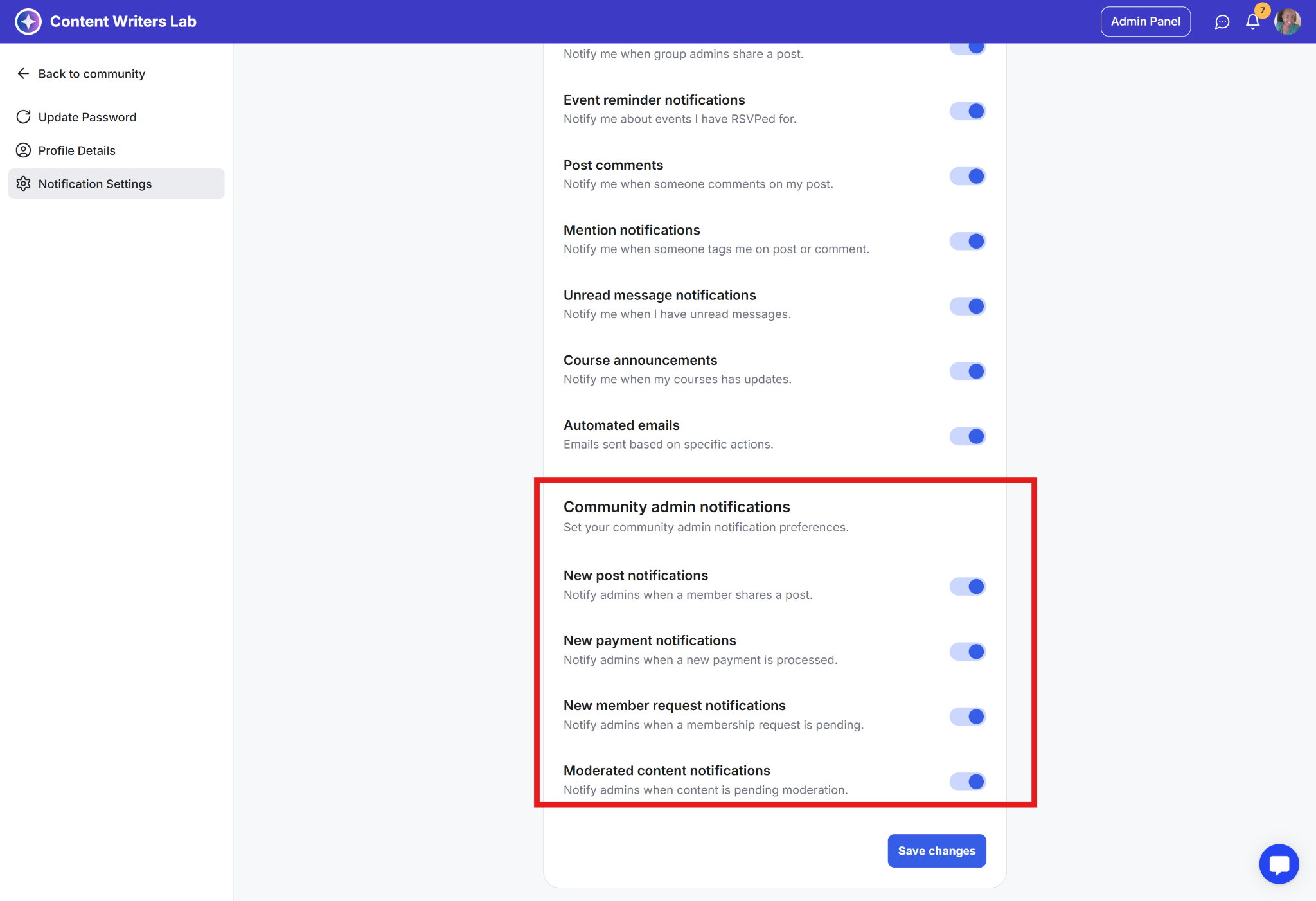
Community admin notifications: Manage admin-related notification preferences.
New post notifications: Notify admins when a member shares a new post.
New payment notifications: Notify admins when a new payment is processed.
New member request notifications: Notify admins when a membership request is pending approval.
Moderated content notifications: Notify admins when content is pending moderation.
Remember: Turning a toggle off disables that notification only for your admin account. Other admins are not affected.
Some notifications allow you to choose when they are delivered using a dropdown menu.
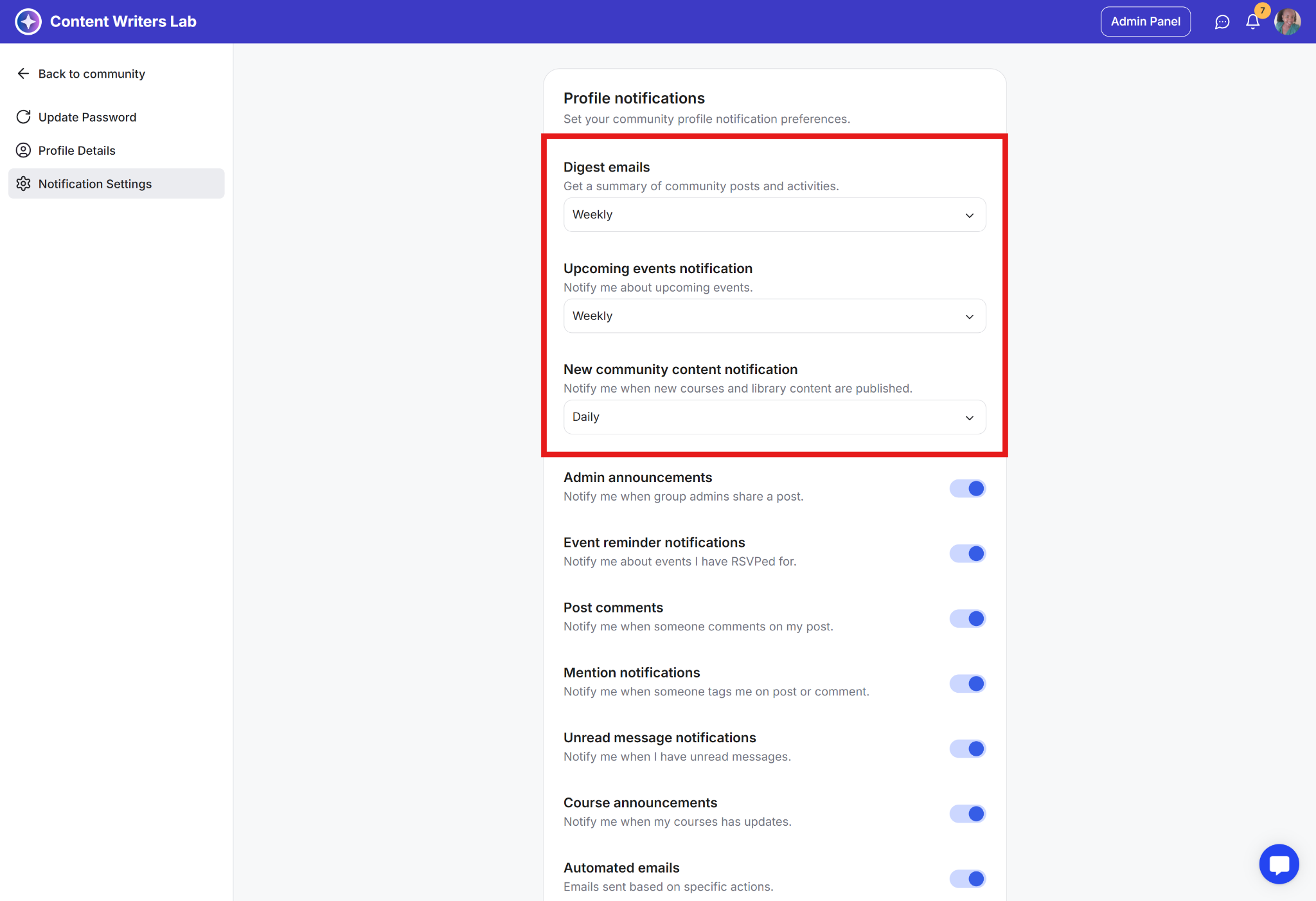
Notifications with frequency controls include:
Digest emails
Upcoming events notifications
New community content notifications
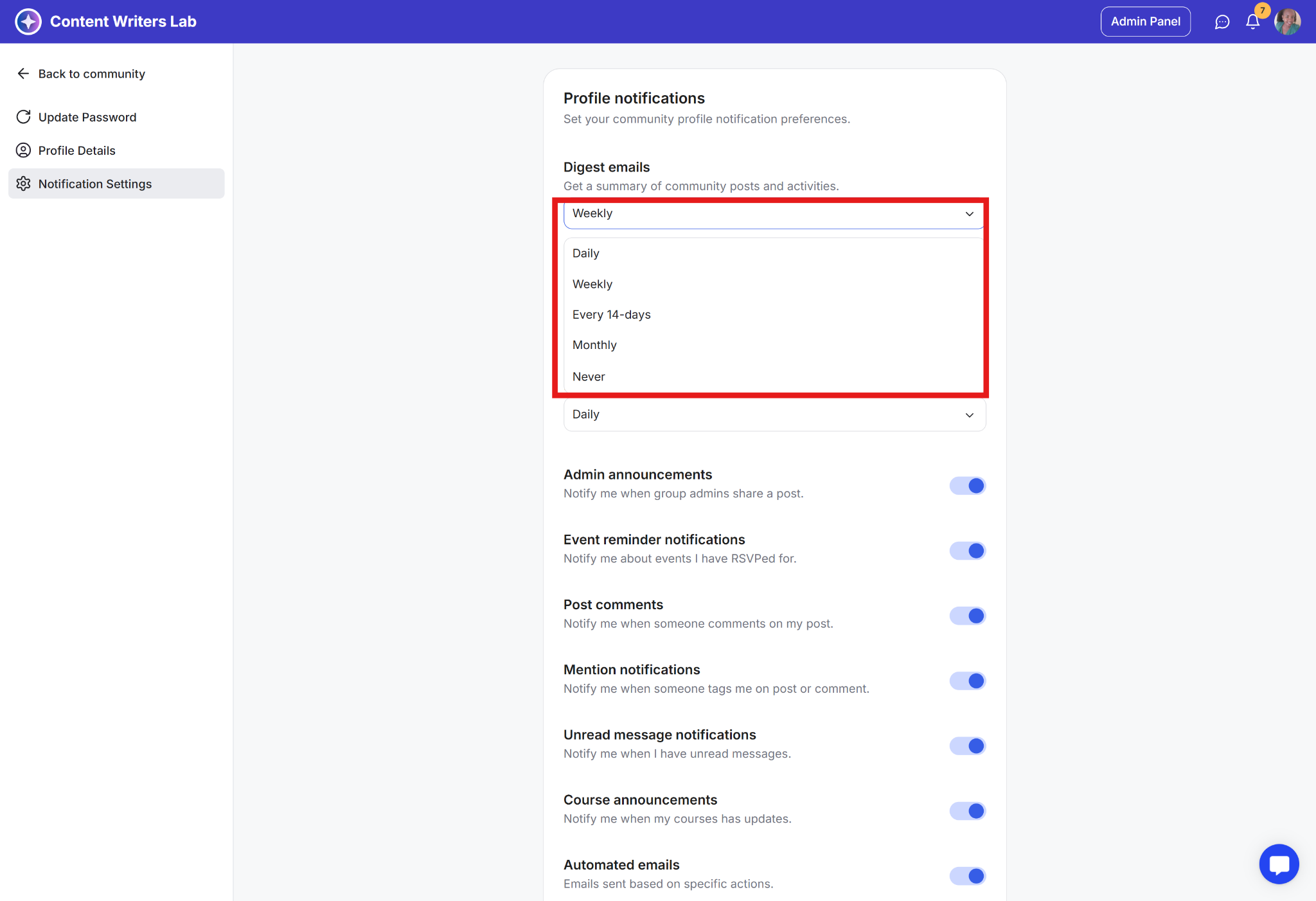
Daily
Weekly
Every 14 days
Monthly
Never
Selecting Never disables that notification type. Any other option delivers notifications based on the selected schedule.
Admins can also manage digest notifications that apply to the entire community.
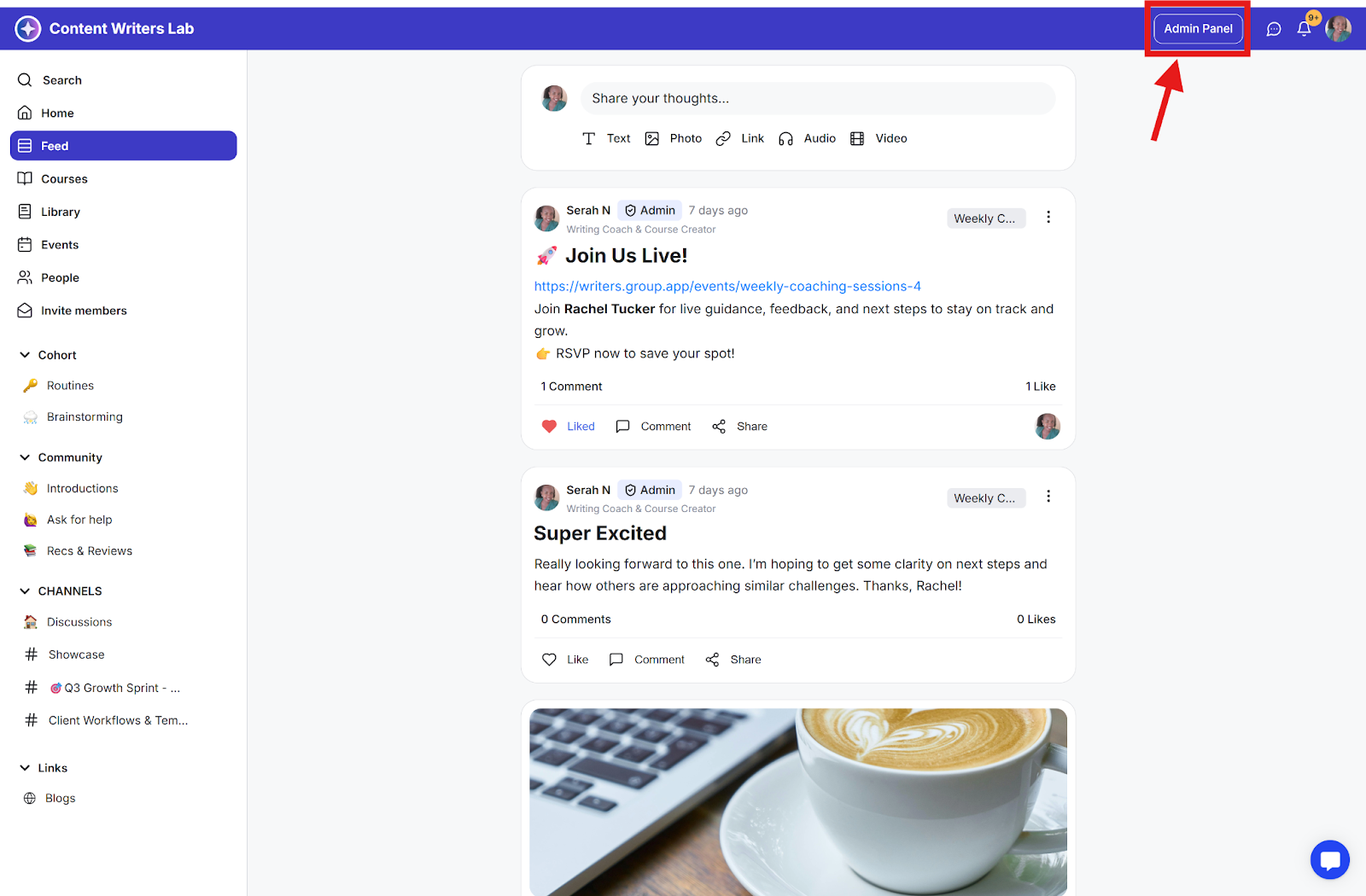
Step 1: Open the Admin Panel.
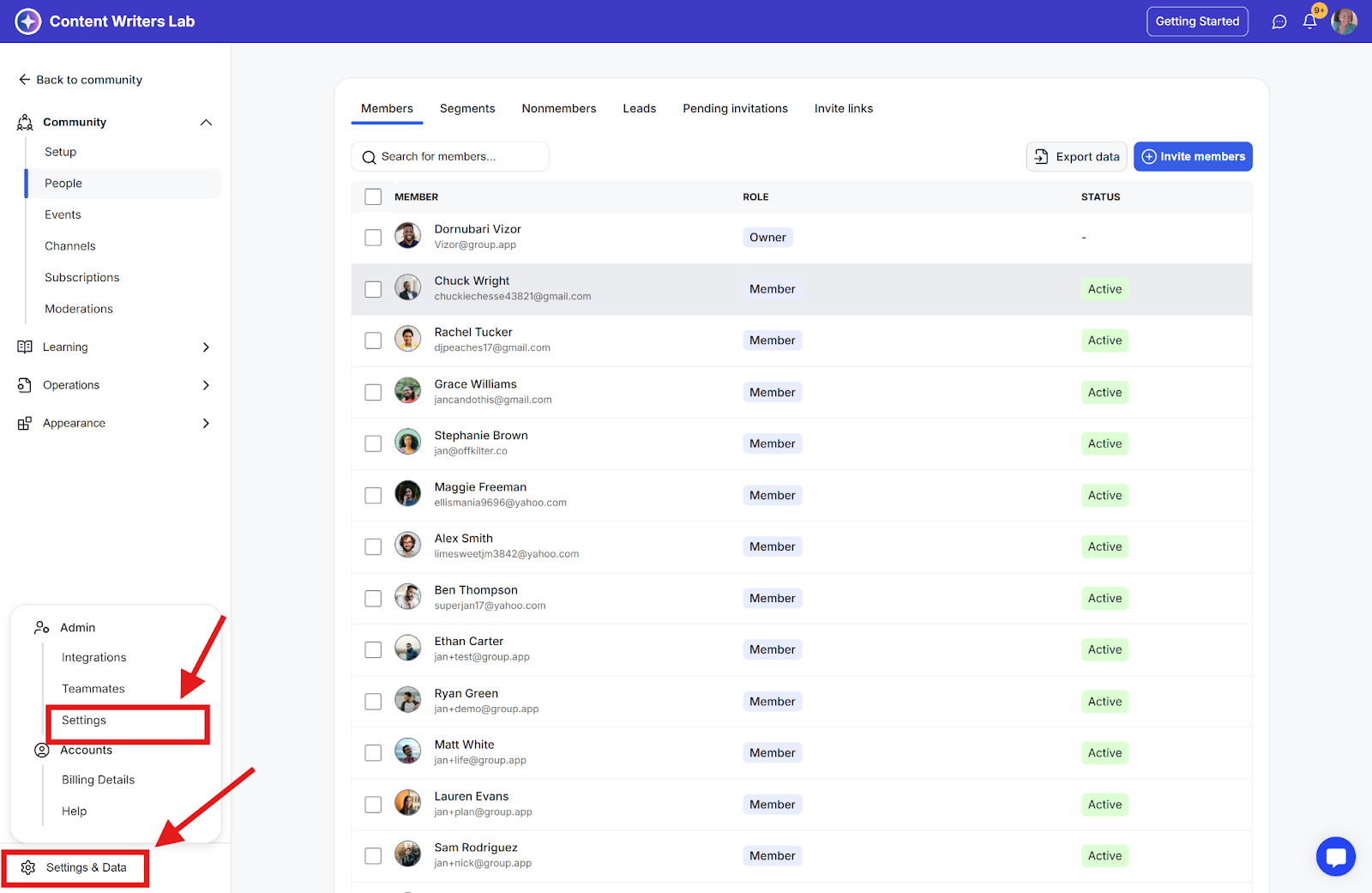
Step 2: Go to Settings & Data and select Settings.
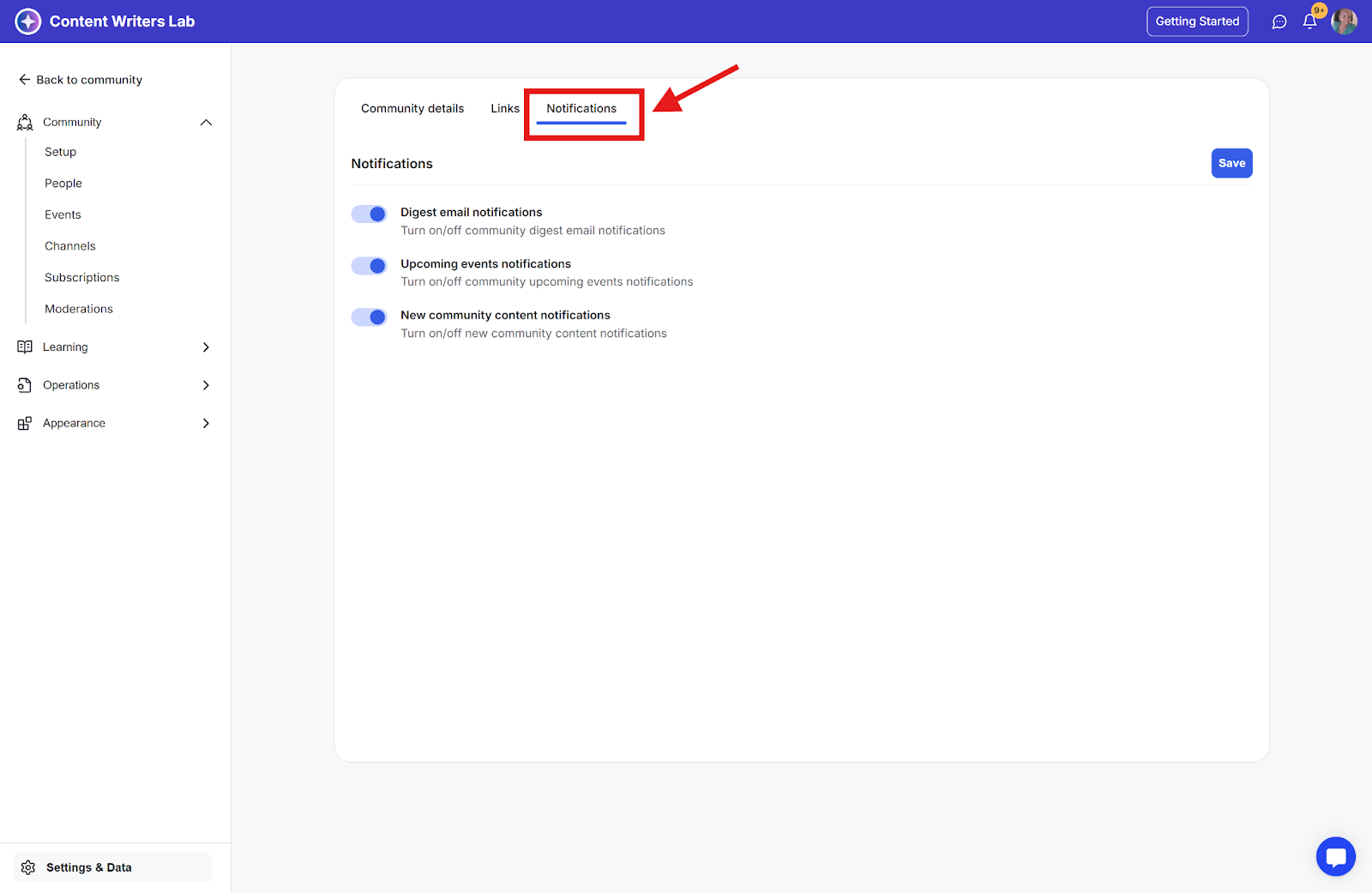
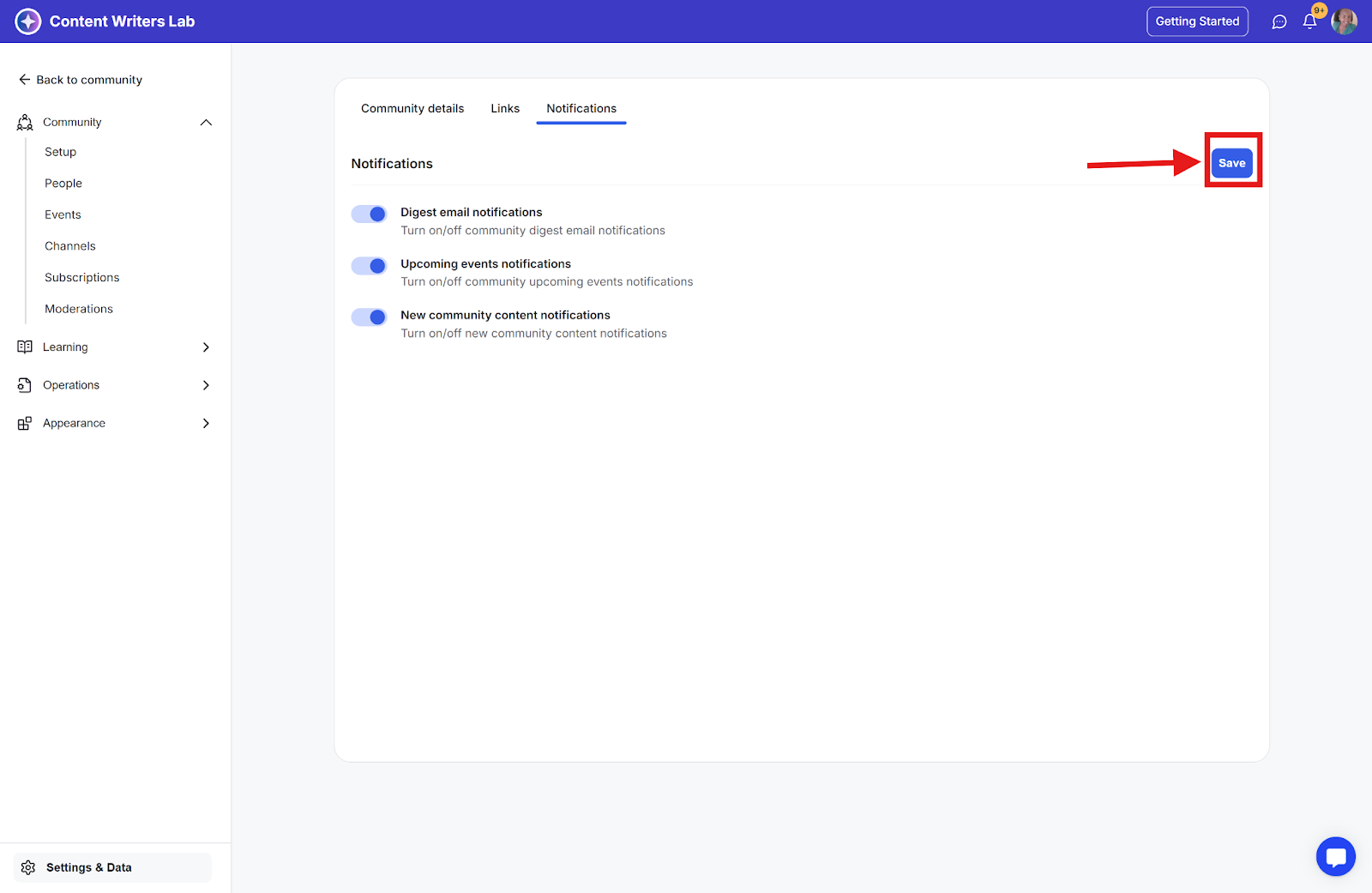
Step 3: Select the Notifications tab.
Step 4: Update the community-wide digest settings:
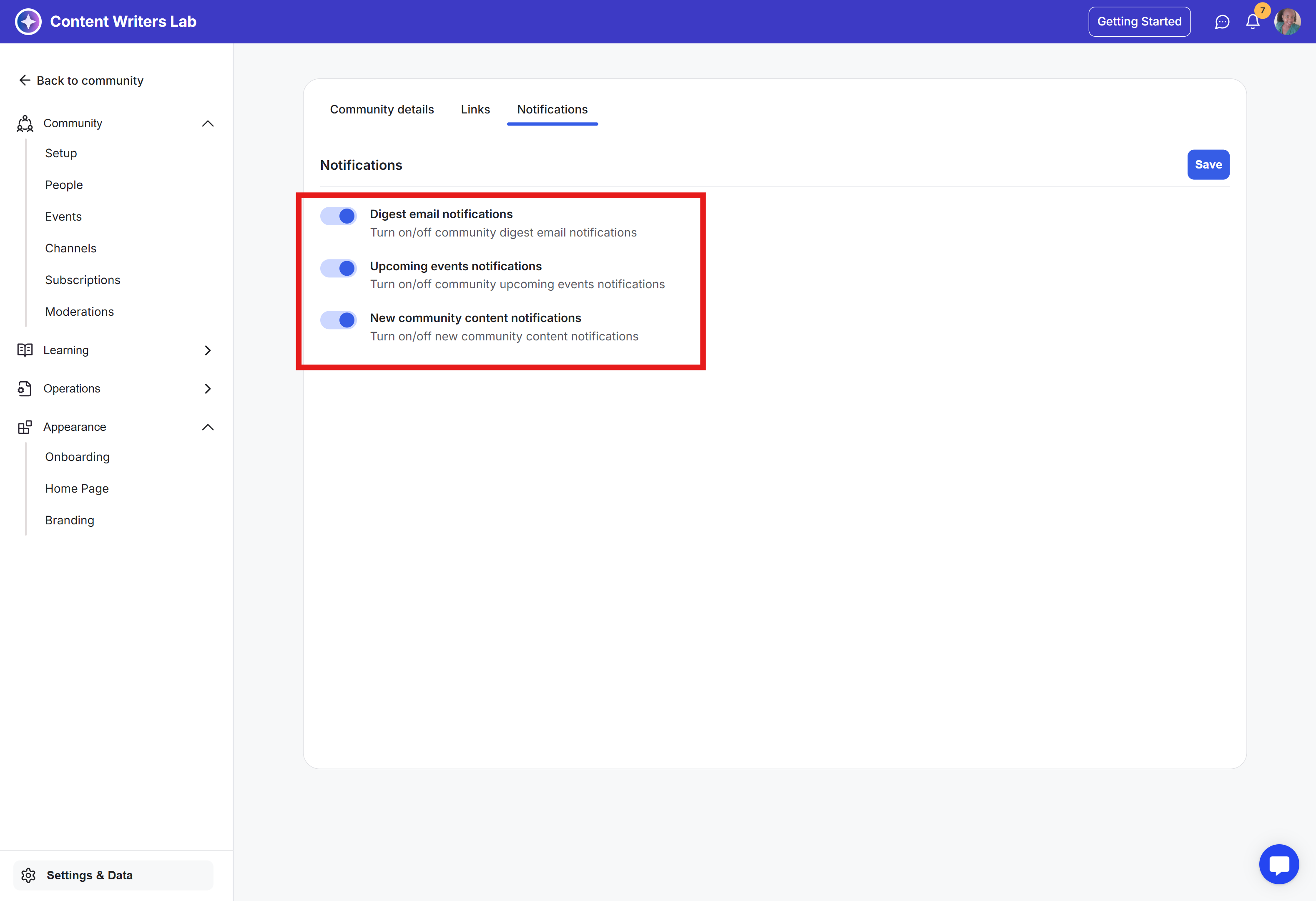
Digest email notifications: Turn on or off community digest emails sent to members.
Upcoming events notifications: Turn on or off notifications for upcoming community events.
New community content notifications: Turn on or off notifications when new content is published in the community.
Step 5: Click Save to apply the changes.
Important: Community-wide digest settings affect all members, while personal admin notification settings affect only the individual admin.
