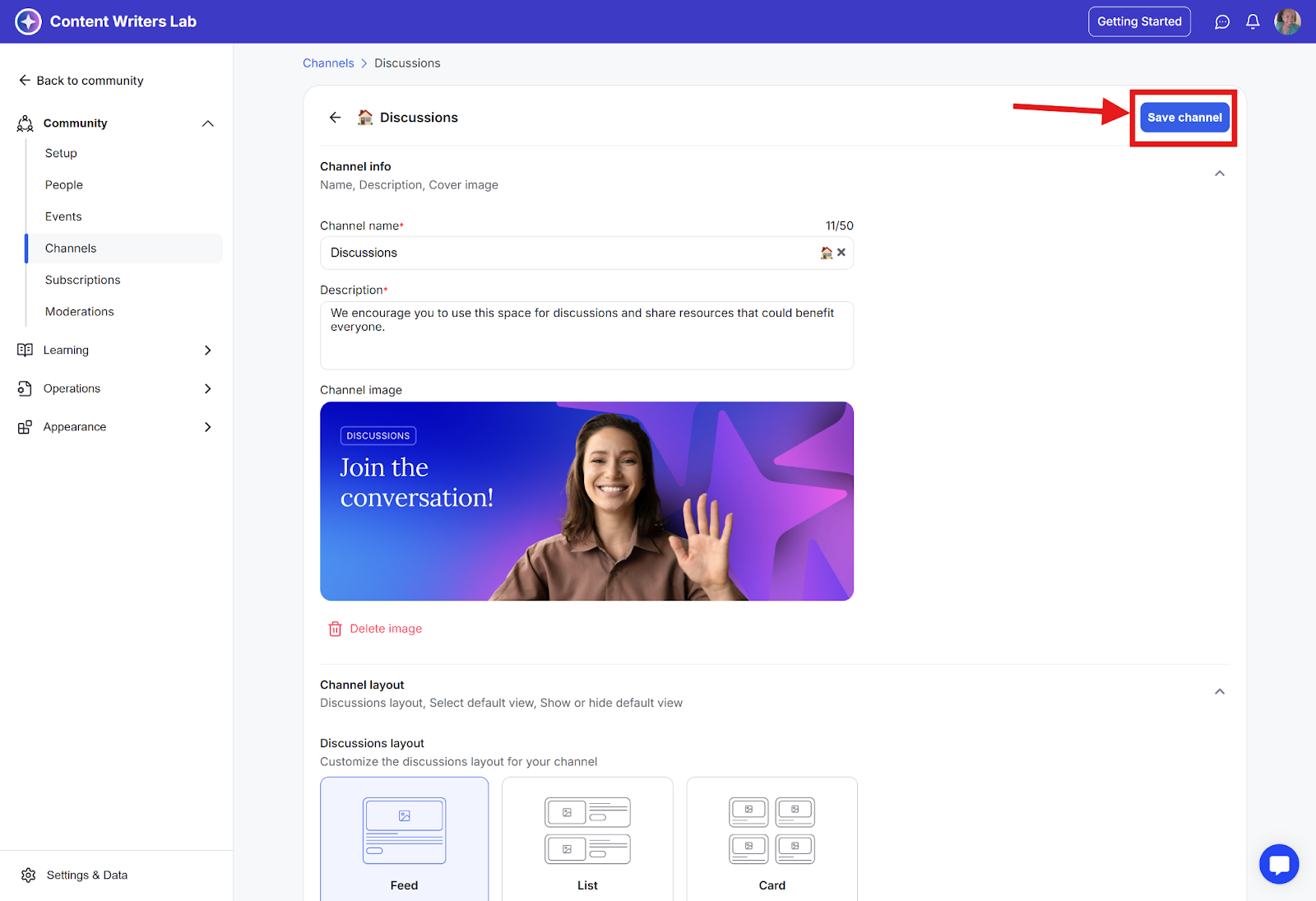
Channel layout options let you choose how posts, updates, and content appear in a channel.
You can pick a style that fits your community’s needs and makes it easy for members to browse, engage, and find important updates.
Channels offer three layout options to display posts and content:
Feed
List
Card
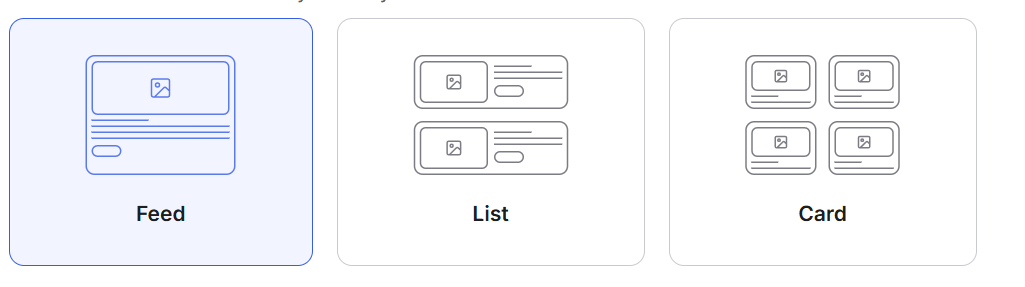
In this guide, we’ll show the three layout options, their best uses, and guide you on how to set them for your channel.
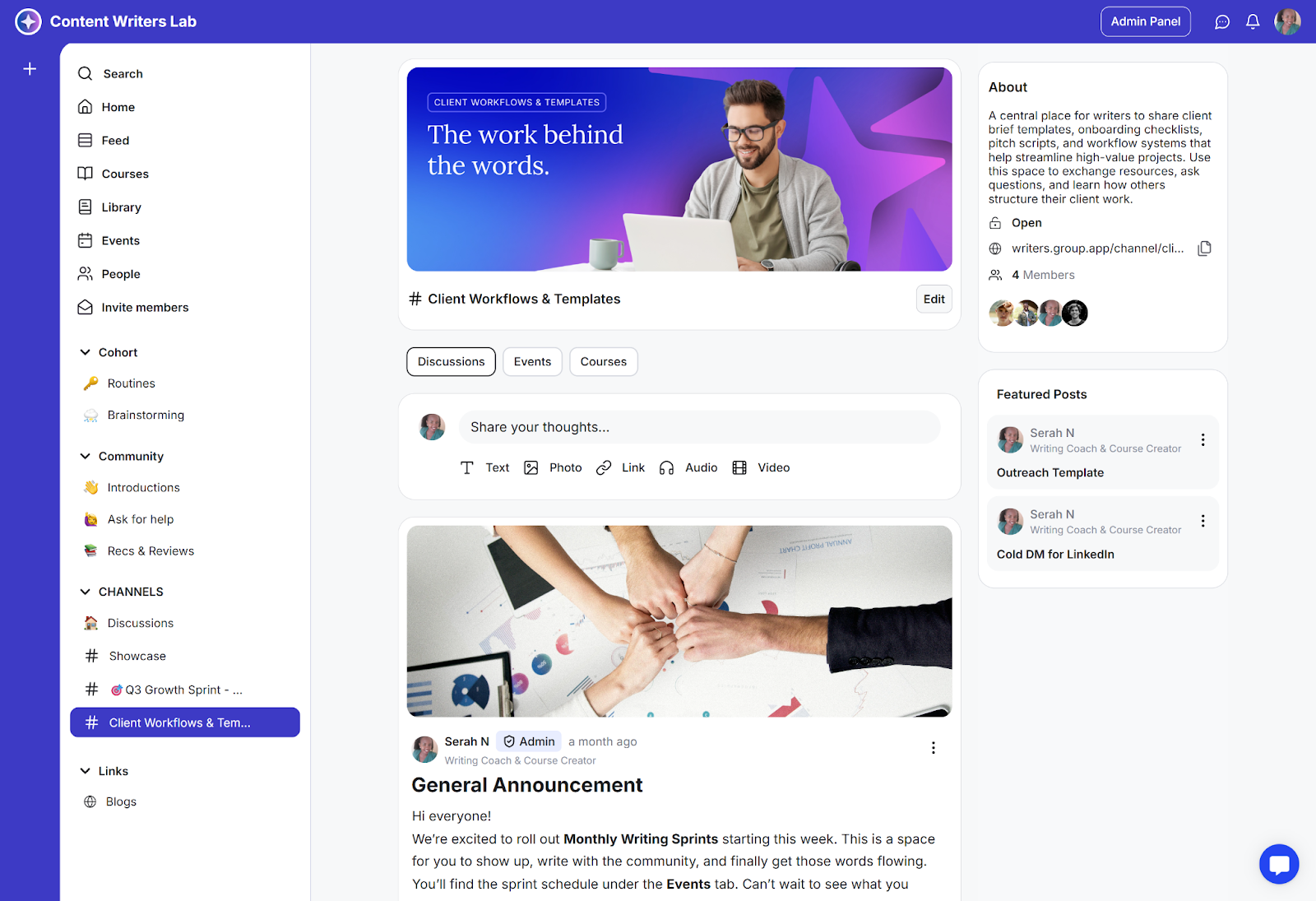
Channel posts appear in a discussion-style format, similar to a Facebook Group.
This is best for active discussions, announcements, or communities with frequent updates.
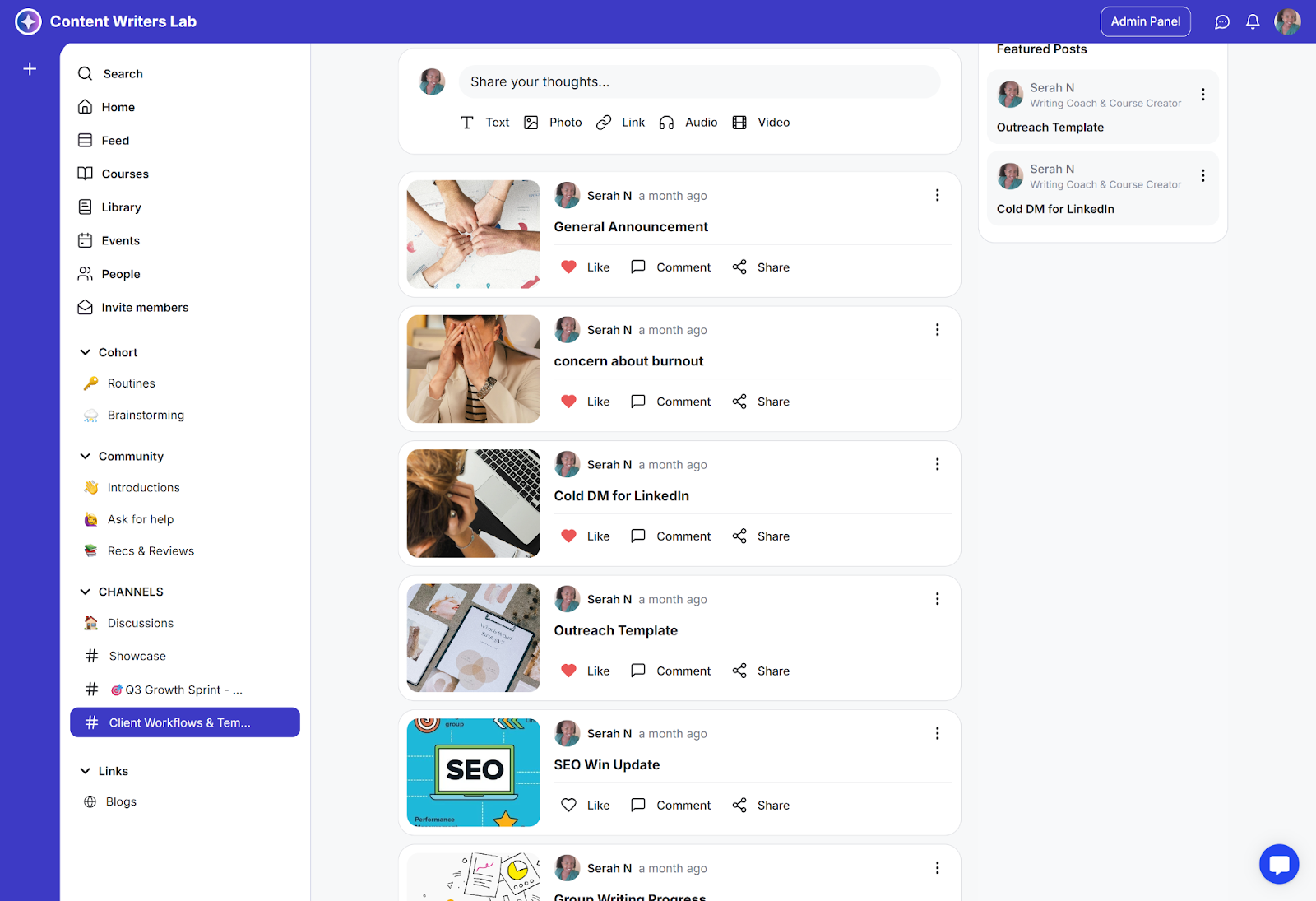
Posts are presented in a clean, compact vertical feed that highlights the title, author, and time since posting.
This layout is great for knowledge-sharing, update logs, or channels with longer posts.
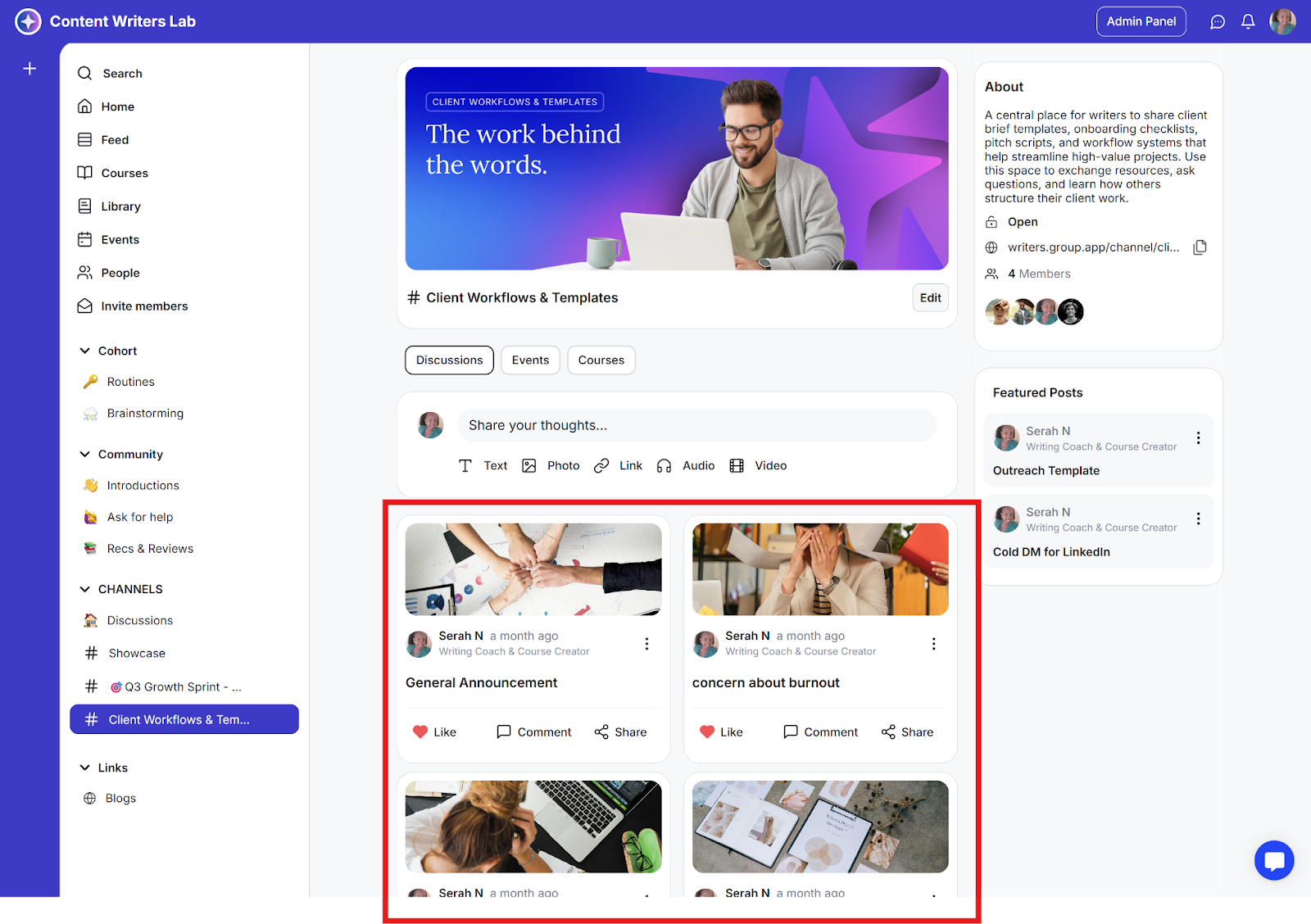
Posts appear arranged in a grid, showing a title, image, and author. This visually appealing layout makes it easy to browse content at a glance.
Great for showcasing media-rich content, portfolios, or creative work.
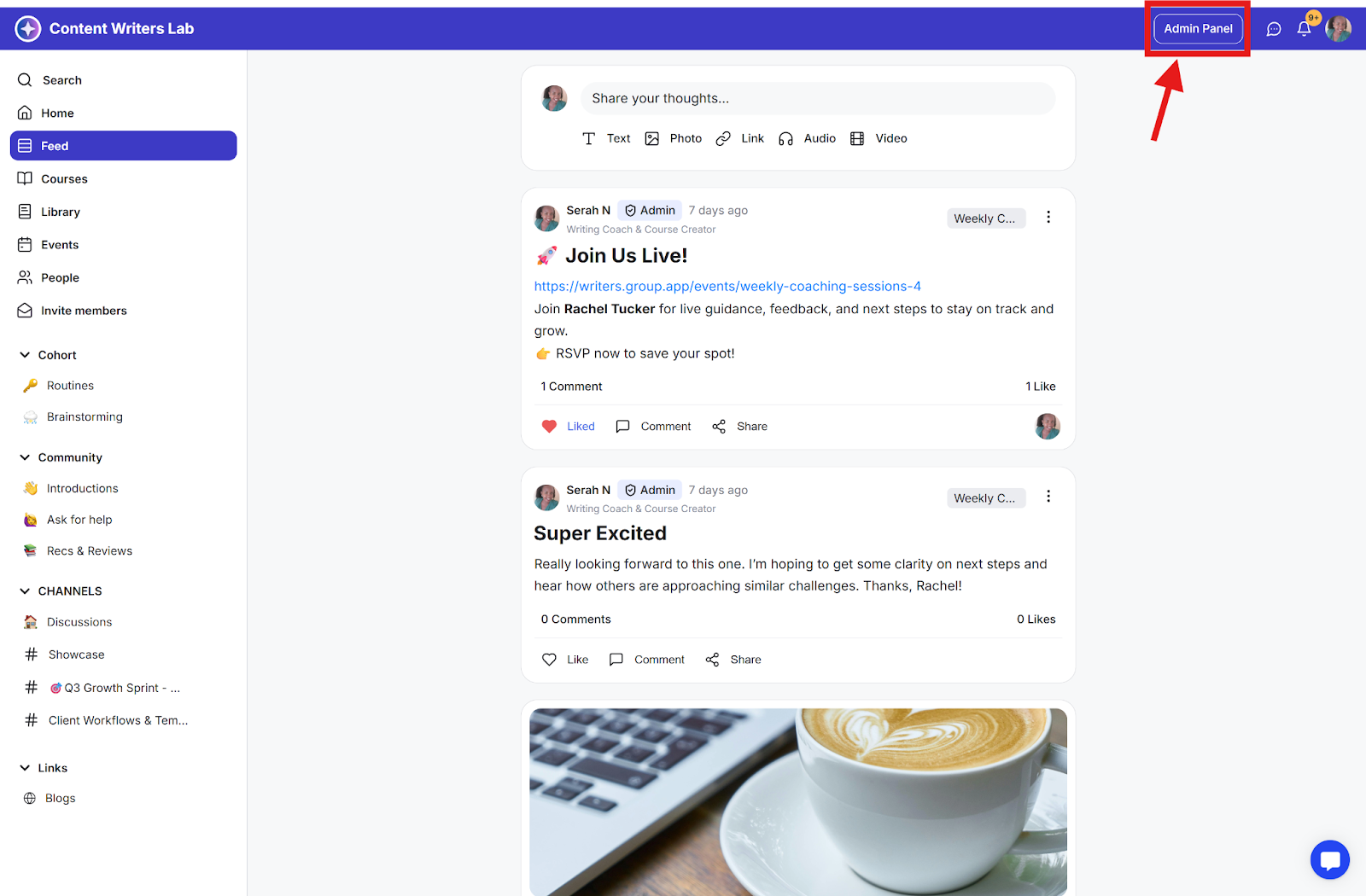
Step 1: Go to the Admin Panel from the top-right corner of the dashboard.
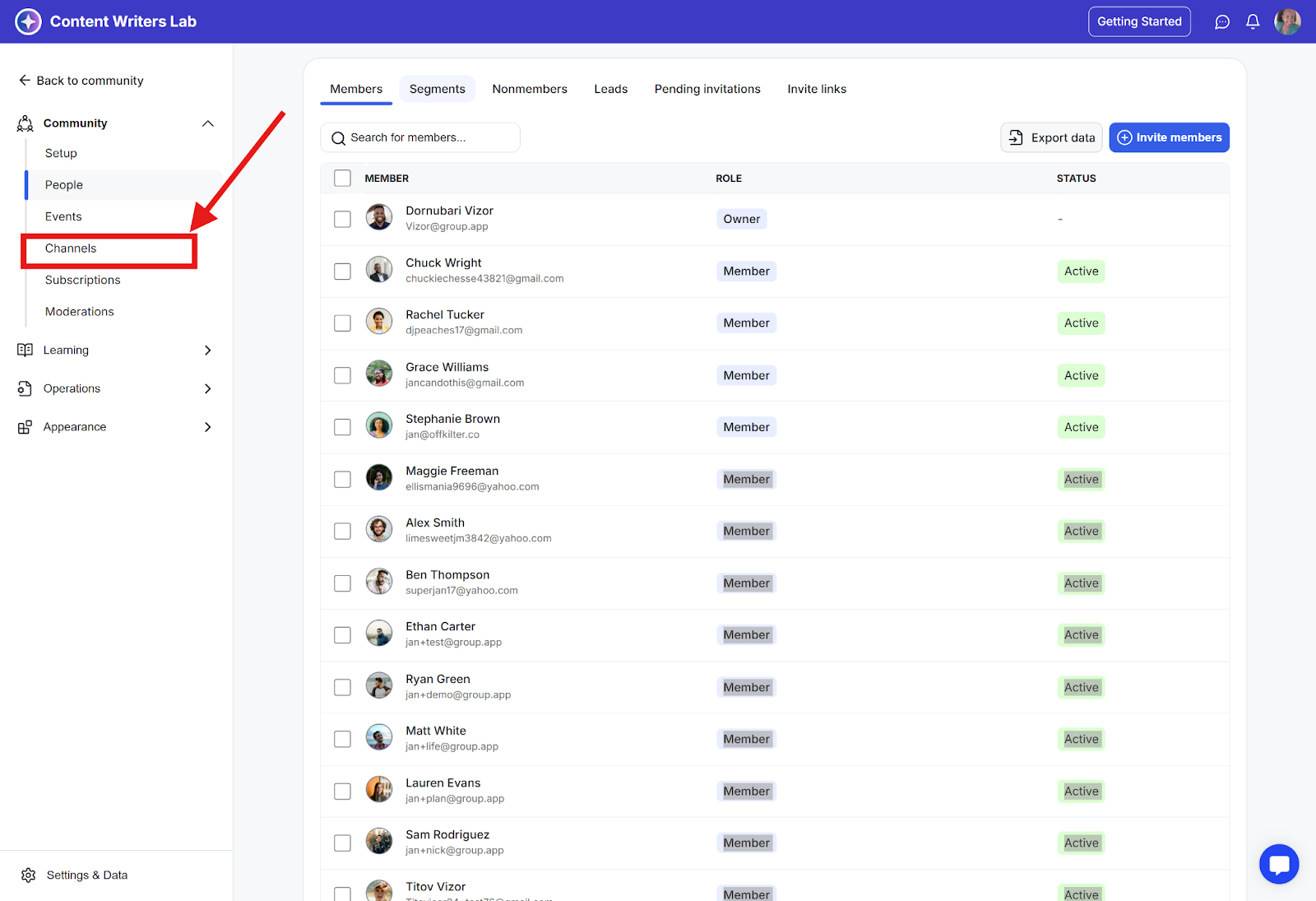
Step 2: Click Channels in the Admin Panel menu.
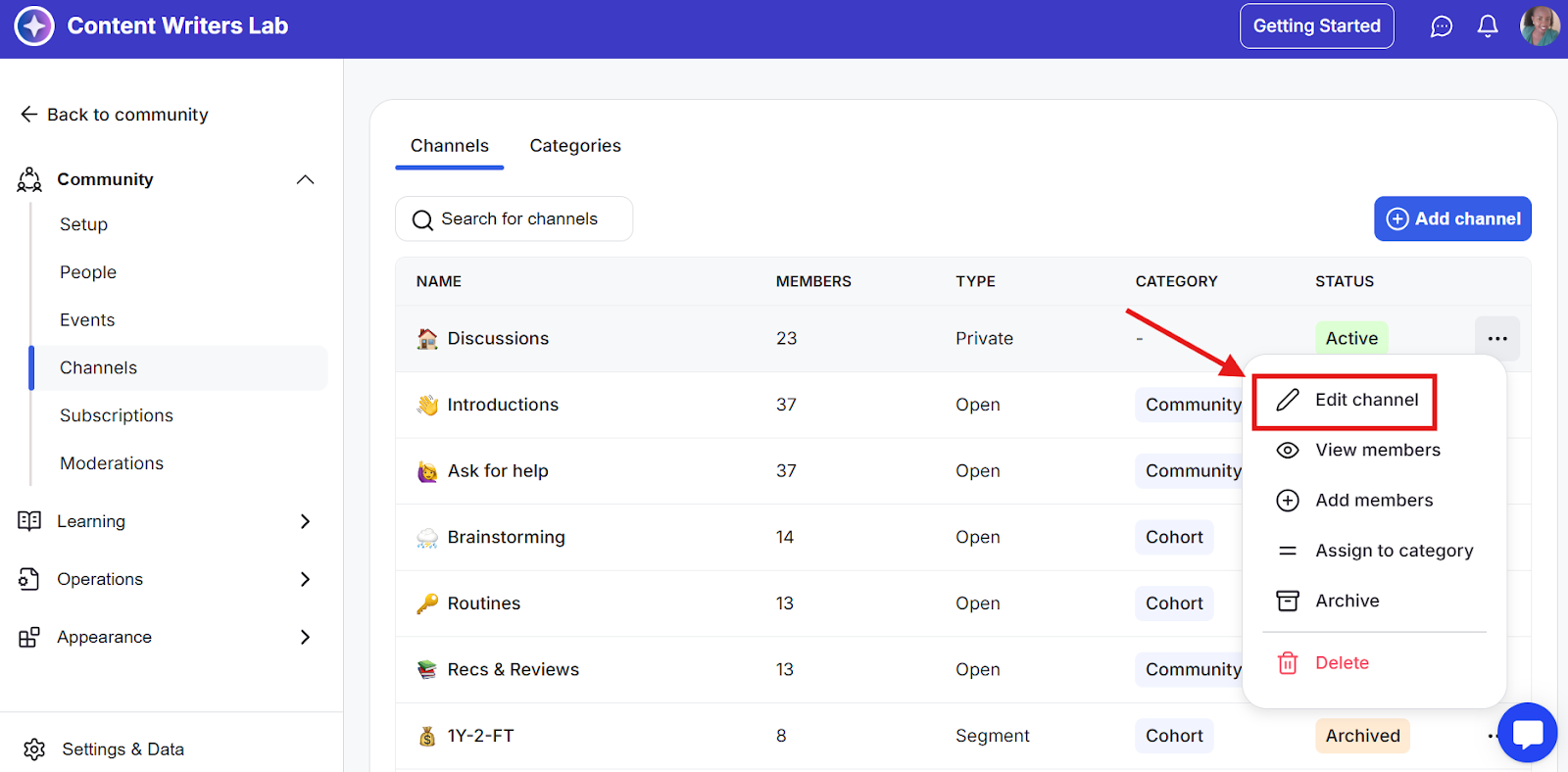
Step 3: Find the channel you want to change, click the three-dot menu on the right side of the channel name, then select Edit Channel.
Step 4: Scroll down to Channel Layout.
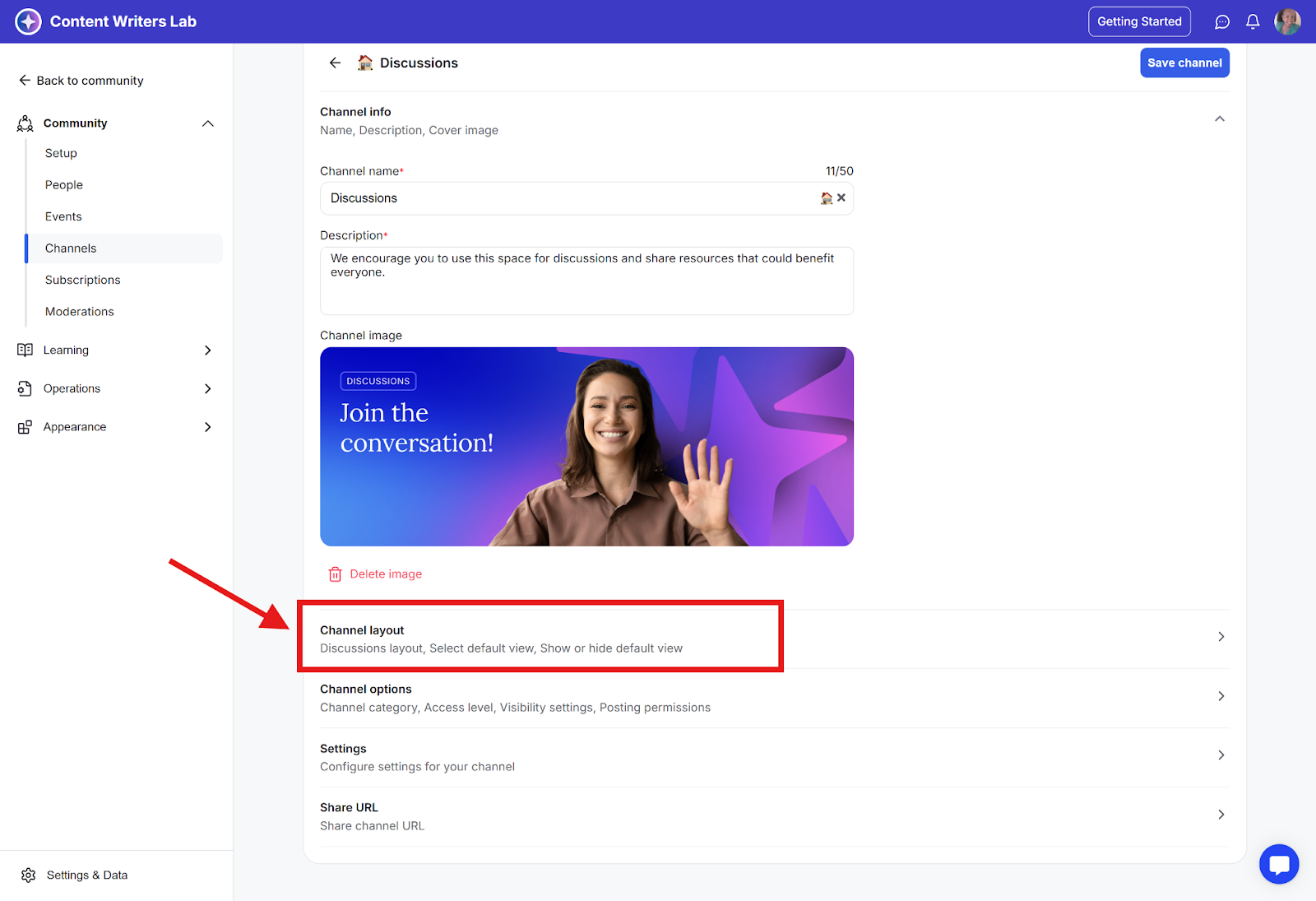
Step 5: Click Channel Layout to open the Discussions Layout section. You will see the three layout options: Feed, List, and Card. Click the layout you want to use. The selected layout will turn blue to show it’s active.
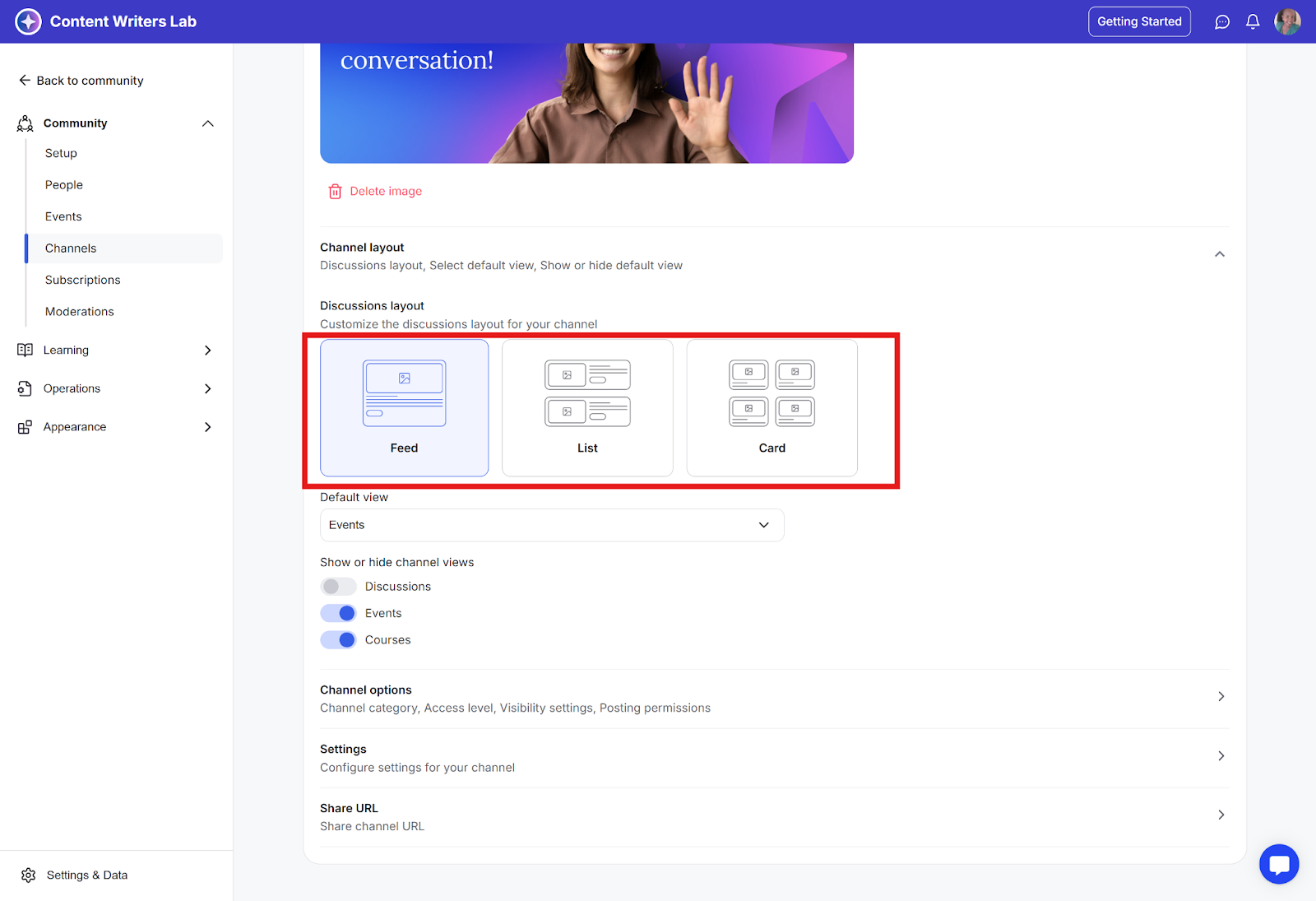
Step 6: Scroll back up and click Save Channel at the top-right corner to apply the changes.