There are three ways to organize your courses or library contents:
Re-arrange your courses/library content on the list.
Group courses/library contents by assigning them to Categories.
Reorganize your courses/library content by category.
NOTE: For each option, changing the placement directly affects how items appear to members and the order in which they are shown.
Re-arrange Your Courses/Library Content On the List
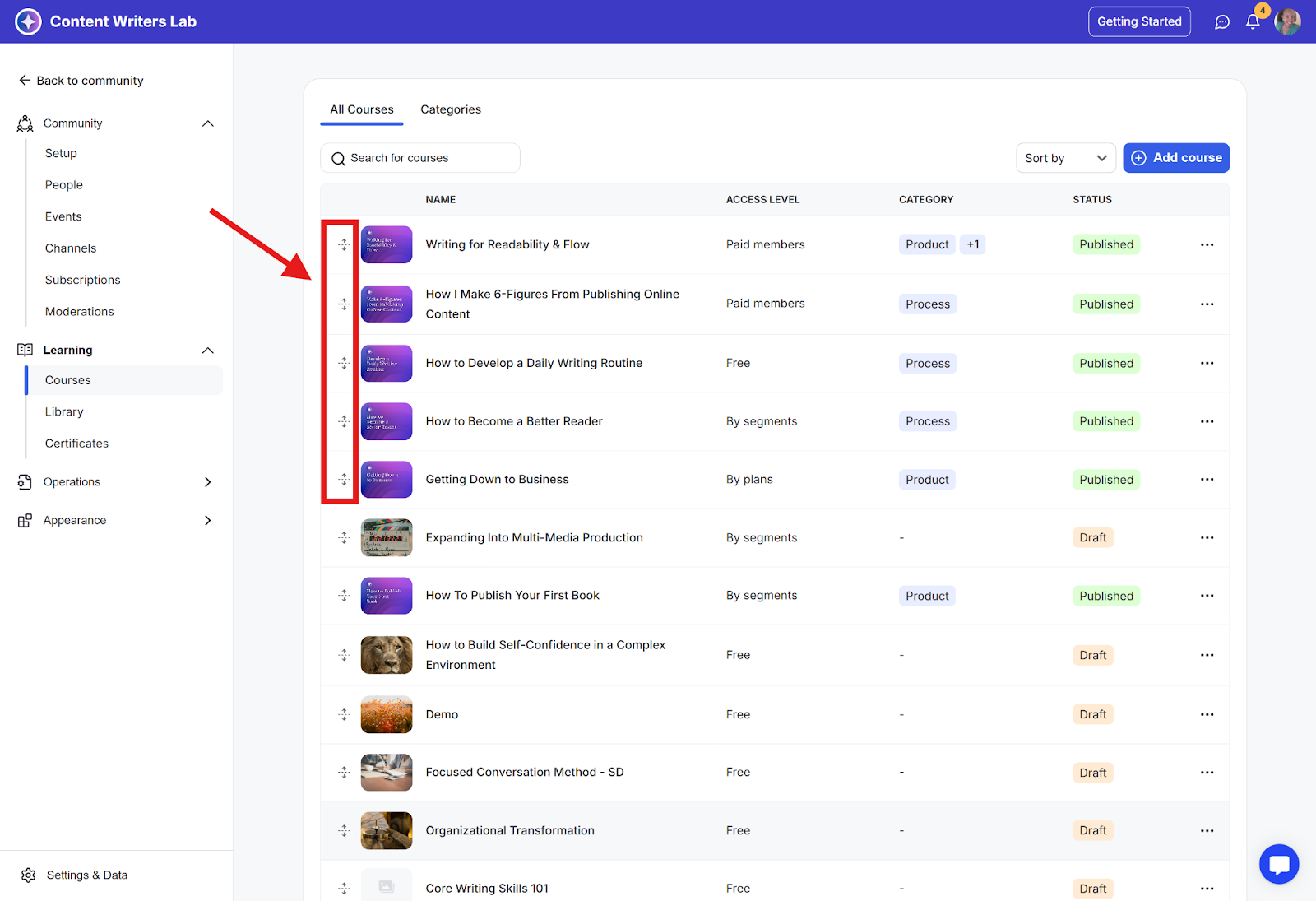
Step 1: Go to Courses/Library, and use these move icons to drag and re-arrange your courses/contents.
Group Courses/Library Contents by Assigning Them to Categories
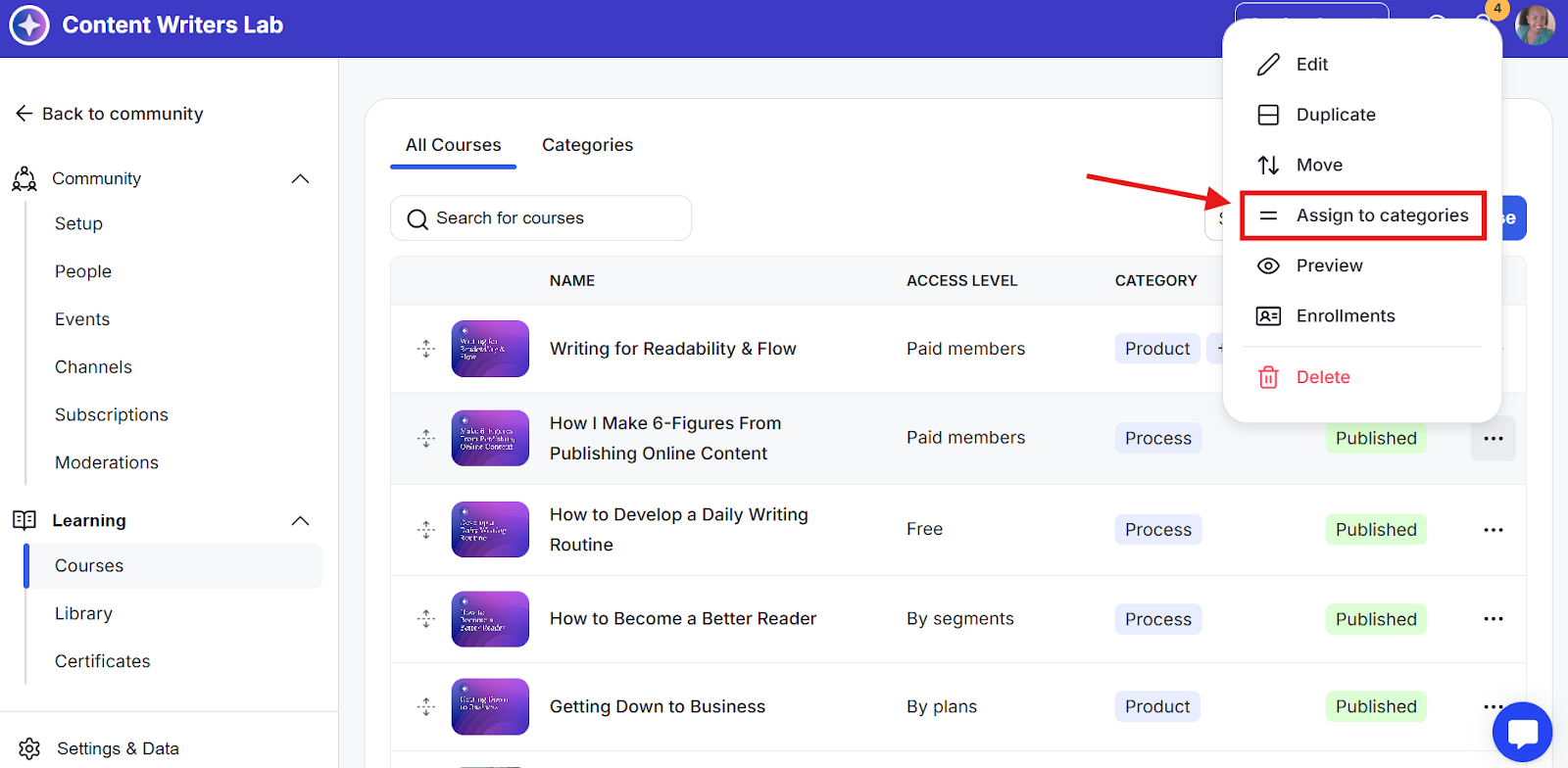
Step 1: Go to Courses/Library, click the 3-dot icon for the course/content, and select Assign to Categories.
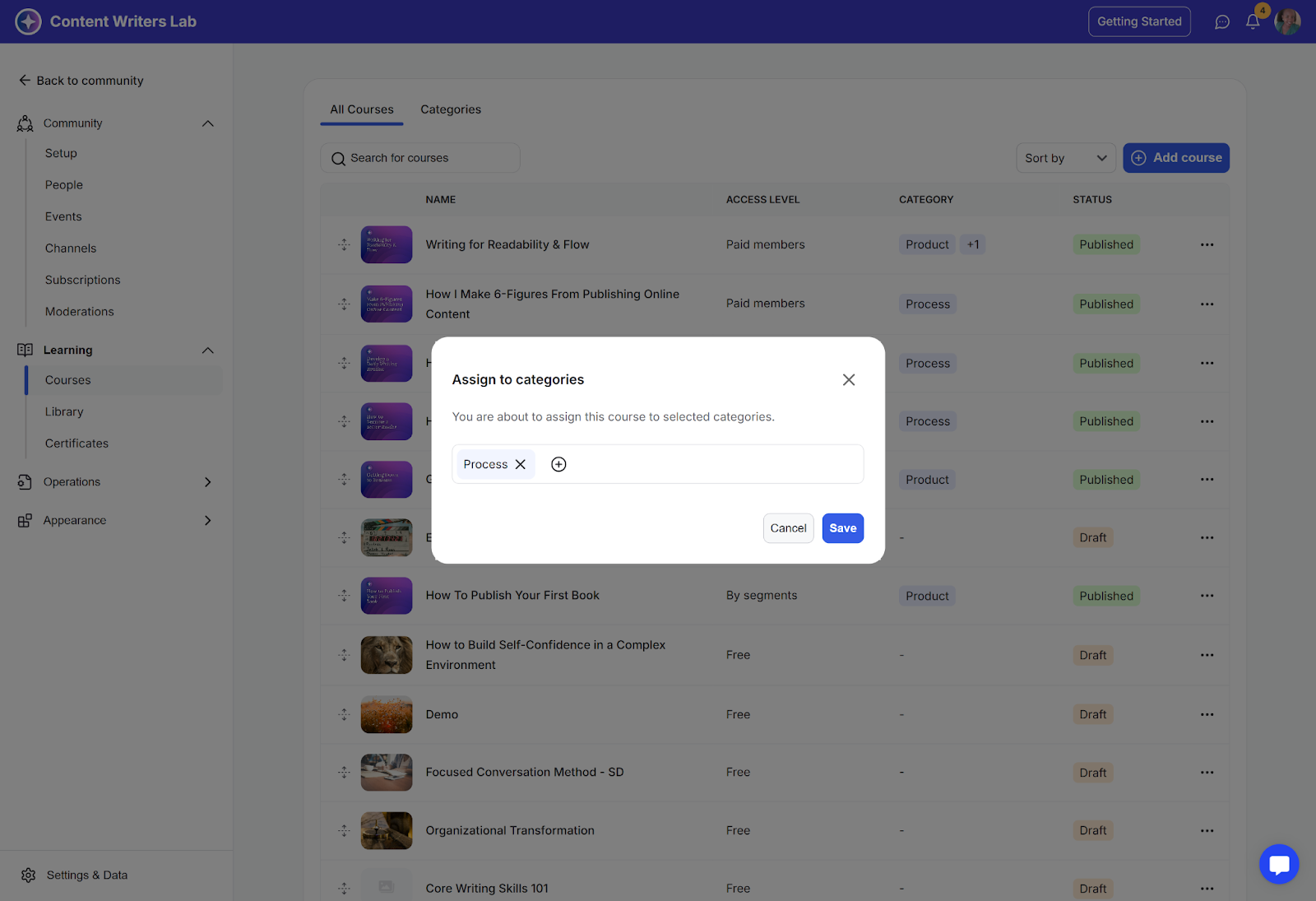
Step 2: Select the category or categories from the list and click Save to apply changes.
Re-arrange Your Courses/Library Content on the Categories
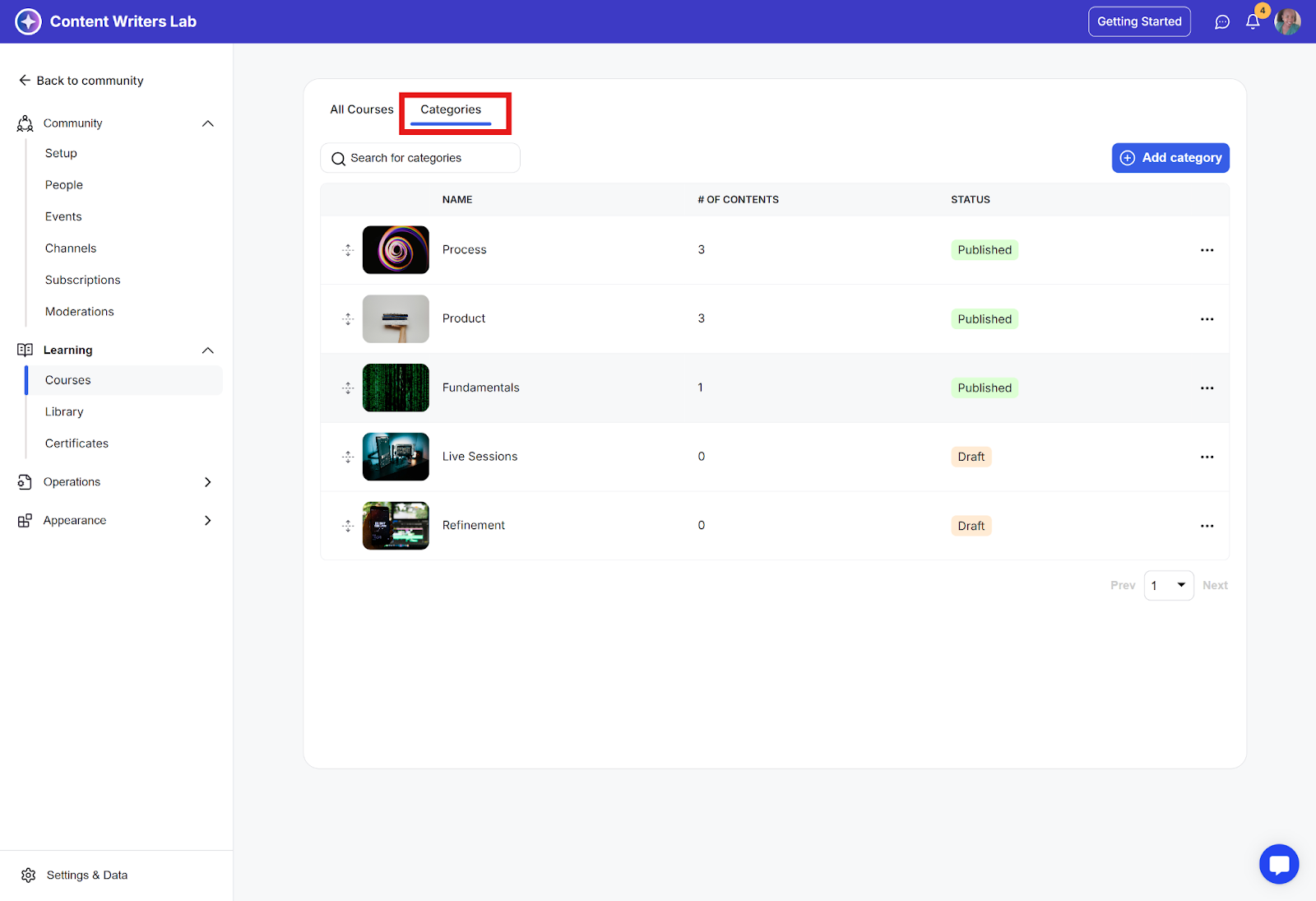
Step 1: Go to the Categories tab.
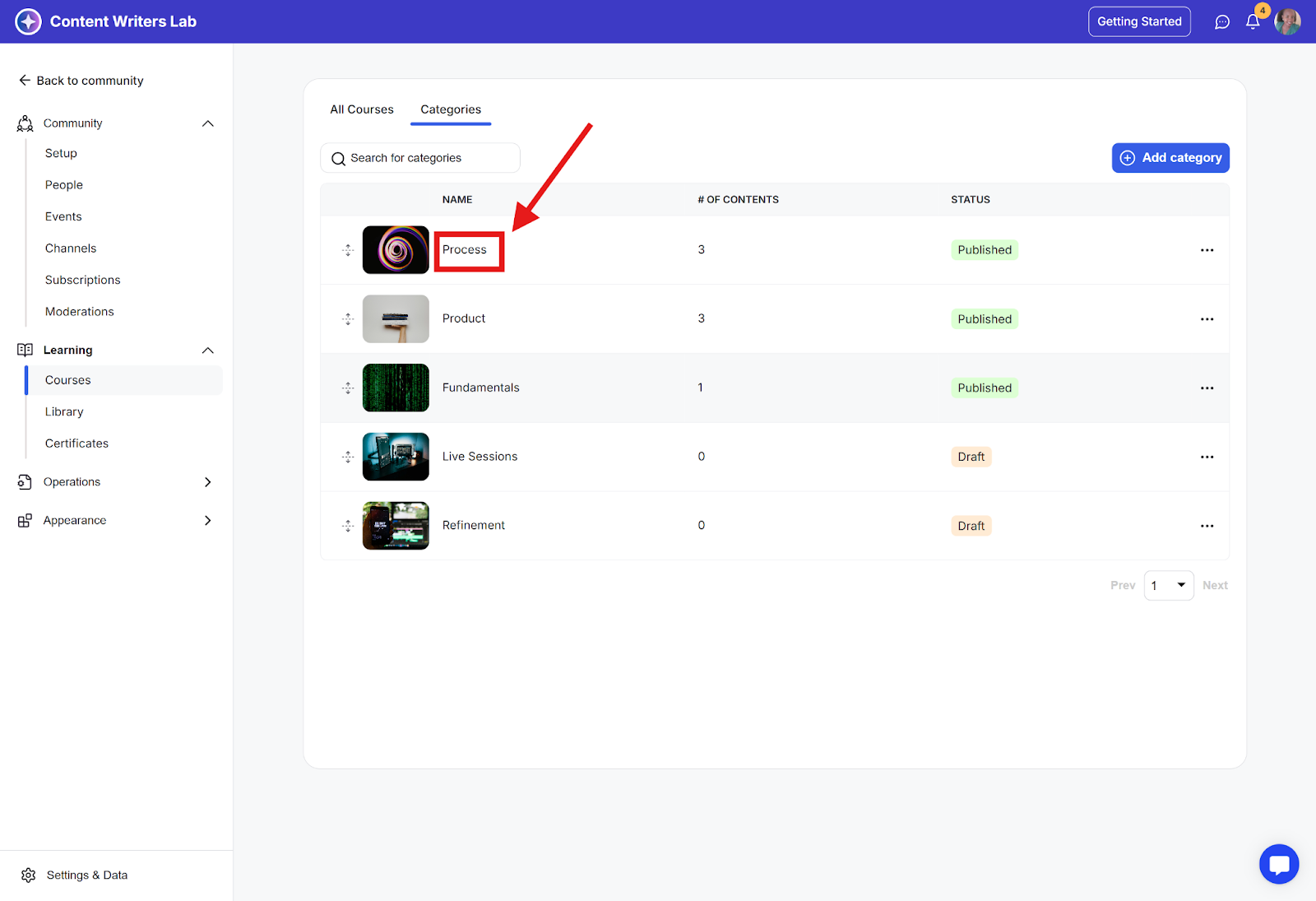
Step 2: Click the Category name to edit the list.
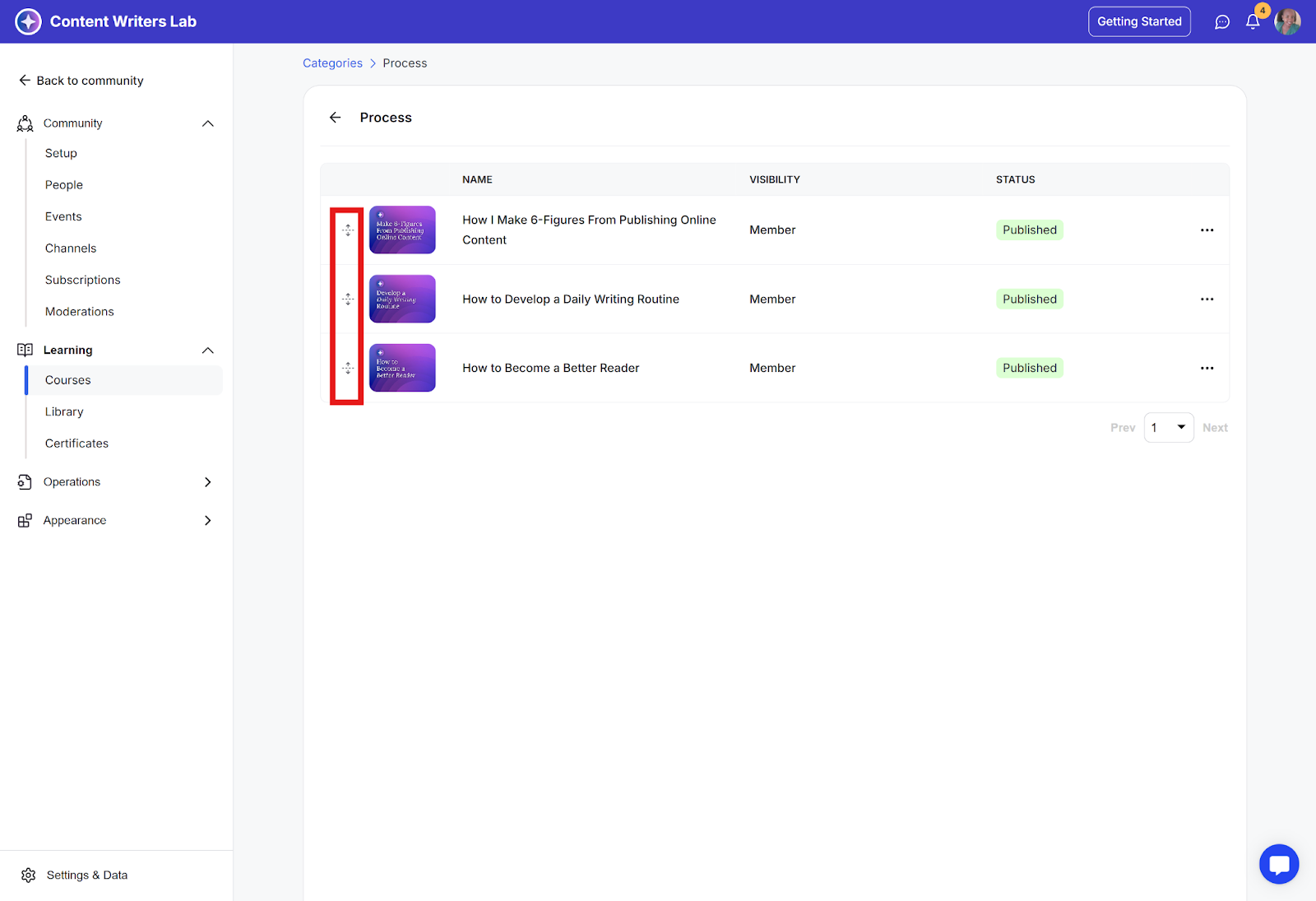
Step 3: Use these move icons to drag and re-arrange the course/content on this specific category.