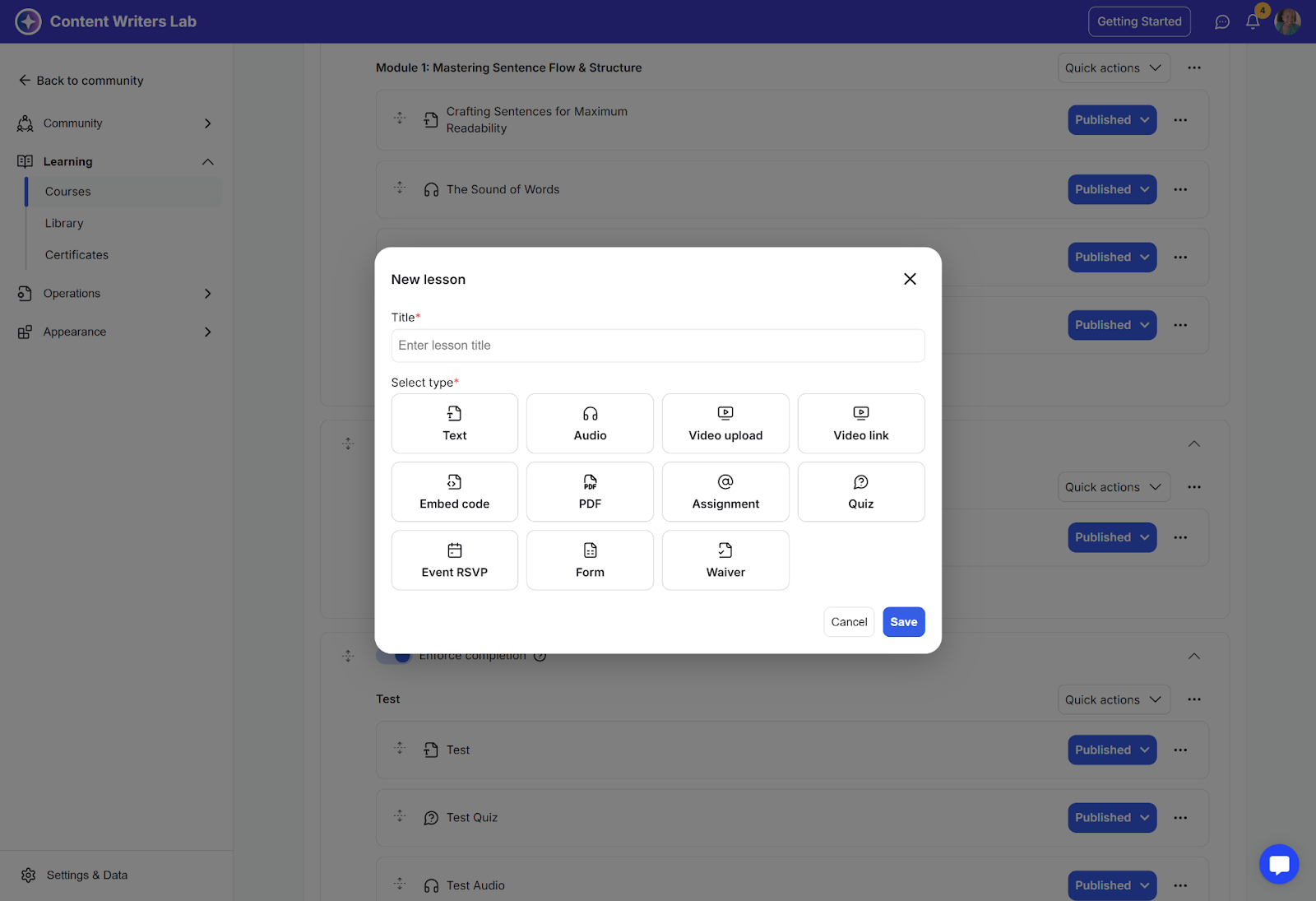
When creating courses, you can choose from eleven lesson types: Text, Audio, Video, Web Video, Embed Code, PDF, Assignment, Quiz, Event, Form, and Waiver.
Each lesson type has specific content requirements. For example:
Text lessons require a text field.
Audio lessons require an audio file upload.
Description is required for this lesson type.
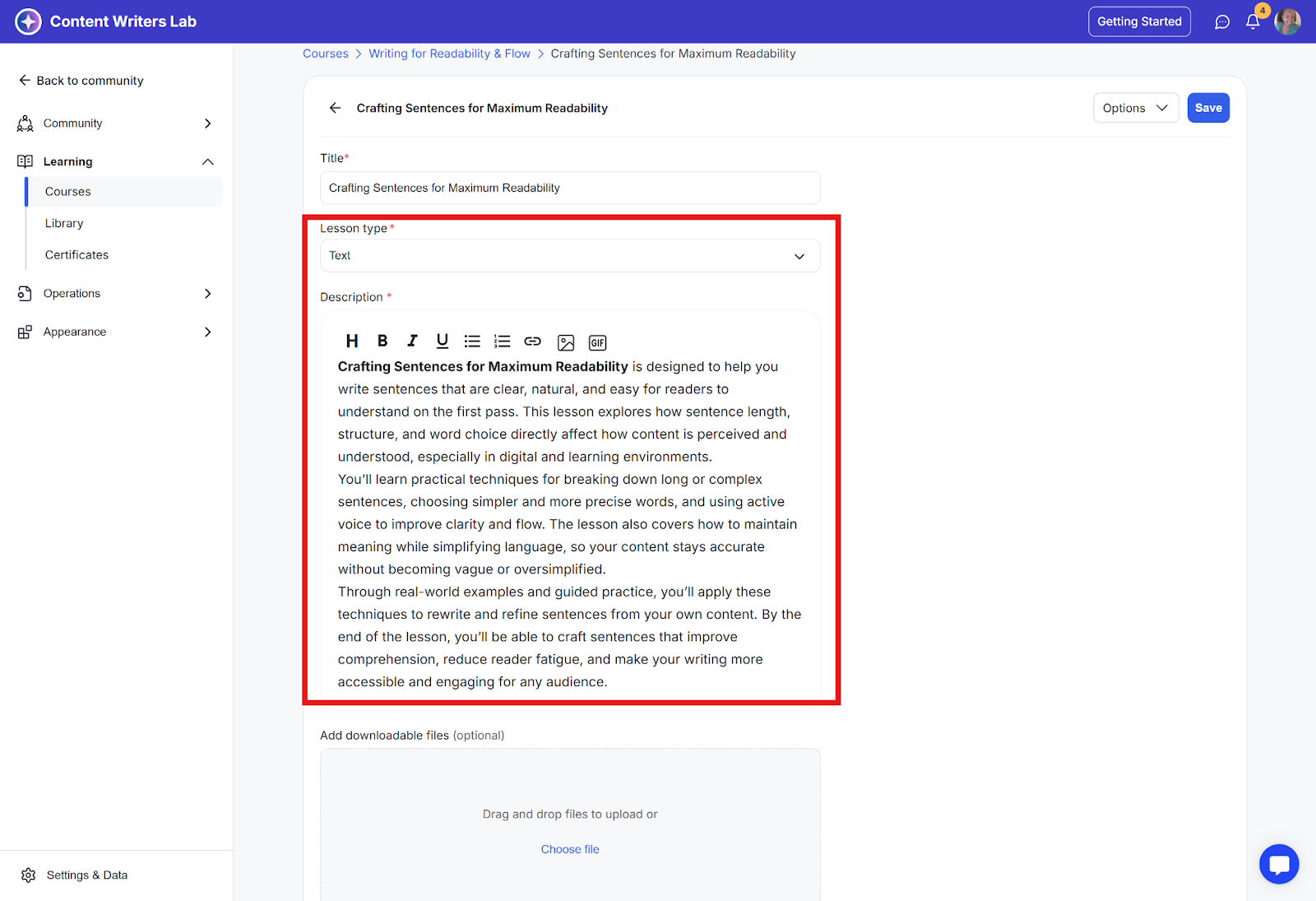
What you can do: Add written content, instructions, notes, or explanations for students.
Uploads allowed: Files can be added for download.
Use case: Great for chapters, step-by-step instructions, or lesson summaries.
An audio upload is required for this lesson type.
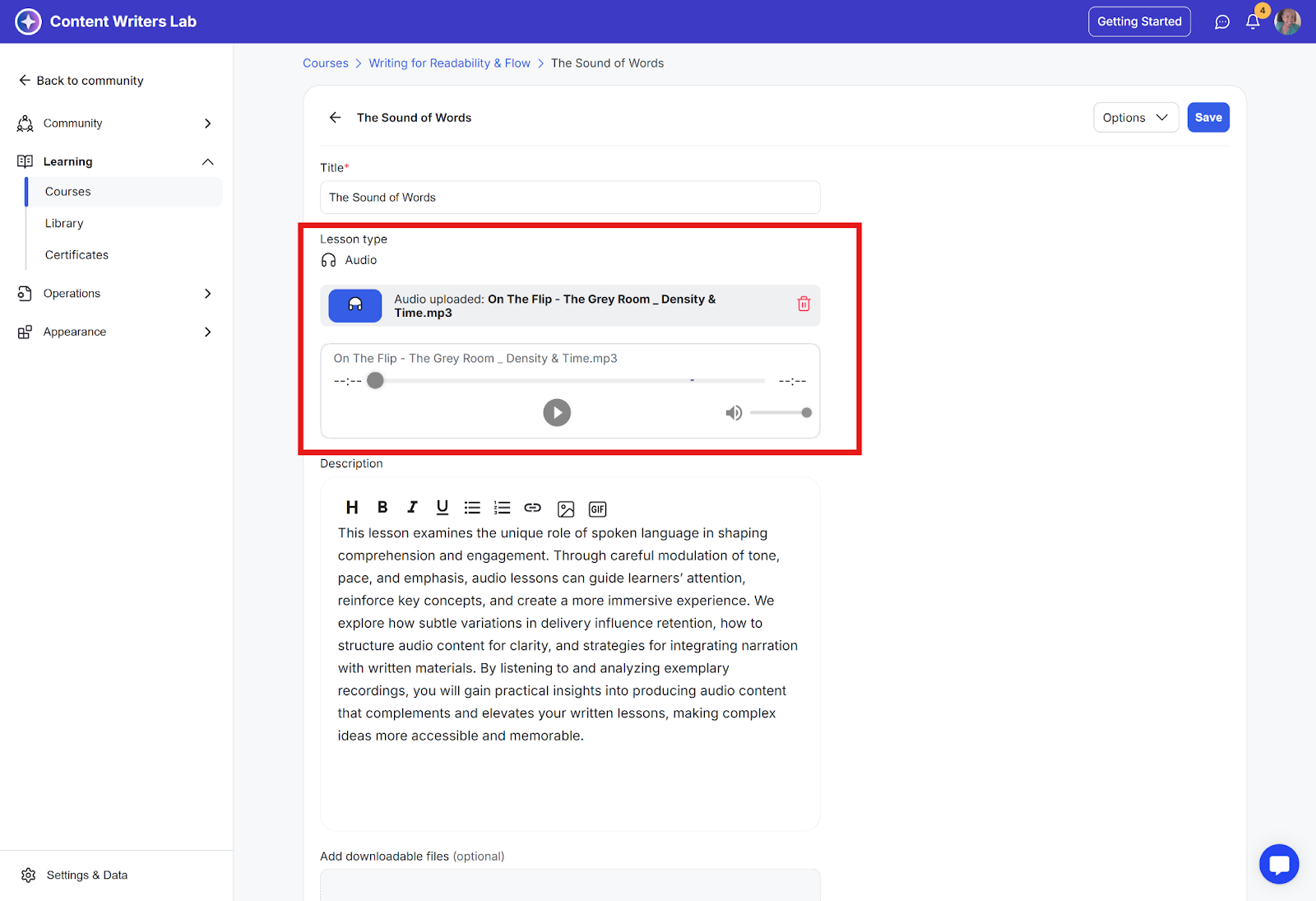
What you can do: Upload an audio file for your students to listen to. You can also add a description to explain the content or provide context.
Uploads allowed: Audio file + downloadable files (like transcripts, worksheets, or supplementary materials).
Use case: Perfect for podcasts, lectures, guided exercises, or audio-based lessons where students need both listening and supporting materials.
Video upload is required for this lesson type.
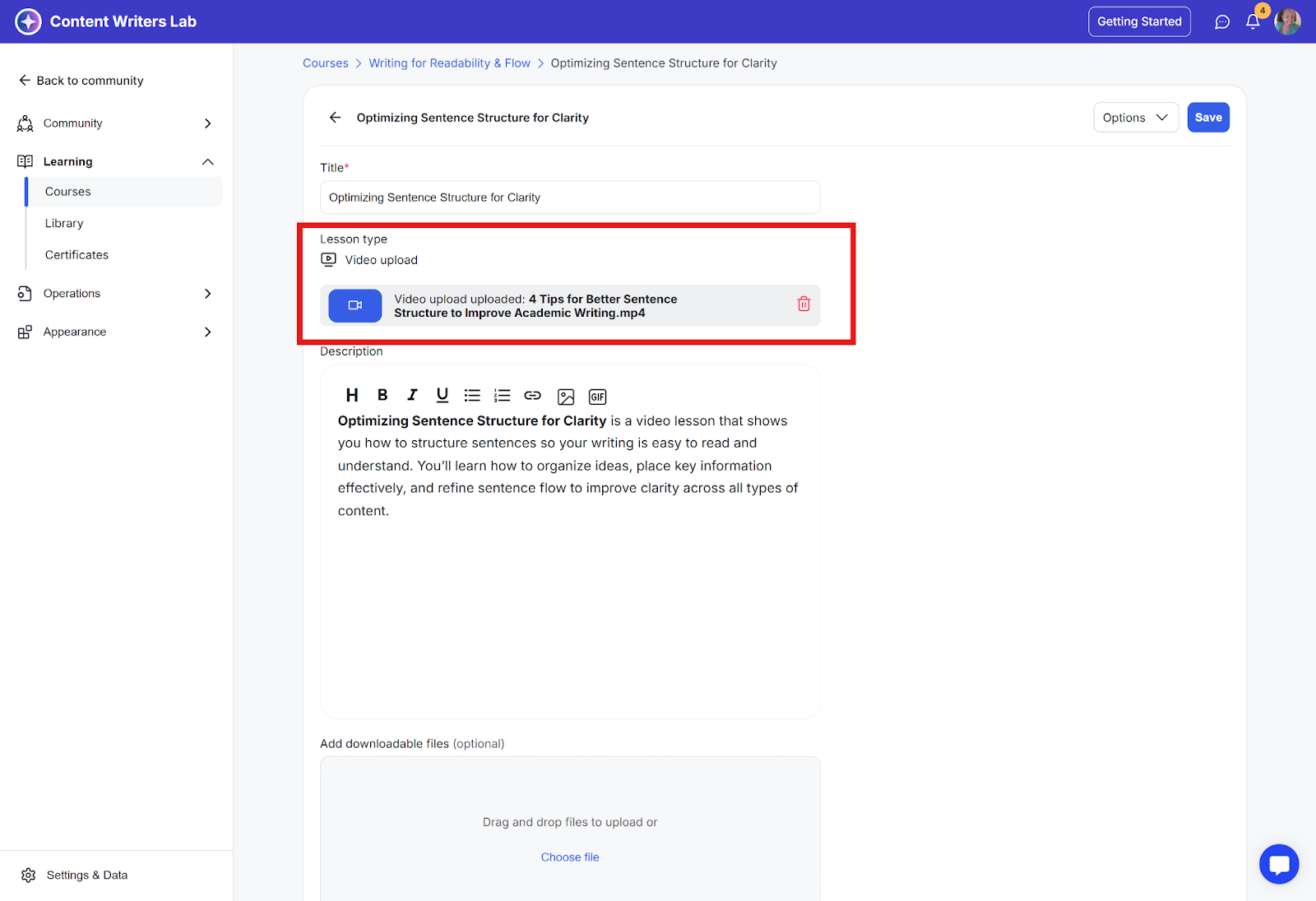
What you can do: Upload a video file for your students to watch. You can also add a description to explain the content or provide context.
Uploads allowed: Video file + downloadable files (like slides, transcripts, or worksheets).
Use case: Ideal for recorded lessons, tutorials, demonstrations, or any content where students need to watch and optionally download supporting materials.
A video URL (from YouTube, Vimeo, or Wistia) is required for this lesson type.
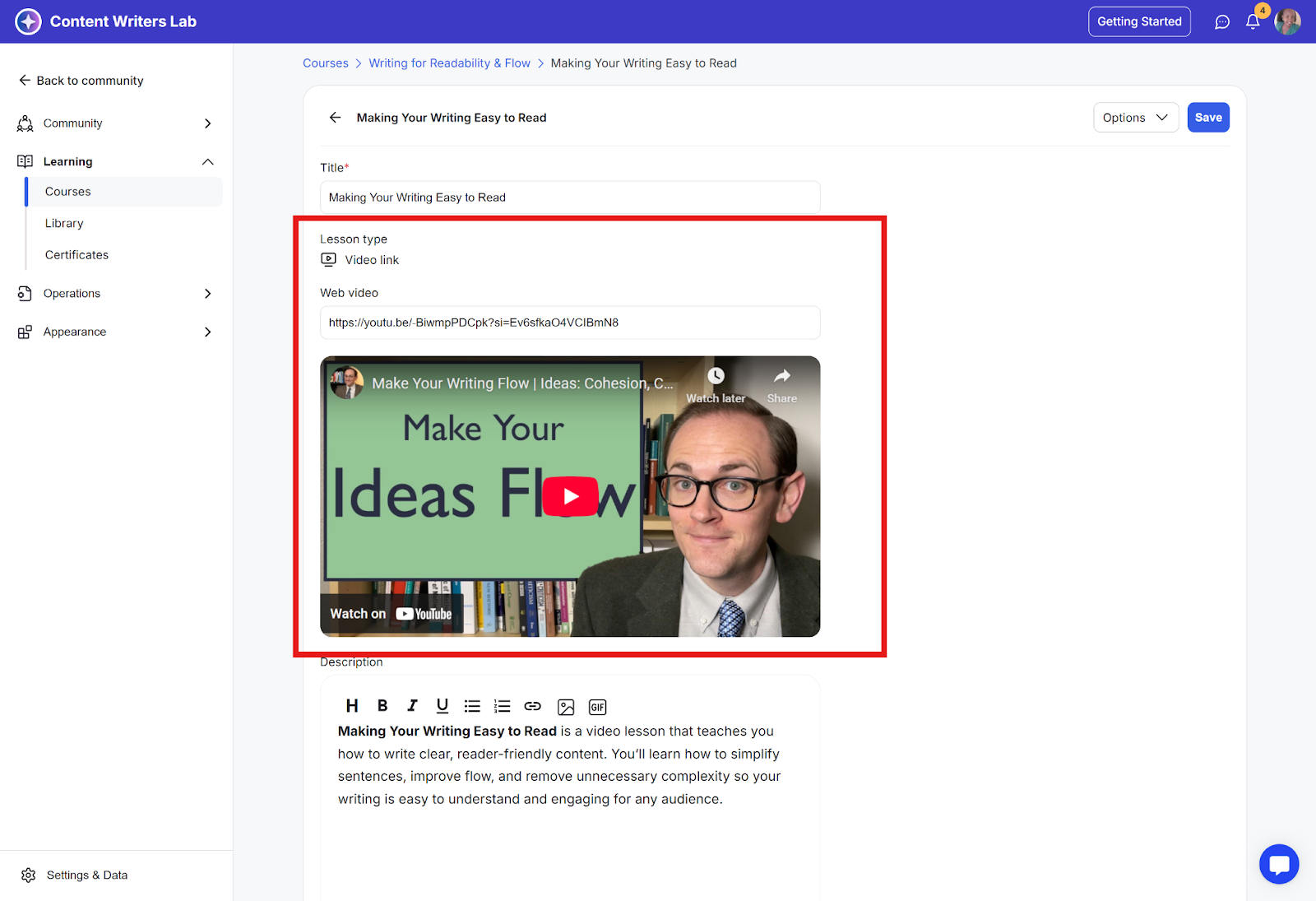
What you can do: Add a video from another platform like Vimeo, YouTube, or Wistia as a lesson. You can also include a description to explain the content or provide context.
Uploads allowed: You can include downloadable files such as slides, transcripts, or worksheets.
Use case: Great for adding external content, tutorials, or recorded lessons hosted elsewhere while providing supporting materials for students.
Embed code is required for this lesson type.
This lesson type allows you to insert content from external sources by embedding code or widgets. This way, you can display something in your course without uploading it directly to the platform.
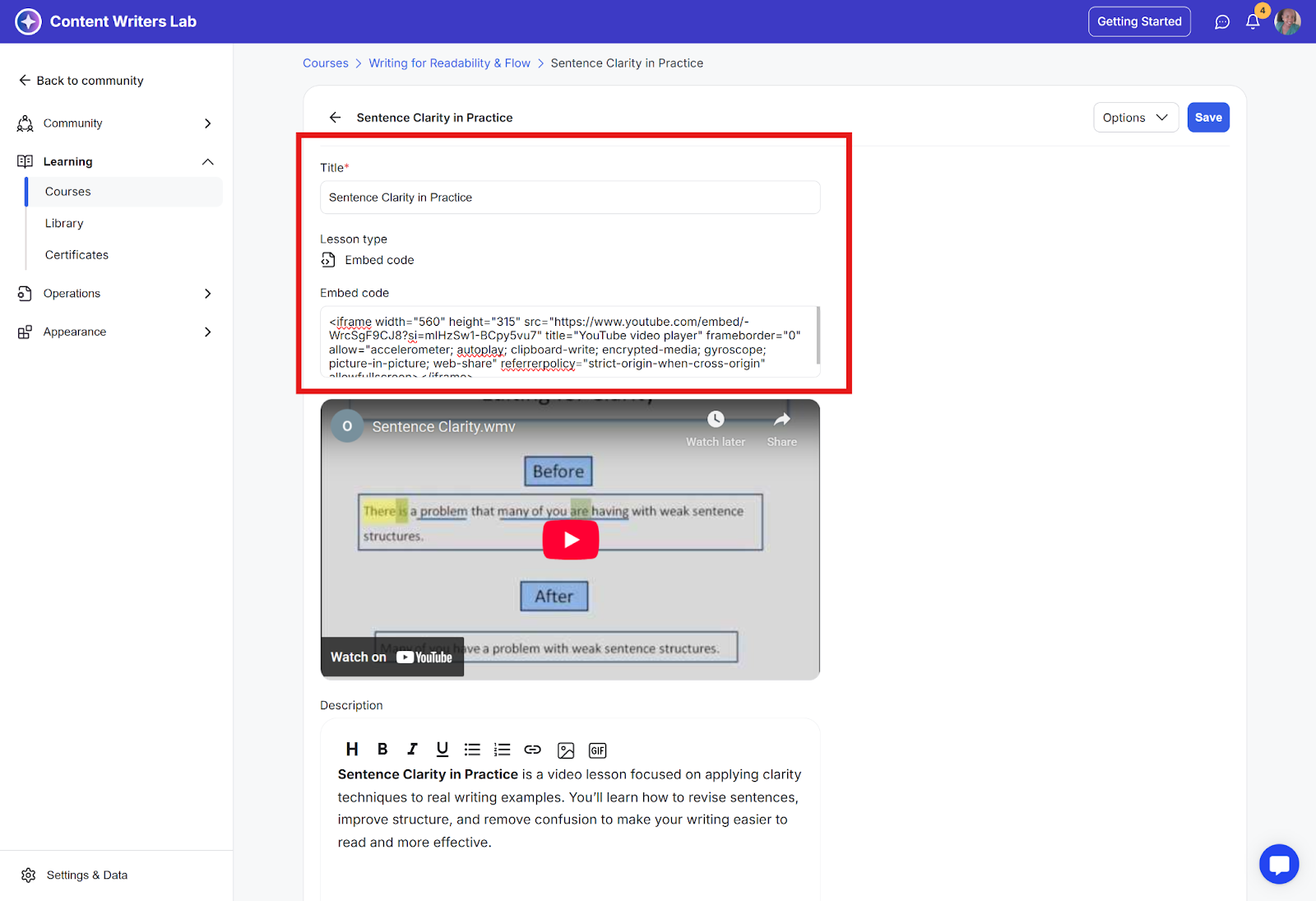
What you can do: Add a description that explains the embedded content and provides context for students.
Uploads allowed: Downloadable files such as handouts, templates, or worksheets.
Use case: Great for including interactive or externally hosted content directly into your lessons.
PDF upload is required for this lesson type.
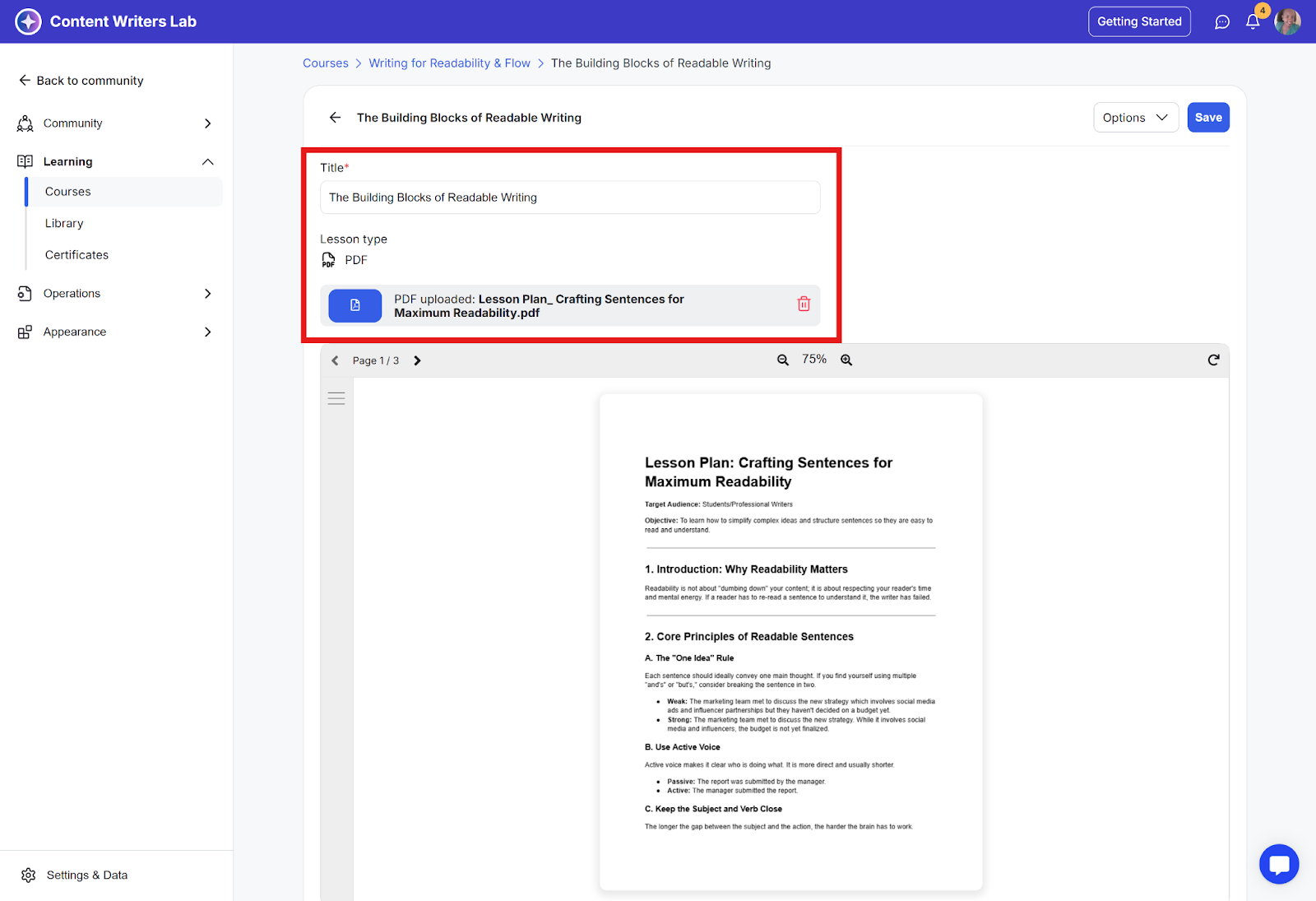
What you can do: Upload a PDF as a lesson and include a description to explain the content or provide context.
Uploads allowed: Downloadable files such as guides, checklists, or worksheets.
Use case: Perfect for manuals, reference materials, or guides that students can read and download.
Description is required for this lesson type.
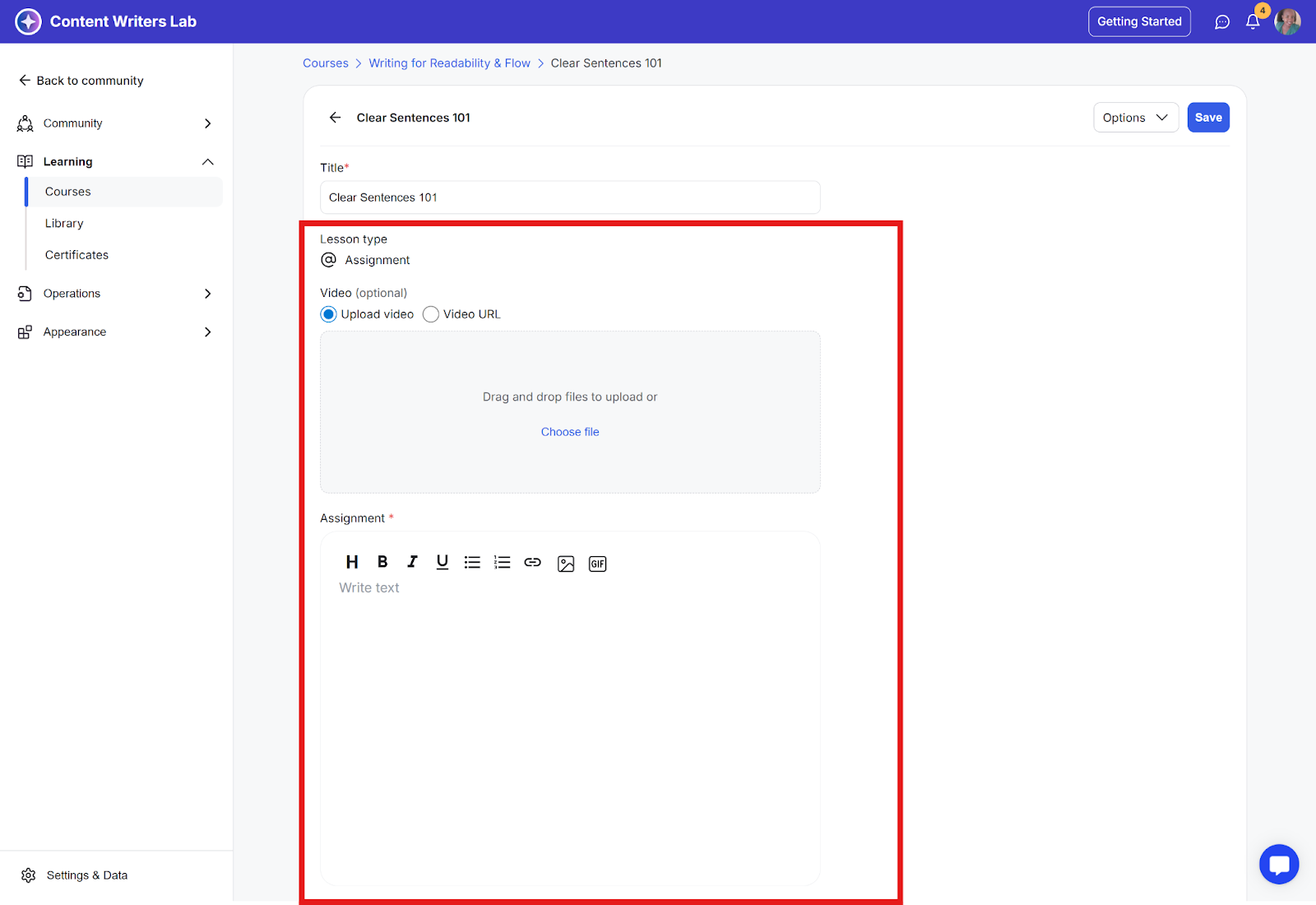
What you can do: Create an assignment by writing a description that explains what students should do. Optionally, you can include a video by uploading it or adding a video link to provide additional context.
Uploads allowed: Downloadable files such as templates, worksheets, or reference materials.
Use case: Ideal for giving students tasks, exercises, or projects with instructions and optional supporting videos or files.
Questions are required for this lesson type.
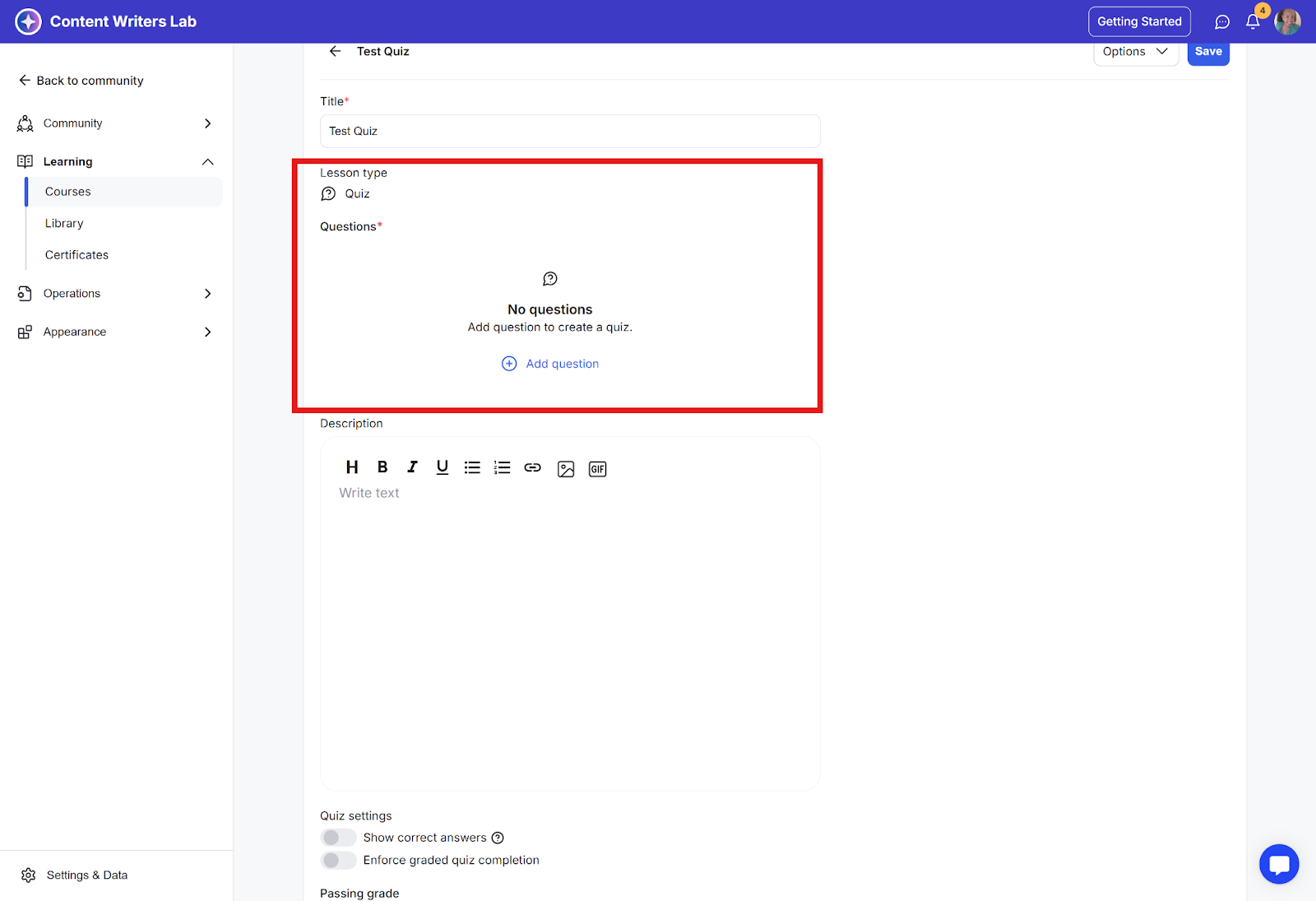
What you can do: Add a description for the quiz, then create questions using the question pop-up. You can attach media to each question, such as an image, video, or web video, or choose to include no media.
Question setup: Add the question text under the description, then define the answer options. You can specify whether it’s a single correct answer or multiple correct answers.
Uploads allowed: Media only (images, videos, or web video links).
Use case: Perfect for testing student knowledge after lessons, providing interactive practice, or assessing understanding of course material.
When created, it is automatically populated with all past and upcoming events that are linked to the course.
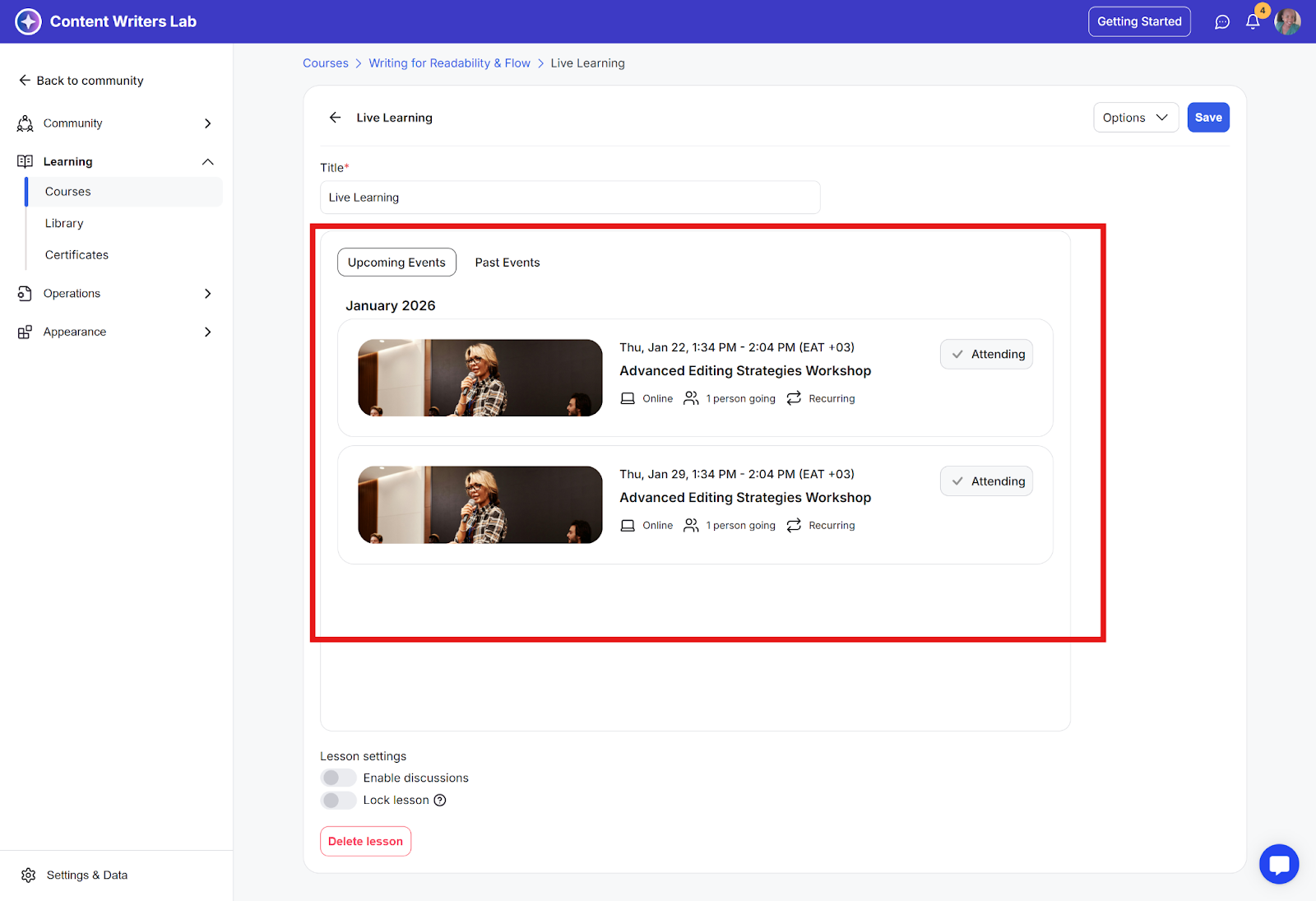
What you can do: When added, this lesson automatically displays all past and upcoming events linked to the course. Members can view event details and RSVP directly from within the course.
Use case: Ideal for cohort-based programs or live coaching programs where sessions are scheduled, and members need to register for live calls, workshops, or training sessions as part of the course experience.
Questions are required for this lesson type.
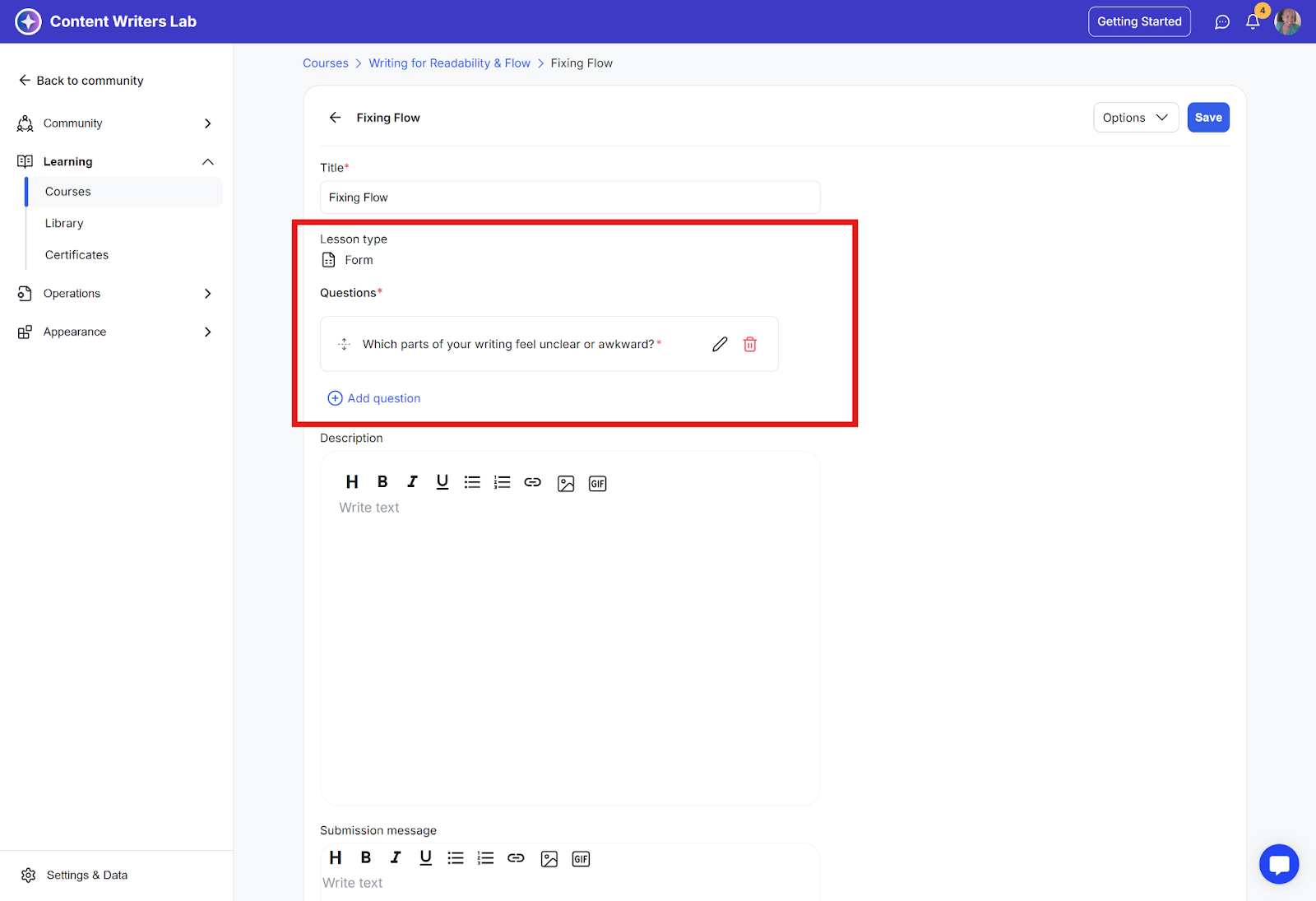
What you can do: Add a description to explain the purpose of the form and a submission message that members will see after submitting their responses.
Question setup: Create questions using the question pop-up. For each question, you can:
Write the question text
Mark it as required or not required
Add media such as an image, video, web video, or choose none
Question types: You also get to choose how members will respond:
Checkbox
Multiple choice
Written answer
Your selected question type determines how the question appears and how members interact with it.
Uploads allowed: Media only (images, videos, or web video links).
Use case: Ideal for collecting feedback, applications, surveys, or responses from members.
How to use forms as course lesson
Learn how to add and use forms for Feedback & Assignments as a course lessons
Agreement and consent statements are required for this lesson type.
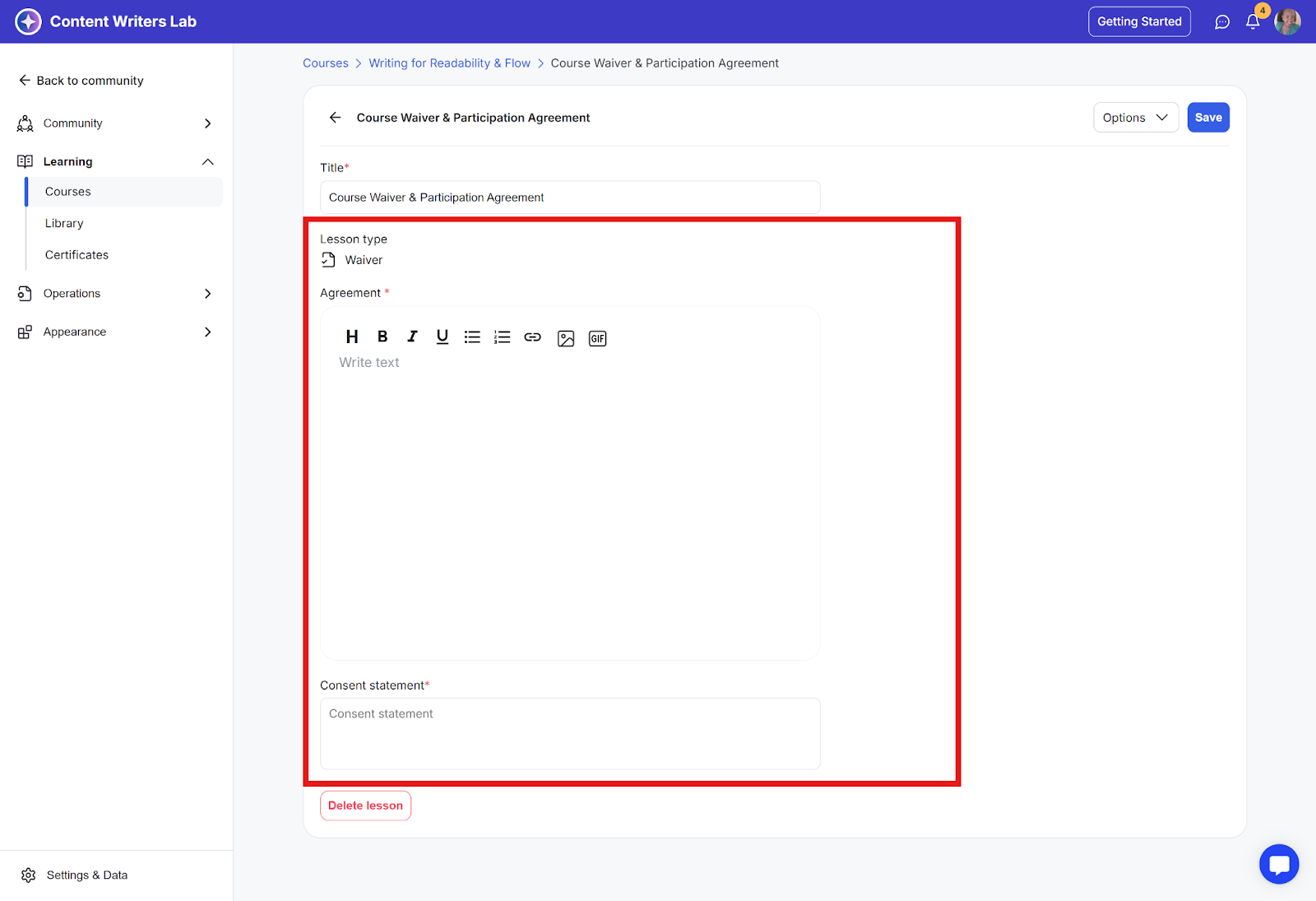
What you can do: Add agreement and consent statements that members must review and accept.
Uploads allowed: None.
Use case: Ideal for collecting legal consent, disclaimers, or acknowledgements before members proceed with a course or activity.
