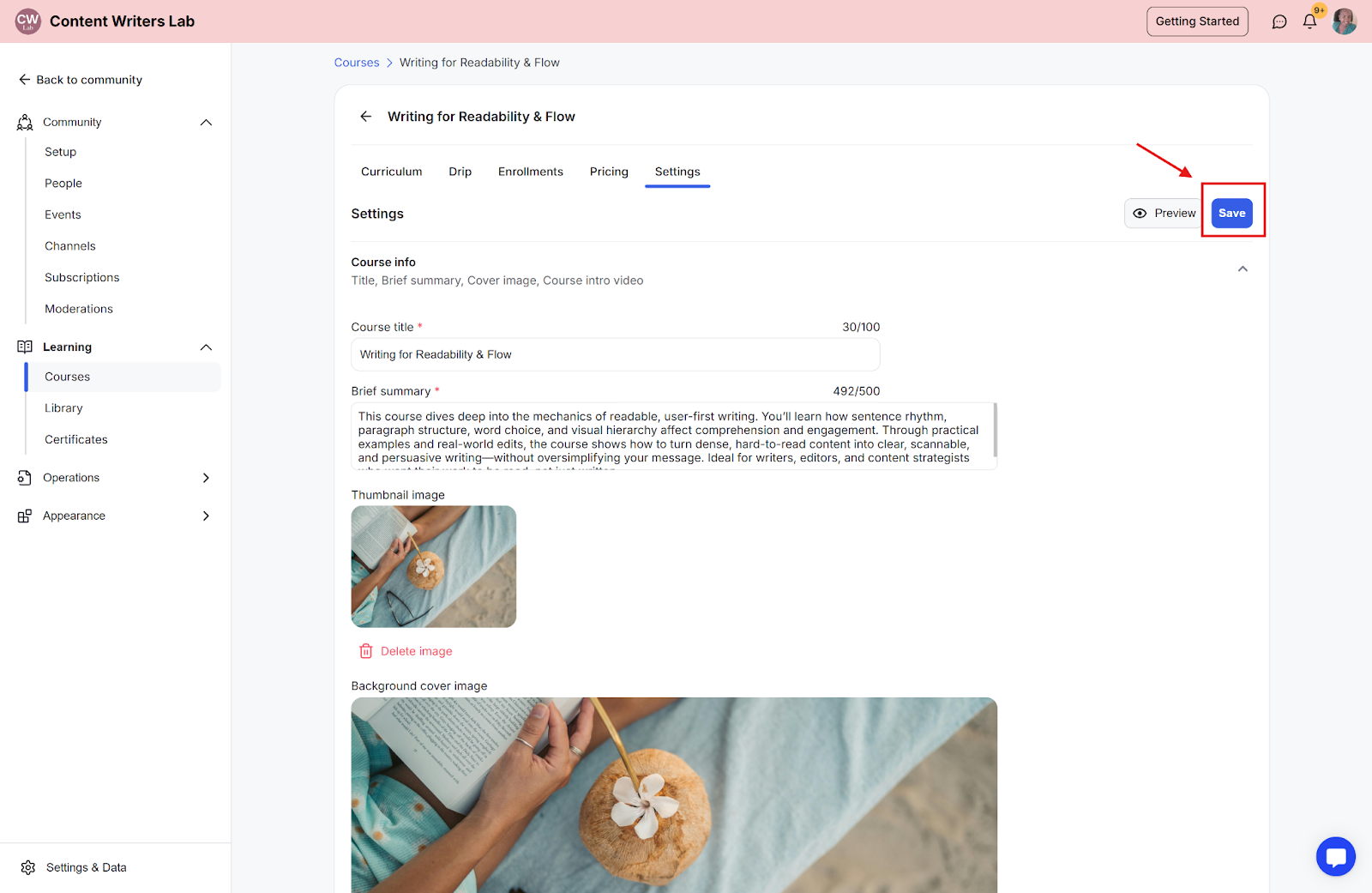
This guide explains how to configure pricing for your courses and learning programs.
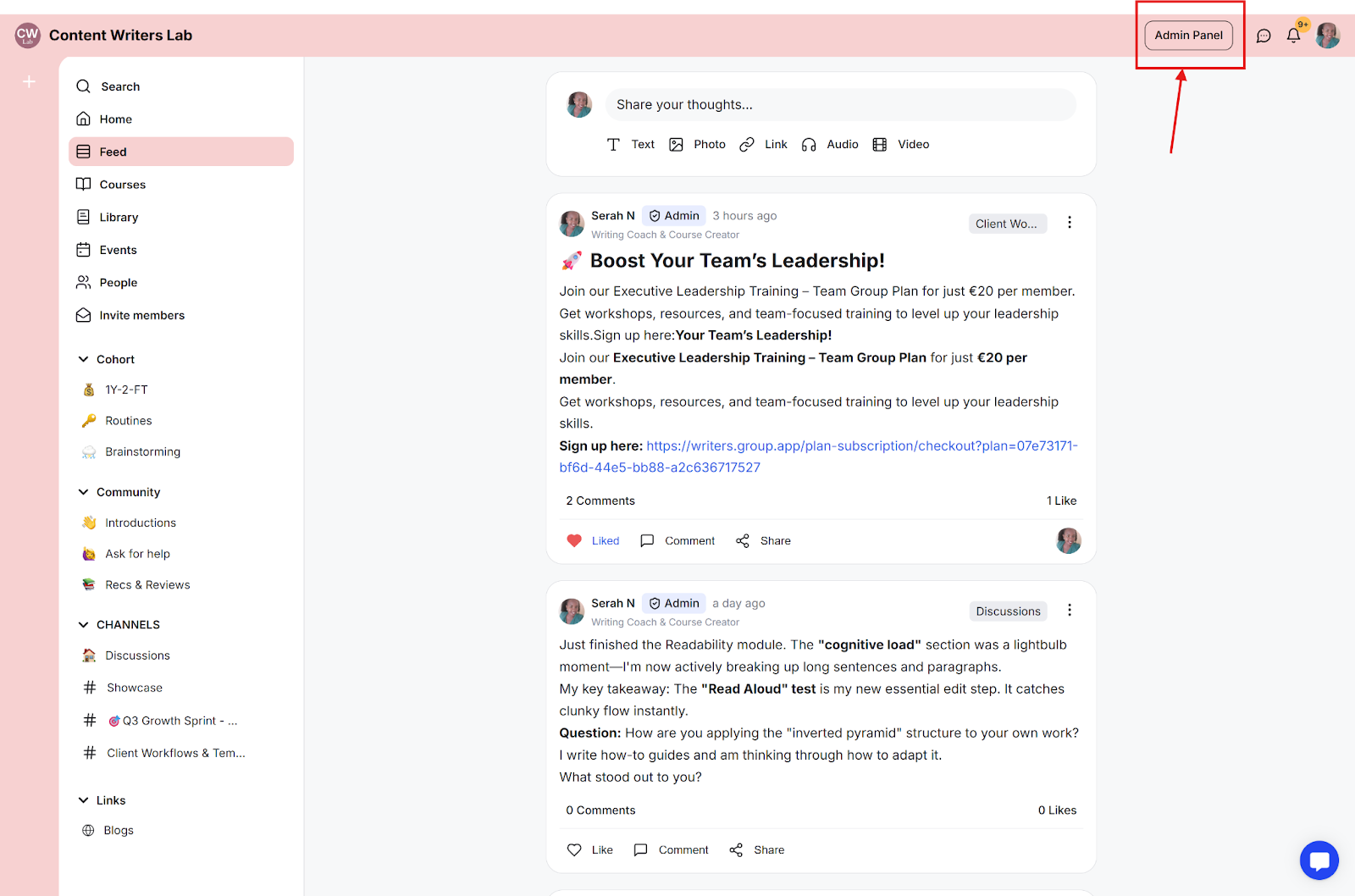
Step 1: From your dashboard, click the Admin Panel button located at the top right corner.
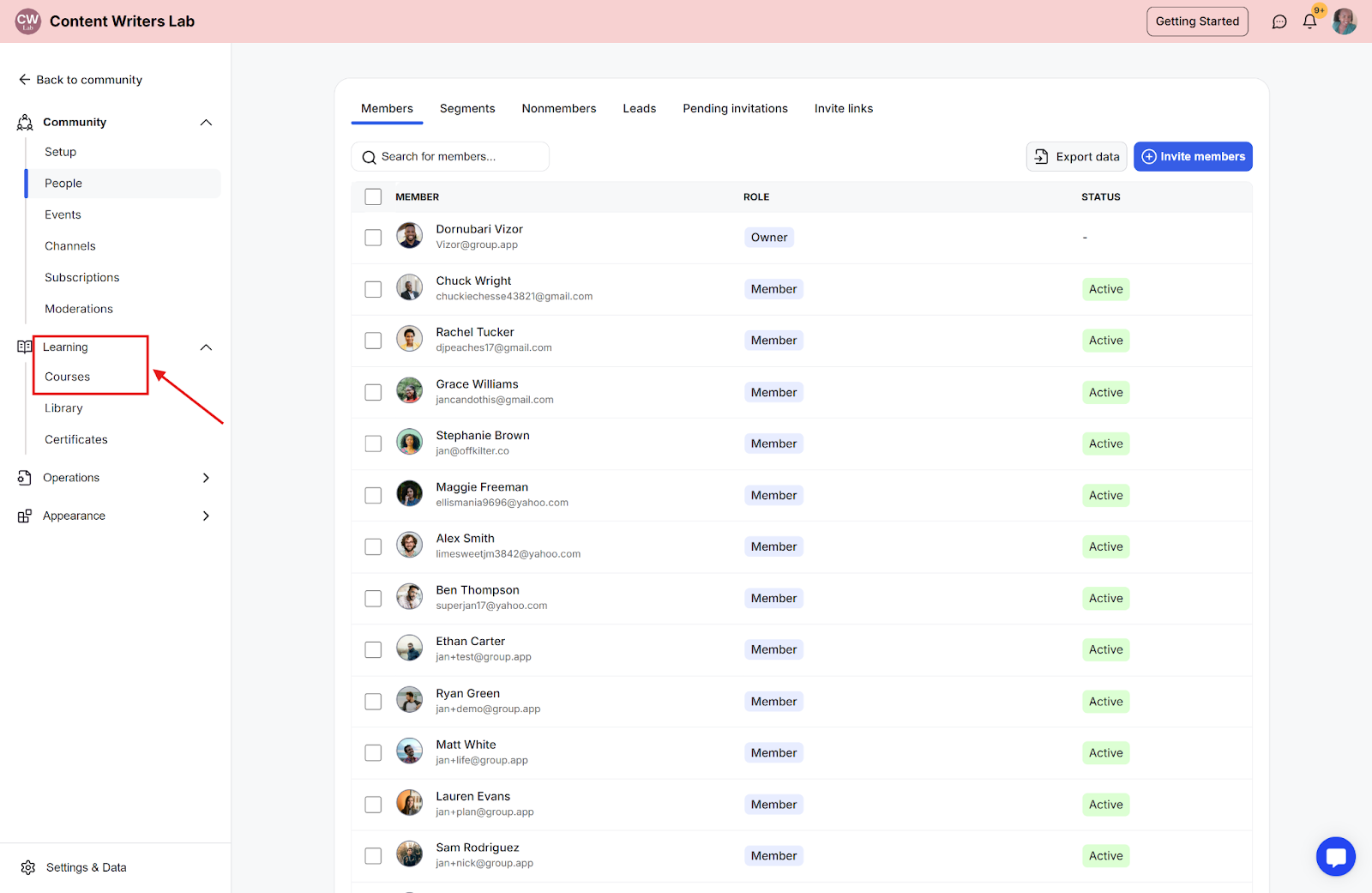
Step 2: In the side menu, click Learning, then select Courses to view all available courses.
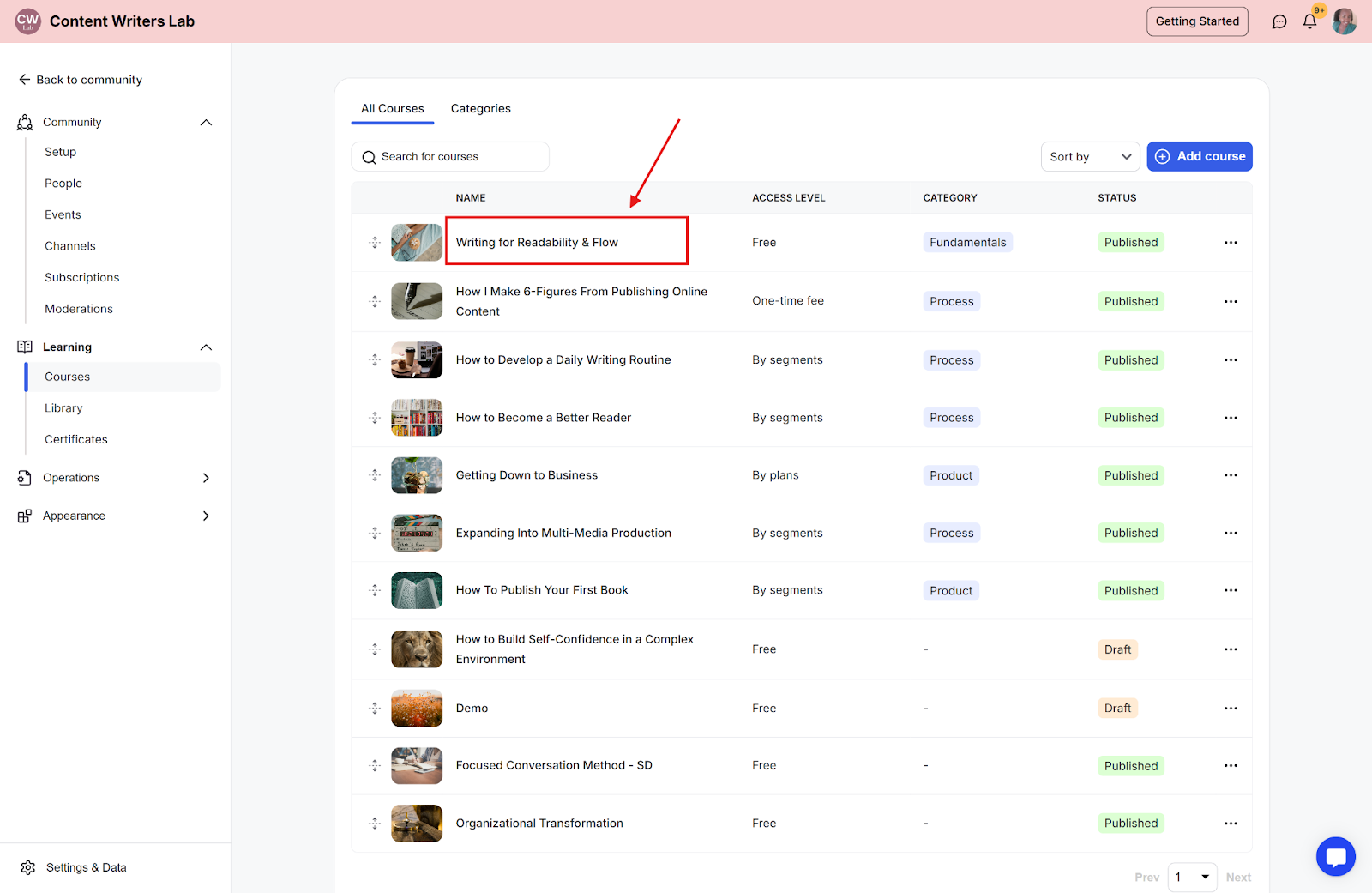
Step 3: From the courses list, click the course for which you want to configure pricing. This opens the course management page.
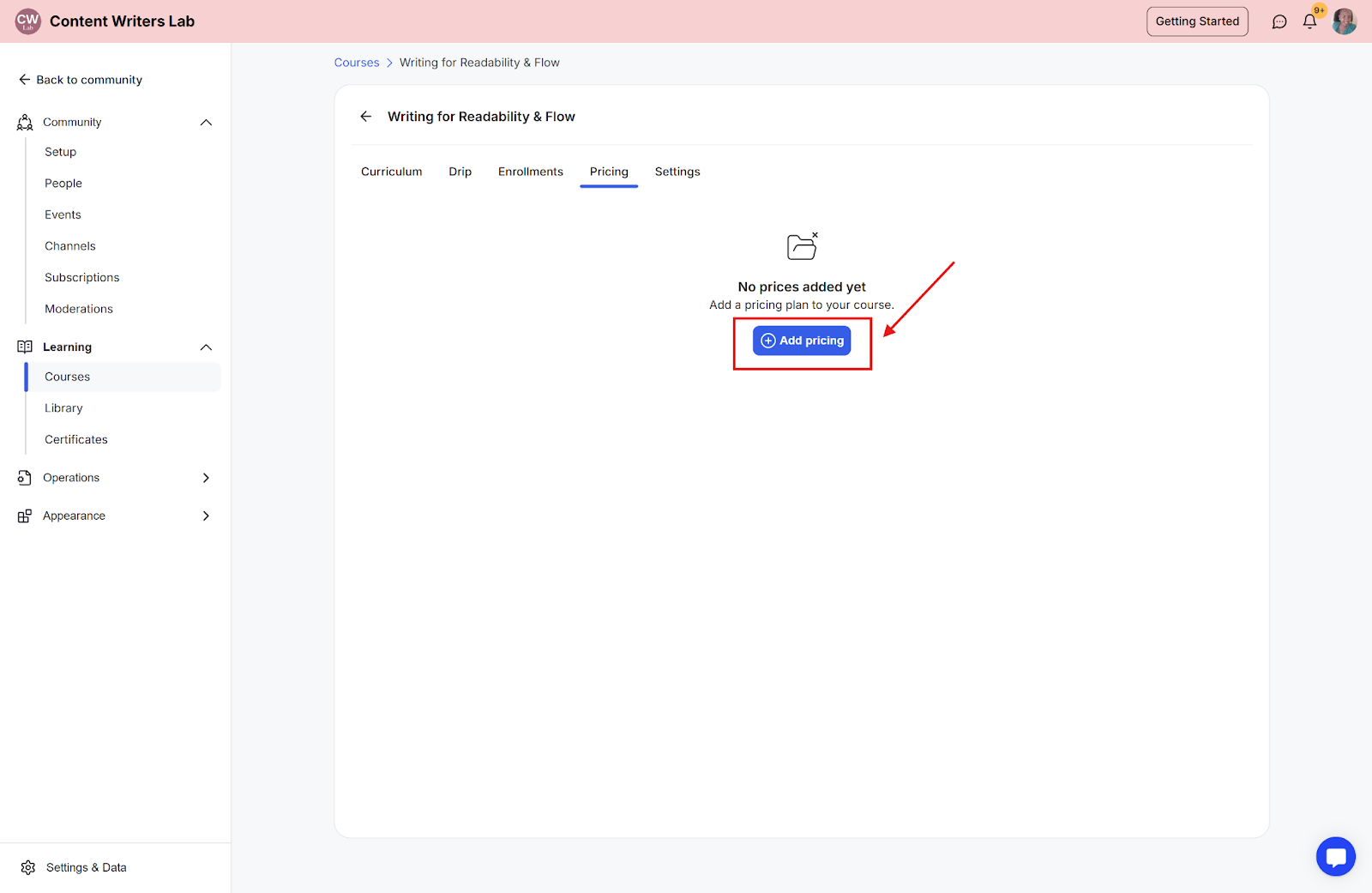
Step 4: On the course management page, click the Pricing tab.

Step 5: Click the Add Pricing button to create a new pricing option for the course.
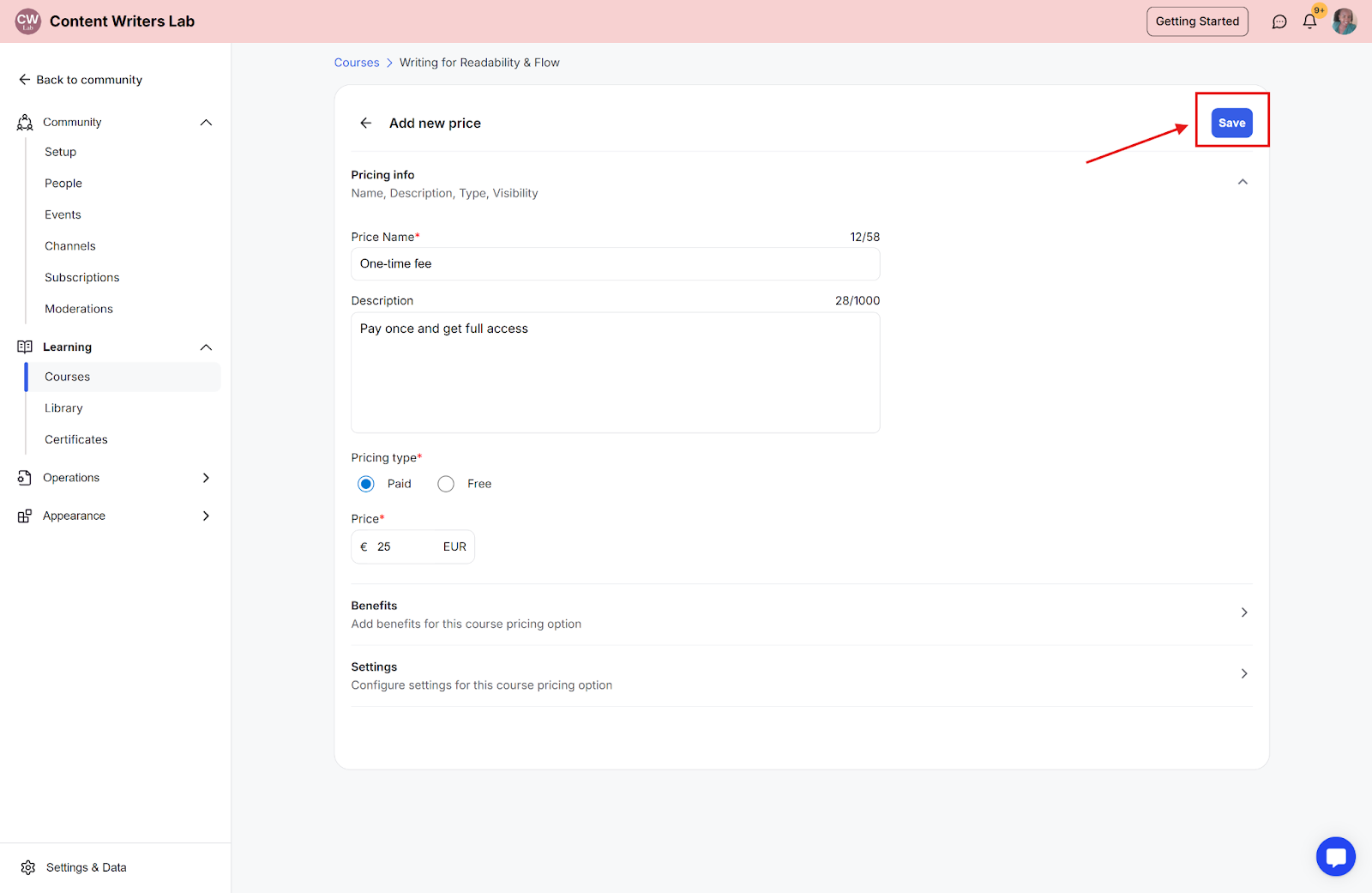
Step 6: Enter the required pricing details, select your preferred options, and click Save to apply the pricing.
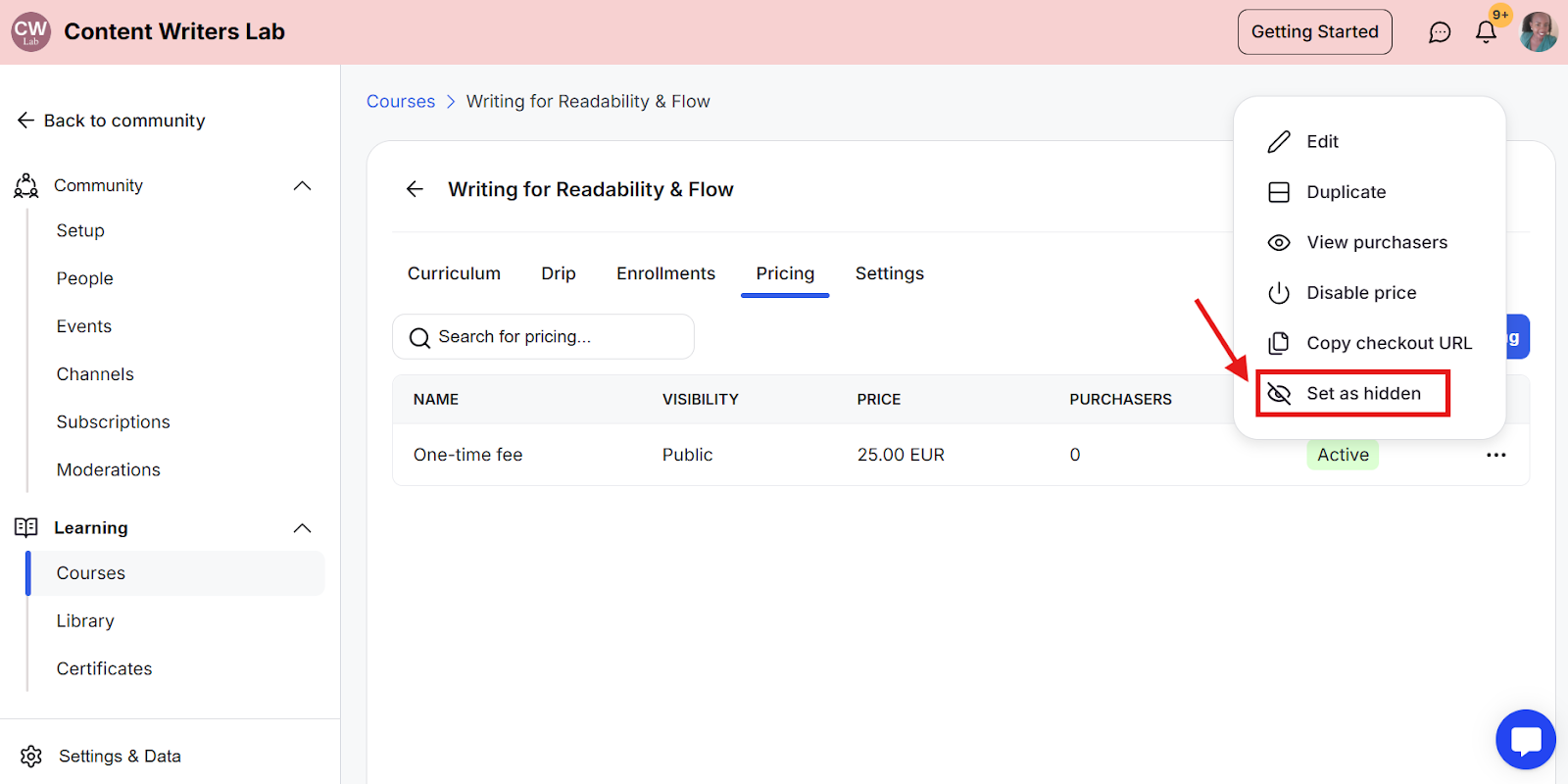
Optional: If you want to hide the pricing from users, click the three-dot icon on the pricing option and select Set as hidden.
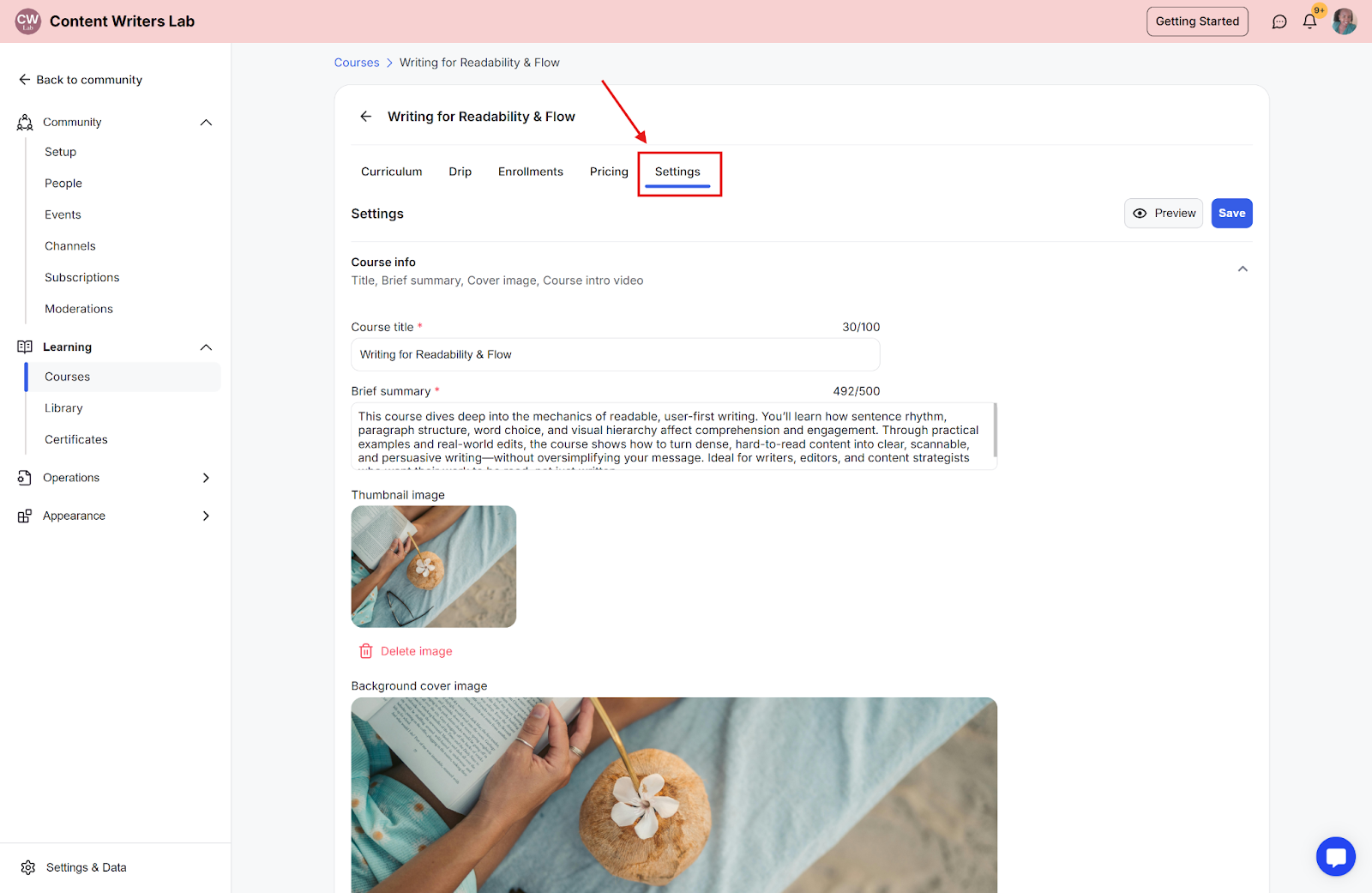
Step 1: Go to the Settings tab inside the course page.
Step 2: Scroll to the bottom of the page and select Course Options.

Step 3: Go to Access Level and select the One-Time Fee option from the dropdown menu.
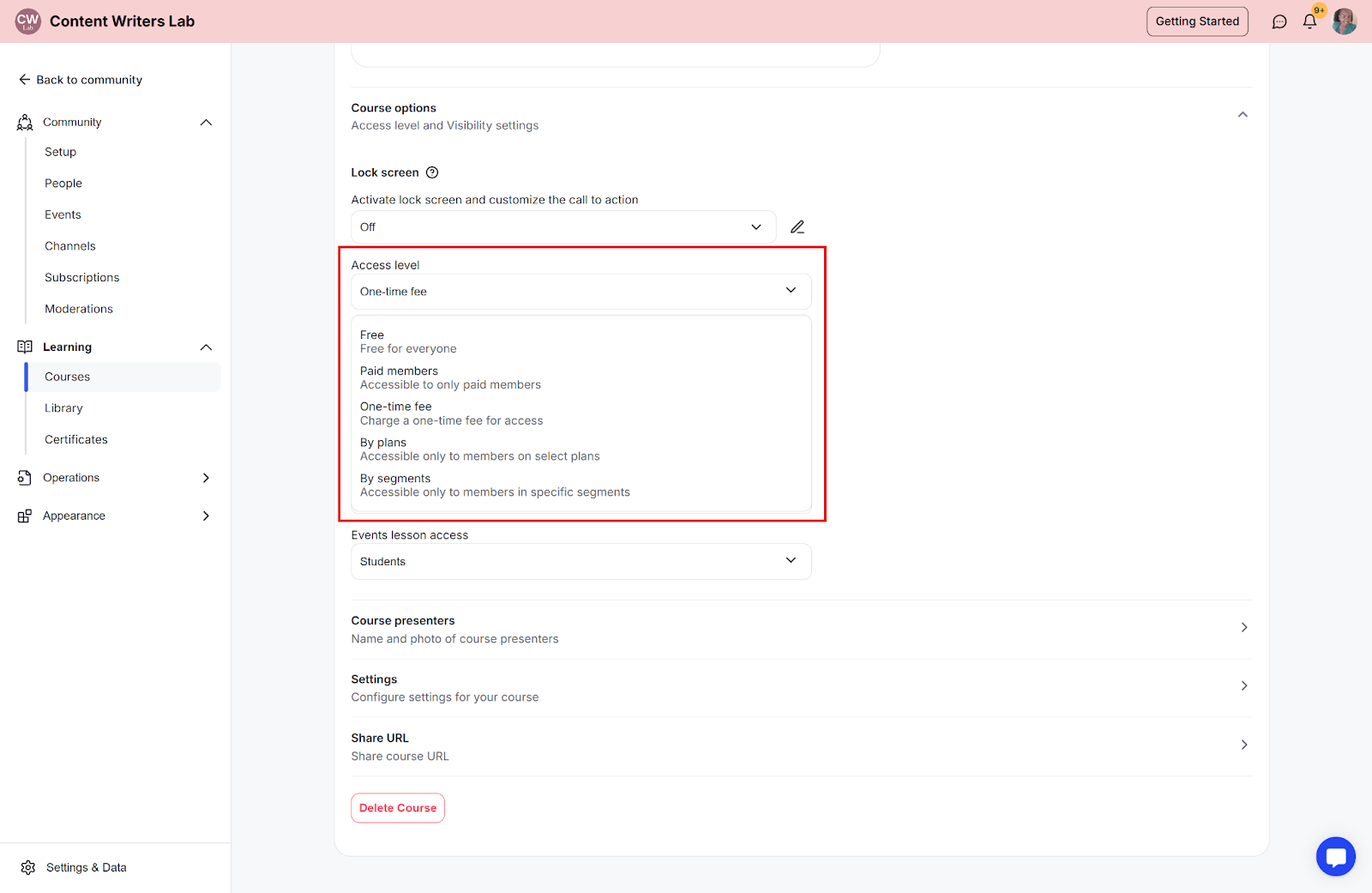
Step 4: Click Save.