company logo

Help center

Go to GroupApp
All collectionsMCP & APIHow to Find Your GroupApp MCP Server URL and Connection Instructions

How to Find Your GroupApp MCP Server URL and Connection Instructions

Learn where to find your GroupApp MCP Server URL, access connection instructions for different AI tools, and copy configuration code from your Admin Panel.

You can find your GroupApp MCP Server URL and connection instructions directly inside your GroupApp Admin Panel. The MCP Server section provides the server URL, quick setup instructions for supported AI tools, links to their official documentation, and configuration code for tools like Claude Code, VS Code, and Cursor.

Access Your MCP Server Details

Follow these steps to find your MCP Server URL and connection instructions:

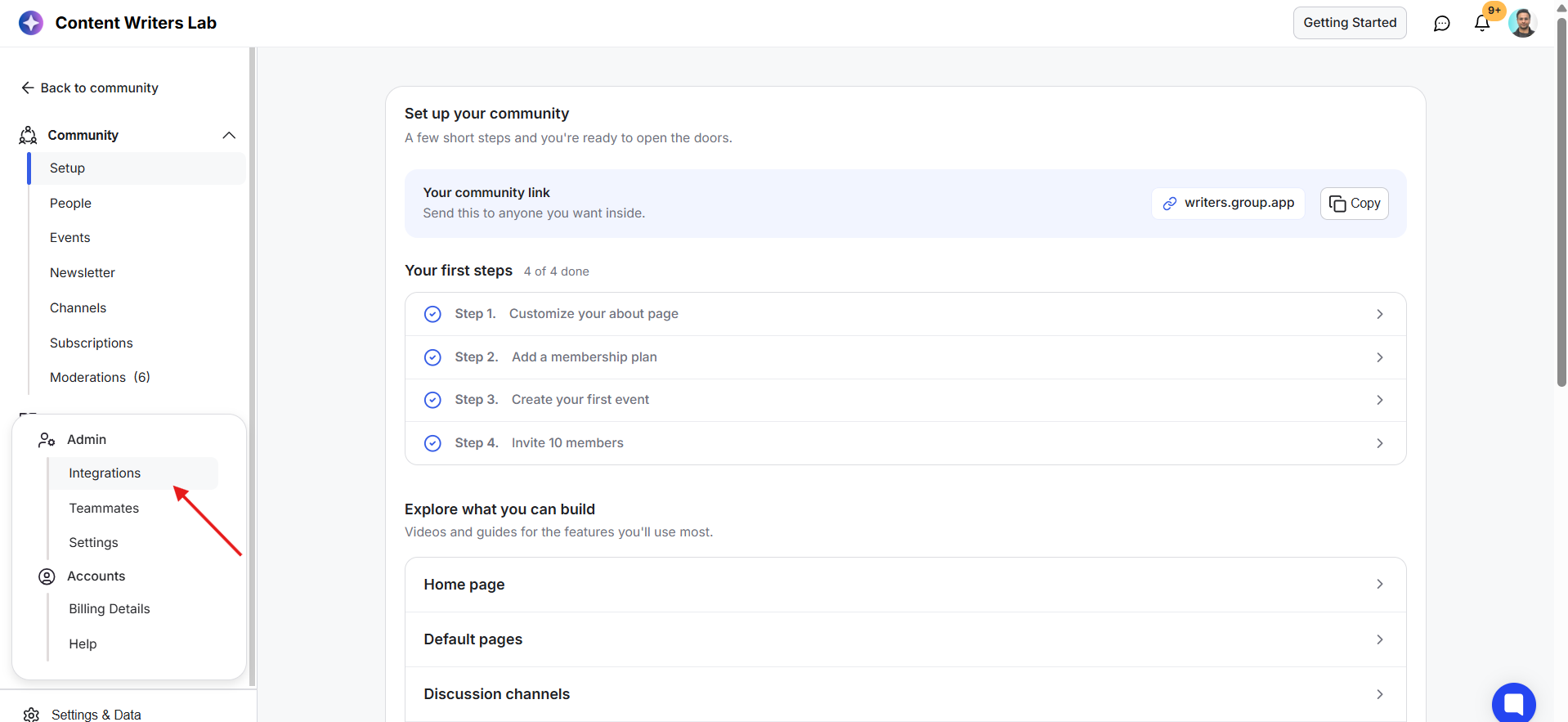
1) Go to your Admin Panel. Click Settings & Data at the bottom of the left-hand menu.
The Community Setup screen shows onboarding steps and an open Admin menu; a red arrow points to Settings & Data at the bottom left. Visible: Content Writers Lab, Getting Started, Back to community, Community, Setup, People.

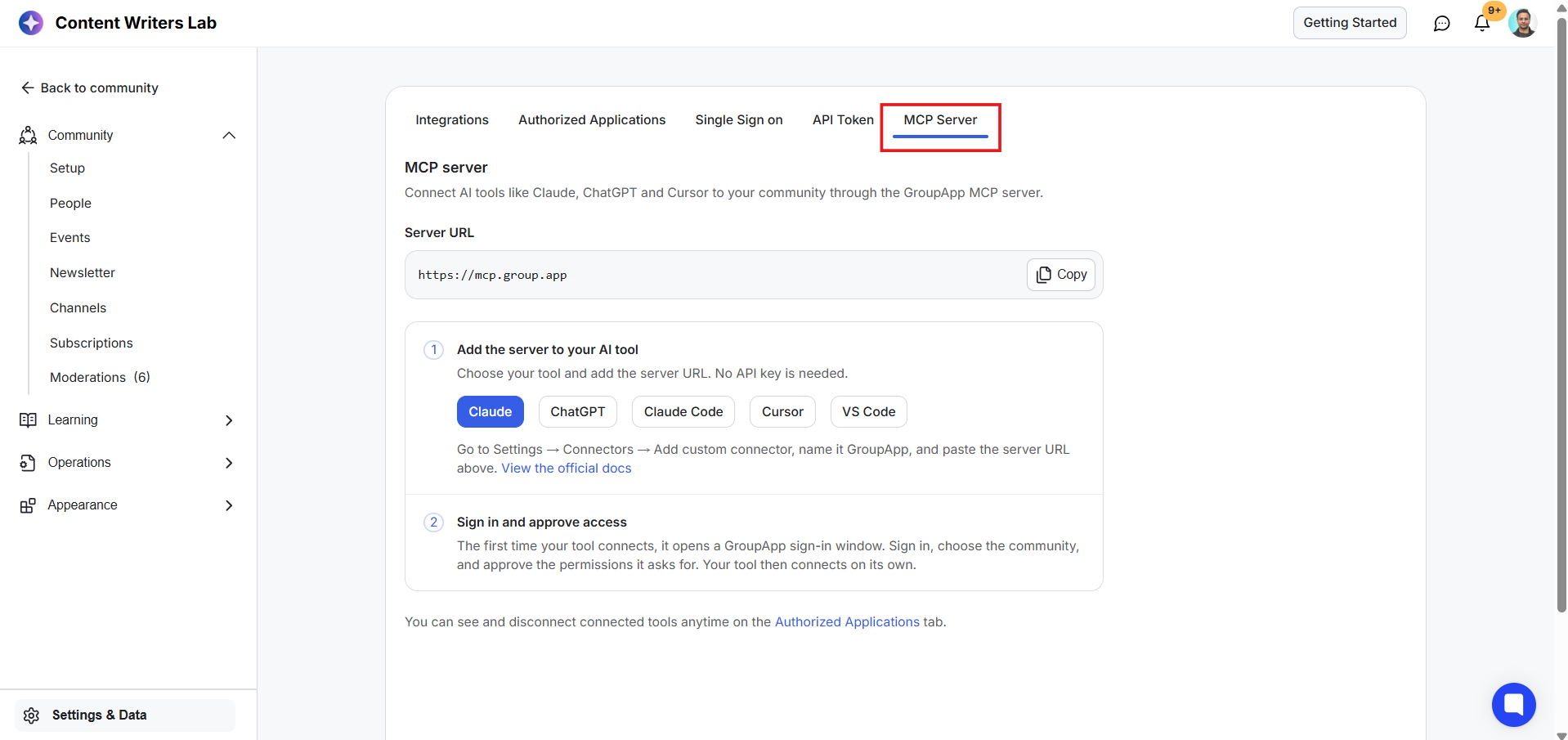
2) Select Integrations.

Community setup dashboard with completed first steps and build options; a red arrow points to Integrations in the Admin menu. Visible: Content Writers Lab, Getting Started, Back to community, Community, Setup, People.

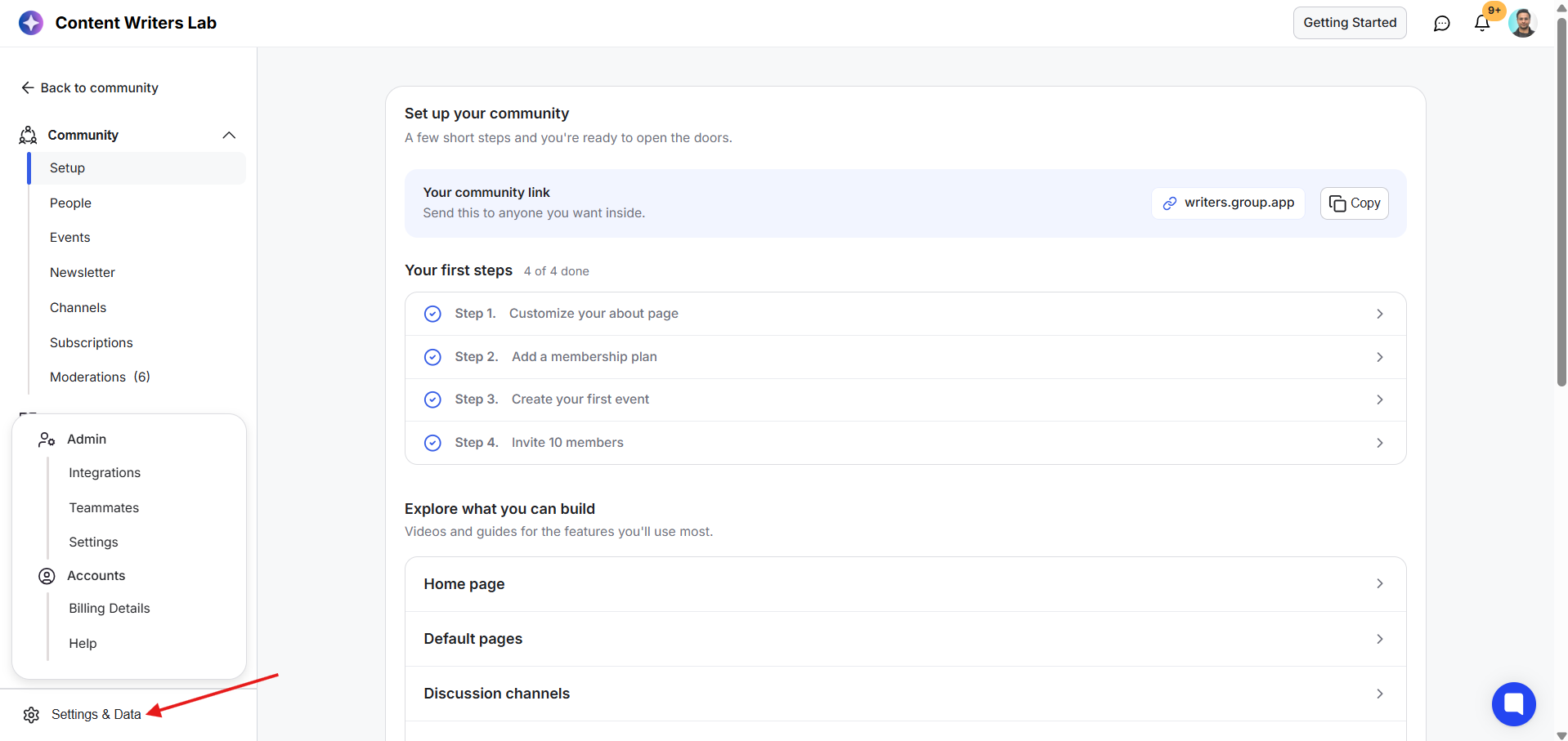
3) Open the MCP Server tab.

The Settings & Data MCP server screen shows setup instructions for connecting AI tools; a red box highlights the MCP Server tab. Visible: Settings & Data, Integrations, Authorized Applications, Single Sign on, API Token, MCP Server.

4) You'll find your main GroupApp MCP Server URL here. Click Copy to copy the URL.
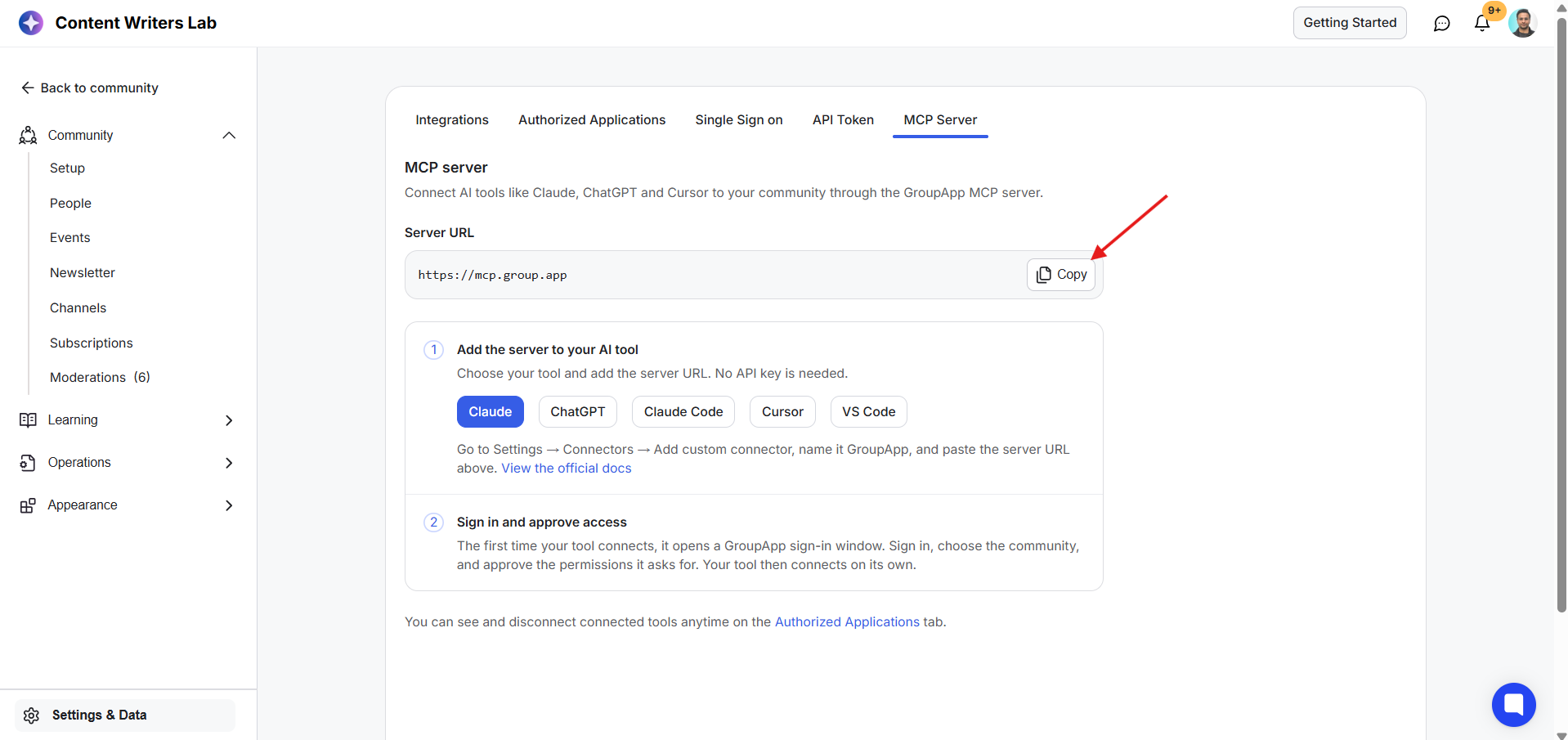
The Settings & Data page shows the MCP Server setup screen with a red arrow pointing to the Copy button beside the server URL. Visible: Content Writers Lab, Settings & Data, Integrations, Authorized Applications, Single Sign on, API Token.

Find Connection Instructions for Your AI Tool

The MCP Server section includes quick connection instructions for supported AI tools, along with links to their official documentation.

1) Under Add the server to your AI tool, select the AI tool you want to connect.
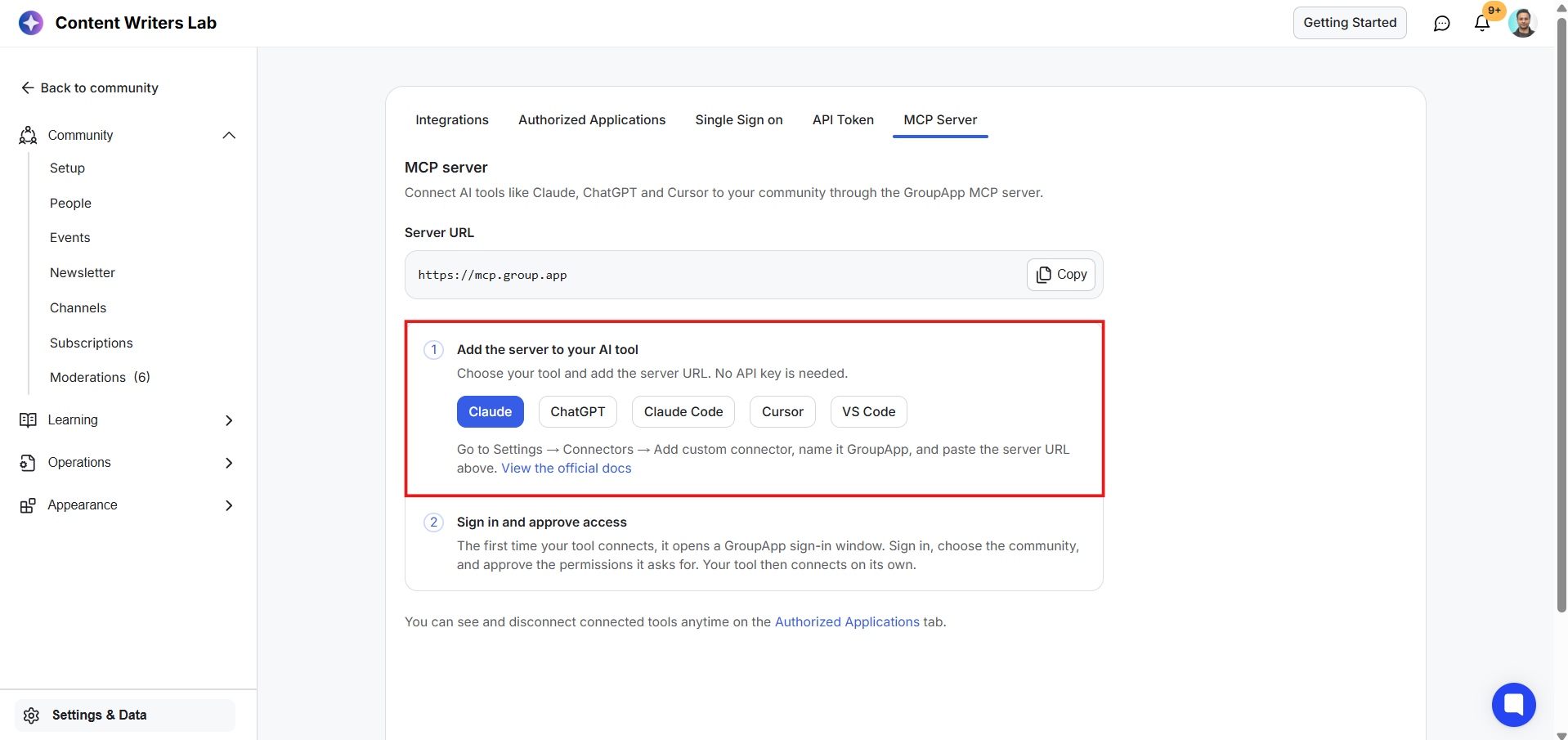
Settings & Data shows the MCP Server setup screen, with a red outline highlighting step 1 for adding the server to an AI tool. Visible: Settings & Data, Integrations, Authorized Applications, Single Sign on, API Token, MCP Server.

2) You'll see the connection steps for that tool, along with a link to its official documentation.
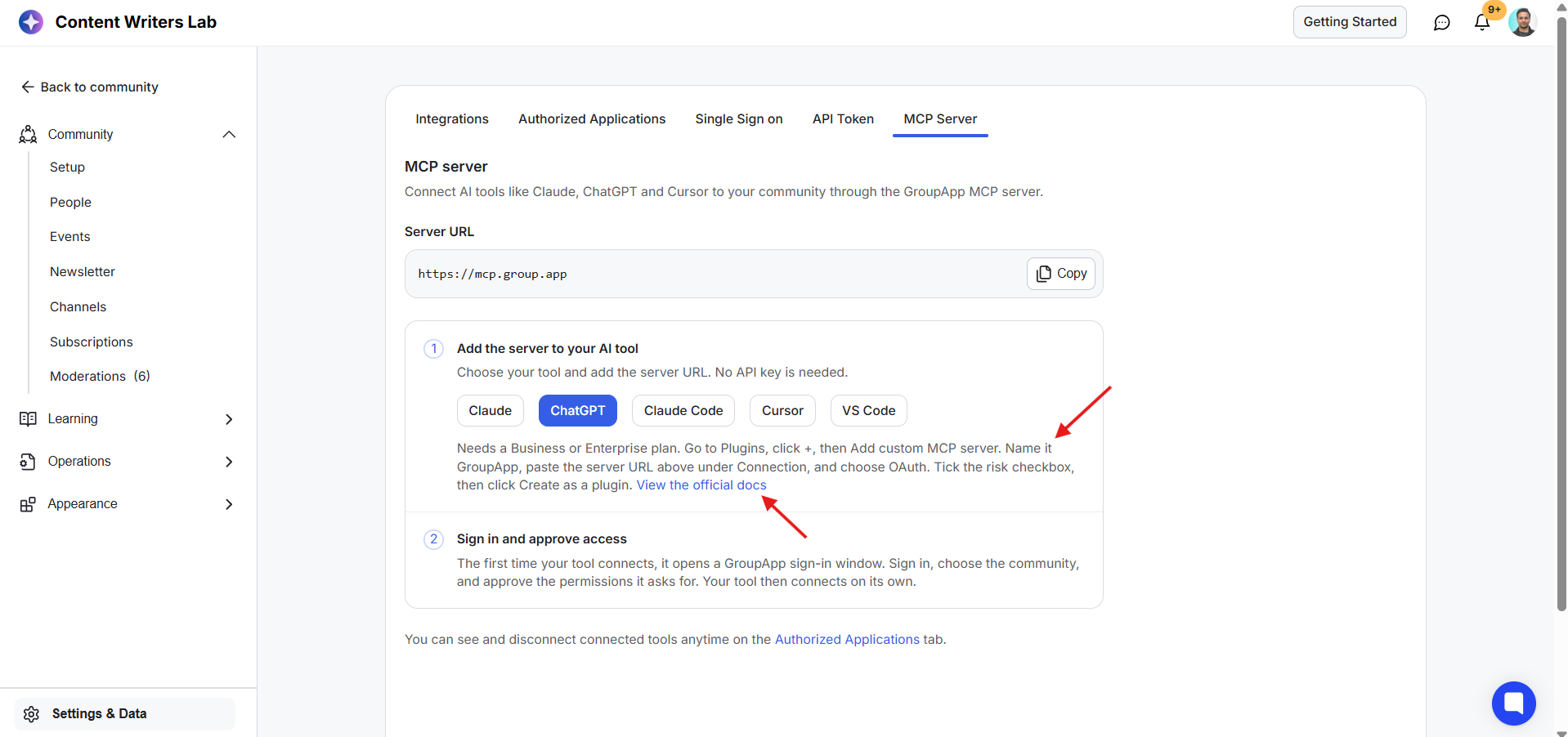
Settings & Data screen with the MCP Server tab selected, showing server URL and setup steps; red arrows point to the ChatGPT setup instructions and official docs link. Visible: Settings & Data, Integrations, Authorized Applications, Single Sign on, API Token, MCP Server.

3) Follow the instructions to add your GroupApp MCP Server URL to the selected AI tool.

Available options include:

  • Claude

  • ChatGPT

  • Claude Code

  • Cursor

  • VS Code

Note: You don't need an API key to connect. Once you add the server to your AI tool, you'll be prompted to sign in to your GroupApp account, select the community you want to connect, and approve the requested permissions.

Copy Configuration Code for Supported Tools

For Claude Code, VS Code, and Cursor, you can also copy the provided configuration code directly from the MCP Server section.

Select the relevant tool and copy its configuration code, then follow the setup instructions for that tool.
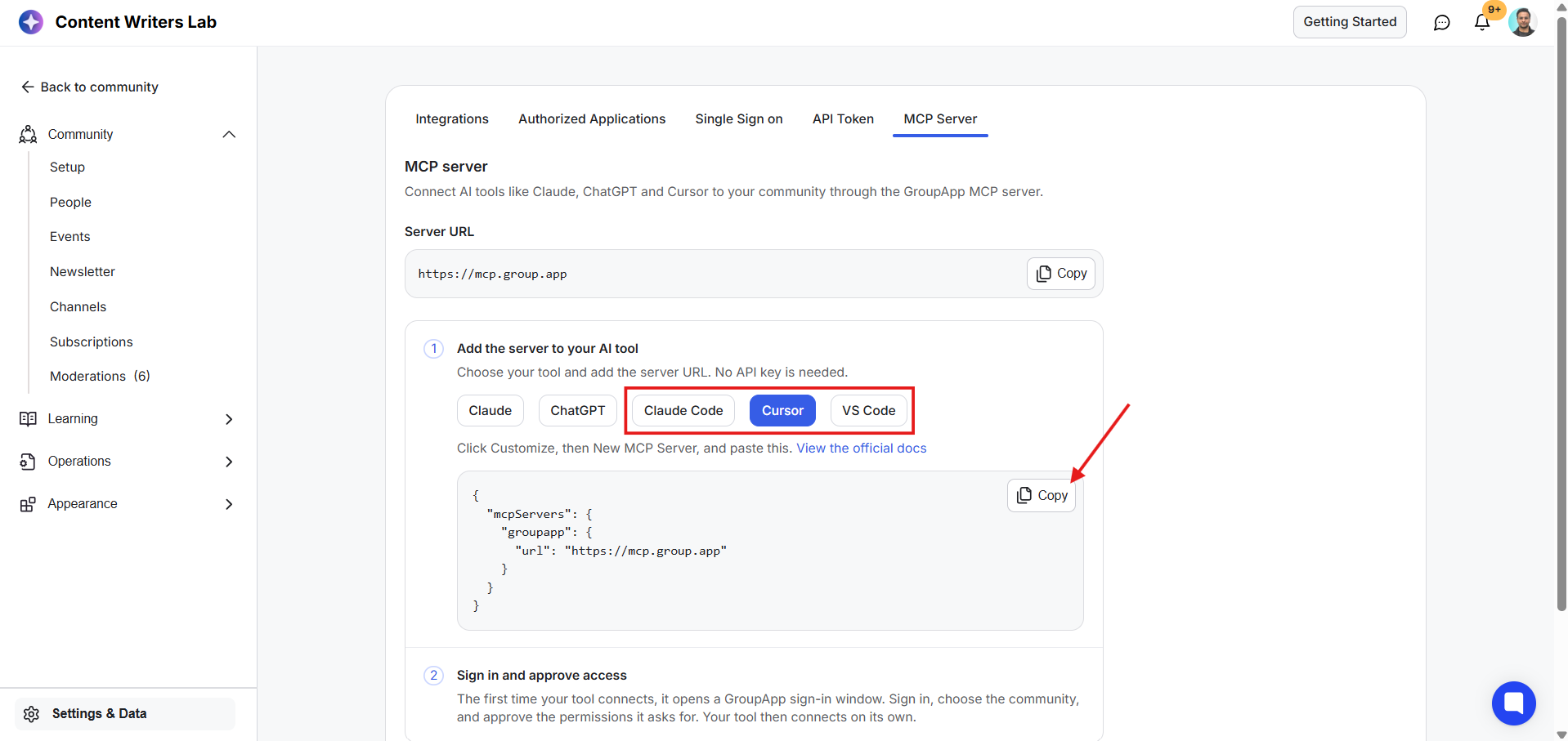

The Settings & Data MCP Server screen shows connection instructions and configuration code; a red outline marks Claude Code, Cursor, and VS Code options, and an arrow points to Copy. Visible: Settings & Data, MCP Server, MCP server, Server URL, https://mcp.group.app, Copy.

Did this answer your question?
😞
😐
😁