GroupApp MCP lets you connect your GroupApp account to your preferred AI tool and work with your community. Depending on the permissions you grant, the AI can read community data and perform supported actions, such as creating content, updating settings, and managing members.
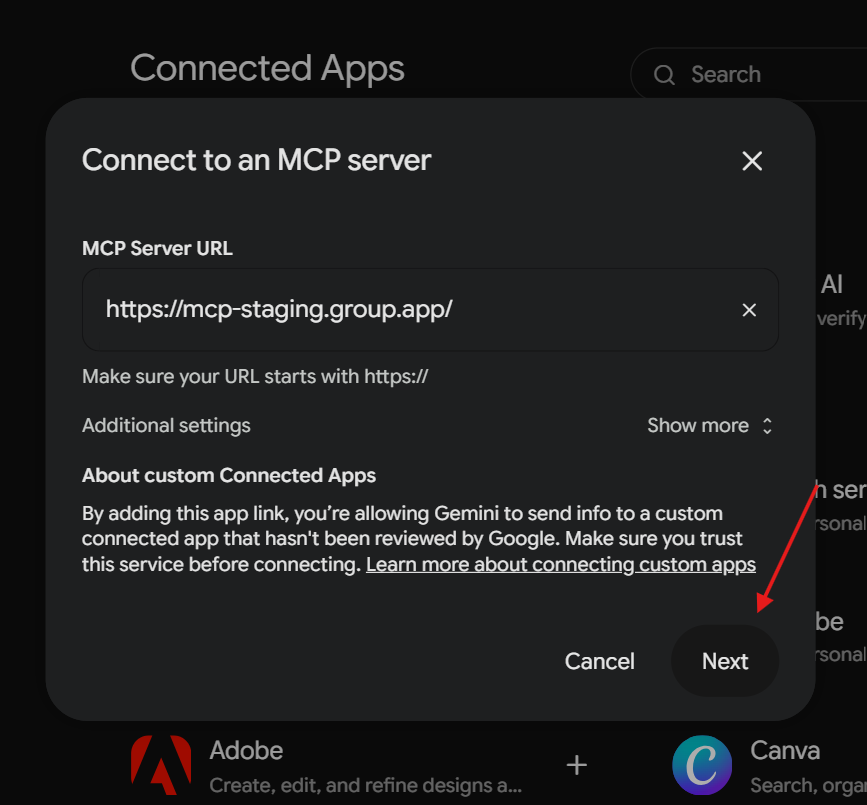
The connection URL you'll need is: https://mcp-staging.group.app/
When connecting your GroupApp account to an AI tool, you'll need to sign in to your GroupApp account and authorize the permissions you want to grant. These permissions determine whether the AI can only read your data or also make changes to your community.
Follow these steps to connect GroupApp MCP to ChatGPT:
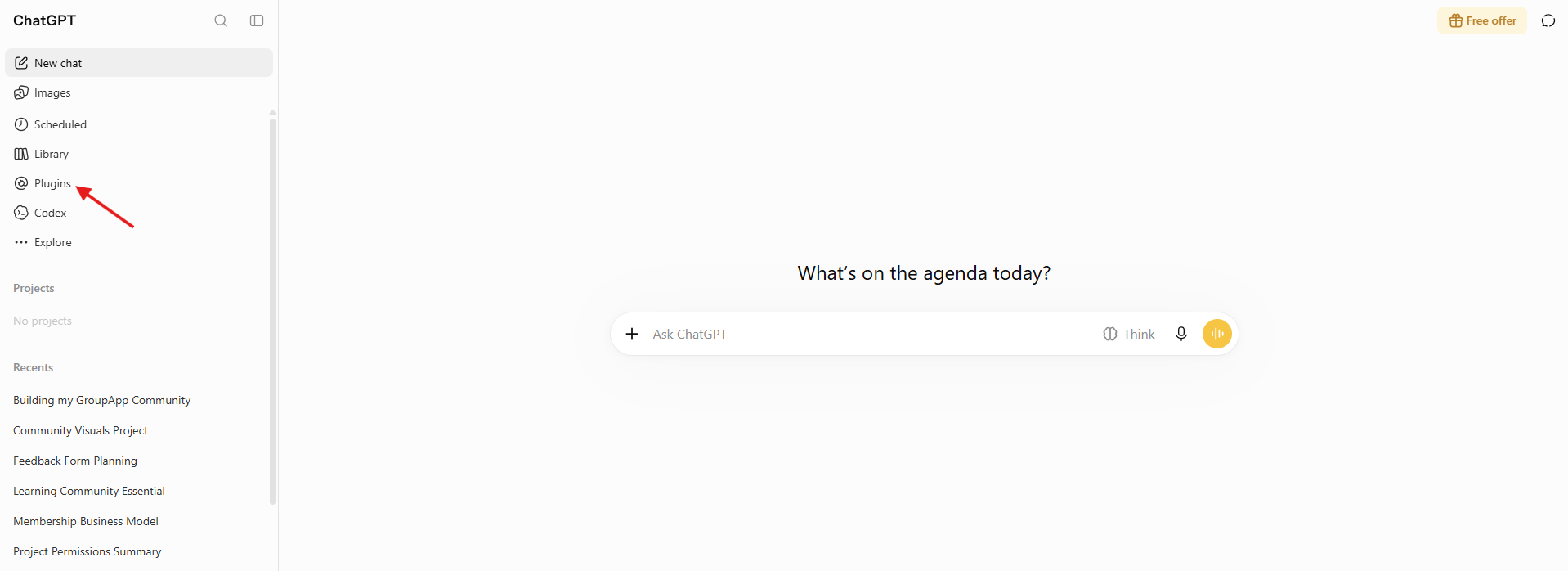
1) Log in to your ChatGPT account, and click on Plugins in the left-side menu.
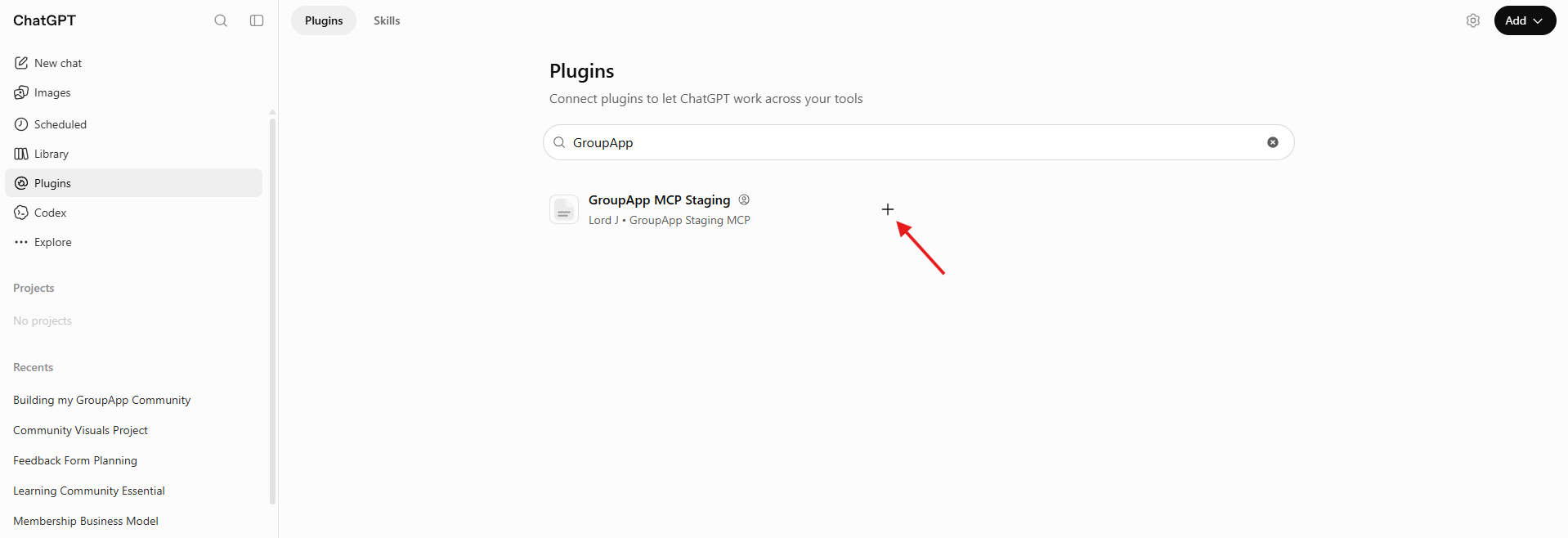
2) Search for GroupApp MCP, and click the + option on GroupApp MCP.
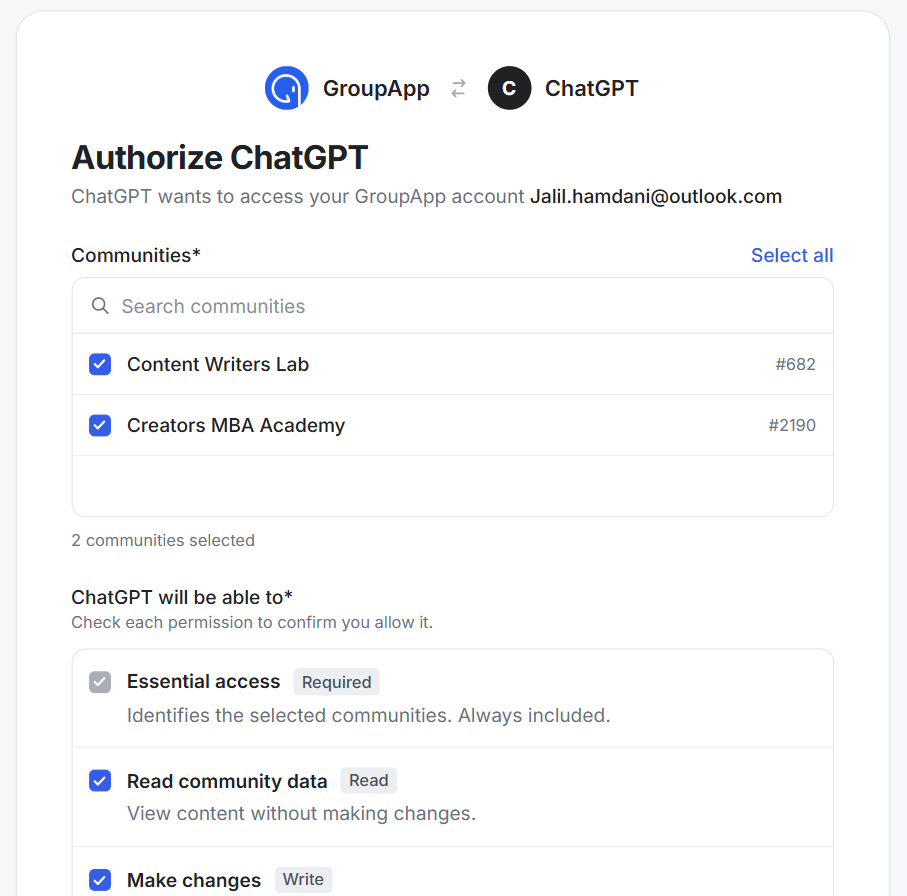
3) This opens the authorization tab, where you'll log in to your GroupApp account. The authorization page lists all available communities on your GroupApp account and the available permissions.
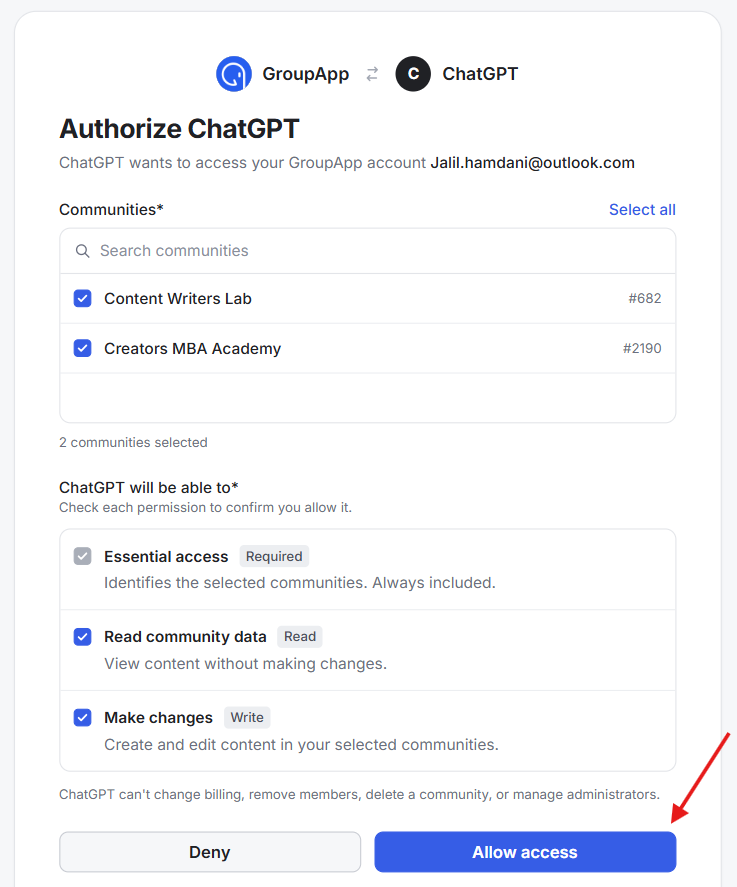
4) Check the box next to the community you want to connect through MCP. Review all permissions. To allow the AI to read data and make changes in your community, check all permissions, including Essentials, which is required and selected automatically.
5) Click Allow Access.
You'll be redirected to your ChatGPT account with an installation confirmation. To use the connection, open a chat and mention GroupApp MCP using the @ sign.
Follow these steps to connect GroupApp MCP to Claude:
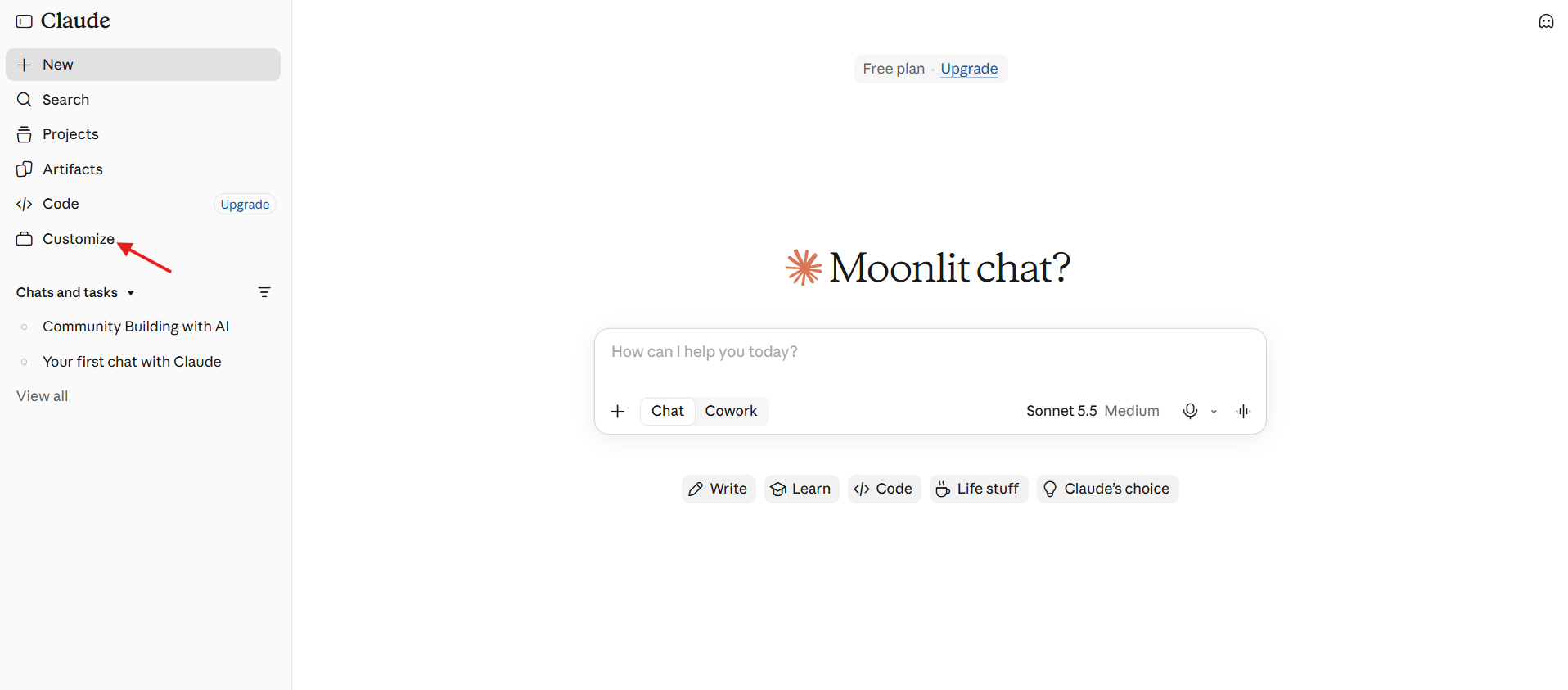
1) Log in to your Claude account. Click on Customize in the left sidebar.
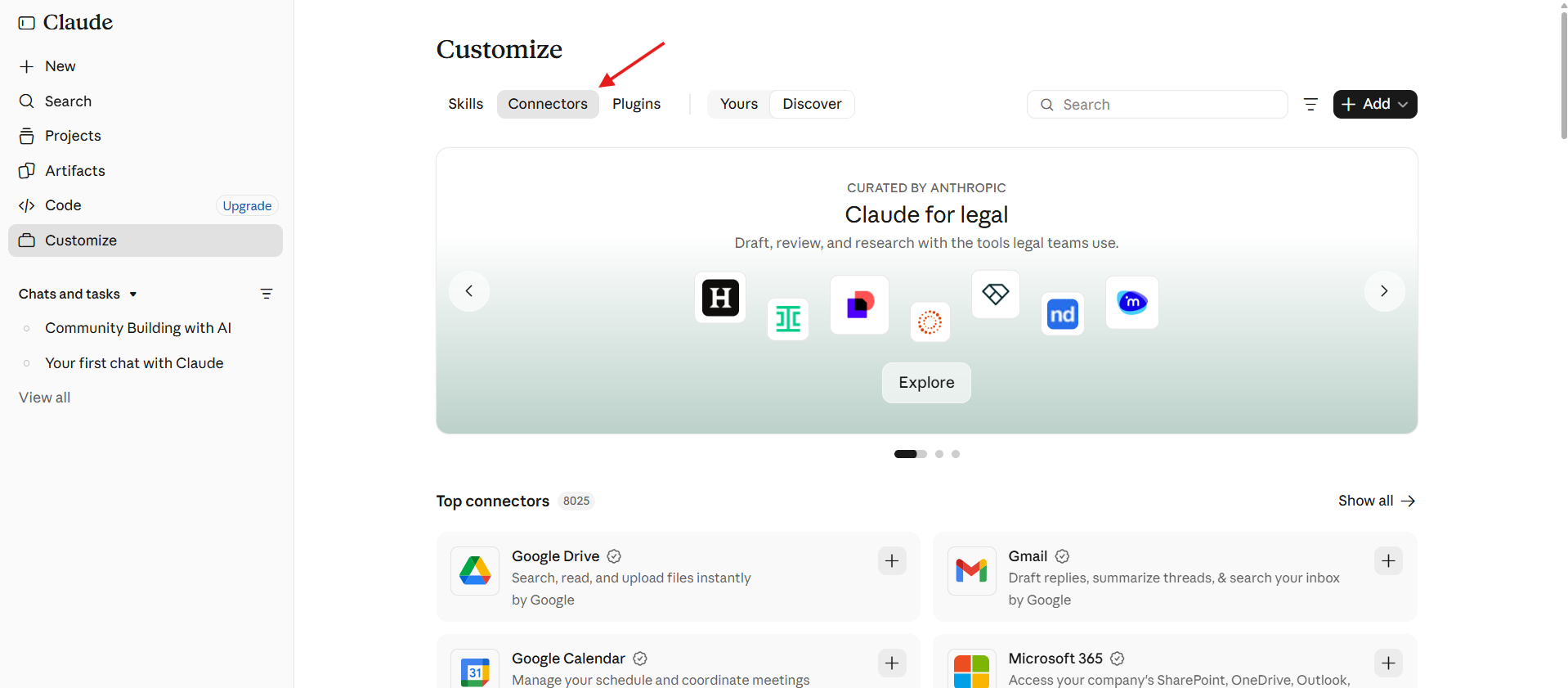
2) Click on Connectors.
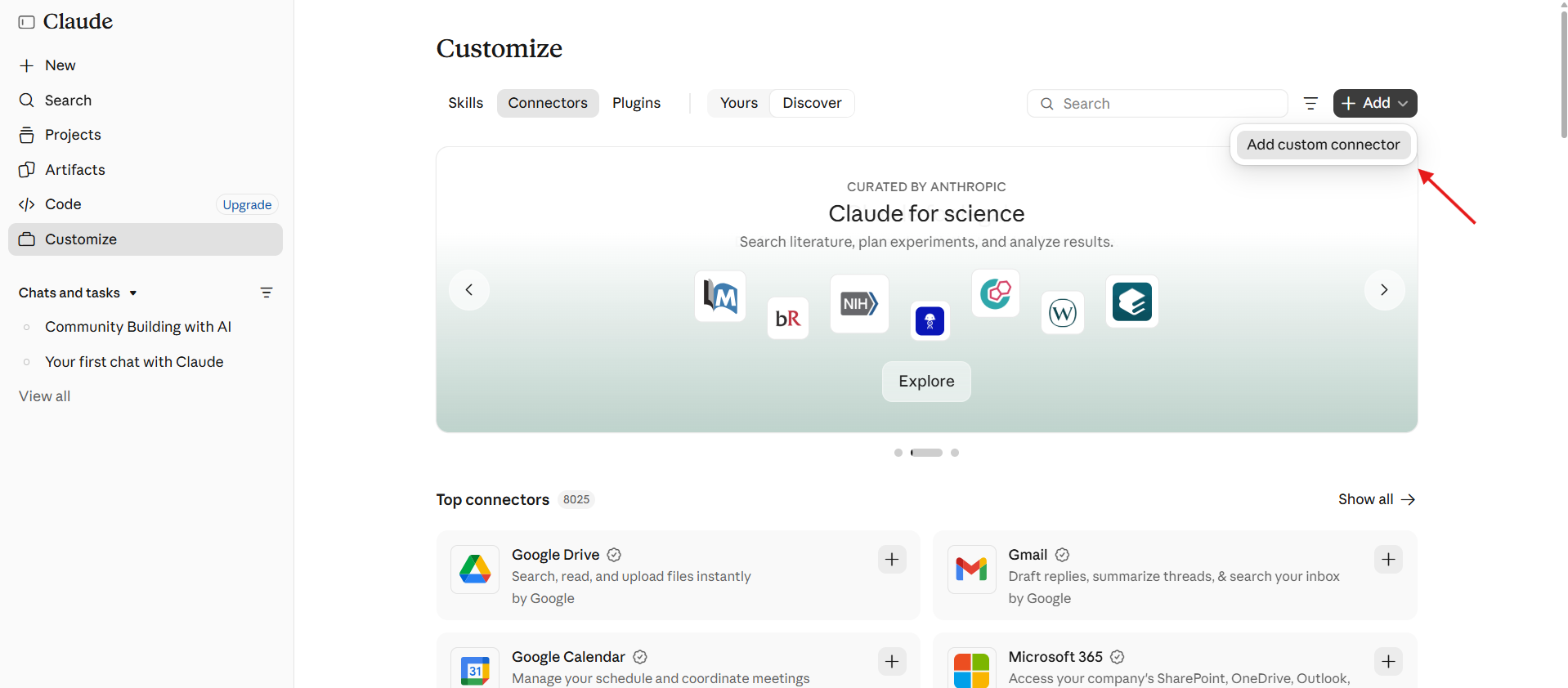
3) In the Connectors tab, click +Add to install a custom connector.
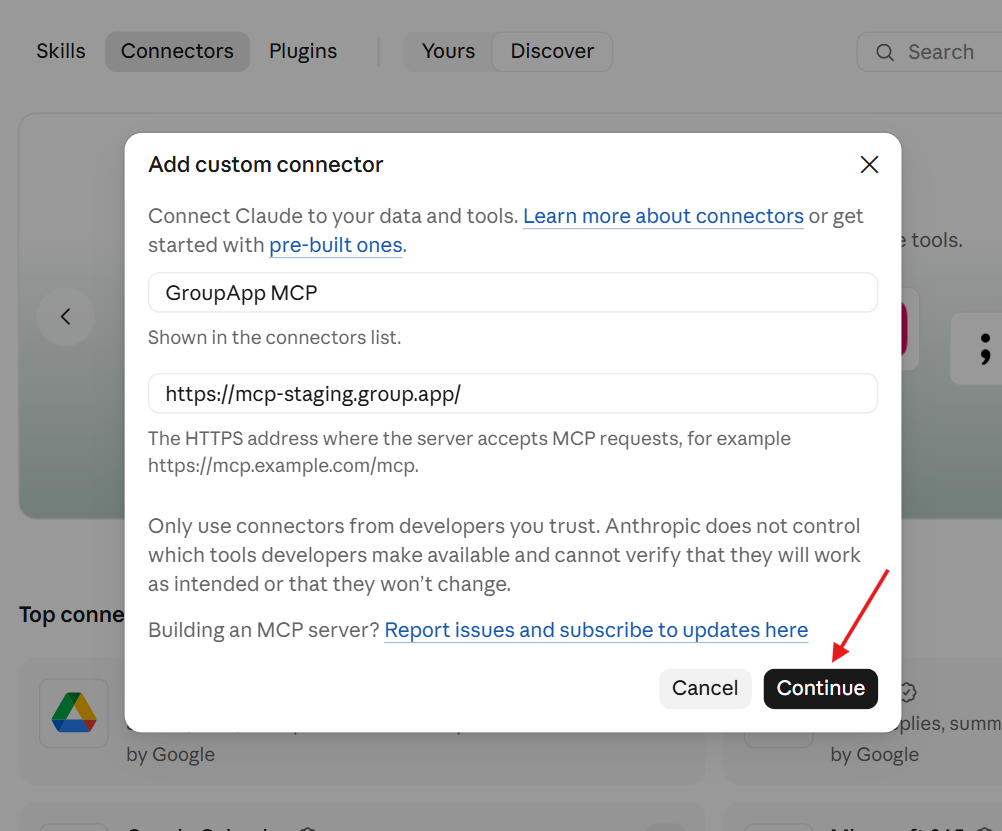
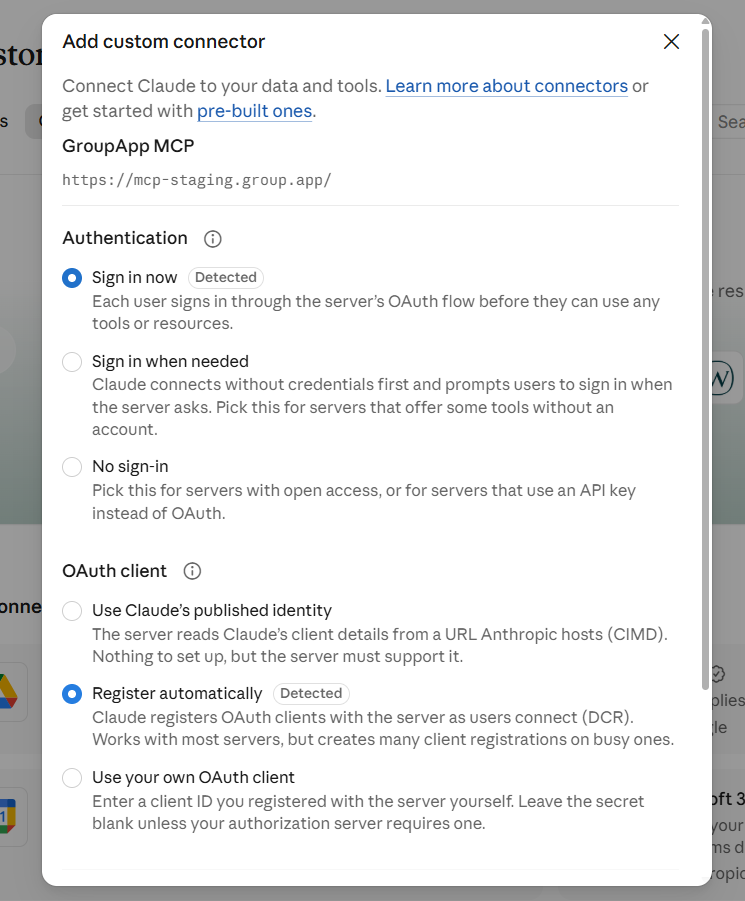
4) In the pop-up, enter GroupApp MCP or any preferred name. Copy and paste the GroupApp MCP URL and click Continue.
5) Set the authentication option to Sign-in Now and the OAuth Client to Register Automatically. These options are chosen by default.
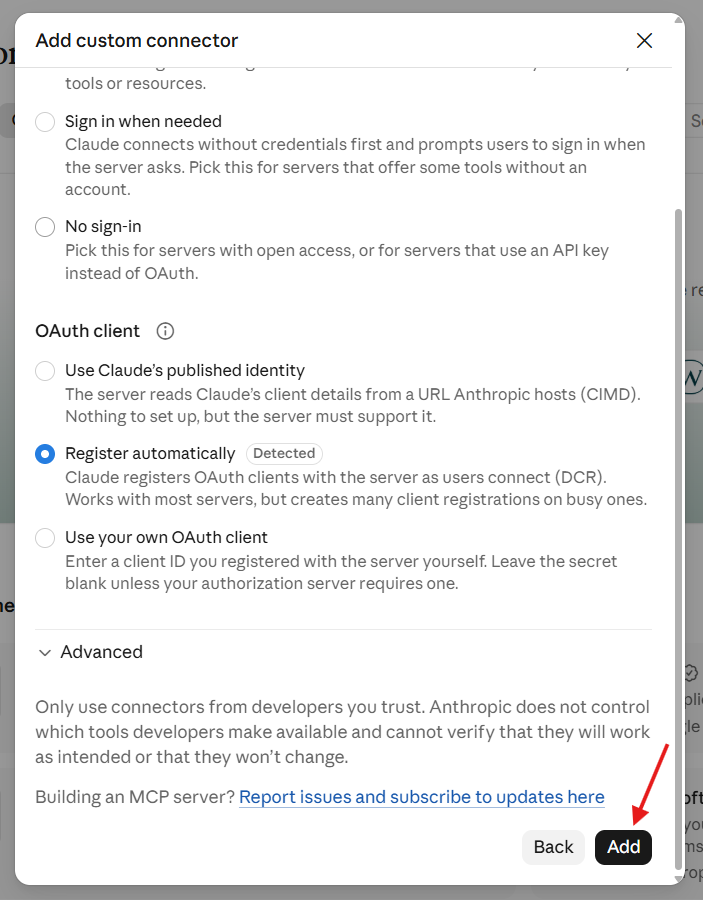
6) Scroll down and click Add.
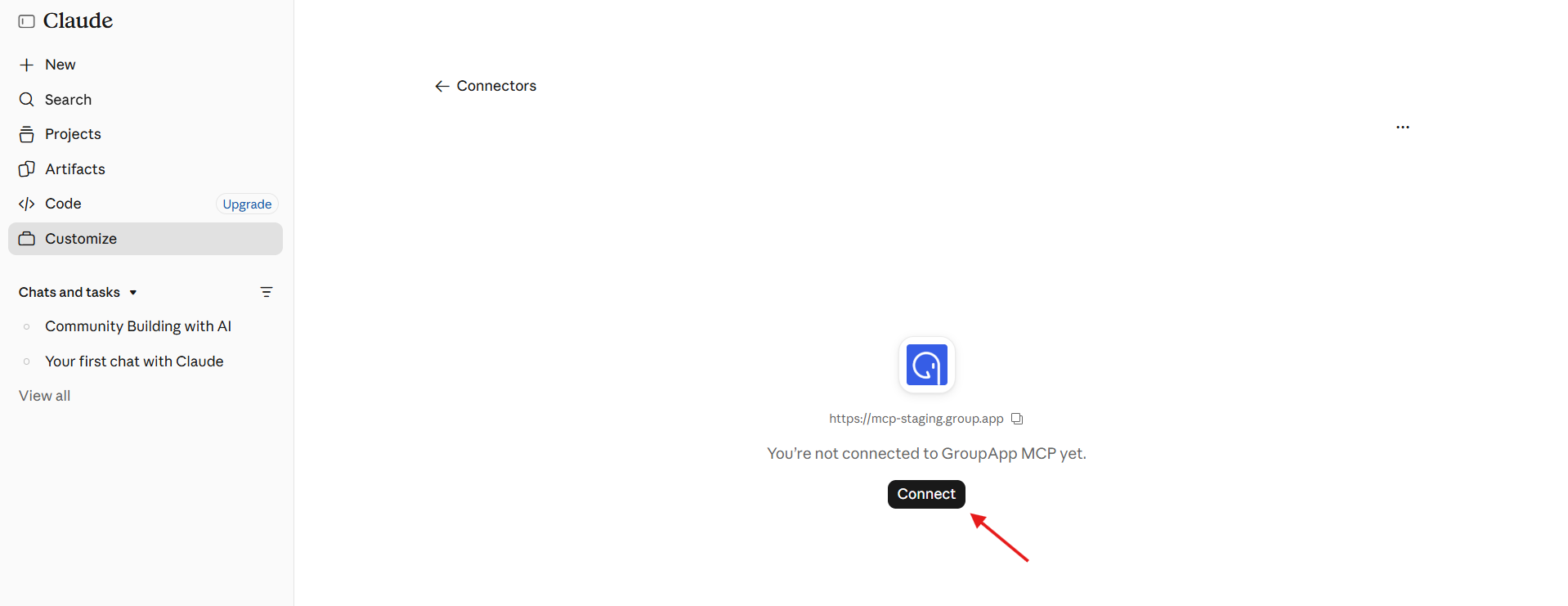
7) Click Connect to complete the process.
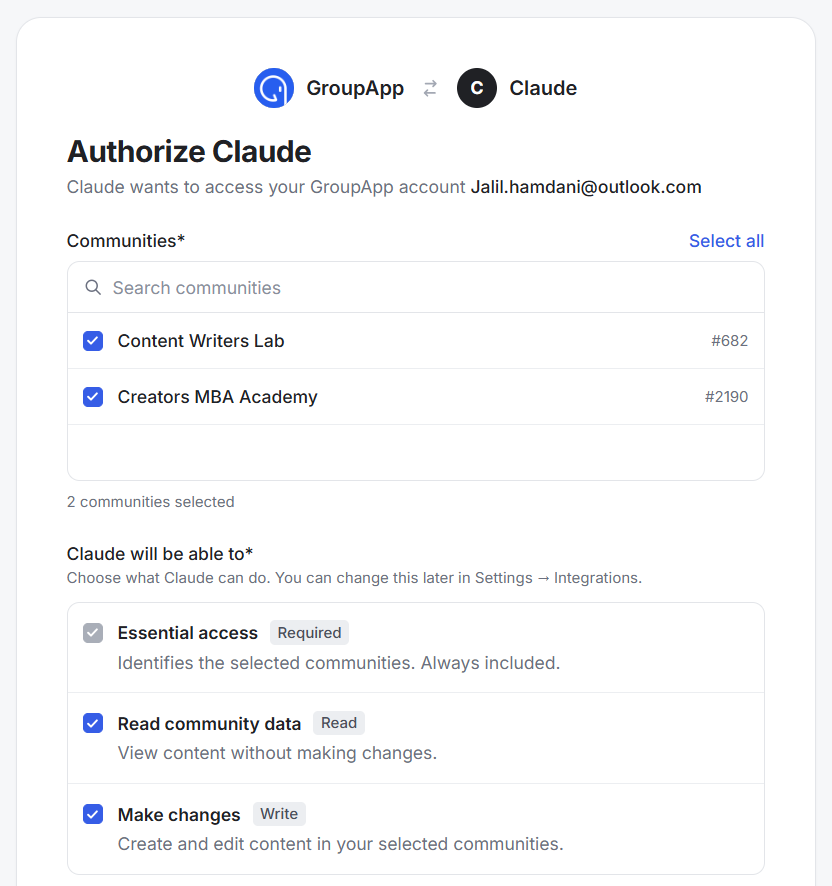
8) This opens the authorization tab, where you'll log in to your GroupApp account. On the authorization page, check the box next to the community you want to connect through MCP. Review all permissions. To allow the AI to read data and make changes in your community, check all permissions, including Essentials, which is required and selected automatically.
9) Click Allow Access.
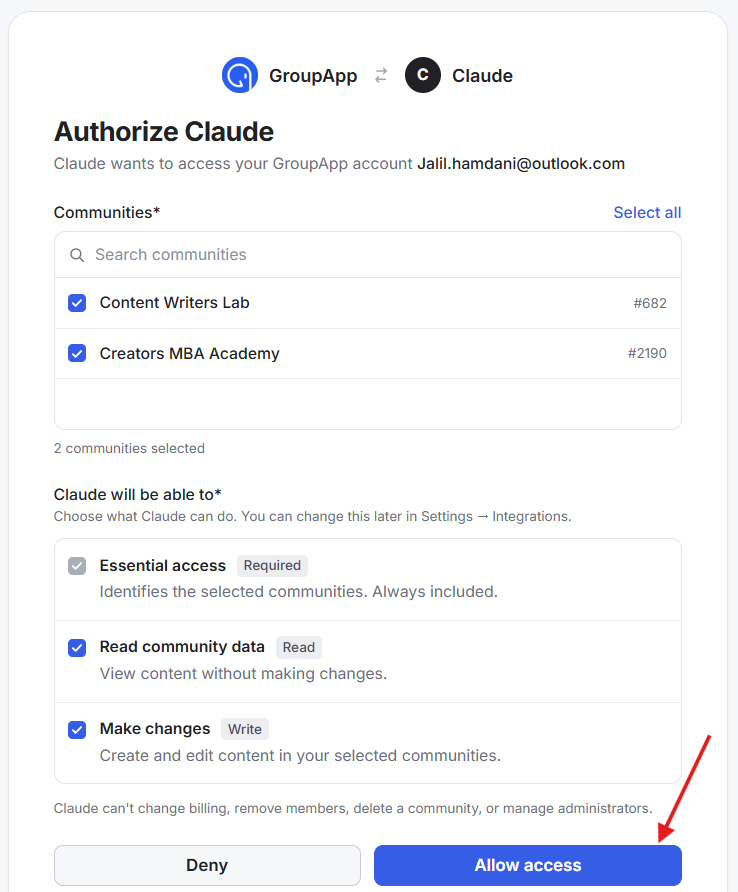
You'll be taken to the GroupApp MCP Connector tab in your Claude account. To use the connection, open a chat and mention GroupApp MCP using the @ sign.
Follow these steps to connect GroupApp MCP to Gemini:
1) Log in to your Gemini account. Click on Customize in the left sidebar.
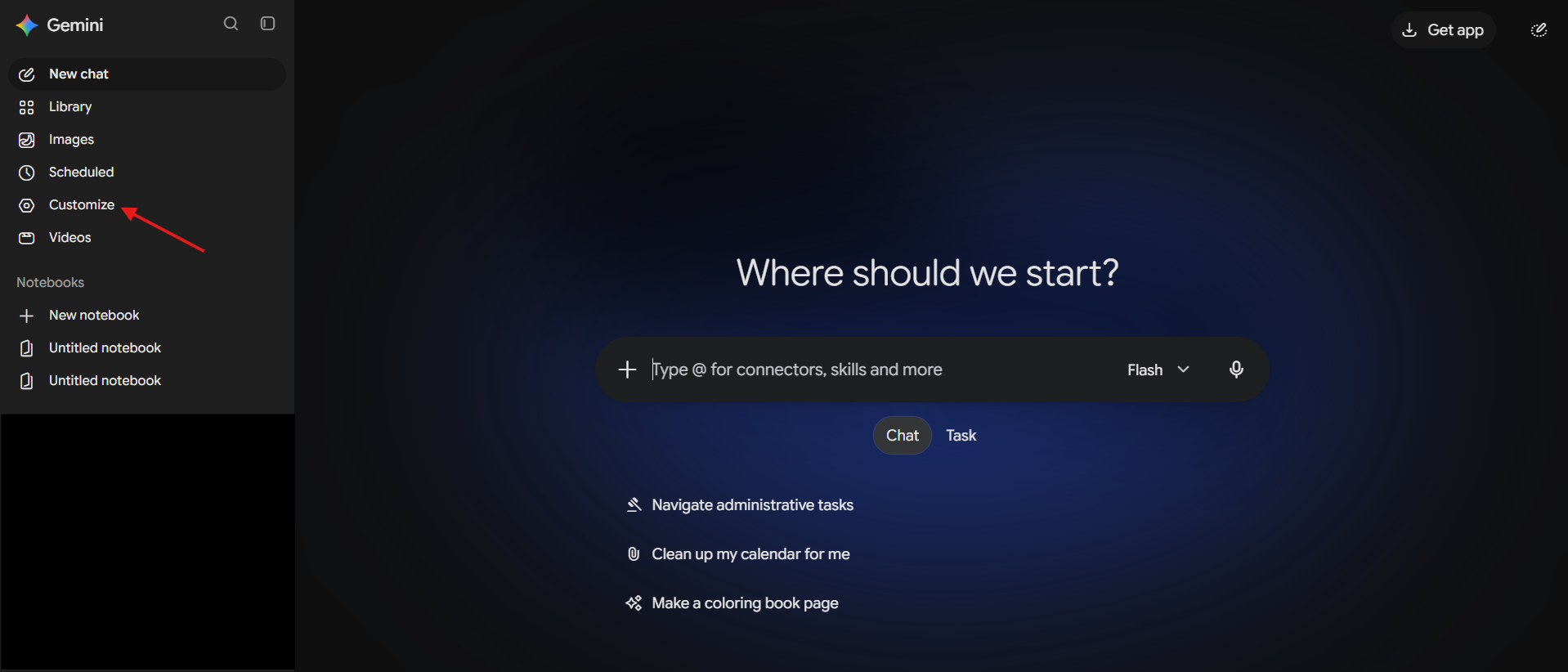
2) Click on Connectors, then click +Custom.
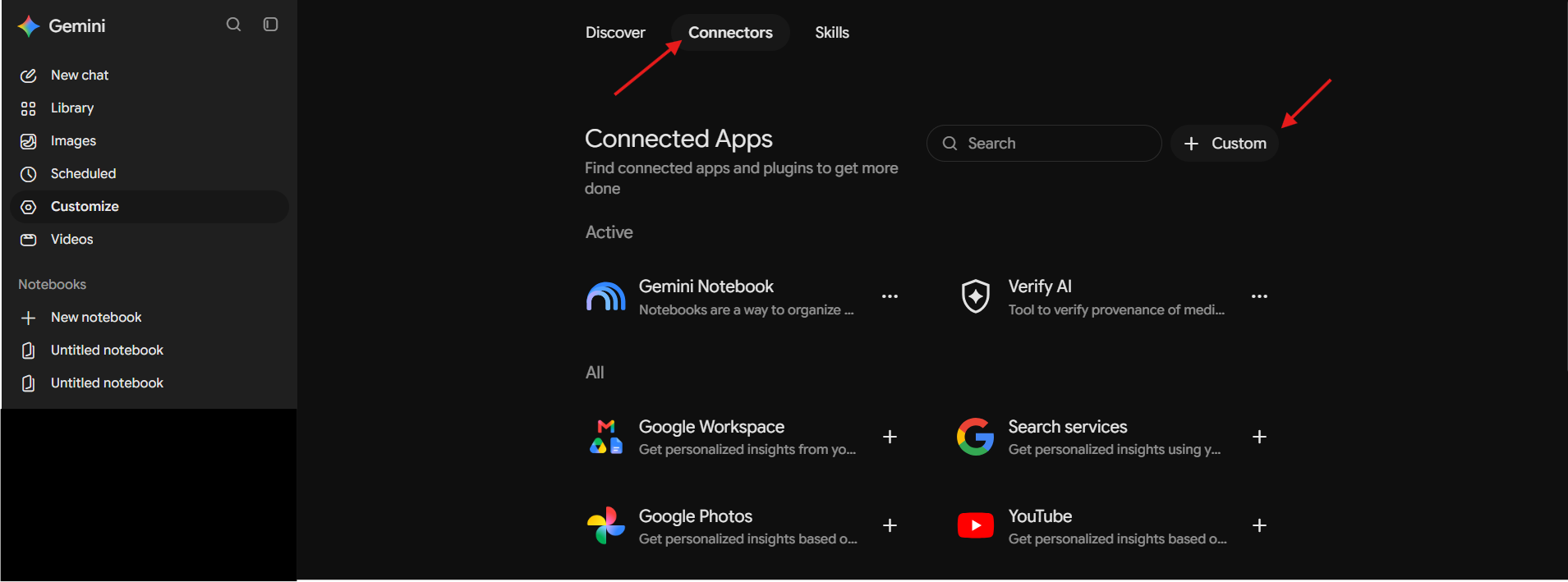
3) Copy and paste the GroupApp MCP URL into the pop-up and click Next.
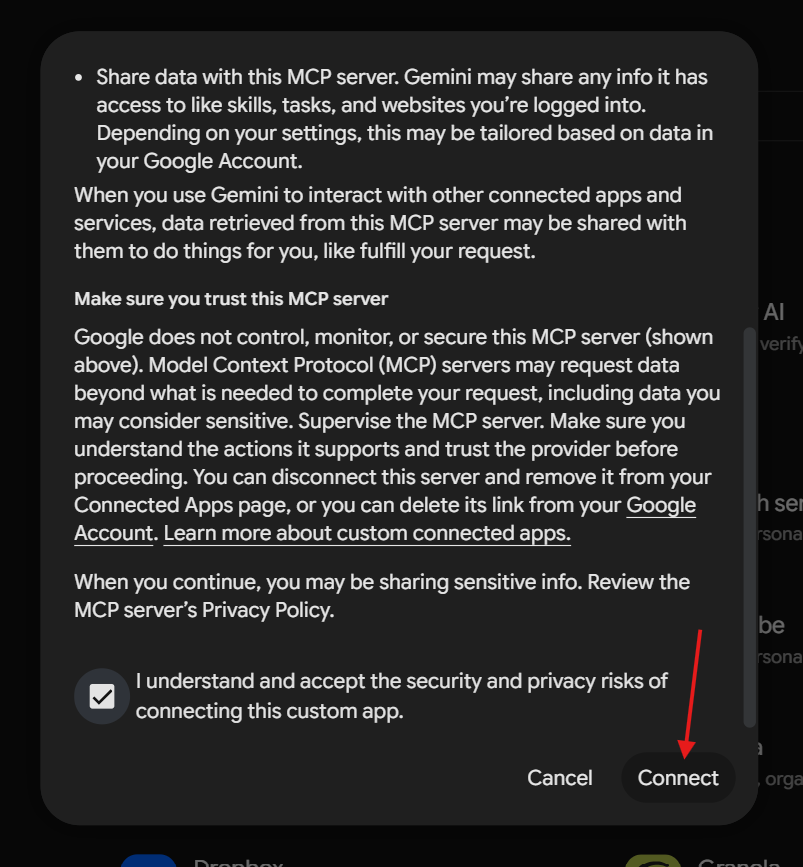
4) Check the box to agree to the terms and conditions, then click Connect.
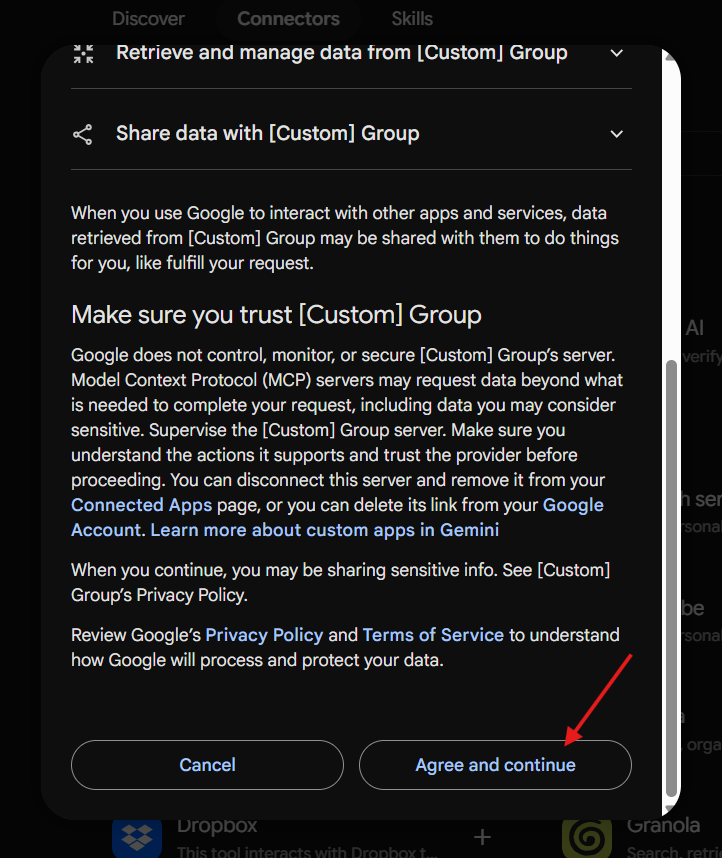
5) Click Agree and Continue to agree to connecting your Gemini account with GroupApp.
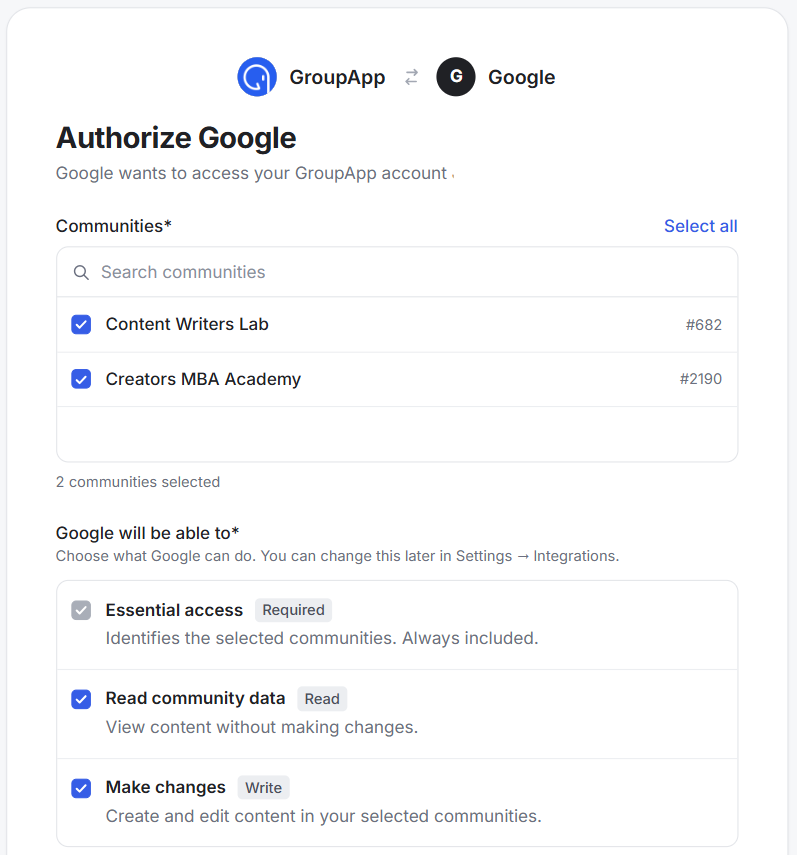
6) This opens the authorization tab, where you'll log in to your GroupApp account. On the authorization page, check mark the communities you want to connect through MCP. Review all permissions. To allow the AI to read data and make changes in your community, check all permissions, including Essentials, which is required and selected automatically.
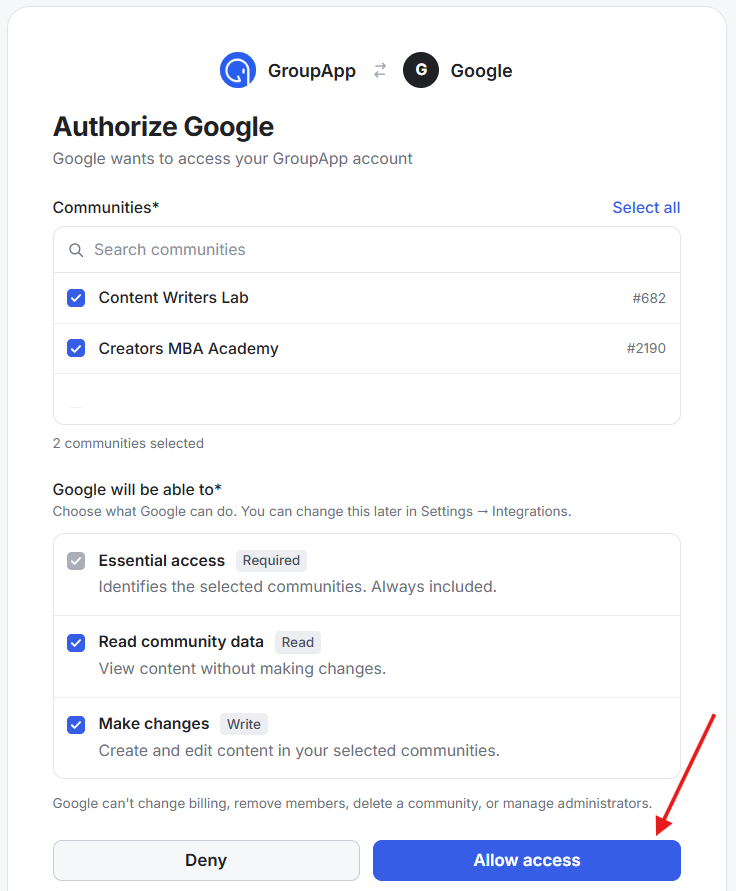
7) Click Allow Access.
8) You'll be redirected to your Gemini account. Click Connect to save your custom connector.
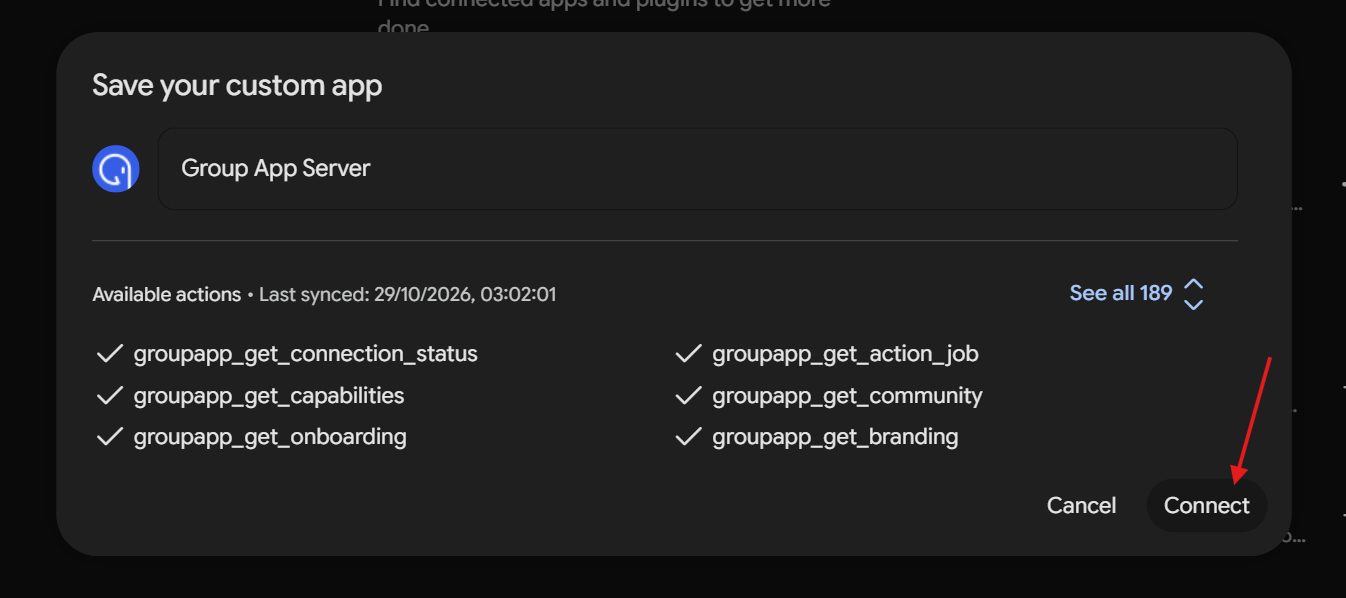
To use the connection, open a chat and mention GroupApp MCP using the @ sign.
You can also connect GroupApp MCP to other AI tools that support MCP connections.
Most MCP-compatible tools will require the following URL: https://mcp-staging.group.app/
Follow the instructions provided by your AI tool to add the connection and complete sign-in with your GroupApp account. You'll also need to select the community you want to connect and authorize the required permissions.
Once connected, the AI can help you manage different parts of your GroupApp Community. The available actions depend on the permissions you've granted.
Community settings: Update About pages, FAQs, onboarding screens, default profile fields, welcome messages, branding, sender identity, menu visibility, homepage sections, announcements, and suggested library content.
Subscription plans: Create plans and update their settings, benefits, add-ons, visibility, and order. Existing prices cannot be edited.
Members: Create and invite members, block or unblock members, manage custom profile fields, remove ordinary members, and cancel recurring subscriptions at the end of the billing period.
Courses and cohorts: Create and update eligible free course drafts, manage cohorts, and enroll or unenroll members.
Channels: Create and update private draft channels, archive eligible empty channels, and manage channel members.
Segments: Create and update segments, rules, and memberships, and archive eligible empty segments.
Visuals: Create and upload community visuals like course covers, event covers, thumbnails, etc.
Events: Create, update, or publish eligible events, manage invitations and reminders, and update RSVPs.
Library access: Grant or revoke individual members' access to library items.
Posts and comments: Create and edit posts and comments, and publish or unpublish text posts.
Scheduled posts and broadcasts: Schedule, cancel, or resume channel posts and broadcasts.
Newsletters: Draft, edit, publish, schedule, broadcast, and remove newsletters.
Direct messages: Send messages as the connected community owner.
Community data: View member profiles, subscriptions, purchases, courses, enrollments, learner progress, channels, segments, events, RSVPs, library content, analytics, leads, posts, comments, newsletters, and integration audit history.
GroupApp MCP supports many community management tasks, but some actions aren't available:
The AI cannot change billing, manage administrators, or delete the community.
The AI cannot replace library files.
Existing subscription-plan prices cannot be edited.
Passwords cannot be set through GroupApp MCP.
Some supported changes may require a preview and confirmation before they are applied.
The GroupApp MCP Beta is available on all GroupApp plans.
Each community has an allowance of 10,000 calls per month. Both reads and writes count toward this allowance.
Each tool call counts as one request.
Can I disconnect my MCP connection?
Yes. You can disconnect your MCP connection at any time through your AI tool or from the Integrations section in your GroupApp Admin Panel.
Can I review and edit permissions after the connection has been established?
Yes. Go to GroupApp Admin Panel → Settings & Data → Integrations to view the AI tools connected to your GroupApp account.
From here, you can edit the permissions and remove a connection.
Can I manage my GroupApp account billing and member refunds through MCP?
No. You cannot manage your GroupApp account's billing section or issue refunds to members through MCP.
Can the AI set a member's password?
No. Passwords cannot be set through GroupApp MCP. New members set their own passwords through the invitation email.