You can change a member's subscription plan directly from the Admin Panel using the Admin-led Subscription Change. This works for both individual and group subscriptions.
Note: Before making the change, communicate with the member and get their confirmation. Make sure they understand the new subscription plan, the amount they'll be charged, and any remaining subscription value that will be added to their Stripe account as credit.
Go to your Admin Panel. Under Community, click People to open your member list. Find and select the member whose subscription you want to change.
On their profile, click the three-dot menu on the profile card and select Update Subscription.
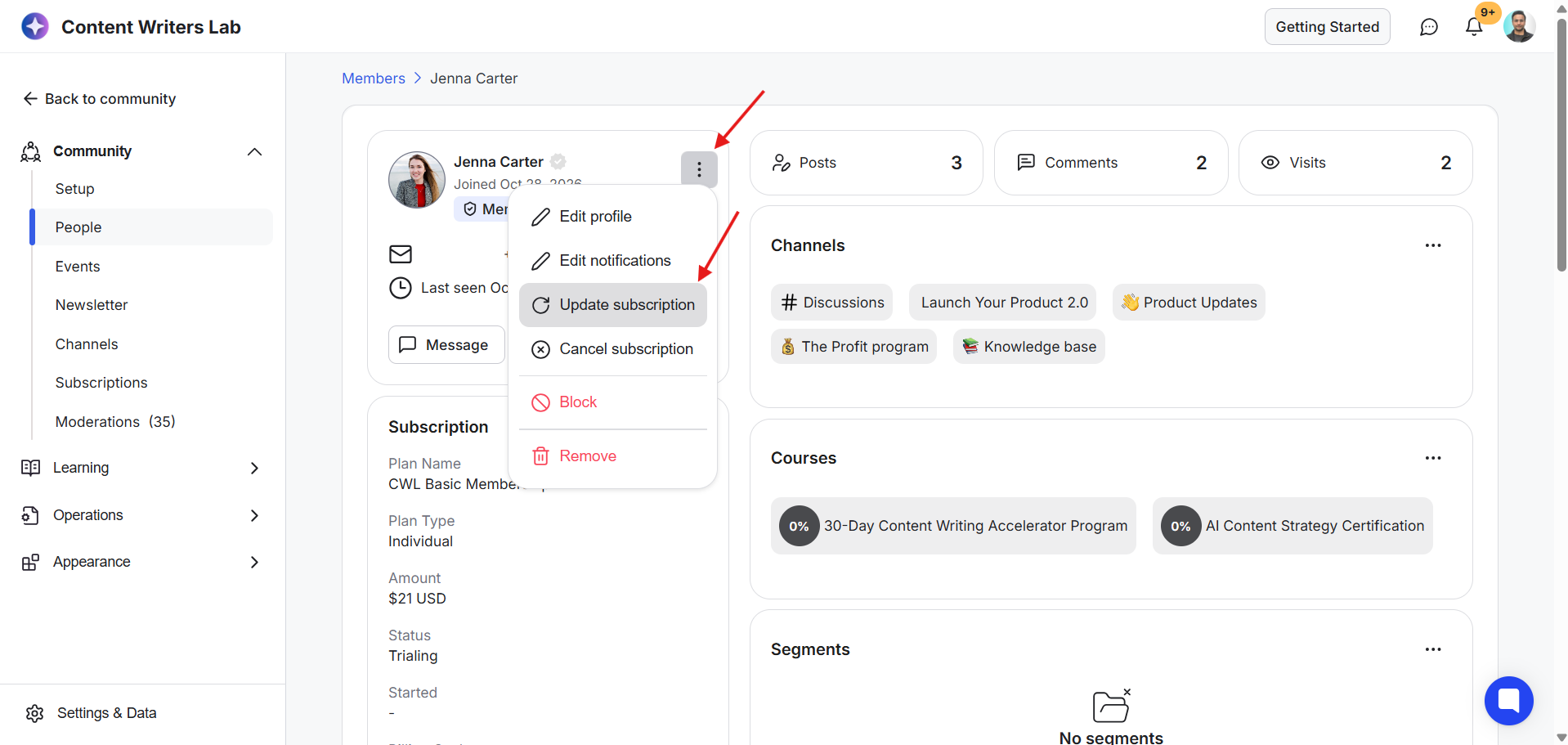
A subscription update panel opens, which displays the member's name, current subscription plan and subscription status.
The update panel works like an order checkout. You can select a new plan and review the order before confirming the change.
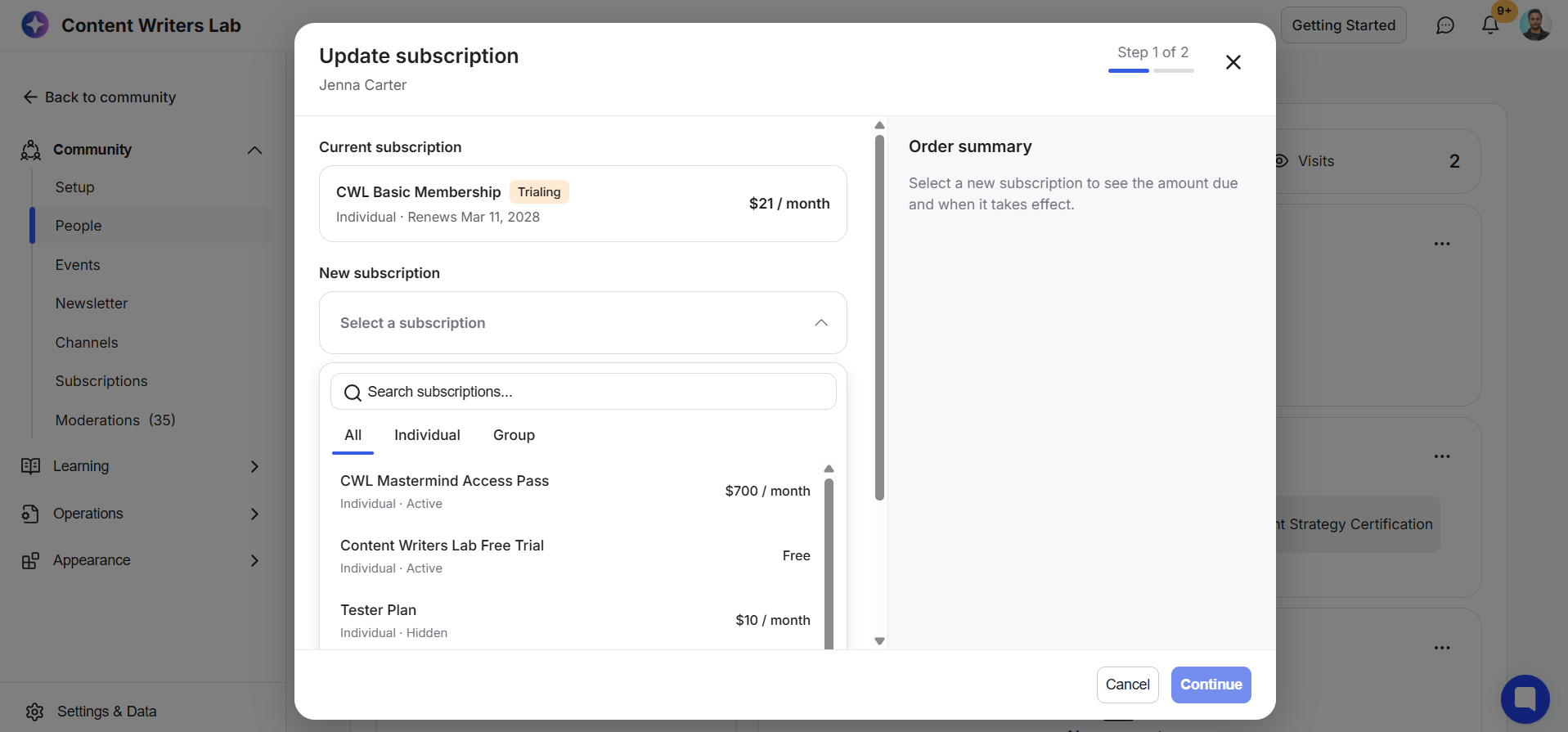
You'll see separate tabs for Individual and Group subscriptions. At this point, you can search and select the subscription plan for the member.
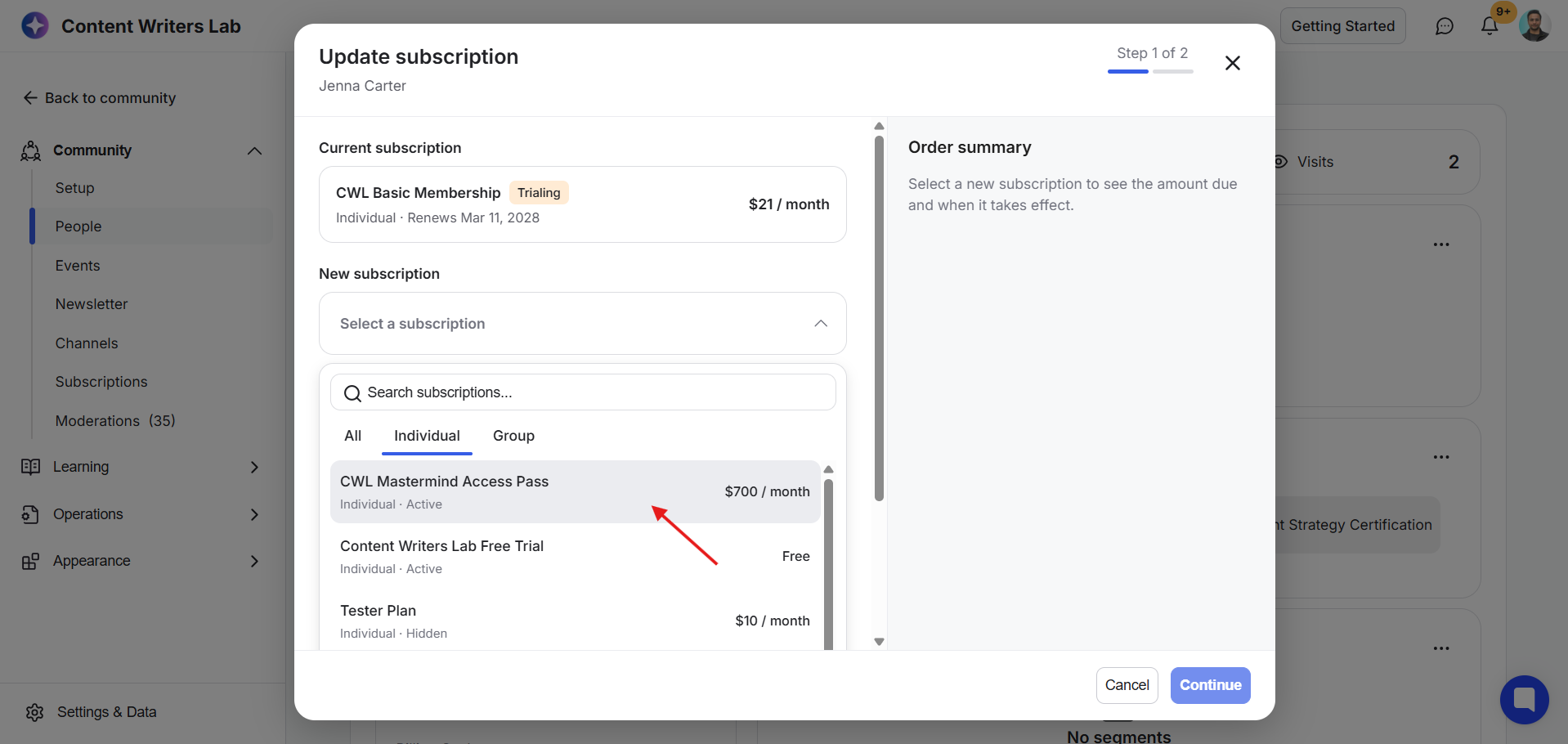
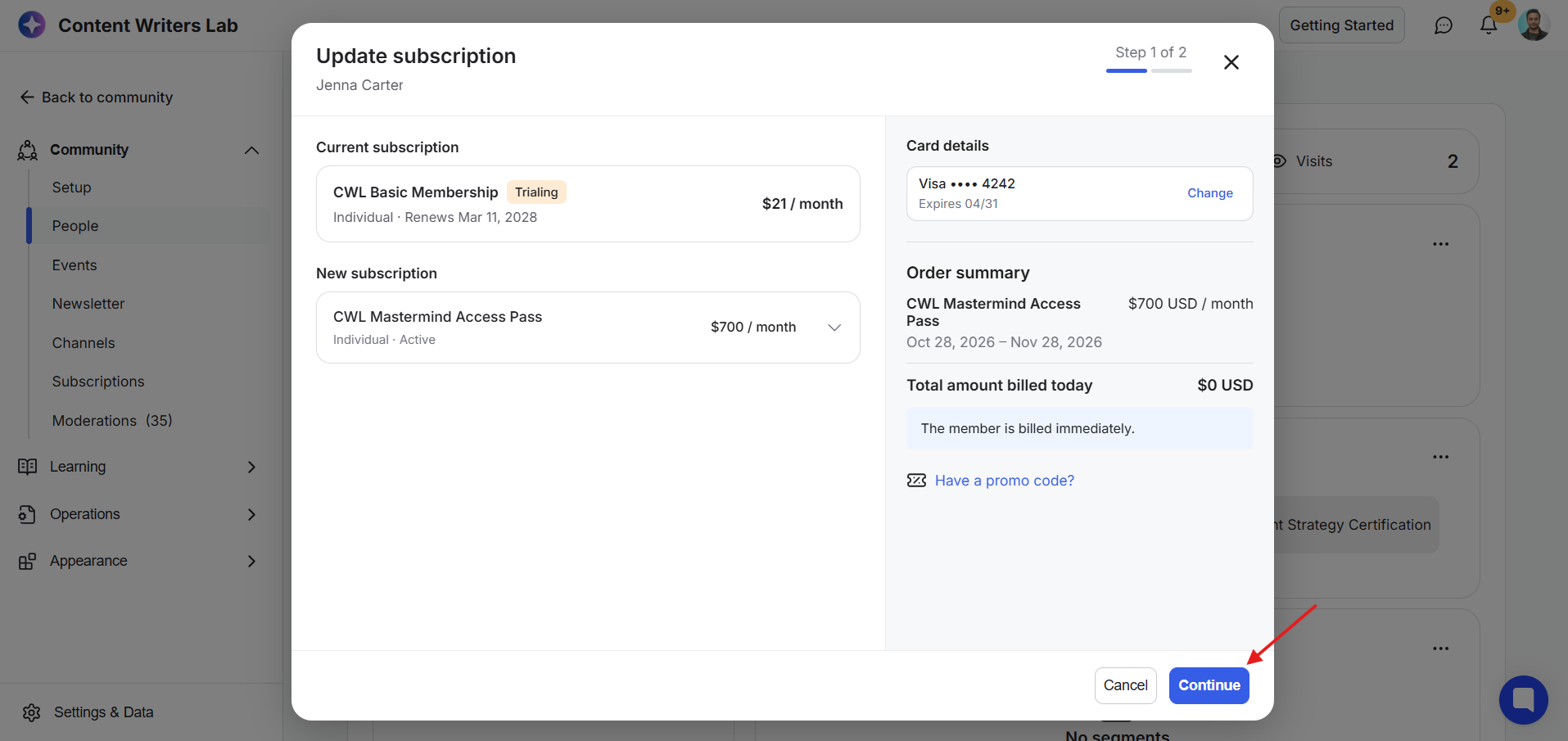
After selecting a plan, you will see member’s current plan and selected new plan. Plus, an order summary will appear on the right side of the panel. Review the payment details and any additional charges before proceeding.
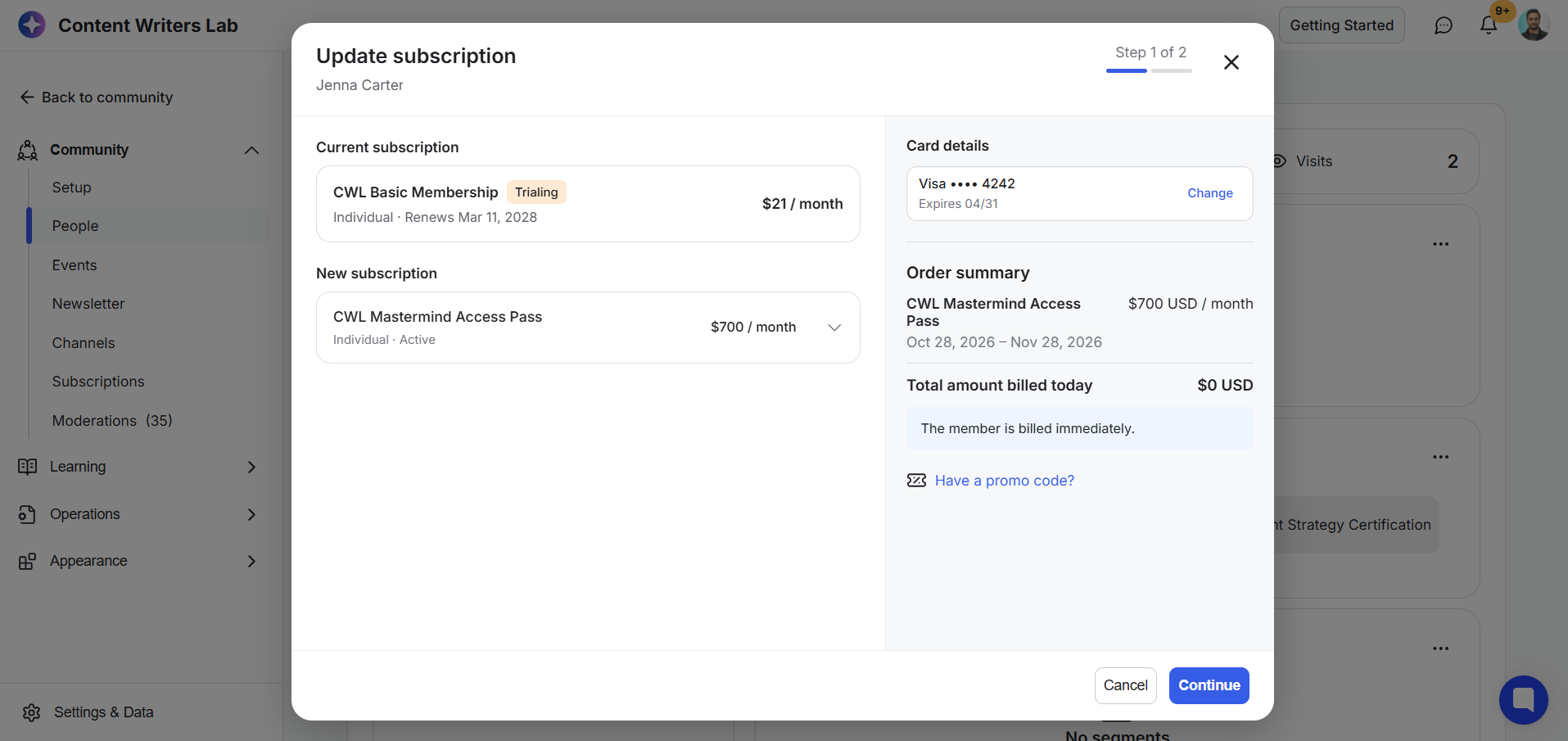
The panel displays the payment methods saved to the member's account, including expired ones.
Active payment method: You can review the order summary and proceed with the subscription change.
Expired payment method: The card details will appear grayed out, along with an error message.
No payment method: The panel will display an error message indicating that no payment method is available.
Make sure the account has an active payment method before proceeding. If not, you have to contact the member to update their payment details.
If the new subscription plan includes add-ons, they'll appear in the order summary.
Required add-ons: These are automatically included in the order.
Optional add-ons: You can choose whether to include them.
Review the included add-ons to make sure the order reflects the subscription you want to assign.
You can also apply a promo code during checkout.
Enter the promo code in the order panel and apply it before continuing. The discount will apply to the new subscription.
If the new subscription costs less than the current one, the unused portion of the existing subscription will be credited to the member's account. This includes the remaining unused credit based on the days left in the current subscription.
This amount is added to the member's account as credit, not refunded as a payment.
The member can check their remaining credit from their billing page.
Once you've reviewed the order summary and confirmed that everything is correct, click Continue.
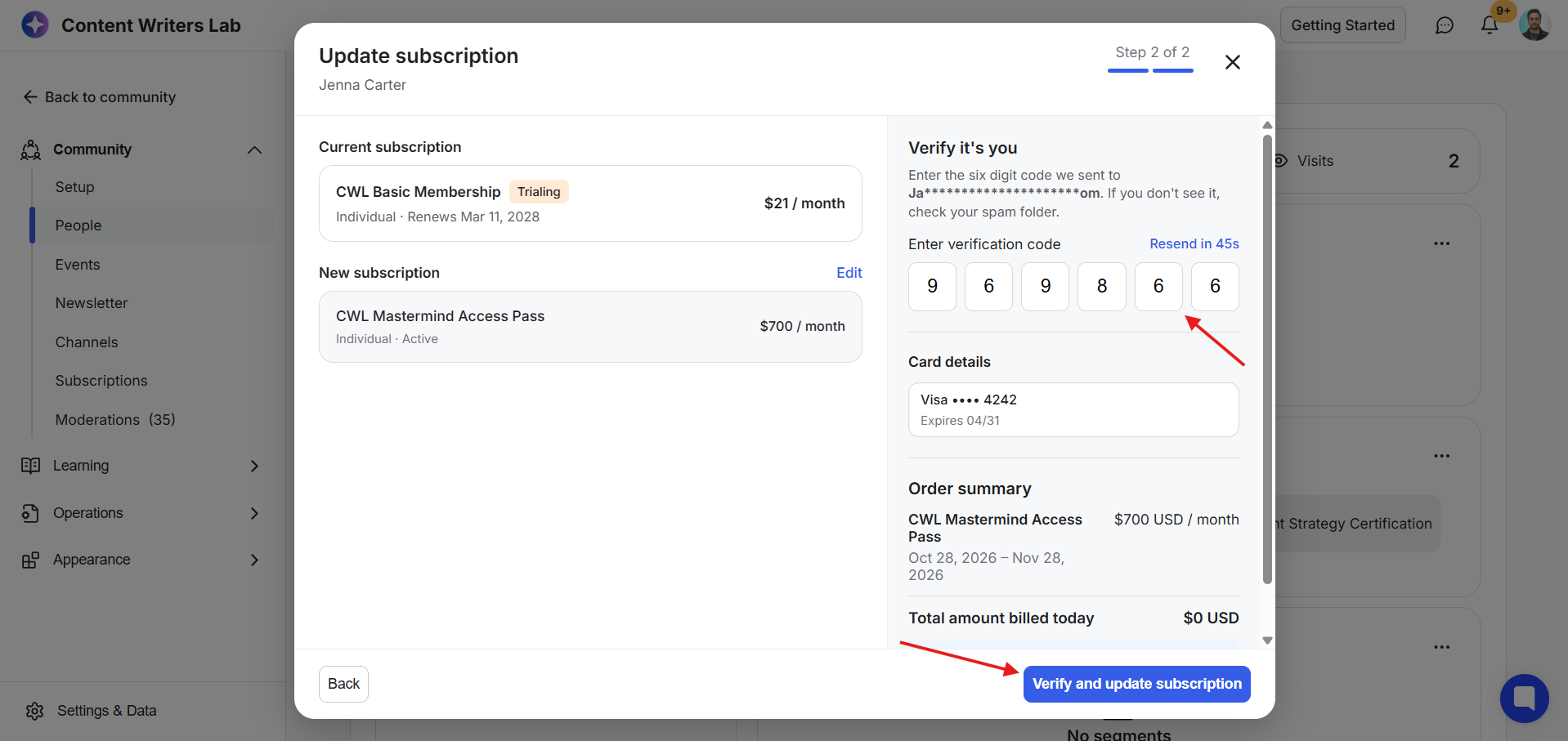
GroupApp will send a verification code to the admin email address. Enter the code in the panel and click Verify and Update Subscription.
You'll see a green confirmation message in the same panel once the subscription change is complete. A receipt will also be sent to the member's email address. Click Done.
After the change is complete, the panel will display the member's new subscription plan and next invoice date along with a green confirmation message.
Click Done to close the panel.
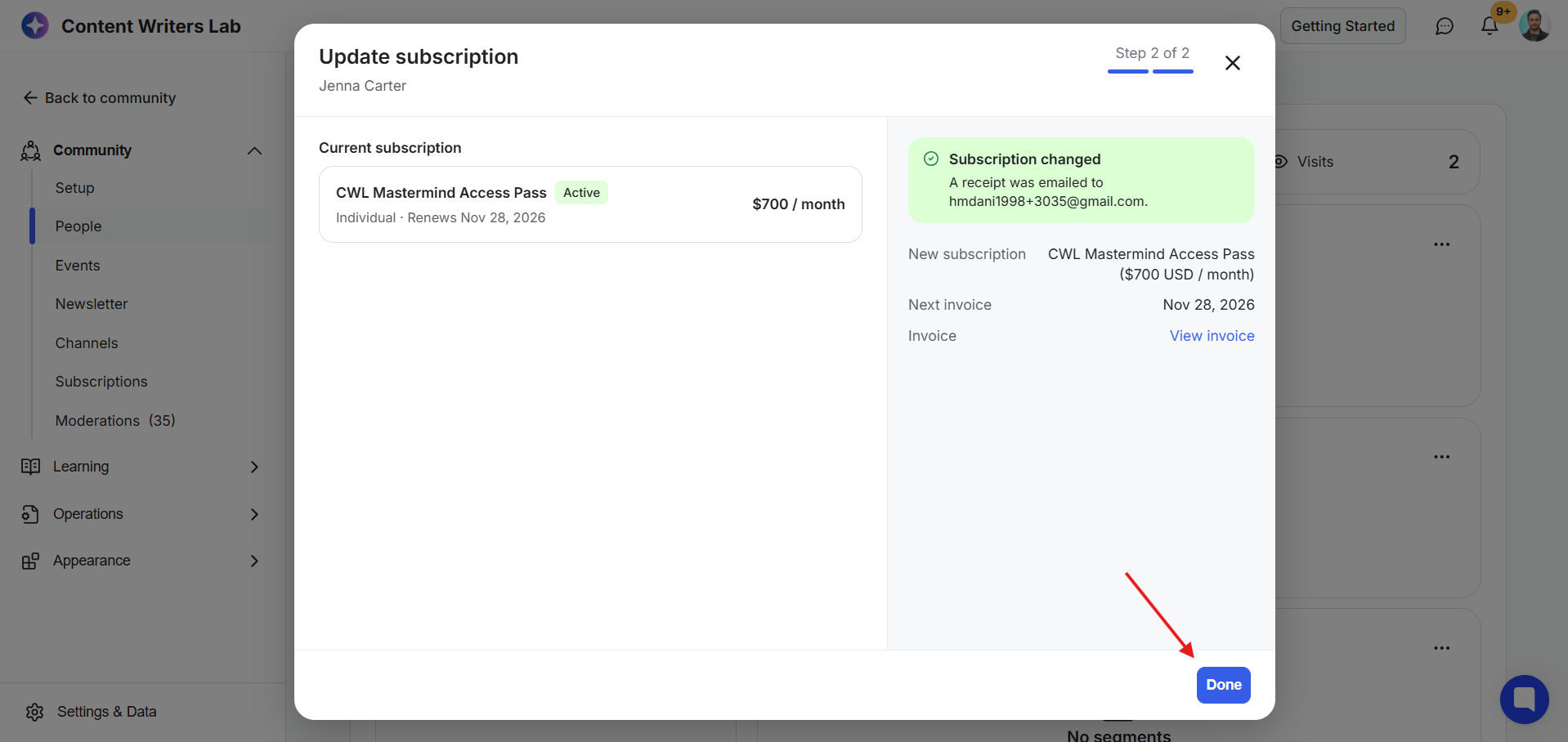
The member's subscription has now been updated. If they have any remaining account credit, they can view it on their billing page.