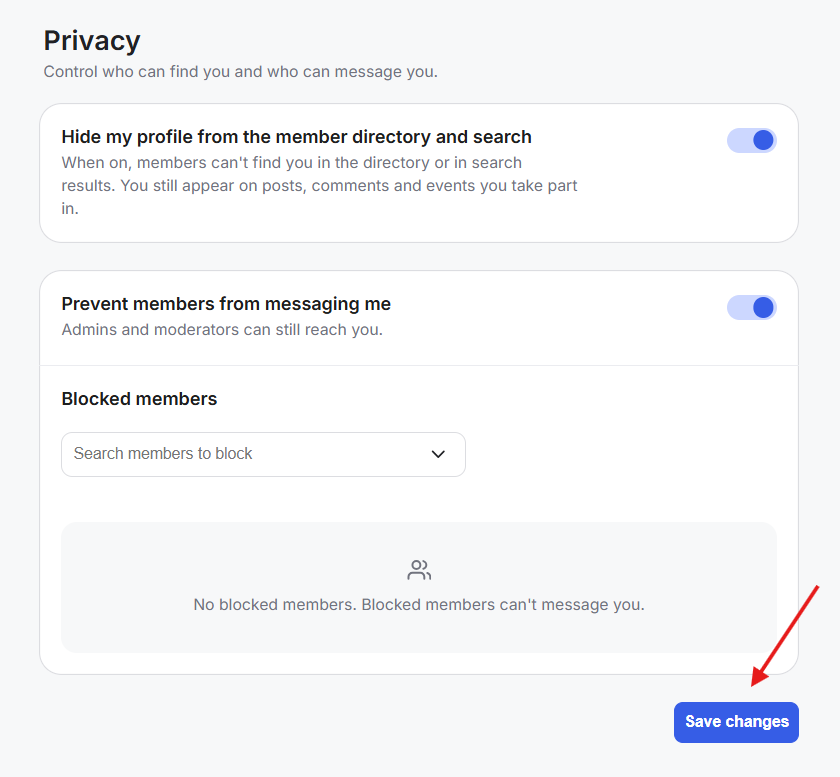
GroupApp gives members privacy controls over how they appear in the community and who can contact them. Members can hide your profile from search and the People directory, turn off direct messages, and block or unblock individual members.
Enable this setting if you don't want your profile to appear when members search for you or browse the People directory.
When enabled:
Your profile won't appear in community search results for members or admins.
You won't appear in the People directory.
Admins can still find your account from the People tab in the Admin Panel.
You'll still appear on posts, comments, events, and other community activities you participate in.
Enable this setting if you don't want other members to send you direct messages.
When enabled:
Members won't be able to send you direct messages.
Admins and moderators can still message you.
If only a specific member cannot message you, check whether you've blocked that member.
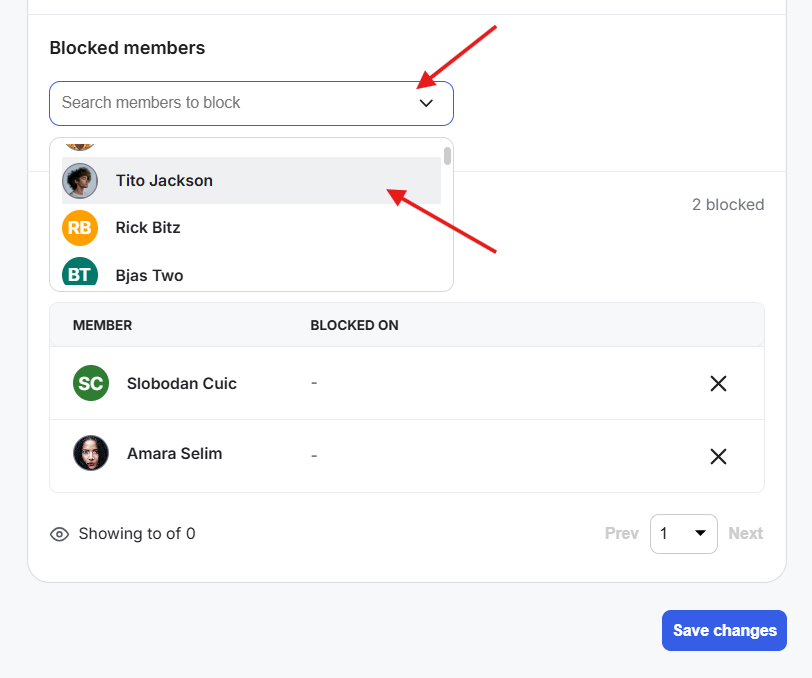
You can block individual members you don't want to interact with.
Any members you've already blocked will appear in this section. You can also search for another member and block them directly from your Privacy Settings.
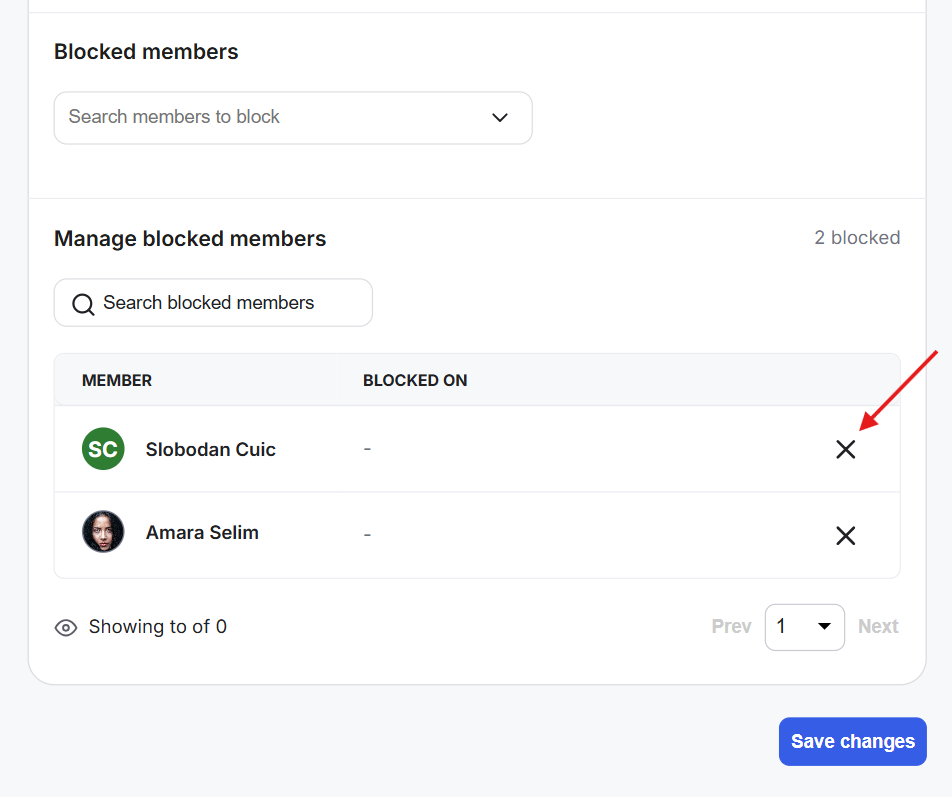
If you want to unblock someone, click the X on their profile in your blocked members list.
This is in addition to the option to block a member directly from their profile.
Note: All these privacy settings aren't available to admins or moderators. Admins and moderators are always visible in the People directory and reachable by direct message so members can contact them for help. If your role changes back to Member, these privacy settings will become available.
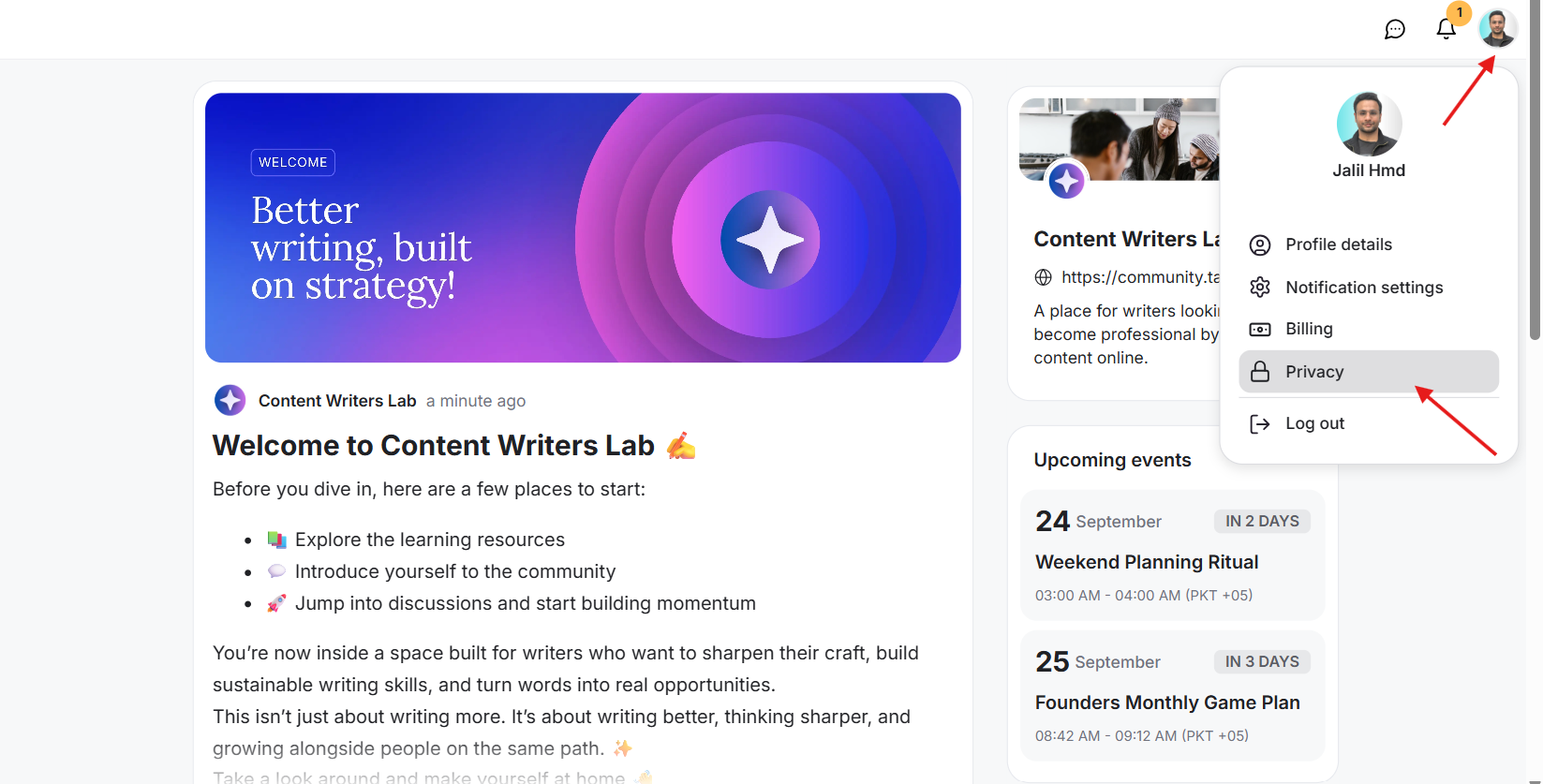
1) Click your profile icon in the top-right corner of your account and select Privacy from the dropdown menu.
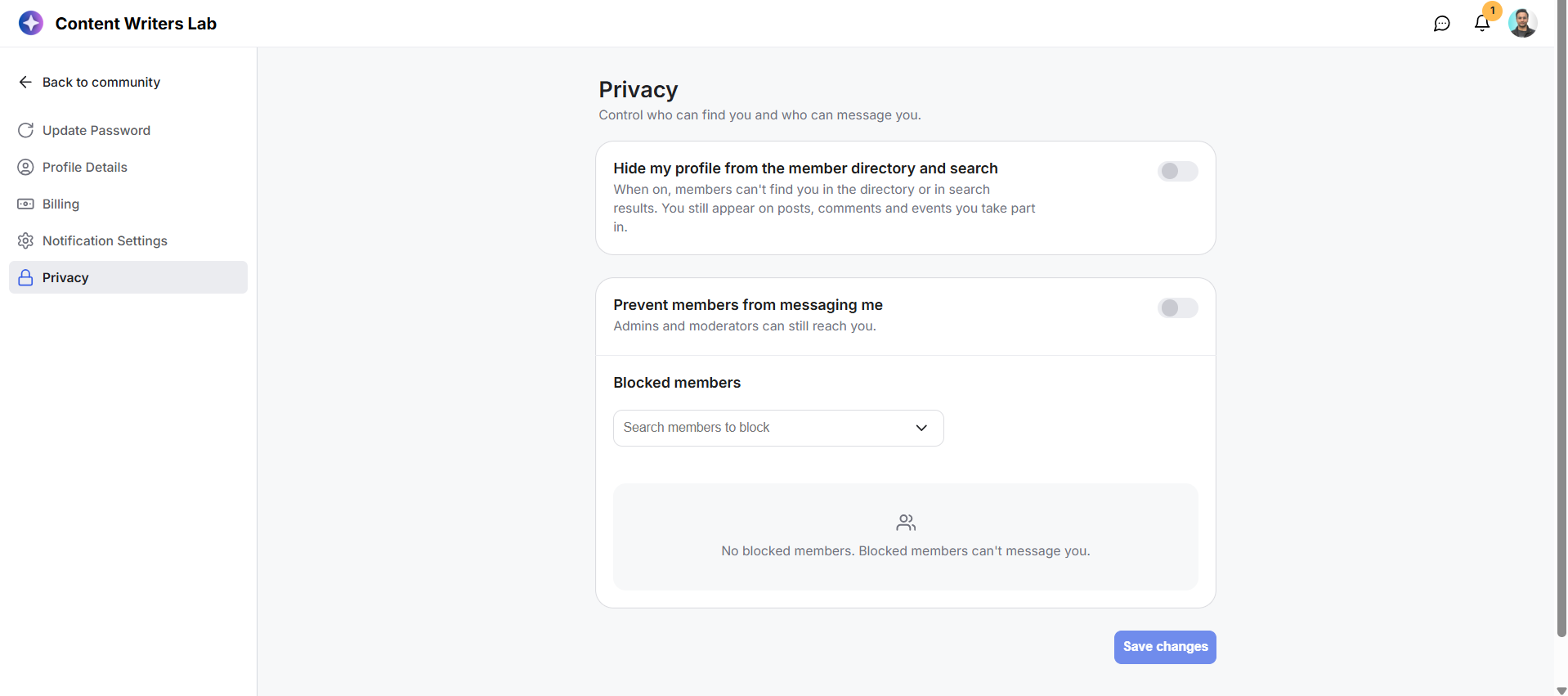
2) This will open your Privacy Settings.
3) Enable or disable Hide Member from Search & People Directory and Turn Off Messaging based on your preferences.
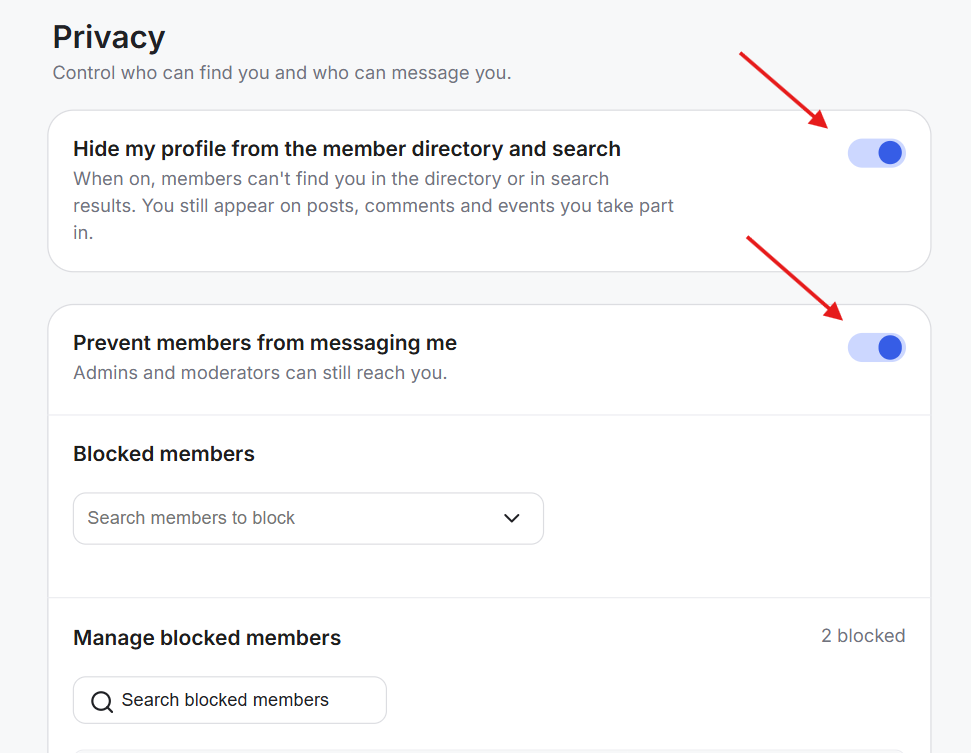
4) To block someone, use the search option to find the member and block them.
5) To unblock someone, find them in your blocked members list and click the X on their profile.
6) Click Save Changes to save your privacy settings.