
When you add an assignment to a course, you can control who can see learners' submissions and interact with them. This lets you keep submissions private between learners and admins or make them visible to other enrolled students for discussion and feedback.
Follow the following steps:
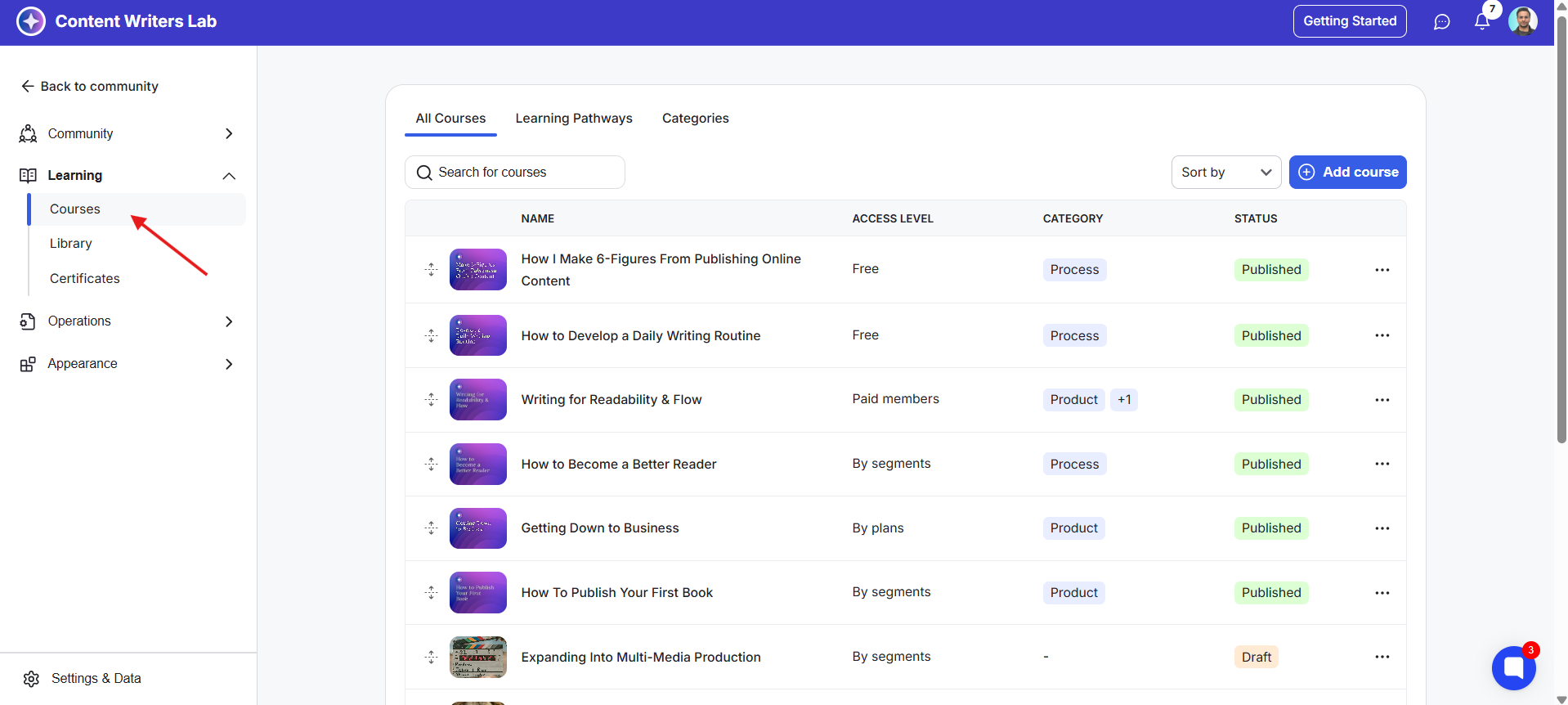
1) Go to the Admin Panel and click Courses under Learning.
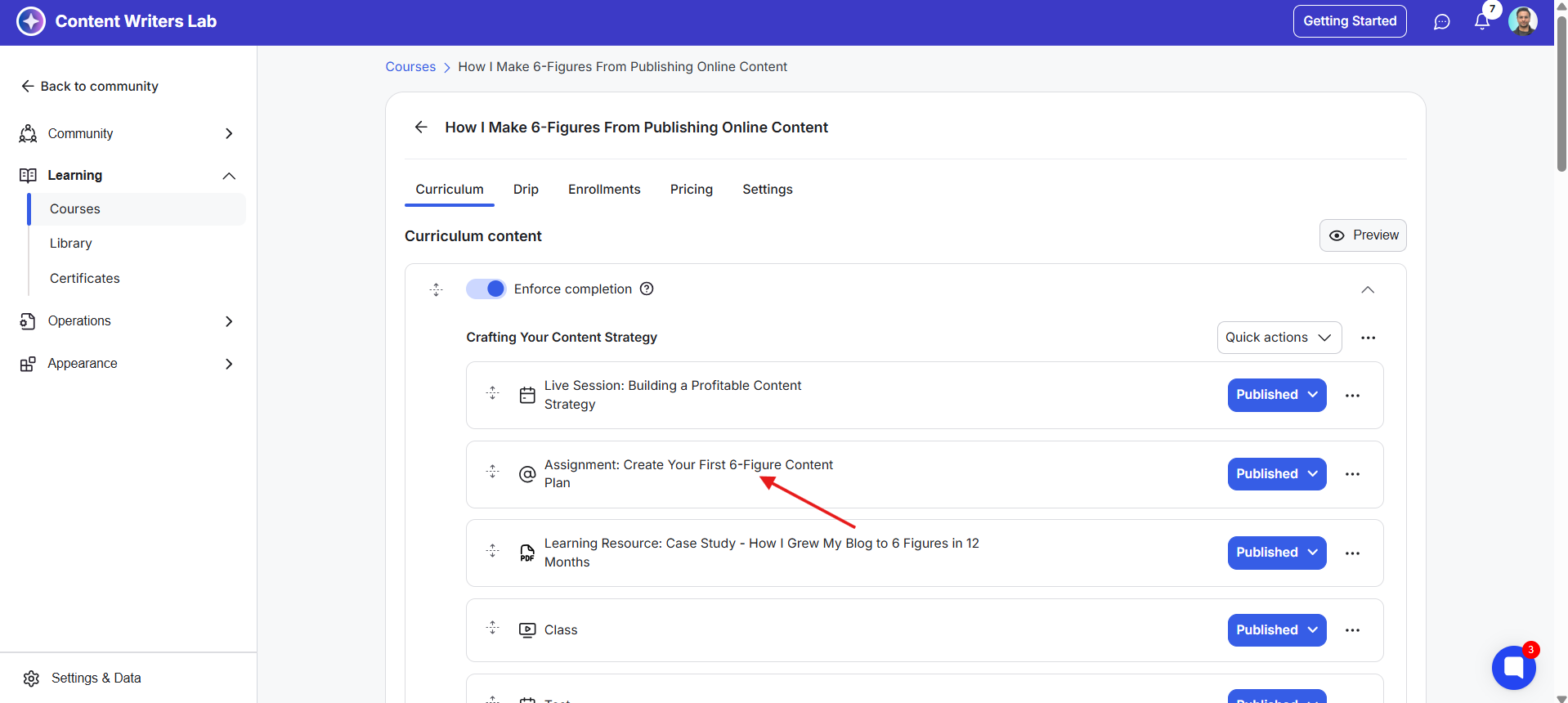
2) Open the course that contains the assignment you want to configure and click on the assignment lesson.
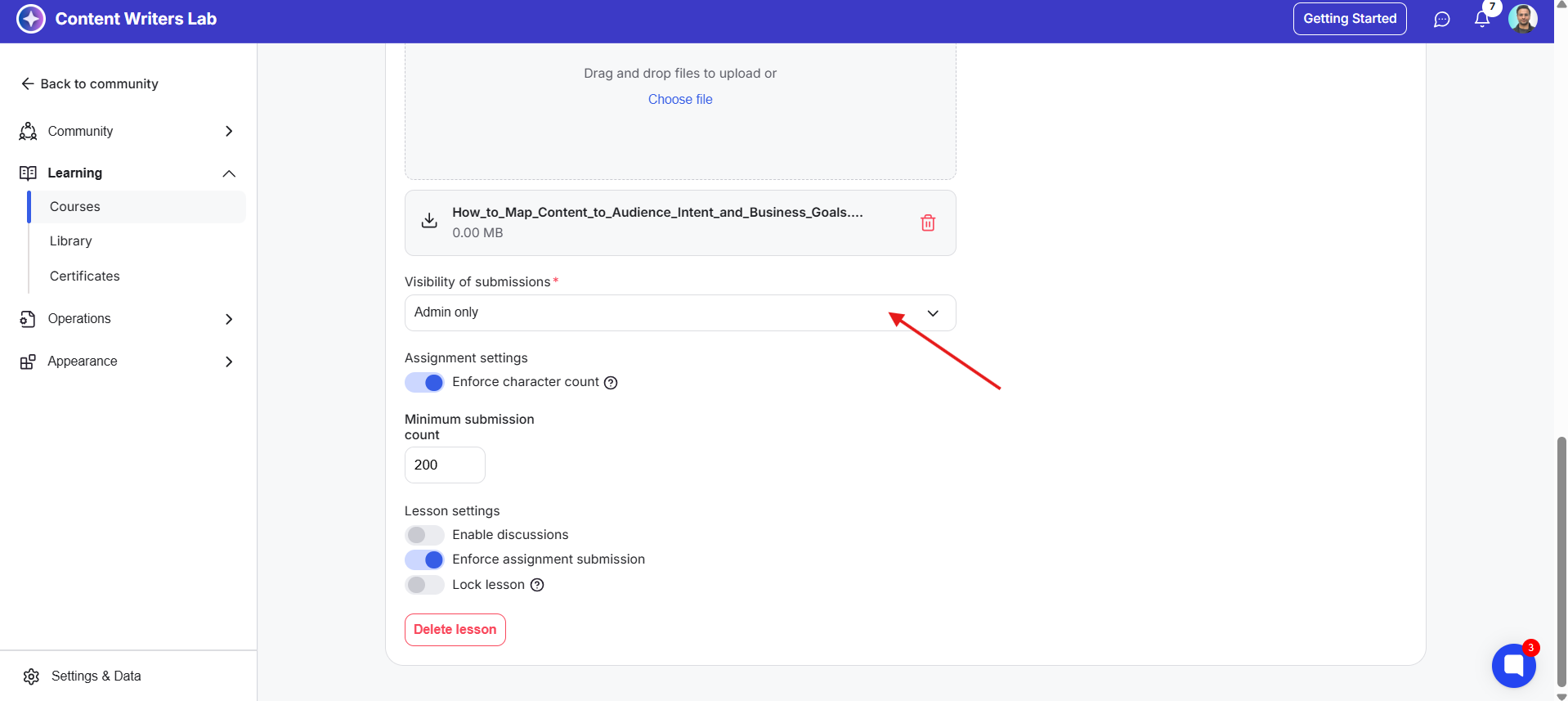
3) Scroll down to the Visibility of submissions section.
4) Click the drop-down menu and choose the visibility option you want:
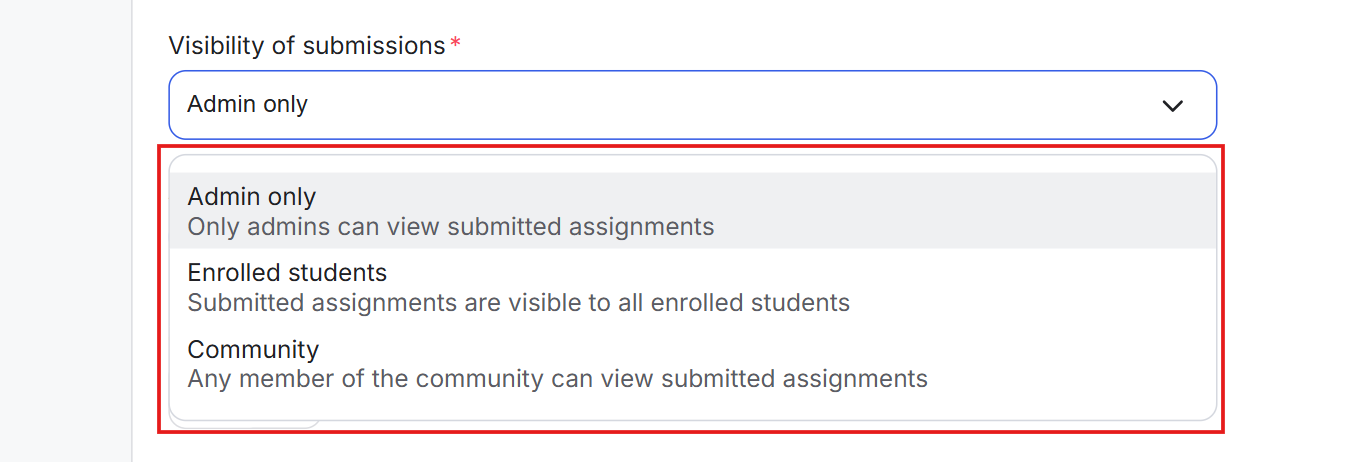
Admins Only: The submission is only visible to admins and the learner who submitted it. Admins can comment on the submission to provide feedback, and the learner can respond to the admin's comments.
Enrolled Students: Assignment submissions are visible to all students enrolled in the course. Submissions can appear in their main feed and within that specific assignment lesson. Enrolled students can also react to and comment on submissions.
Community: Assignment submissions are visible to all enrolled students and appear in their feed. Students can react to and comment on the submissions.
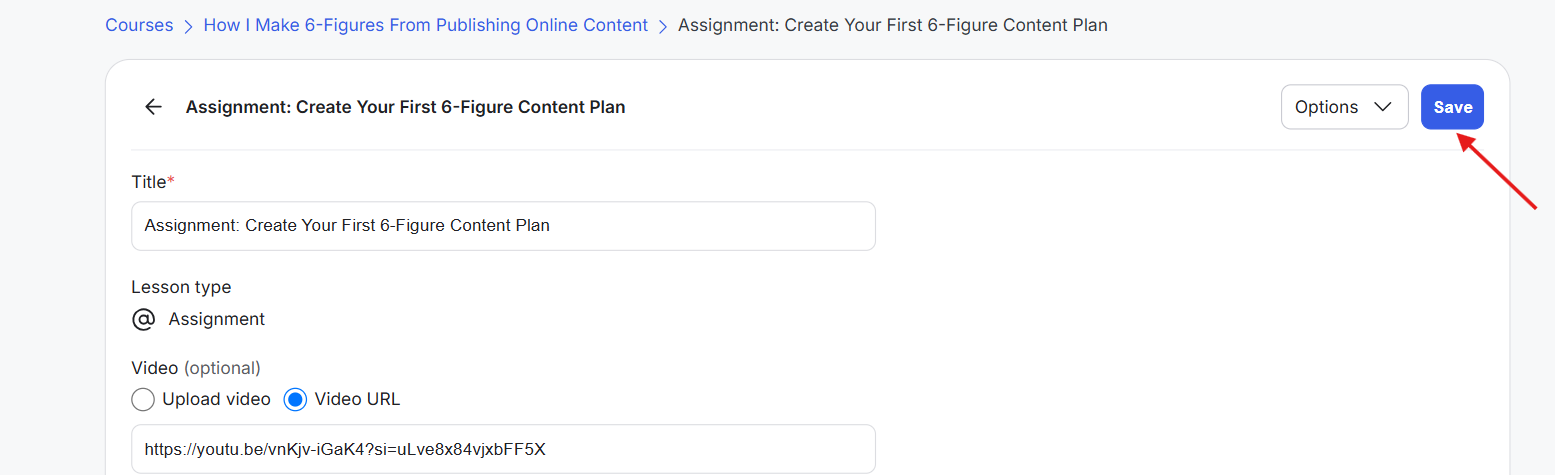
5) Once you've selected the appropriate visibility setting, click Save to apply your changes.
Choose the visibility setting based on how you want assignments to work in your course. Admins Only works well for private feedback, while student-visible submissions can be useful when you want learners to see each other's work, exchange feedback, and participate in discussions around assignments.