Once your Apple Developer Program enrolment is approved, there are three short things to do in App Store Connect. Together they take about five minutes. Everything after that — bundle IDs, certificates, API keys, app records, builds, and submission — is handled by us.
You will always remain the Account Holder. That role cannot be transferred to us, and we never ask for it.
Your Apple Developer Program enrolment must be active. If you have not enrolled yet, see How to Create an Apple Developer Account first.
Sign in as the Account Holder. An Admin can send the invitation, but only the Account Holder can switch on API access or sign agreements.
Two-factor authentication must be enabled on your Apple Account.
If you belong to more than one Apple developer team, check the team name in the top-right corner and make sure the correct one is selected.
Important: your membership must be an Organization, not an Individual. Apple only lets organization memberships share signing resources with team members. On an Individual membership, invited users get access to App Store Connect but are not part of your developer team, so they can never be given access to Certificates, Identifiers & Profiles — which means we cannot sign or build your app. If you enrolled as an Individual, talk to us before going any further.
Go to appstoreconnect.apple.com and sign in.
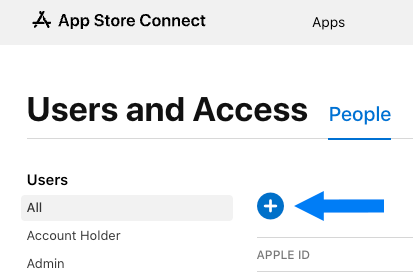
Navigate to Users and Access, then open the People tab.
Click the blue plus (+) icon to invite a new user.
On the pop-up, fill in the following:
First name: GroupApp
Last name: Support
Email: [email protected]
Roles: select Admin.
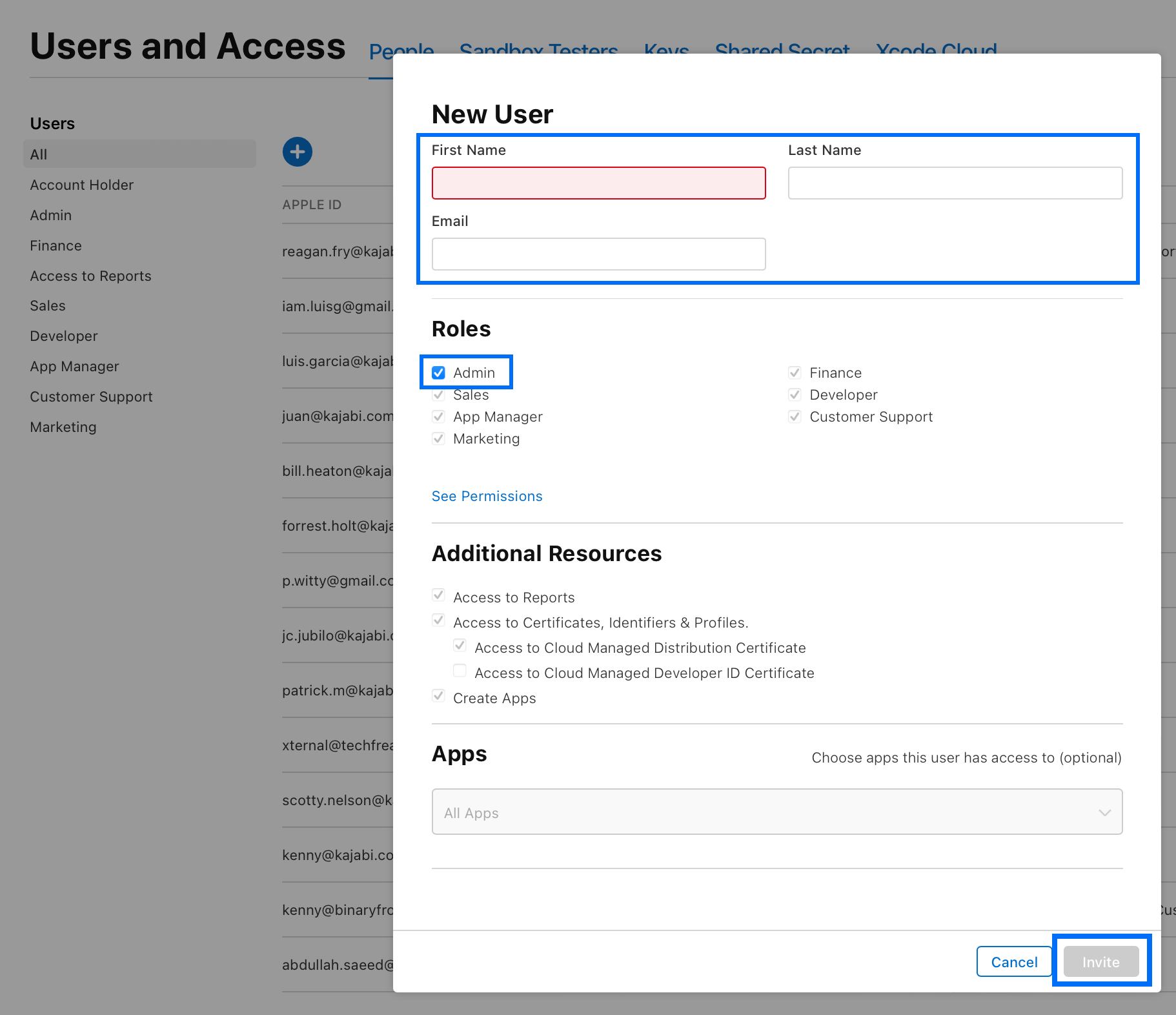
Click Next, then Invite.
Why Admin? On an organization team, Admins have access to all apps and to Certificates, Identifiers & Profiles by default, so there is nothing extra to grant. That access is what lets us create your signing certificates and the App Store Connect API key that Codemagic, our build service, uses to upload releases. You do not need to create that key yourself.
Note: Apple invitations expire 3 days after they are sent, but can be resent from the same page if that happens.
Right after sending the invitation, stay on Users and Access and open the Integrations tab, where you will see App Store Connect API highlighted.
If your account is new, API access has not been switched on yet and you will see a prompt along these lines:
Permission is required to access App Store Connect API. Only the Account Holder can request access.
Signed in as the Account Holder, click Request Access, tick the box to agree to the terms, and click Submit. Apple reviews each request. That is all you need to do.
If you instead see a list of keys with a plus (+) button, access is already switched on and there is nothing to do here.
This is the one part we cannot do for you. The Request Access button is only ever shown to the Account Holder. It is a one-time switch for the account — once it is on, you never do this again, and our Admin seat creates and manages the key from then on.
In App Store Connect, go to Business (this section used to be called Agreements, Tax, and Banking) and open the Agreements tab.
If your app will be free, there is usually nothing to do here. The agreement covering free apps is the Apple Developer Program License Agreement, which you already accepted when you enrolled — there is no separate "Free Apps" agreement to hunt for.
What you are checking for is anything marked as pending or requiring action. Apple periodically issues updated terms, and we cannot create your app record until the latest agreement is signed. Only the Account Holder can accept it.
If you plan to sell subscriptions or paid content in the app, you also need to:
Accept the Paid Apps agreement. This cannot be undone once accepted.
Complete your tax forms and bank account details. The agreement must reach Active status before you can sell anything.
GroupApp does not have access to your tax or banking details and will never ask you for them.
Email [email protected] or message us in the app to confirm you are done. Include your Apple Team name so we accept into the right account, and mention whether you had to click Request Access.
Once we accept the invitation, our team will:
Register your app's Bundle ID and create the App Store Connect app record.
Create the distribution certificate and provisioning profile for signing.
Generate the App Store Connect API key and connect it to Codemagic so releases upload automatically.
Upload the first build to TestFlight for you to try before it goes live.
Submit your app for App Review once you approve it.
Updated Apple agreements. When Apple issues new terms, the Account Holder has to accept them. If the deadline passes, your whole team — including us — loses access to Certificates, Identifiers & Profiles, App Store Connect, and the API, and your releases stop until it is signed. Forward us any agreement emails from Apple if you are unsure.
Membership renewal. The Apple Developer Program renews annually. If it lapses, your app is removed from the App Store until it is renewed, so keep the card on file current.
Most customers let us handle this and never touch it. If your security policy requires you to issue the credential instead, do this once API access is switched on:
Go to Users and Access › Integrations › App Store Connect API and select Team Keys. It must be a team key — individual keys cannot be used for code signing.
Click the plus (+) button, name the key Codemagic, and set Access to App Manager — the level Codemagic recommends. Note that a key's name and access level cannot be edited later; changing them means revoking and regenerating.
Click Generate, then download the .p8 key file. Apple lets you download it once only and keeps no copy — if it is lost, the key has to be revoked and replaced.
Send us the Issuer ID (shown above the key list), the Key ID, and the .p8 file.
Please send these through a secure share only — a password manager share link such as 1Password or Bitwarden Send, or another expiring secure link. Together these three items are full API credentials for your account, so do not send them by plain email, Slack, or text message.
The plus (+) icon is missing or greyed out on Users and Access.
You are signed in with a role that cannot manage users — only the Account Holder, an Admin, or an App Manager can invite people. Check the team selector in the top-right corner too.
I cannot see the Integrations tab, or the Request Access button is missing.
Integrations sits alongside People and Sandbox. Only the Account Holder is shown the Request Access button — if you are an Admin, hand this step to whoever holds the account. If there is no button but you can see a key list, access is already on.
We cannot create your app record.
Almost always an unsigned agreement. Check Business › Agreements for anything awaiting action — Apple blocks new apps until the current agreement is accepted, and only you can accept it.
We cannot access Certificates, Identifiers & Profiles.
This means the membership is enrolled as an Individual rather than an Organization. Individual memberships cannot share signing resources with invited users at all. Contact us — we will advise on converting to an organization, which Apple supports and which needs a D-U-N-S number.
The invitation was never received.
Check the address was entered exactly as [email protected] and that it is less than 3 days old. Select the pending user and click Resend Invitation.