Your branded app should feel like a natural extension of your brand. The information you provide here shapes how your app appears in the App Store, Google Play, and throughout the app experience.
This guide explains what each field is used for and shares best practices to help you create a polished, professional app listing.
Your brand identity is what people see first when they discover your app and every time they open it on their phone.
In this section, you'll provide the core brand details for your app, including your app name, tagline, app icon, and logo. Together, these elements create a consistent brand experience and help members instantly recognize your app wherever they see it.
Your app name appears in the App Store, Google Play, and on your members' device home screens.
Choose this carefully. If you already have an existing GroupApp community, we recommend using the same name, or something very close to it. This keeps the experience familiar for your members and makes your app easier to recognize and find.
If you're creating a new brand, keep the following recommendations in mind.
Guidelines
Maximum of 30 characters
Use your business or community name whenever possible.
Choose a name that's easy to read, remember, and search for.
Ideally, keep it to one word or two short words so the full name appears on mobile home screens without being cut off.
Avoid abbreviations unless they're already well-known to your audience.
Avoid adding long descriptions or unnecessary keywords.
Use
Wealth Nation
Content Writers Lab
Elevate
Yoga Collective
Avoid
WN Community Platform
Content Writers Learning Community
The Ultimate Business Growth Academy
YC App
Your display name is the shorter name shown underneath your app icon on your members' device home screens.
It's useful when your full App Name is too long to display clearly on a mobile screen. Instead of having the name cut off, you can use a shorter version that's easier for members to recognize and remember.
If you leave this field blank, your App Name will automatically be used as the display name.
Guidelines
Maximum of 12 characters
Keep it short, clear, and easy to recognize.
Use your full App Name if it already fits and displays well.
If you shorten it, use a recognizable part or shorter version of your App Name.
Keep it closely connected to your existing brand. Don't introduce a completely different name.
Avoid abbreviations unless they're already clear, familiar, and easy for your members to remember.
Use
App Name: Content Writers Lab Display Name: Writers Lab
App Name: Wealth Nation Money School Display Name: Wealth Nation
App Name: Elevate Leadership Display Name: Elevate
Avoid
App Name: Content Writers Lab Display Name: CWL
Unless CWL is already widely recognized by your members, the abbreviation makes the app harder to identify.
App Name: Wealth Nation Display Name: Money Hub
Even though the names may be related in meaning, using a completely different display name creates unnecessary confusion.
Your tagline appears beneath your app name in your App Store listing. It gives people a quick understanding of what your community offers before they download your app.
Don't try to explain everything your community does. Focus on the single biggest value members receive.
A simple formula is:
What members achieve + How you help them
Guidelines
Maximum of 50 characters
Focus on the value members receive.
Keep it simple and easy to understand.
Communicate one clear message.
Avoid combining multiple ideas into one sentence.
Examples
Build a stronger business together.
Learn, grow, and lead with confidence.
Practical fitness coaching every week.
Write better content with expert guidance.
Your app icon is the image members see on their phone's home screen after installing your app. It also appears in the App Store and Google Play, making it one of the most recognizable parts of your brand.
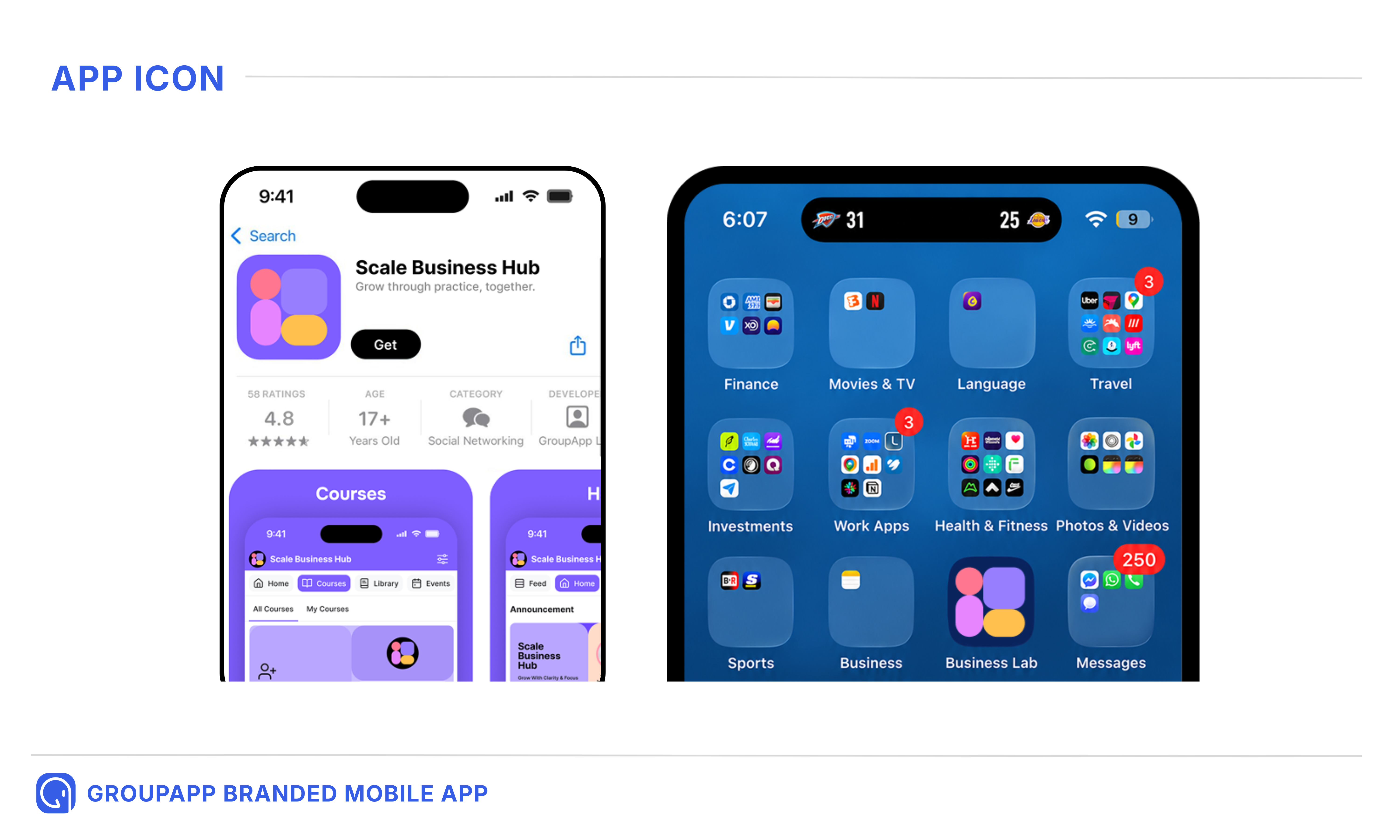
Your app icon is different from your logo. Think of it as a simplified visual symbol that represents your brand at a very small size, while your logo is used on your app's splash screen.
Requirements
PNG format
Minimum dimensions: 1024 × 1024 px
Maximum file size: 5 MB
Square image only
No rounded corners
No transparency
No text
Your icon should follow your existing brand colors and be unique to your business or community.
Note: Apple automatically applies the rounded corners when displaying your app icon, so upload a standard square image without rounded corners.
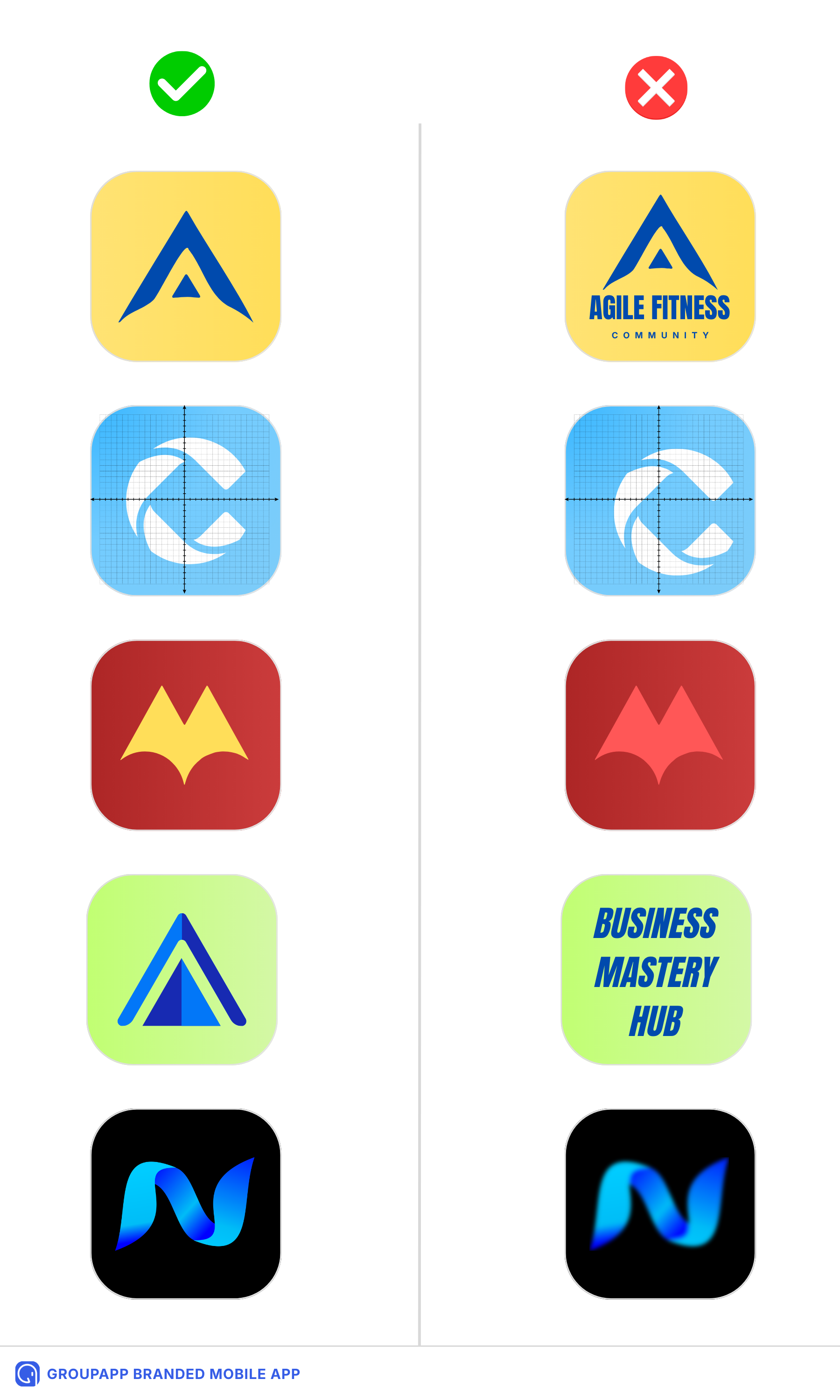
Here's a quick visual comparison showing what makes an effective app icon and what to avoid:
Best Practices
Use a simple brand mark or symbol, and avoid overly detailed icons.
Keep the main graphic centered within the icon.
Make sure the main graphic is straight and properly aligned, not tilted or pushed toward one side.
Leave enough spacing around the main graphic.
Use your existing brand colors whenever possible.
Use colors with good contrast.
Upload a clean, high-quality image.
Make sure it remains clear and recognizable at a small size.
Note: Avoid using small text, detailed illustrations, busy backgrounds, multiple graphics, or complex artwork. These details often become difficult to recognize once the icon is displayed on a phone screen or in the app stores.
Your logo appears on your branded app's splash screen while the app is loading and the login screen.
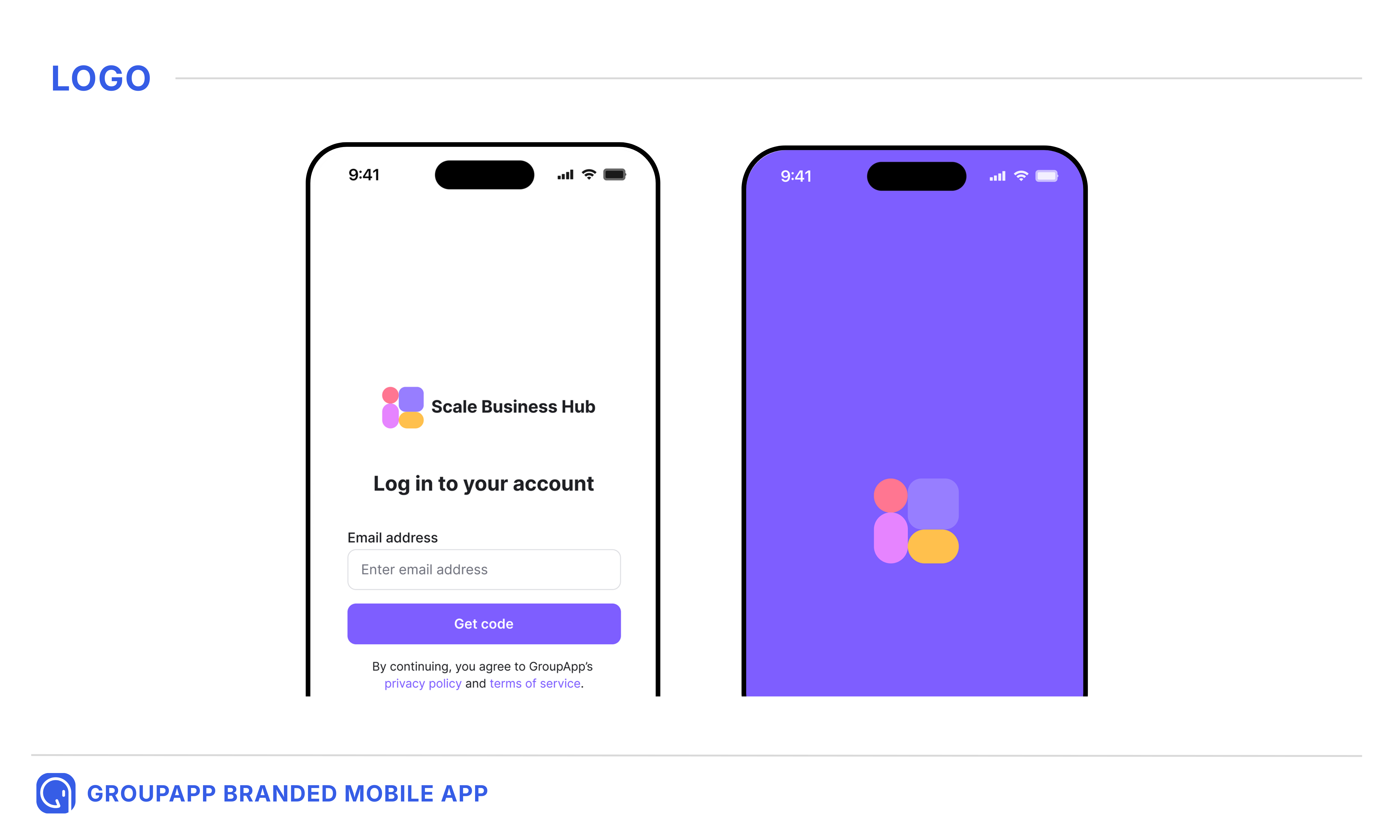
Use the same official logo your members already recognize from your website, GroupApp community, and other marketing materials. For the best results, upload the original vector version of your logo.
Requirements
SVG format
Maximum file size: 2 MB
Best Practices
Use your official logo.
Keep the logo centered and proportionate within the available space.
Make sure it remains sharp at all sizes.
Keep it consistent with your website and other brand materials.
Leave enough spacing around the logo so it doesn't appear crowded.
Avoid screenshots, low-quality exports, or raster images converted into SVG files.
Your store listing is the public page people see when they find your app in the App Store or Google Play. It includes your app description, brand color, keywords, category, age rating, and required website links.
Your store listing helps people understand what your app offers before they download it. It also plays an important role during the App Store review process, as Apple and Google review the information you provide to ensure it meets their submission requirements.
You can edit your store listing details from this section at any time. Nothing is published until you click Publish to Stores.
Once published, your store listing is updated directly through the App Store and Google Play APIs, so a new app build is not required. Changes typically go live within 2–4 hours after publishing.
The short description is the first piece of information people see about your app in the App Store and Google Play. It should quickly explain what your app helps members do and encourage them to learn more.
Keep it clear, simple, and value-focused. Avoid trying to describe every feature.
Guidelines
Maximum of 80 characters
Focus on the primary value your community provides.
Keep it easy to understand at a glance.
Write naturally instead of filling it with keywords.
Avoid exaggerated marketing claims.
Examples
Learn new skills with expert-led courses and coaching.
Build your business with a supportive community.
Fitness coaching, workouts, and accountability in one app.
Learn, connect, and grow with your community.
Practical leadership training and peer learning.
Your full description gives you more room to explain what your community offers and why someone should join.
Keep it focused and easy to read. You don't need to describe every feature. Instead, explain who your community is for, what members can access, and the value they'll receive.
Do not mention pricing, subscriptions, payment plans, discounts, free trials, promotional offers, or purchasing instructions anywhere in your app description.
Apple reviews app descriptions as part of the approval process, and including this type of information may result in your app being flagged, delay the review process, or lead to your submission being rejected. Keep your description focused on the experience and value your community provides.
Guidelines
Maximum of 4,000 characters
Start with a short introduction.
Explain who the community is for.
Highlight the primary benefits.
Mention key offerings such as courses, coaching, events, or resources.
Finish with a simple invitation to download the app.
Your brand color is used as the primary color throughout your branded app experience.
Enter the HEX code for your primary brand color. For the best experience, use the same primary color already used in your GroupApp community, website, and other branded materials.
Best Practices
Use your exact primary brand color.
Make sure the color provides good contrast throughout the interface.
Keep your branding consistent across every platform.
Avoid selecting a different color unless you're intentionally rebranding.
Keywords help Apple understand what your app is about and improve how your app appears in App Store search results.
Think about the words your ideal members would search for when looking for a community like yours. These might include your niche, topic, industry, or the transformation you help people achieve.
Guidelines
Maximum of 30 characters
Separate keywords with commas.
Choose relevant search terms.
Avoid repeating words already included in your app name.
Example
Leadership, coaching, business, etc.
Your category tells Apple and Google what type of app you're publishing. Selecting the most appropriate category helps users understand your app and allows the stores to organize it correctly.
Use the dropdown menu to choose the category that best matches the primary purpose of your app.
Available Categories
Education
Health & Fitness
Lifestyle
Business
Productivity
Social Networking
Sports
Entertainment
Books
Reference
Finance
Food & Drink
Medical
Music
Photo & Video
News
Magazines & Newspapers
Shopping
Travel
Navigation
Weather
Utilities
Choose the category that best represents what your members primarily use the app for. For example, a learning community offering courses and coaching will generally fit Education better than Lifestyle.
Your age rating tells the app stores which audience your content is appropriate for.
Apple and Google review this during the approval process, so choose the option that accurately reflects your app's content.
Use the dropdown menu to select one of the following:
4+ — Suitable for all ages.
9+ — Mild cartoon violence or themes for ages 9 and above.
12+ — Moderate themes and mild language.
16+ — Strong themes or more intense content.
17+ — Mature themes, language, or violence.
18+ — Adult-only content.
Note: GroupApp is designed for users who are 18 years of age or older. If your community includes participants under the age of 18, they should only access the platform with the knowledge and supervision of a parent or legal guardian. As the community owner, you are responsible for ensuring your community complies with all applicable laws and regulations regarding minors.
Your Support URL should direct members to a page where they can contact you or receive assistance if they need help using your app.
This could be a support page, help center, contact page, or support form on your website.
Apple and Google may review this page during the app approval process, so make sure it:
Is publicly accessible.
Clearly belongs to your business.
Provides a clear way for users to get support.
Does not require users to sign in.
Both Apple and Google require every published app to have a live Privacy Policy.
Your Privacy Policy explains what user information you collect, how you use it, and how you protect it. It also helps users understand how their data is handled.
Before submitting your app, make sure your Privacy Policy:
Is live and publicly accessible.
Accurately reflects your business.
Explains how user information is collected and used.
Does not require users to log in.
Your Terms of Service explain the rules and conditions members agree to when using your app and community.
Providing this page helps set clear expectations for your members and supports the app review process.
Before submitting, make sure your Terms of Service:
Is live and publicly accessible.
Is specific to your business or community.
Clearly explains the terms under which members use your services.
Does not require users to log in.
GroupApp may make light edits to your Short Description and Full Description to improve formatting, clarity, grammar, or alignment with App Store submission guidelines.
Your core messaging, positioning, and branding will never be changed without your approval.
Apple and Google are responsible for reviewing and approving your app, so review times and approval decisions may vary.
All website links must be live and publicly accessible before your app can be submitted.
Missing, incomplete, or inaccessible information may delay your app submission.
Remember to save your information before leaving the portal.
Before publishing your branded app, take a few minutes to review everything.
Make sure your branding is consistent across your website, GroupApp community, and app.
Check that your app name and tagline clearly represent your brand.
Confirm your app icon and logo meet the upload requirements and look professional.
Review your Short Description and Full Description for clarity and accuracy.
Verify that your Support URL, Privacy Policy, and Terms of Service URLs are live and publicly accessible.
Double-check that your selected category and age rating accurately represent your app.
Save all your information before publishing.