Workflows allow you to automatically enroll members into a learning pathway when they meet specific conditions, such as subscribing to a plan, joining your community, or completing another action. You can also use the Completed a Learning Pathway trigger to automate follow-up actions after a learner finishes a pathway.
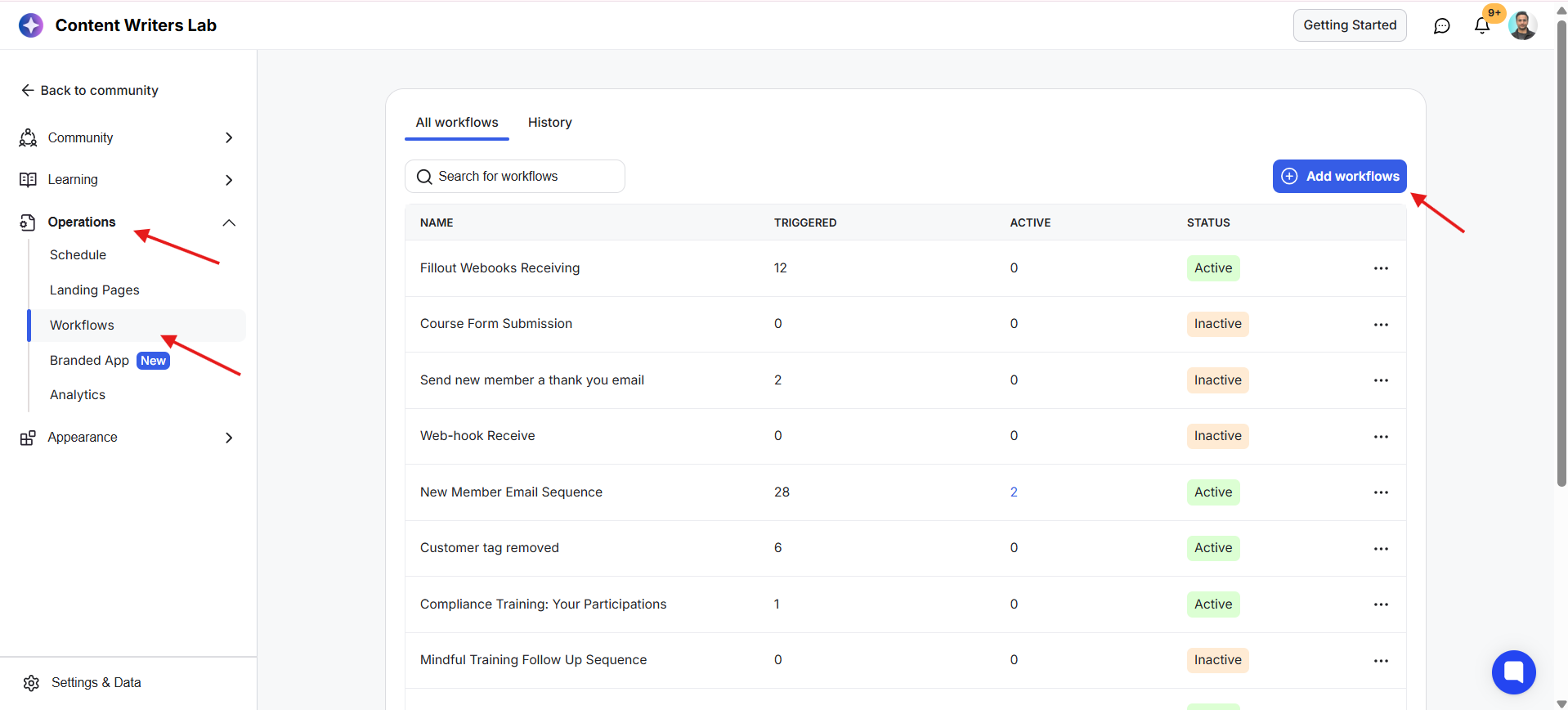
1) Go to Operations and select Workflows from the Admin Panel. Next, click on + Add Workflows.
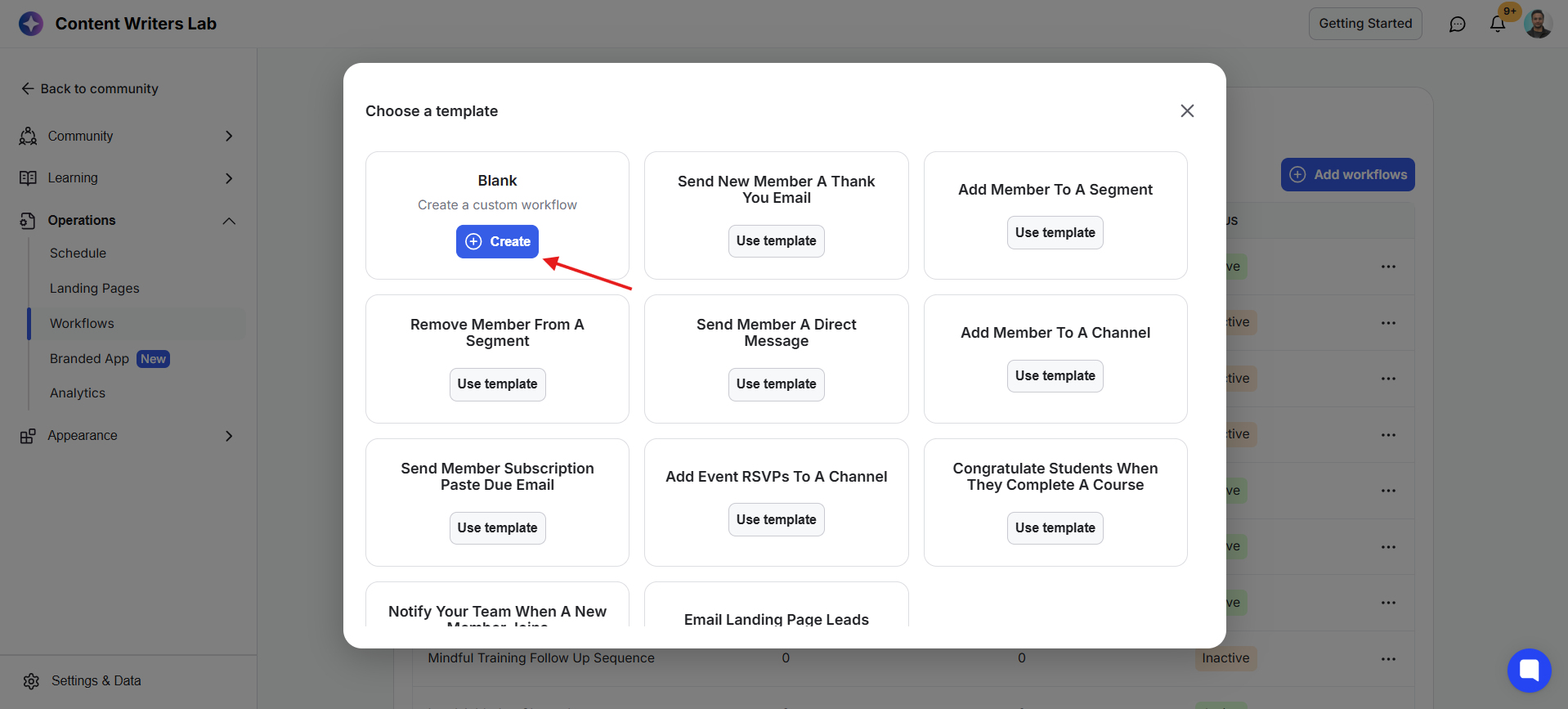
2) Choose a workflow template or click on the Create button to build a workflow from scratch.
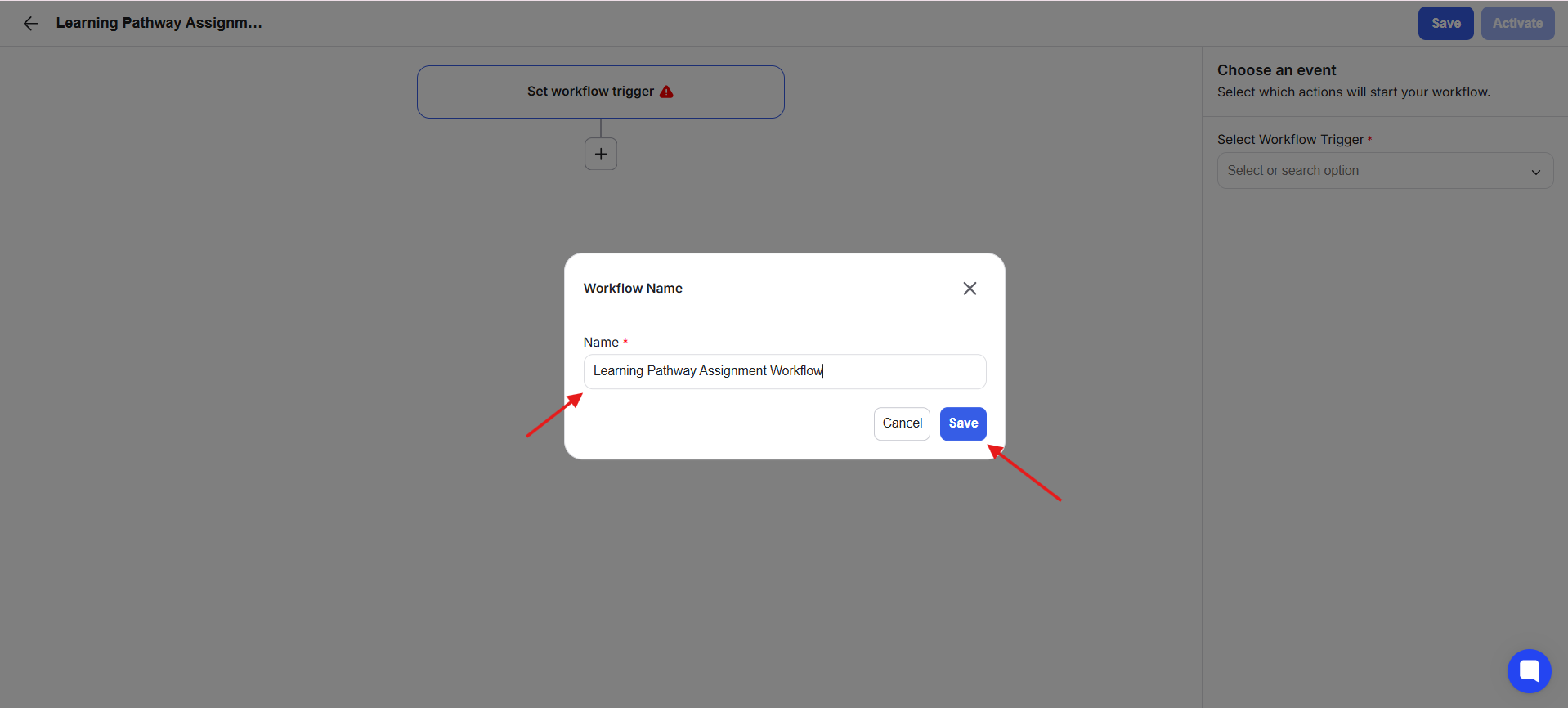
3) Enter a name for your workflow and click Save.
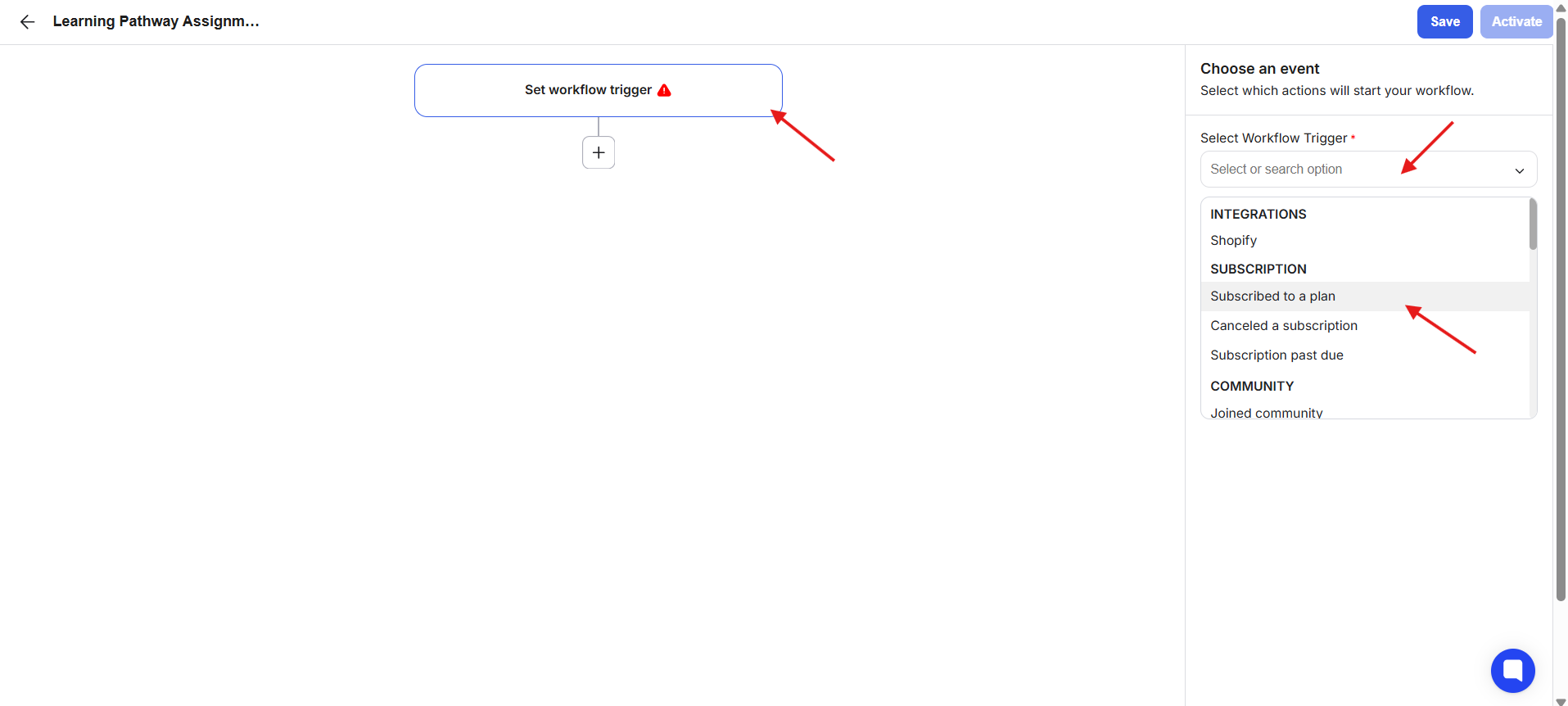
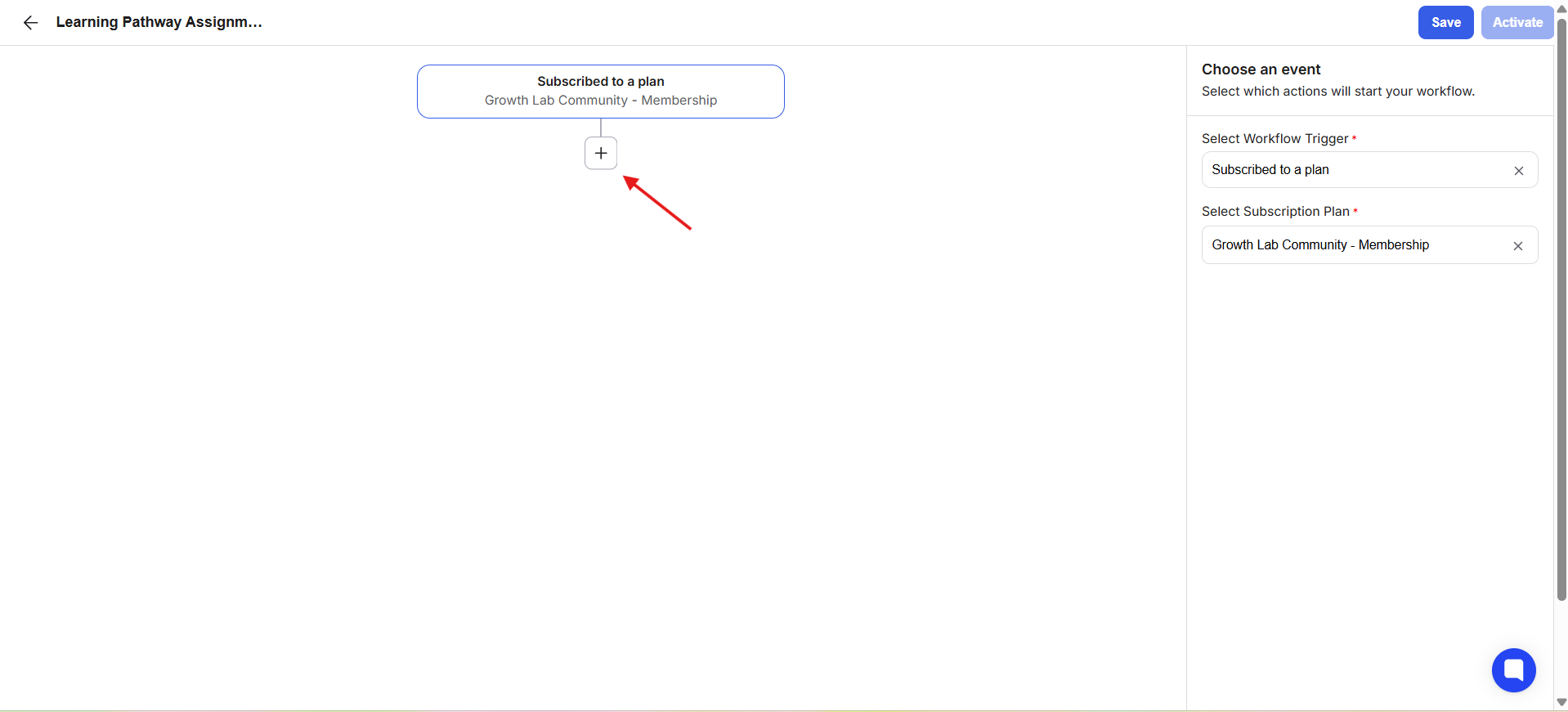
4) Choose a trigger for your workflow. Click on the Set Workflow Trigger point and choose a trigger from the right-side panel. For this example, select Subscribed to a Plan and specify the plan.
5) Click the plus (+) node to further build the workflow.
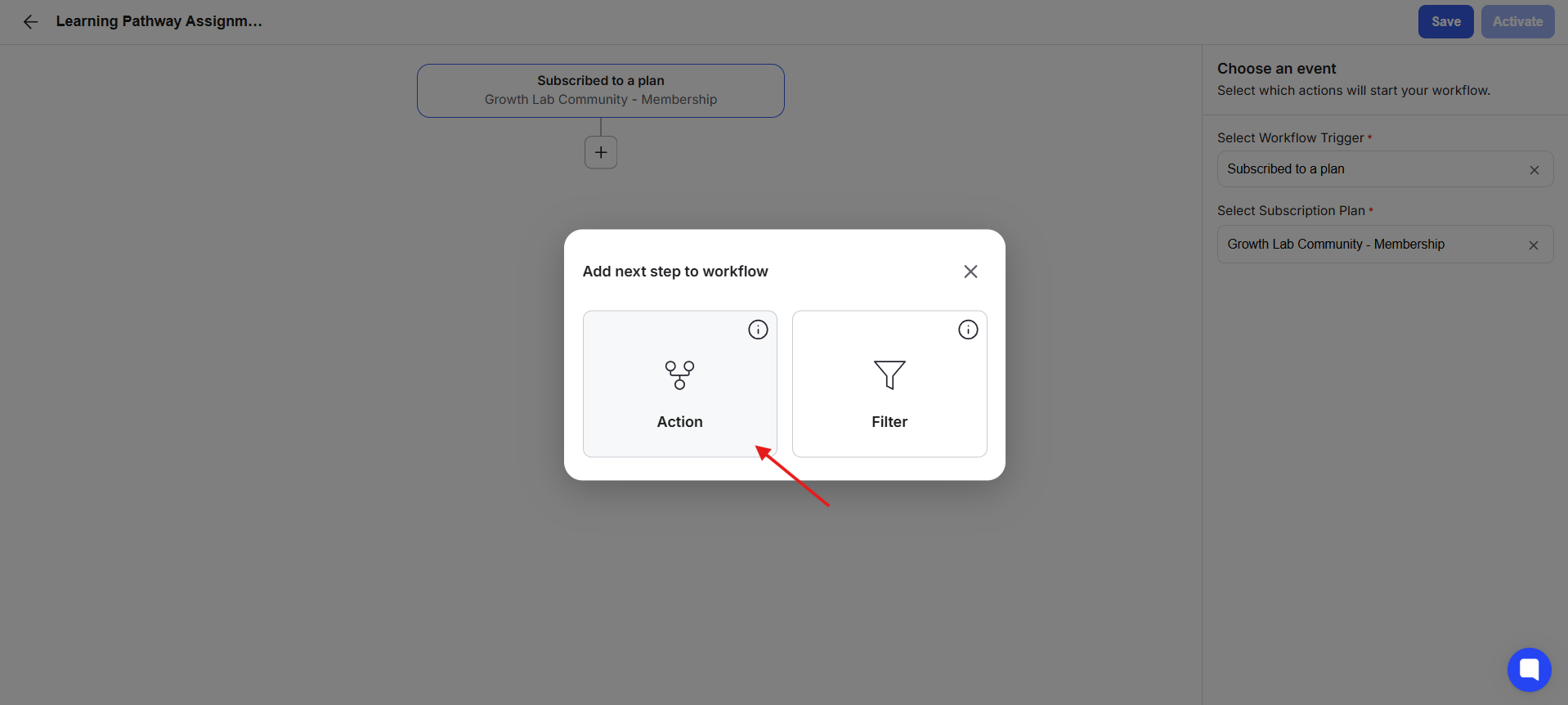
6) Select Action from the pop-up.
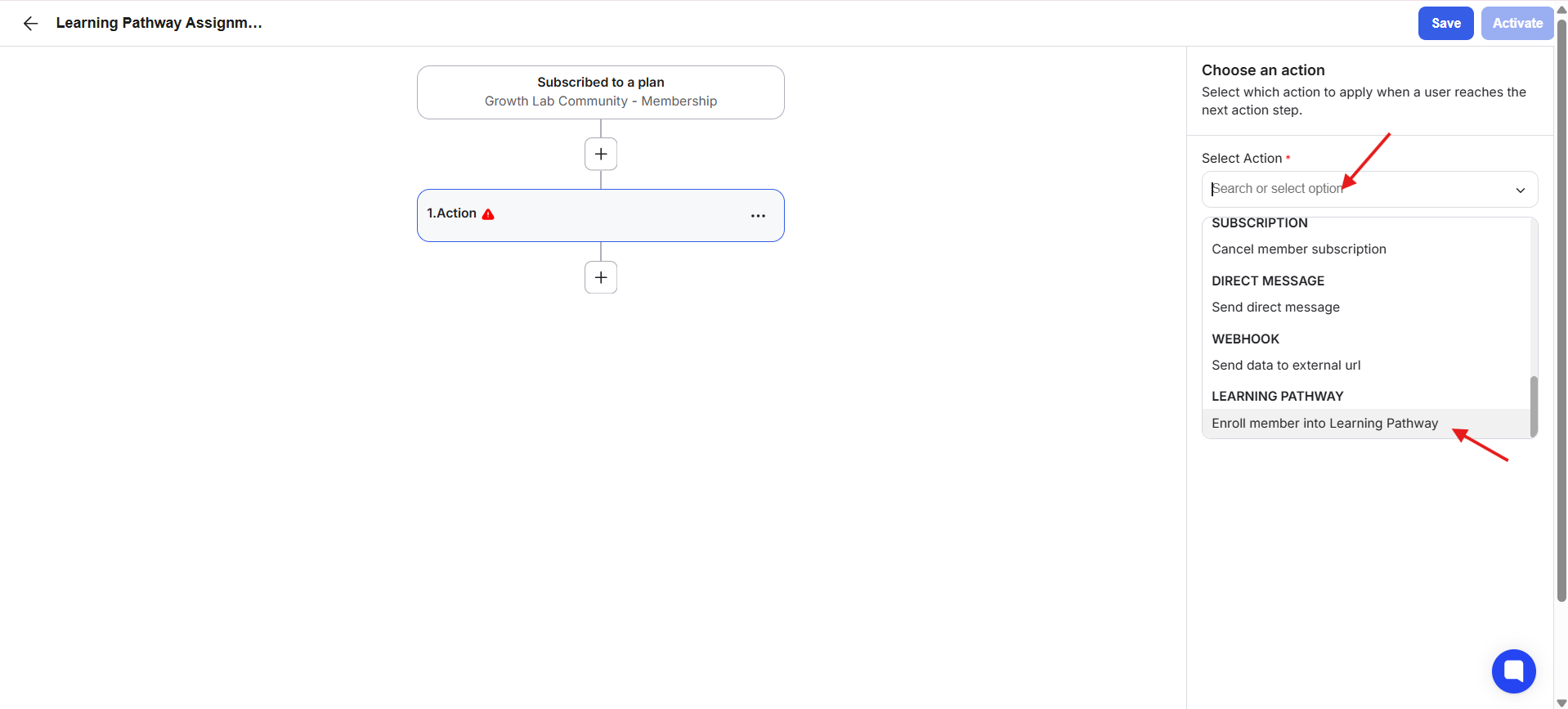
7) From the right-side panel, choose the action “Enroll Member into Learning Pathway” from the drop-down.
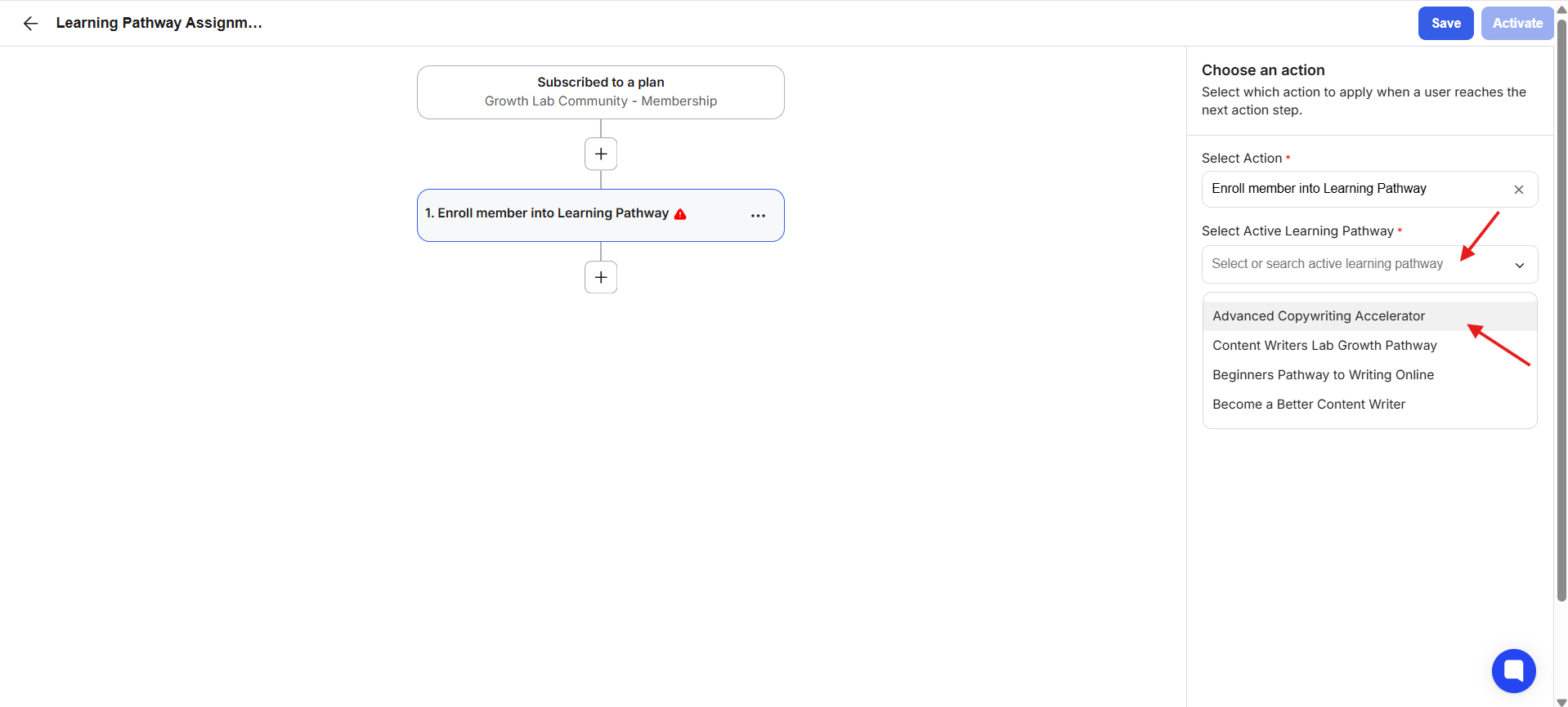
8) Select the learning pathway you want to assign.
9) Continue building the workflow by adding any additional actions or conditions you need. You can also wrap up at this point without any further additions.
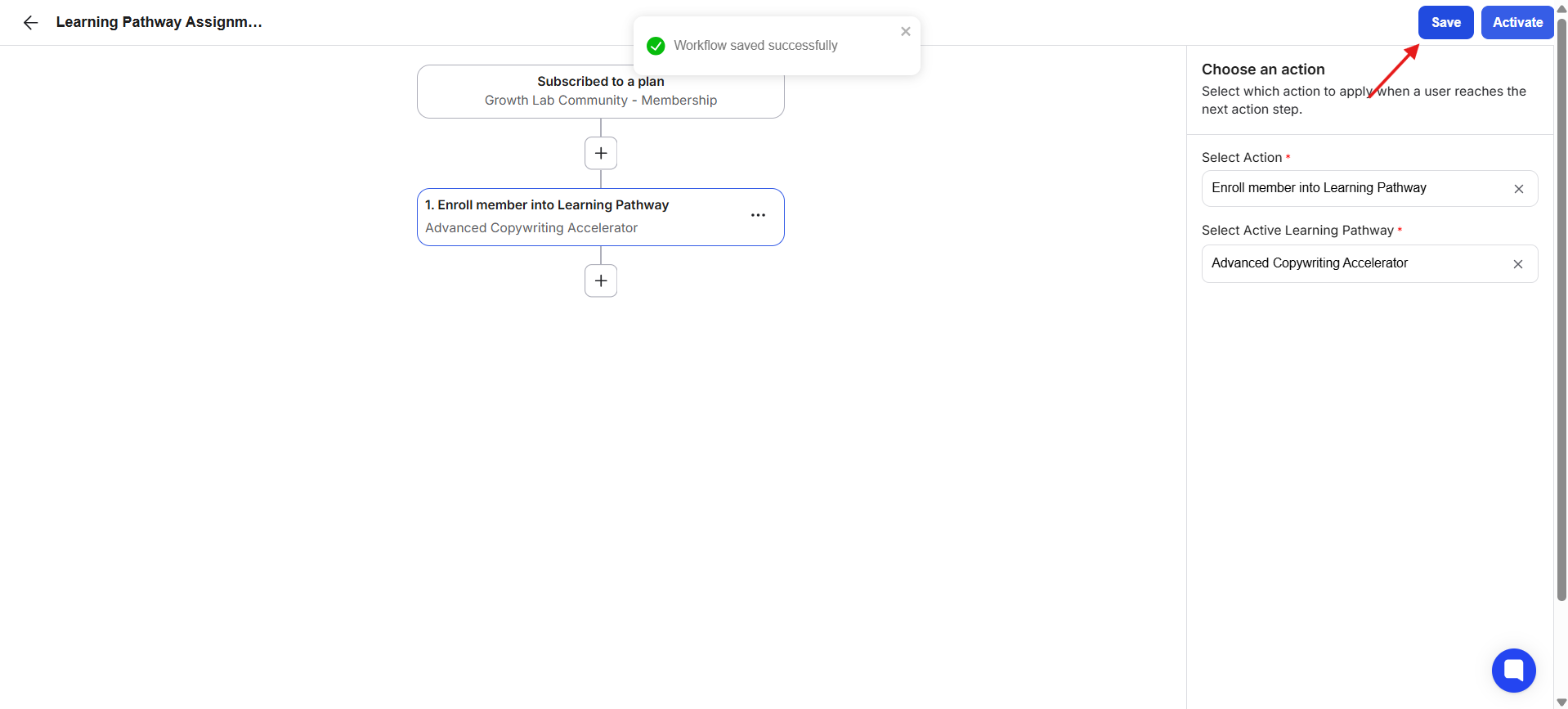
10) Click Save.
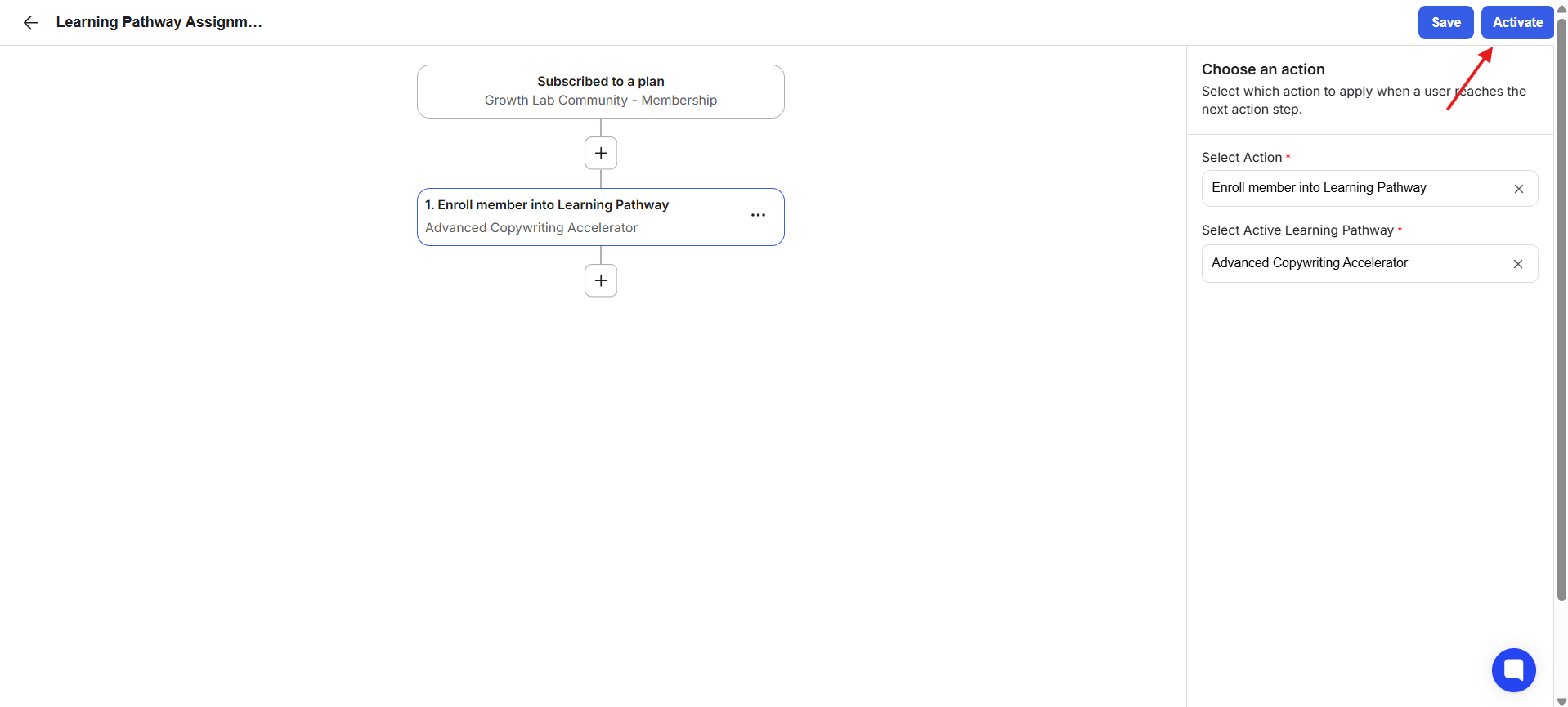
11) Click Activate.
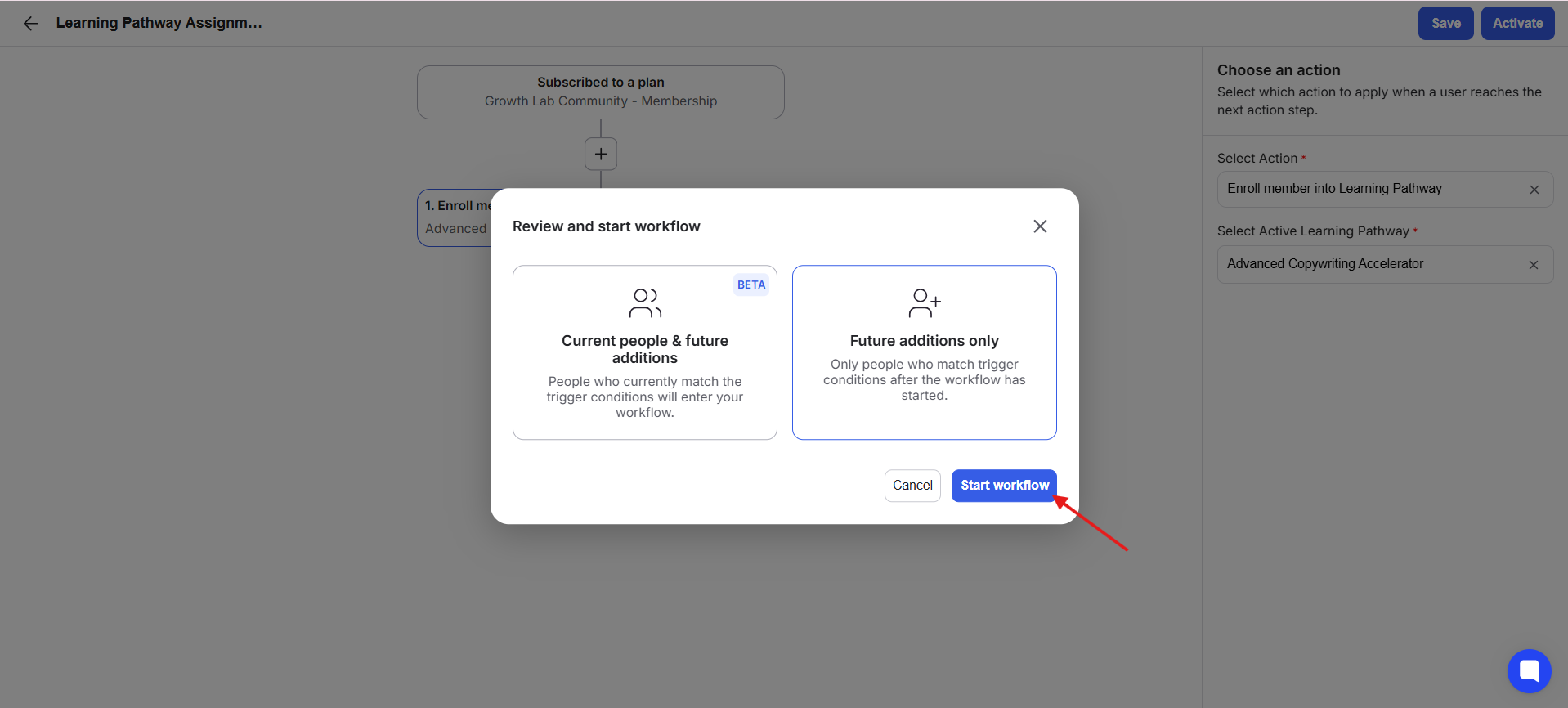
12) A workflow activation pop-up will appear. Choose between Current People and Future Additions or Future Additions Only, depending on whether you want the workflow to run for existing people who meet the trigger conditions as well as future additions, or only for people who meet the conditions going forward. Click Start Workflow.
Members will now be automatically enrolled into the selected learning pathway whenever the workflow trigger is met.
