The AI Transcription Add-On allows you to automatically generate captions for uploaded videos across GroupApp. This includes course videos, post videos, welcome videos, landing page videos, and any other uploaded videos on the platform.
Once purchased, videos can be transcribed into multiple languages, making your content easier for members to follow and more accessible to a wider audience.
Before using AI Transcription, you'll first need to purchase the add-on from your Billing Dashboard.
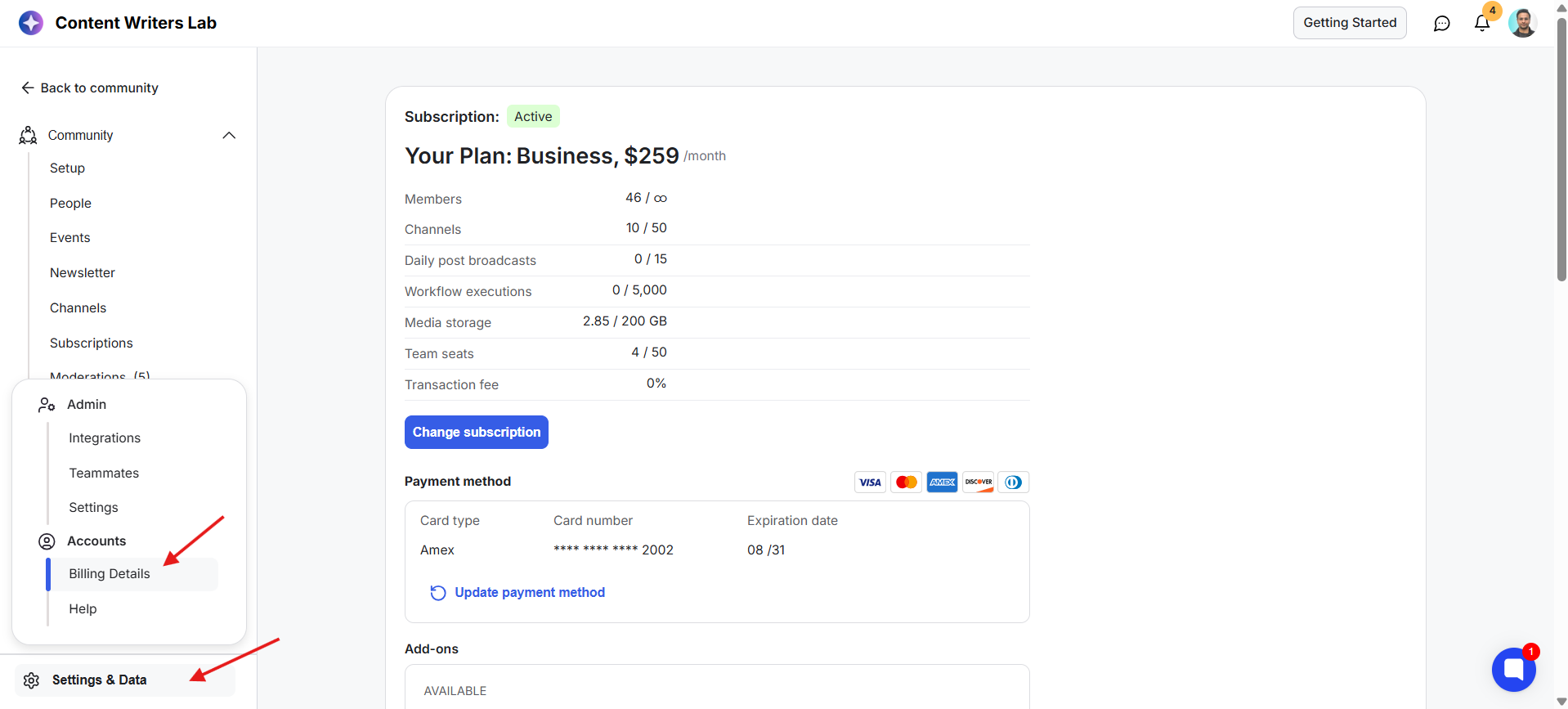
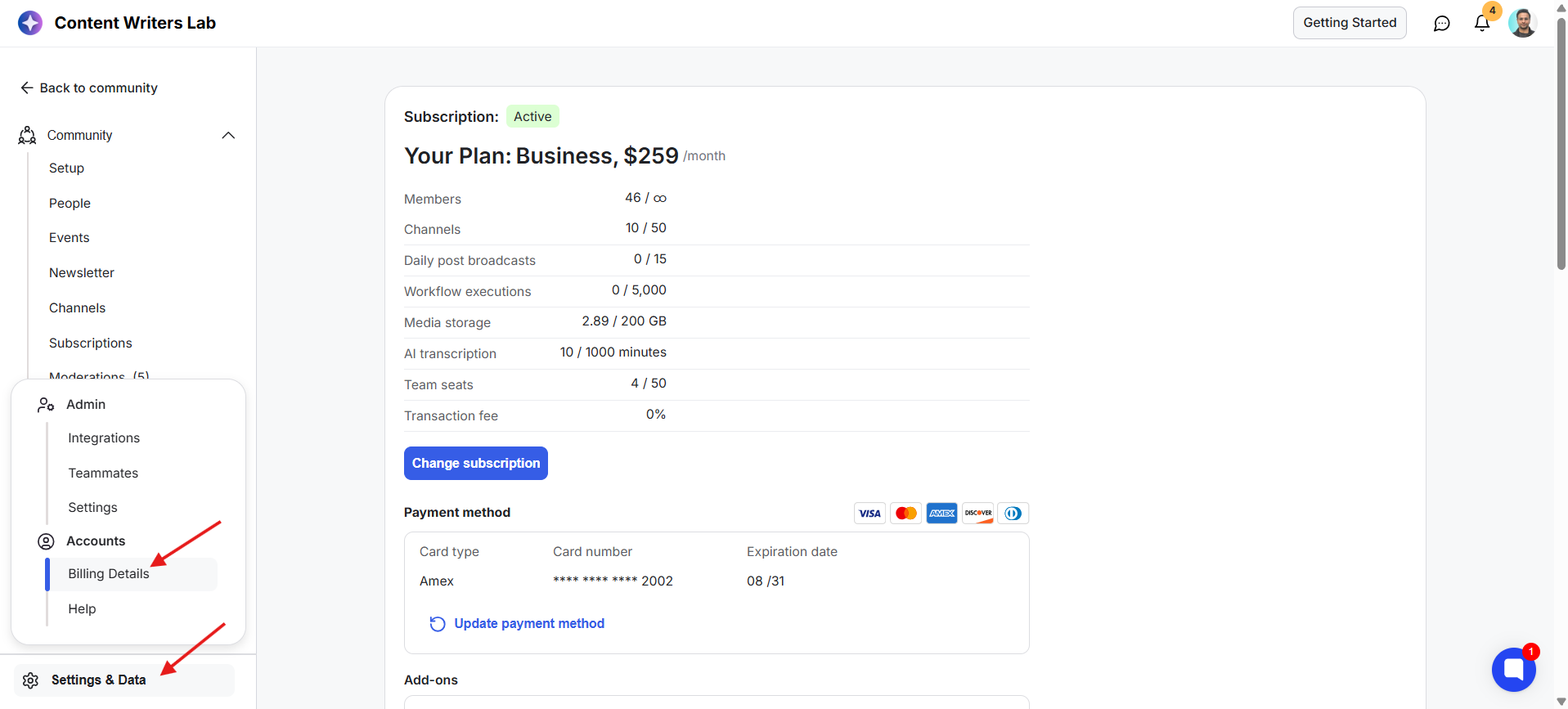
1) Go to your Admin Panel. Click on Settings & Data, and click on Billing Details. This will open your Billing Dashboard.
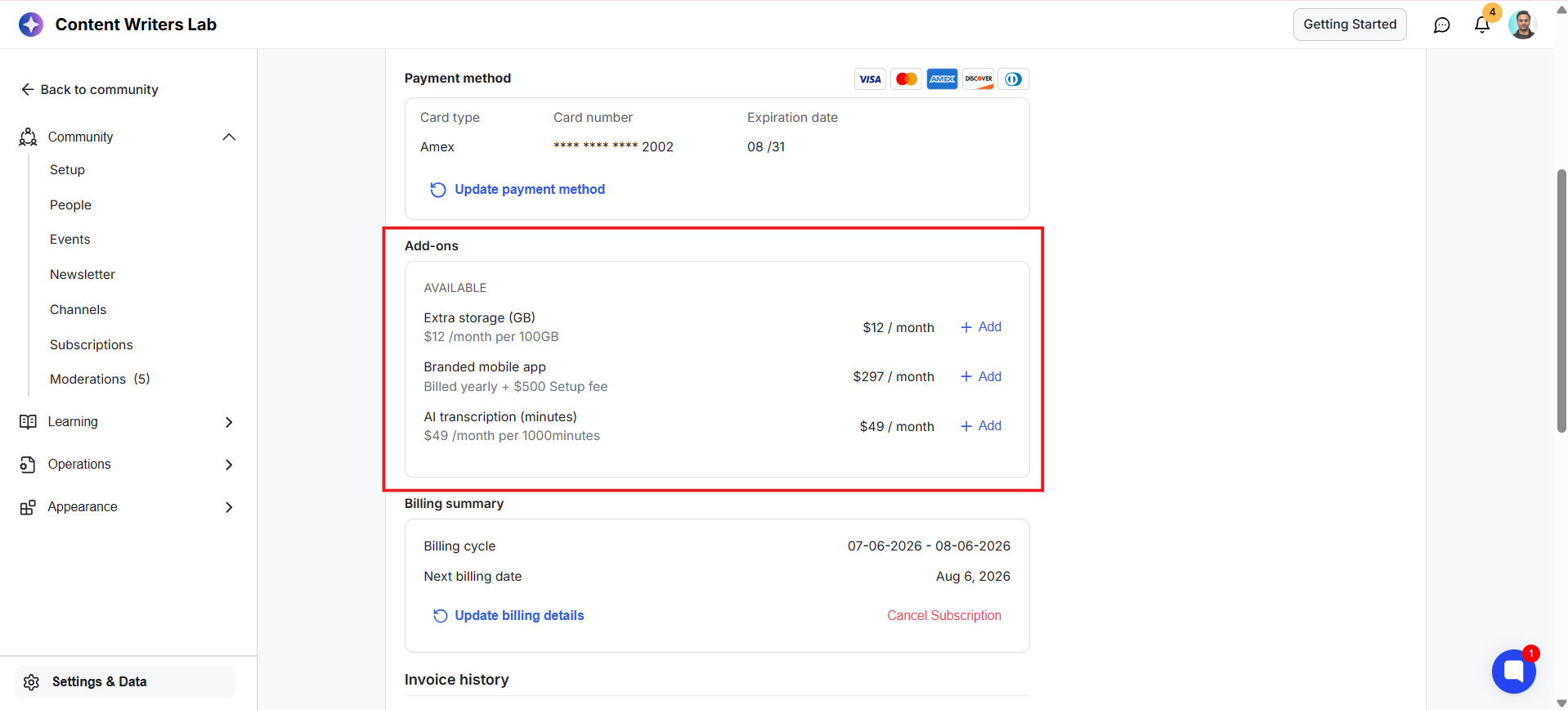
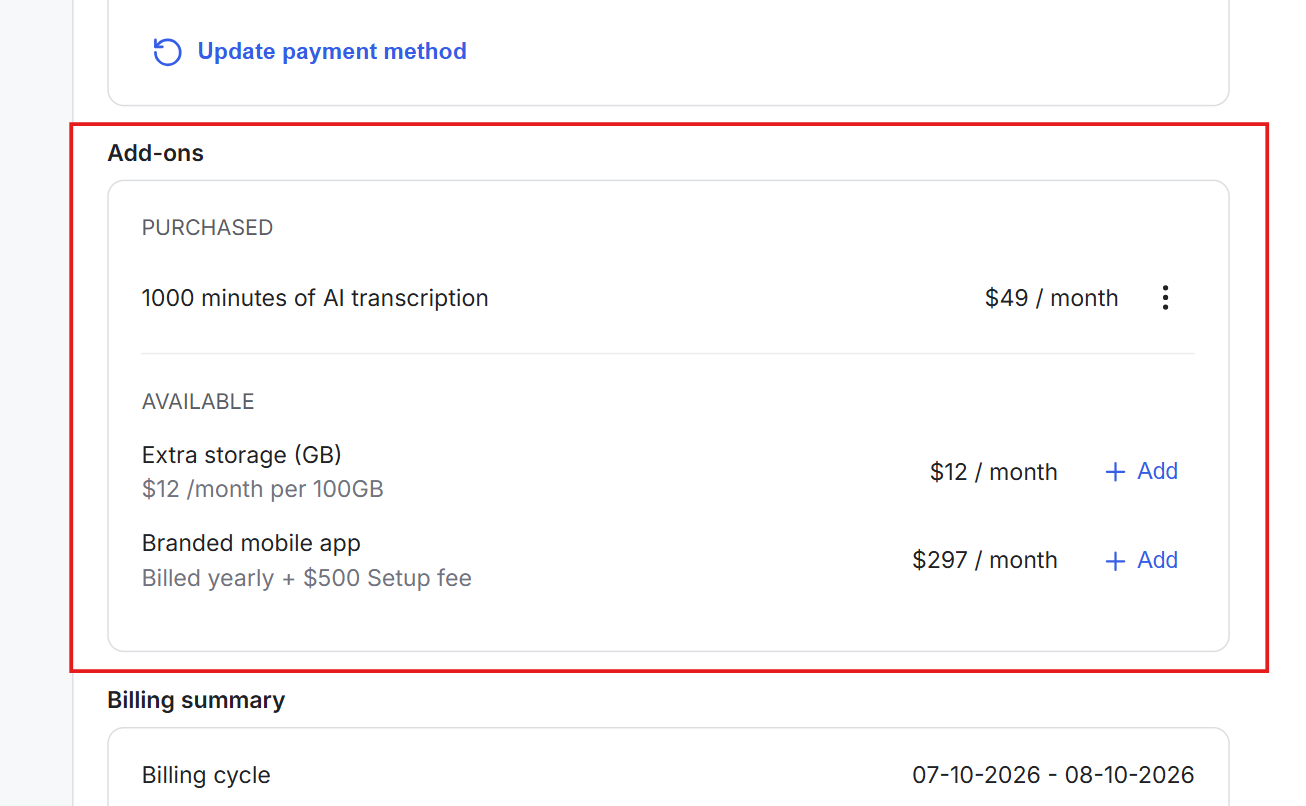
2) Scroll down to the Add-ons section.
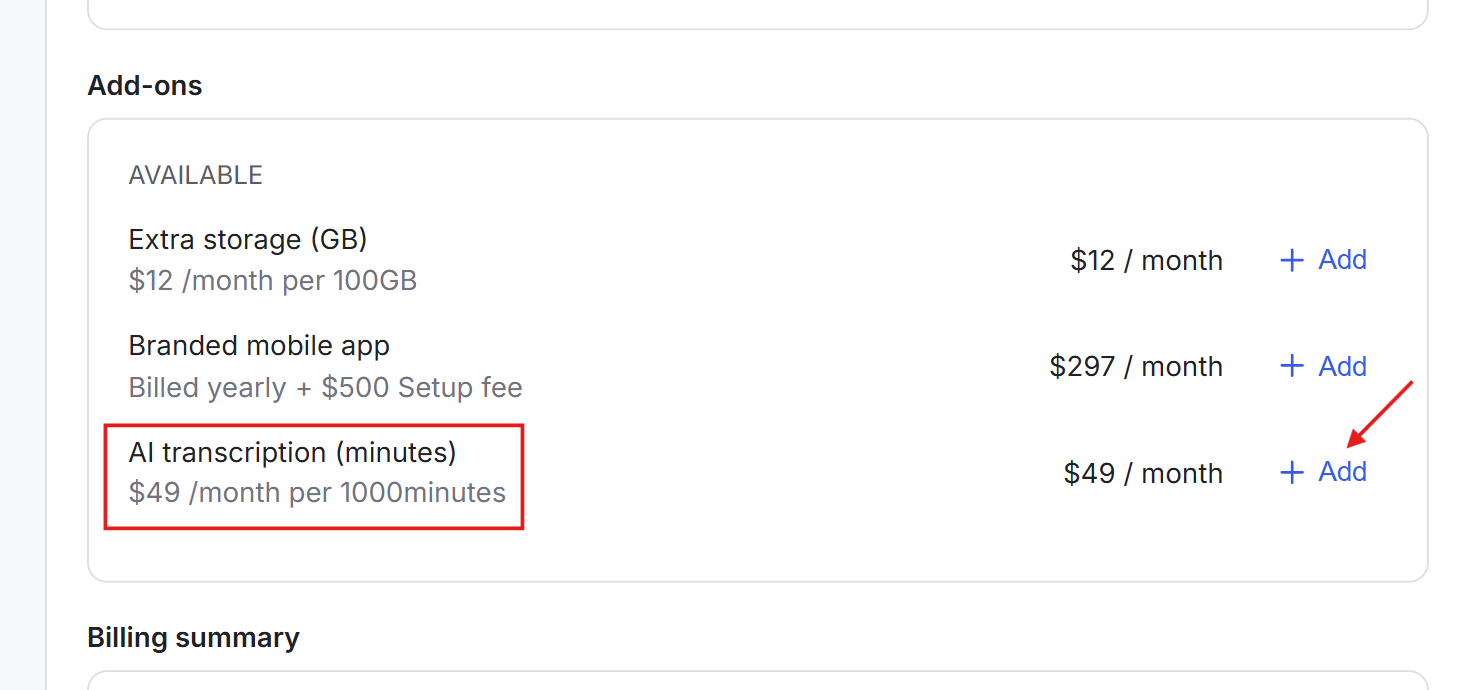
3) Find the AI Transcription add-on and click + Add.
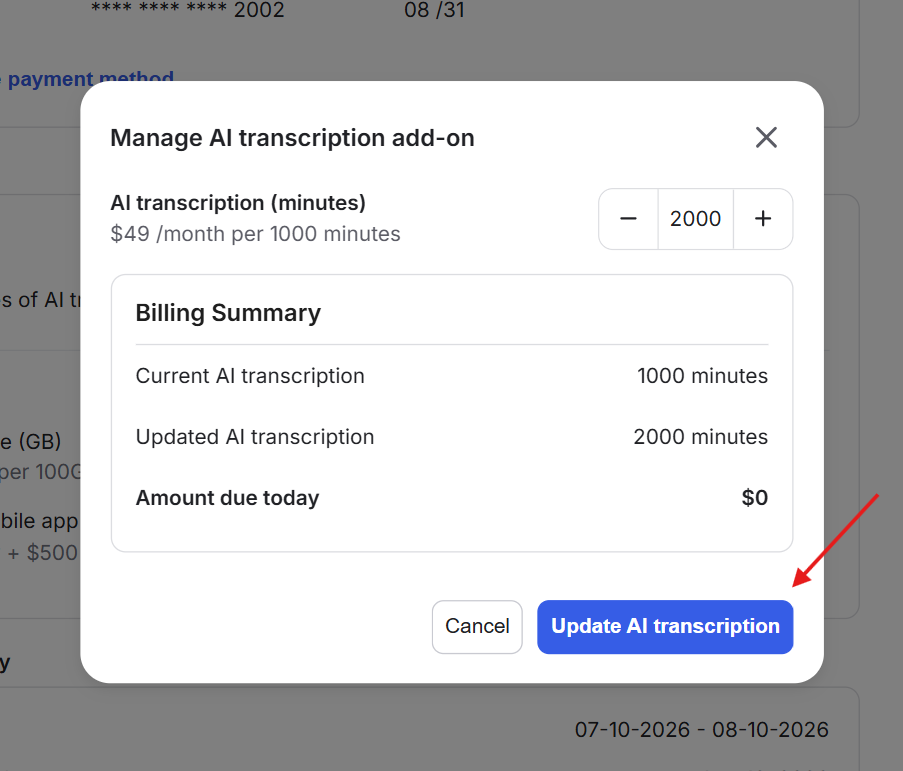
4) A pop-up will appear where you can select the number of transcription minutes you want to purchase.
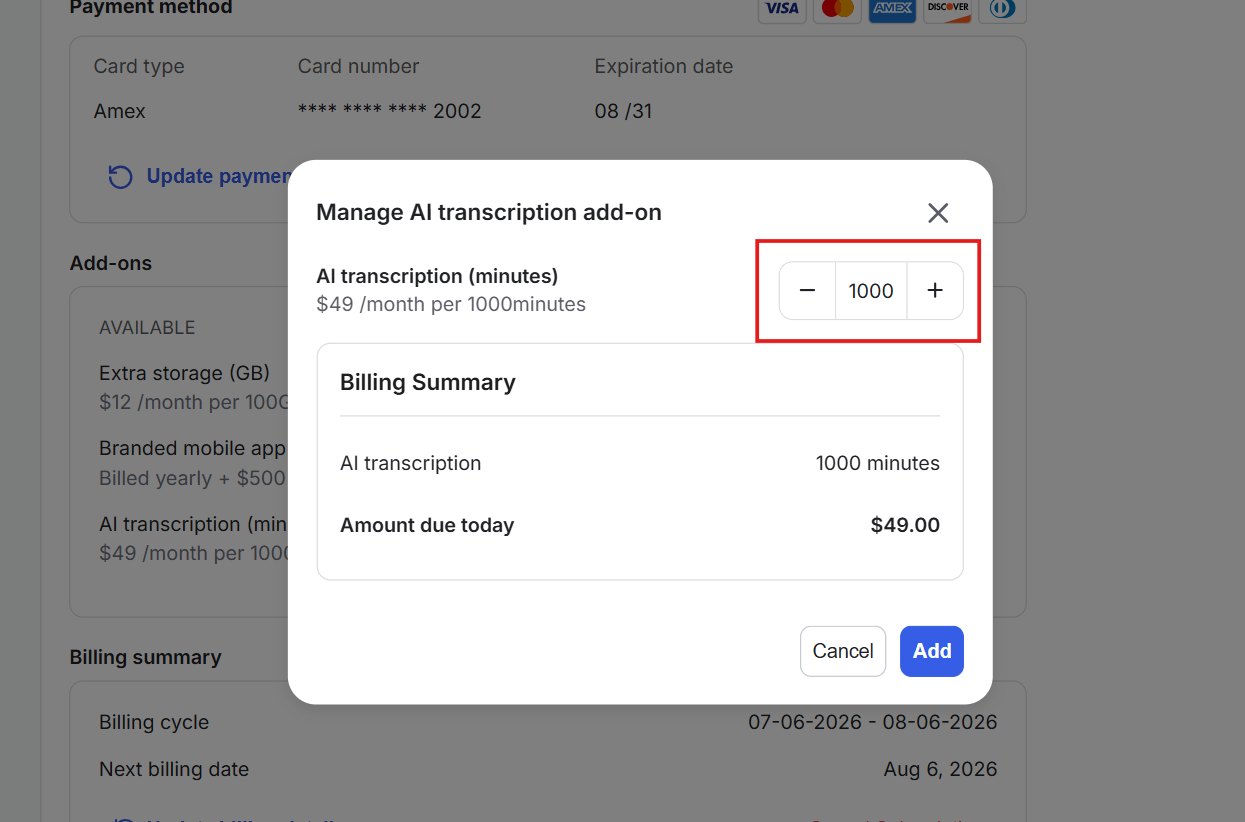
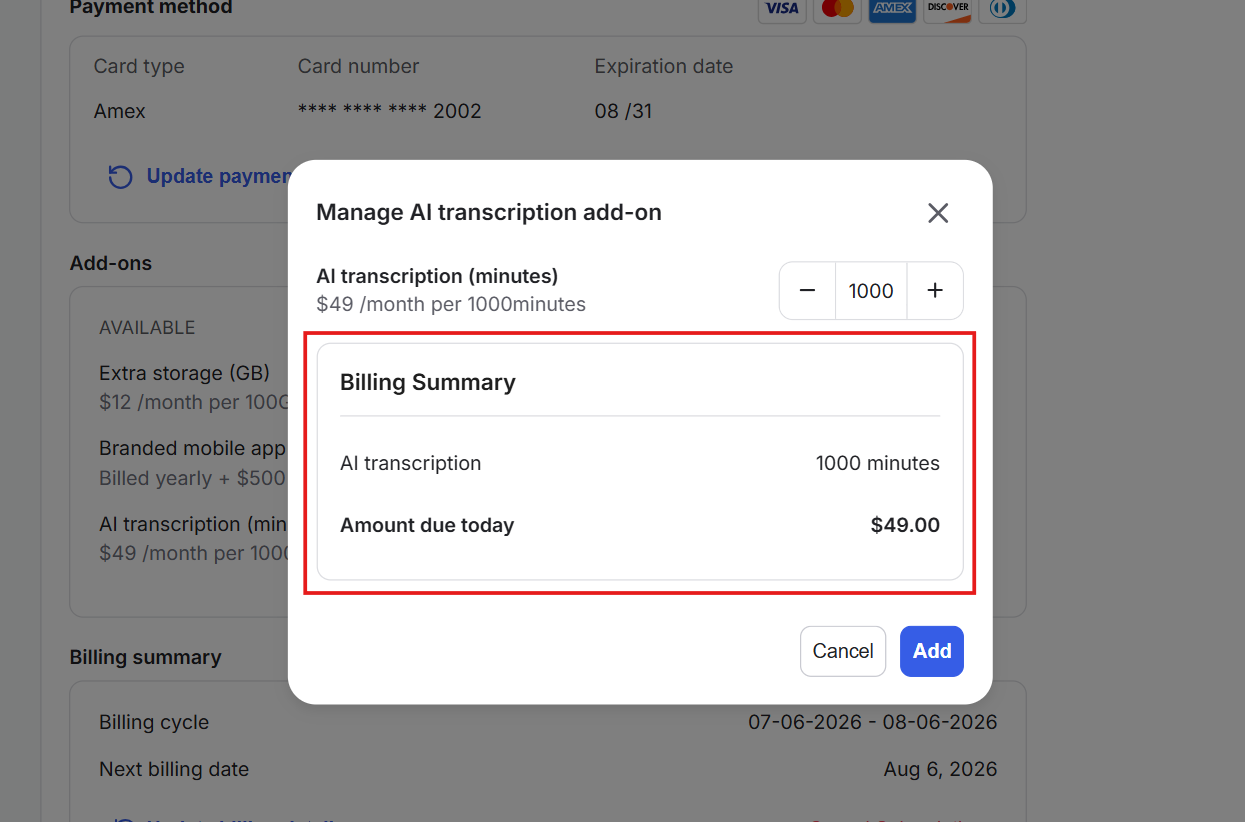
5) Based on the minutes selected, a billing summary will be generated.
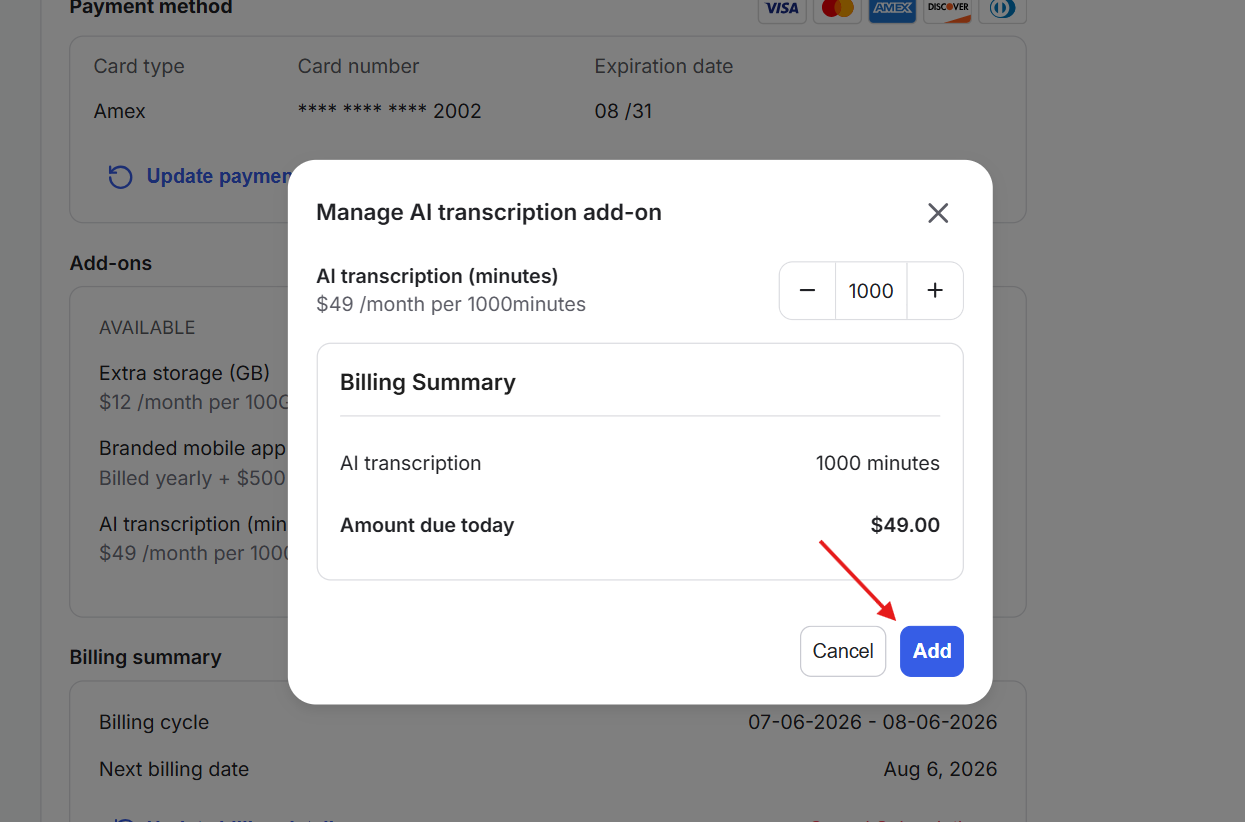
6) Click Add to complete the purchase.
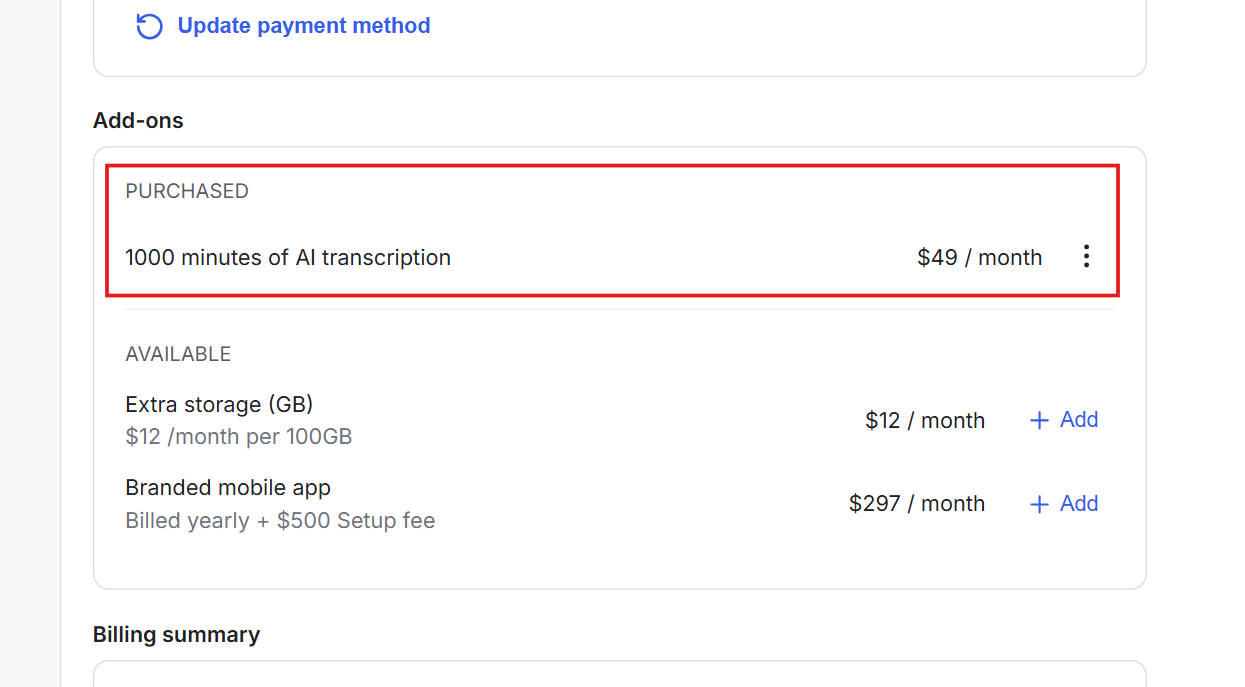
7) The add-on will immediately be added to your account and the corresponding amount will be charged.
By default, videos are transcribed in their original language. You can also add up to five additional languages.
1) Go to your Billing Dashboard.
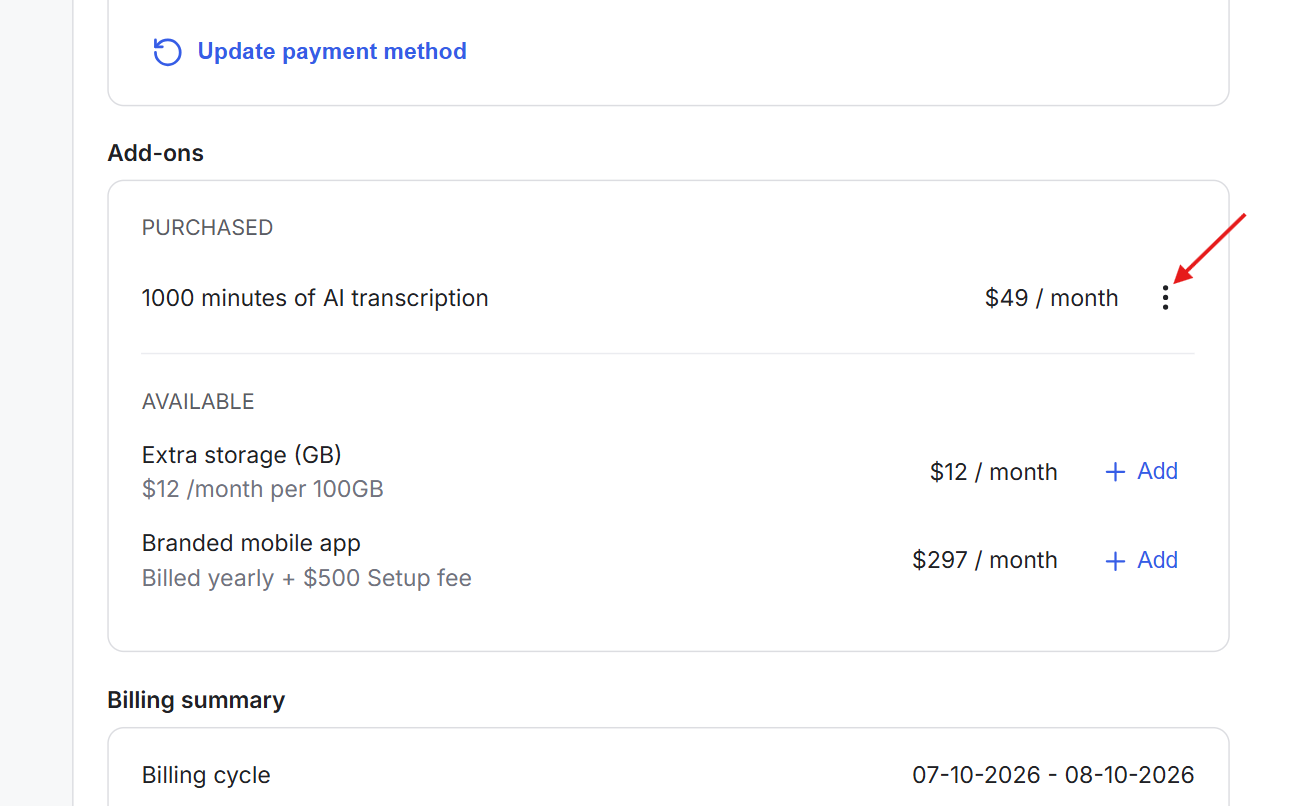
2) Click on the three-dot menu beside the AI Transcription add-on.
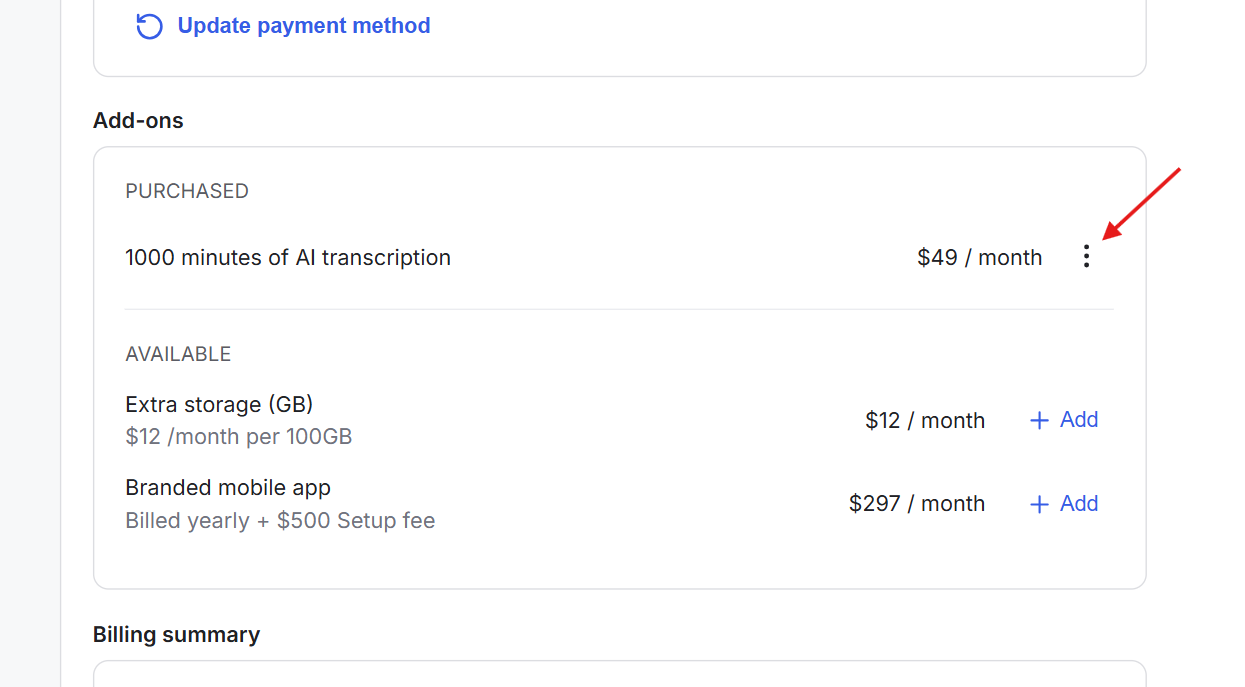
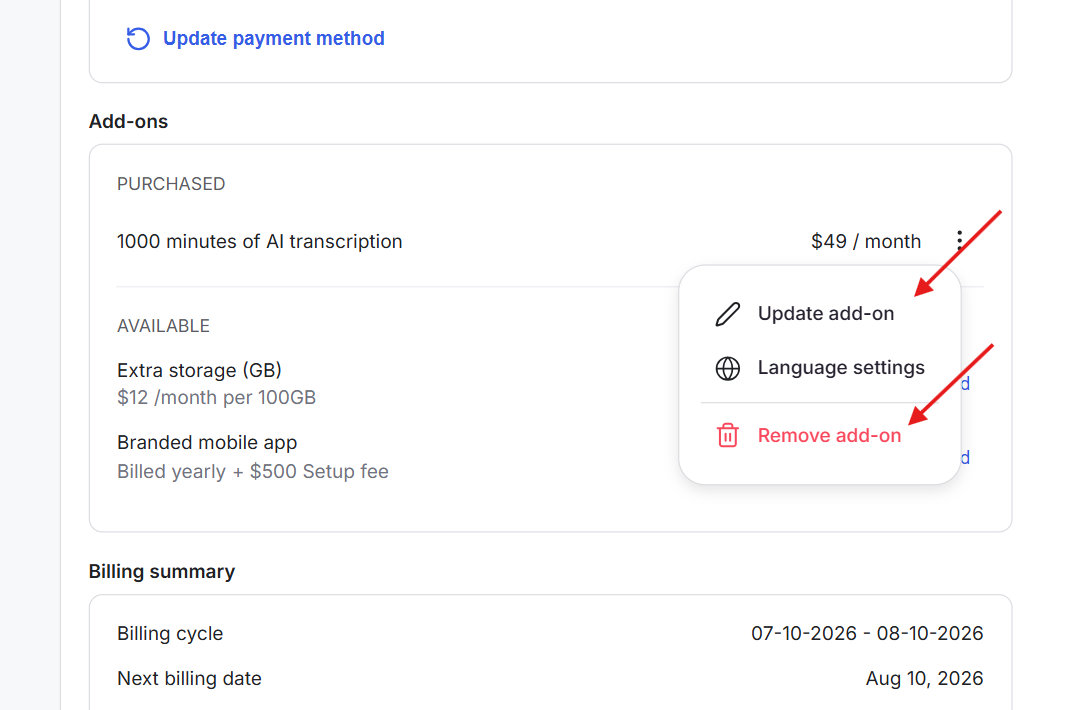
3) Select Language Settings.
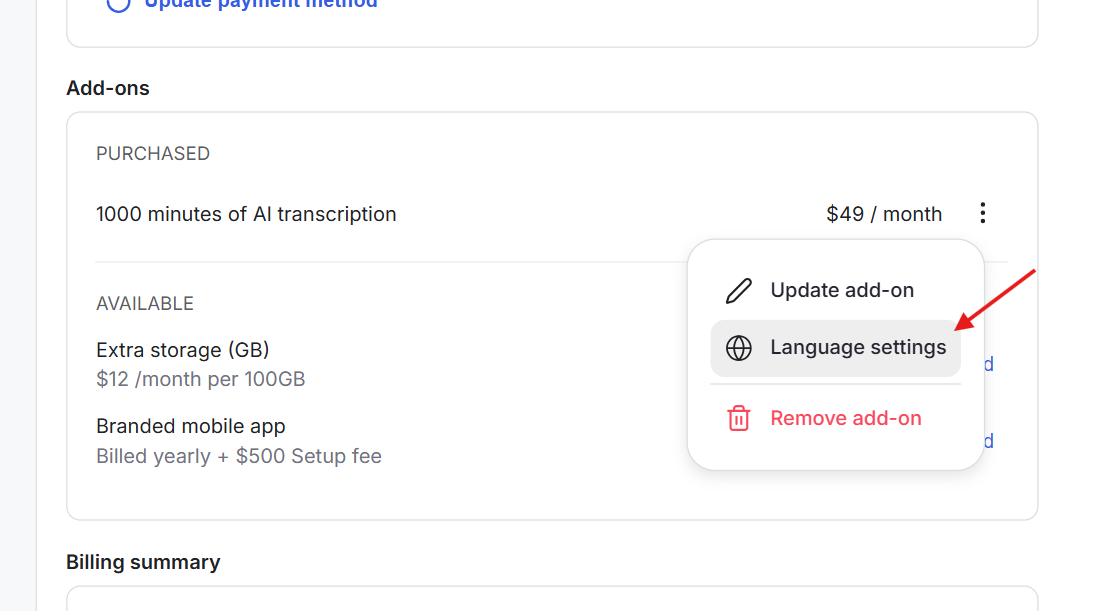
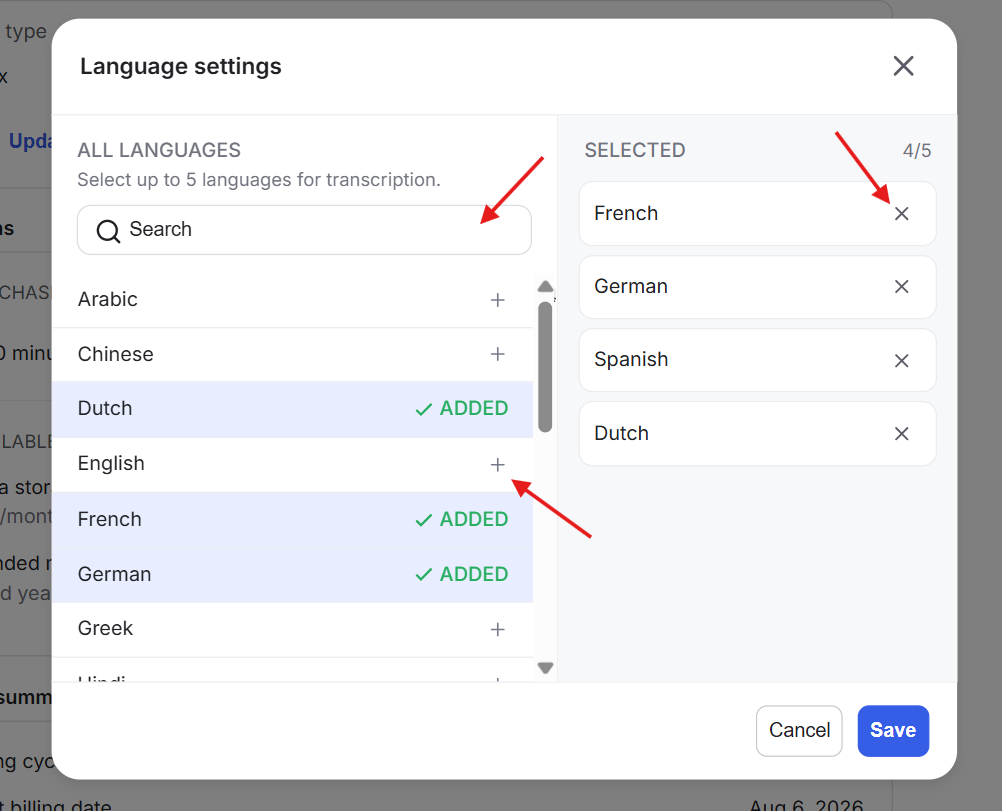
4) On the pop-up, select the additional languages you want to add or use the search field to select from the 20 available languages. Click to add languages and chosen languages will appear on the right side of the pop-up. You can also unselect languages on the right side panel by clciking on the x cross sign. You can add up to 5 additional languages from a list of supported languages.
5) Click Save when done.
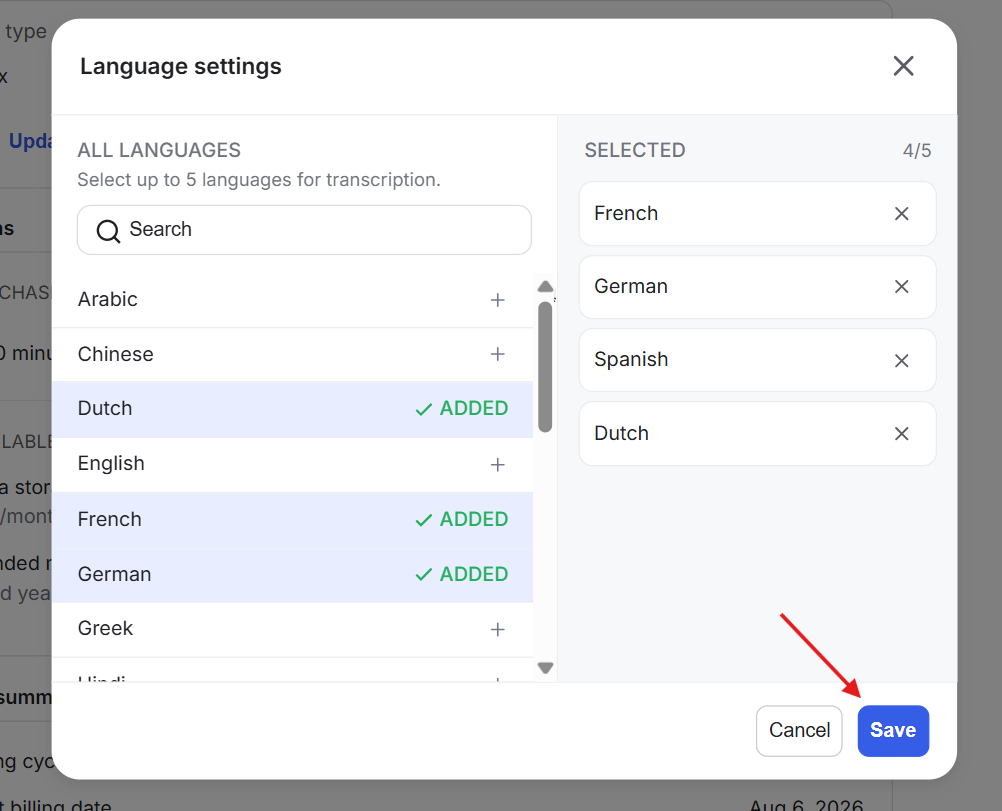
New video uploads will be transcribed in the original language and all selected languages.
If you manually start transcription on an existing video that hasn't been transcribed yet, captions will also be generated in all selected languages.
Transcription usage is calculated based on video length, i.e. the number of minutes.
Please note that the option to transcribe an uploaded video is only available for admins. Once an admin transcribes a video, the transcription/caption option automatically becomes available for the members in all available languages.
AI Transcription works across uploaded videos throughout GroupApp, including:
Course Lesson Videos
Post Videos
Welcome Video
Landing Page Videos
Course Introduction Video
Library Videos
Any other uploaded videos across the platform
For this example, we'll use a course video.
1) Upload a video lesson to your course.
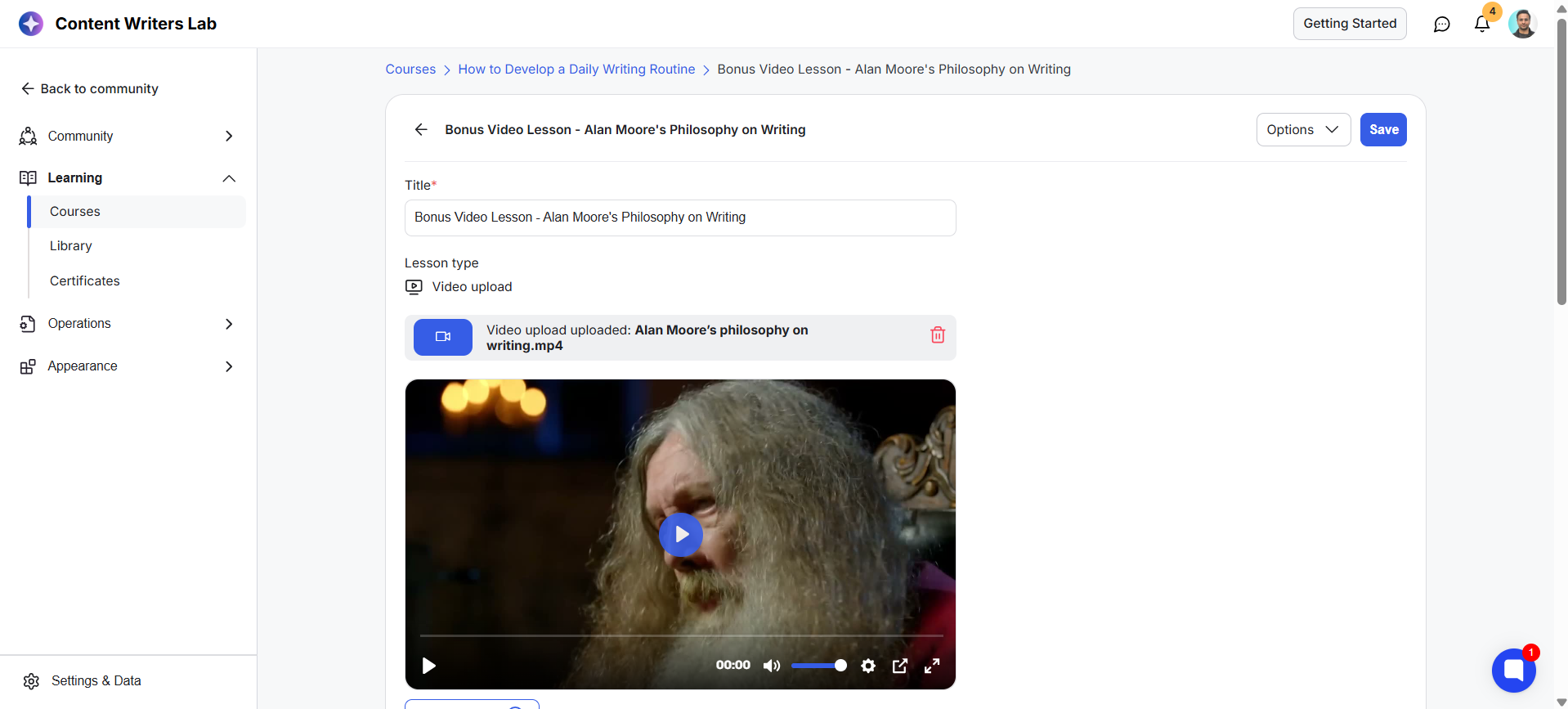
2) Once the video upload is complete, a CC icon will appear on the video player. This can take a few minutes. Click the CC icon to start generating captions.
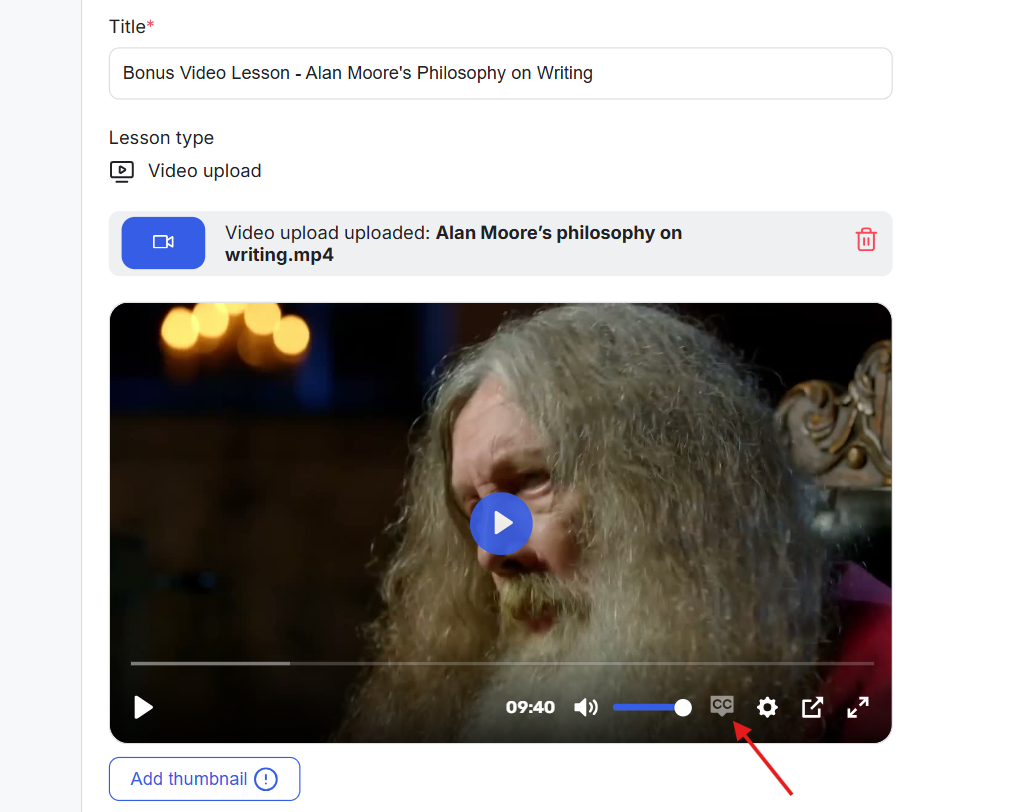
4) GroupApp will automatically generate captions in the original video language and all languages configured in your AI Transcription settings
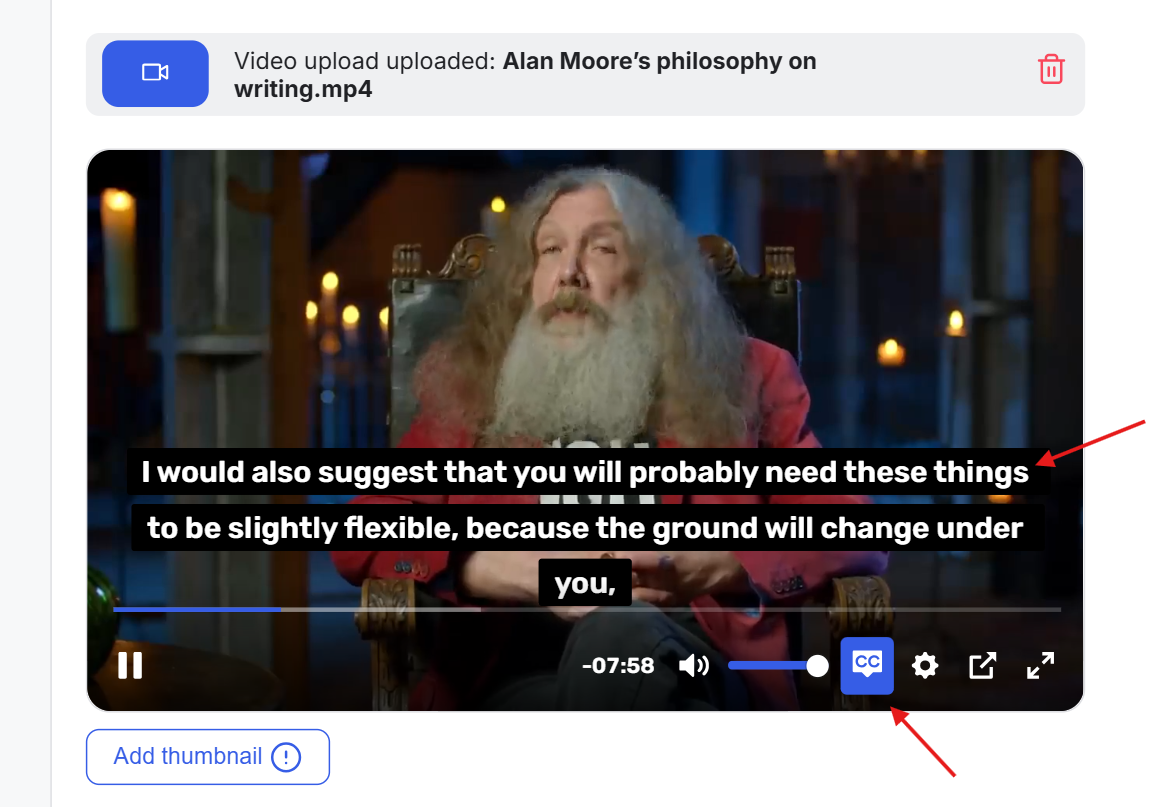
5) Once processing is complete, the captions will become available to viewers.
If captions are available for a video, they'll appear automatically during playback. Members can switch between the available caption languages at any time from the video player.
1) Go to the uploaded Course/Library/Post video (This applies to any uploaded video).
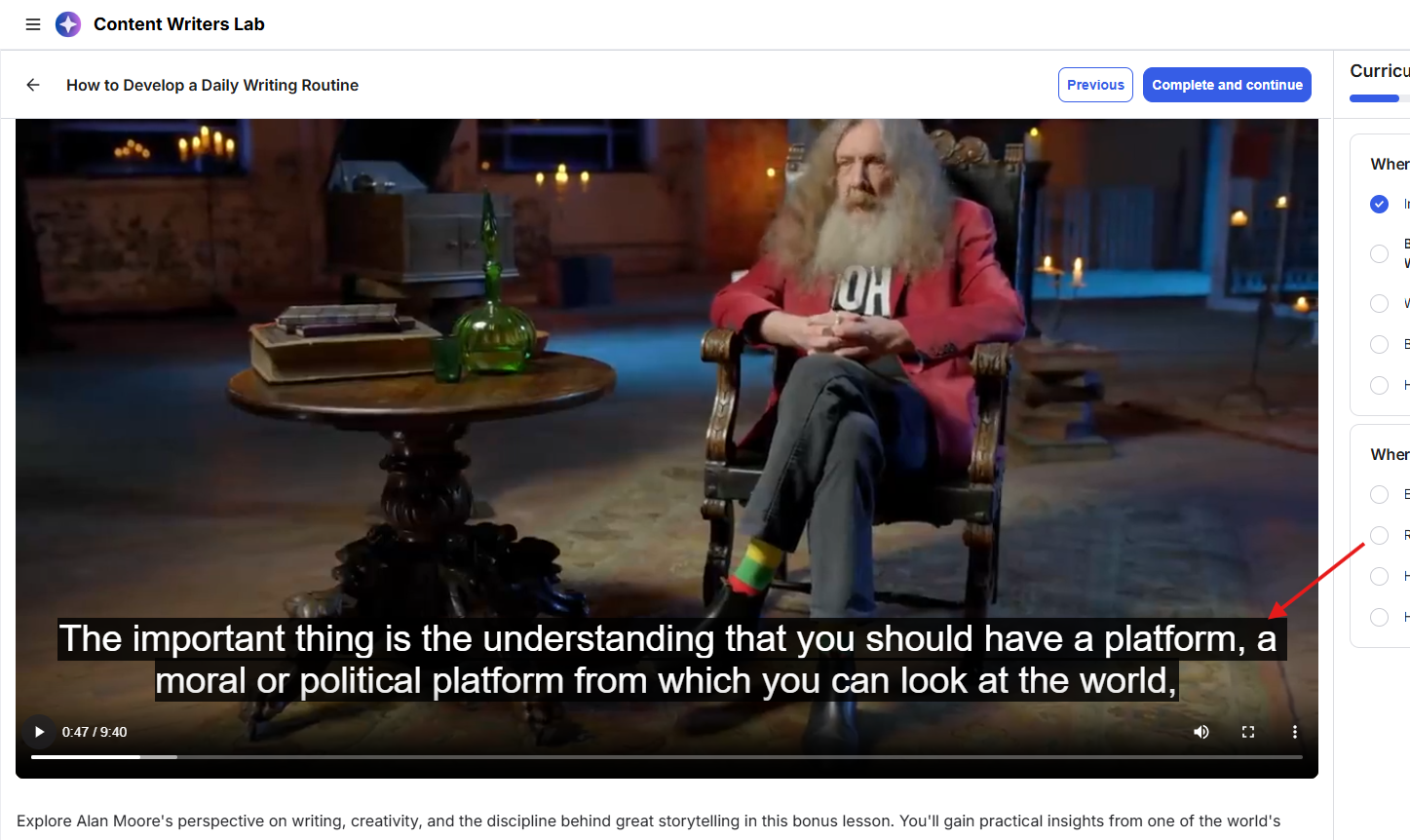
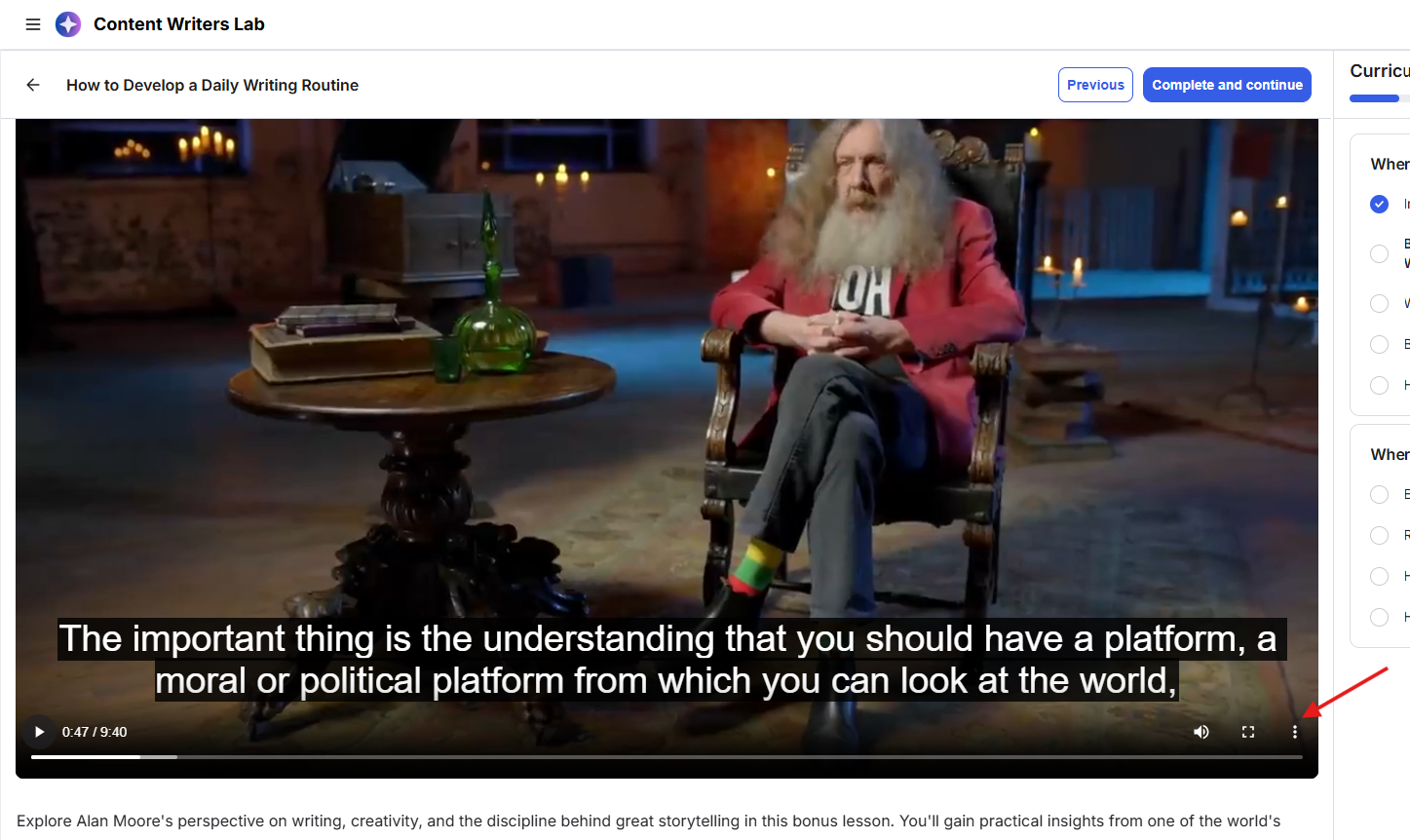
2) Click the three-dot Settings icon on the video player.
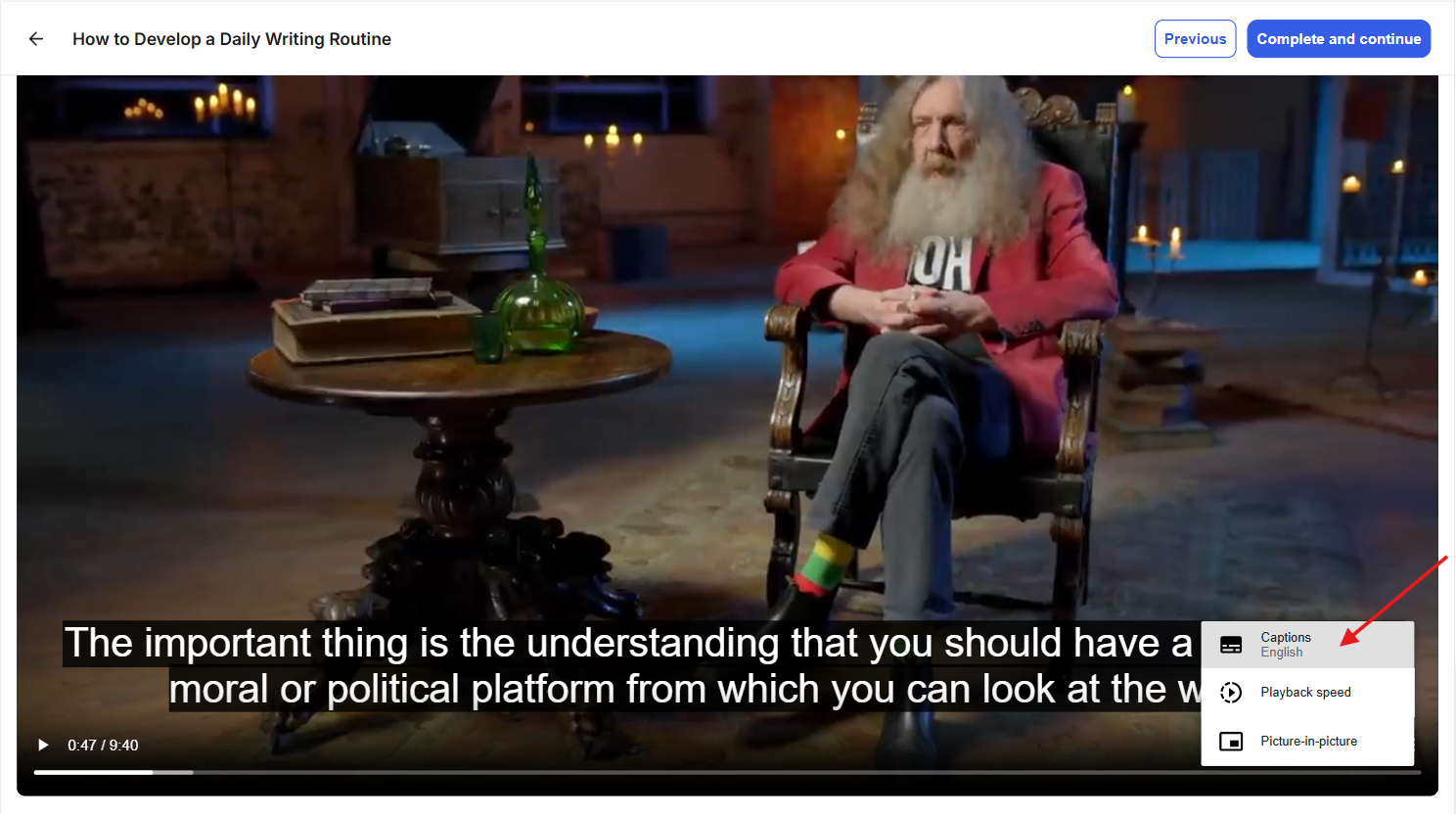
3) Click on Captions.
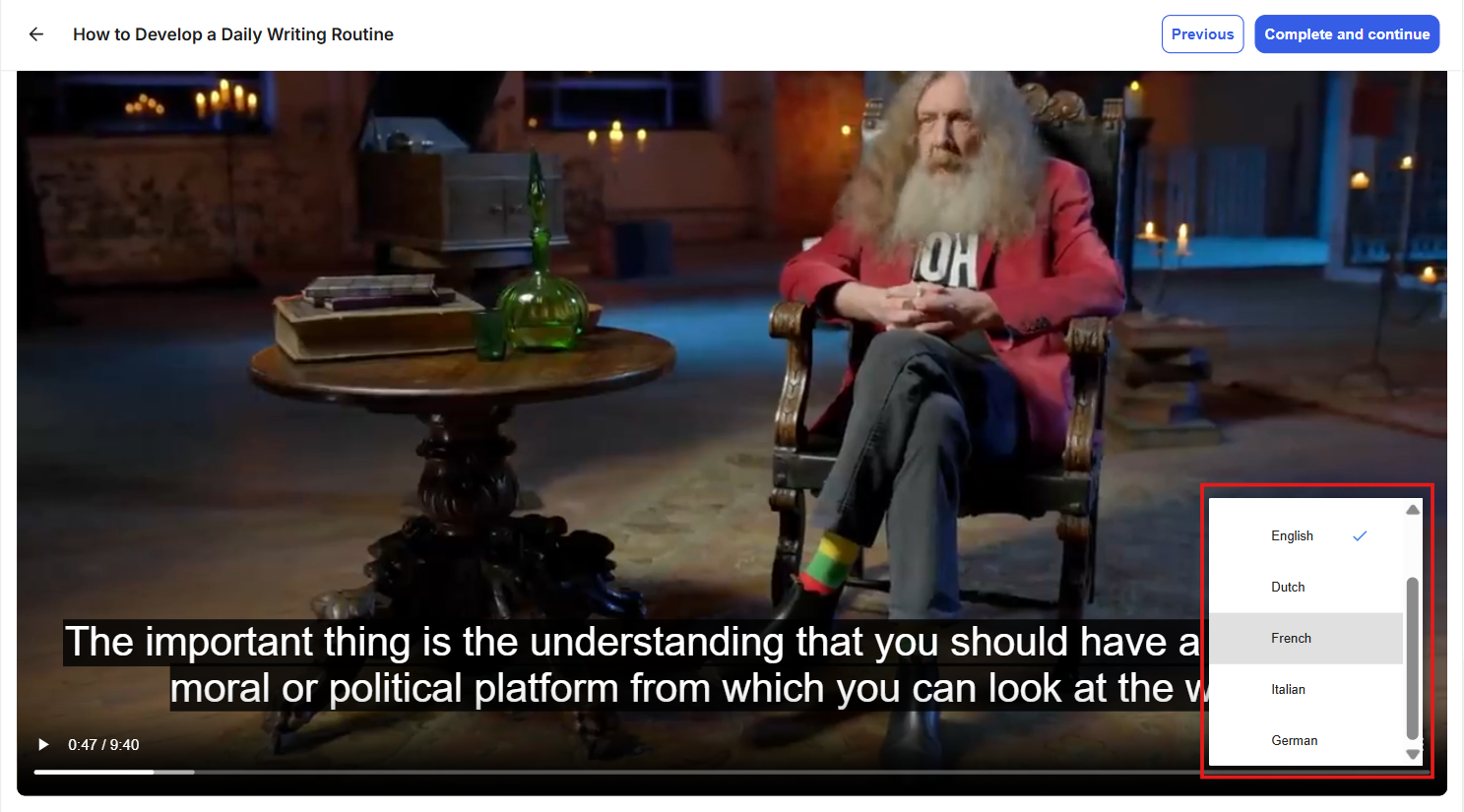
4) Select the language you want to use.
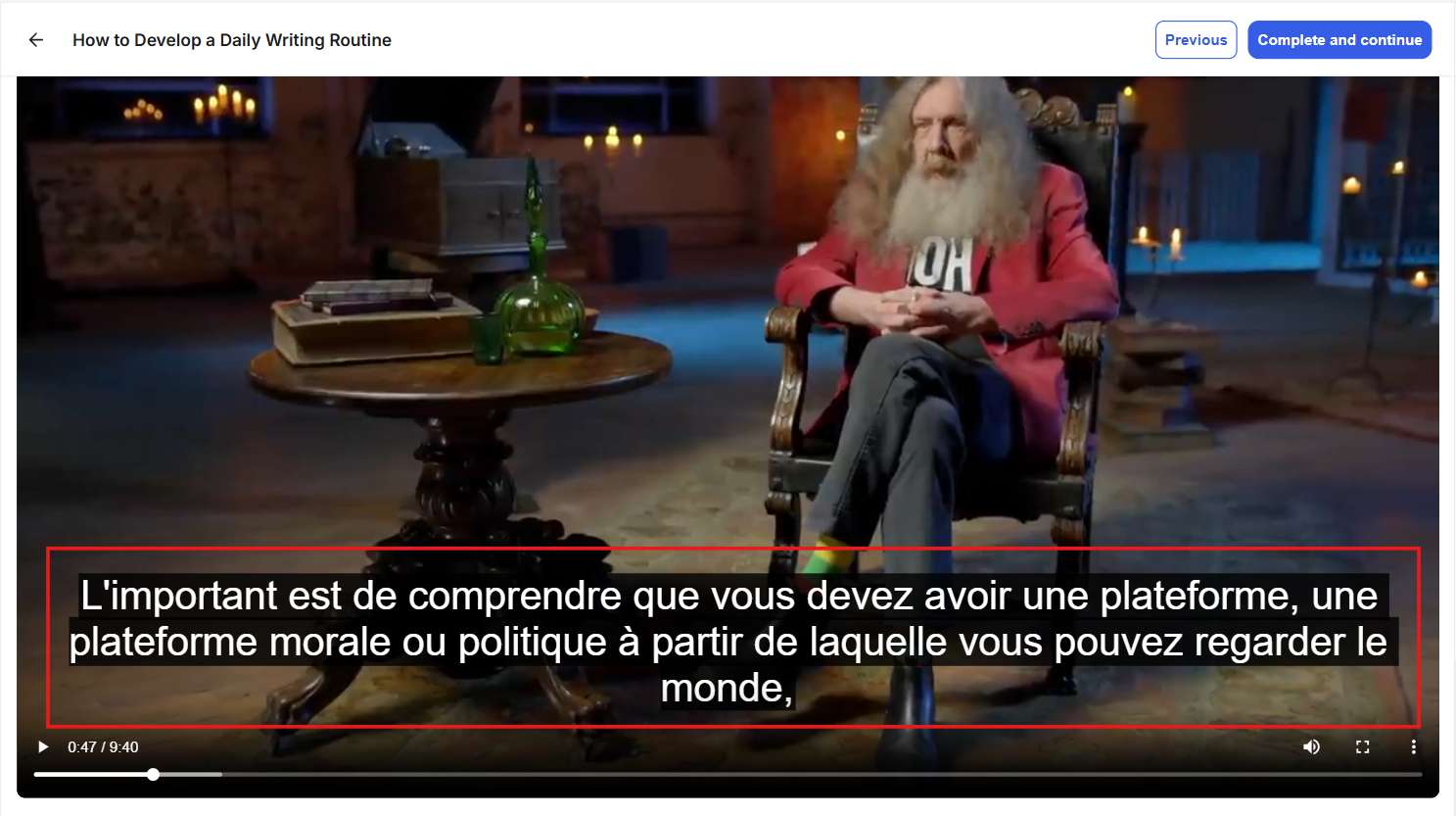
5) The captions will immediately switch to the selected language.
You can manage your AI Transcription add-on at any time from the Billing Dashboard. From here, you can purchase additional transcription minutes or remove the add-on if you no longer need it.
1) Go to your Admin Panel. Click on Settings & Data, and click on Billing Details. This will open your Billing Dashboard.
2) Scroll down to the Add-ons section.
3) Click on the three-dot icon menu on the purchased add-on section.
4) Choose Update Add-on to purchase additional transcription minutes or Remove Add-on if you want to remove the add-on from your community.
5) If you selected Update Add-on, choose the number of transcription minutes you want to purchase, on the pop-up.
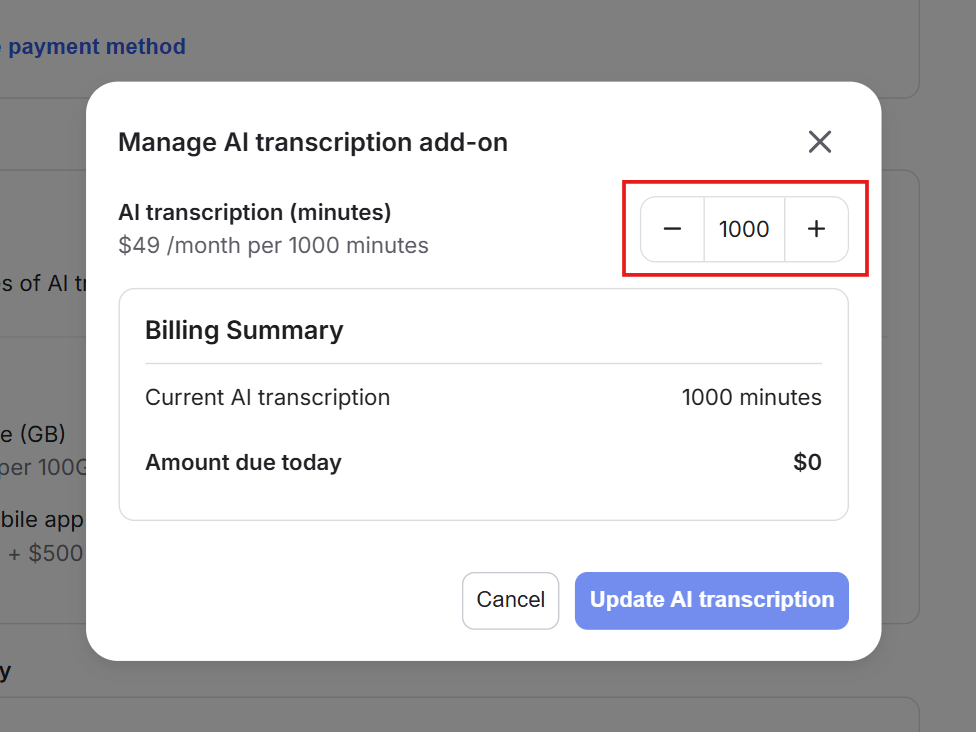
6) Review the billing summary generated based on your selected minutes. Click Update AI Transcription to complete the purchase. The additional transcription minutes will be added to your account immediately, and the corresponding amount will be charged.