The Send Email Notification action allows you to automatically send emails when a workflow is triggered. This is useful for notifying team members, sending internal alerts, or creating custom email sequences based on actions taken in your community.
Here’s how to set up:
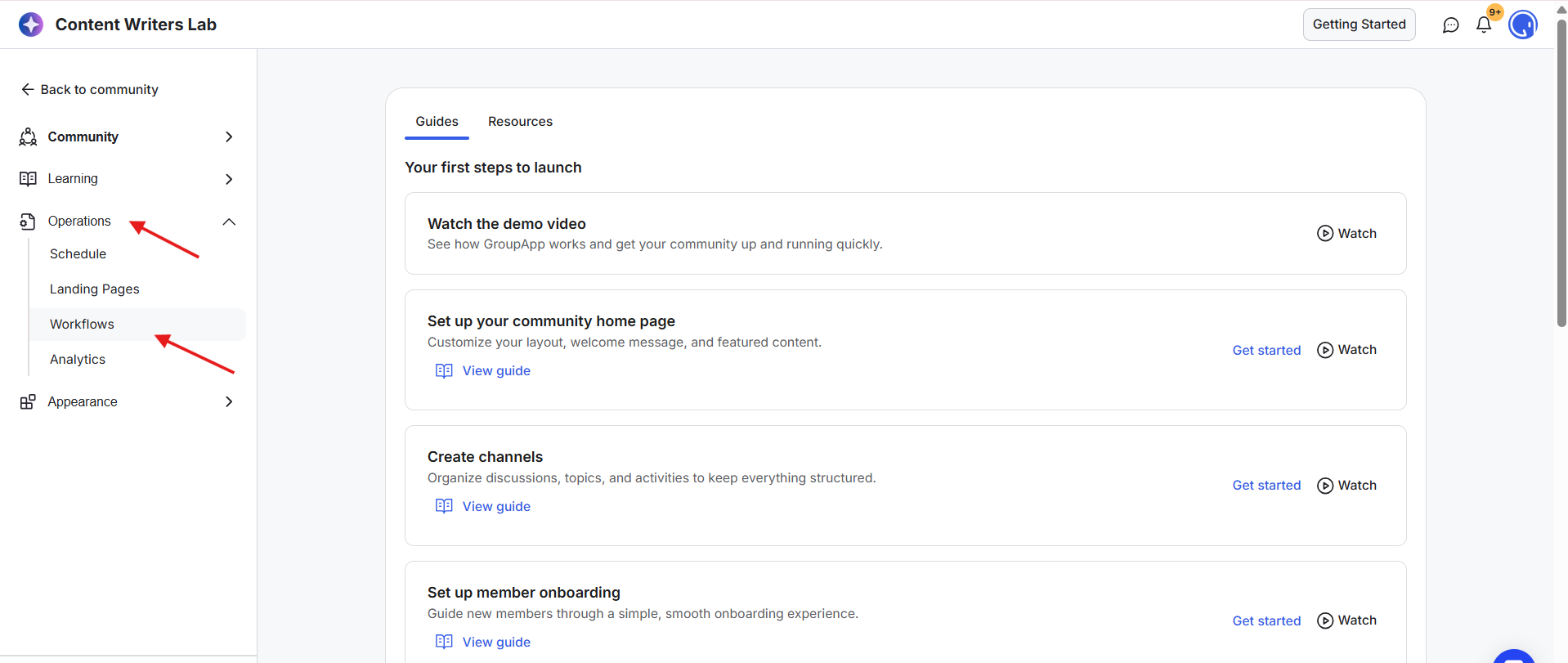
1) Go to the Admin Panel. Click Operations on the left-side menu and select Workflows.
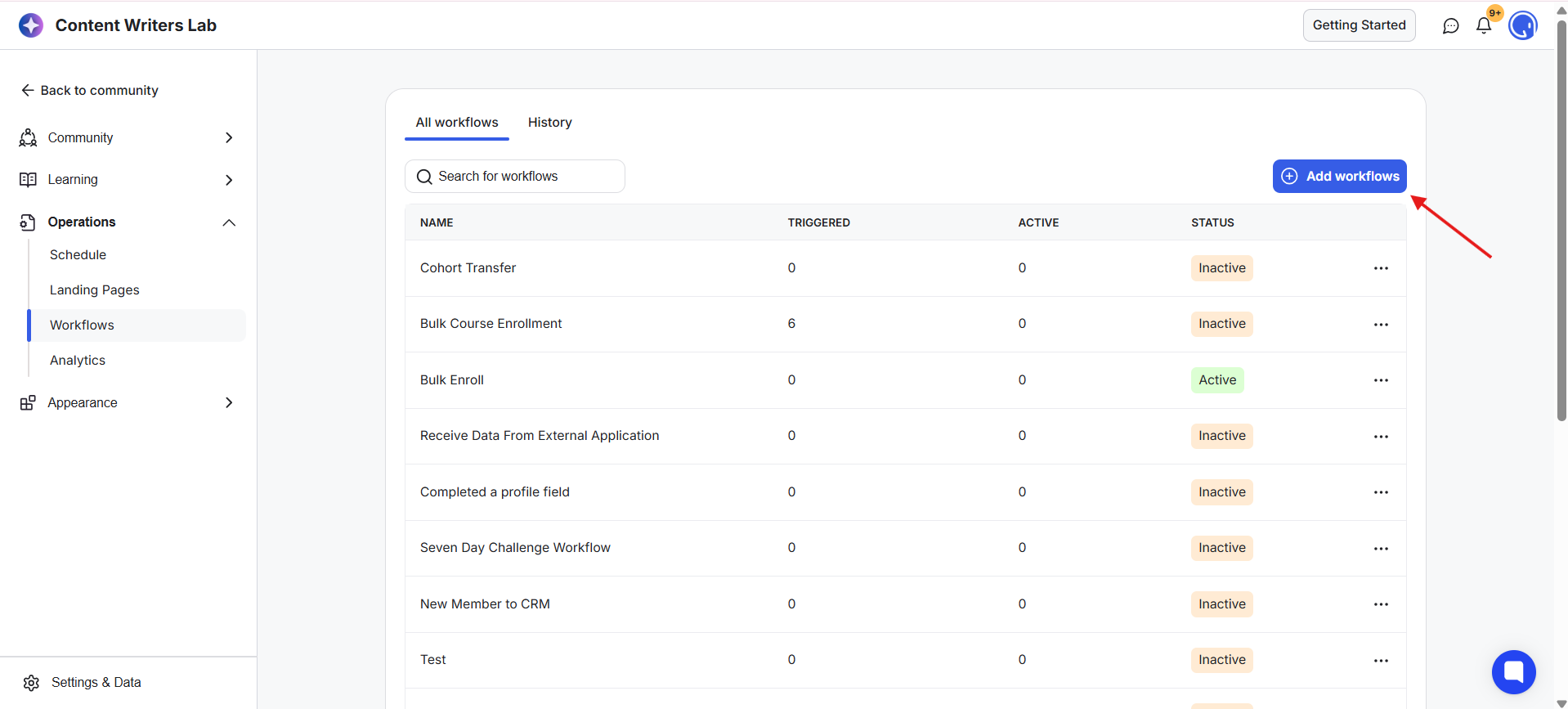
2) Click + Add Workflow.
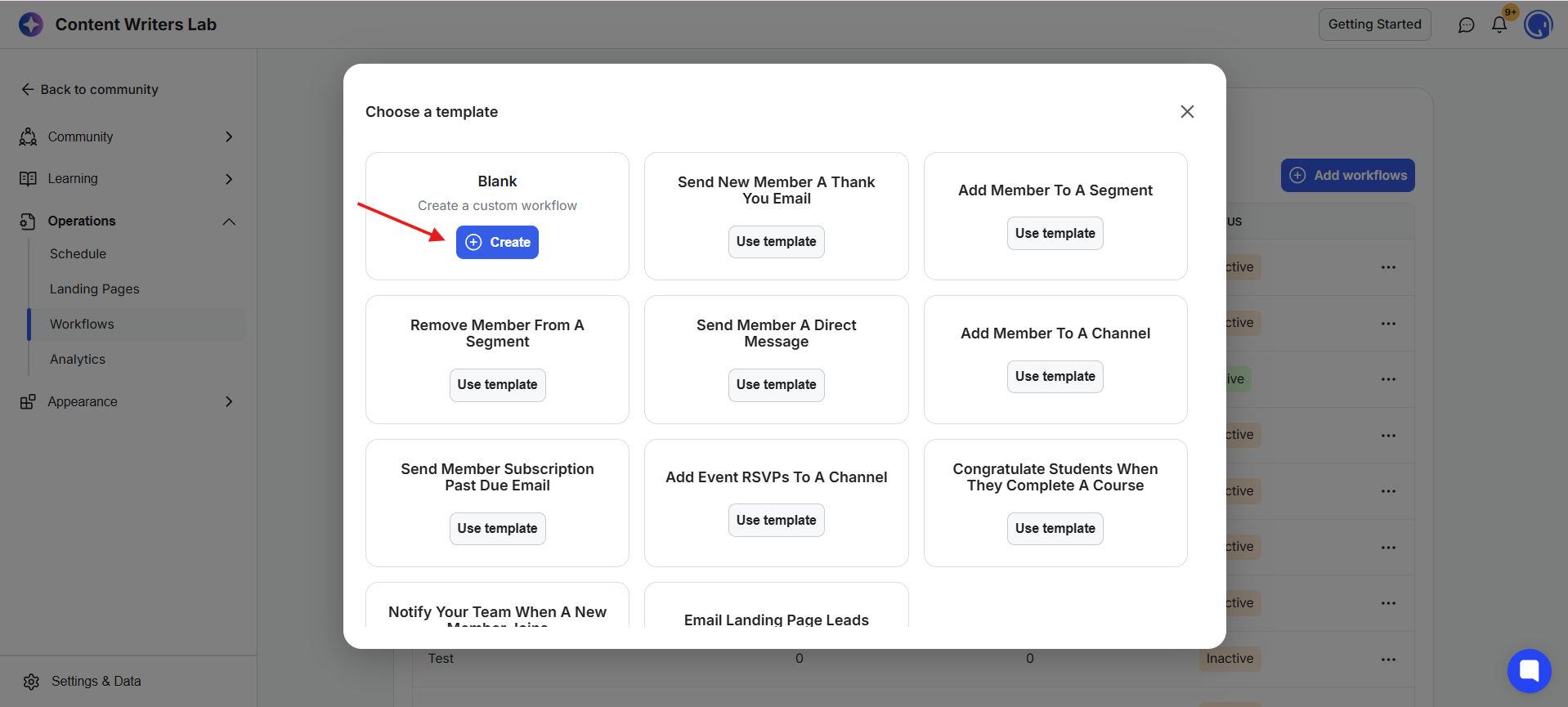
3) Click + Create to create a custom workflow. You can also select any template to customize.
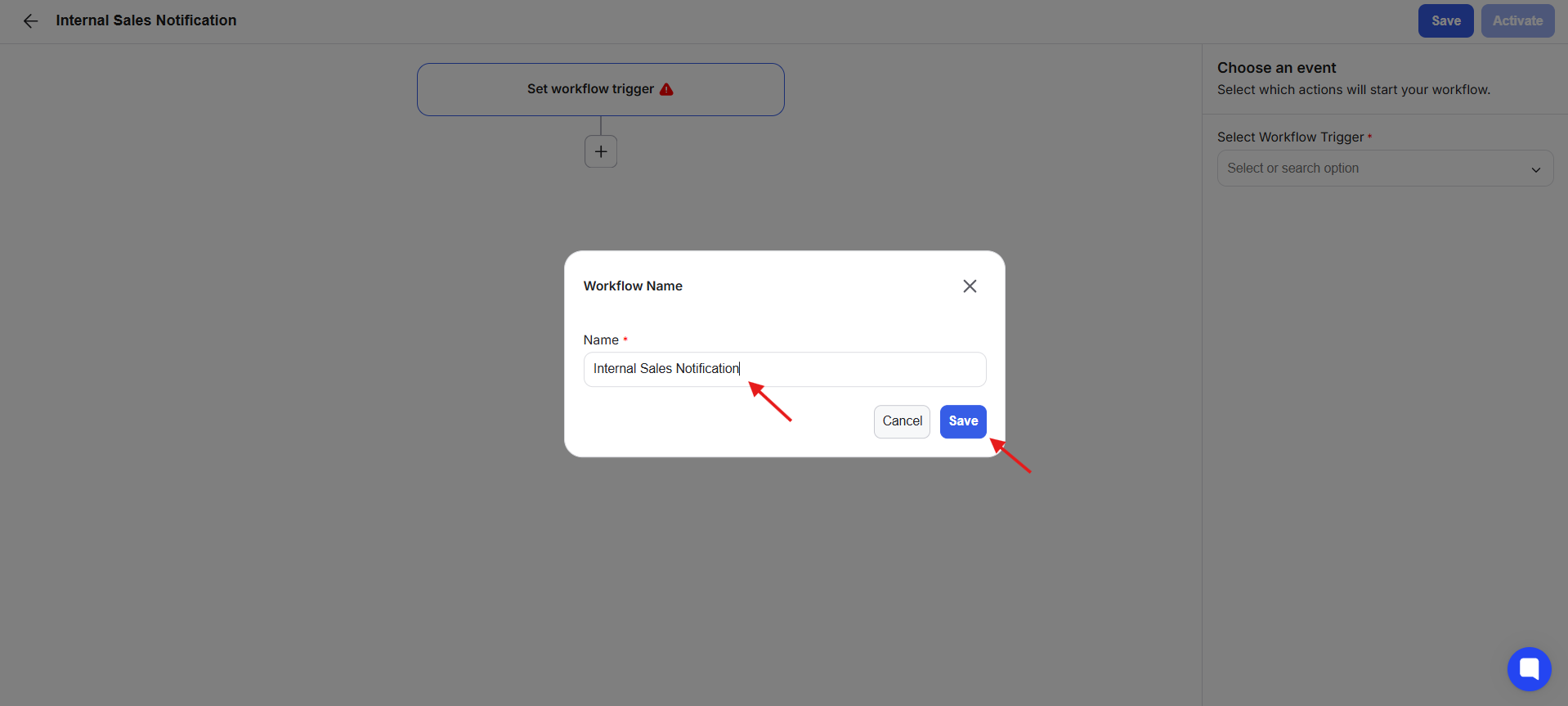
4) Enter a name for your workflow and click Save.
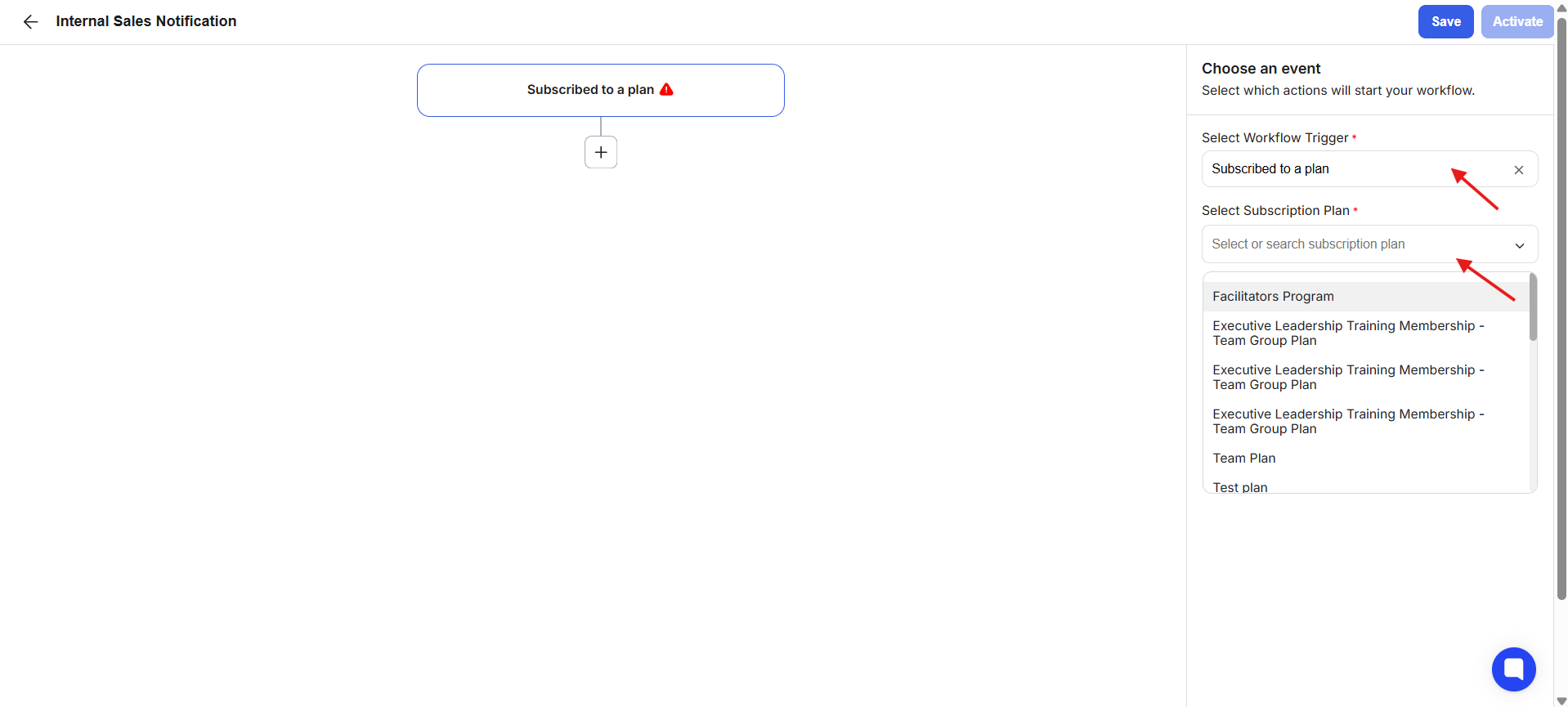
5) Choose a trigger to start the workflow. For this example, select Subscribed to a Plan and specify the exact plan from the right-side panel.
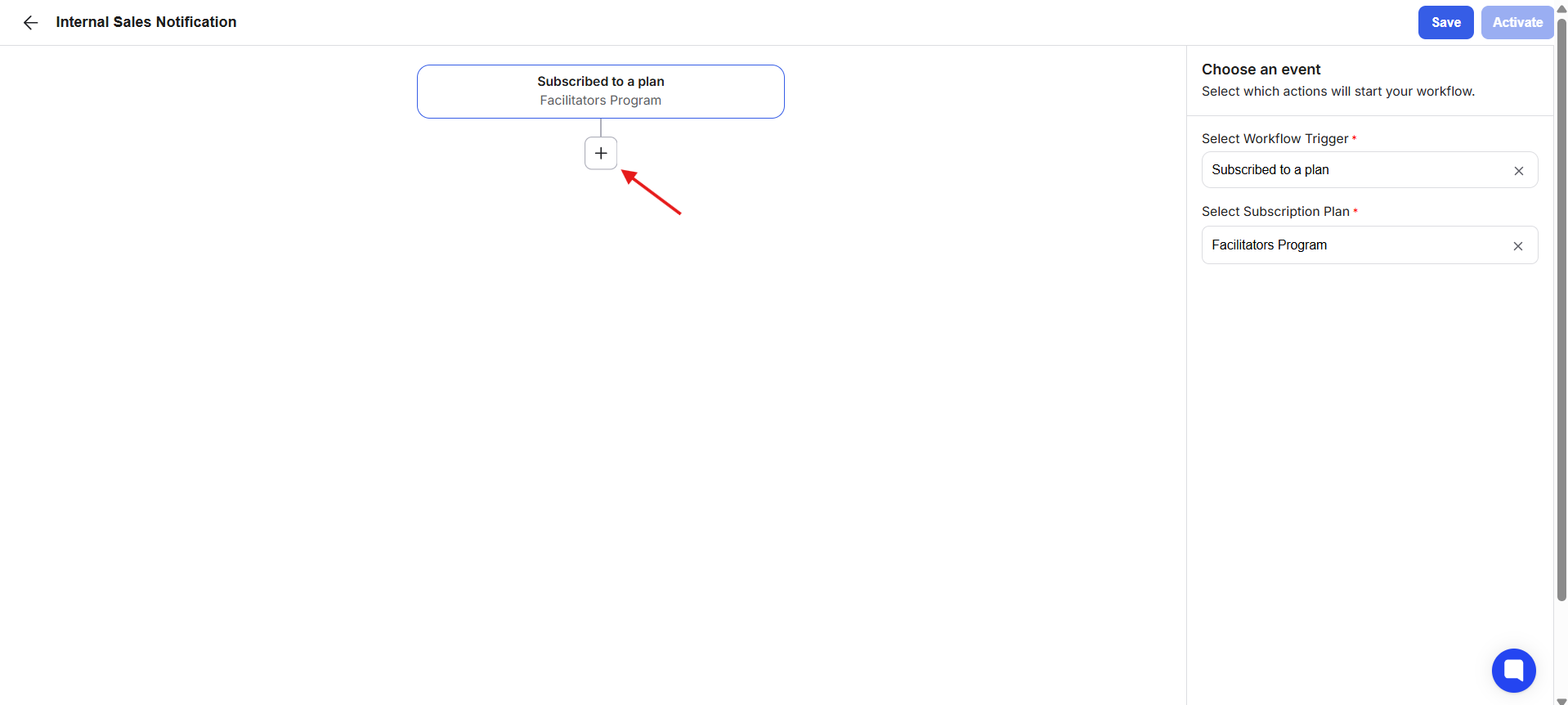
6) Click the plus (+) node on the workflow.
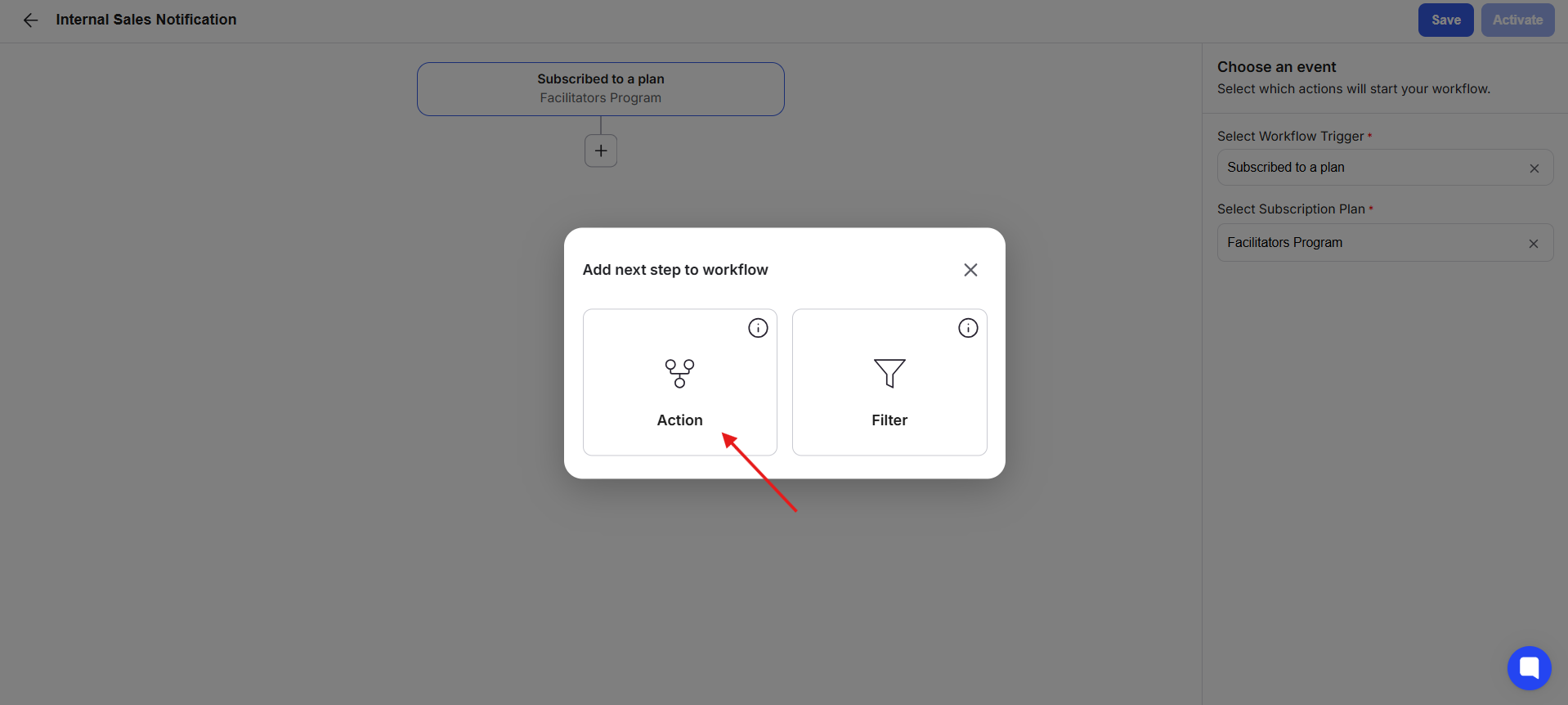
7) Select Action from the pop-up.
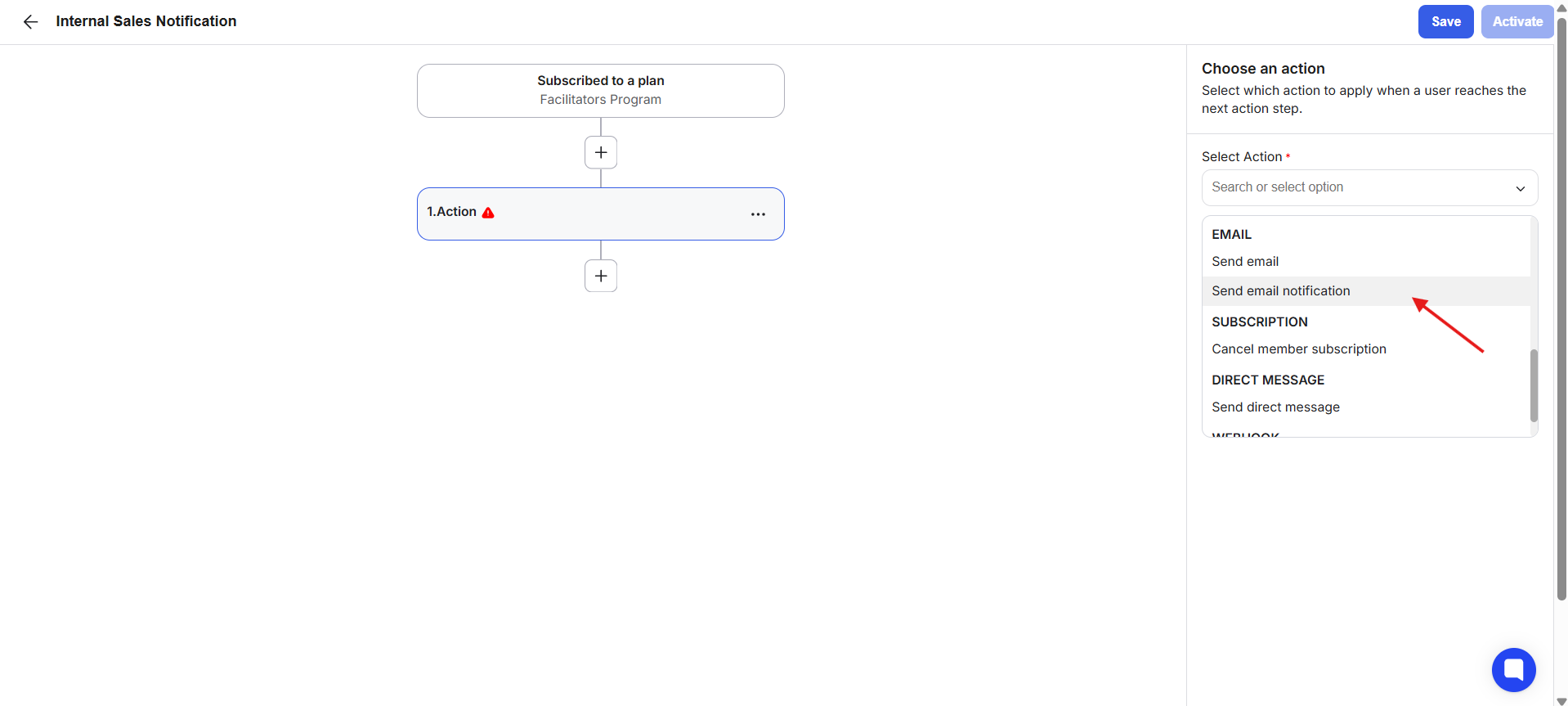
8) From the right-side panel, click the Select Action field and choose Send Email Notification.
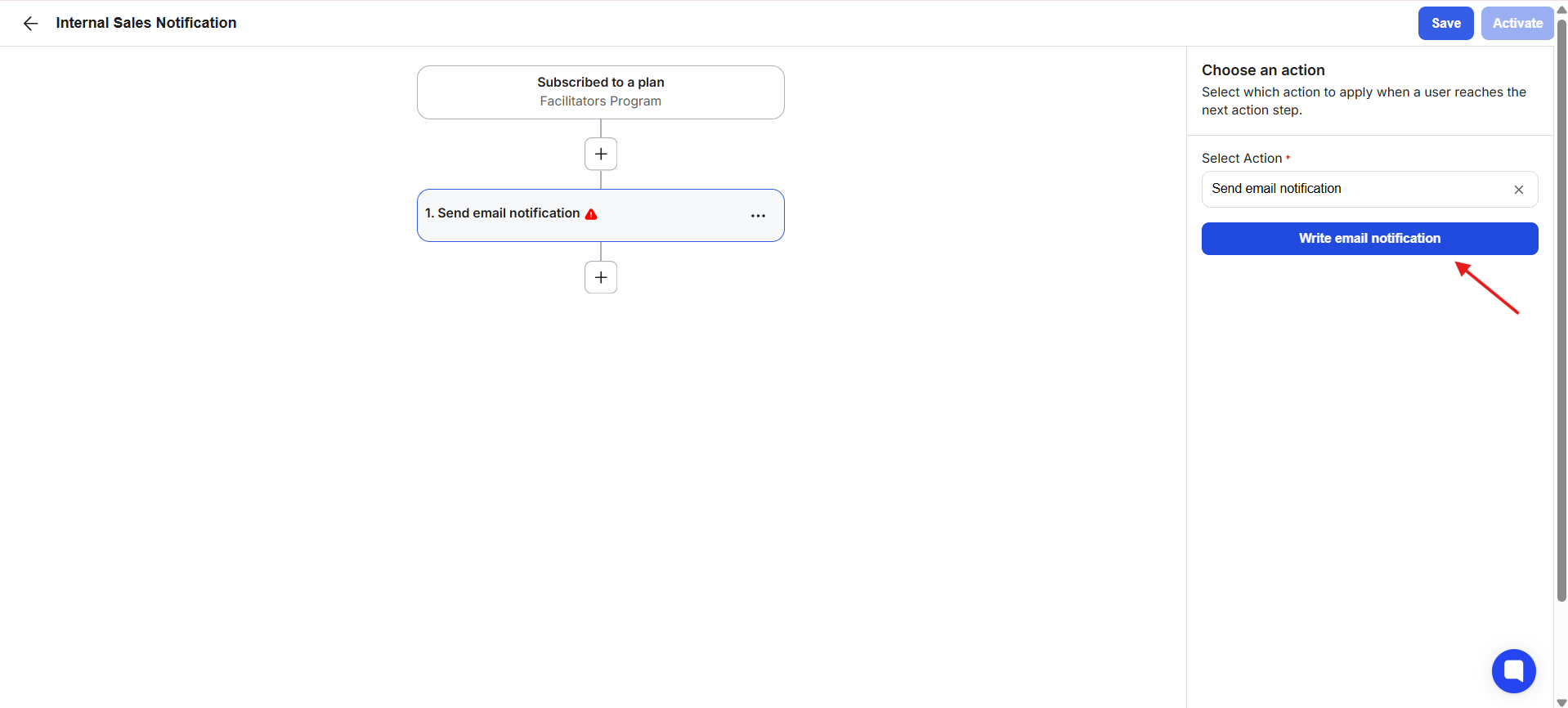
9) Click Write Email Notification to draft the notification.
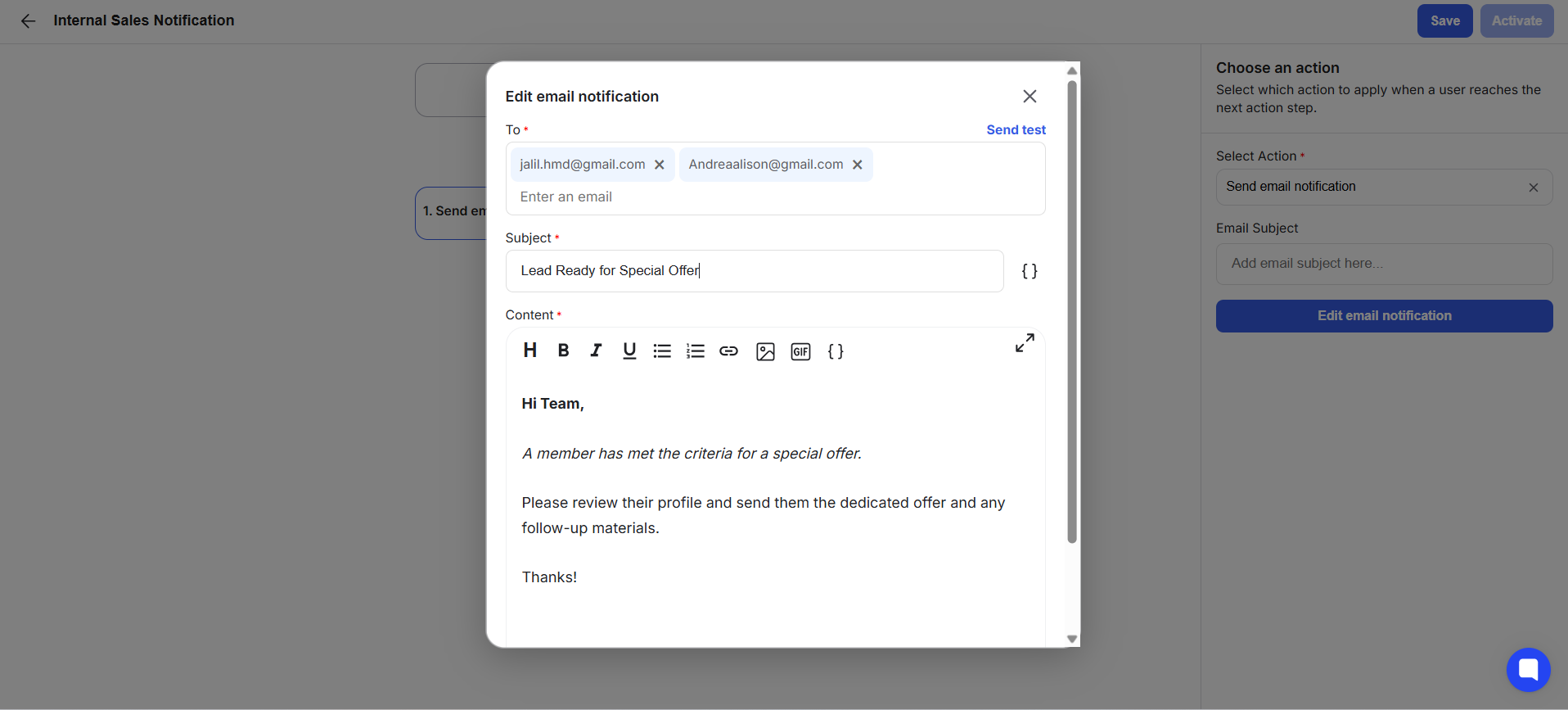
10) Enter the email address, subject, and email content. Use the formatting options to customize the email. You can send email notifications to up to 8 email addresses. Press enter after the email address to add more.
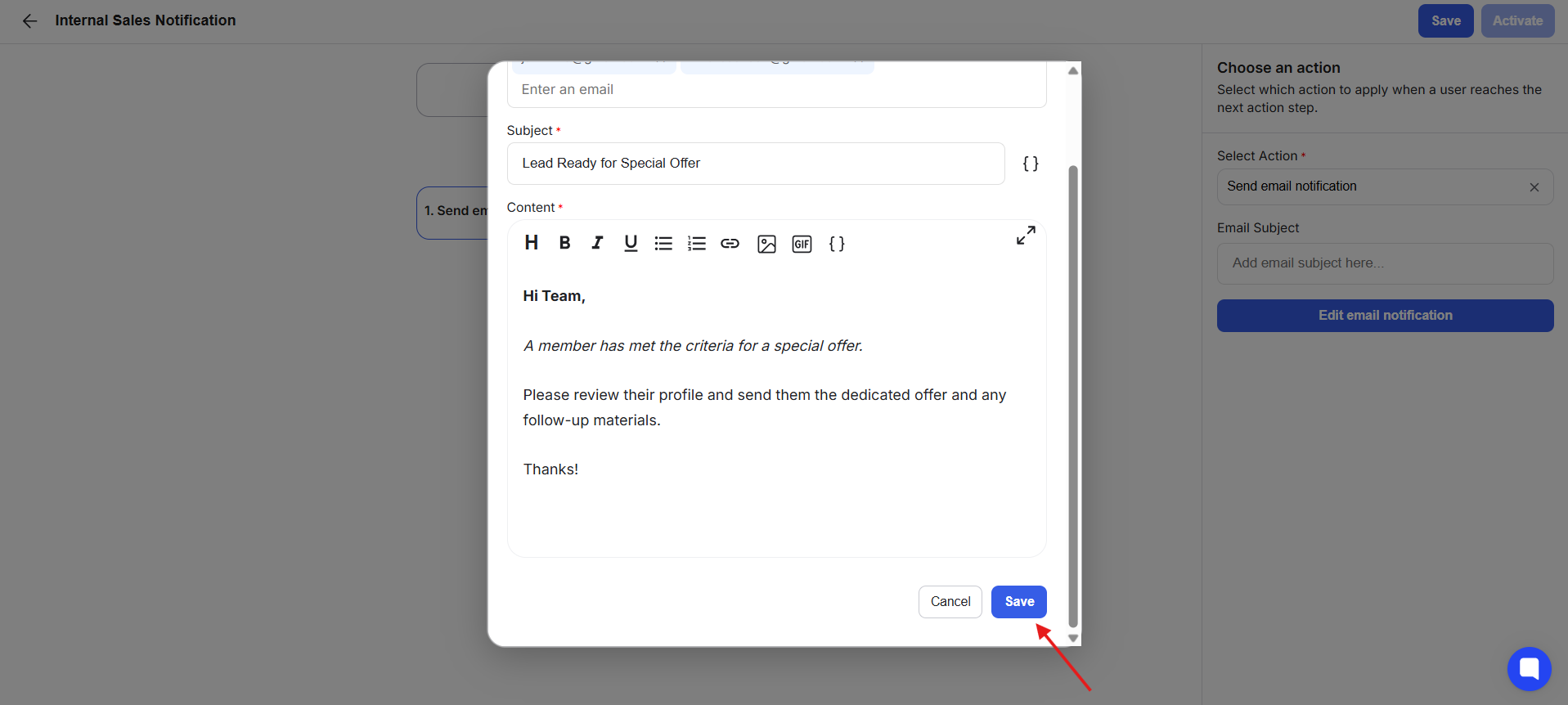
10) Scroll down on the pop-up and click Save.
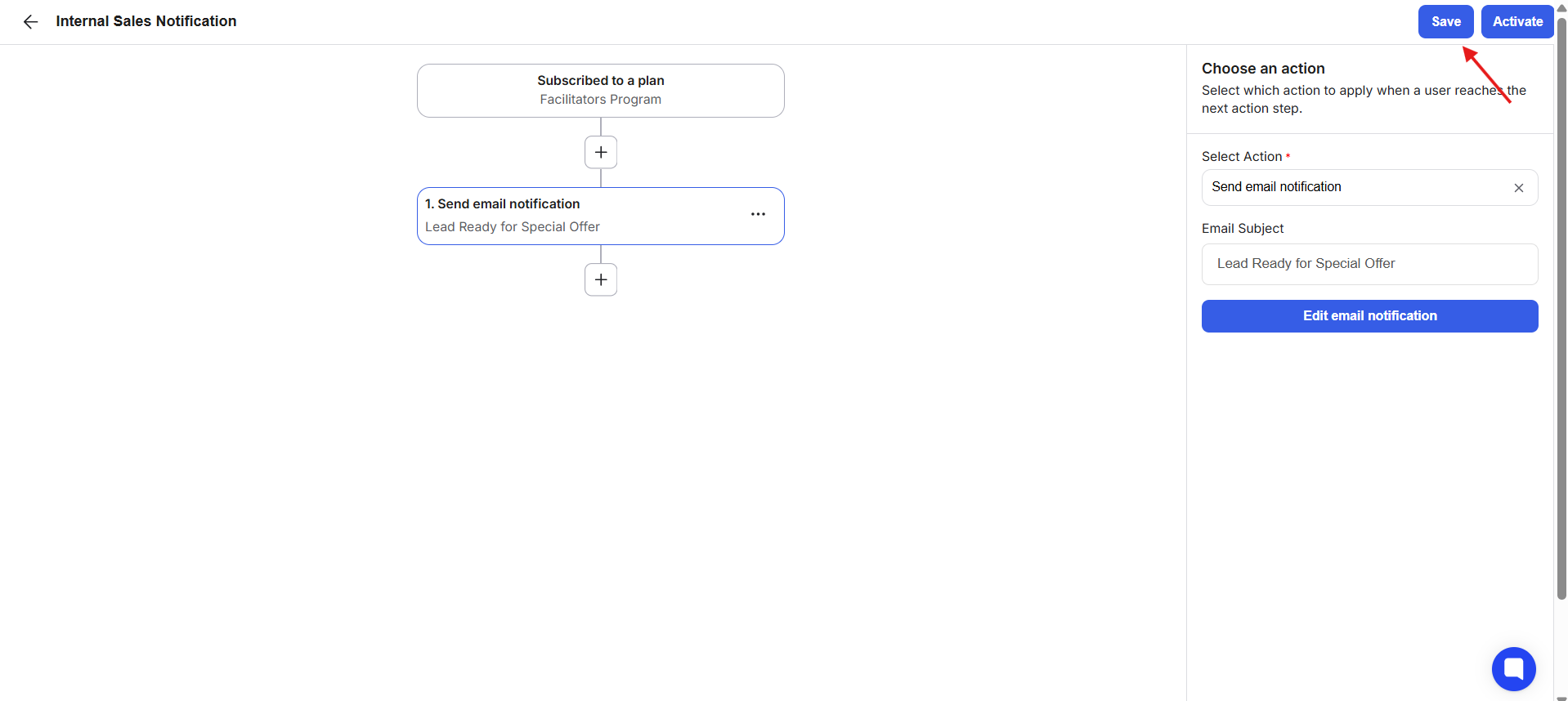
11) Once your workflow is complete, click Save in the top-right corner.
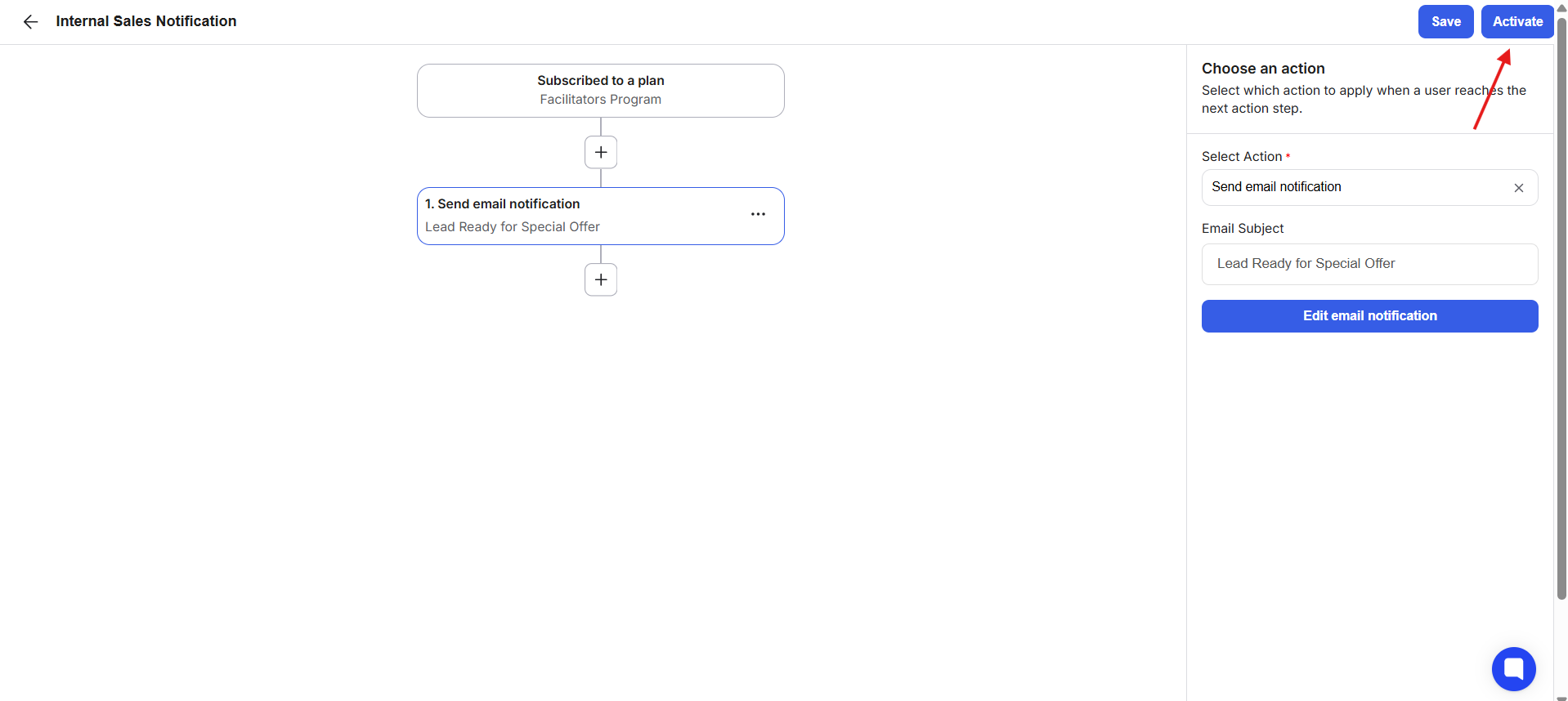
12) Click Activate.
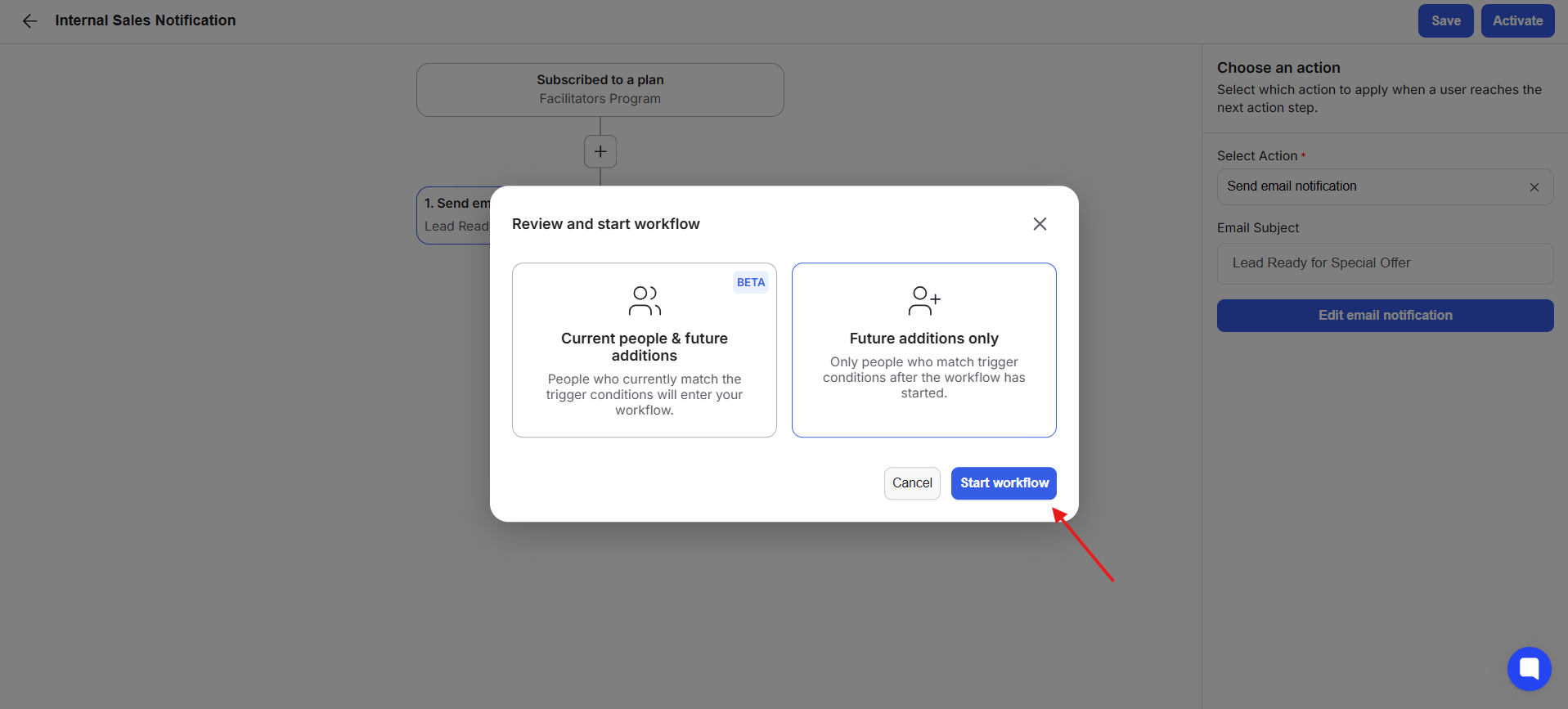
13) A workflow activation pop-up appears. Choose one of the following options:
Current People and Future Additions
Future Additions Only
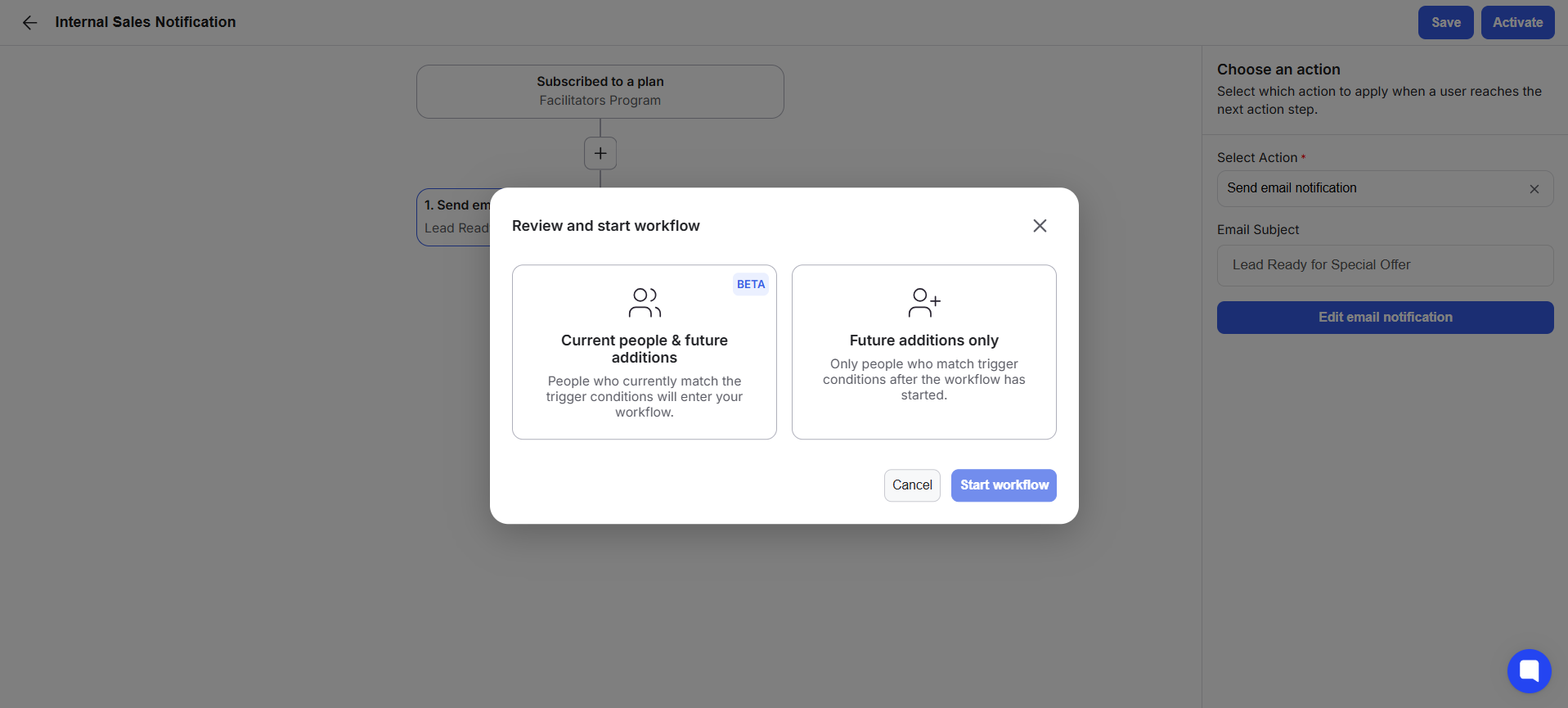
14) Click Start Workflow. Your email notifications will now be sent automatically whenever the workflow trigger is met.