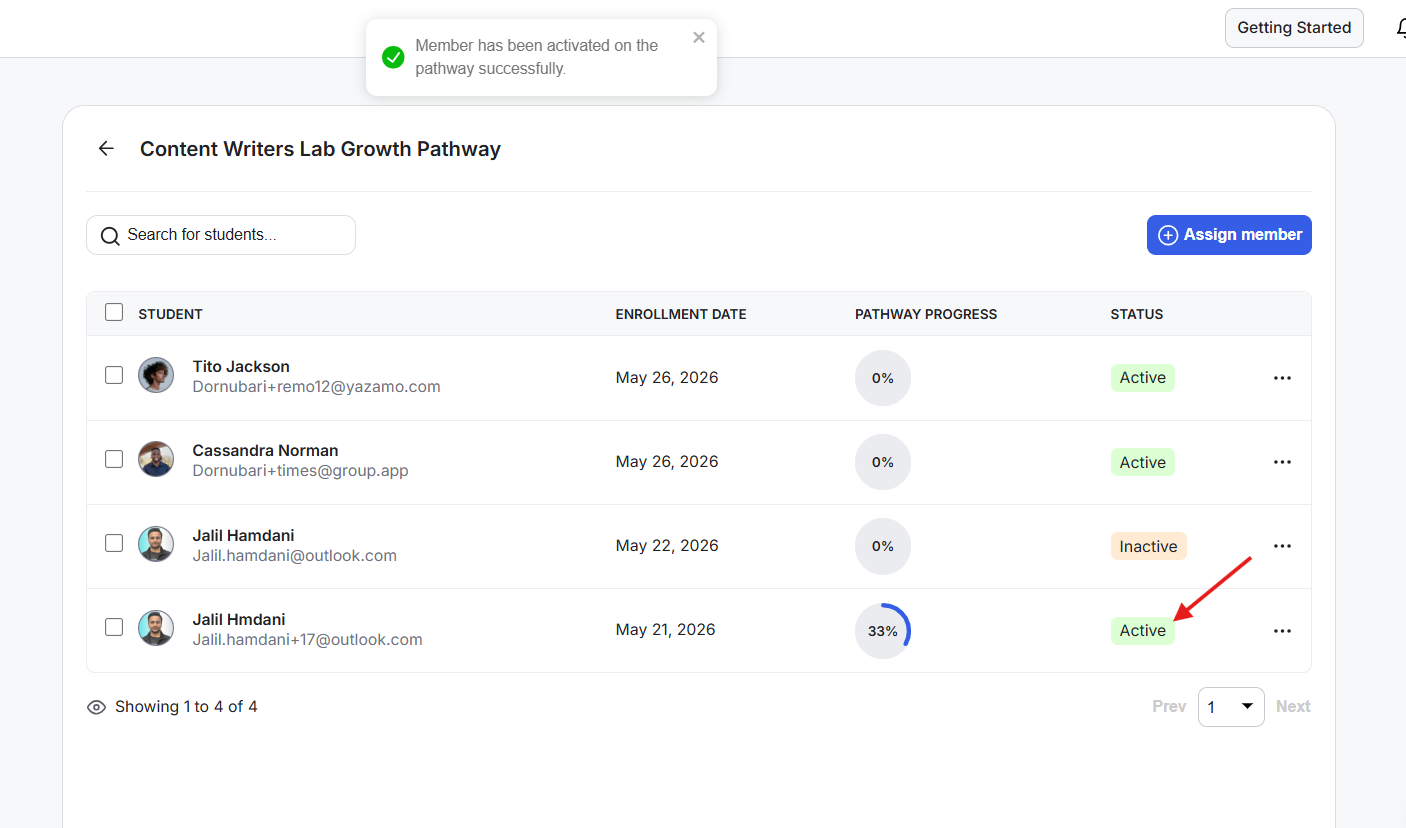
You have the option to deactivate a Learning Pathway for a student and activate it again later. This allows you to temporarily pause the student's Learning Pathway along with their current progress.
As soon as a Learning Pathway is deactivated, the Learning Pathways tab will no longer appear inside the Courses area for that student. If the pathway is activated again later, the student can continue from where they left off.
NOTE: Activating a Learning Pathway will automatically deactivate any other Learning Pathway currently assigned to that student.
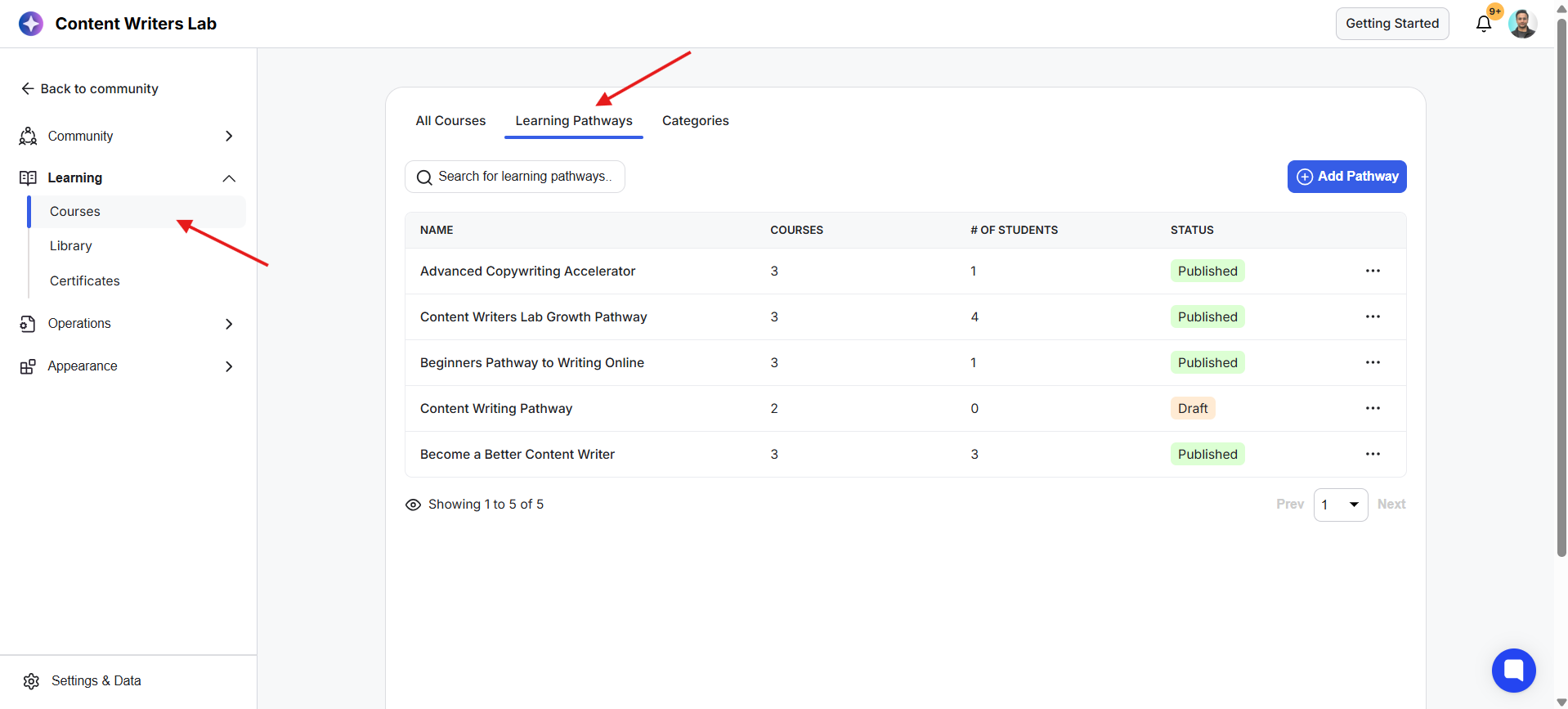
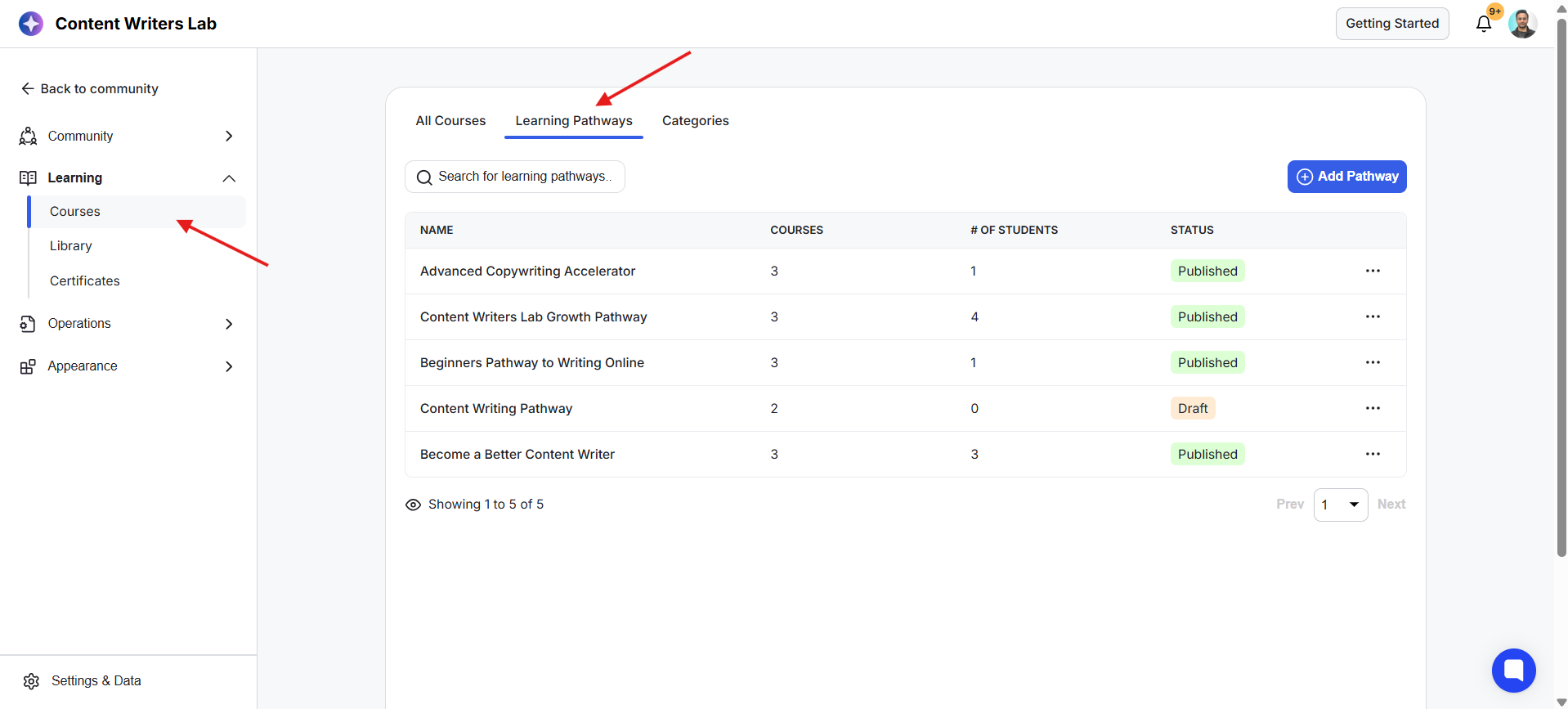
1) Go to your Admin Panel and navigate to Learning > Courses > Learning Pathways.
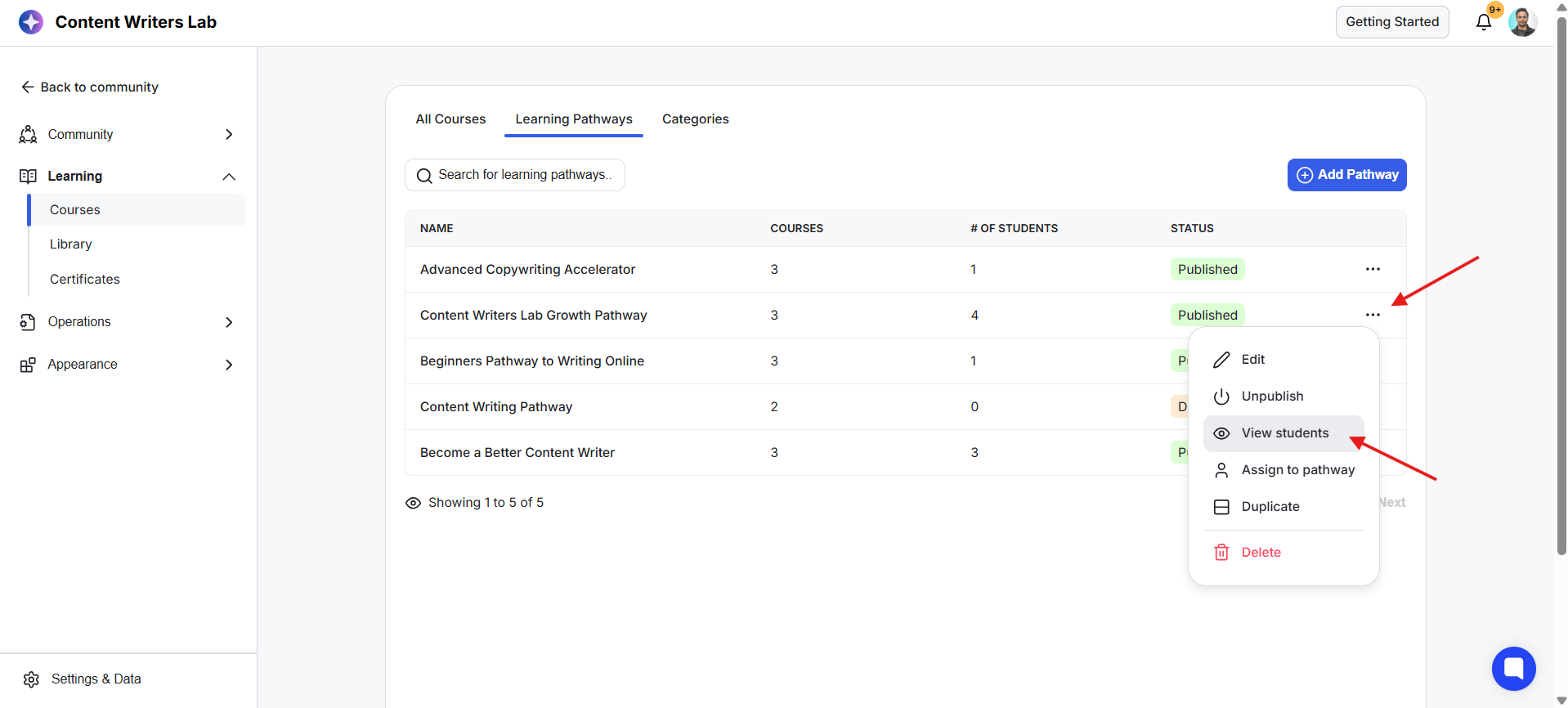
2) Click on the three-dot menu beside the Learning Pathway the student is assigned to. Click on the View Students option from the dropdown menu.
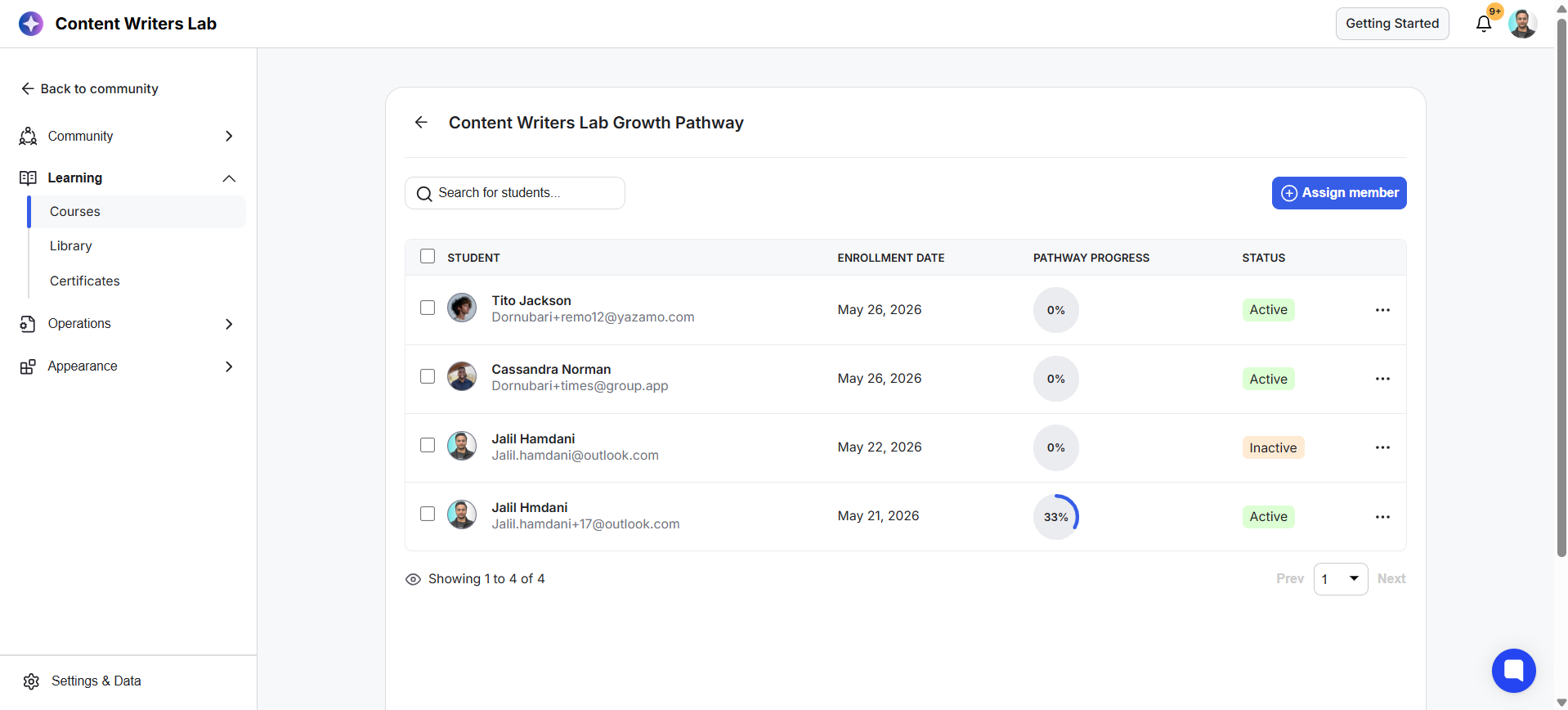
3) This opens the list of students currently assigned to the pathway. This tab shows their progress, enrollment date, and pathway status.
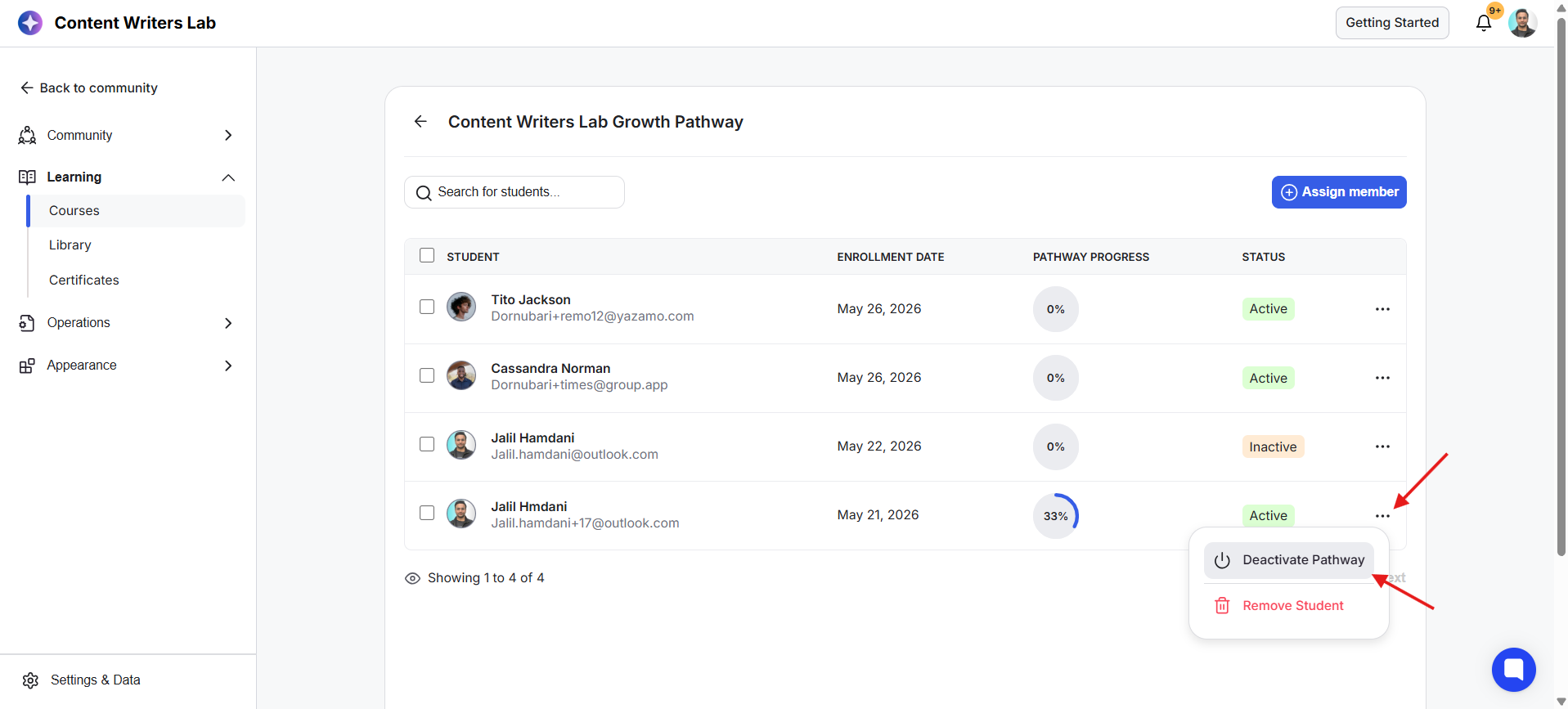
4) Click on the three-dot menu beside the student's name and select Deactivate.
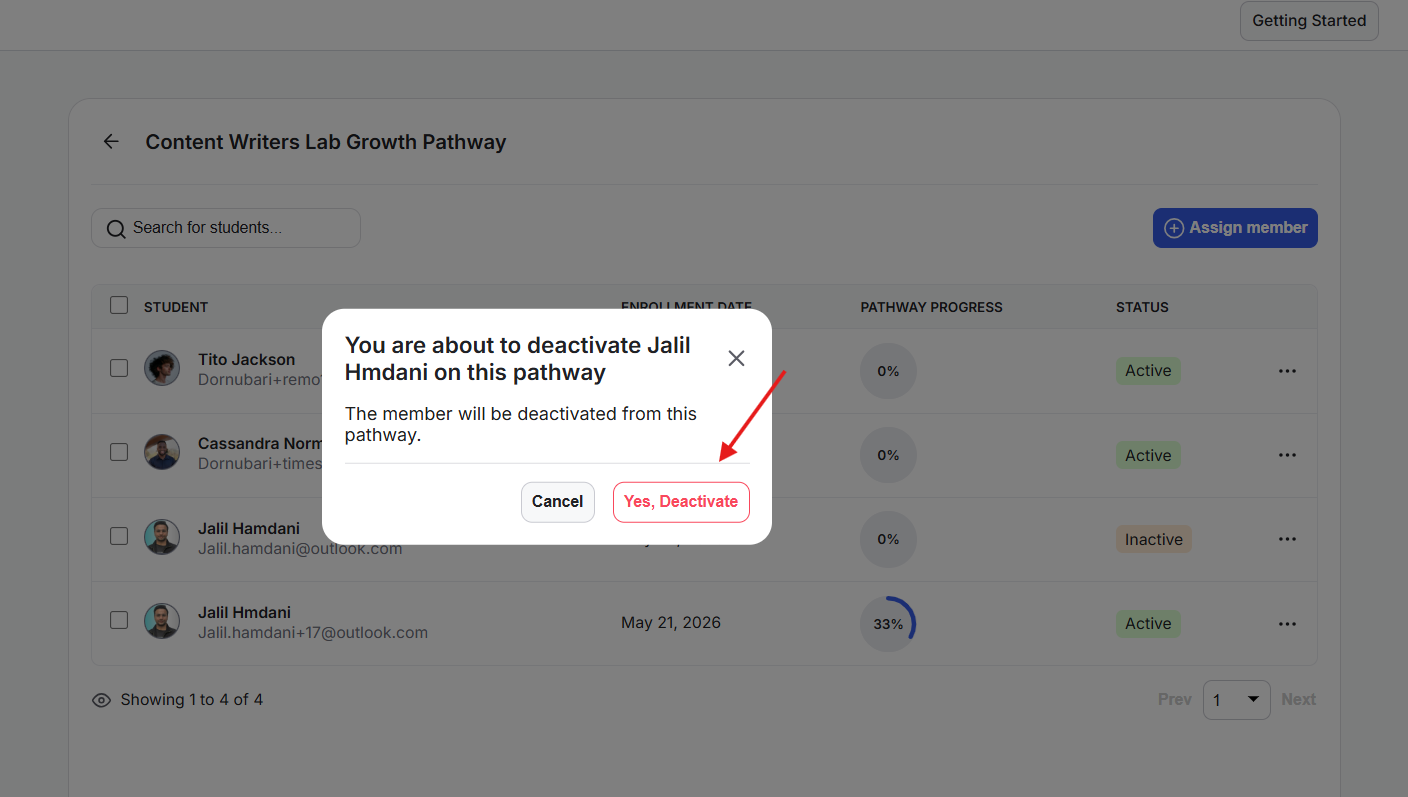
5) Click Yes, Deactivate on the confirmation pop-up.
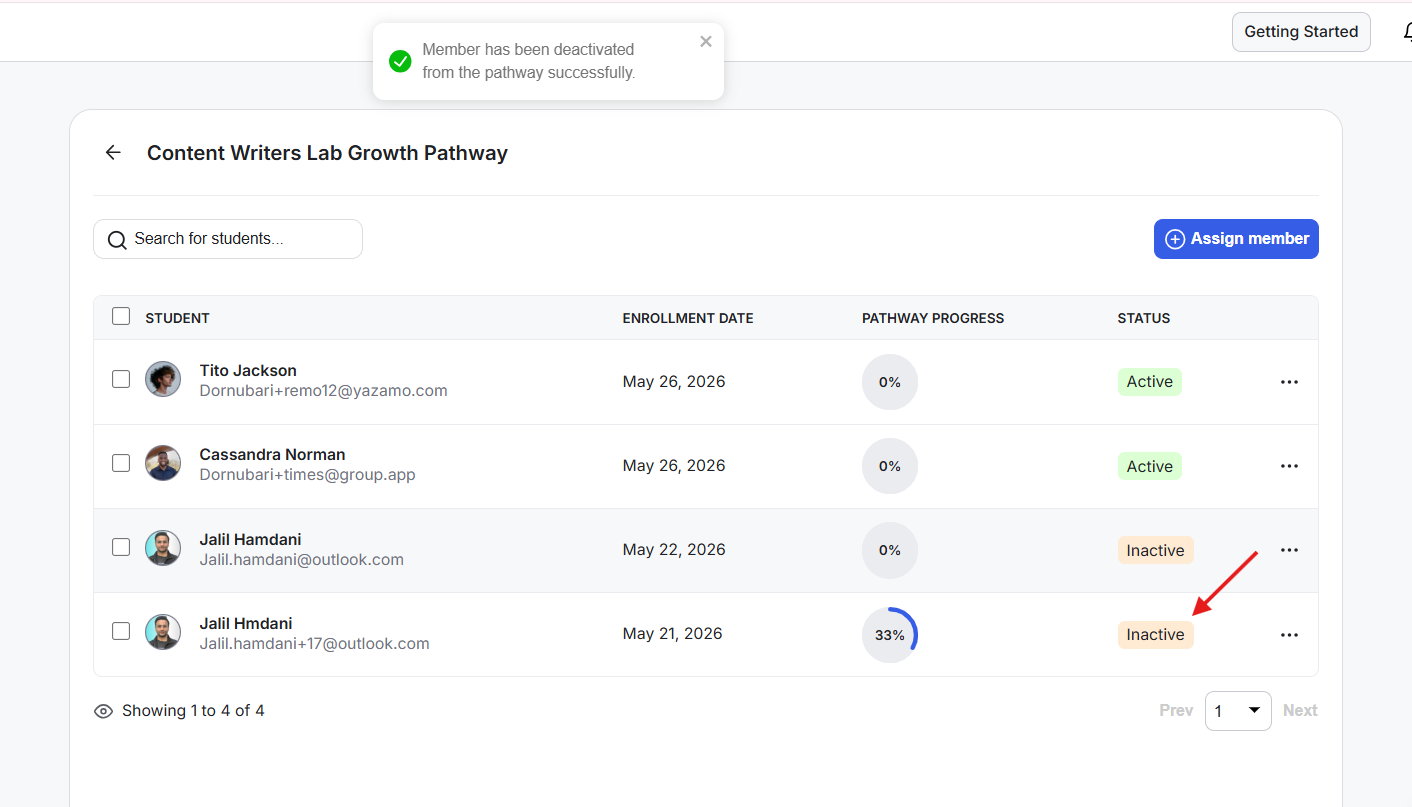
6) Once completed, the student's pathway status will change to Inactive in the student list and their progress is saved.
1) Go to your Admin Panel and navigate to Learning > Courses > Learning Pathways.
2) Click on the three-dot menu beside the Learning Pathway the student belongs to. Click on View Students.
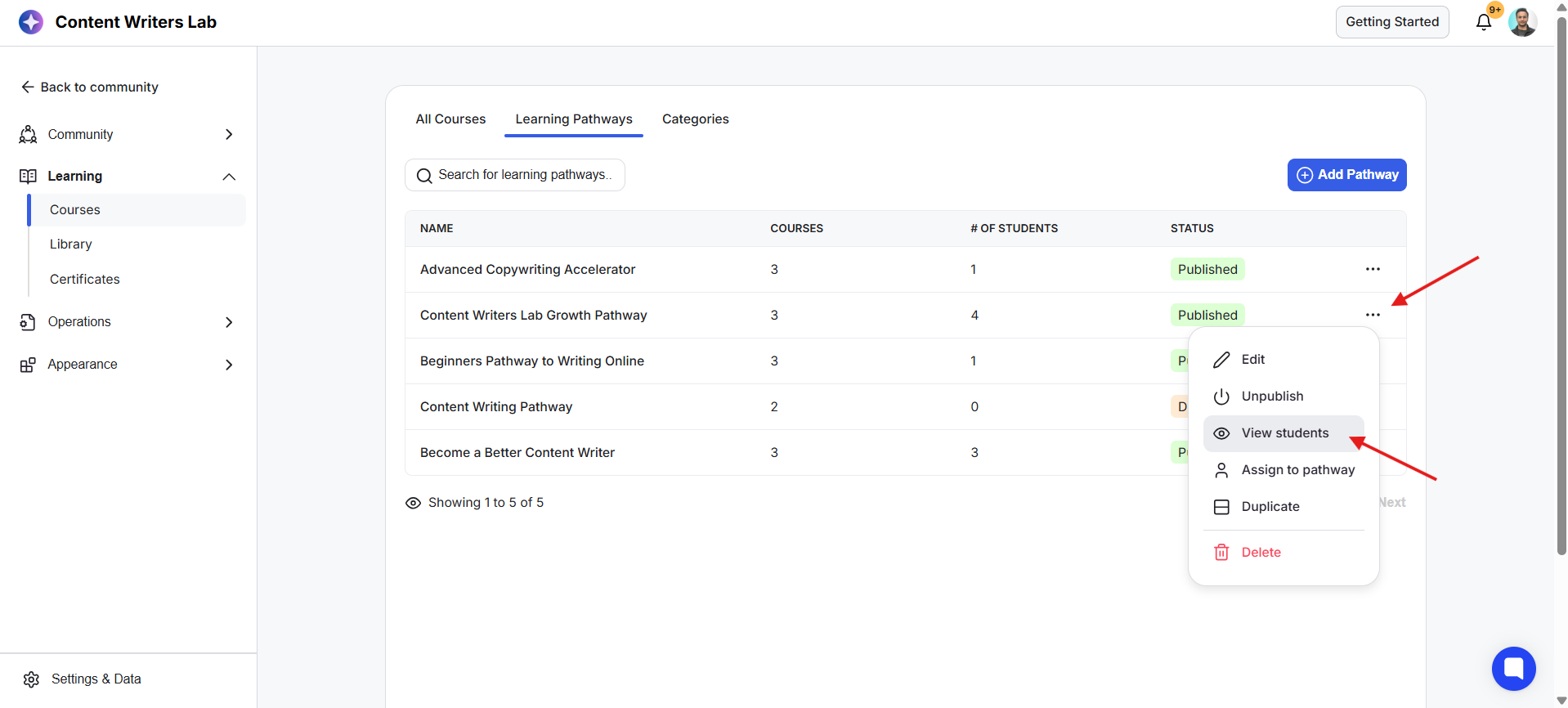
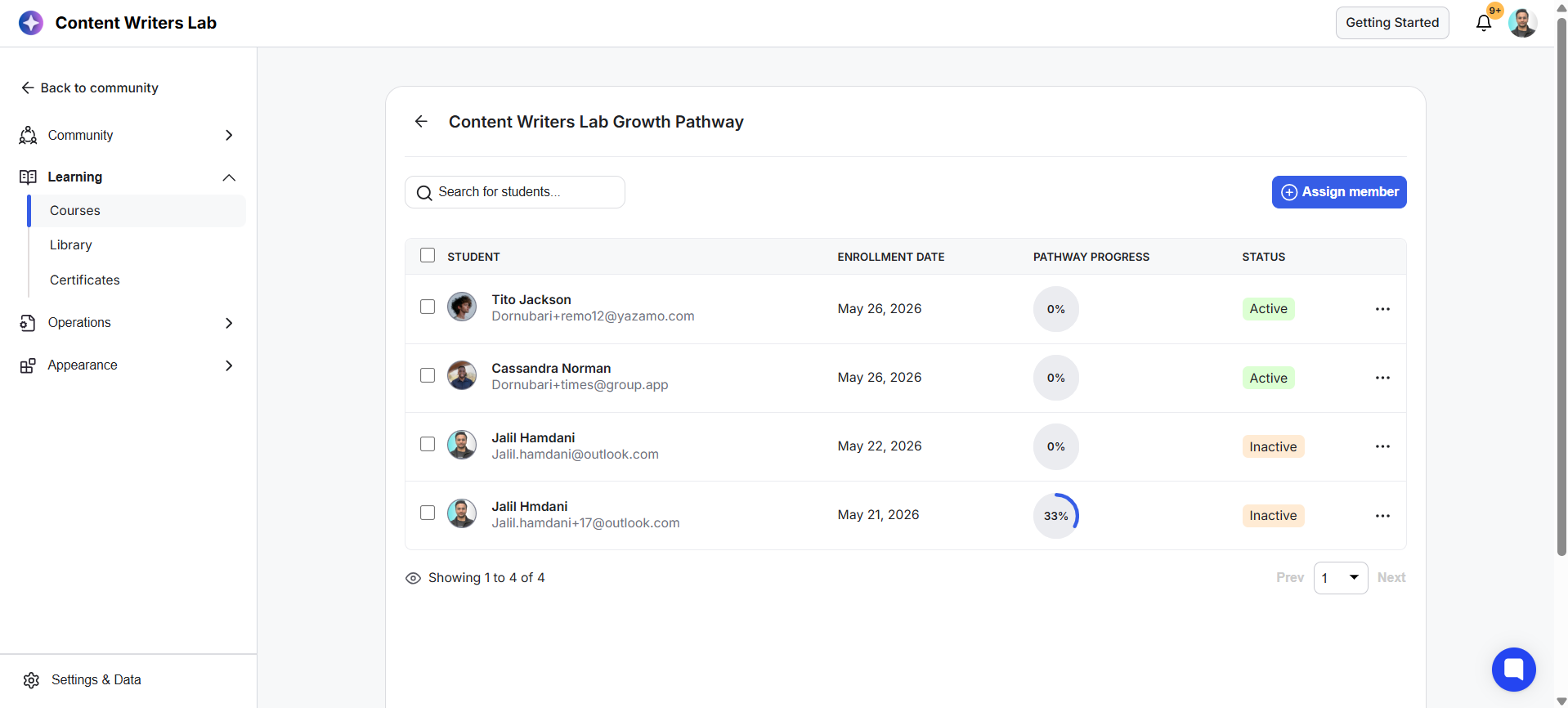
3) This opens the list of students currently assigned to the pathway.
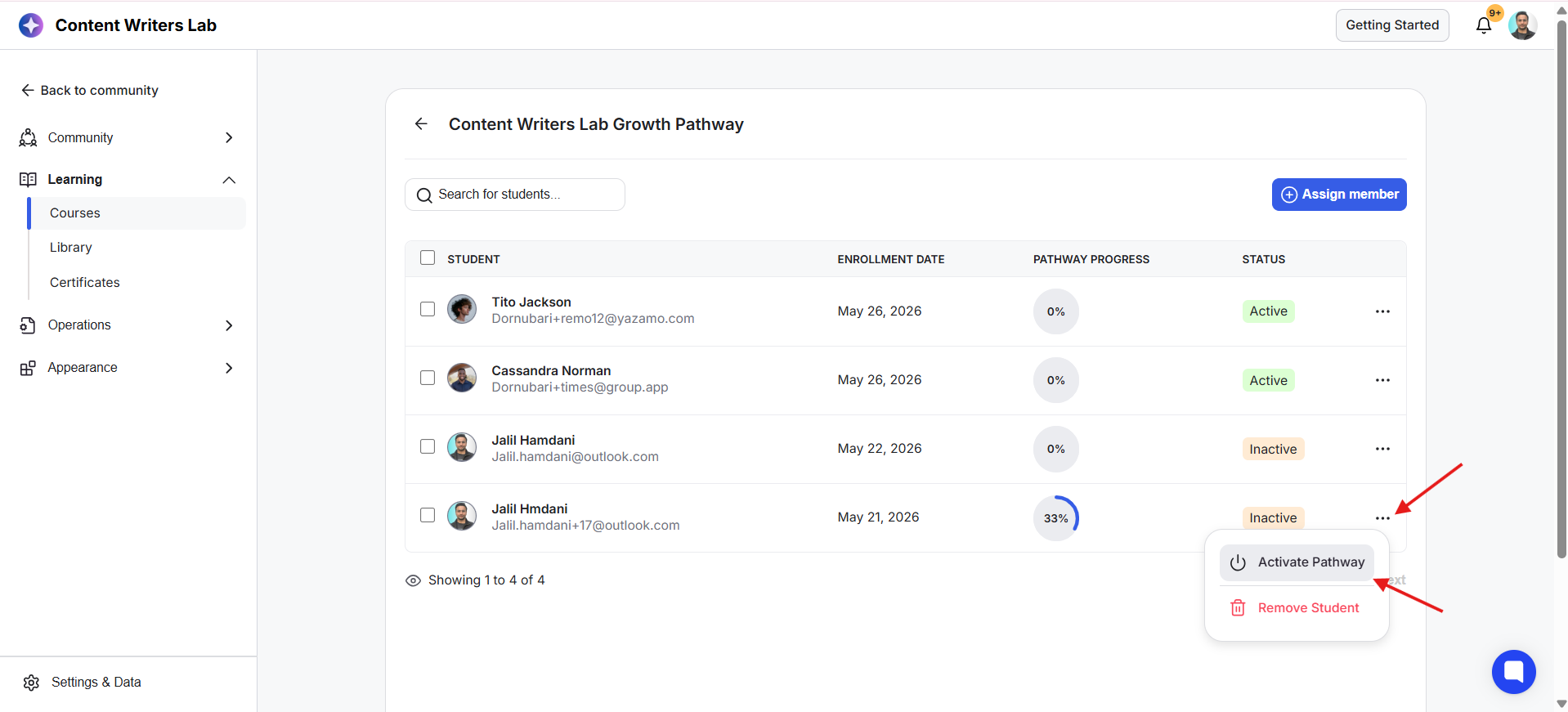
4) Click on the three-dot menu beside the student with an Inactive status and select Activate. Please note that activating a Learning Pathway will automatically deactivate any other Learning Pathway currently assigned to that student.
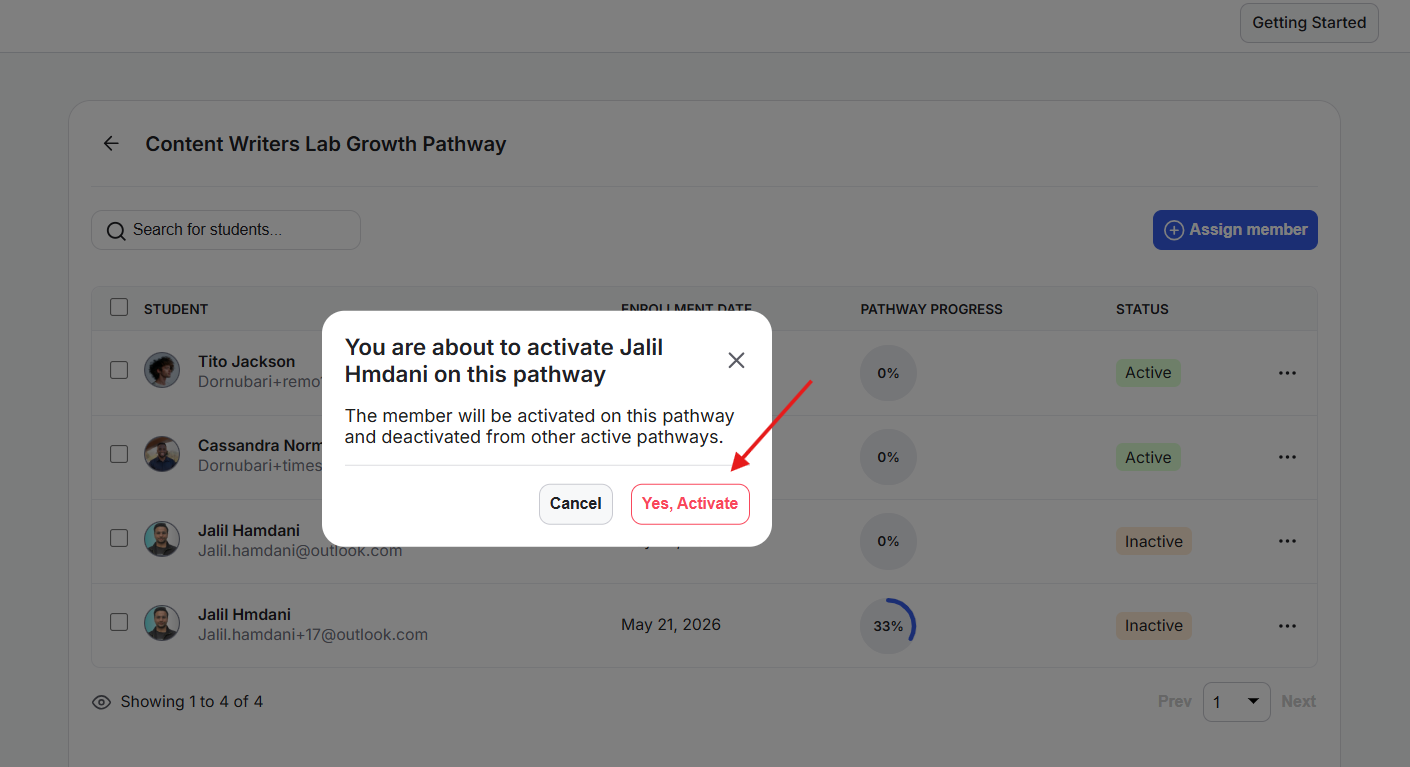
5) Click Yes, Activate on the confirmation pop-up.
6) Once activated, the student's status will change back to Active, and the Learning Pathways tab will become visible again inside their account. The student will be able to continue the pathway from where they previously left off.