Learning Pathways are a structured learning experience that creates a guided learning journey inside your community. Members move through a sequence of courses one step at a time, with each course unlocking only after the previous one is completed.
Instead of giving members access to everything at once, you guide them through a fixed sequence of courses where members follow the path exactly as you've designed it.
This helps you control the learning flow, reduce overwhelm, and improve completion rates. Members always know what to do next, and progress happens in a clear, intentional order.
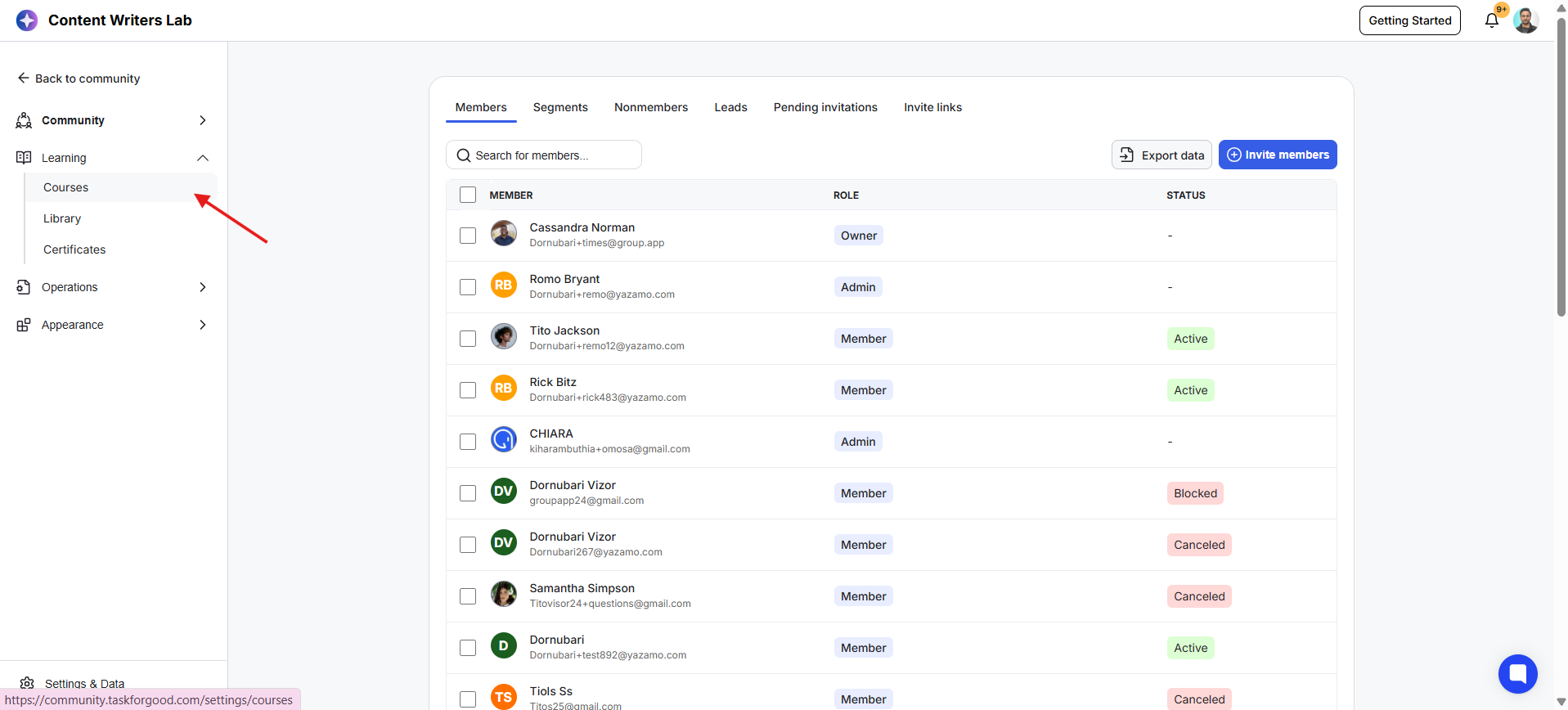
1) Go to your Admin Panel and click on the Learning tab from the left-side menu. Next, click on Courses.
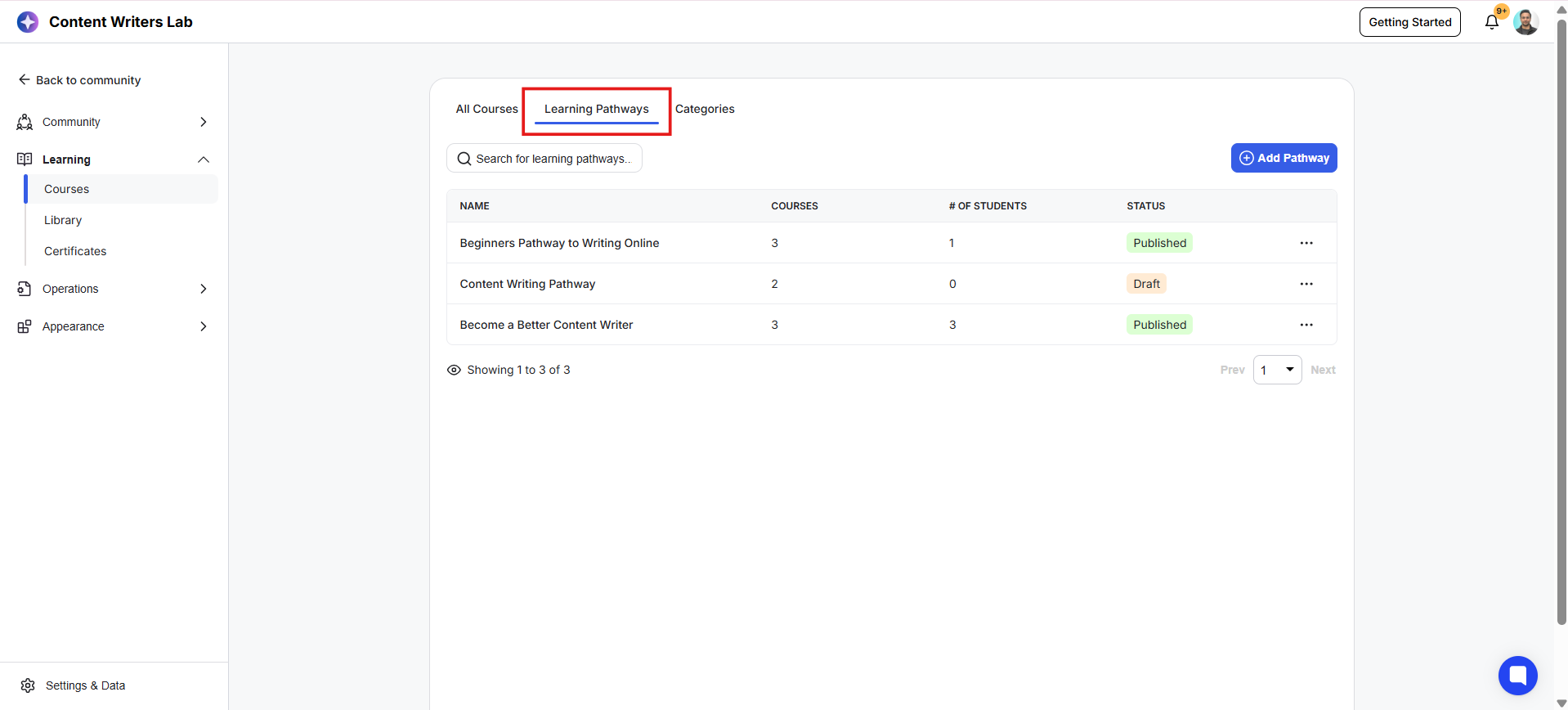
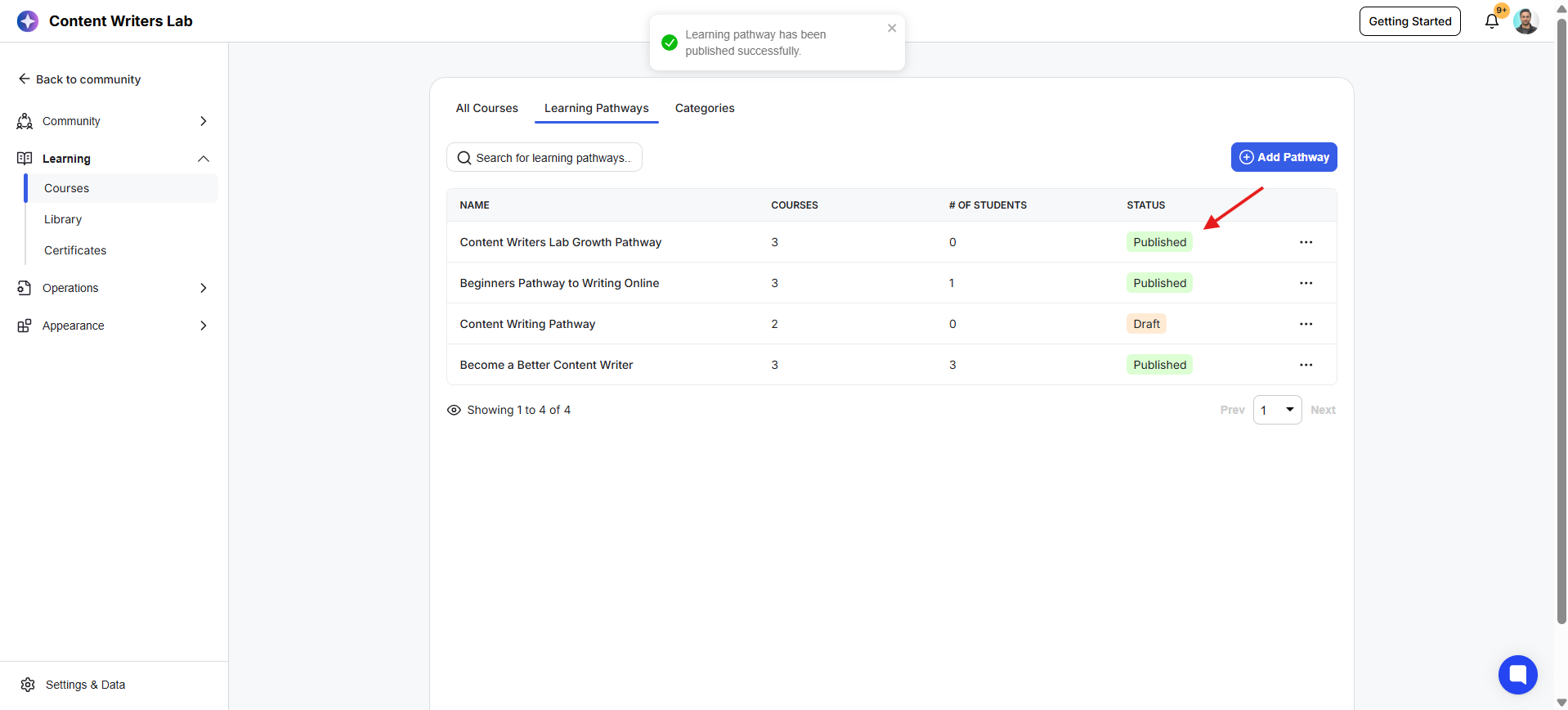
2) Click on the Learning Pathways tab to see Learning Pathways in your community, including both published and draft pathways.
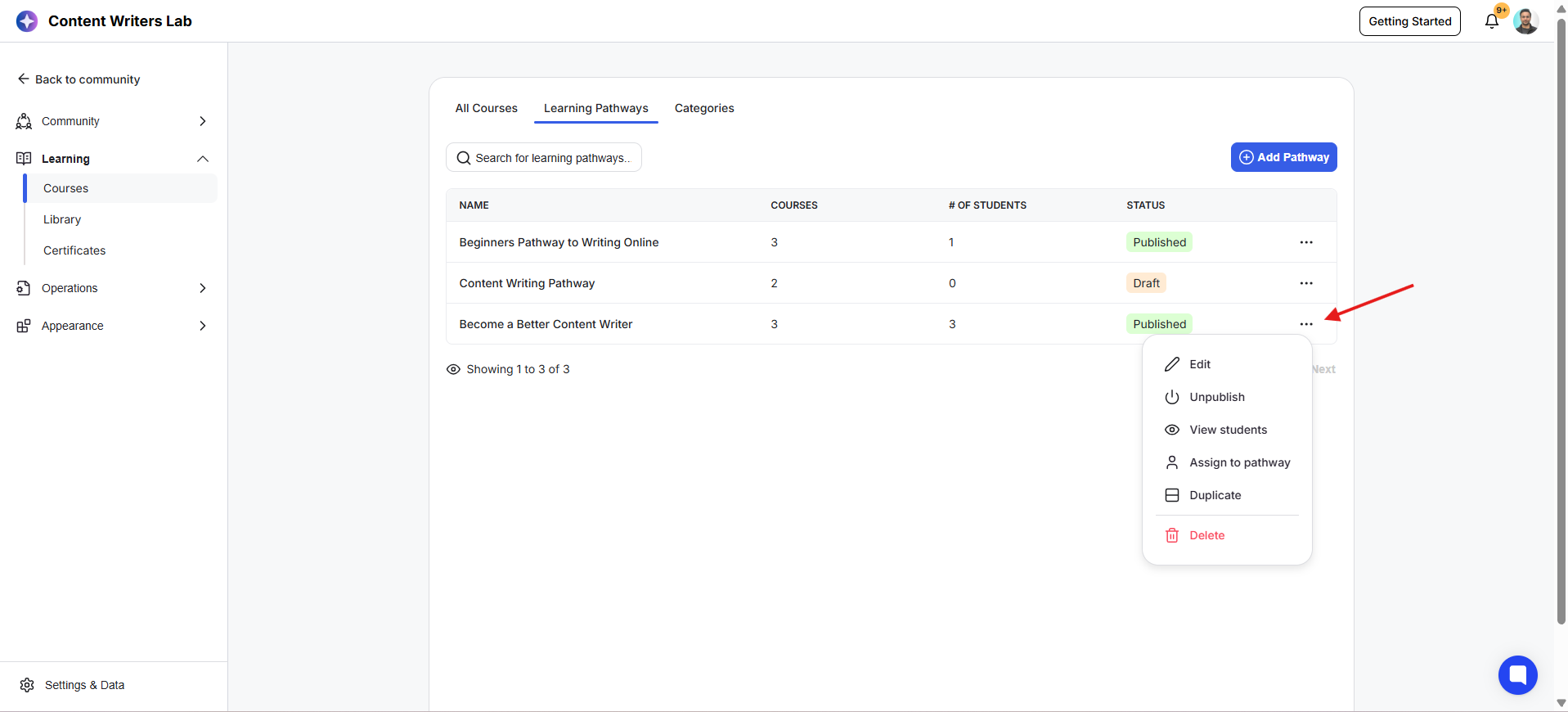
3) Click on the three-dot menu beside any Learning Pathway. From here, you can edit, publish, unpublish, duplicate, or delete a Learning Pathway.
1) Go to your Admin Panel and click on the Learning tab from the left-side menu. Next, click on Courses.
2) Click on the Learning Pathways tab to see Learning Pathways in your community, including both published and draft pathways.
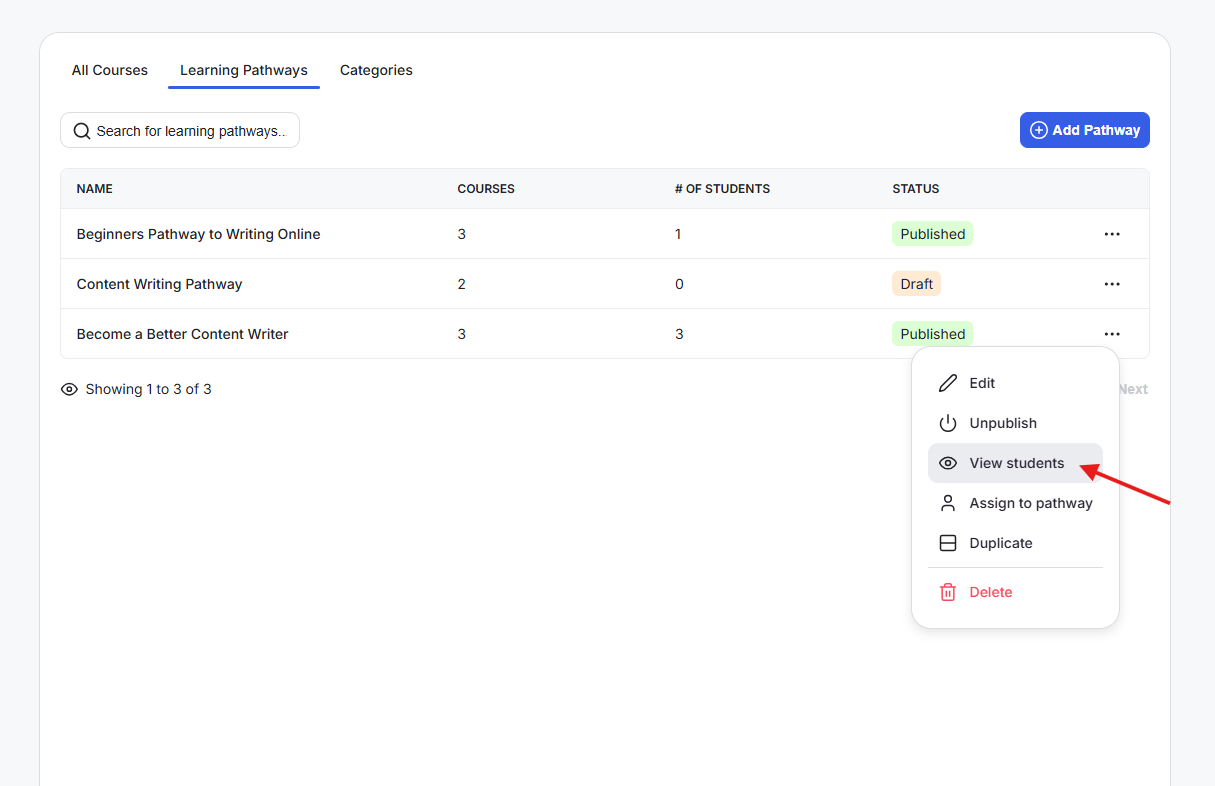
3) Click on the three-dot menu beside any Learning Pathway. You can click on View Students to see the learners currently assigned to a pathway.
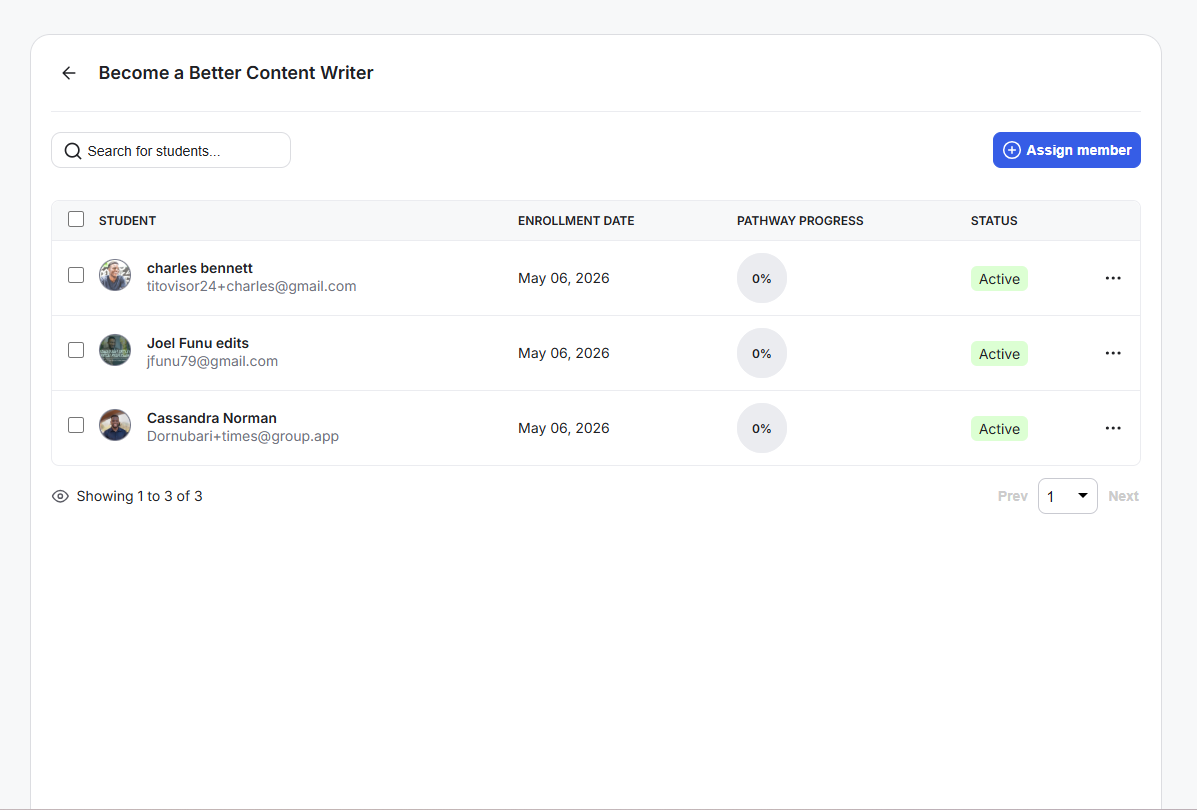
5) When clicked on View Students, this opens a new tab that displays all the student assigned with enrollement dates, learning pathway progress, and status.
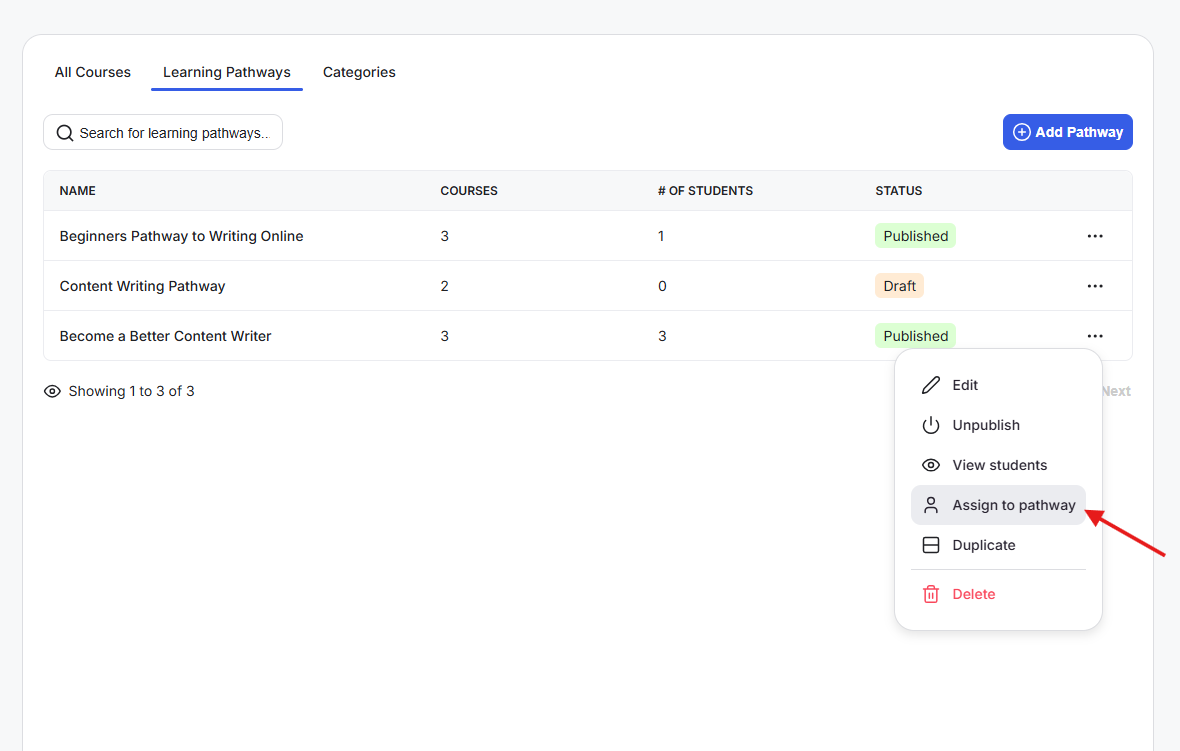
5) Click on the Assign to Pathway option on the menu to manually add members to a Learning Pathway.
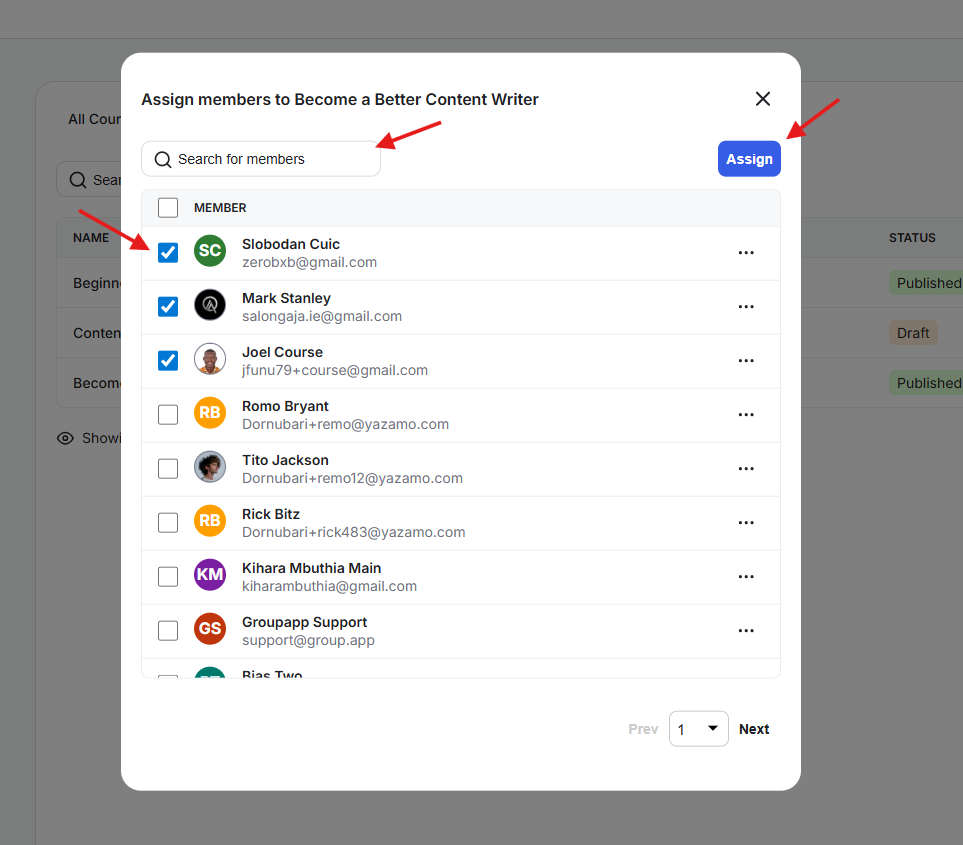
6) When clicked the Assign to Pathway option, this opens a pop up to select the students to enroll. You can mark the students to assign to the pathway and click on Assign. You can also search the members using the search field on the pop-up.
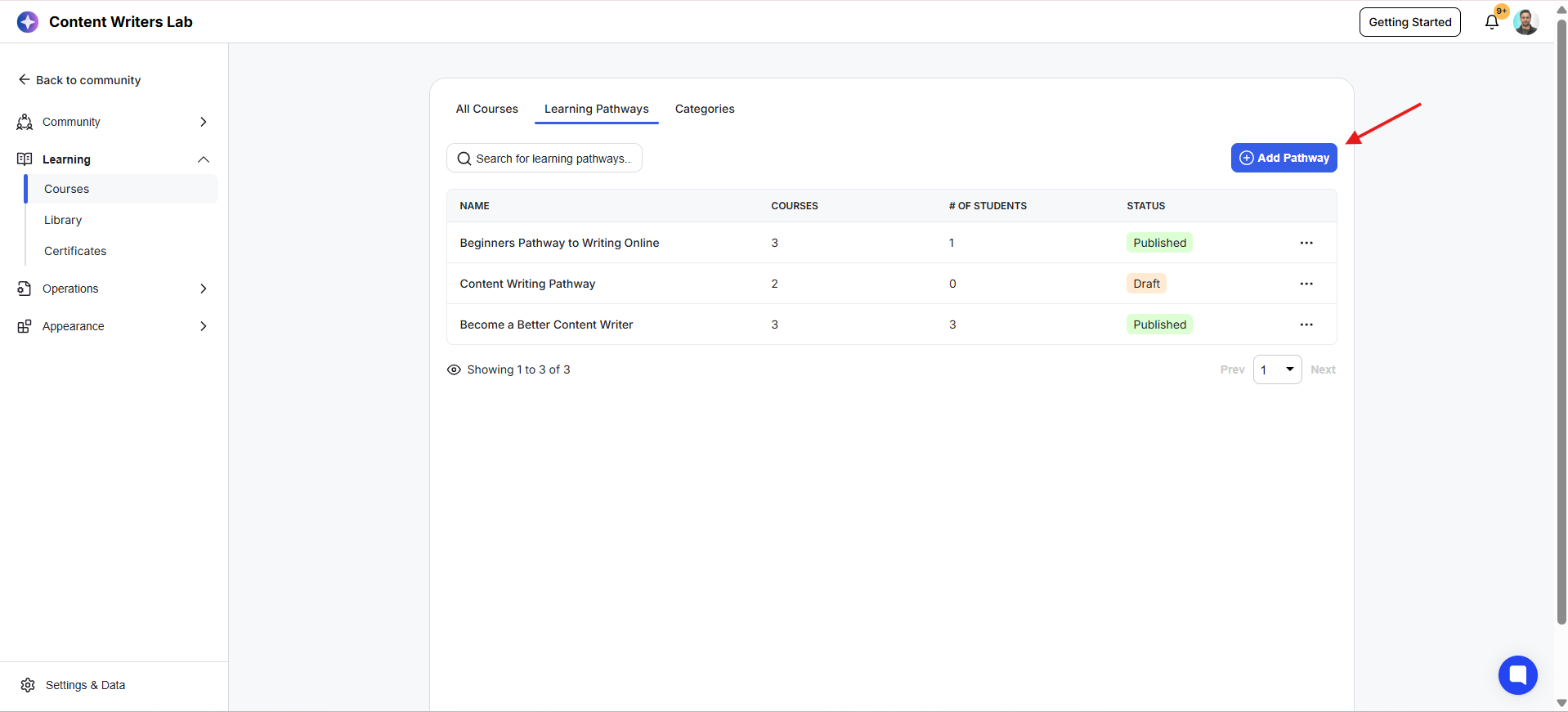
1) Go to your Admin Panel and click on the Learning tab from the left-side menu. Next, click on Courses.
2) Click on the Learning Pathways tab.
3) Click on the + Add Pathway button.
4) This opens the Learning Pathway Editor. Enter the name and description for your Learning Pathway. Next, upload a cover image for the pathway.
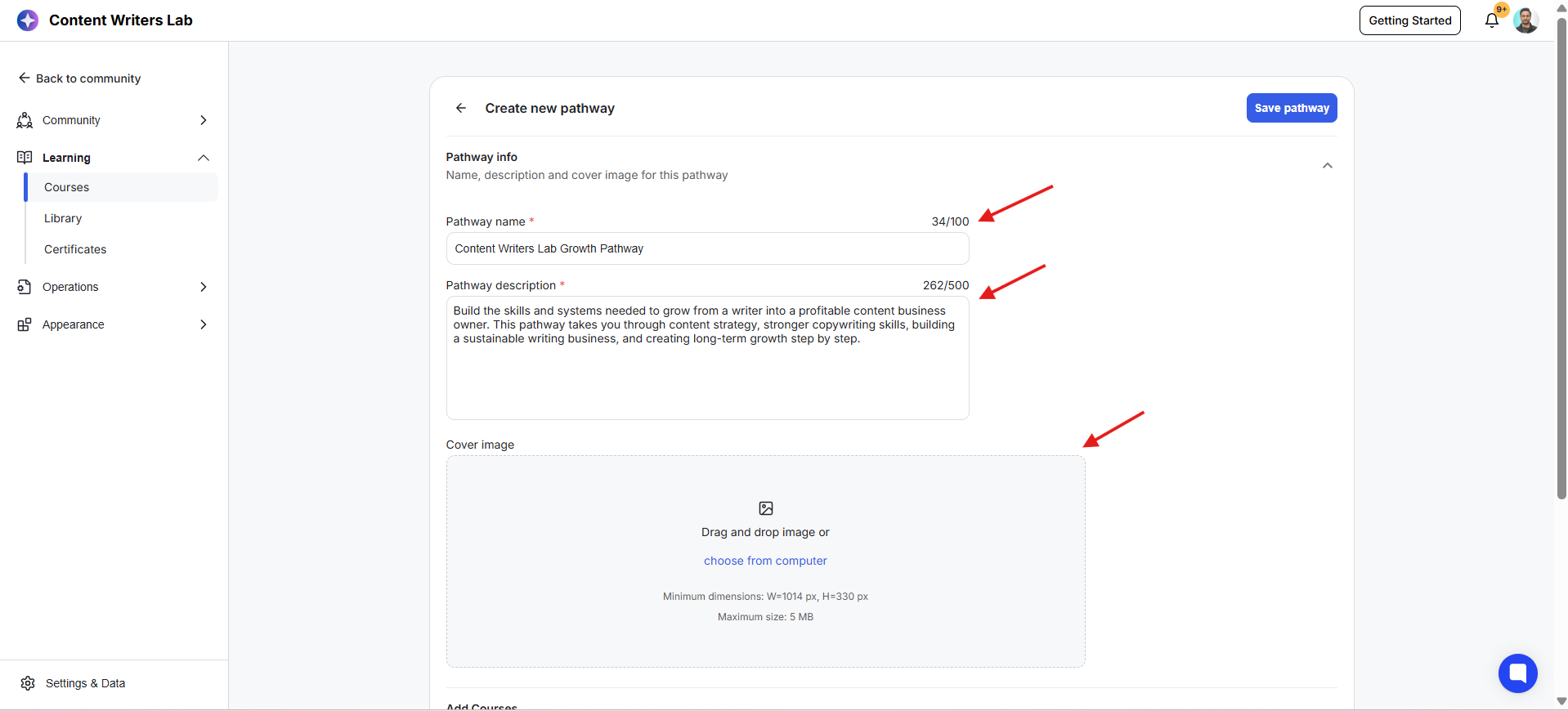
5) Scroll down to the courses section where you can build the pathway sequence. Click on the Add Courses button.
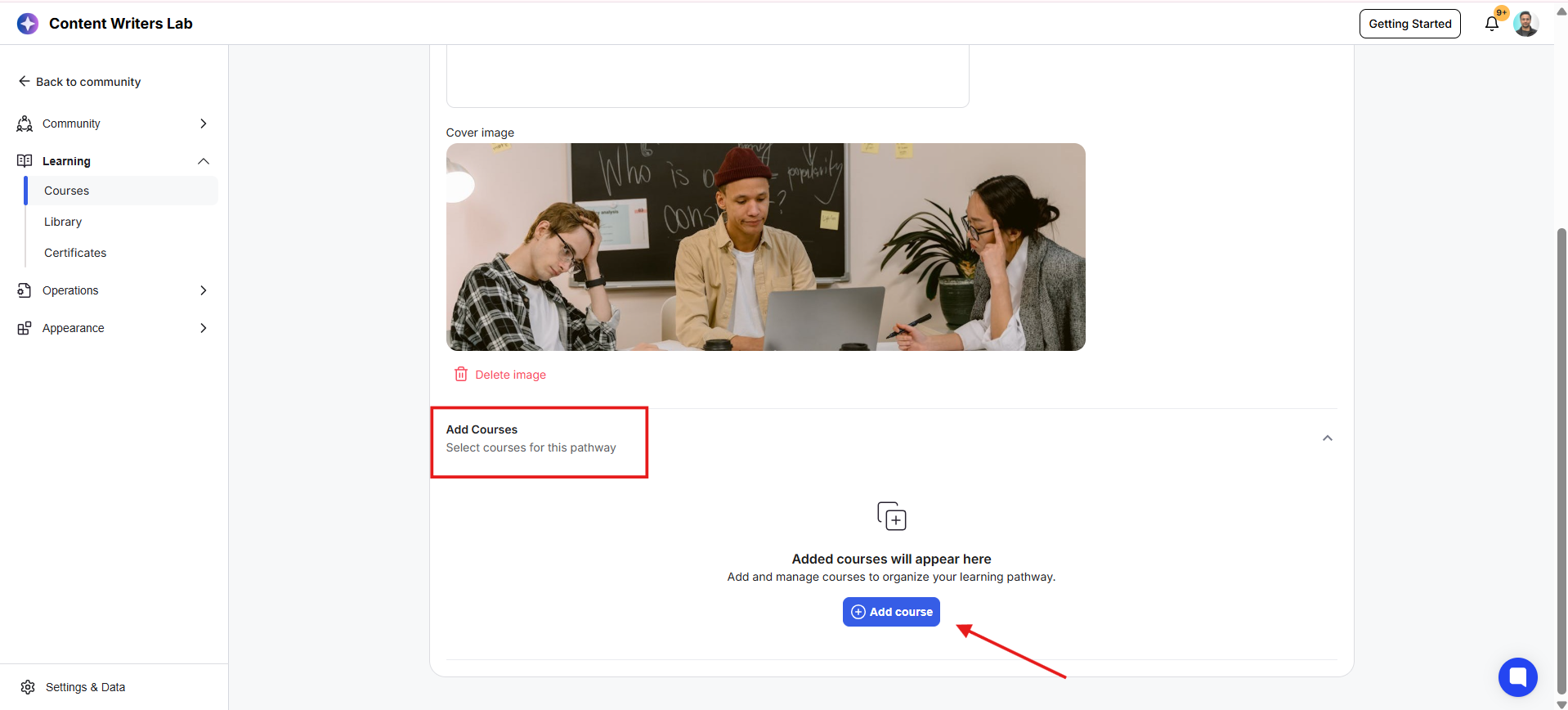
6) A pop-up will appear where you can search and select the courses you want to include in the pathway.
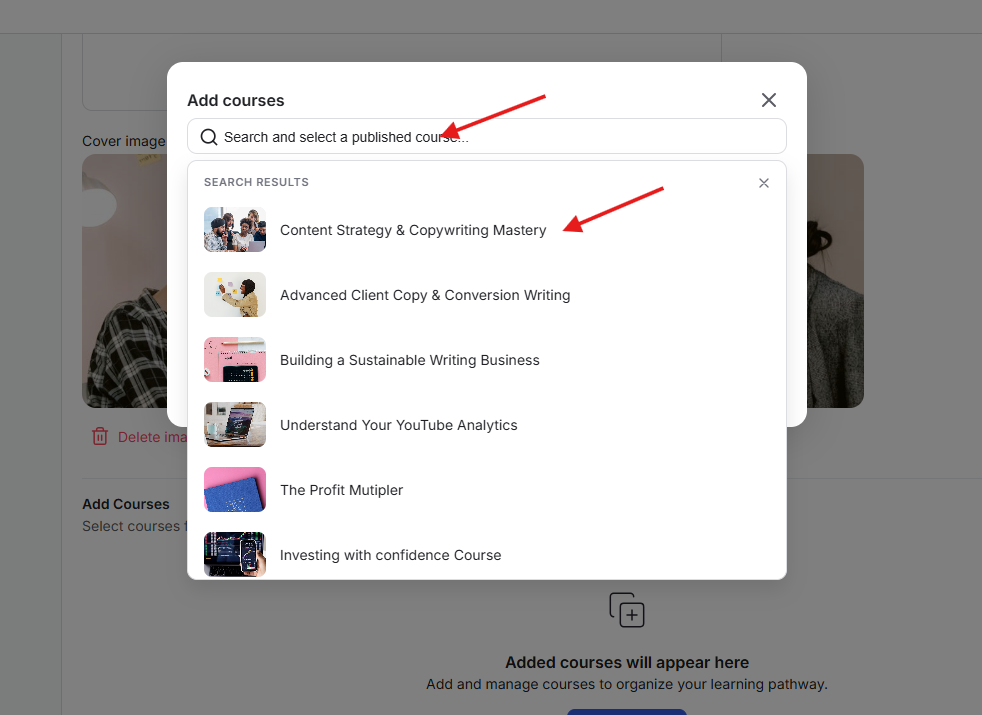
7) Once you've selected the courses, click Add Course. The courses will now be added to the pathway and follow the order you create.
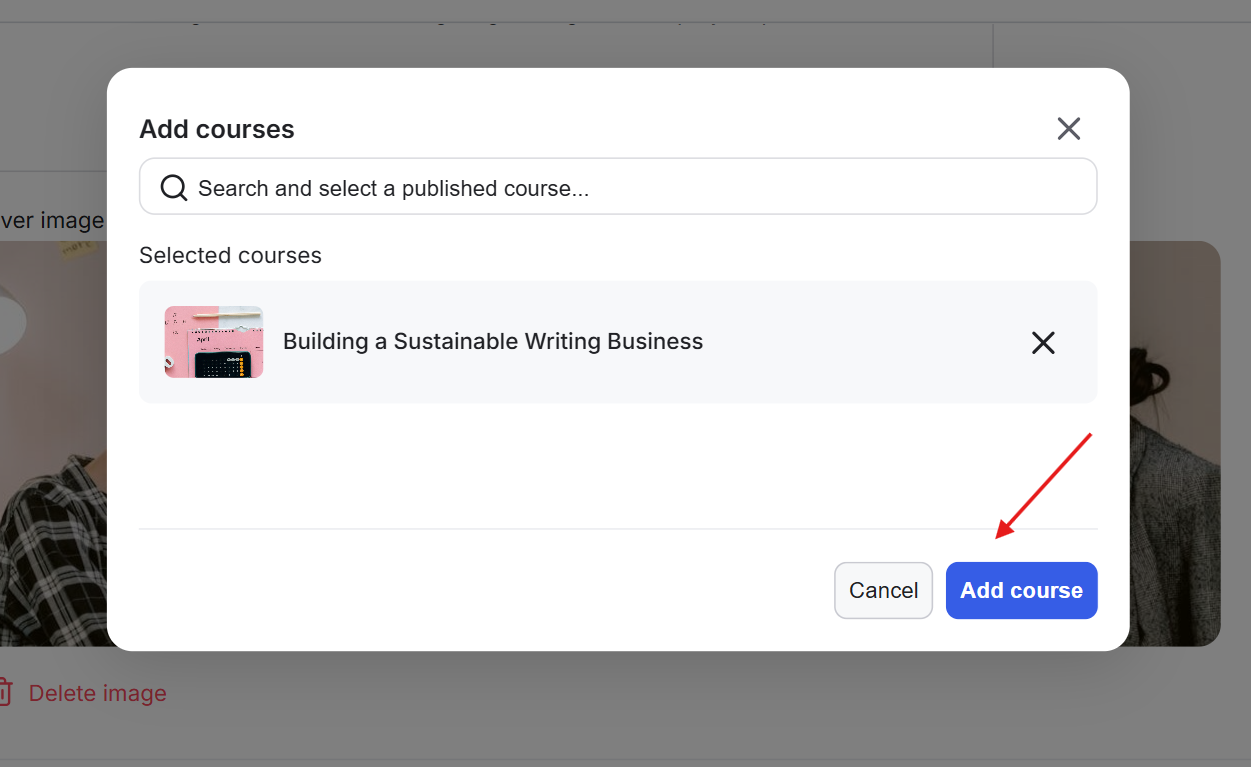
8) If you want to add more courses again, you can click on the +Add Course button in the same section.
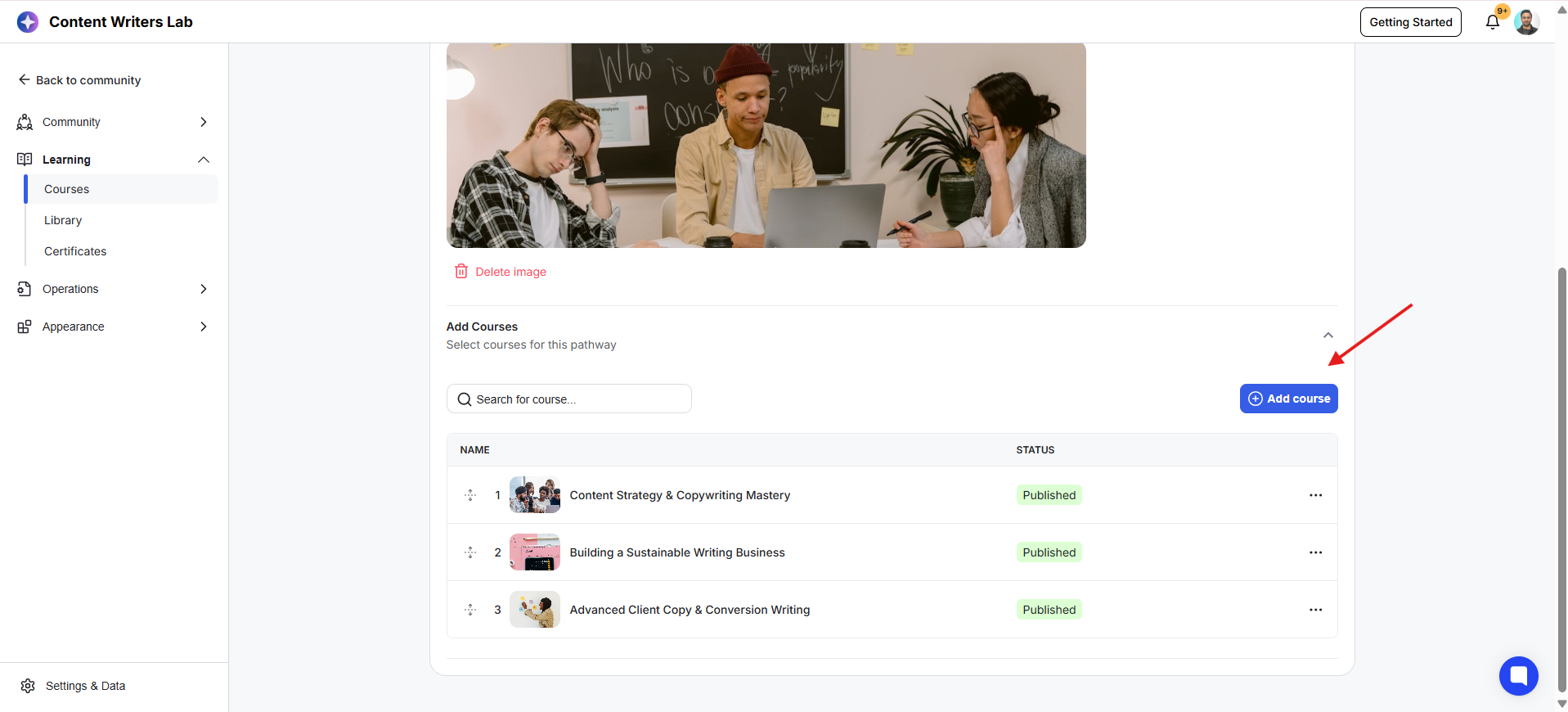
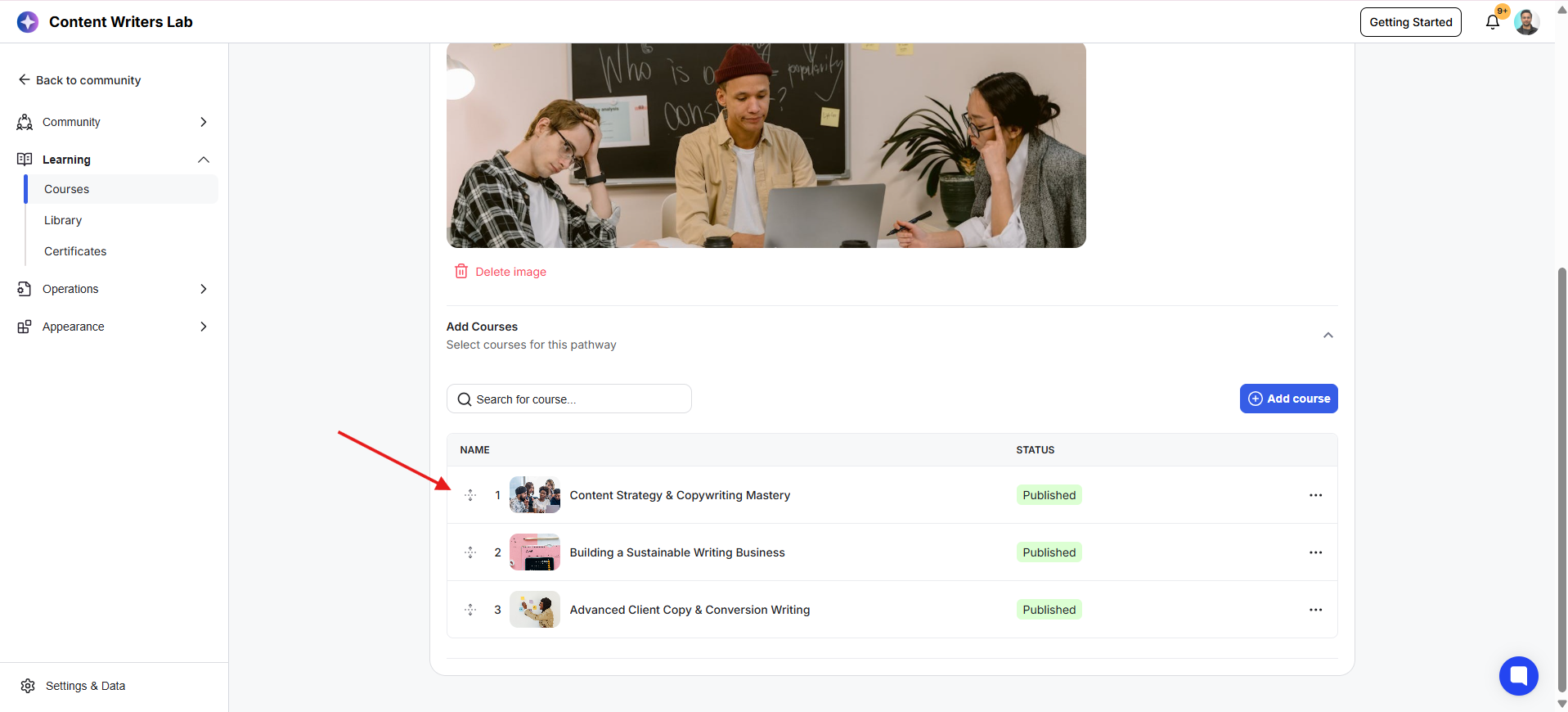
9) You can hold and drag the adjusters to change the order of the courses in the pathway.
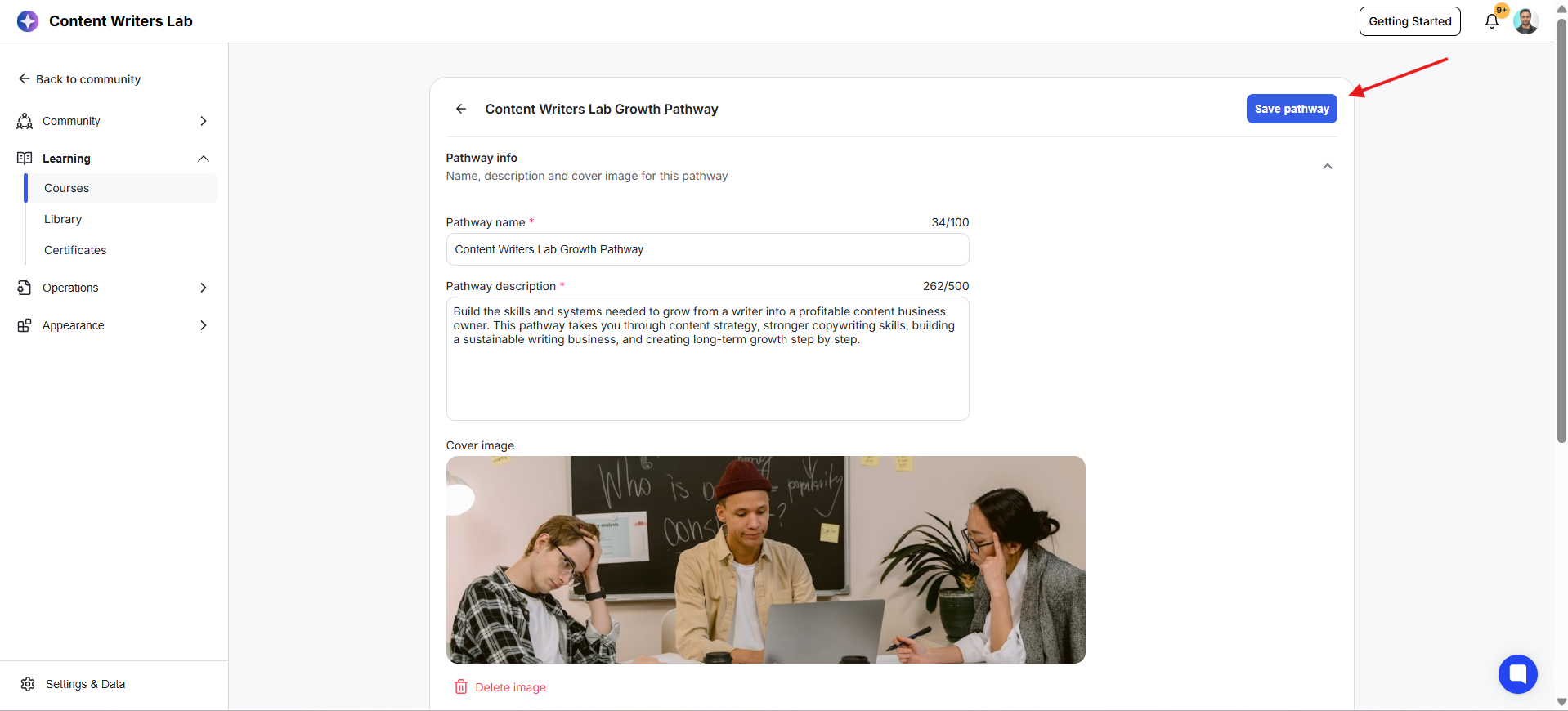
10) Once completed, click on Save Pathway. This saves the pathway as a draft and takes you back to the Learning Pathways Tab where you can publish the pathway and start assigning it to students.
11) Click on the three-dot menu on your newly created pathway and then click on Publish.
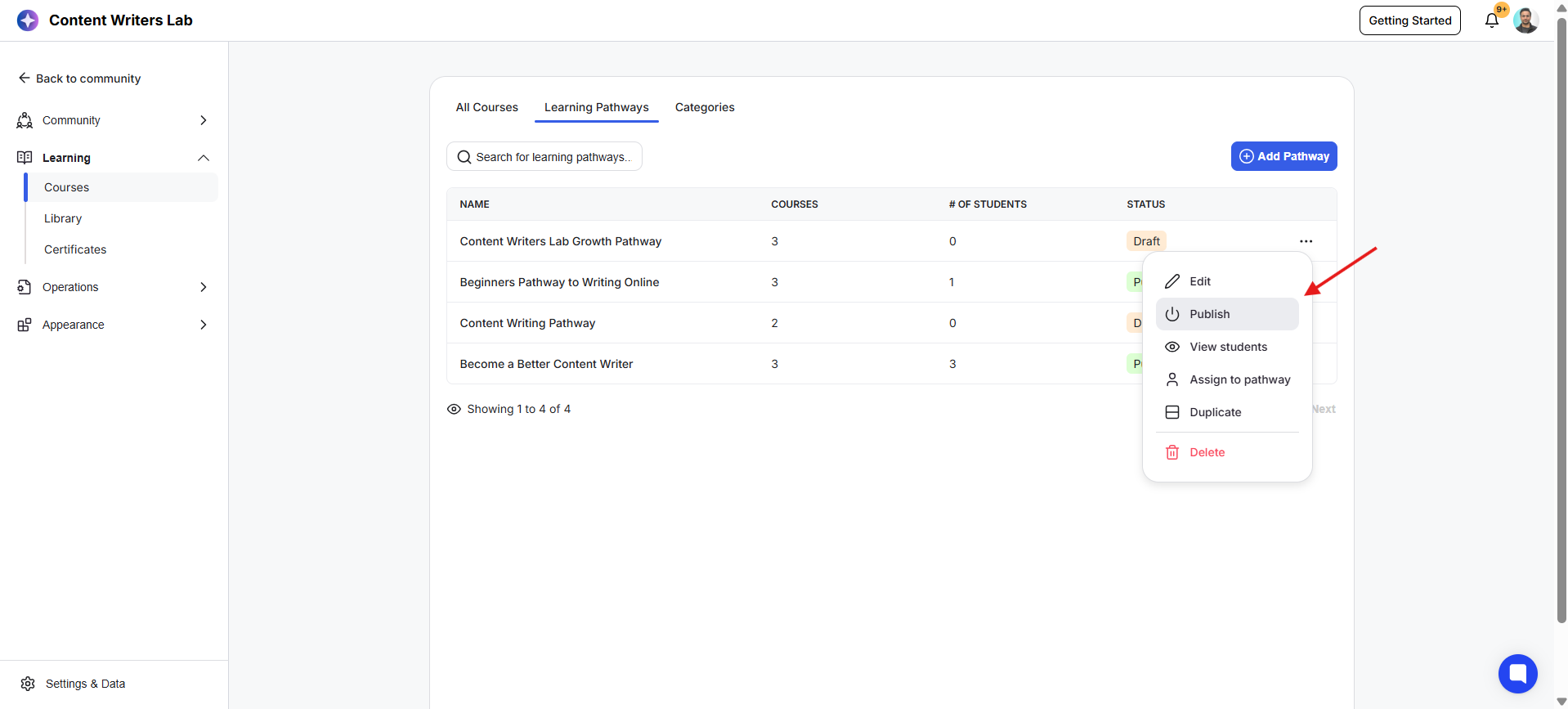
12) Once done, the status of the pathway changes to Published.
1) As soon as a member is added to a Learning Pathway, a dedicated Learning Pathways tab automatically appears inside the Courses area for that member.
2) This tab displays a structured learning flow with courses shown in the order they need to be completed.You can start the first and the second courses is locked until you the first cocurse.
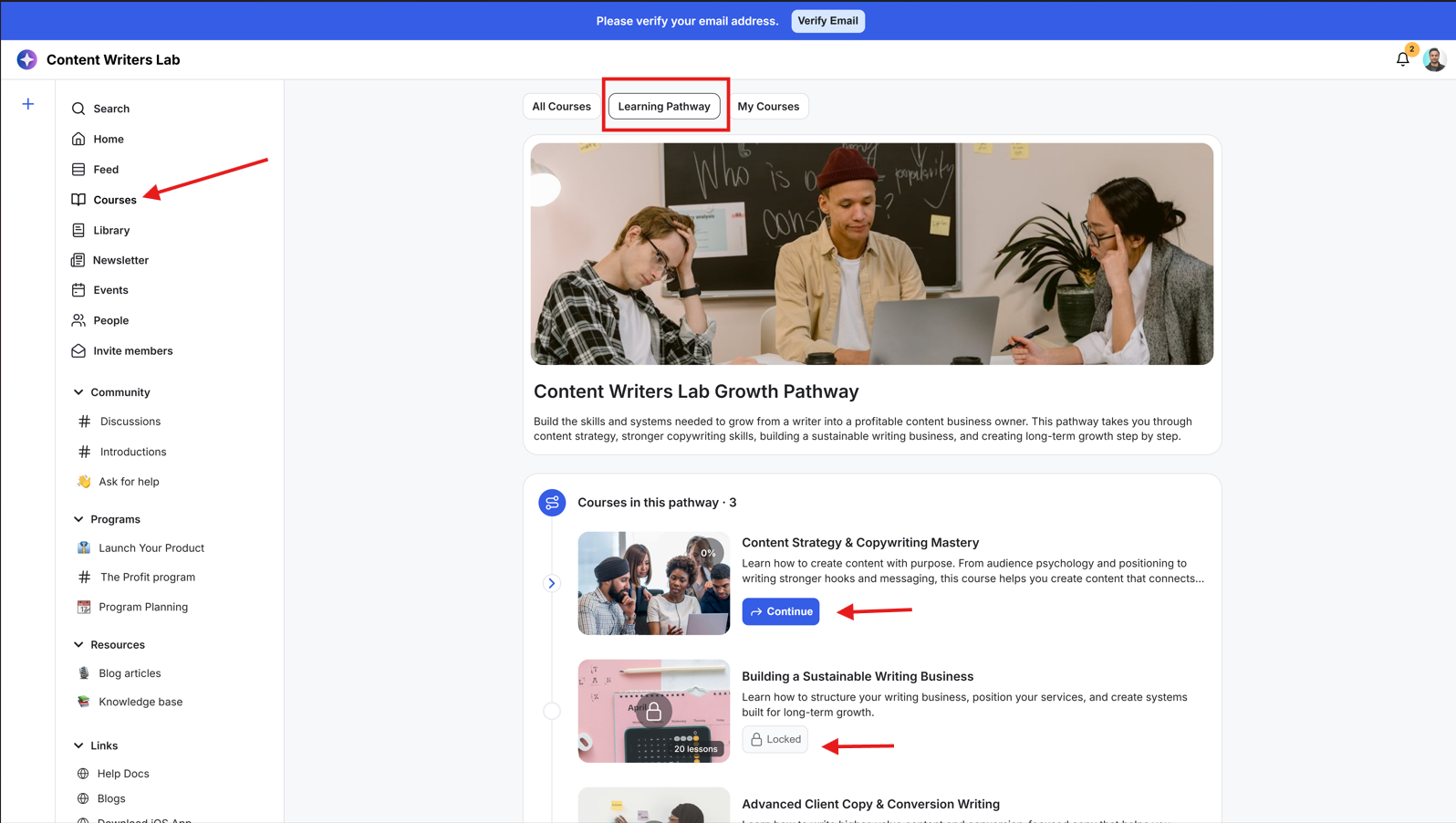
3) As members complete each course, the next course automatically unlocks based on the pathway sequence you created. This gives members a clear view of progress and helps guide them through the learning experience step by step.
A member can have only ONE active Learning Pathway at a time.
This feature is available on all plans.
Only one course is available at a time in a learning pathway. When a member completes it, the next course unlocks automatically, and they are enrolled in it. This continues until the final course is completed, which marks the entire pathway as complete.
Progression in Learning Pathways is controlled by completion. Members cannot skip ahead, access future courses early, or choose their own path. The order you set is strictly followed.
Each member can only have one active Learning Pathway at a time. They also cannot switch between pathways on their own.
If a learner is assigned to a new Learning Pathway while they are already enrolled in another one, they will automatically switch to the new pathway. Their progress in the previous pathway is still saved, but it will no longer appear in their Learning Pathways tab. If they are assigned back to that pathway later, they can continue from where they left off.
If a learner is assigned to a Learning Pathway that includes courses they are already enrolled in, any existing course progress will be retained. However, courses will still follow the pathway sequence and only become accessible when they are unlocked in the correct order.