Combined Access Levels & Pricing lets you use Access Levels together with active One-Time Purchase Options on the same product.
This setup works when you choose an Access Level for a course, event, or library resource and also have one or more One-Time Purchase Options available at the same time.
You can give members automatic access through plans, segments, or memberships while also allowing others to purchase that same product separately through one-time pricing options.
For example, a course can automatically be included for members on your Pro plan while non-members can still purchase that same course through a one-time fee.
This keeps everything under one product, saves setup time, and removes the need to manage duplicate content.
Access Levels determine who automatically receives access to a product. One-Time Pricing Options create another way for users to get access if they are not already included through your access rules.
Access Levels always remain the primary access path. One-Time Purchase Options act as a secondary path.
This means you can:
Automatically grant access to members
Offer one-time purchases to others
Keep everything managed under a single product
Note: This setup works with courses, library resources, and events.
Before setting this up, there are a few things worth understanding:
Access Levels always control automatic access and One-Time Pricing creates an additional purchase path.
Benefits and descriptions from plans and purchase options appear inside the access selection popup.
Users can still purchase through direct checkout links to one-time pricing shared by admins.
Product Visibility controls who can discover the product.
Visibility settings affect browsing behavior, but direct checkout links can still work depending on your setup.
The access behavior changes depending on which Access Level and Visibility Option are selected.
Members assigned to selected plans receive access automatically. Members on different plans do not receive automatic access and will instead see available options when clicking access, enroll, or RSVP.
Those options may include:
One-time purchase options
Other available plans that grant access to the product
Note: Non-members can also purchase through a direct checkout link.
Visibility Options
Public: Everyone can discover the product including non-members. Members on included plans access immediately while other members see available purchase options.
Community: The product appears only inside the community with access options. Non-members can still purchase through a shared checkout link.
Hidden: Only users with automatic access see the product naturally. Non-members need direct links.
Members assigned to the selected segment receive access automatically, even if they are free members. Members outside that segment cannot access the product directly inside the community but still purchase it as a separate product through a one-time pricing option. Non-members can still purchase through one-time pricing options available or direct checkout links.
Visibility Options:
Public: Everyone can see the product. Segment members receive immediate access while others see purchase options.
Community: The product appears only inside the community. Members outside the selected segment cannot discover. Non-members require one-time pricing checkout links.
Hidden: Only users included in the segment can see the product automatically. Non-members. need direct links.
Note: Members who are not part of the selected segment may not see the product at all depending on your visibility settings.
All members on paid subscription plans receive access automatically. Free members can access the product either through a paid subscription or a one-time pricing option. Non-members can access the product through a direct checkout link to one-time pricing or either by becoming a paid member.
Visibility Options:
Public: Product is visible to both members (paid or free) and non-members.
Community: Paid members discover and access the product inside the community while non-members can still purchase through direct links if shared.
Hidden: Direct links become the primary purchase path for non-members. Only paid members who have purchased/enrolled/RSVPed can see the product inside the community.
No users receive automatic access. Both members and non-members go through the purchase flow and select from available options.
Visibility Options
Public: Everyone can discover available one-time purchase options.
Community: Members can discover products inside the community to purchase. Non-members need direct links, either shared directly or through landing pages.
Hidden: Direct links become the only purchase path.
The setup only requires choosing your Access Level and creating an active One-Time Purchase Option.
For this example, we’ll use a course.
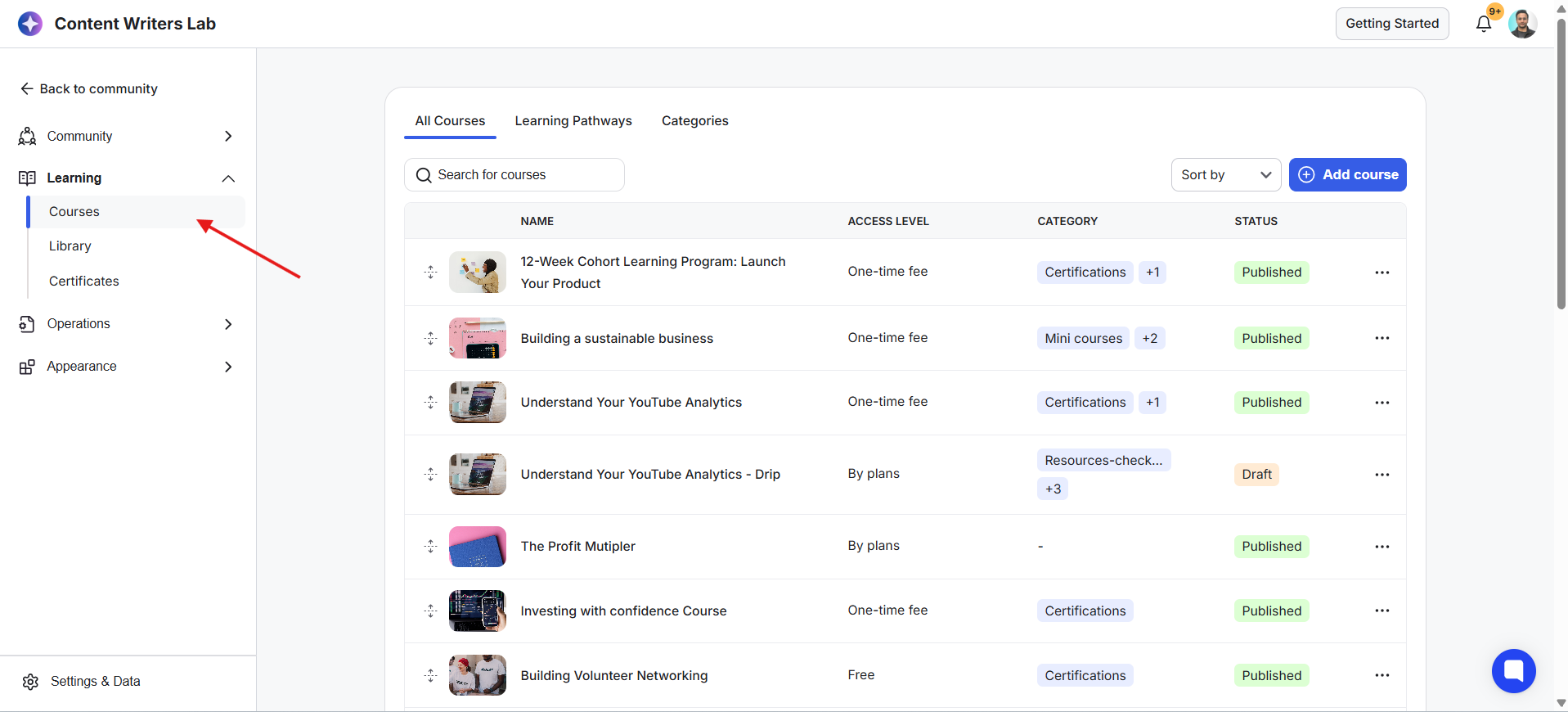
1) Go to the Admin Panel and click Learning from the left-side menu. Then click Courses. This opens the Courses Dashboard.
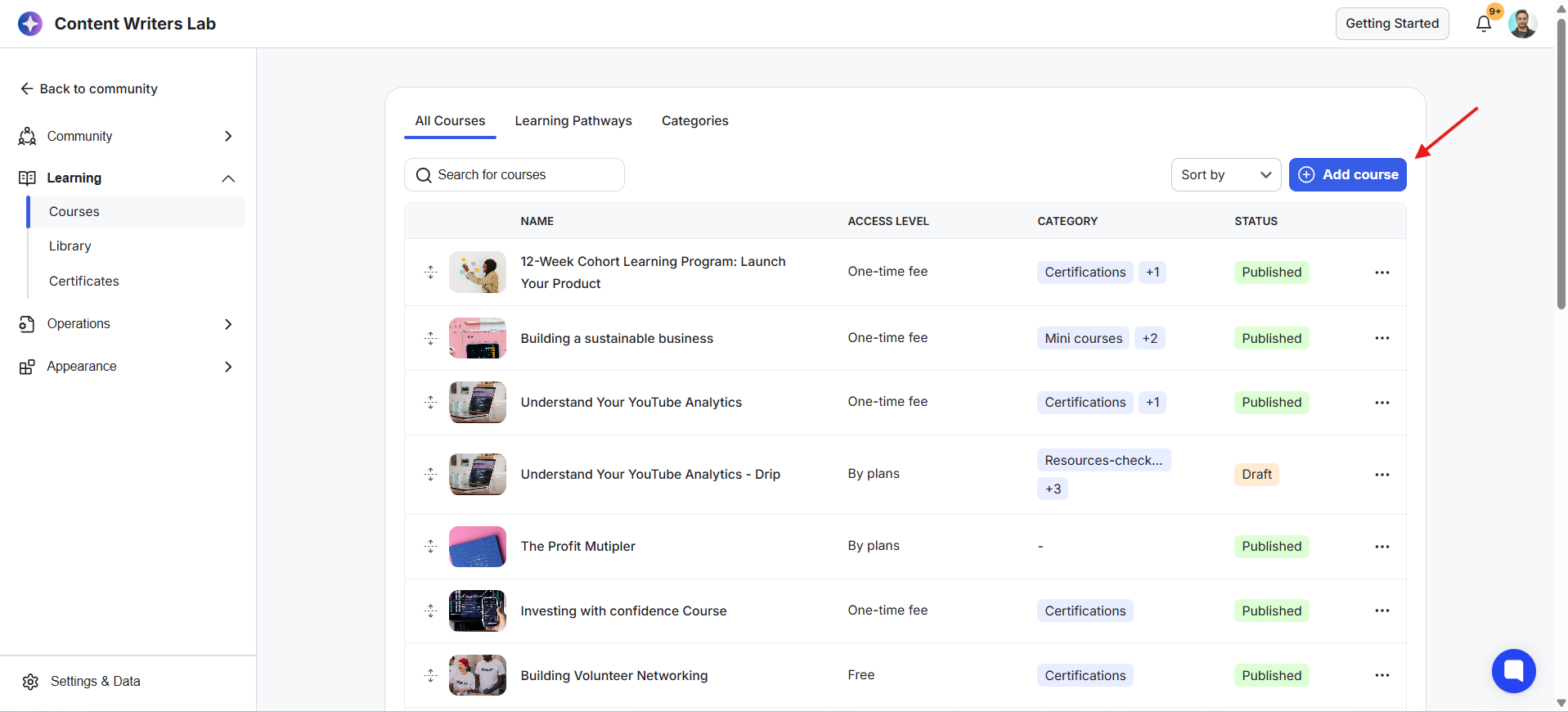
2) Click + Add Course.
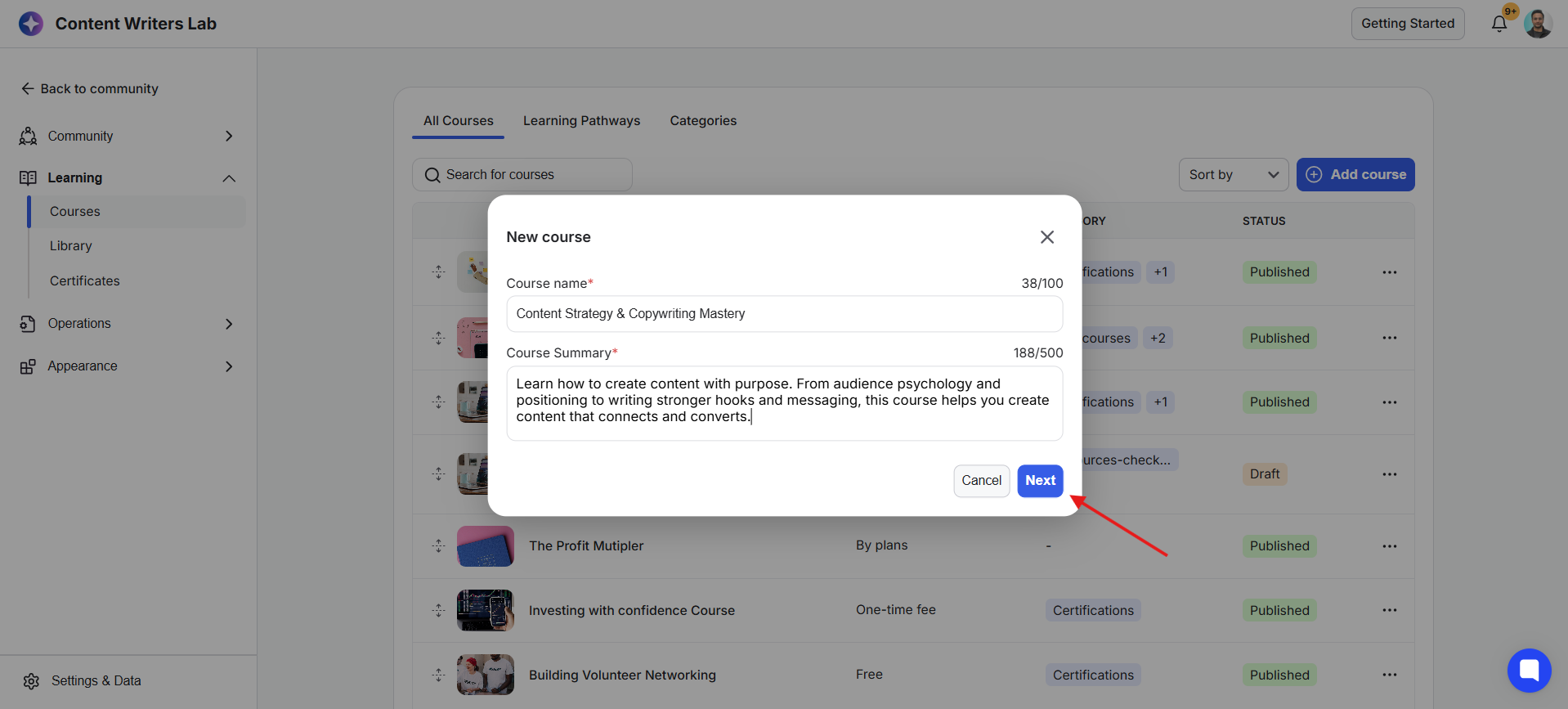
3) Enter the course name and summary on the pop-up. Click Next when finished.
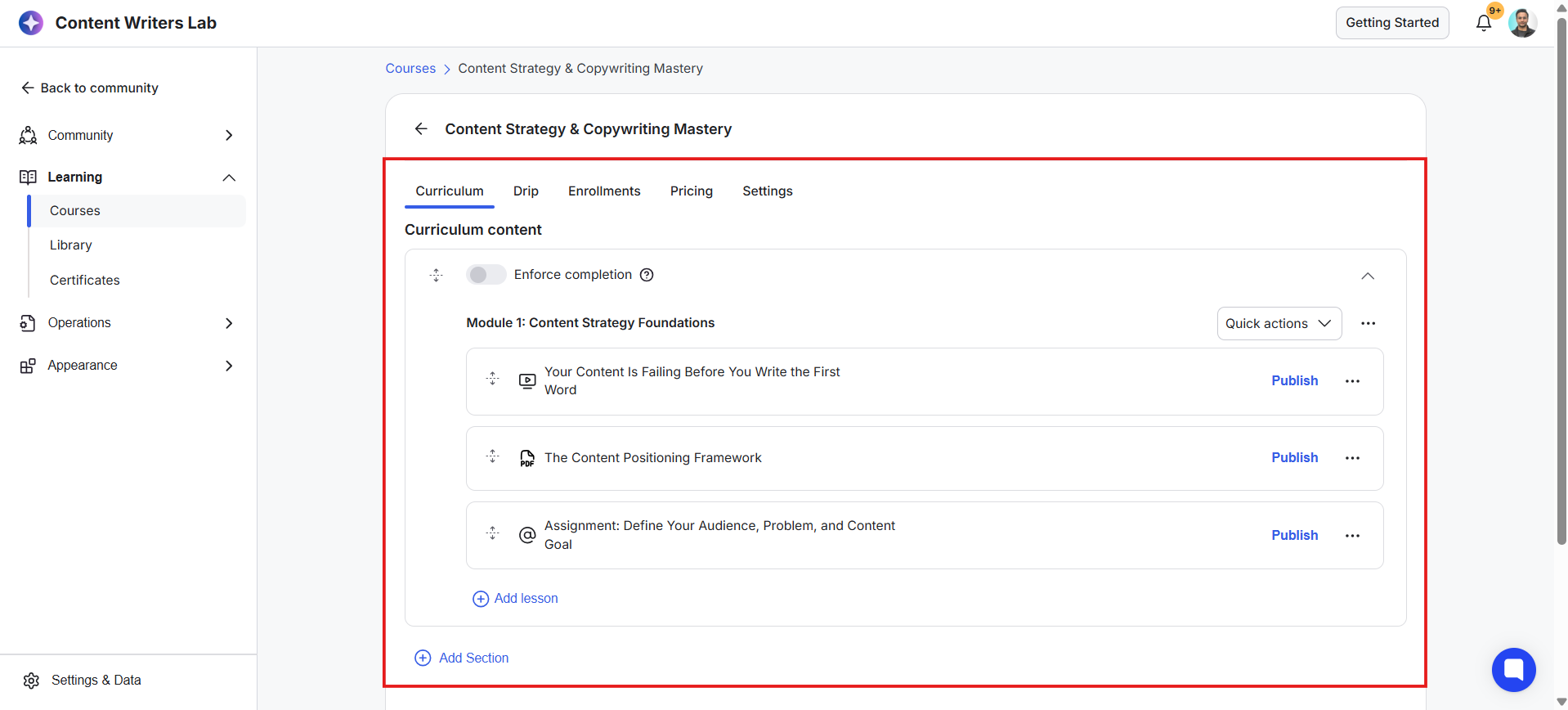
4) This opens the Course Builder. Add modules and lessons with content to build the curriculum.
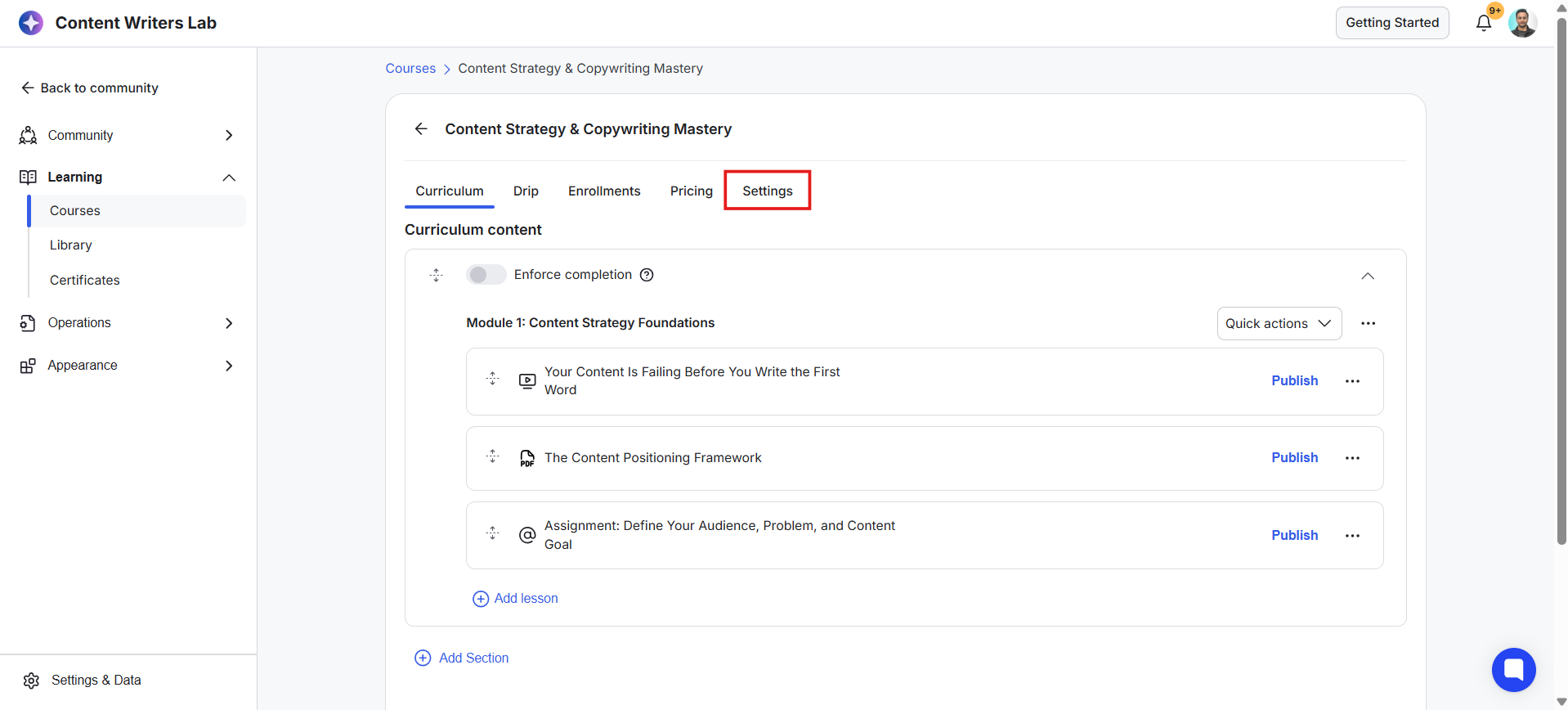
5) Click on the Settings Tab.
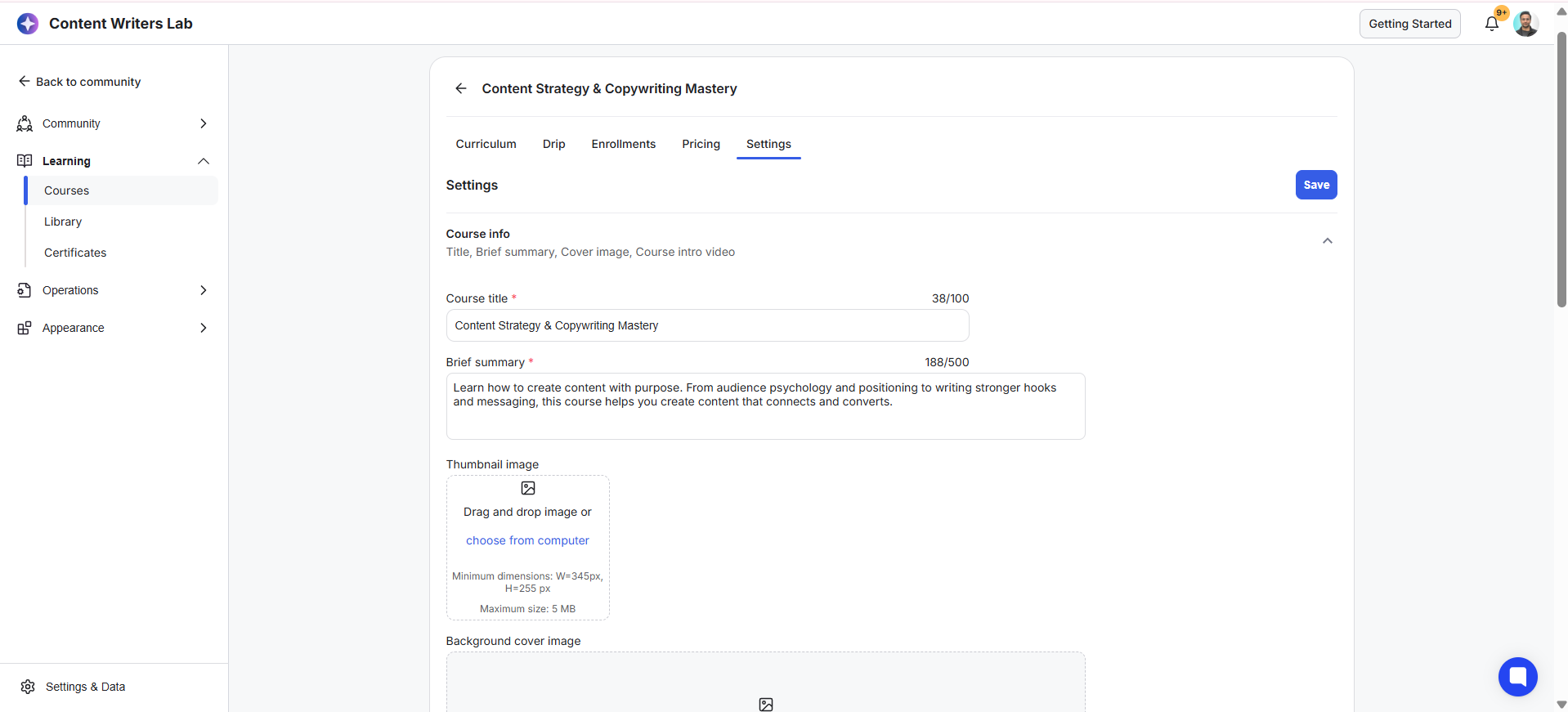
6) Configure the course settings by adding details such as the title, summary description, thumbnail, and cover image.
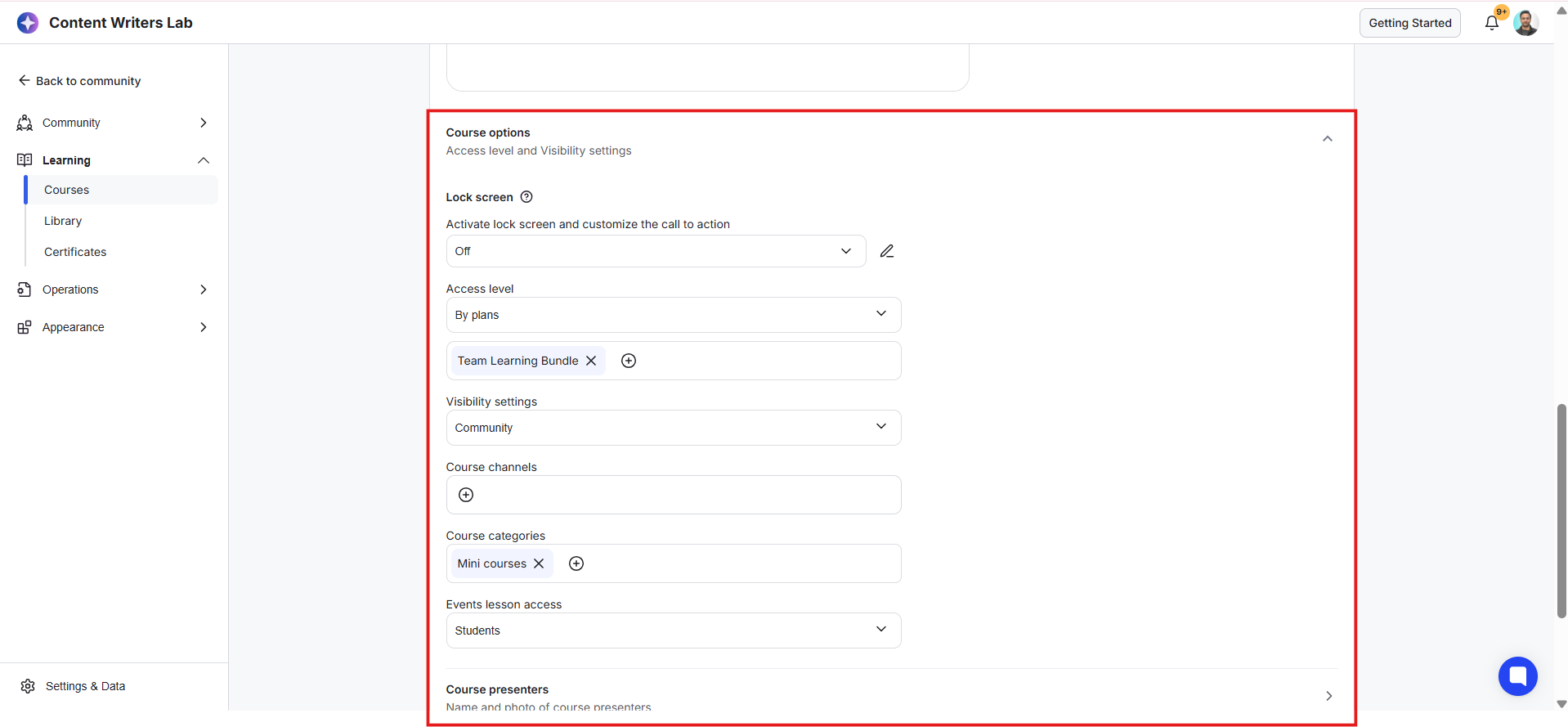
7) Scroll down to the Course Options section. Select your preferred Access Level and Product Visibility settings.
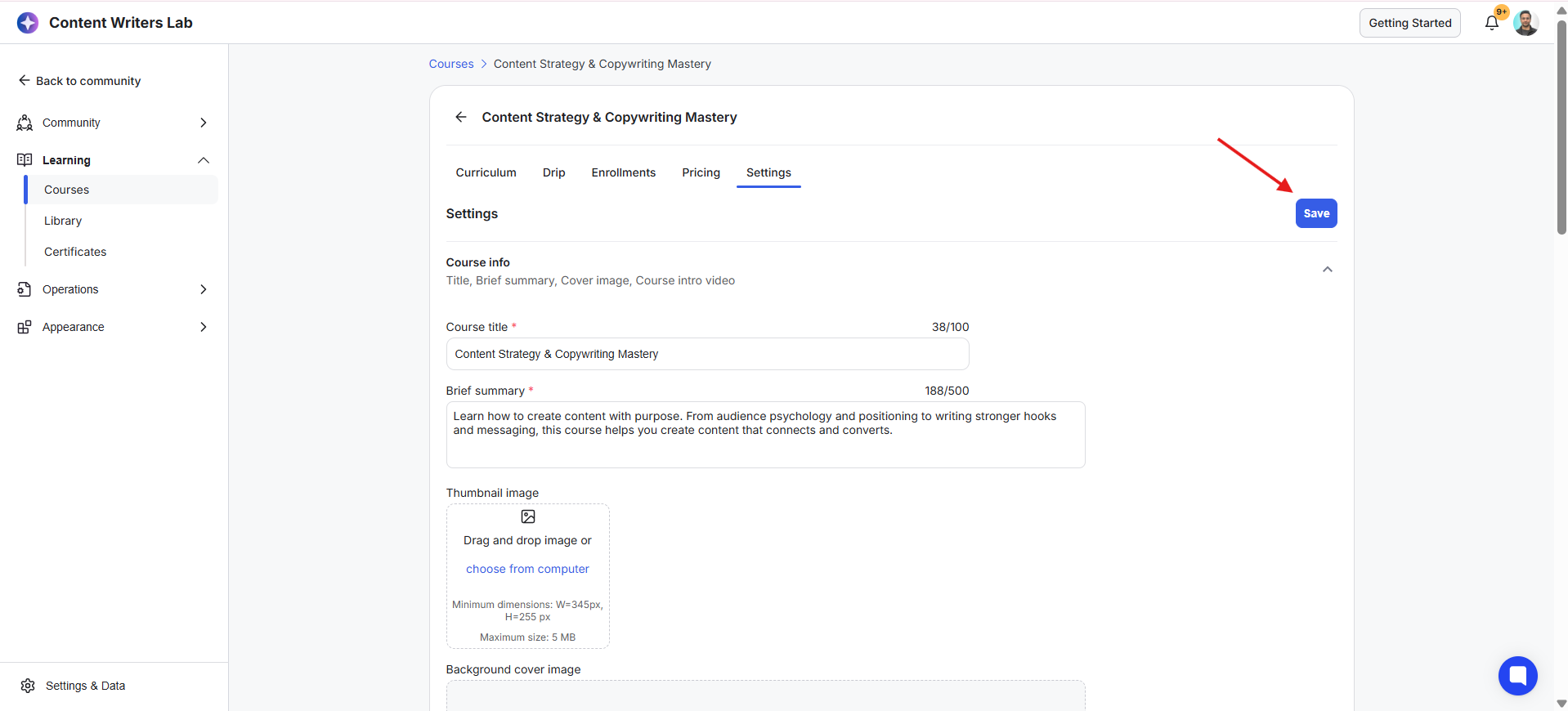
8) Configure the rest of the course settings as per your preferences. Click Save.
9) Click the Pricing tab.
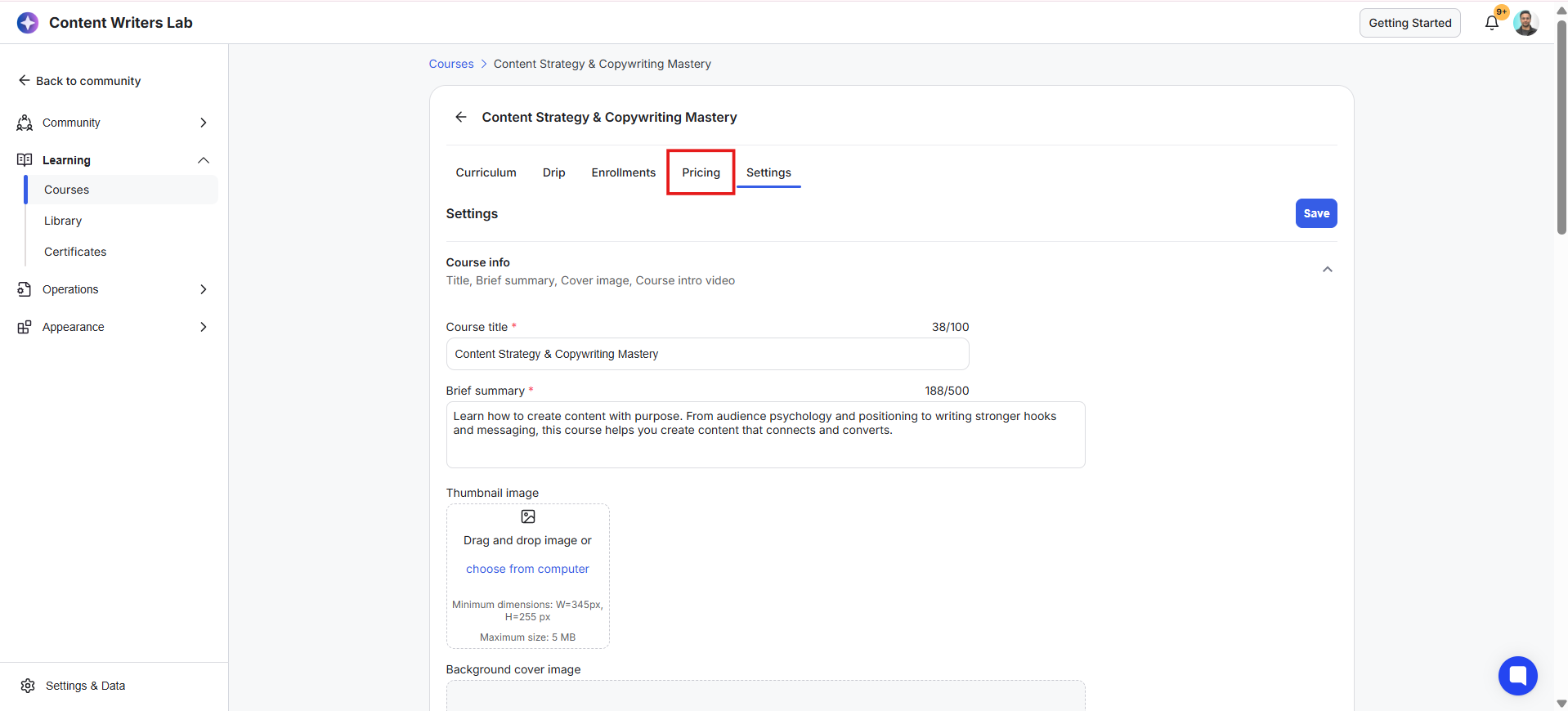
10) Click on +Add Pricing to create a One-Time Purchase Option for the resource.
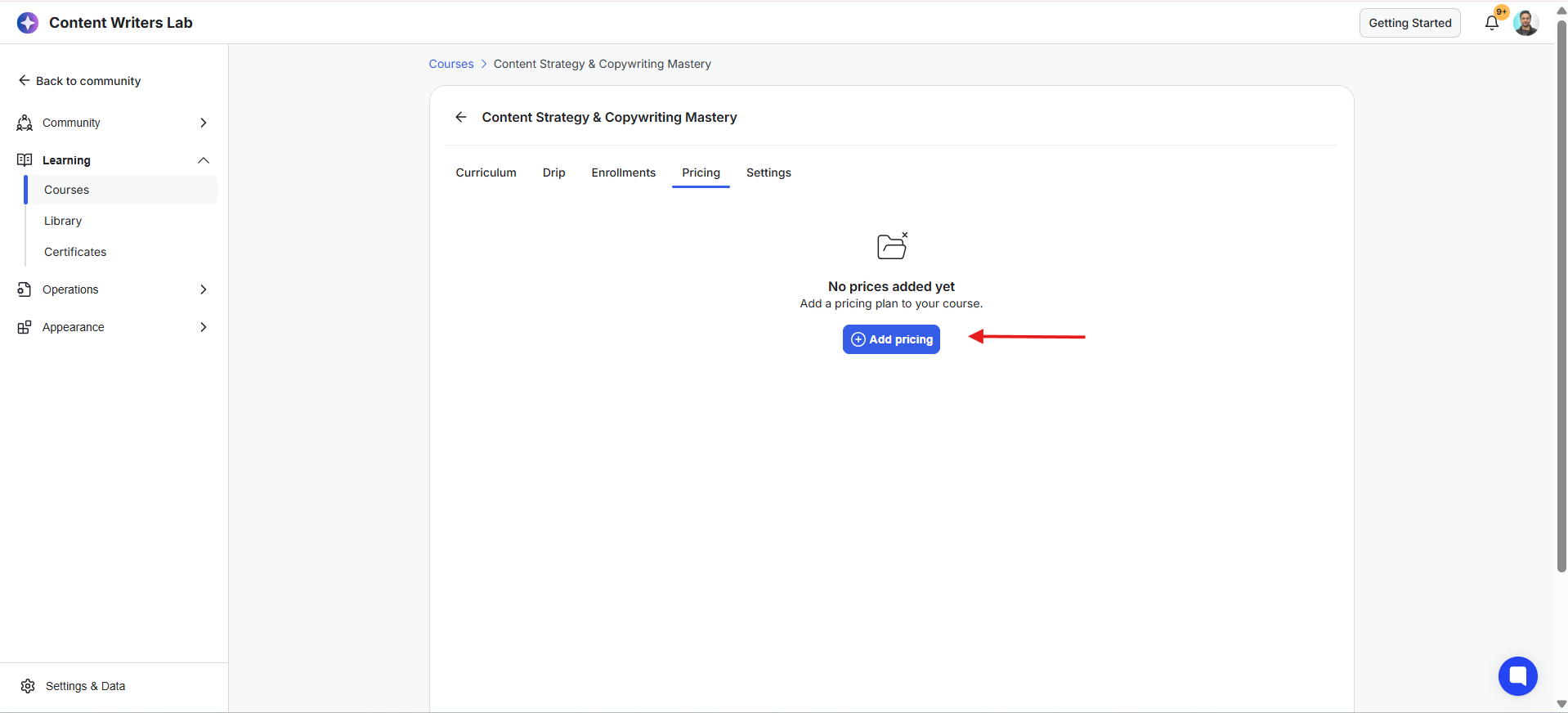
11) Create a pricing option name and description. Next, add a price for your course.
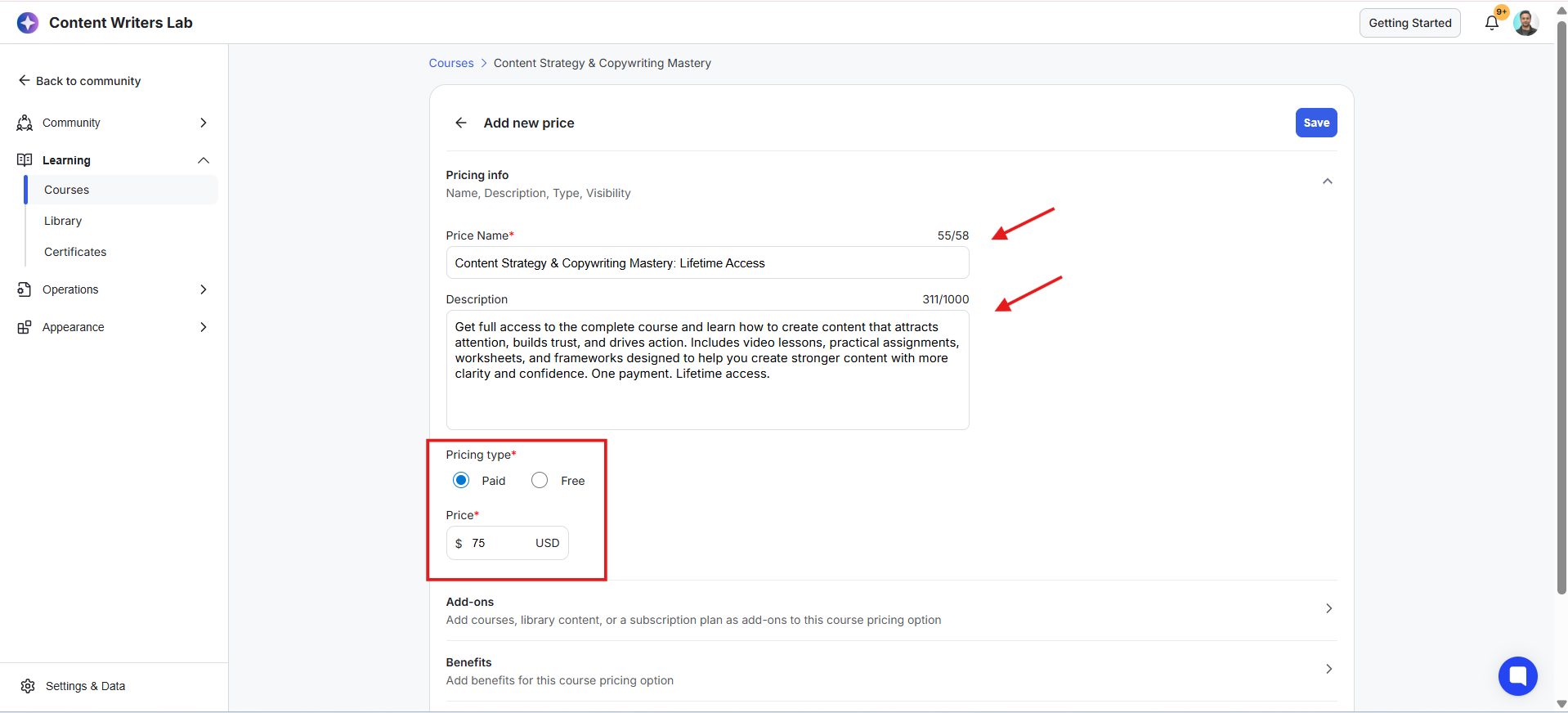
12) Add any benefits to the one-time pricing option or couple it with an add-on as per your preference and only if required. Click Save.
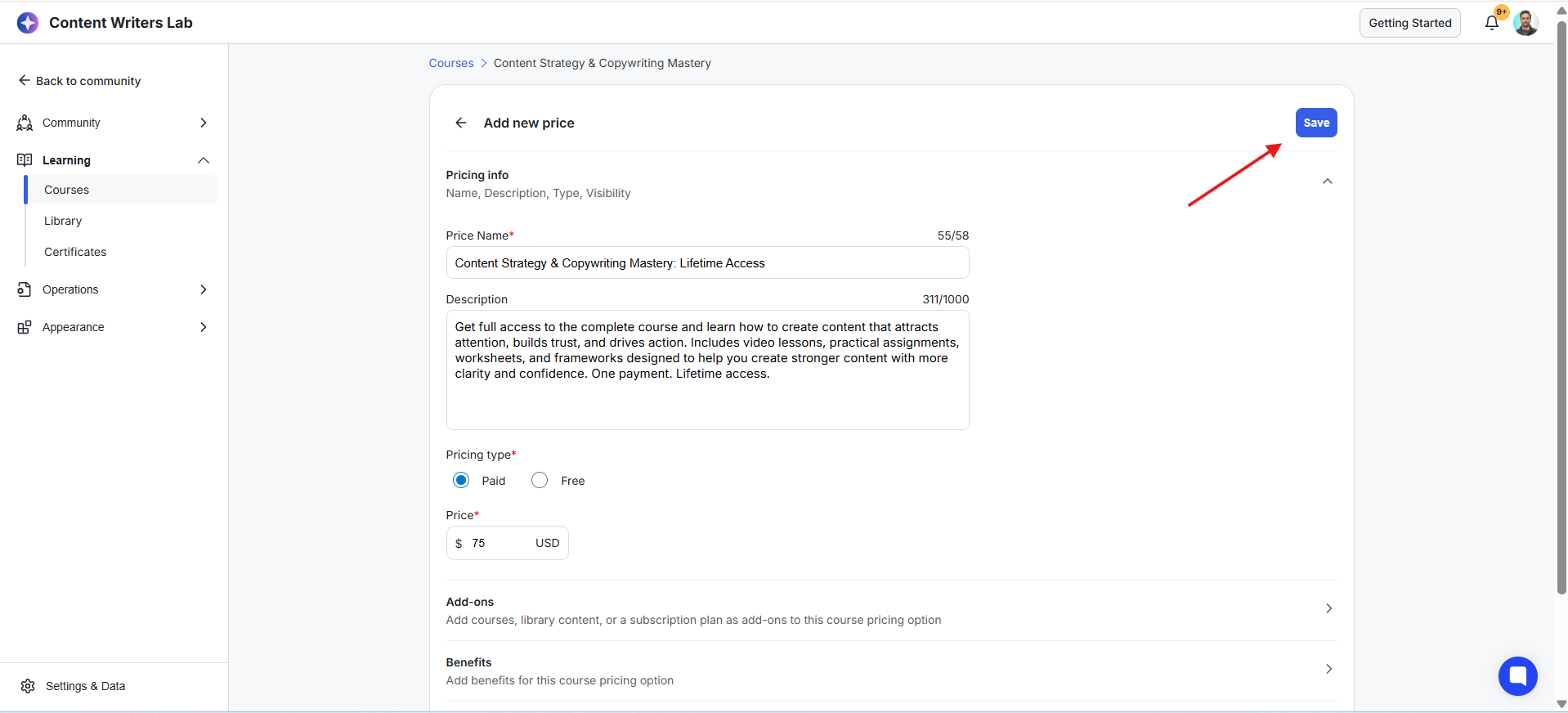
13) Now, you have created a Combined Access Levels & Pricing setup for the course. The course will now follow the rules based on your selected setup.
Depending on the product type and access settings, members may see:
Access
Enroll
RSVP
Upgrade
Clicking these buttons opens available access options and takes users to the checkout experience.
Users can also click View Details option if its a library resource, to see plan descriptions, pricing details, and available options directly on a pop-up. Benefits and descriptions appear exactly as they were originally configured.
Non-members can:
Review available plans (only if the product is as public)
View one-time purchase options
Compare available access paths
Continue directly to checkout
