Meta (Facebook & Instagram) is an advertising platform that allows you to run ads, capture leads, and track user actions across your marketing funnel. To understand how well your ads are performing, Meta relies on event data such as sign-ups, purchases, and page visits.
The GroupApp Meta integration connects your community directly to Meta’s Events Manager. Once connected, key actions taken inside your community are automatically sent back to Meta. This allows you to see what happens after someone clicks your ad, whether they signed up, became a lead, or made a purchase.
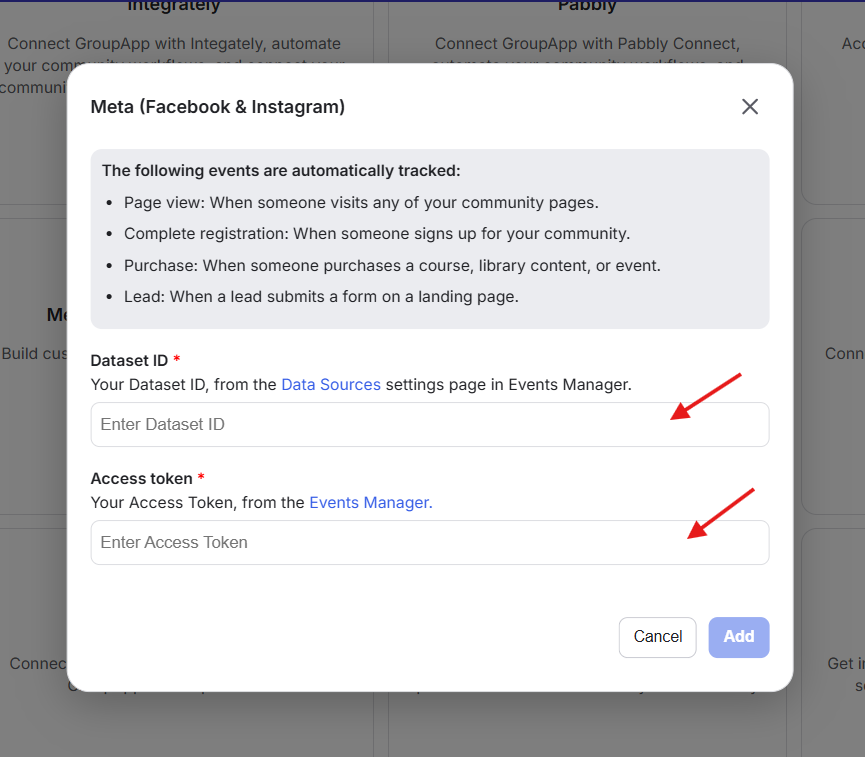
1) Dataset ID: This is your unique identifier from the Data Sources section in Meta Events Manager. It tells Meta where your event data should be sent.
2) Access Token: This is a secure token generated in Meta Events Manager. It allows GroupApp to send event data to your Meta account.
Once connected, GroupApp automatically tracks and sends the following events:
Page View: Triggered when someone visits your community or landing pages. This helps you understand traffic coming from your ads.
Complete Registration: Triggered when someone signs up for your community. This shows how many users your ads are converting into members.
Lead: Triggered when someone submits a form or lands in your community as a lead. This helps track lead generation performance.
Purchase: Triggered when someone buys a course, library content, or event. This includes conversion data that helps you measure revenue from your ads.
All of these events are sent back to Meta and linked to your active ad campaigns, giving you visibility into which ads are driving actual results.
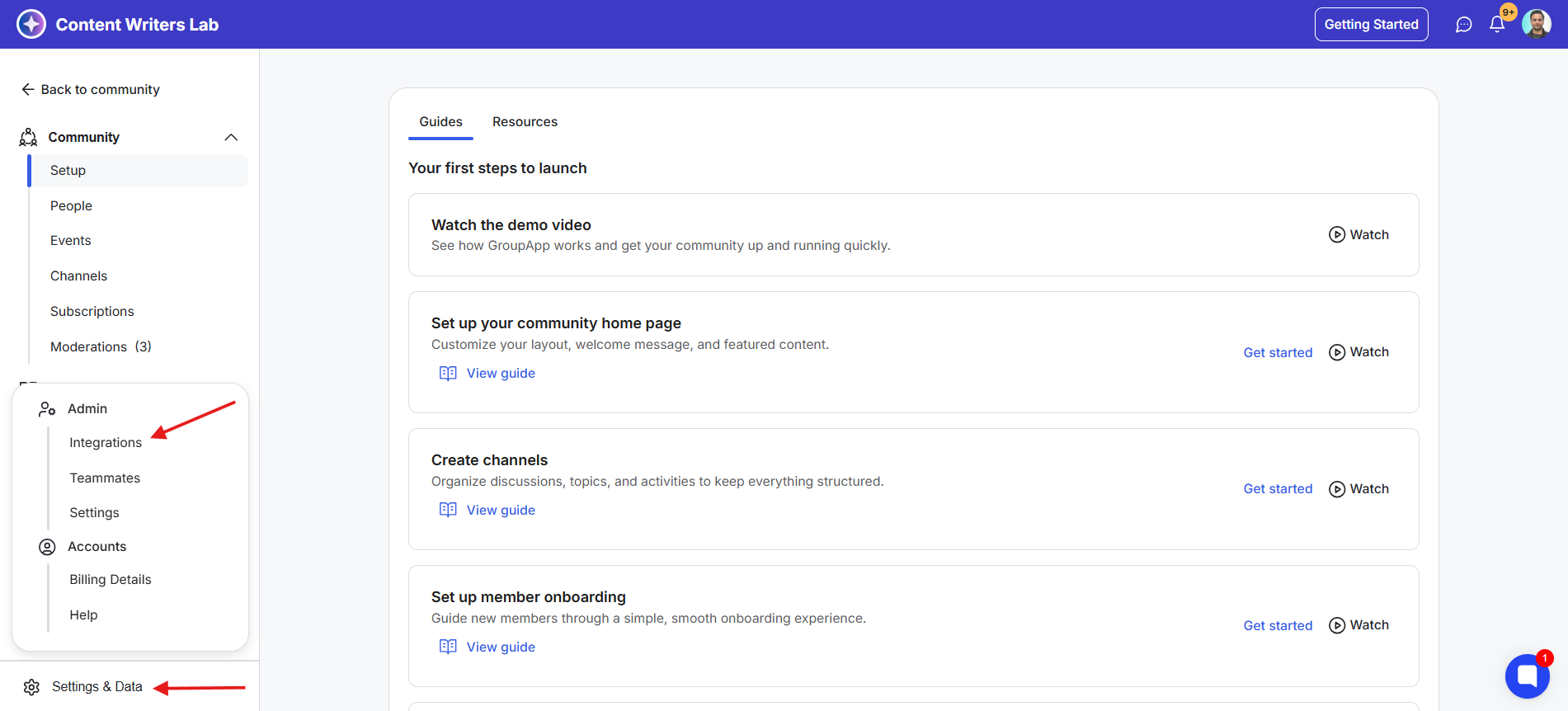
1) Go to the Admin Panel
2) Click on the Settings & Data option on the bottom-left and then select Integrations.
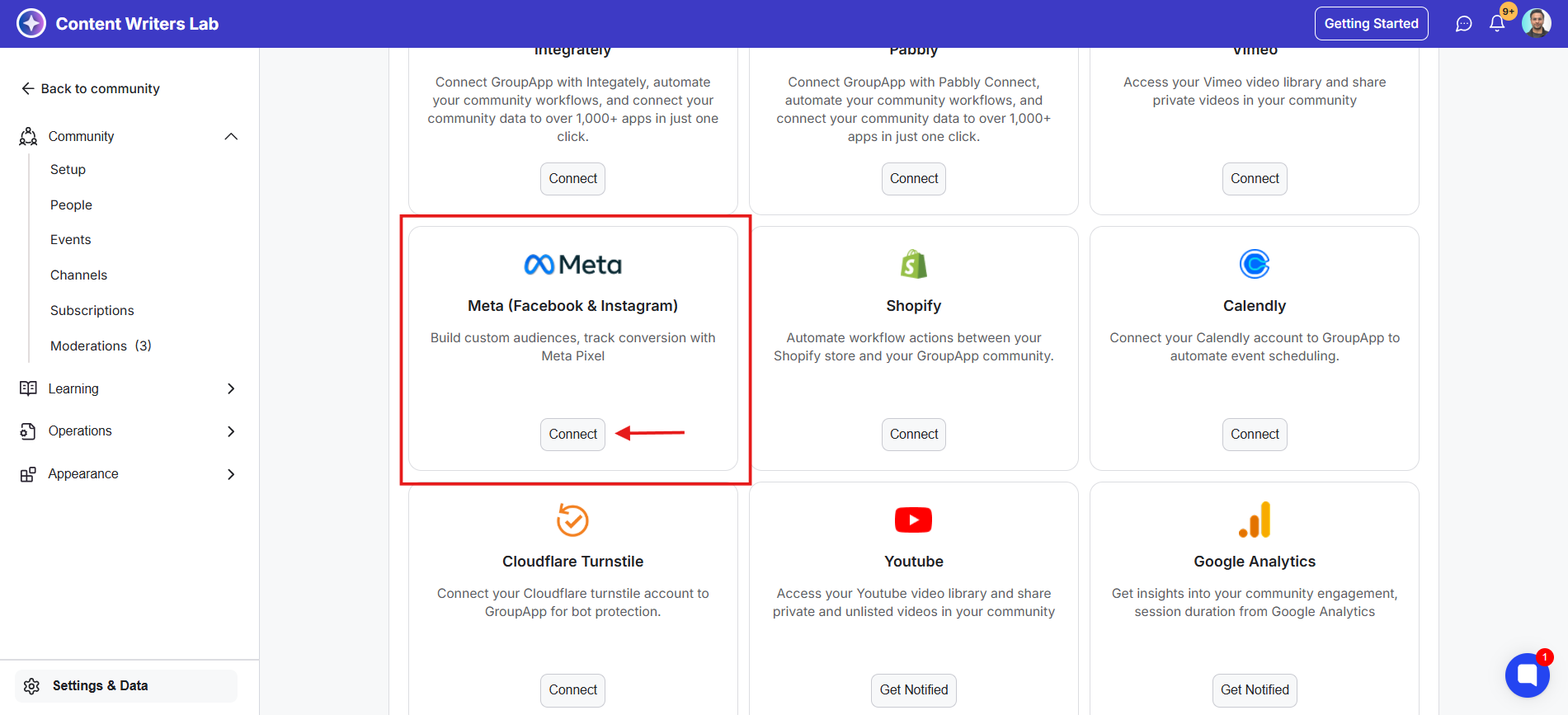
3) Find Meta (Facebook & Instagram) and click Connect.
4) Enter your Dataset ID and Access Token. Both fields are linked with Events Manager and Data Sources for quick access.
5) Click the Add button. Once connected, event tracking begins automatically.
This integration gives you a clear view of what happens after someone clicks your ad. Instead of only seeing clicks or impressions, you can track real outcomes like sign-ups, leads, and purchases.
It allows you to:
See which ads are actually driving registrations and sales, not just traffic.
Measure the revenue generated from your campaigns using purchase data.
Understand where leads are coming from and which campaigns are most effective.
Optimize your ad performance by focusing on what is converting, not just what is getting clicks.
With this data, you can make better decisions on your ad spend and scale campaigns that are proven to work.
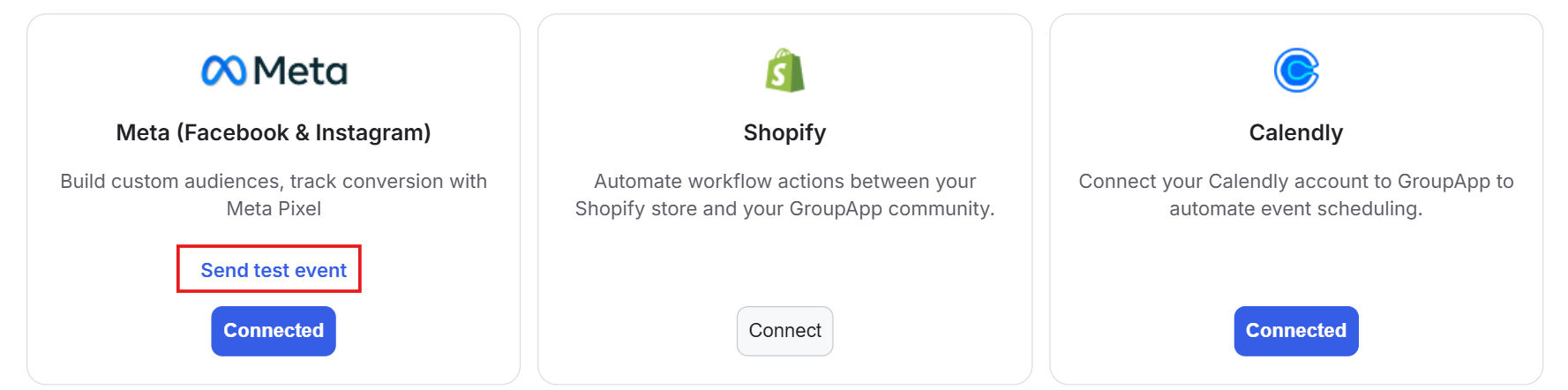
1) Once the integration is established, you’ll see the option “Send Test Event” on the Meta (Facebook & Instagram) card.
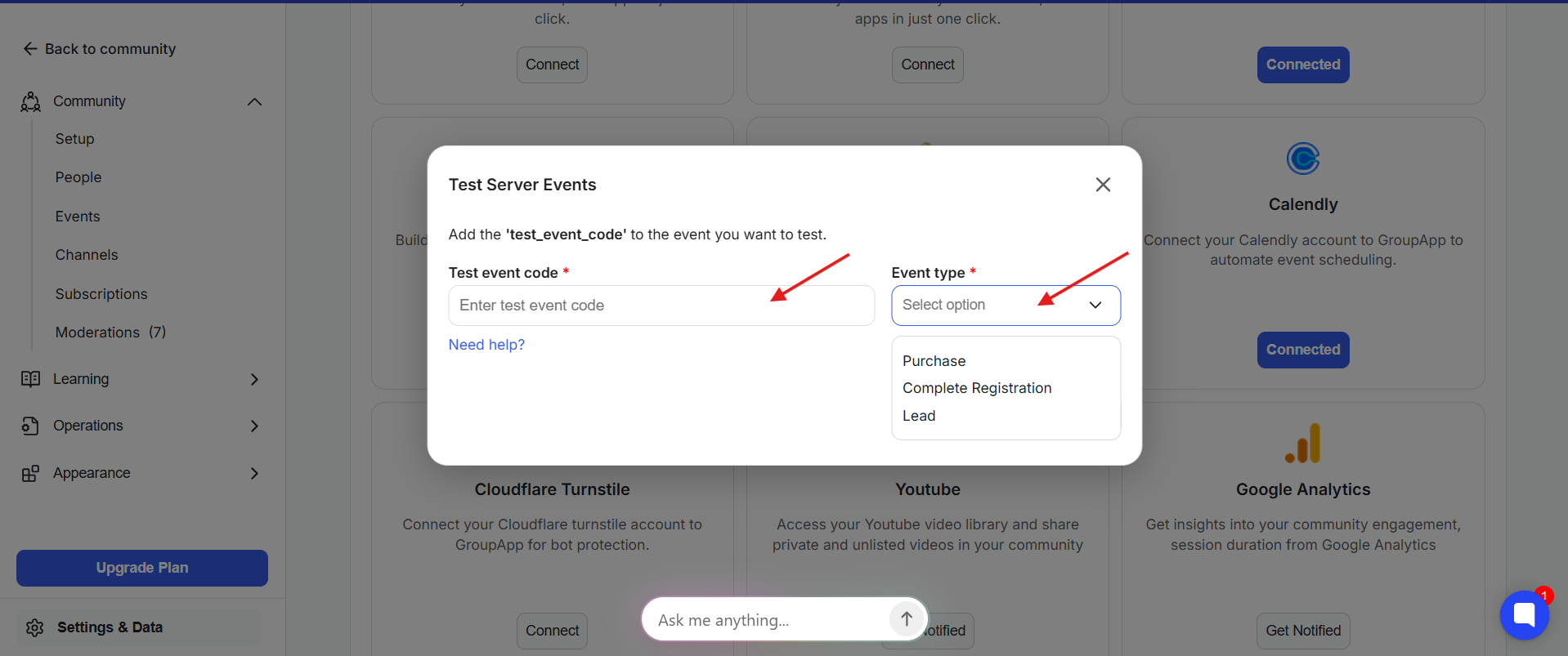
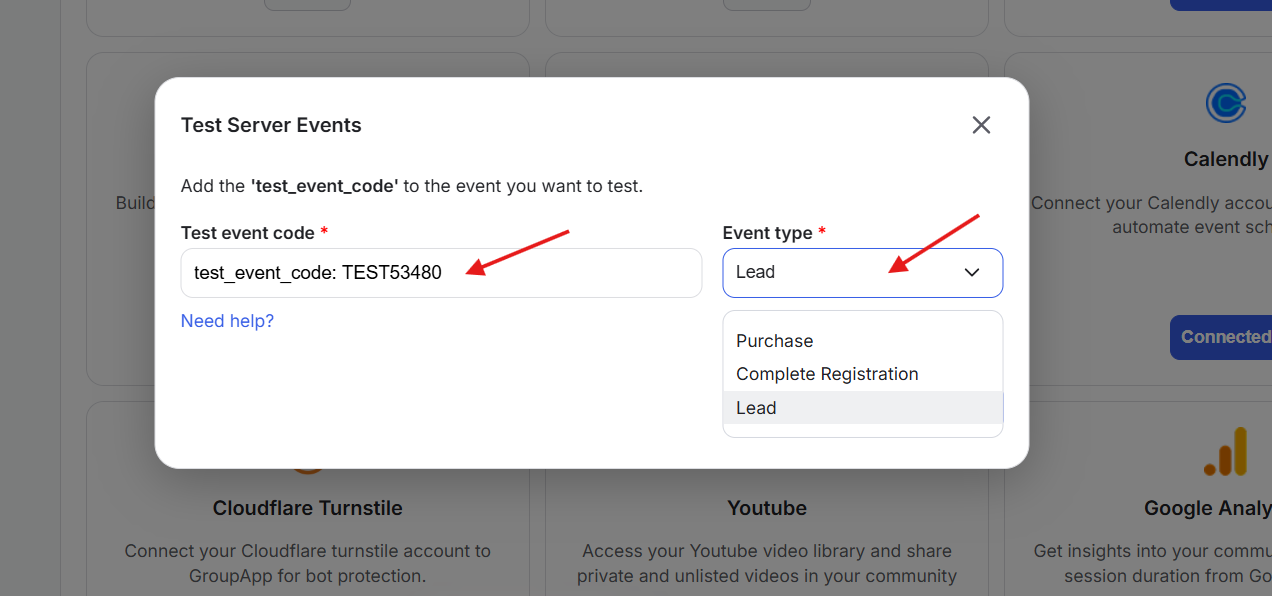
2) As you click the option, a pop-up appears with a field to enter the Test Event Code and a drop-down option to specify the type of event.
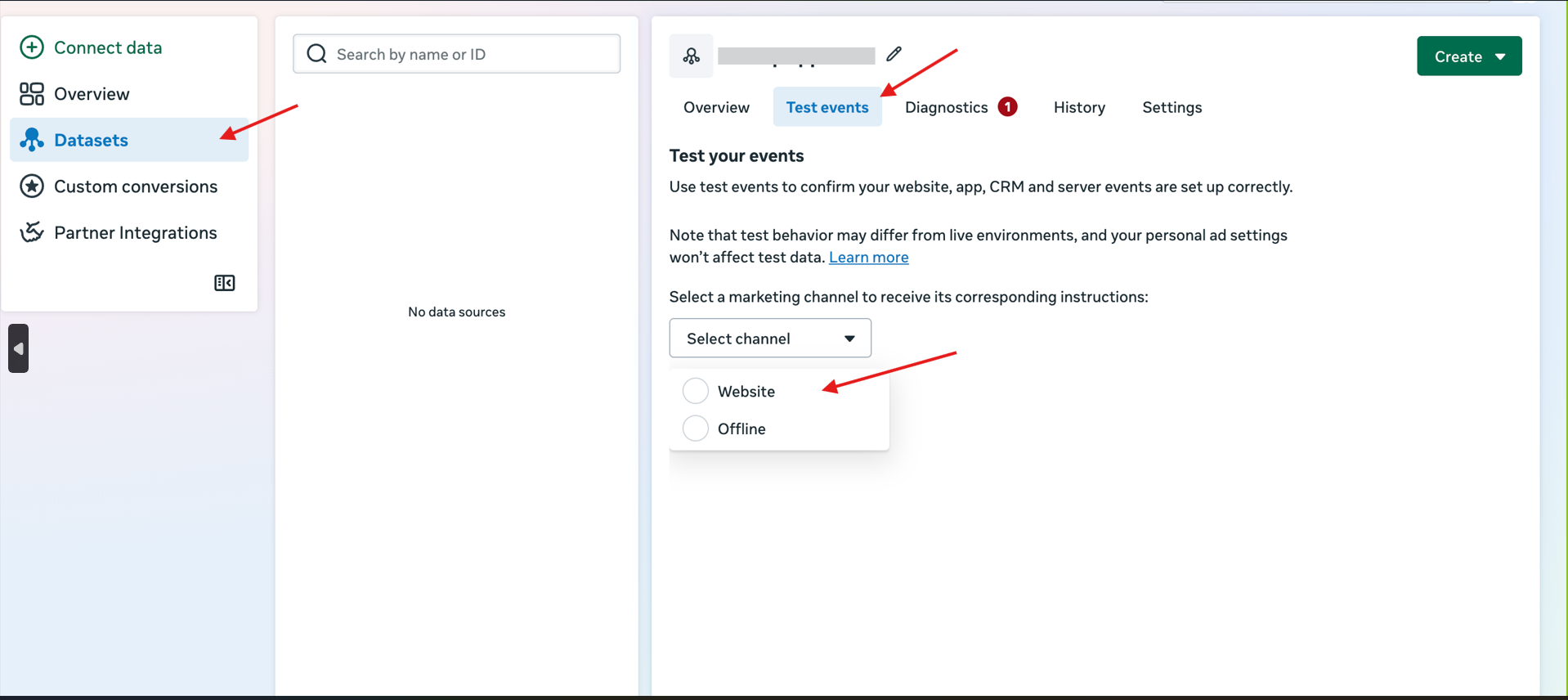
3) Now go to your Meta Account and click on the Datasets Tab on the left-side. This opens a dashboard. Find the Test Events Tab on the right side panel. Click on the tab and further specify the channel to “Website” from the drop-down.
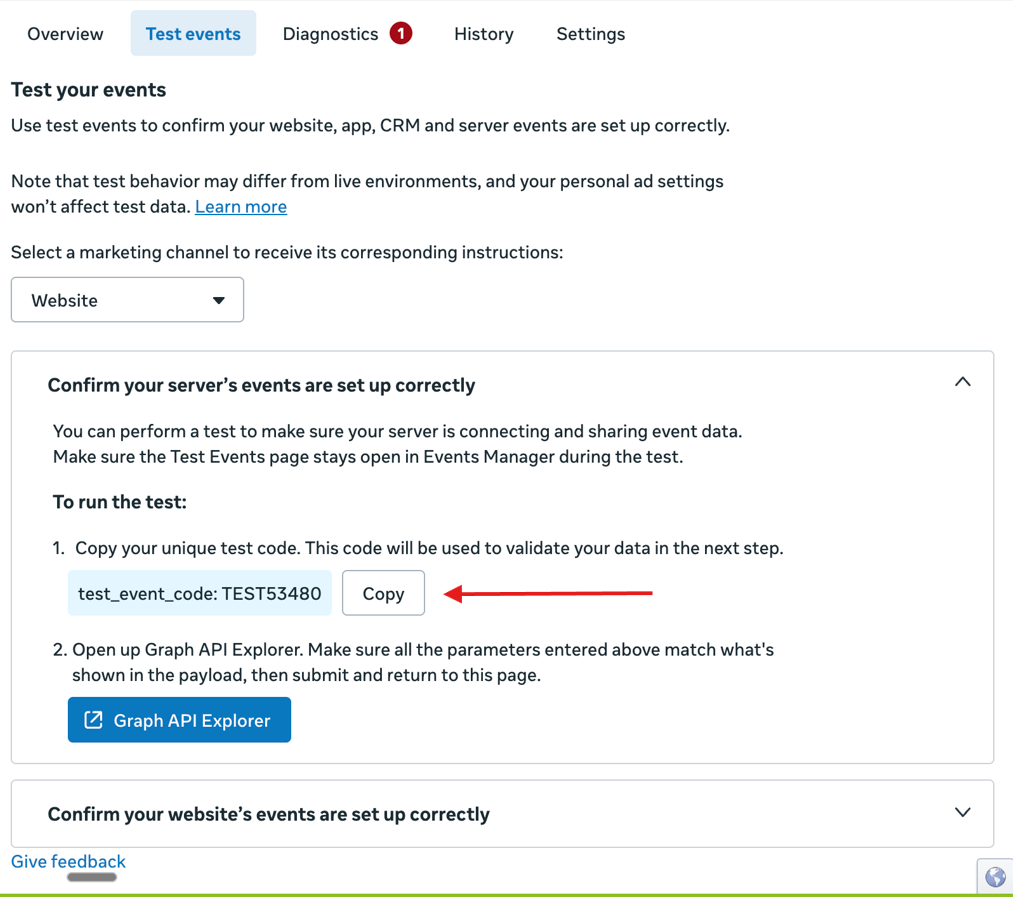
4) When specified to website, a test section appears on the panel (as shown below). Copy the unique Test Event Code.
5) Come back to your Integrations Dashboard in GroupApp. Paste the code to field and specify the event type. For this example, we choose the lead option as event type. Once
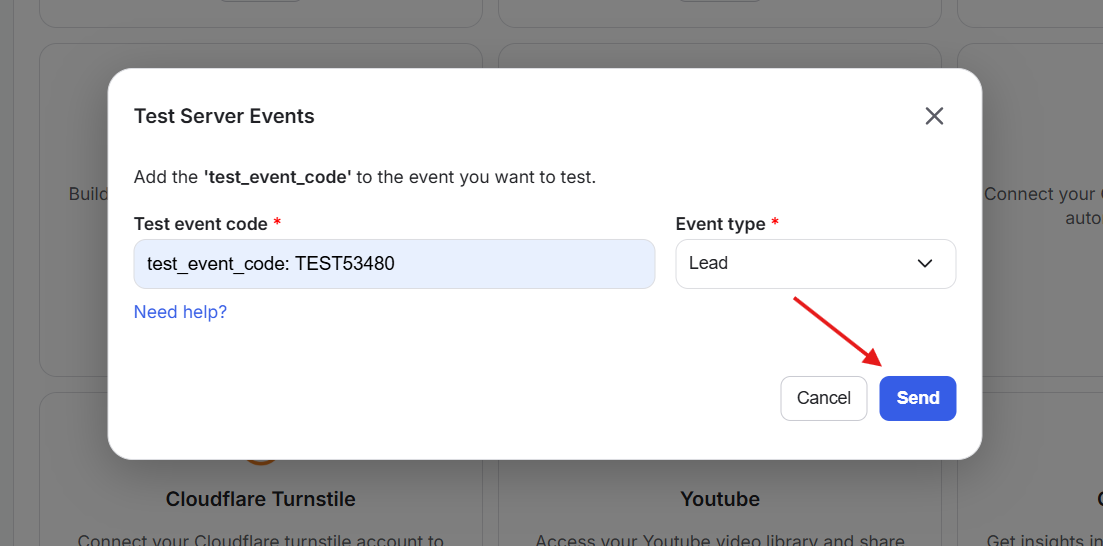
6) Once done, click on Send.
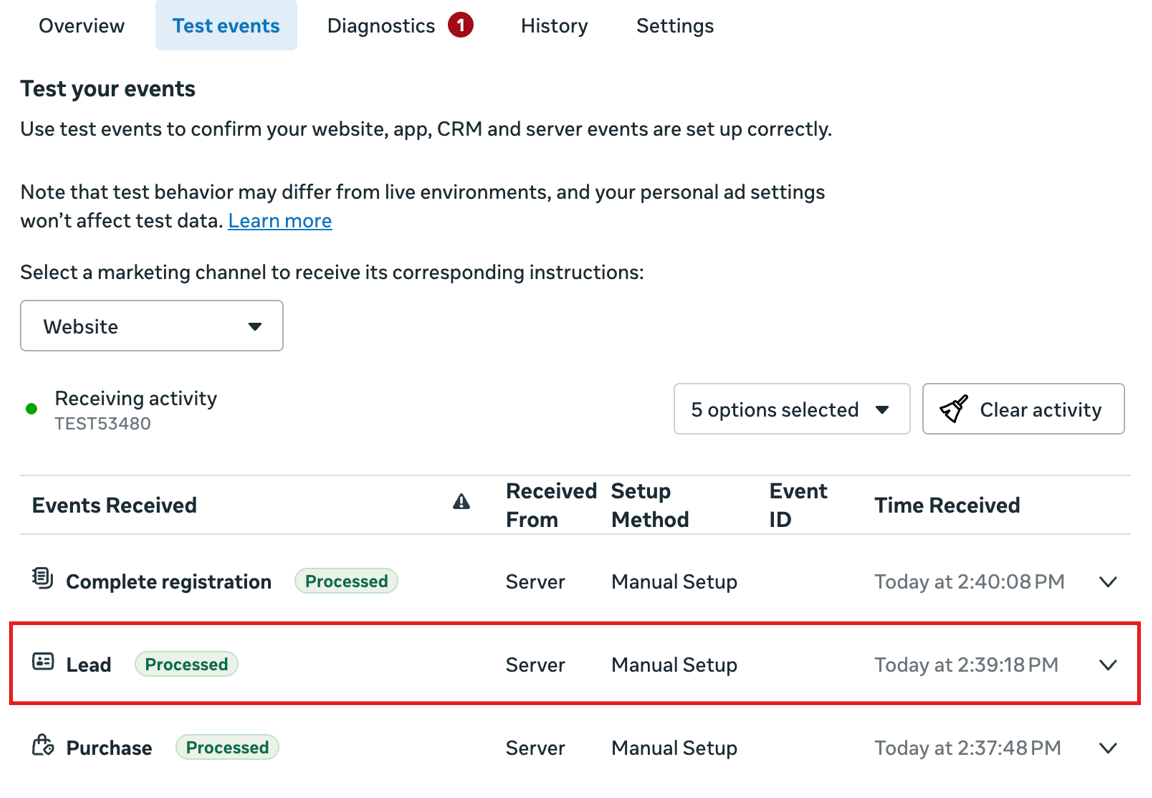
7) Go back to your Meta Account and the test event will be reflected there either as lead, completed registration, or purchase.
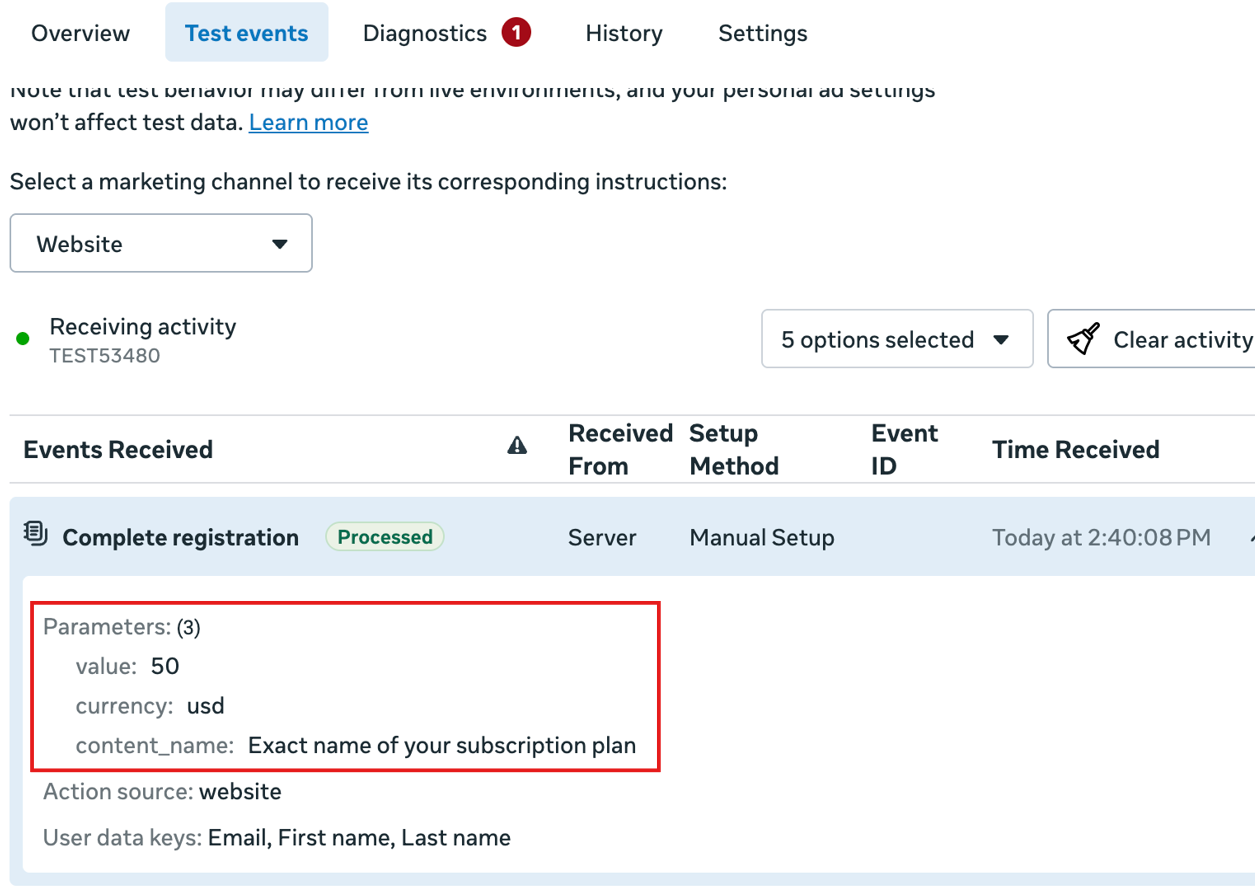
8) As you click to expand, you’ll see more information.
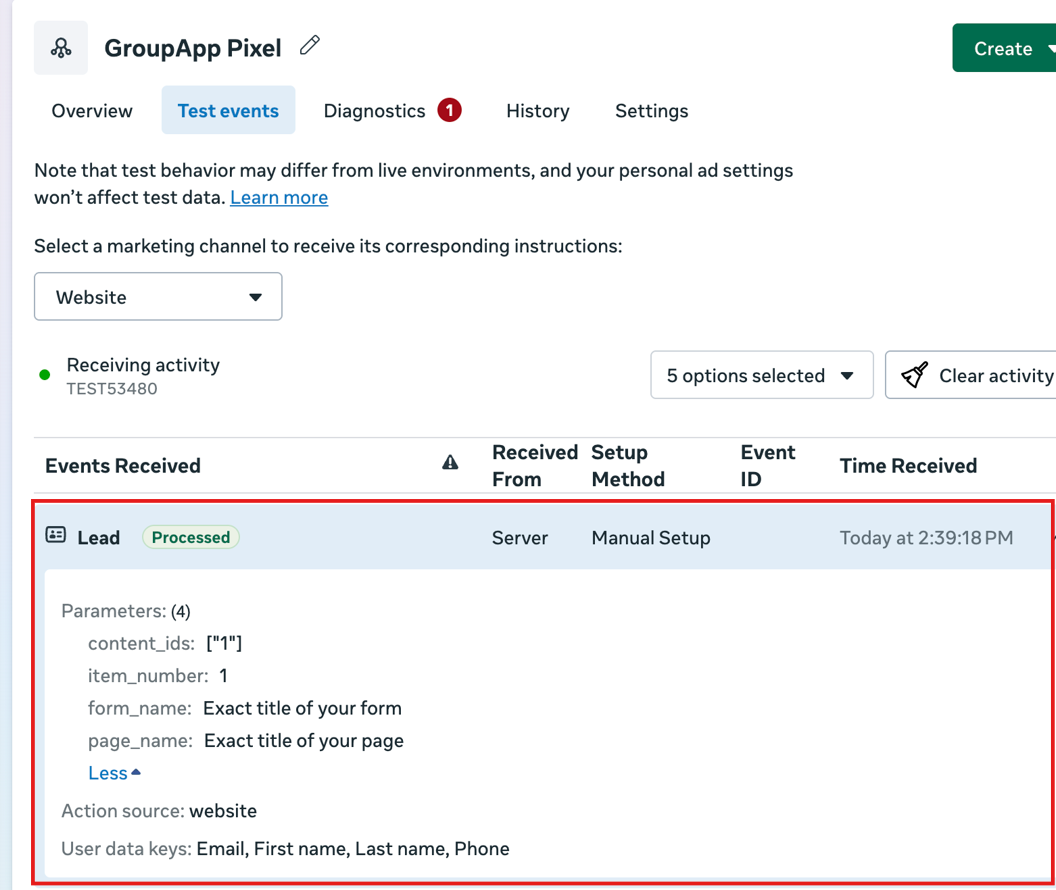
9) If the event is a Complete Registration or Purchase, GroupApp also sends the associated value to Meta (as shown below). This helps you understand not just that an action happened, but what it was worth, giving you a clearer view of your campaign performance and return on ad spend.