This guide explains each available workflow trigger, action, and filter, with simple examples to help you decide when and how to use them.
A workflow trigger is the event that starts a workflow. Below is a breakdown of all available workflow triggers and when to use them.
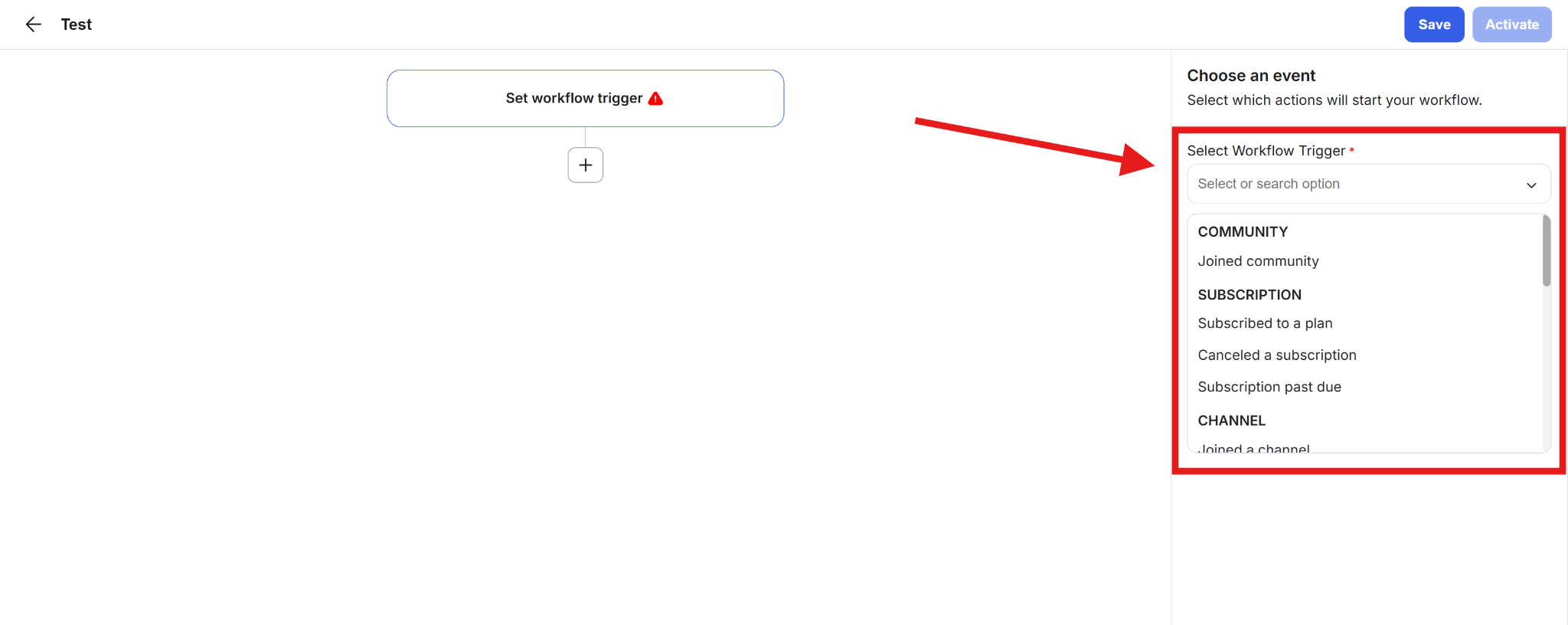
Joined community
What it does: Triggers when a new member joins the community.
Use case: Send a welcome message or start an onboarding workflow.
Subscribed to a plan
What it does: Triggers when a member subscribes to a plan.
Use case: Grant access to premium content or send a confirmation email.
Canceled a subscription
What it does: Triggers when a member cancels their subscription.
Use case: Send a feedback message or explain what access they will lose.
Subscription past due
What it does: Triggers when a member’s subscription payment fails or becomes overdue.
Use case: Send a payment reminder or restrict access until payment is resolved.
Joined a channel
What it does: Triggers when a member joins a specific channel.
Use case: Send channel rules or onboarding resources automatically.
Removed from a channel
What it does: Triggers when a member is removed from a channel.
Use case: Notify the member or log an internal follow-up.
Enrolled in a course
What it does: Triggers when a member enrolls in a course.
Use case: Send course instructions or learning expectations.
Completed a course
What it does: Triggers when a member completes all lessons in a course.
Use case: Upsell another course, or request feedback.
Completed a lesson
What it does: Triggers when a member completes a specific lesson.
Use case: Unlock the next lesson or send encouragement to continue.
Submitted a course form
What it does: Triggers when a member submits a form inside a course.
Use case: Collect assignments, applications, or course feedback.
Added to a segment
What it does: Triggers when a member is added to a segment.
Use case: Start targeted email or messaging campaigns.
Removed from a segment
What it does: Triggers when a member is removed from a segment.
Use case: Stop certain workflows or adjust messaging.
RSVP for an Event
What it does: Triggers when a member RSVPs to an event.
Use case: Send event details, reminders, or follow-up messages.
Accessed a library content
What it does: Triggers when a member accesses content in the content library.
Use case: Track interest or recommend related content.
What it does: Triggers when a form on a landing page is submitted
Use case: Capture leads and start an onboarding or sales workflow.
Submitted an onboarding field
What it does: Triggers when a member completes a specific onboarding field.
Use case: Personalize onboarding or segment members based on responses.
Actions are the steps that happen after a workflow is triggered. You can add one action or chain multiple actions together so that when one thing happens, another action follows.
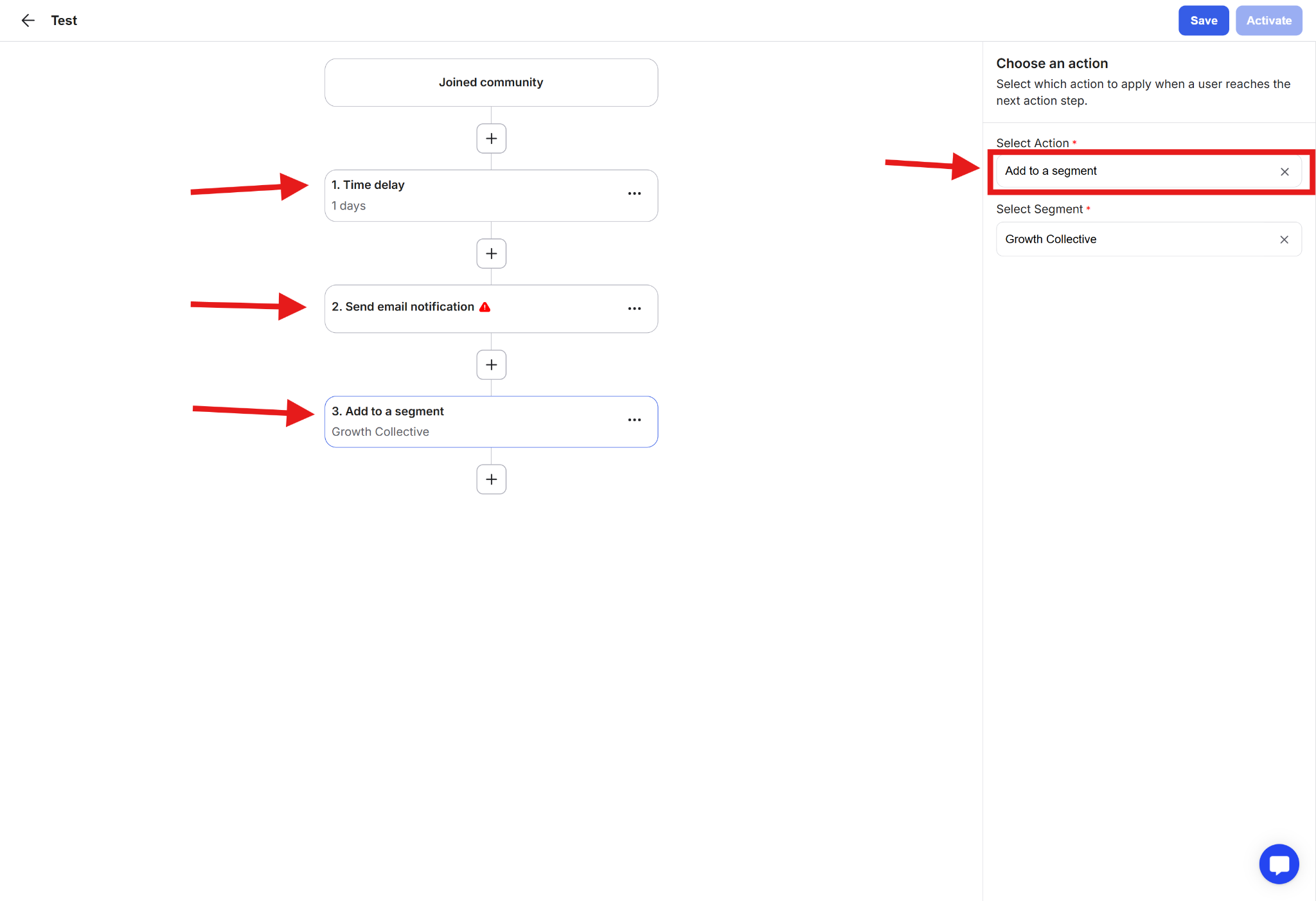
For example:
A member joins the community (trigger)
Wait 1 day (time delay action)
Send a welcome email (action)
Add the member to a segment (action)
Add to community
What it does: Adds a person to your community.
Use case: Automatically admit users after form submission or approval.
Remove from community
What it does: Removes a member from the community.
Use case: Automatically remove members who cancel all subscriptions.
Add to a channel
What it does: Adds a member to a specific channel.
Use case: Grant access to private or premium channels.
Remove from a channel
What it does: Removes a member from a channel.
Use case: Restrict access when a subscription ends or a course is completed.
Add to a segment
What it does: Adds a member to a segment for targeting.
Use case: Group members for email campaigns or personalized workflows.
Remove from a segment
What it does: Removes a member from a segment.
Use case: Stop targeted messaging when conditions change.
Enroll in a course
What it does: Enrolls a member in a course automatically.
Use case: Grant course access after payment or onboarding.
Remove from a course
What it does: Removes a member from a course.
Use case: Revoke course access after cancellation or completion.
Time delay
What it does: Pauses the workflow for a set period before the next action runs.
Use case: Send follow-ups after a few days instead of immediately.
Send email
What it does: Sends an automated email to the member.
Use case: Welcome emails, reminders, or educational sequences.
Send email notification
What it does: Sends a notification-style email, usually shorter and informational.
Use case: Alerts about status changes or important updates.
Cancel member subscription
What it does: Cancels a member’s subscription automatically.
Use case: Enforce payment rules or cancel access after policy violations.
Send direct message
What it does: Sends a private message to the member inside the community.
Use case: Personalized onboarding or milestone messages.
Send data to external URL
What it does: Sends workflow data to an external system or tool.
Use case: Sync member activity with CRMs, spreadsheets, or automation tools.
Filters control whether a workflow continues or stops based on specific conditions. They allow you to run actions only for members who meet certain criteria.
If the filter condition is met, the workflow continues. If not, it stops.
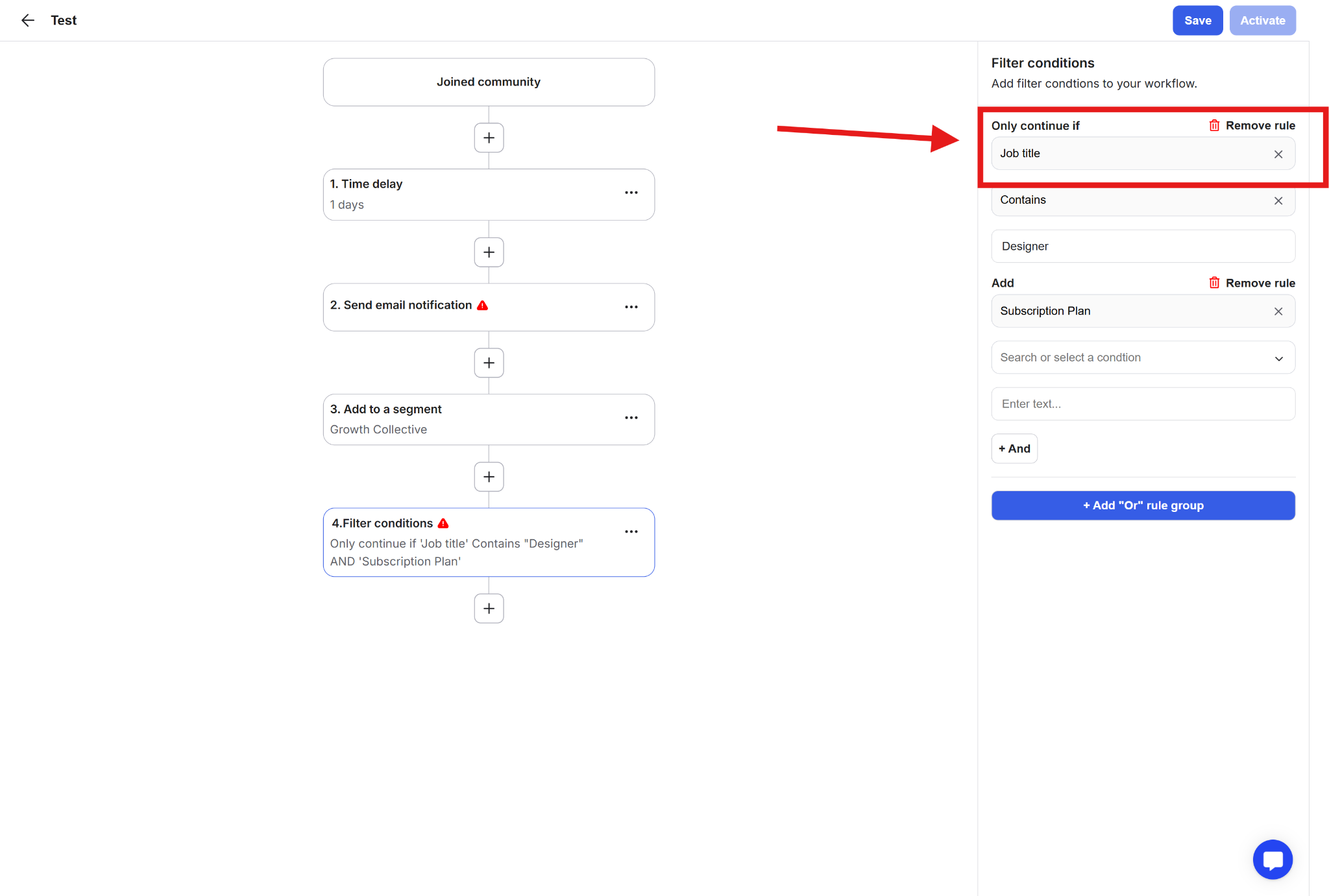
So if you want to send an email only to members who say they are content writers.
The workflow could look like this:
Trigger: Member joins the community
Filter: Job title = Content Writer
Action: Send email with writing resources
What happens:
Only members whose job title is Content Writer receive the email.
You want to automatically add members to a channel based on what they select during onboarding.
Workflow:
Trigger: Submitted an onboarding field
Filter: Are you a: = Designer
Action: Add to the Designers channel
What happens:
Members who selected Designer are automatically added to the Designers channel.
Members who selected something else are not.
Filters help you personalize access and automation without manual work.
You can add multiple filters to a workflow to further narrow down who the workflow applies to. The workflow will continue only if all filter conditions are met.
Example:
You want a workflow to continue only for members who are Designers and located in the USA.
Workflow:
Trigger: Member joins the community
Filter: Country = USA
Filter: Job title = Designer
Action: Add to the Designers channel or send a targeted email
What happens:
The workflow continues only if both conditions are met.
Members who are not Designers or are not in the USA are skipped.
Trigger starts the workflow
Filters decide if the workflow continues
Actions perform tasks automatically
Example:
When a member enrolls in a course (trigger),
if they’re on a paid plan (filter),
then send a welcome email and add them to a segment (actions).
