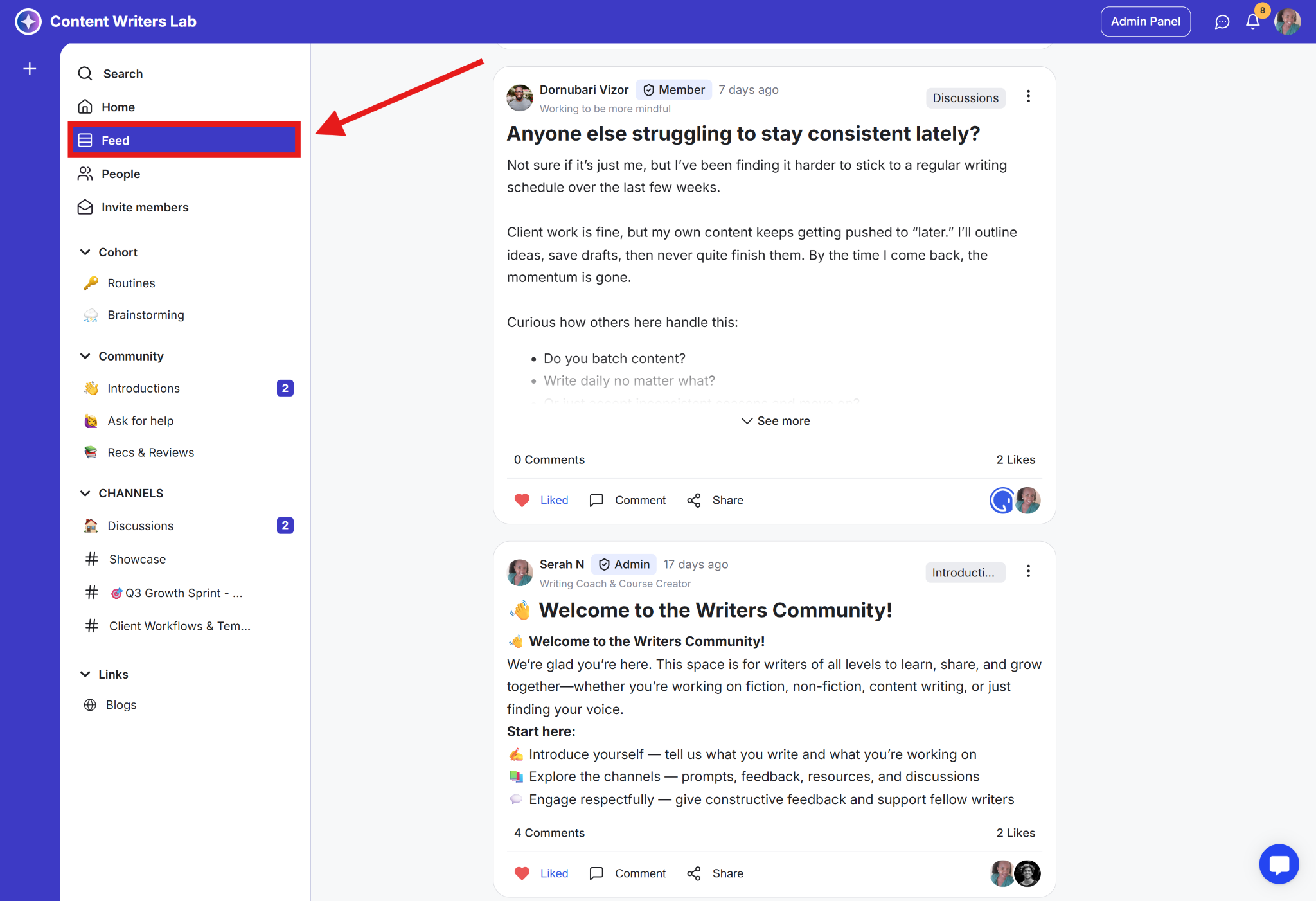
The Community Feed shows posts from channels you’ve joined. It also includes event discussion pages for events you’ve RSVP’d to and course discussion pages for courses you’re enrolled in.
It works like a social feed, displaying content in a chronological, discussion-style layout similar to Facebook.
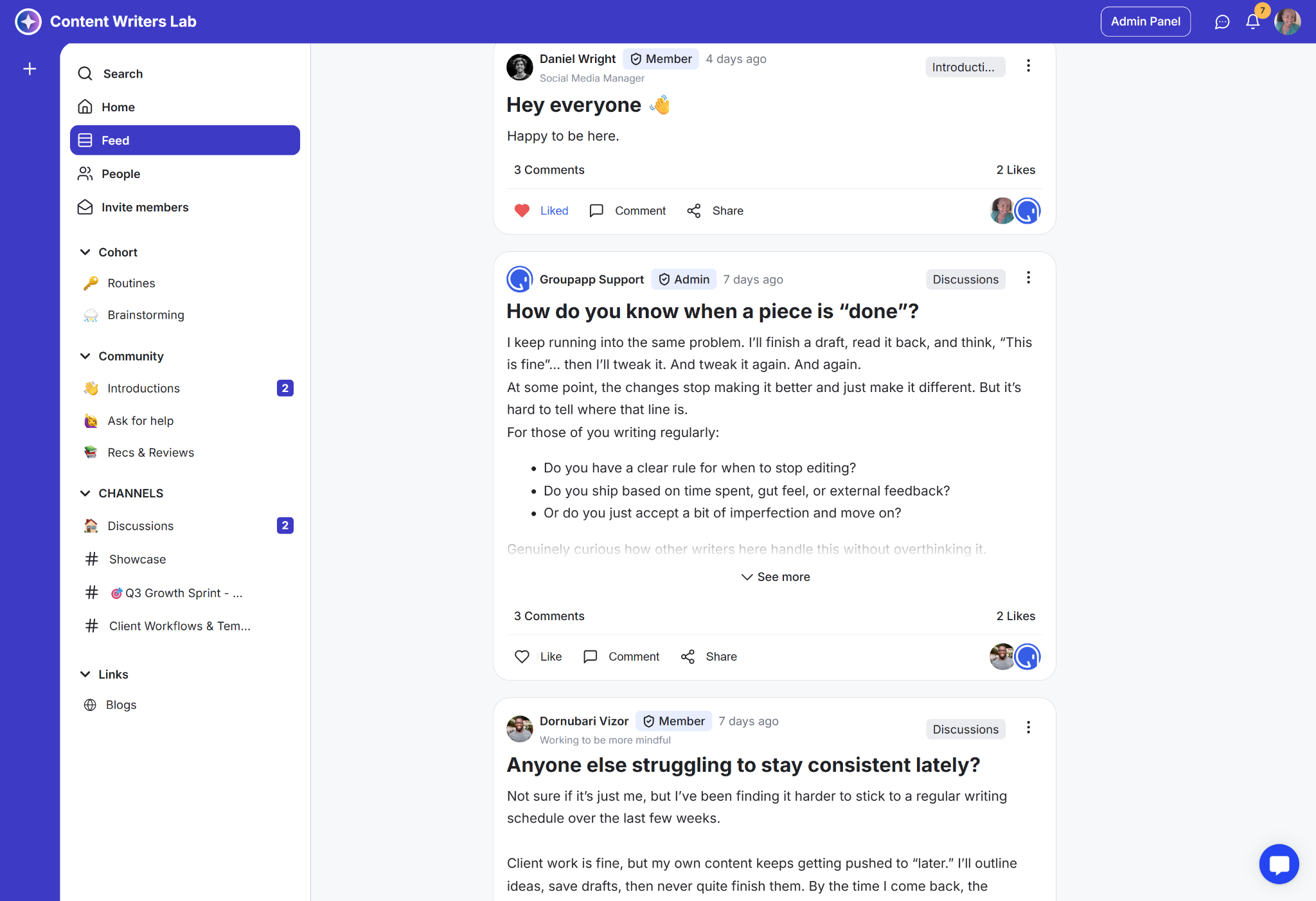
Note: Posts from channels, events, or courses you haven’t joined or enrolled in will not appear in your Feed
The Feed shows:
Posts from admins and members in channels you’ve joined
Announcements and updates relevant to you
Ongoing discussions and replies in channels you’ve joined and event discussion pages for events you’ve RSVP’d to.
It’s designed to surface relevant conversations and updates in one place, making it easy for members to stay engaged across channels, events, and courses.
Community admins can also choose to make the Feed the first page existing members see after logging in, instead of the Community Home page.
Admins can control where logged-in members land when they access the community.
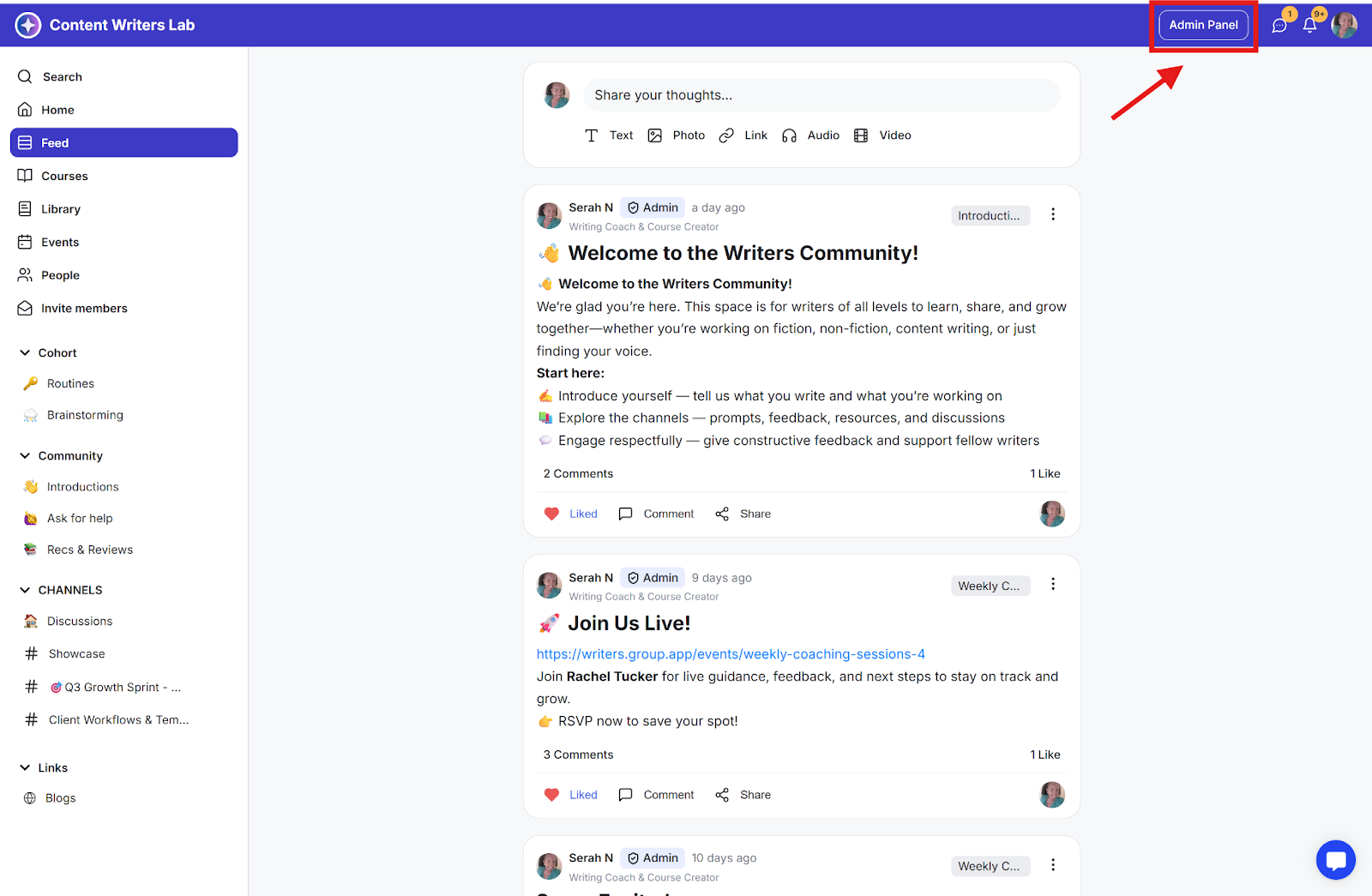
Step 1: Go to the Admin Panel
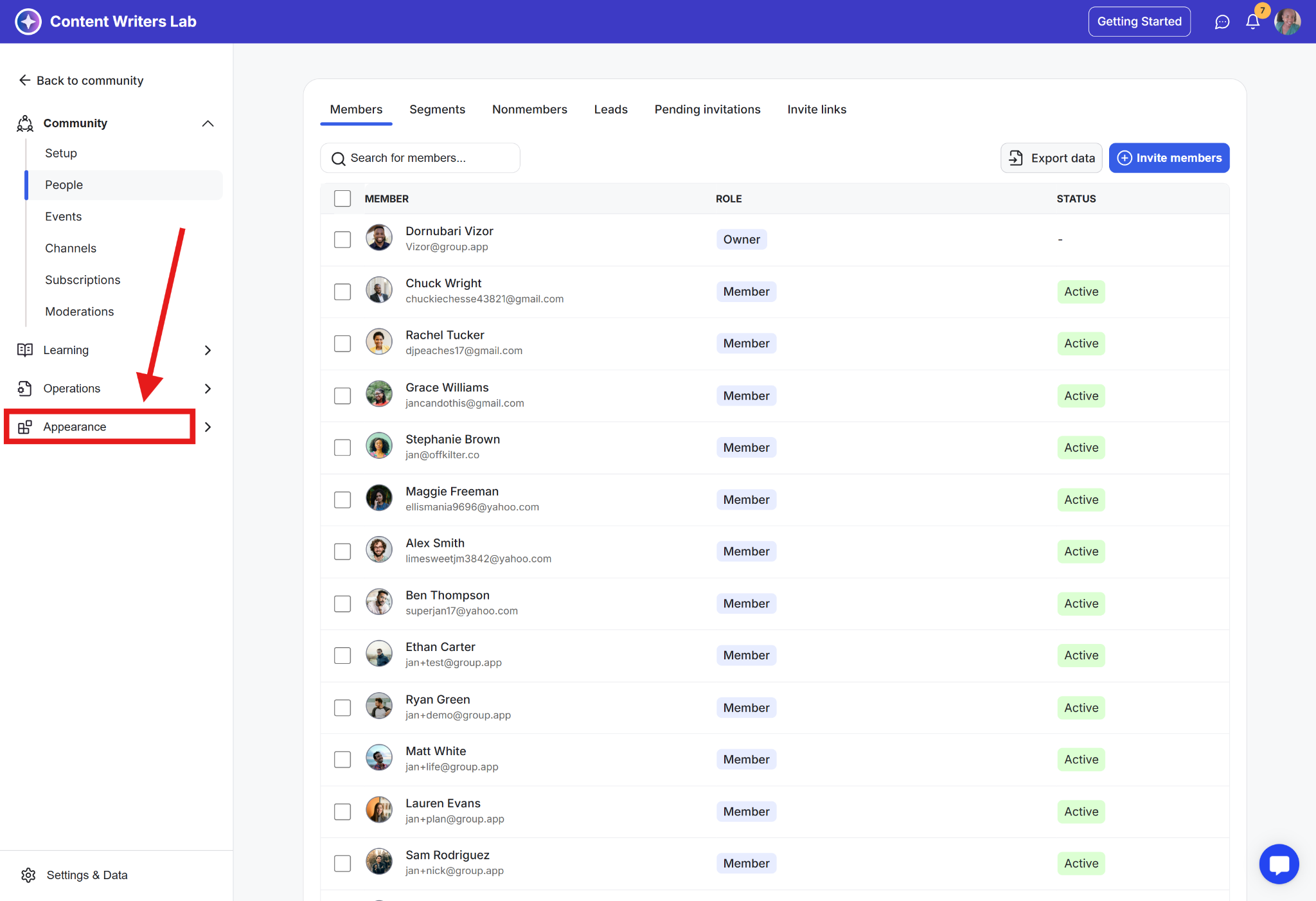
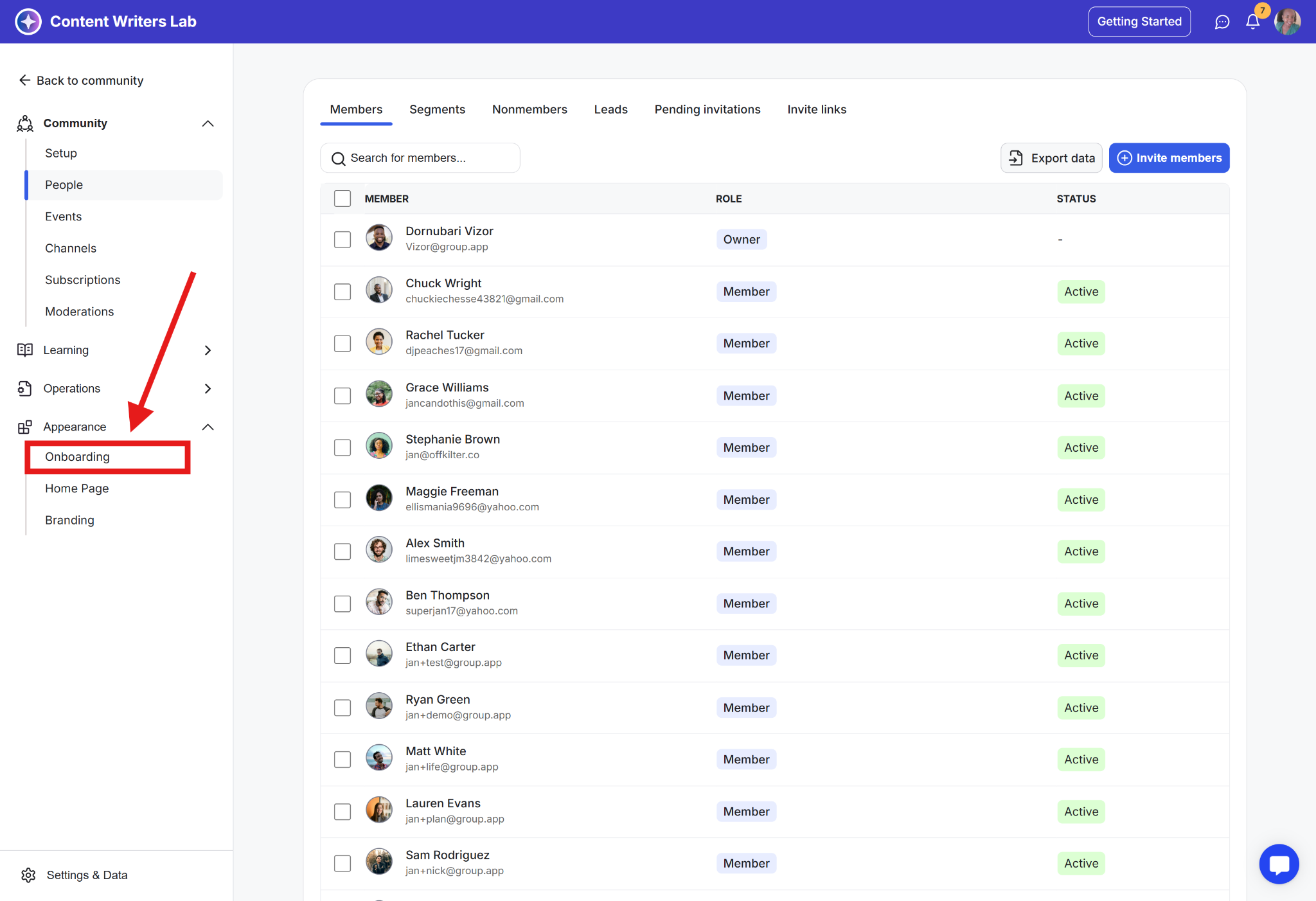
Step 2: Click Appearance in the side menu.
Step 3: Select Onboarding.
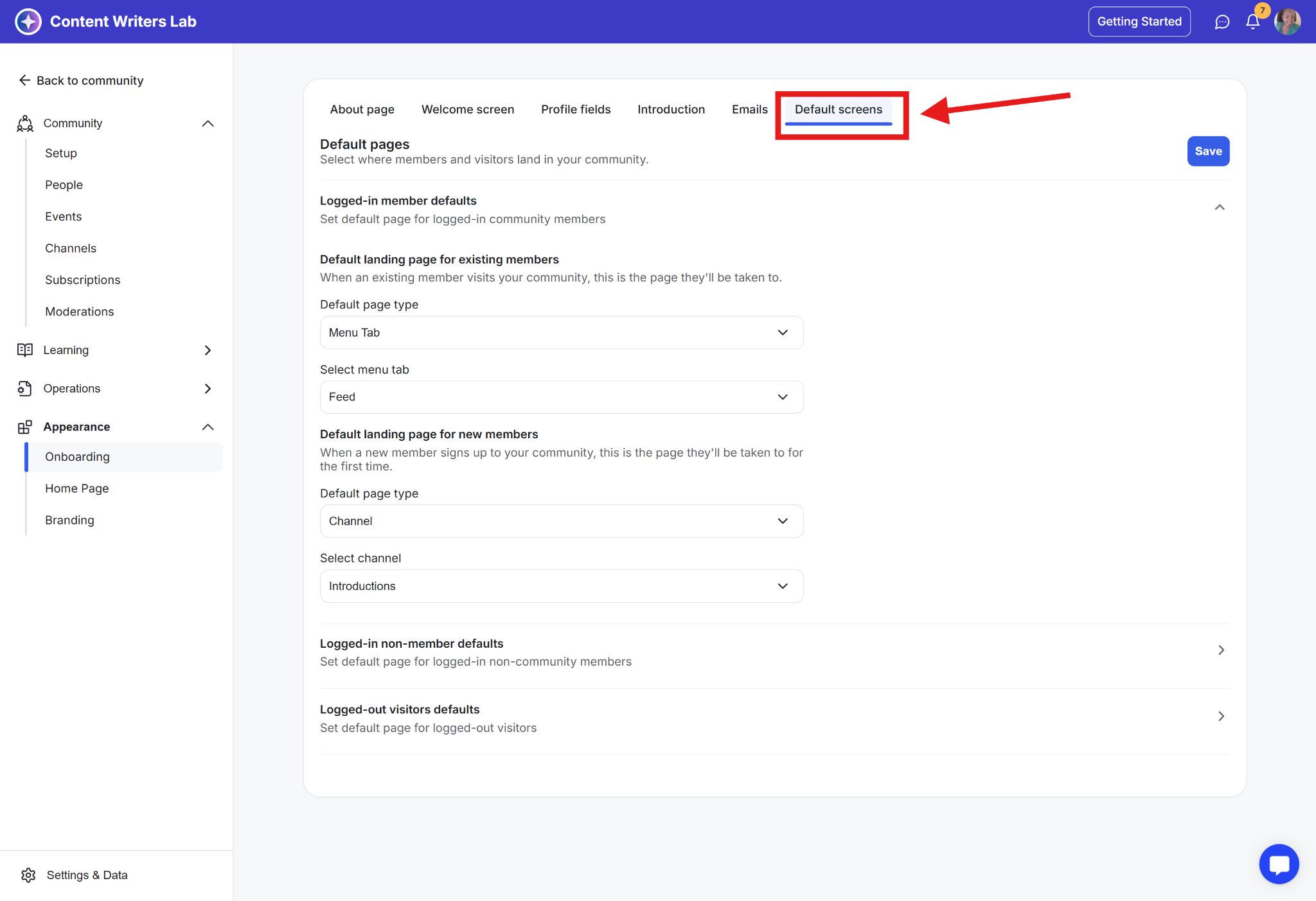
Step 4: Open the Default Screens tab.
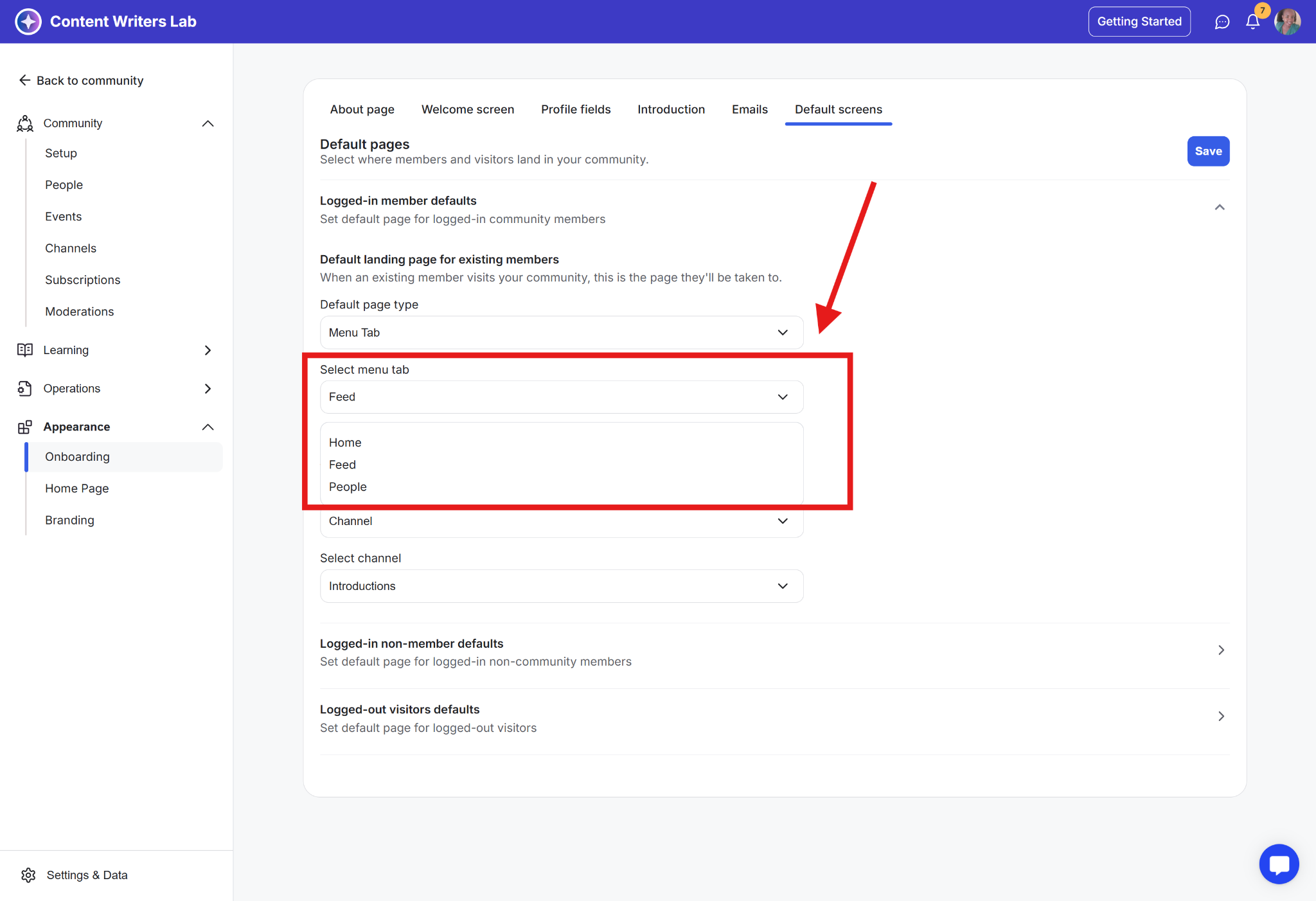
Step 5: Scroll to Default Landing Page for Existing Members.
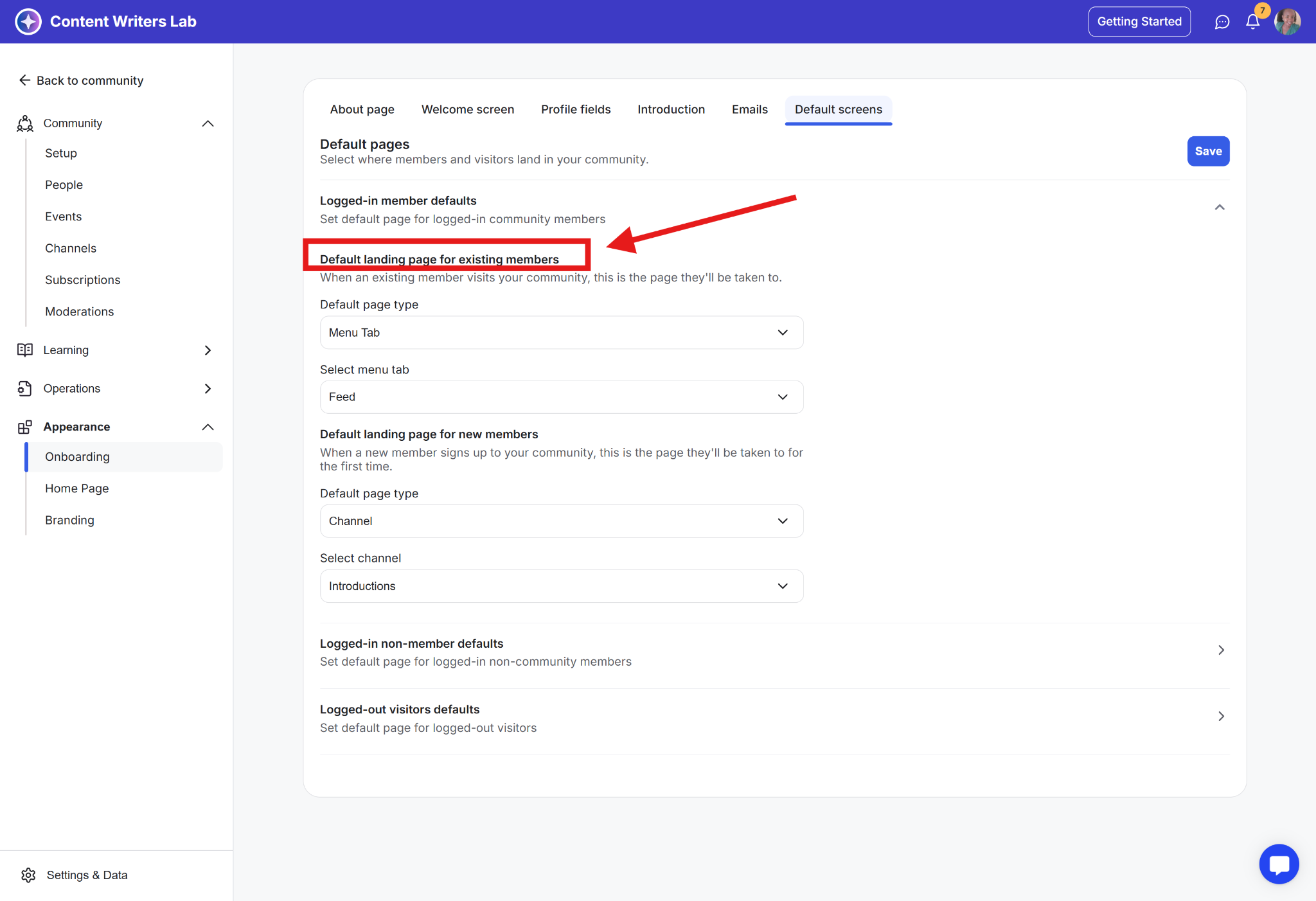
On the Default Landing Page for Existing Members section:
Step 1: Go to Default Page Type. Use the dropdowns to choose where logged-in members land:
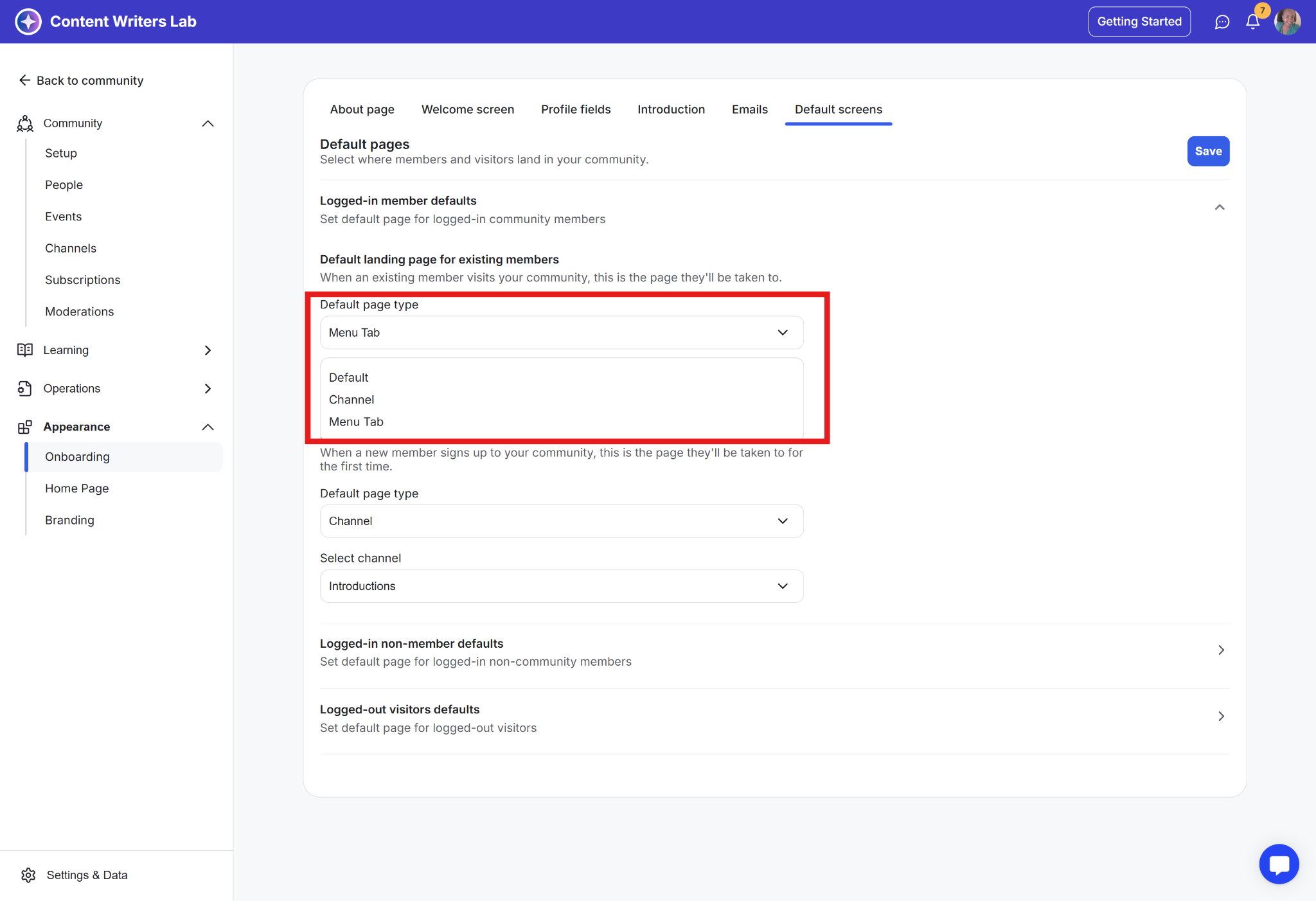
Default: Members will land on the Community Home page.
Menu Tab: You will then get to choose between Home, Feed, Courses, Library, Events, and People in the next step.
Channel: Select Channel to send members to a specific discussion channel instead of the Feed or Home page.
Step 2: Go to the Select Menu Tab subsection and select Feed from the dropdown.
Important to Note:
Even if the Feed is set as the default landing page for community members, they can still access the Community Home page at any time from the menu.
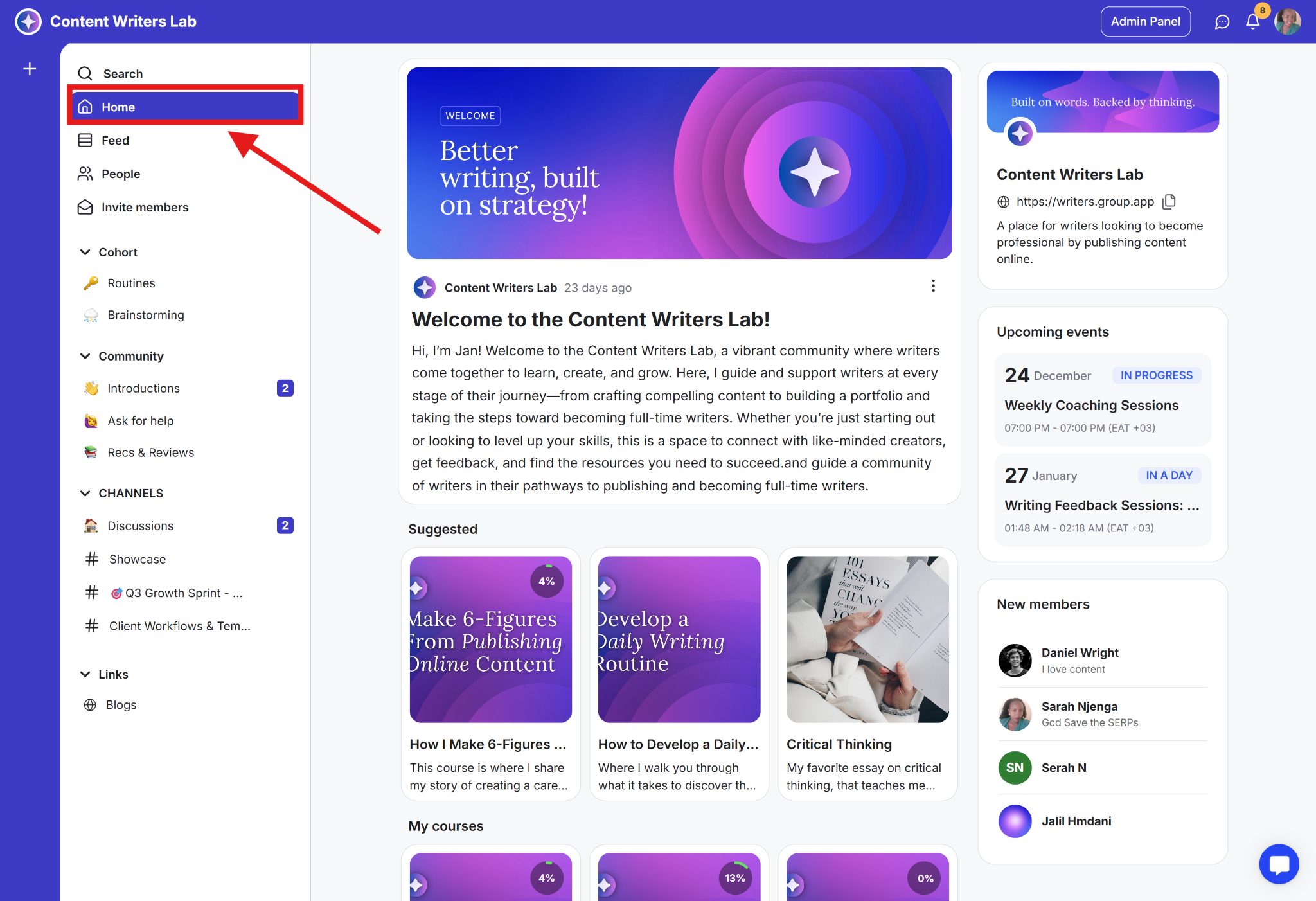
Clicking Feed will always take members back to the posts and discussions view.