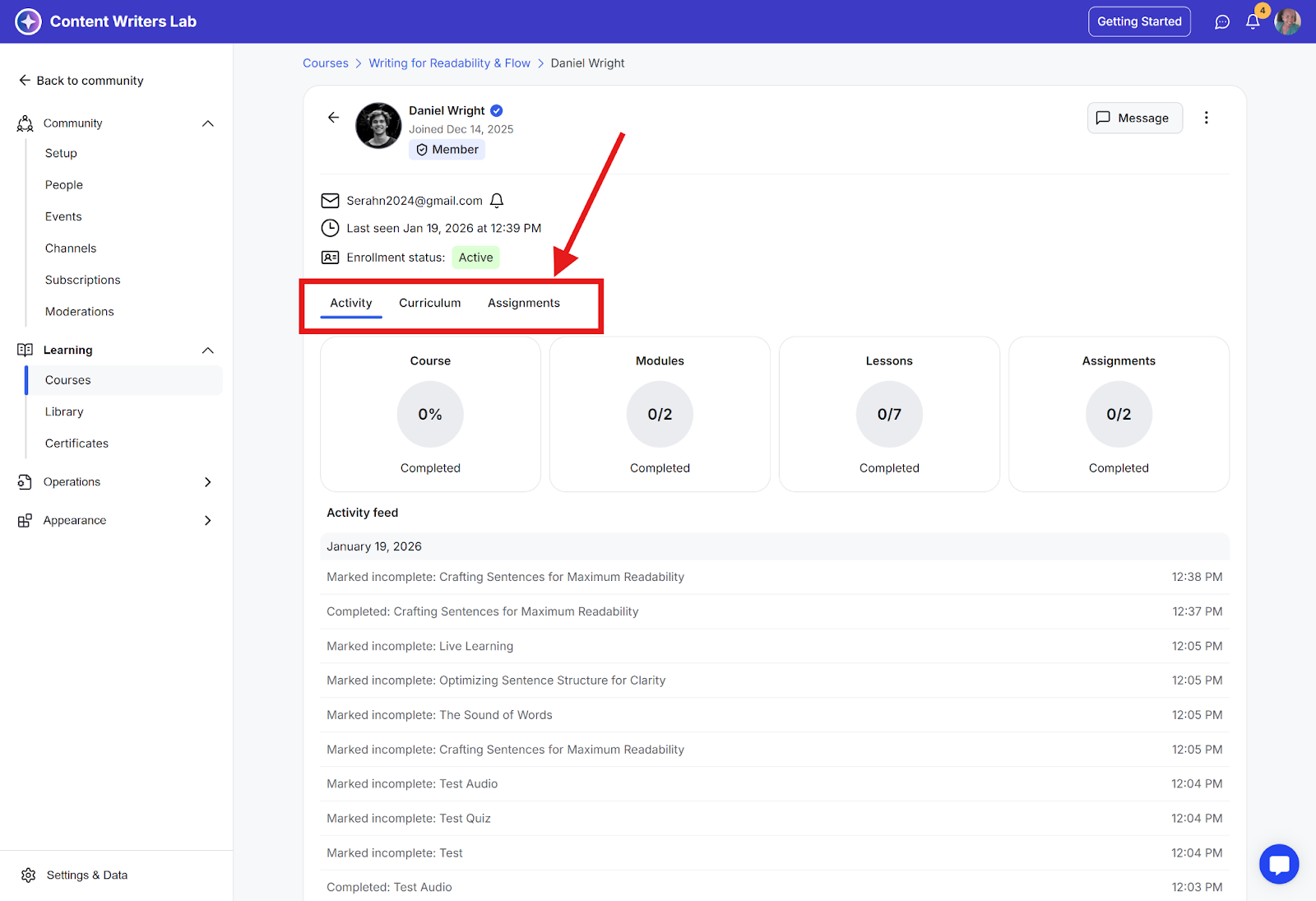
You can easily monitor student enrollments and track their progress directly within GroupApp. This guide will show you how to access detailed reports for both overall course engagement and individual student activity.
How to Access Enrollment and Progress Reports
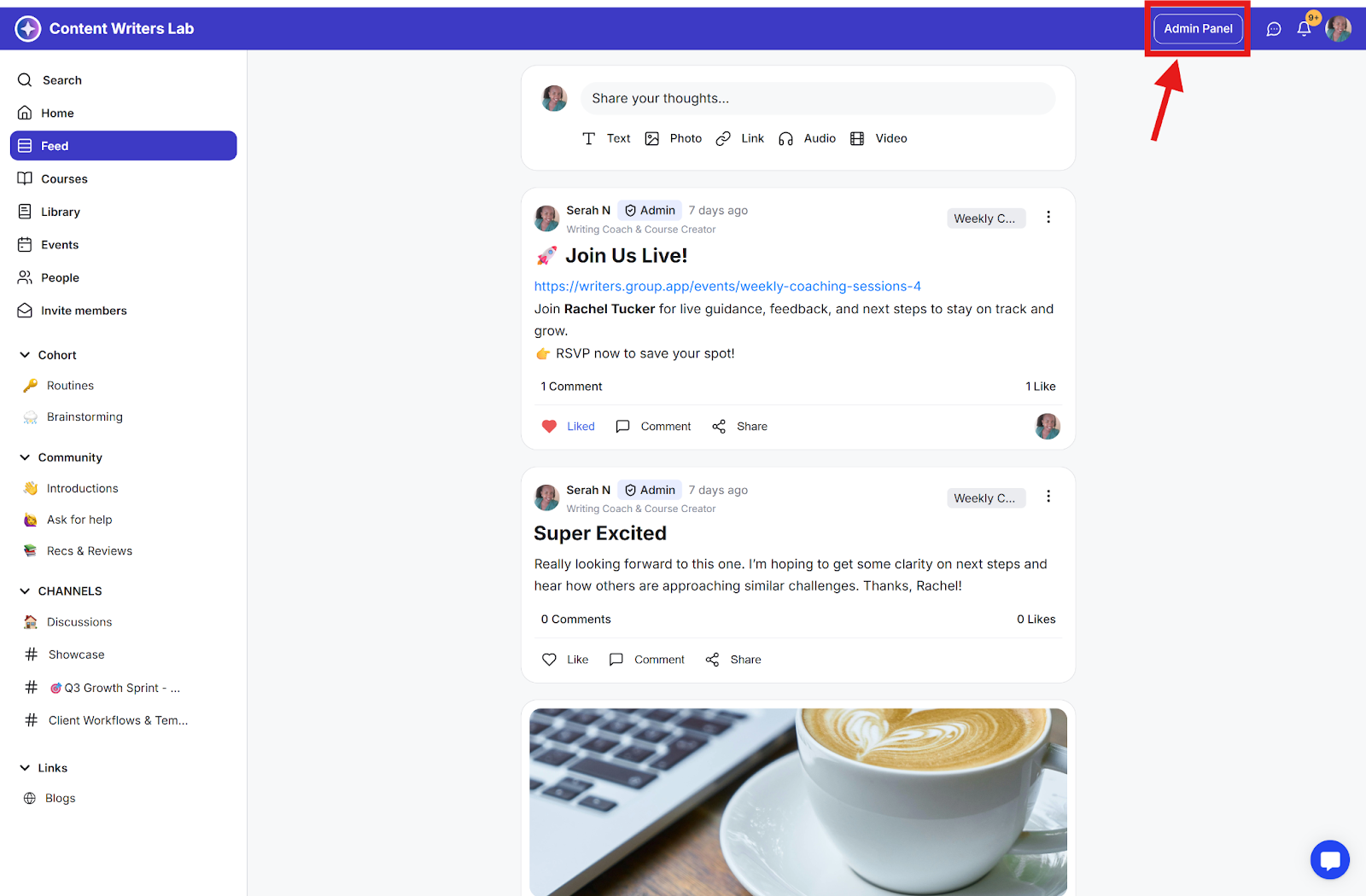
Step 1: Click the Admin Panel button.
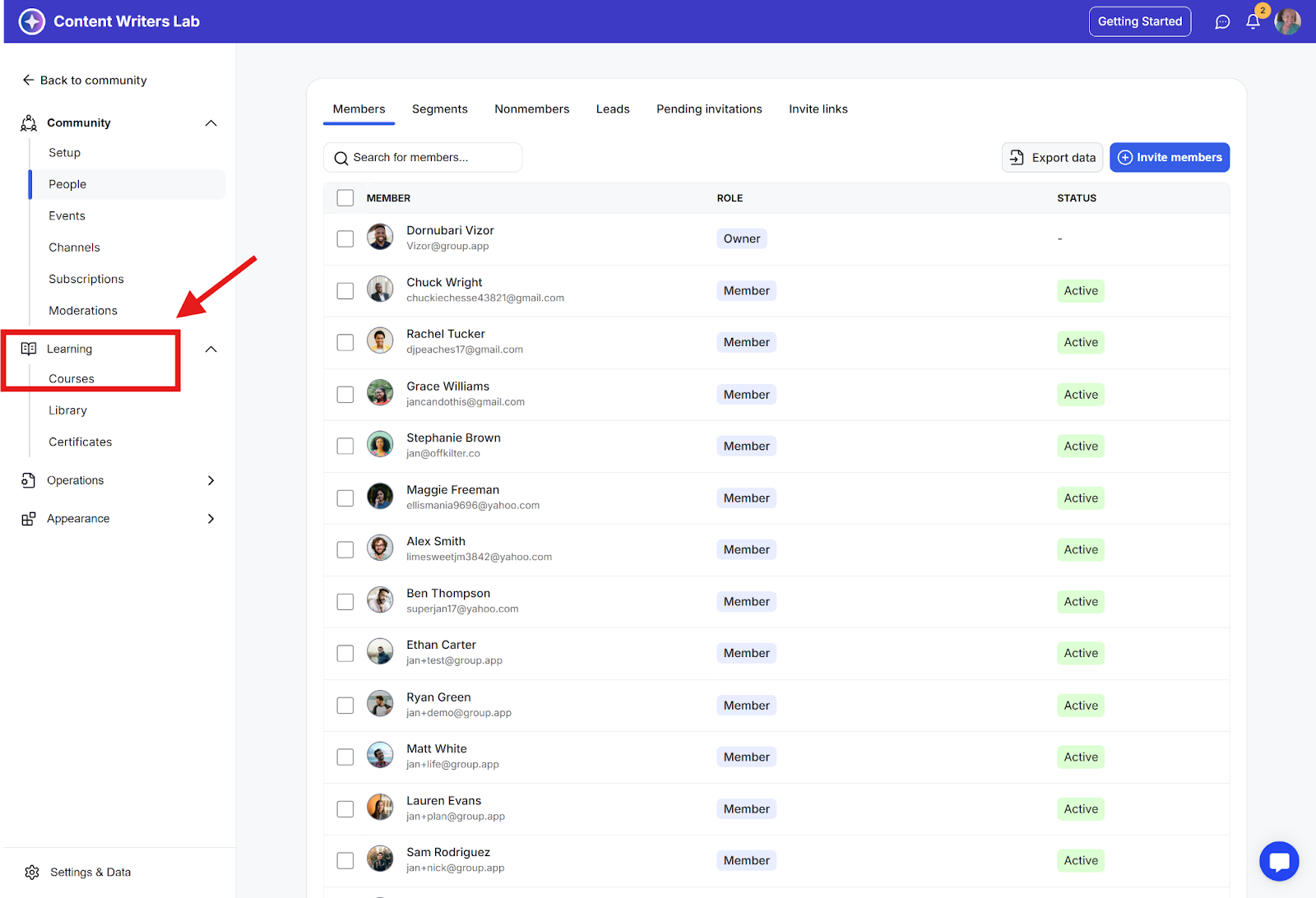
Step 2: Go to Learning in the side menu and select Courses.
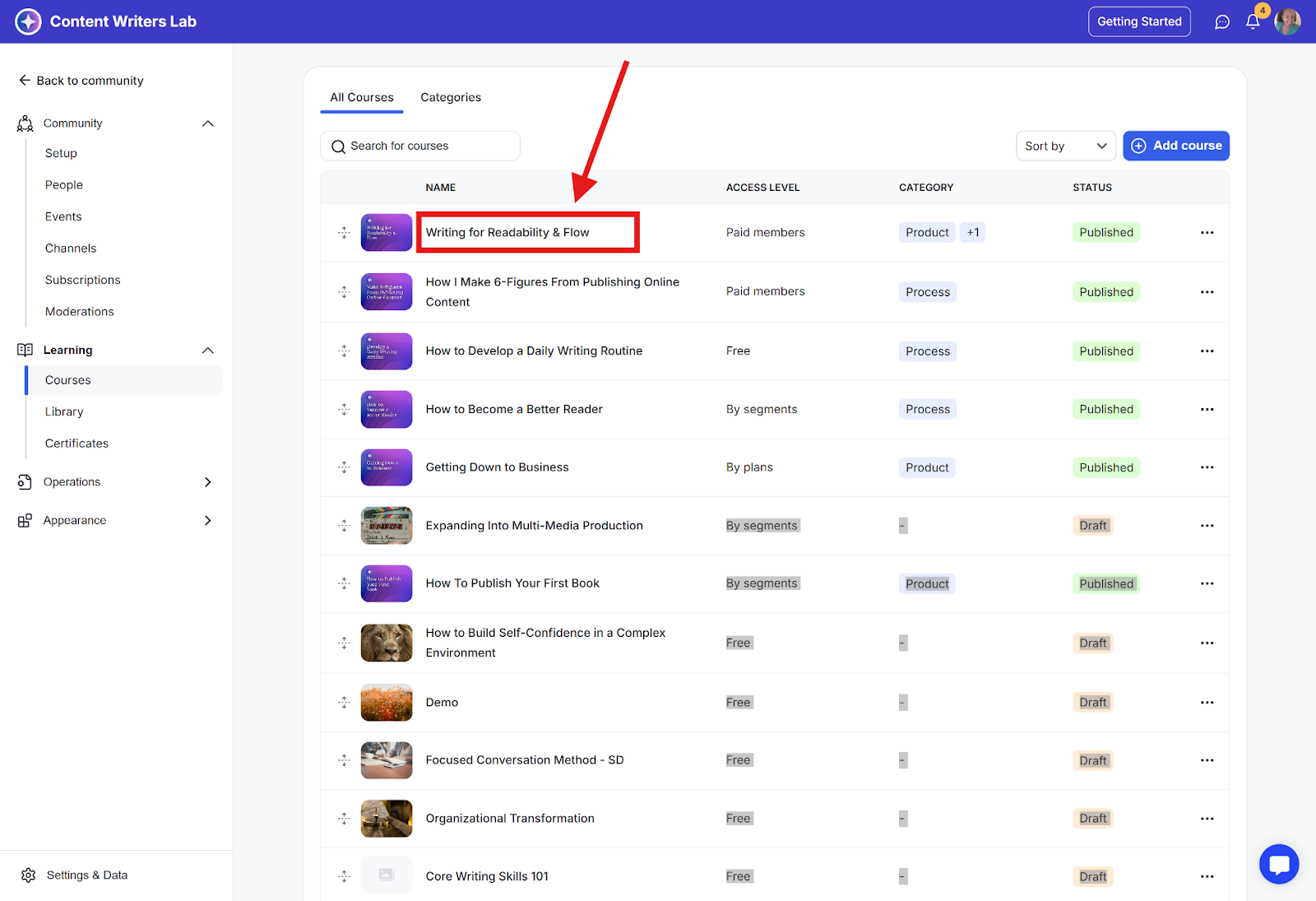
Step 3: You will land on your course list page. Locate the course you want to review.
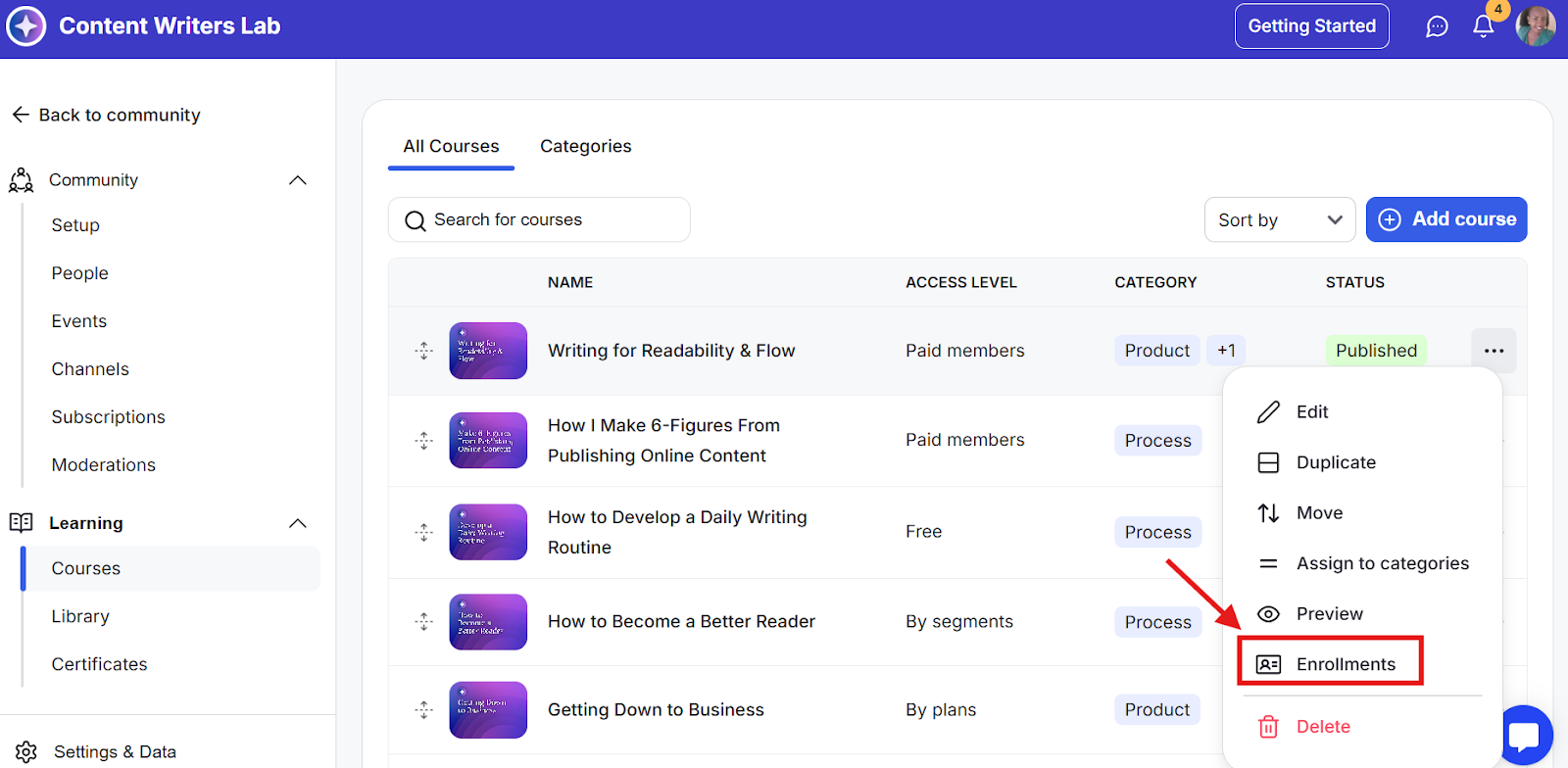
Step 4: Click the three-dot menu next to that course and select Enrollments.
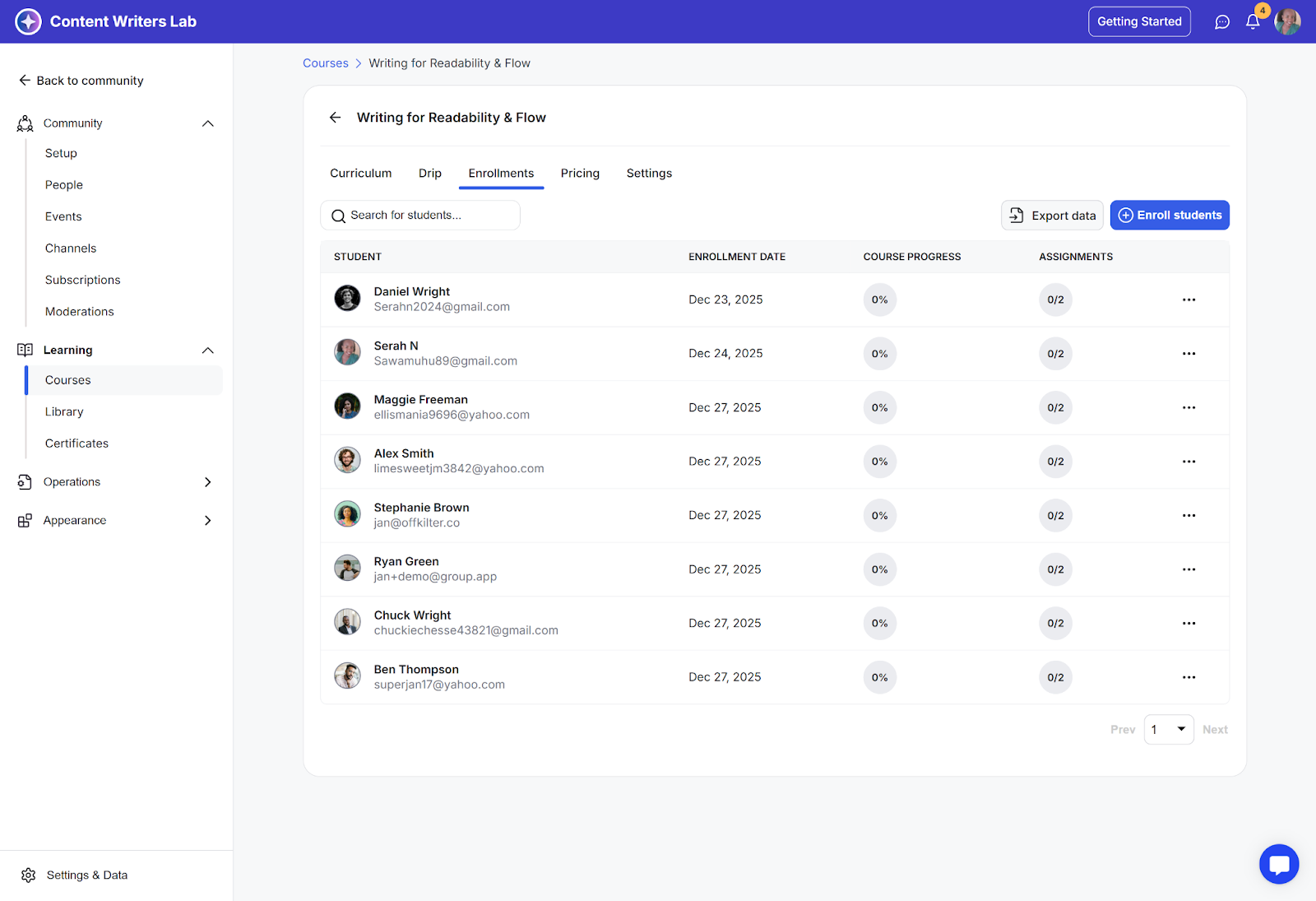
Step 5: You will now see a list of all students enrolled in the course, displaying their:
Name
Email
Date of Enrollment
Course Progress (overall percentage)
Assignment Progress
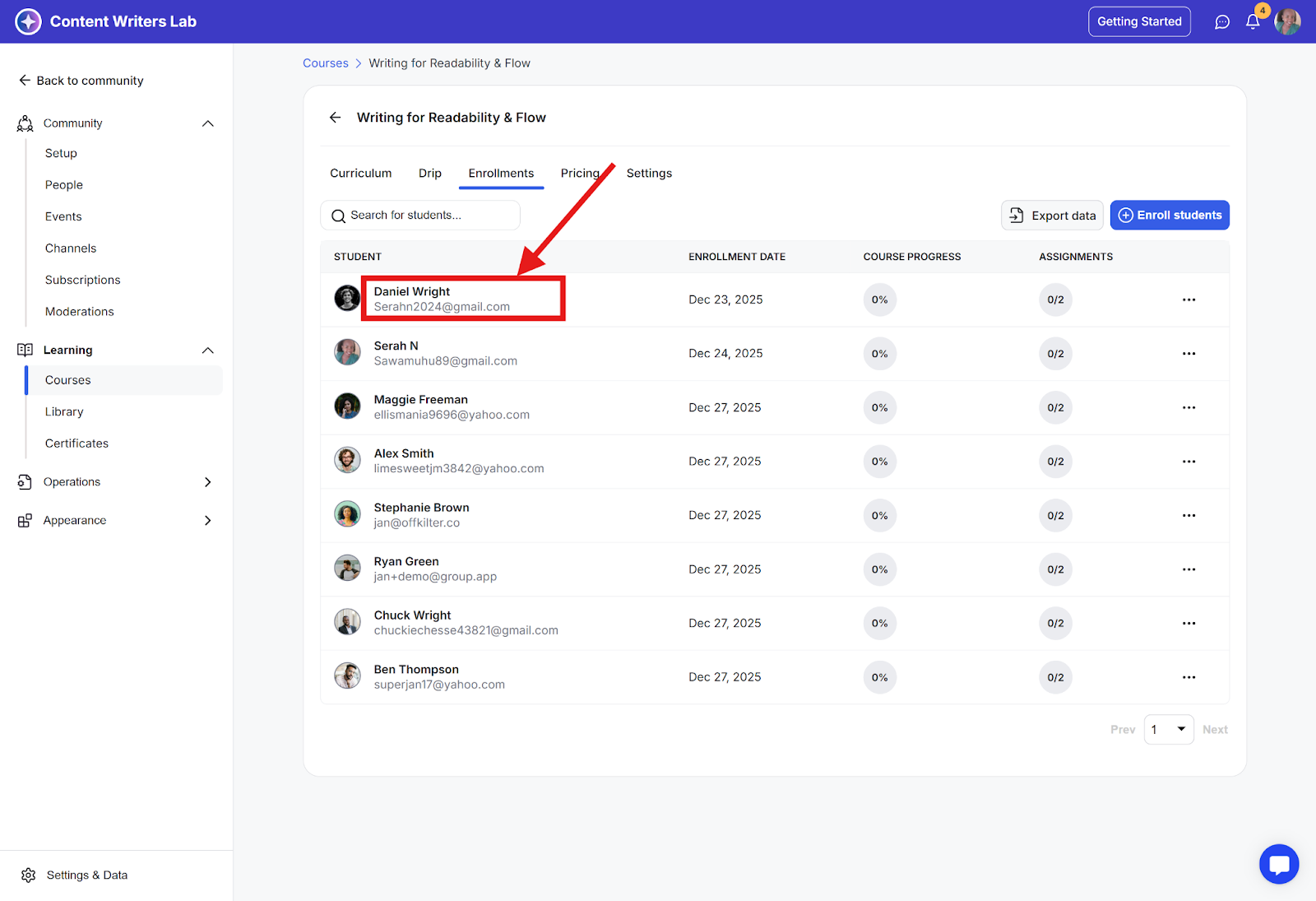
Step 6: To view an individual student's detailed report, click on a student's name.
Step 7: This will open their personal progress summary, which includes three tabs:
Activity: See a timeline of their interactions and completions.
Curriculum: View their progress through each course section and lesson, including the number of modules and lessons they have completed.
Assignments: Review all form and assignment submissions they have made.