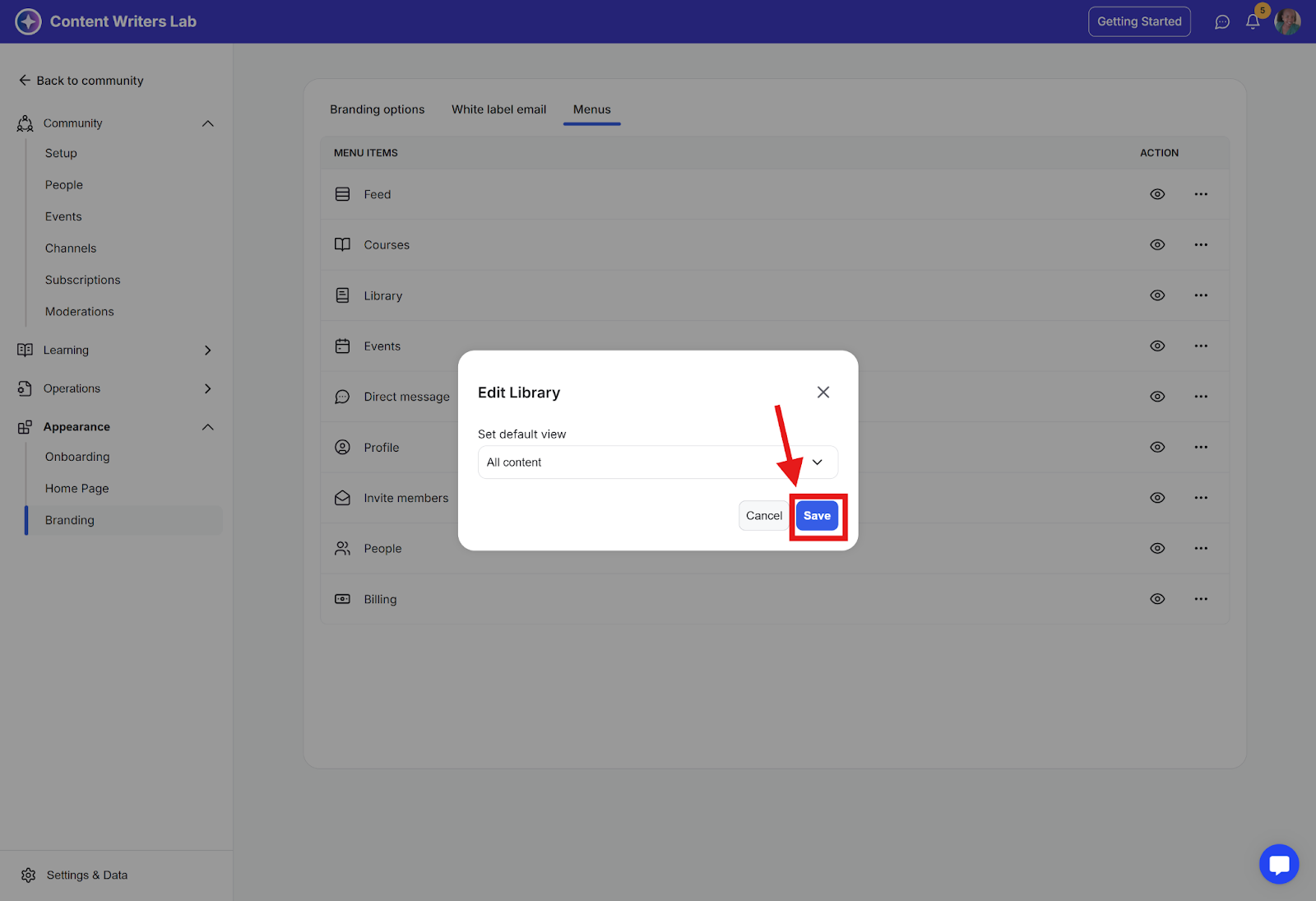
When members first visit your community library, you can choose which content tab is shown by default. This helps guide their experience, letting them land directly on "All Content," a specific type like "Videos" or "PDFs," or a custom category.
How to Set the Default Tab on the Library Page
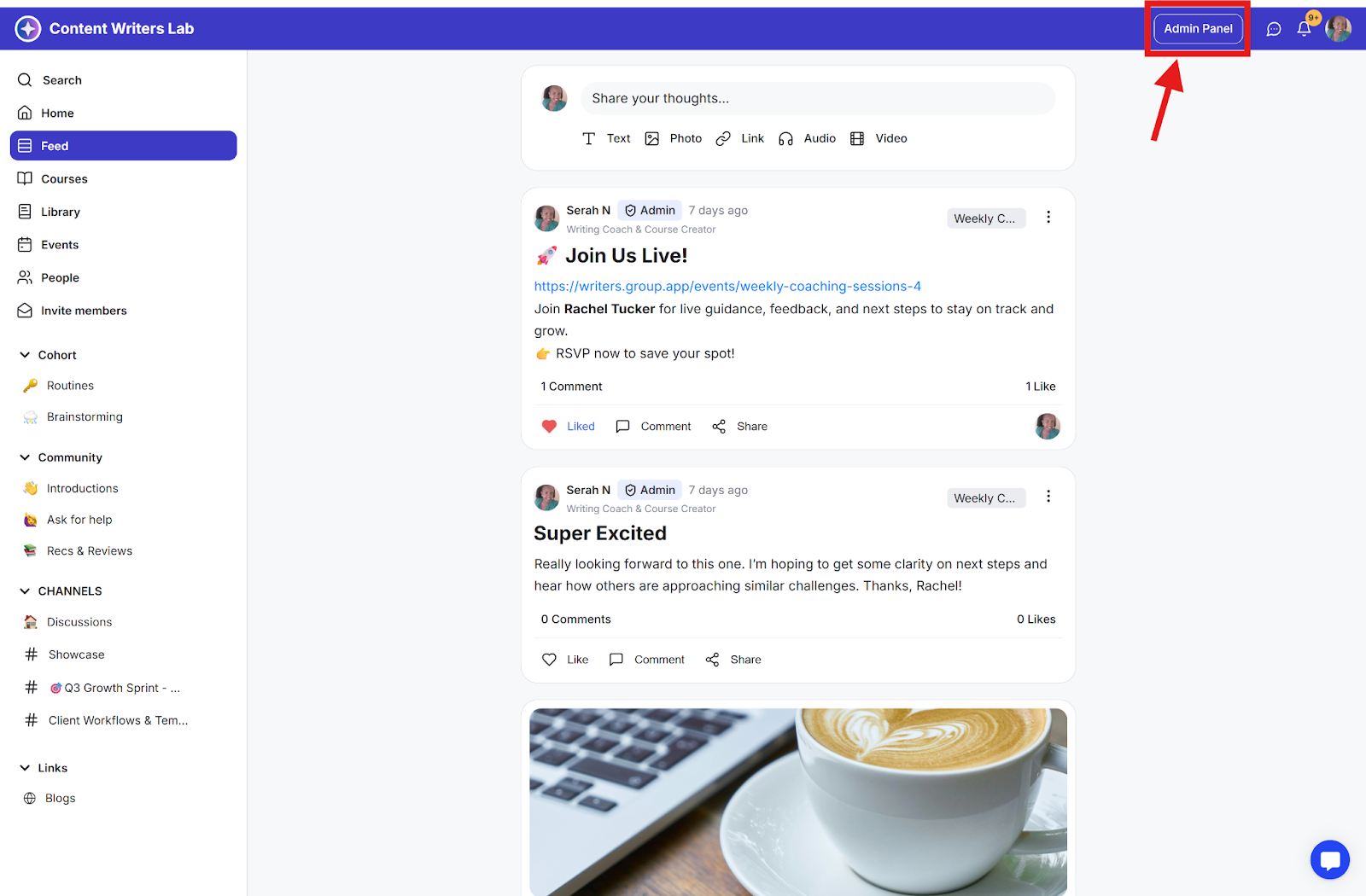
Step 1: Go to your Admin Panel.
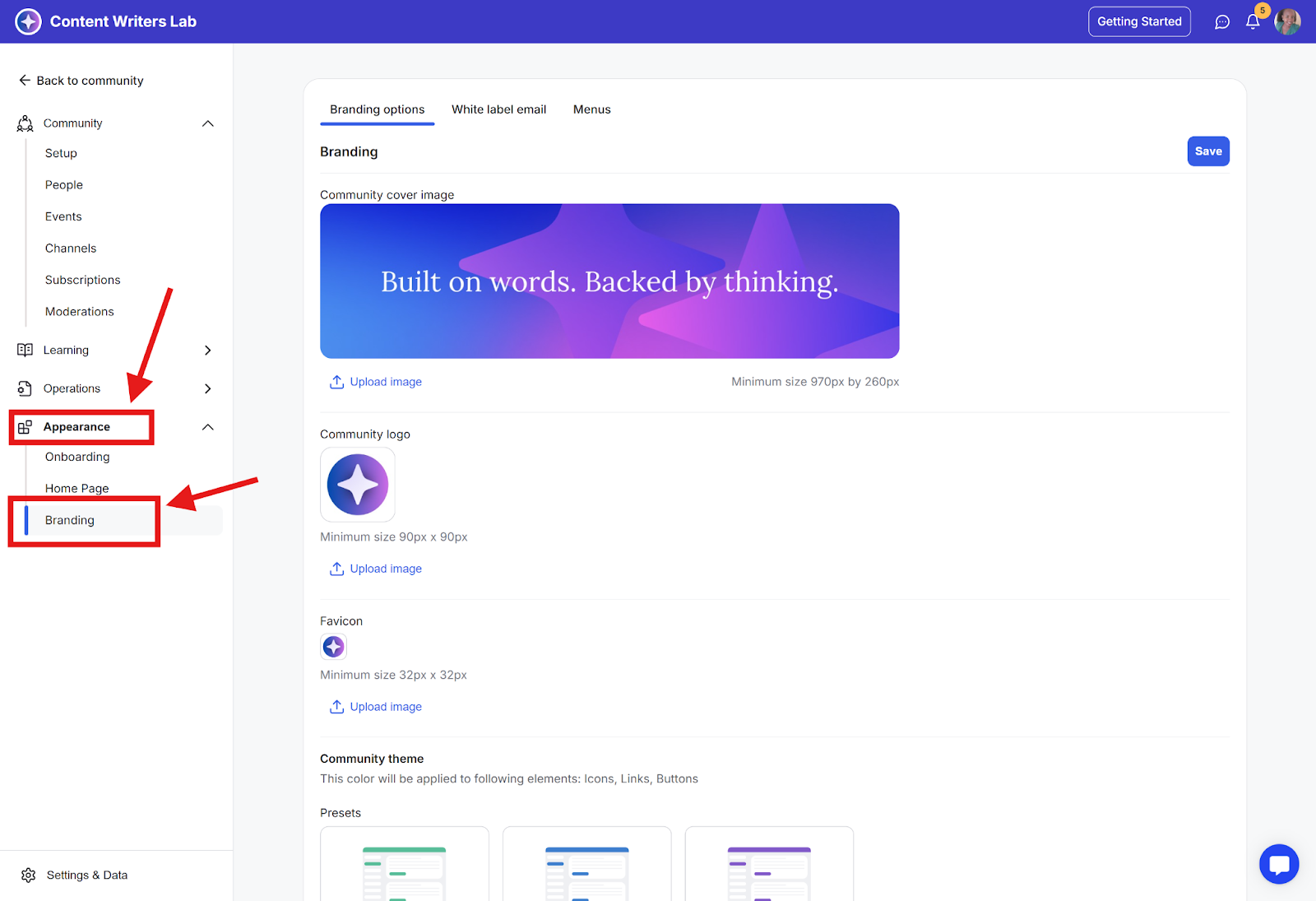
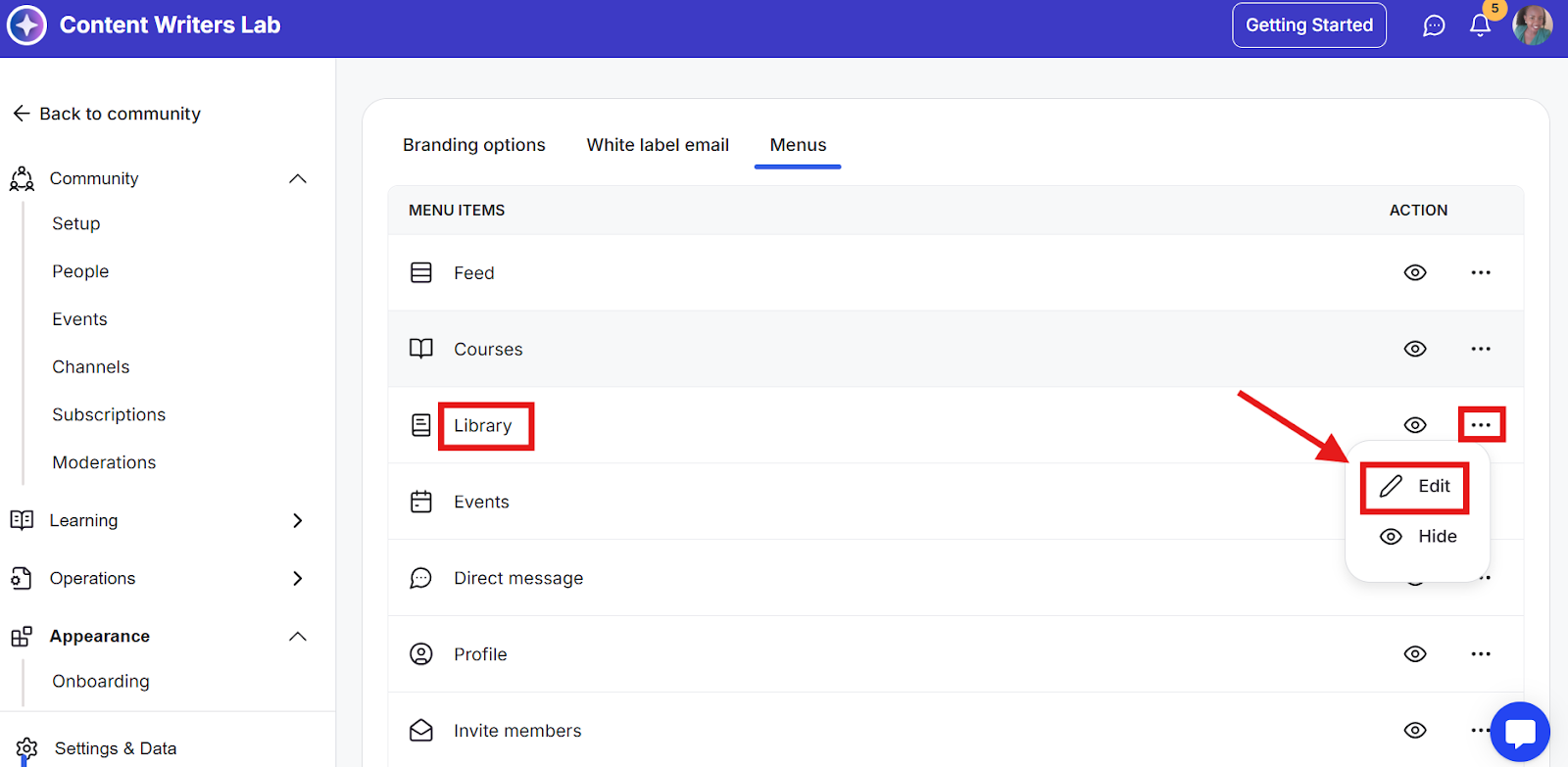
Step 2: Click Appearance in the side menu and select Branding.
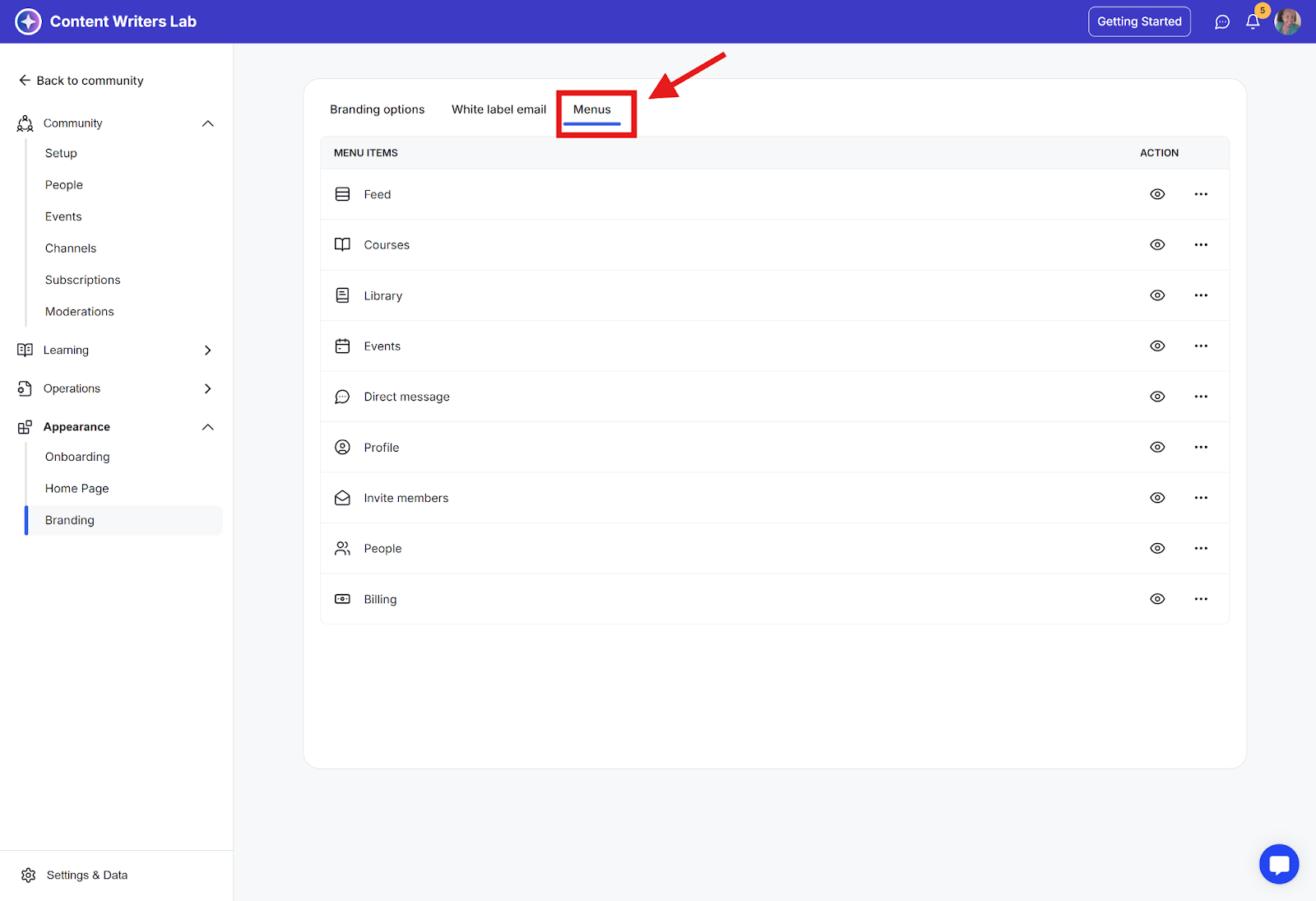
Step 3: In the Branding section, go to the Menus tab.
Step 4: Locate Library in the list of menu items, click the three-dot menu next to Library, and select Edit.
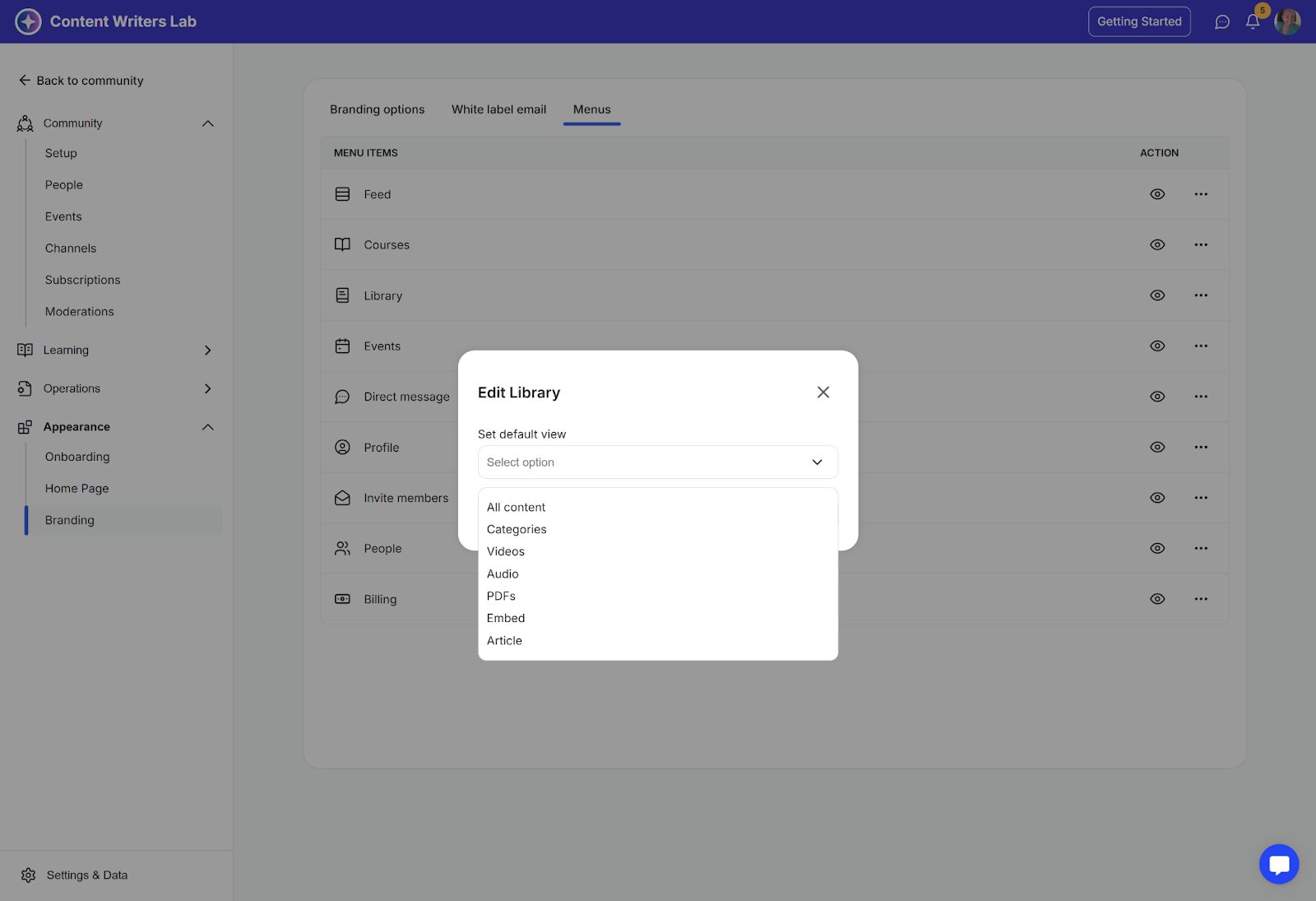
Step 5: In the Edit menu pop-up, select your preferred default view from the dropdown. Options include:
All Content
Categories
Videos
PDFs
Audio
Articles
Embed
Step 6: Click the Save button to apply your new default library tab setting.