With GroupApp’s Course Forms feature, you can build forms directly inside your course lessons without third-party tools or embed codes. Use forms for quizzes, feedback surveys, assignments, assessments, and more, while keeping all student responses neatly stored inside GroupApp.
You can view and export responses as a CSV file anytime.
Versatility: Perfect for quizzes, feedback forms, assignments, assessments, and interactive exercises.
Engagement: Create interactive lessons and personalized learning paths.
Centralized Data: Collect student responses directly in GroupApp and export them easily.
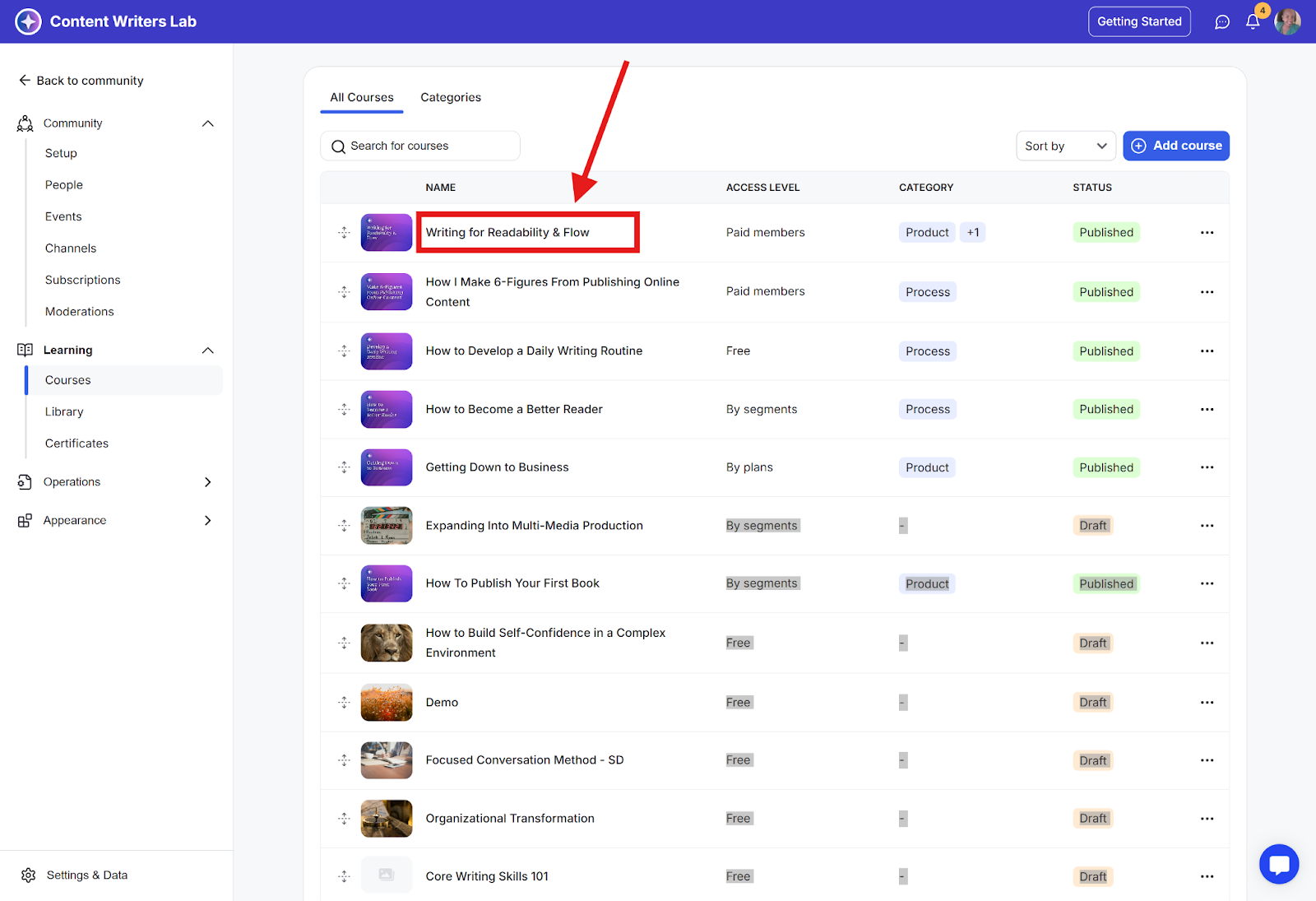
Step 1: Create a new course or go to an existing one.
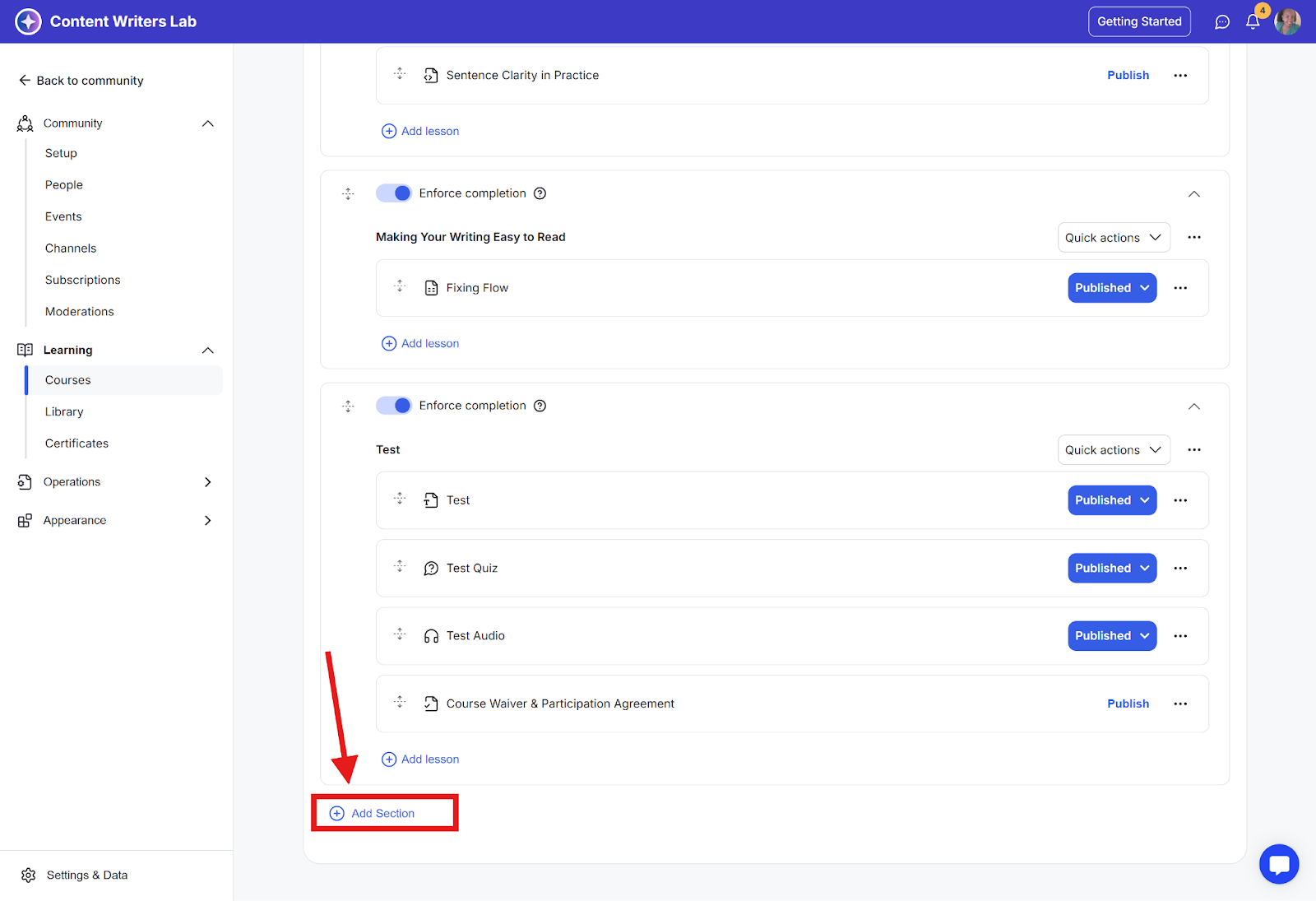
Step 2: On the course Curriculum page, click Add Section.
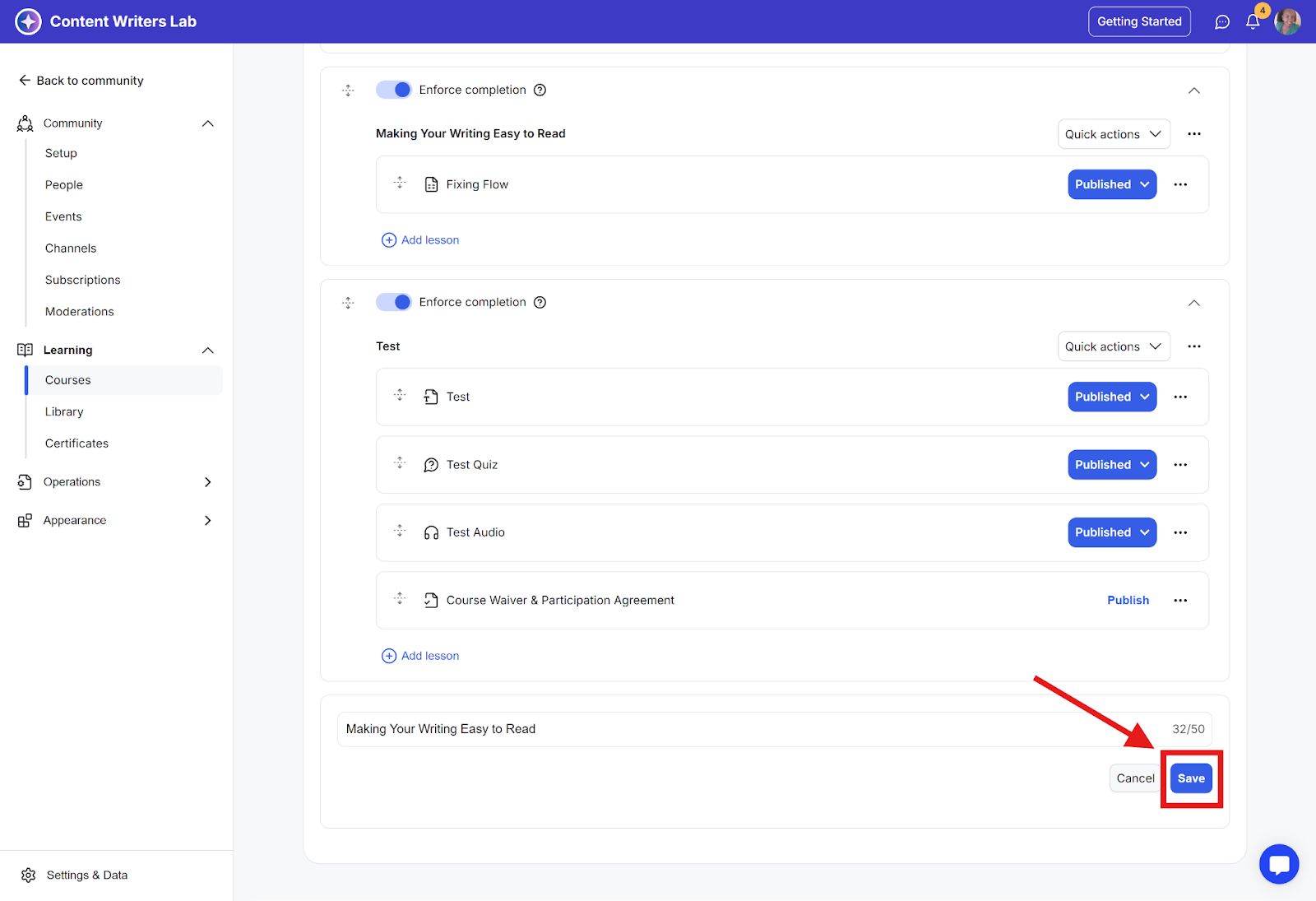
Step 3: Enter a section (module) Name and click Save.
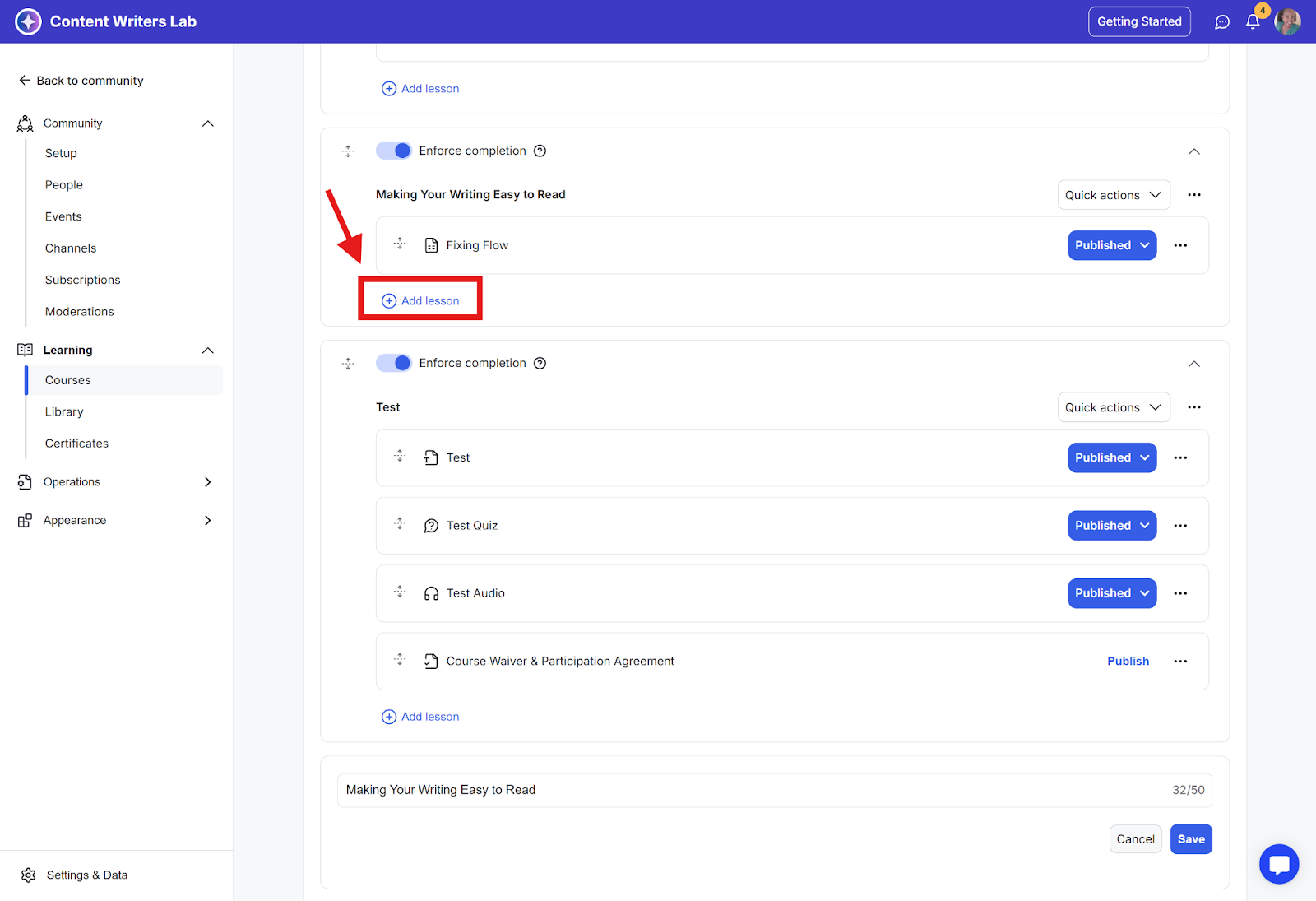
Step 4: Inside the section you just created, click Add Lesson.
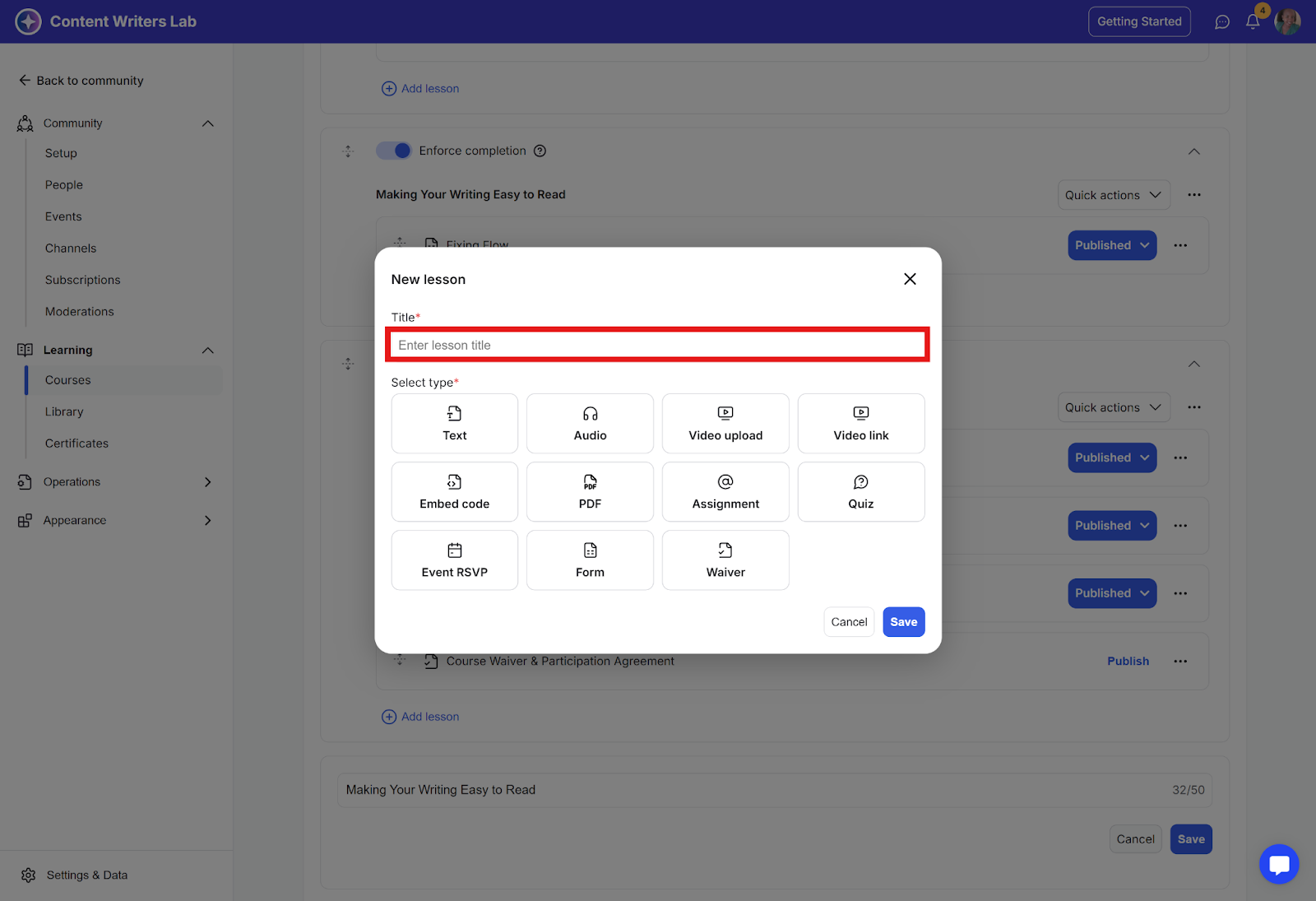
Step 5: Enter the lesson Title.
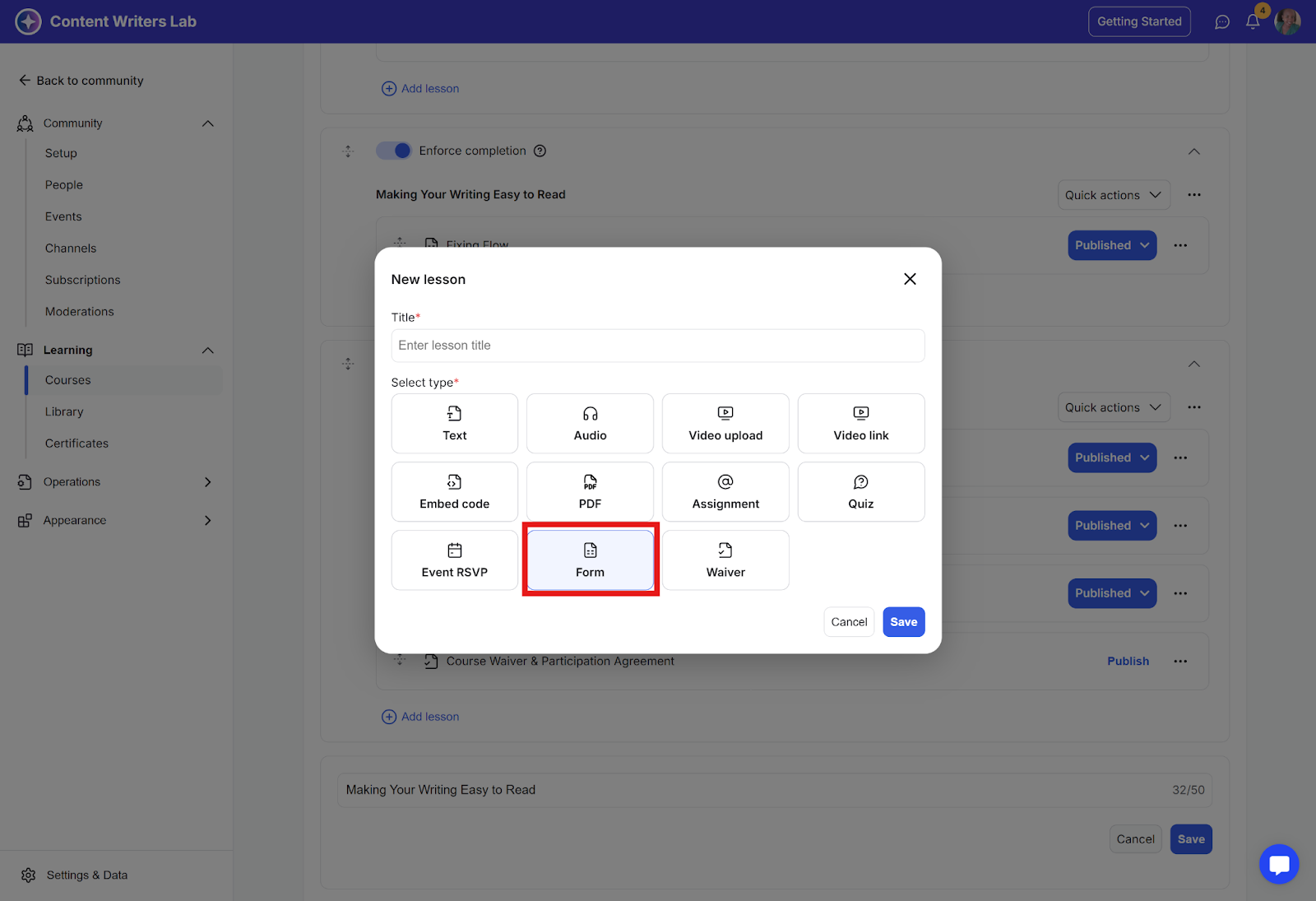
Step 6: Under lesson type, select Form and click Save.
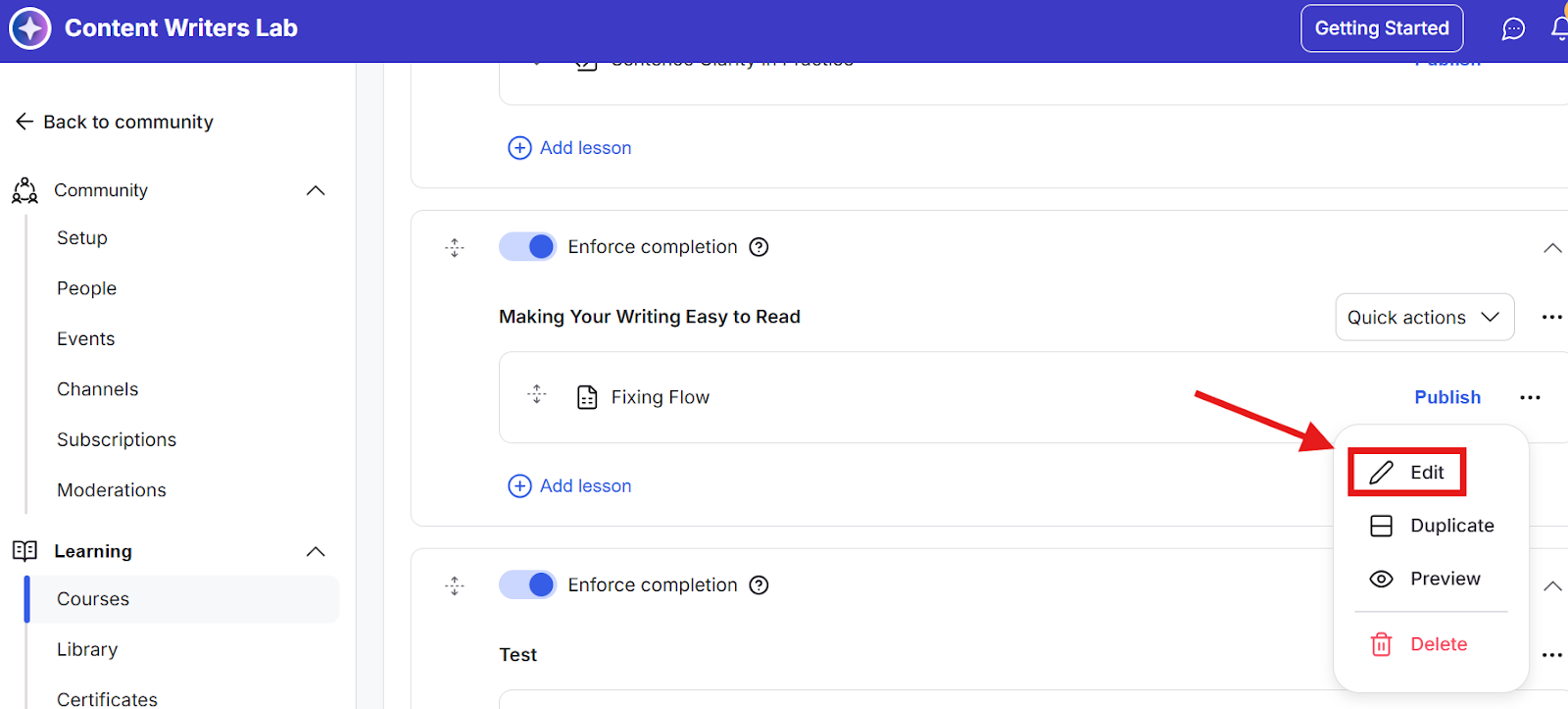
Step 7: Find the form lesson you just created and click the three-dot icon next to it and select Edit.
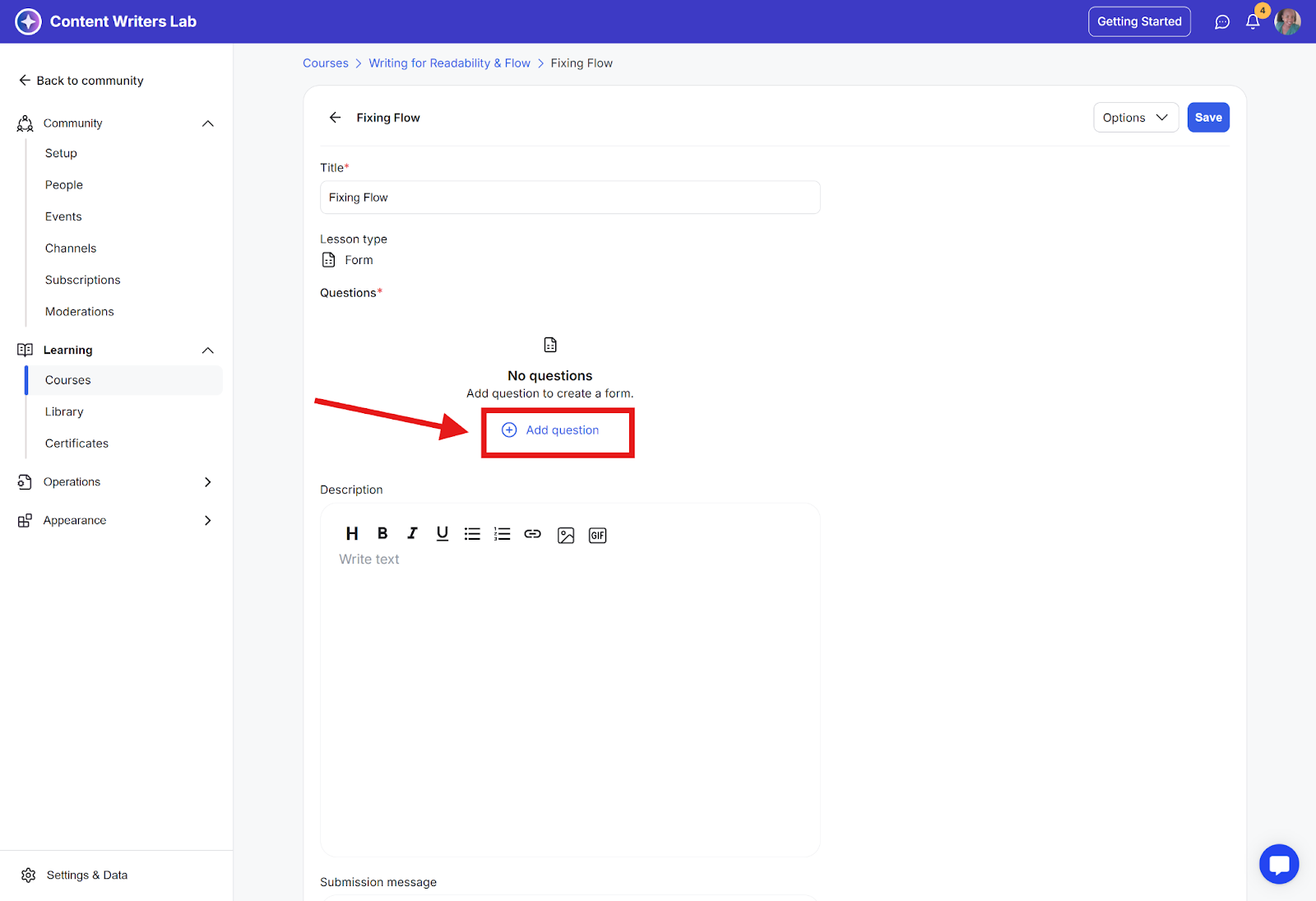
Step 8: On the form editor page, click Add Questions.
Step 9: A question form will appear. Fill in the fields and select the Answer Type:
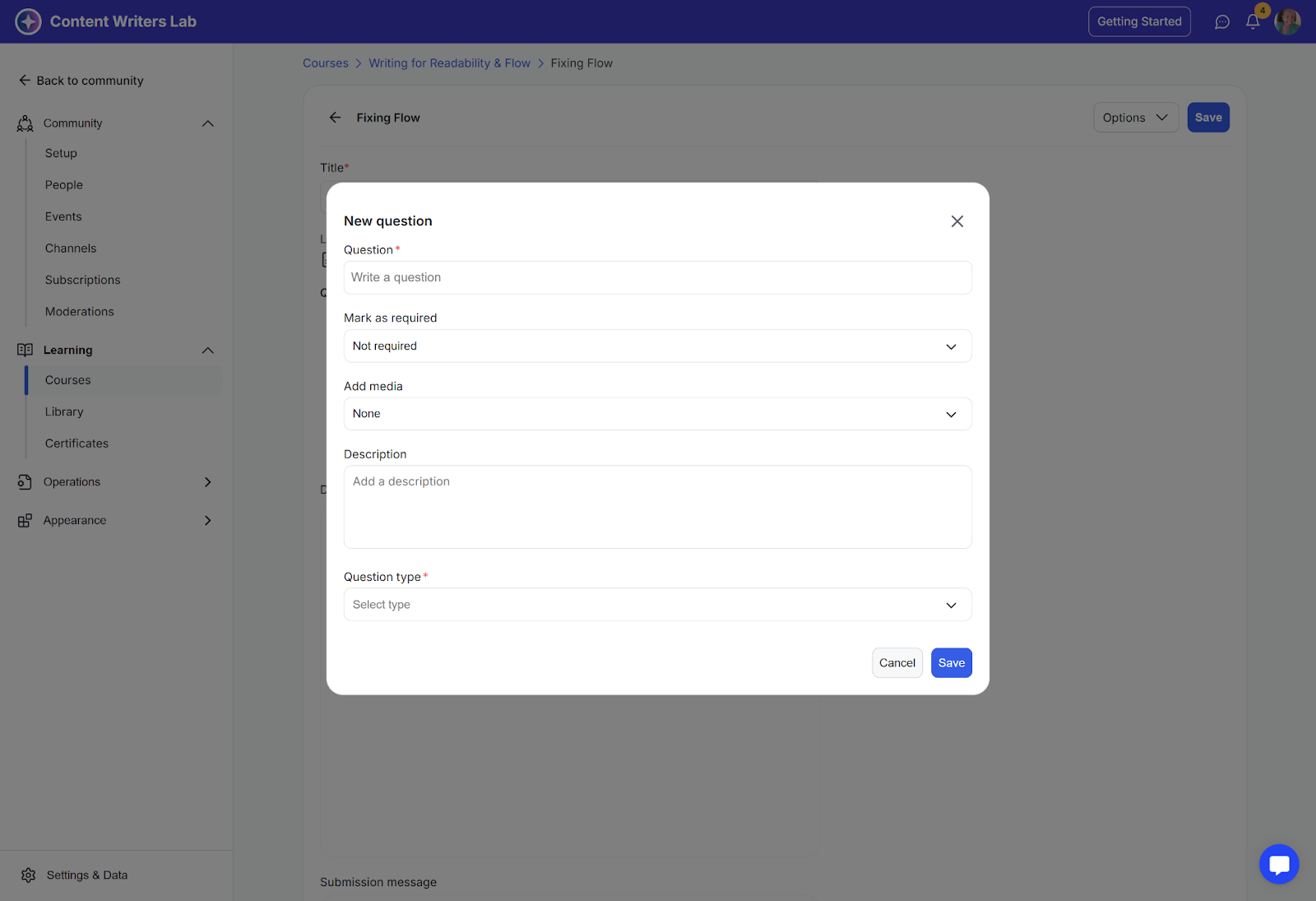
Checkbox
Multiple Choice
Written Answer
Step 10: Depending on your choice:
For Multiple Choice, enter the answer options.
For Written Answer, you can add a placeholder text to guide students.
Step 11: Click Save when done. Repeat to add more questions.
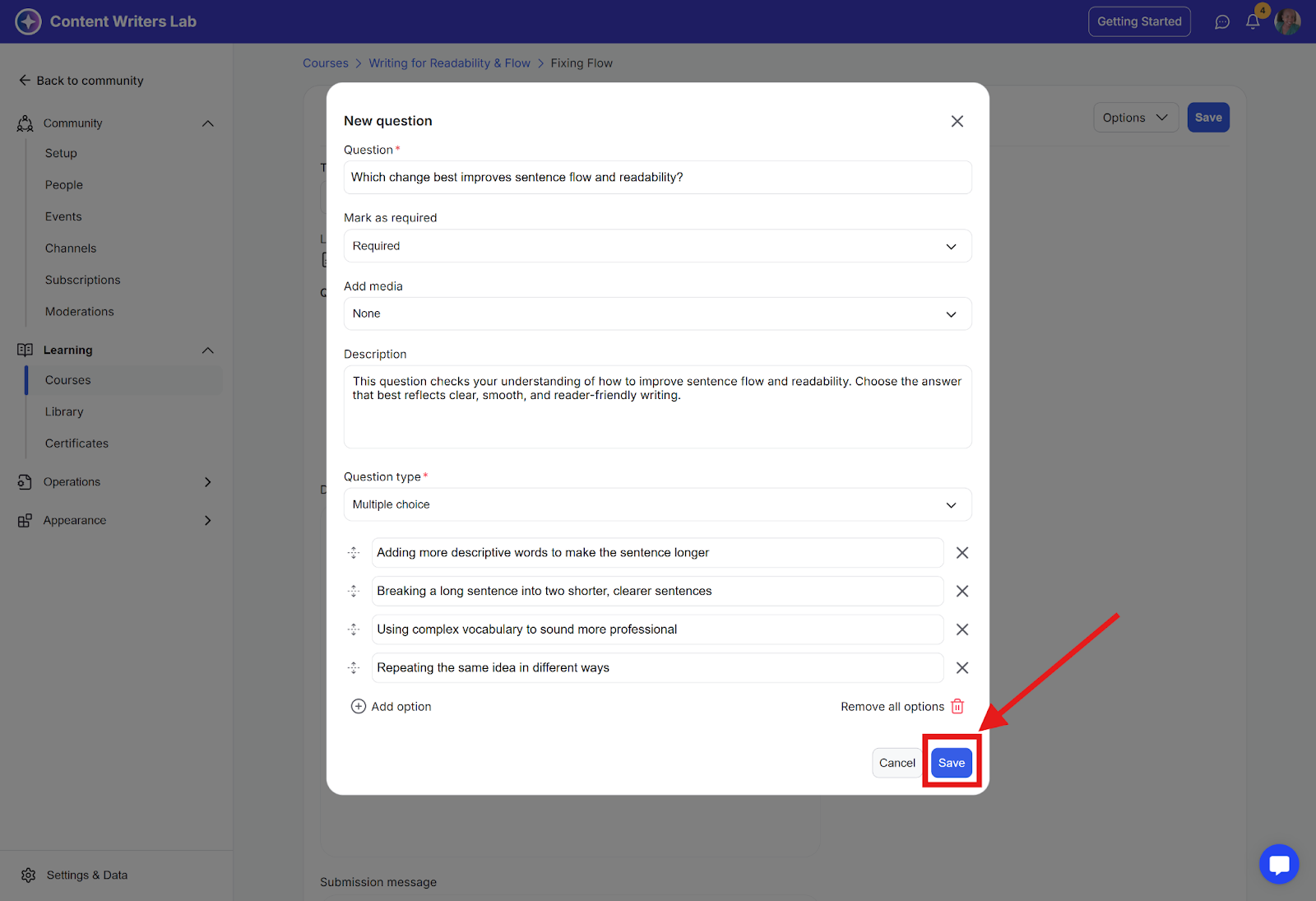
Step 12: To preview your form, click the Options button and select Preview from the drop-down.
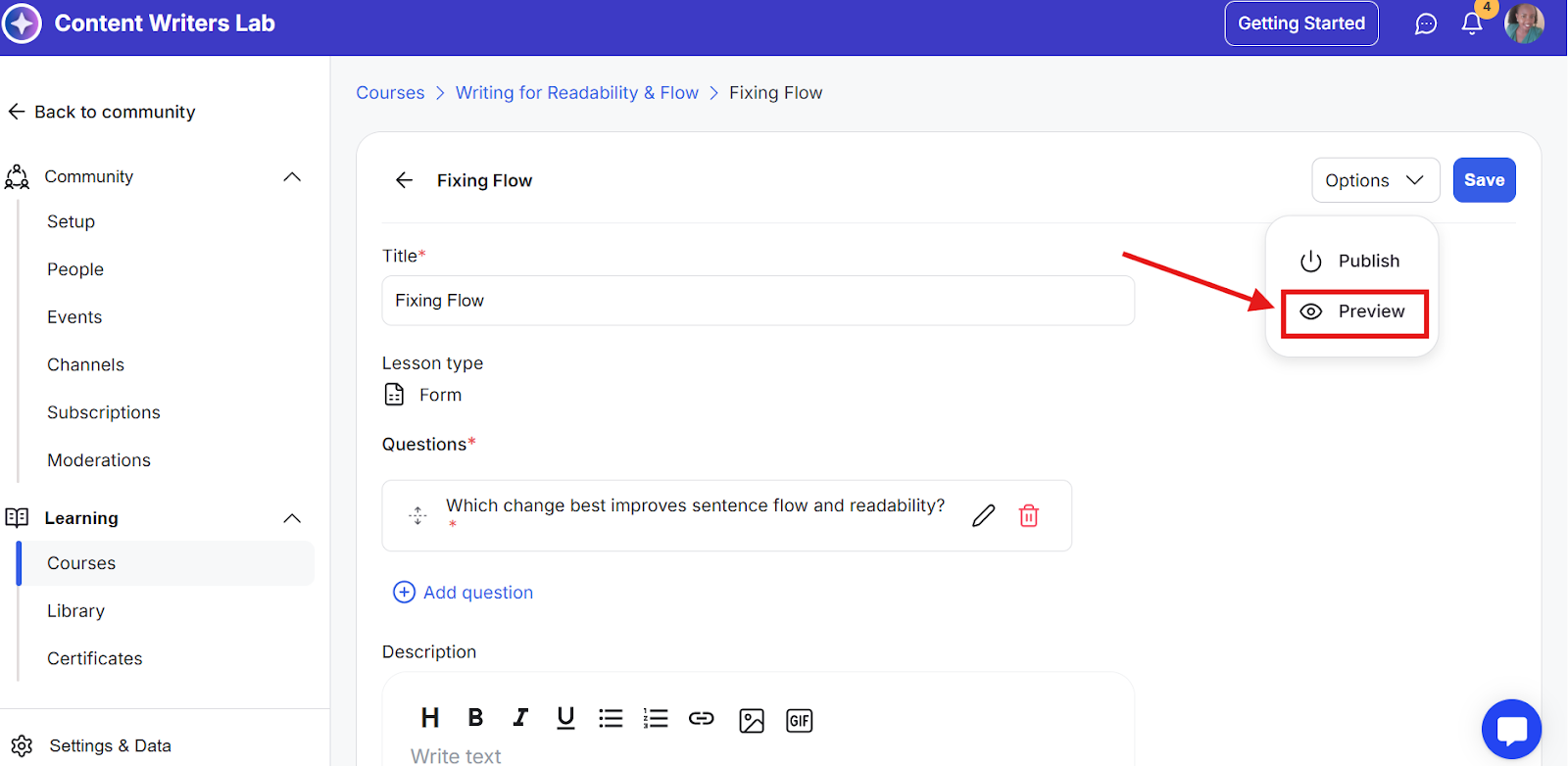
To export responses, go to your course’s Enrolments tab and click the Export Data option. Next, click on Export Form Responses. All form submissions can be downloaded as a CSV file for your records or further analysis.
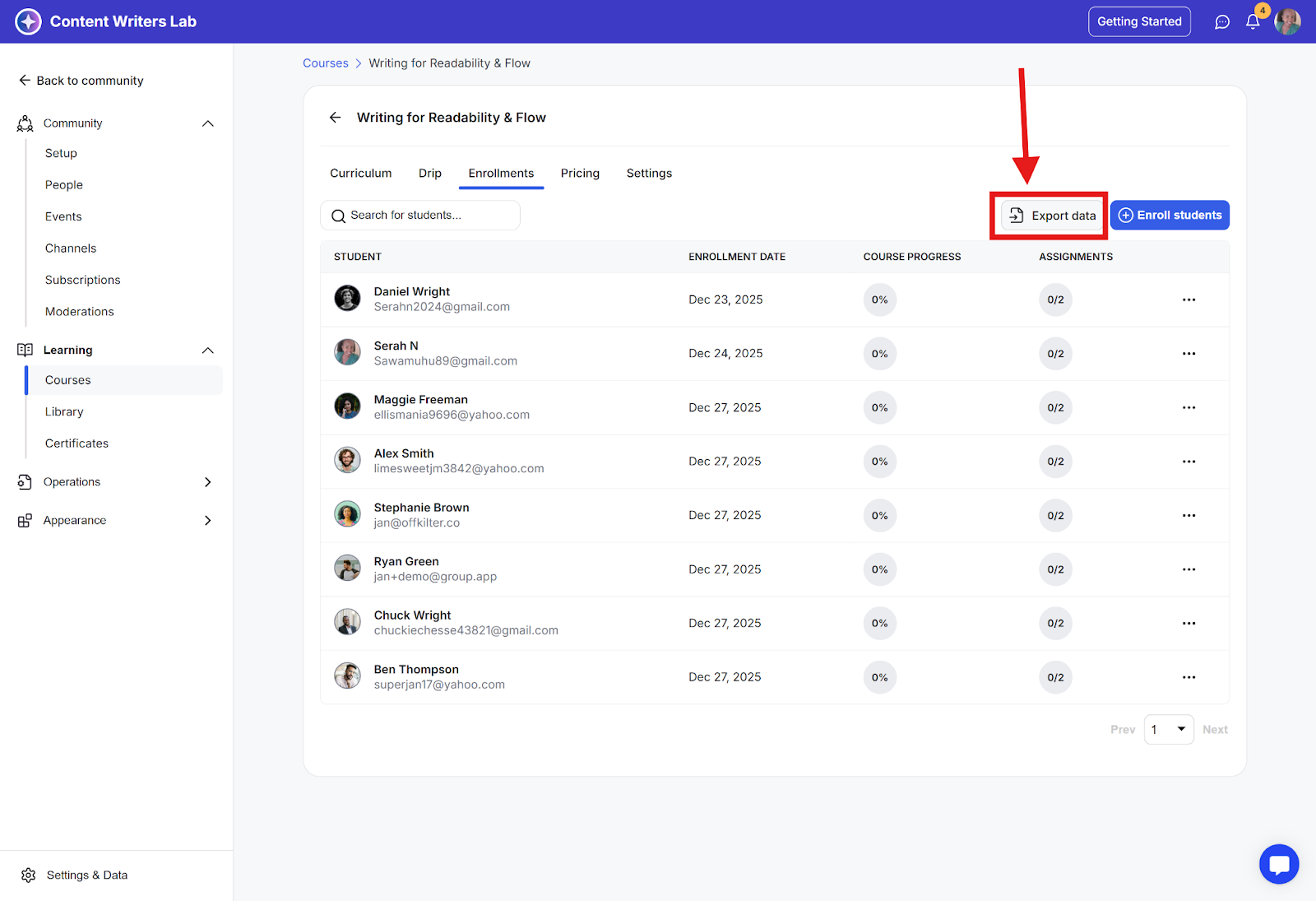
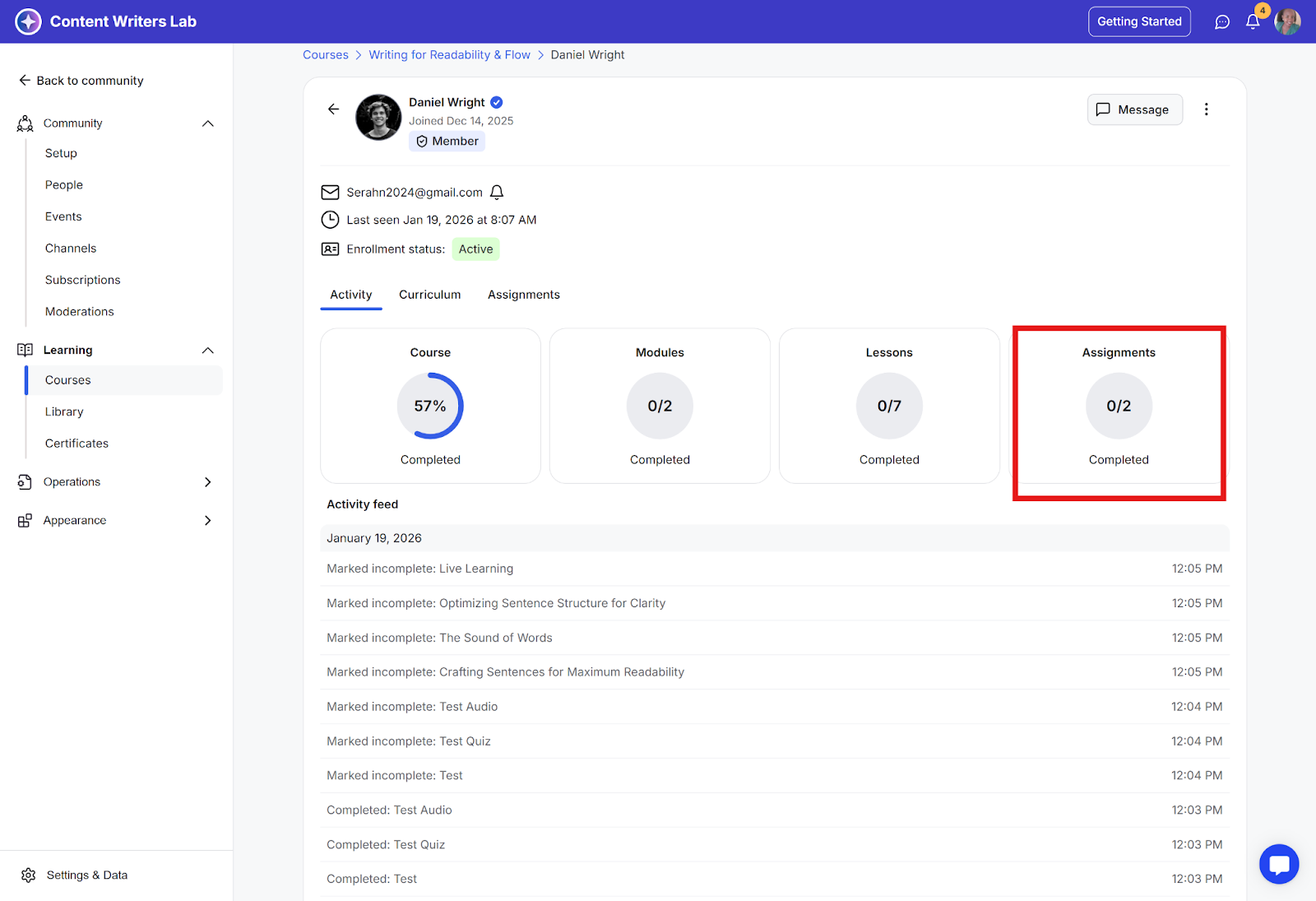
To view an individual student’s form responses, go to the Enrolments tab, click on the student’s name to open their progress report, and look under the Assignments section to review their submissions.
https://community.group.app/posts/new-course-forms-for-feedback-assignments
