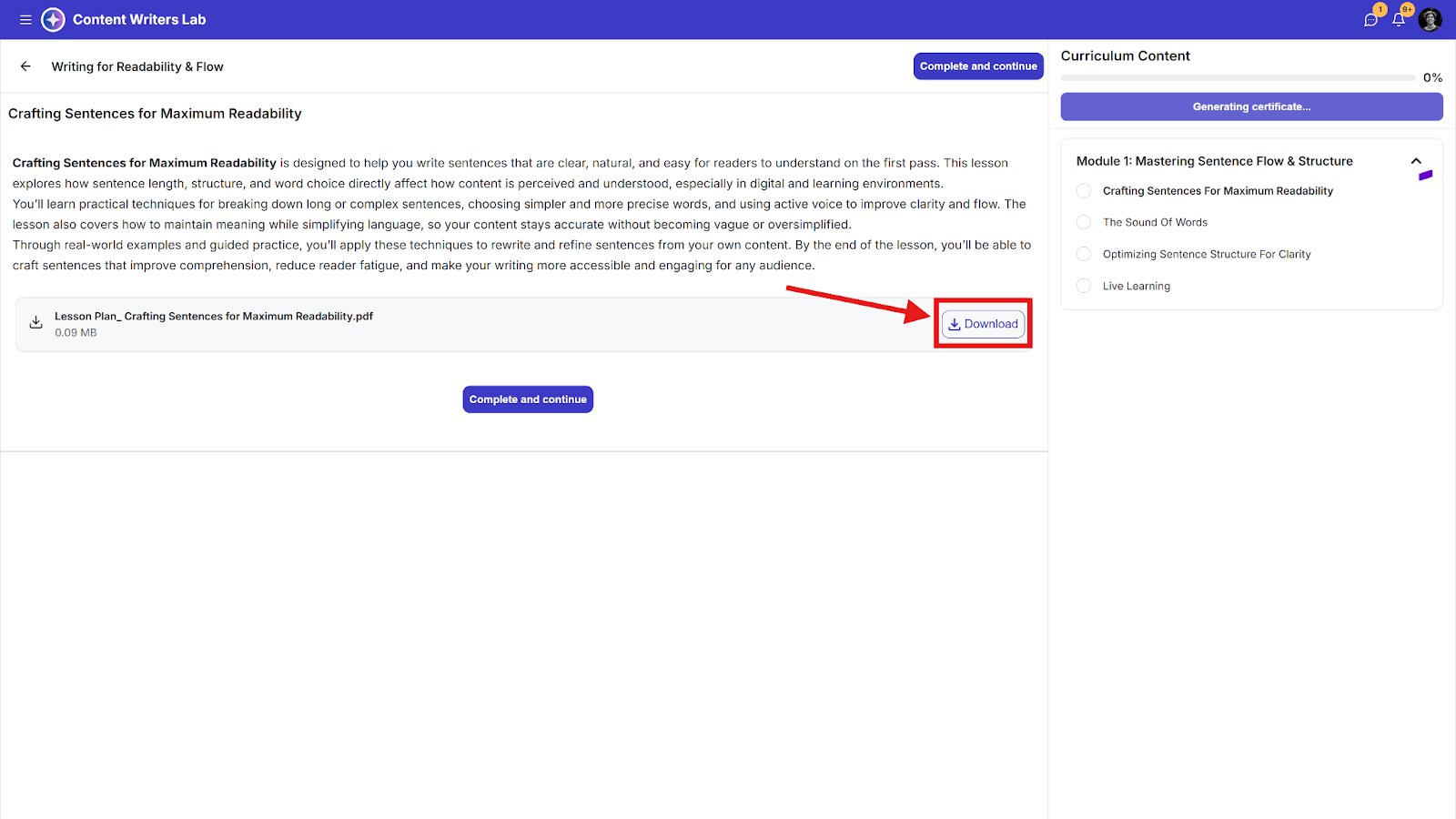
When creating a course lesson, you can include downloadable files to provide students with extra resources they can download and use offline.
How to Add Downloadable Files to Course Lessons
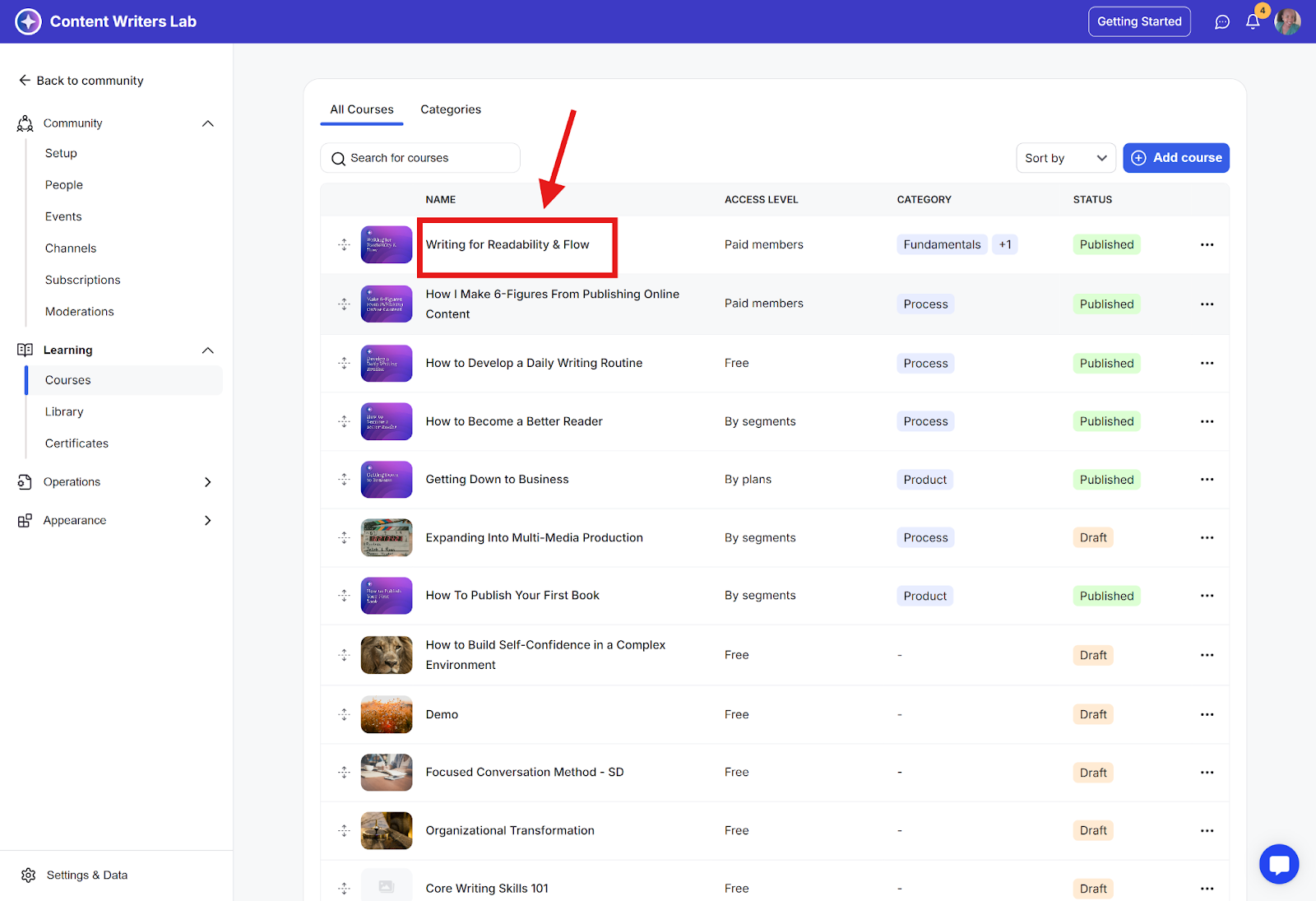
Step 1: Navigate to Courses and click on the course you want to add downloadable files to.
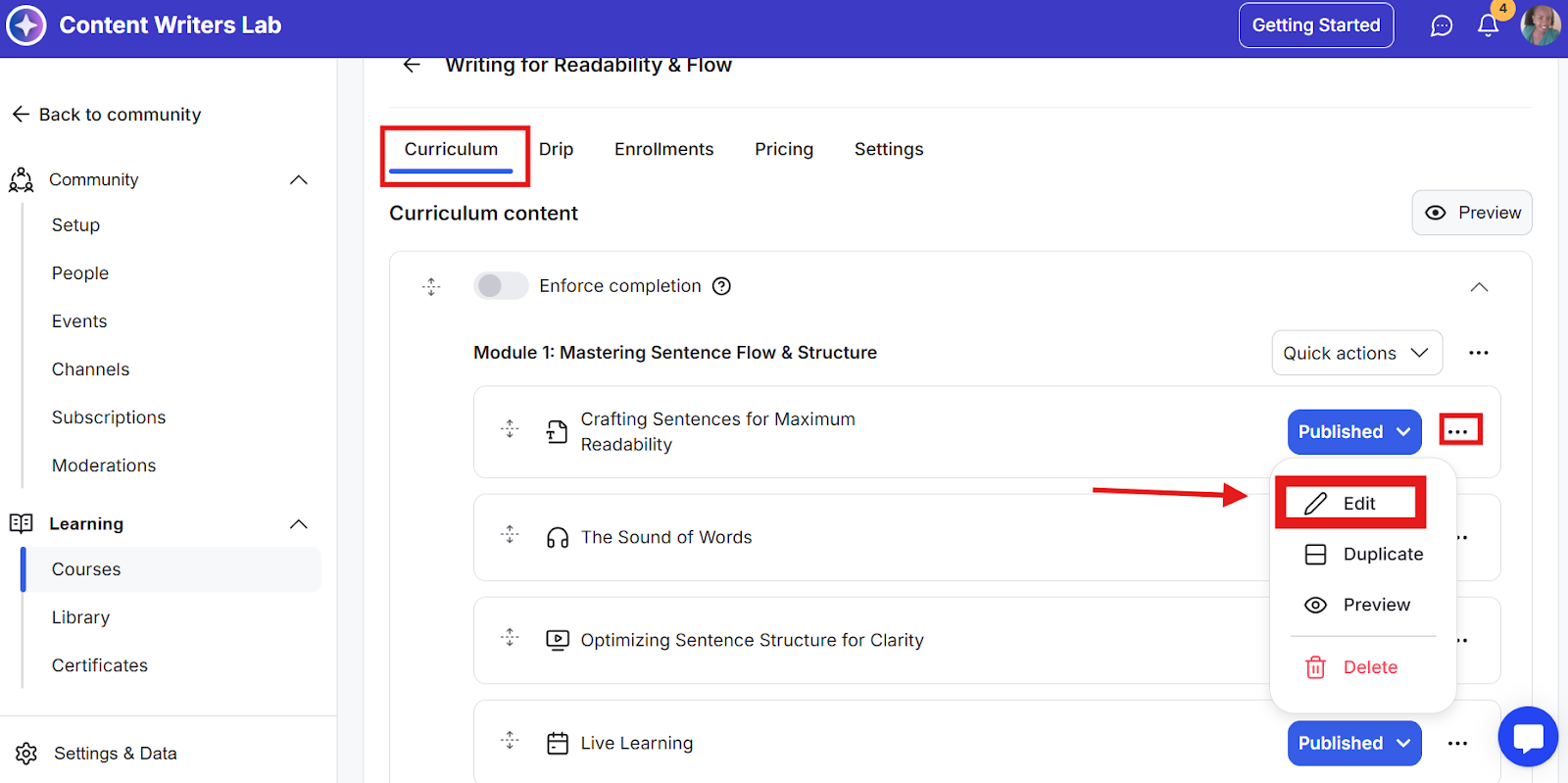
Step 2: On the Curriculum tab, click the three-dot icon on the right of the lesson and select Edit.
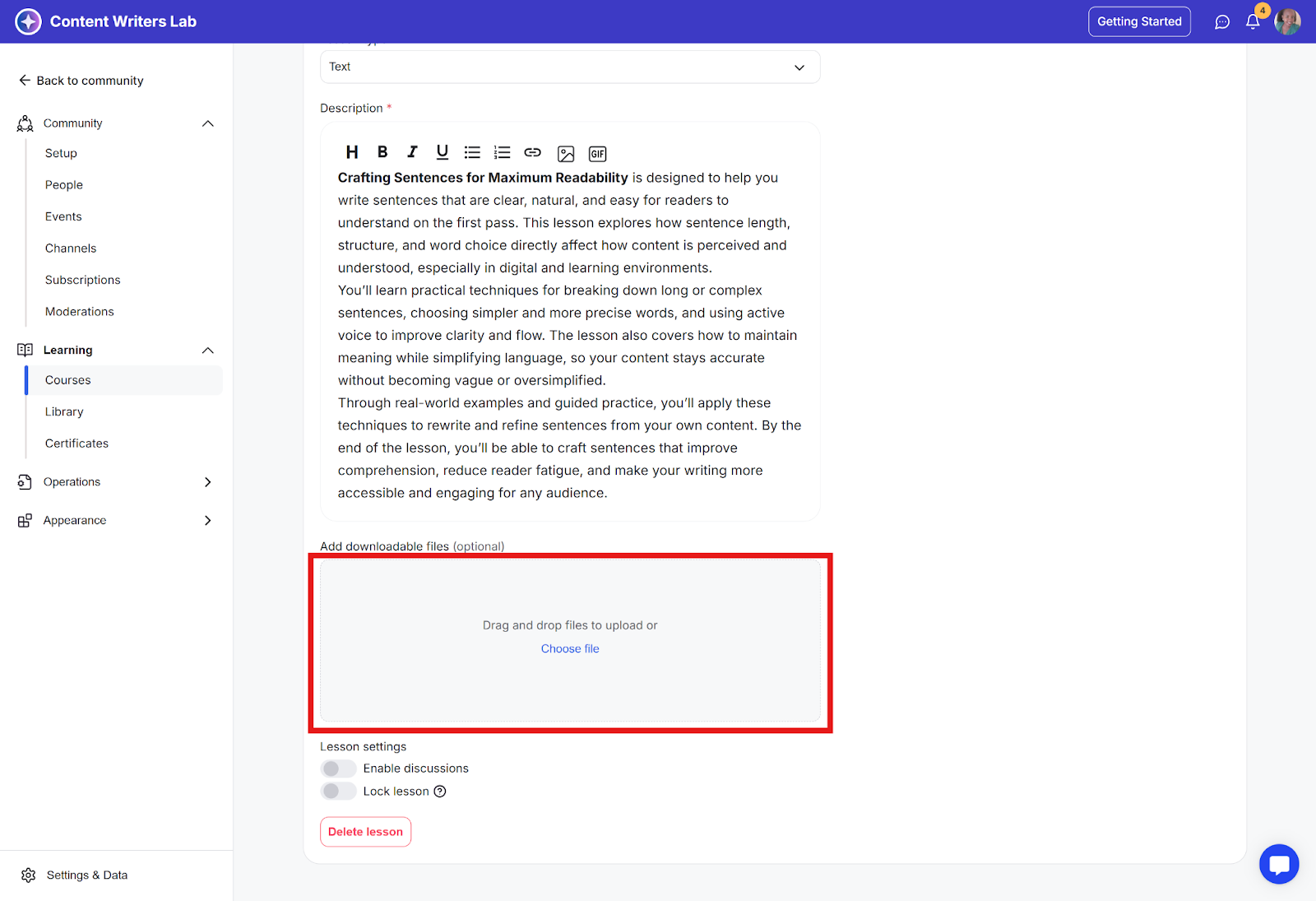
Step 3: Scroll down to the Add Downloadable files section and click the Choose File option to upload the file of your choice.
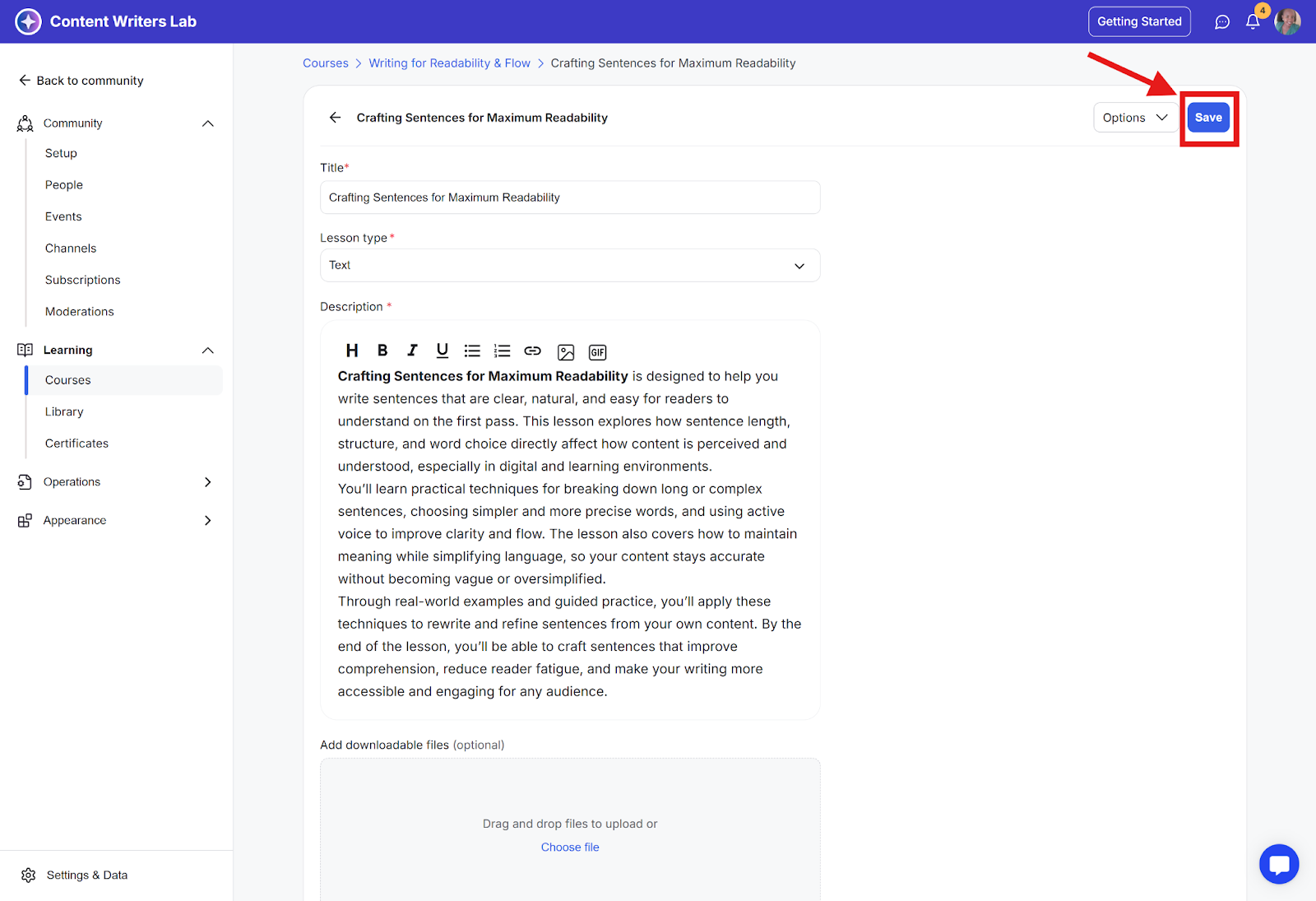
Step 4: To make the downloadable file accessible to students in your course, click the Save button. This will allow students to view and download the file.
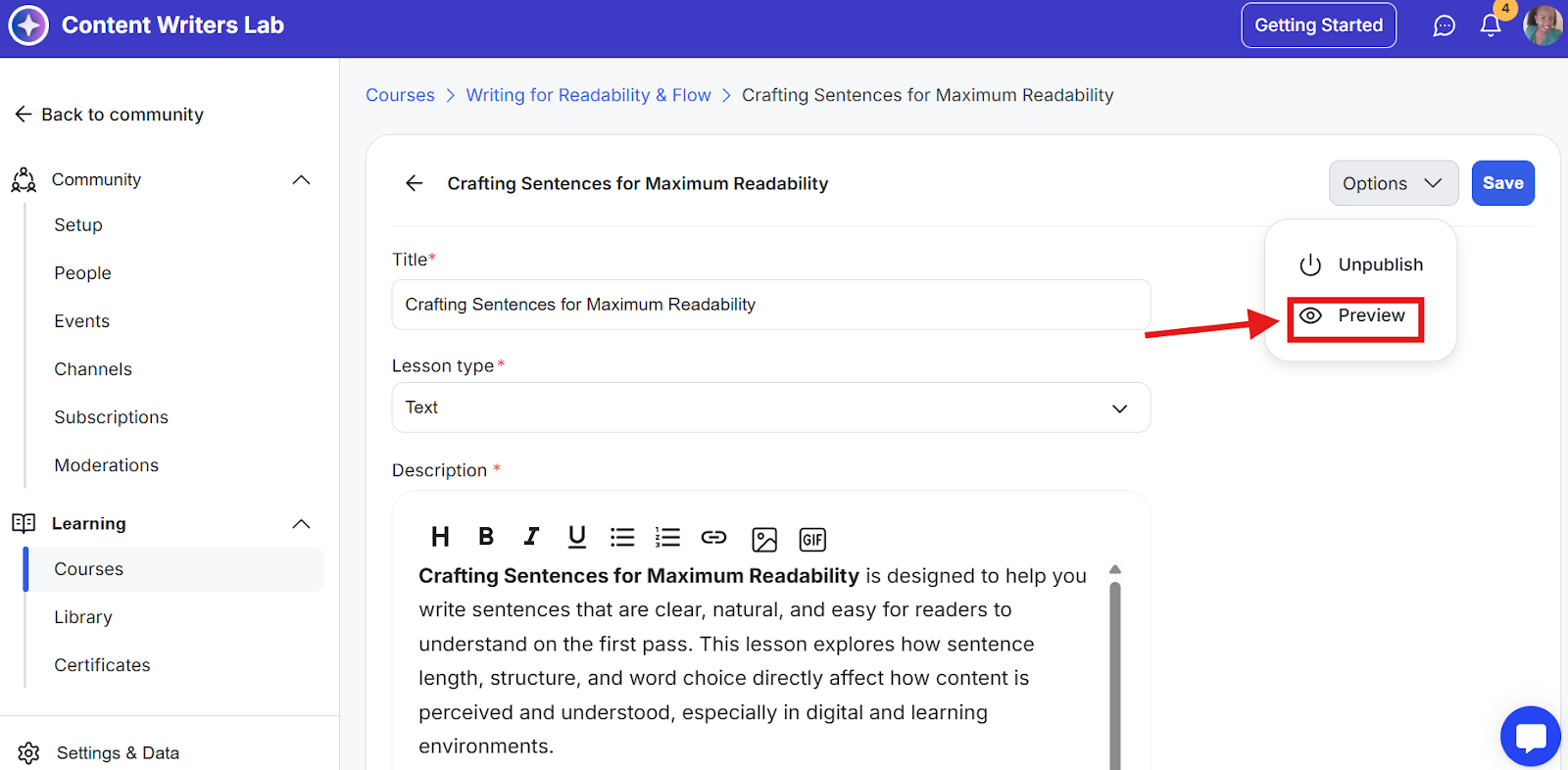
Step 5: To view and download the downloadable content on the course as a student would, click the options dropdown and select Preview. This will allow you to see the content as a student would see it.